
Syncing Users and Accounts
User and Account syncing brings your customer records and org data into Enterpret, so feedback can be linked to who said it and which account they belong to. This is what makes it possible to filter feedback by plan type, segment analyses by ARR, or see exactly what enterprise customers are flagging compared to free-tier users. If you want your feedback analysis to reflect real customer context instead of raw volume, this is one of the first integrations to set up.
The journey of integrating your Users and Account data involves the following steps:
Preparing the data correctly
Generating the API token on Enterpret
Configuring your sync through Webhook or Census
Creating links with customer feedback for rich analysis
This guide help you navigate these stages for a smooth integration.
Preparing Your Users and Accounts Data
Before configuring the integration, structure your data appropriately. Here's how you can prepare your data for integration:
Structuring User Data
1. Unique Identifier (ID): Ensure each user record has a unique ID. This ID is the primary key for user data and is critical for identifying and updating user records.
2. Created At Timestamp: Include a Unix timestamp indicating when each user was created in your system.
3. Attributes: You can pass various key-value pairs as metadata for each user. This metadata could include attributes like user preferences, engagement metrics, etc.
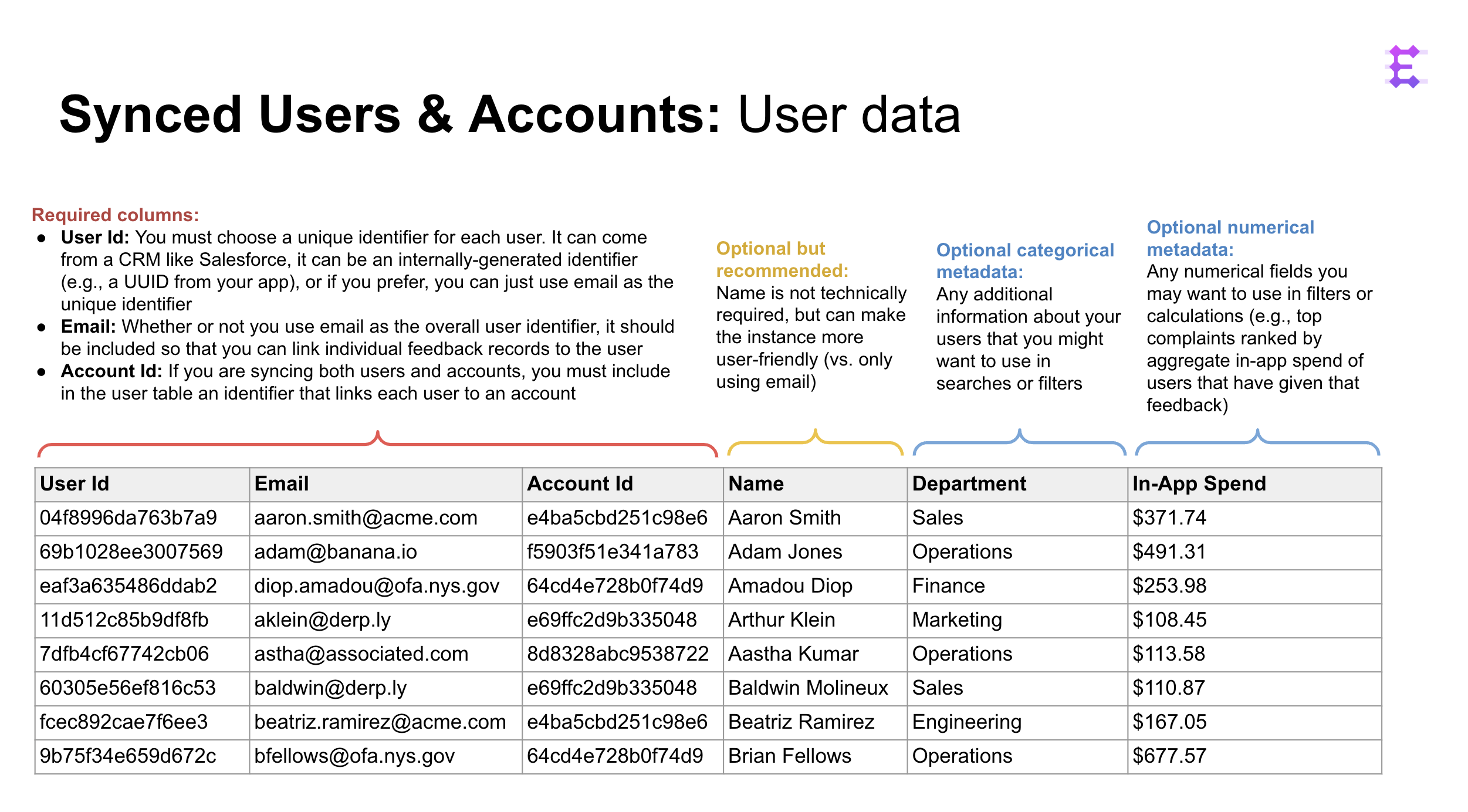
Structuring Account Data
1. Unique Identifier (ID): Similar to users, each account should have a unique identifier.
2. Attributes: Define attributes for accounts, such as plan type or Annual Recurring Revenue (ARR). Structure these as key-value pairs.
3. Created At Timestamp: Optionally supply the source account’s creation time in Unix seconds; omission defaults to now.
Enterpret provides two ways to ingest this data:
Sync the data using Census for the sources supported by it.
Push the data using the Enterpret Webhook Endpoint.
For both integrations, the first step is to generate an API Token, covered in the following section.
Generating an API Token
You need to generate an API token to send your User and Account data to Enterpret.
Note: You need two different tokens, one each for User and Account data, respectively.
To generate an API token, navigate to the Integrations page in your Enterpret instance.
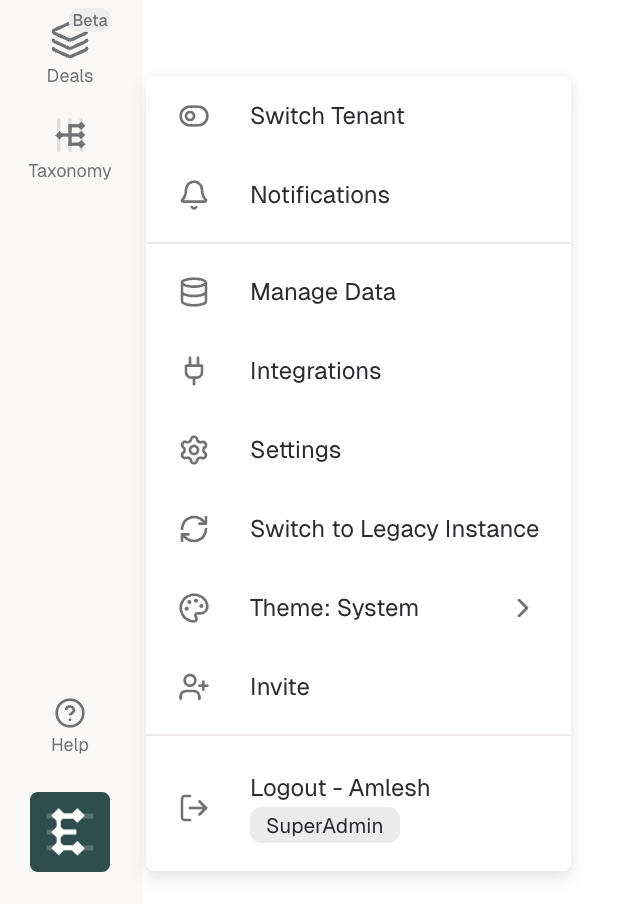
Click the + Add Integration button on the top right of the Integration page

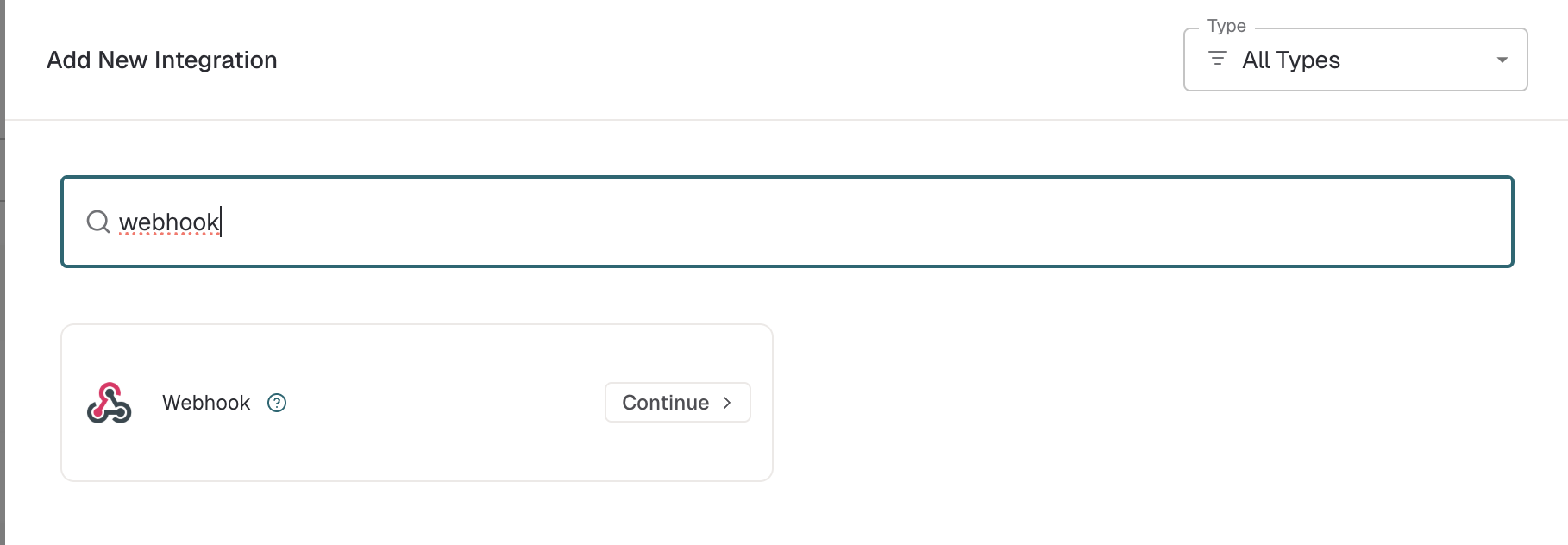
Choose Webhook from the list of Integrations
Depending on whether you're integrating User or Account data, choose the respective integration from the options. Note: if you're planning on integrating both User and Account data, you'll create two separate API Tokens, one each for User and Account.
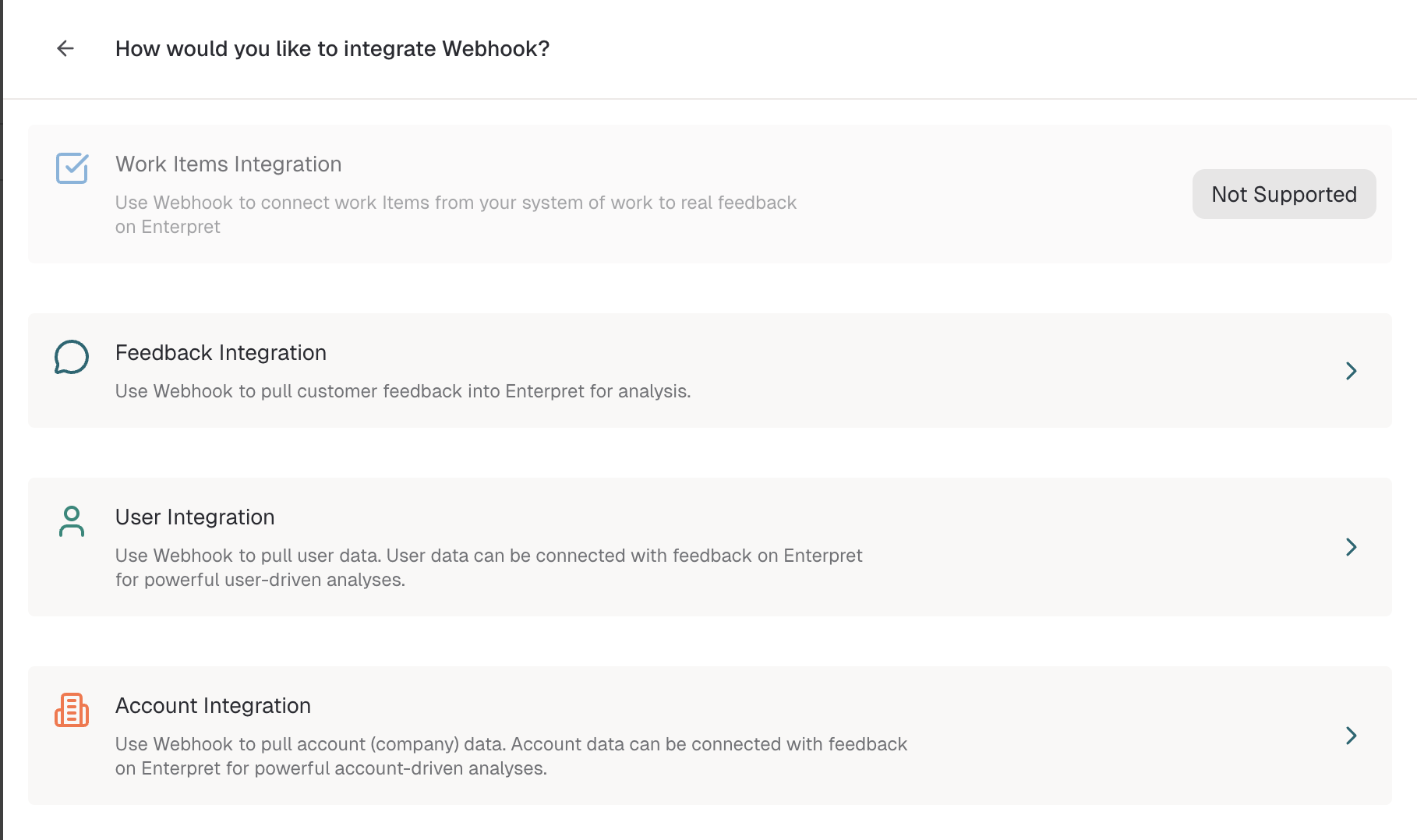
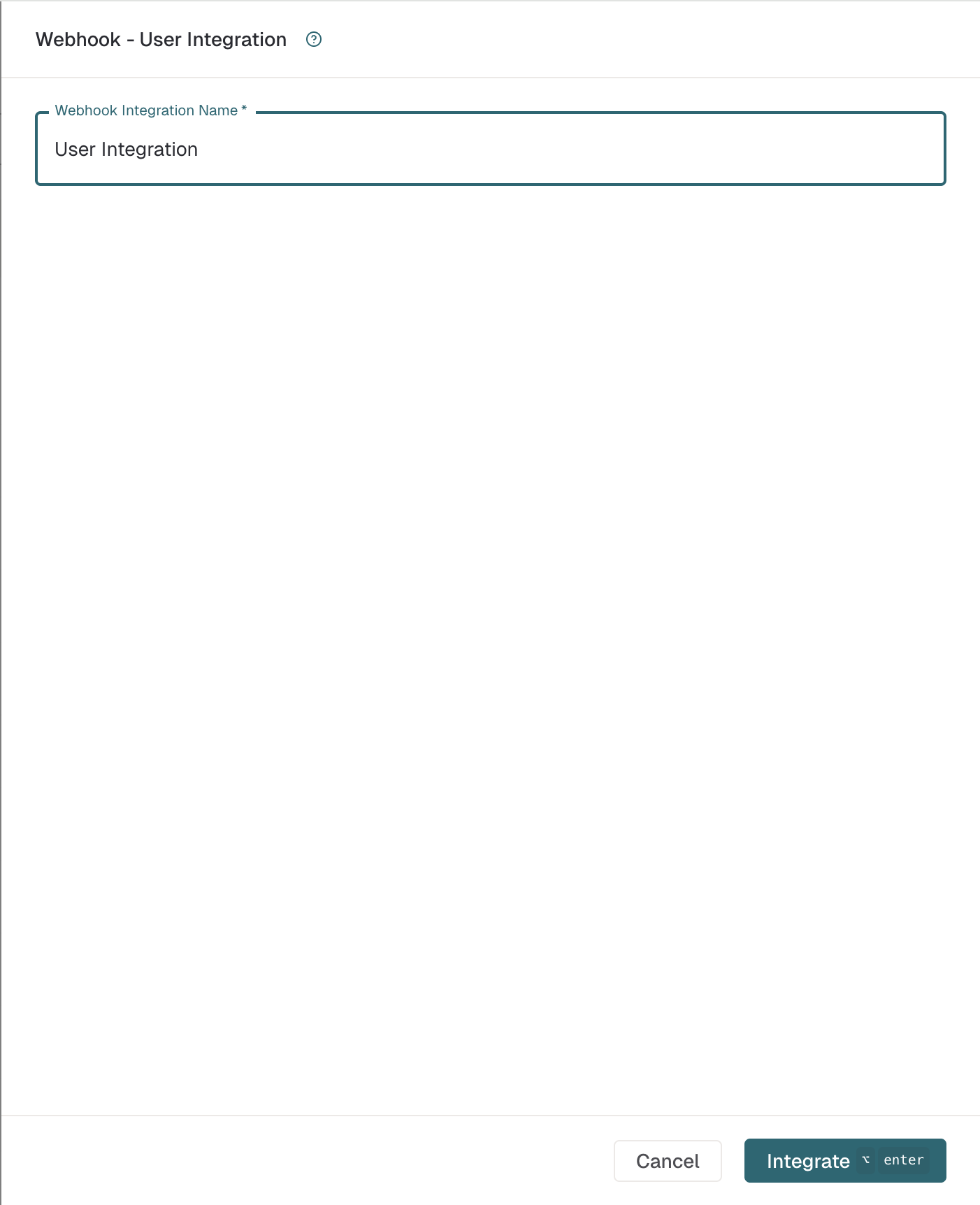
Assuming you're integrating User Data, select User Integration from the shown options. As the next step, provide a name for the integration.
Navigate to your newly created integration from the list of integrations on the left. Since you've created a User Integration here, it would be listed under the User group in the list. Upon clicking on the new integration, you see the integration detail page. Copy the API key below the integration's name:
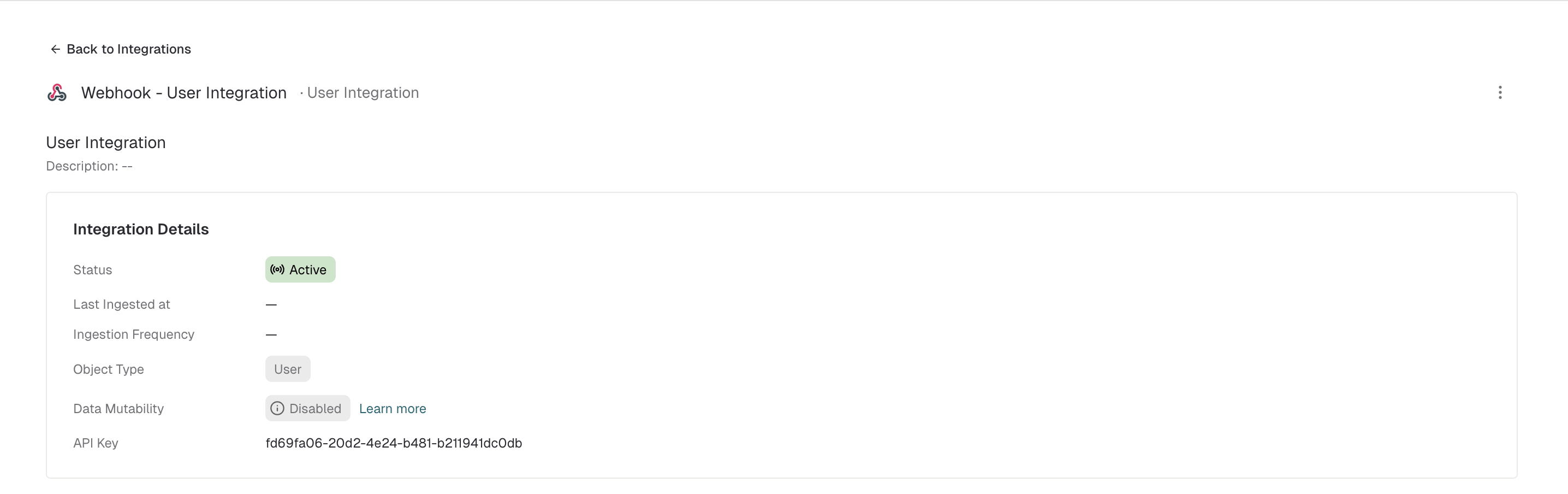
That's it! You've generated your API token for sending User data to Enterpret.
Sync Data
Once your data is ready, choose one of the following ways to send data to Enterpret.
1. Using Census for Ingestion
Follow the steps below to send data using Census integration.
Add a Destination in Census
Head to Census, specifically the Connections page.
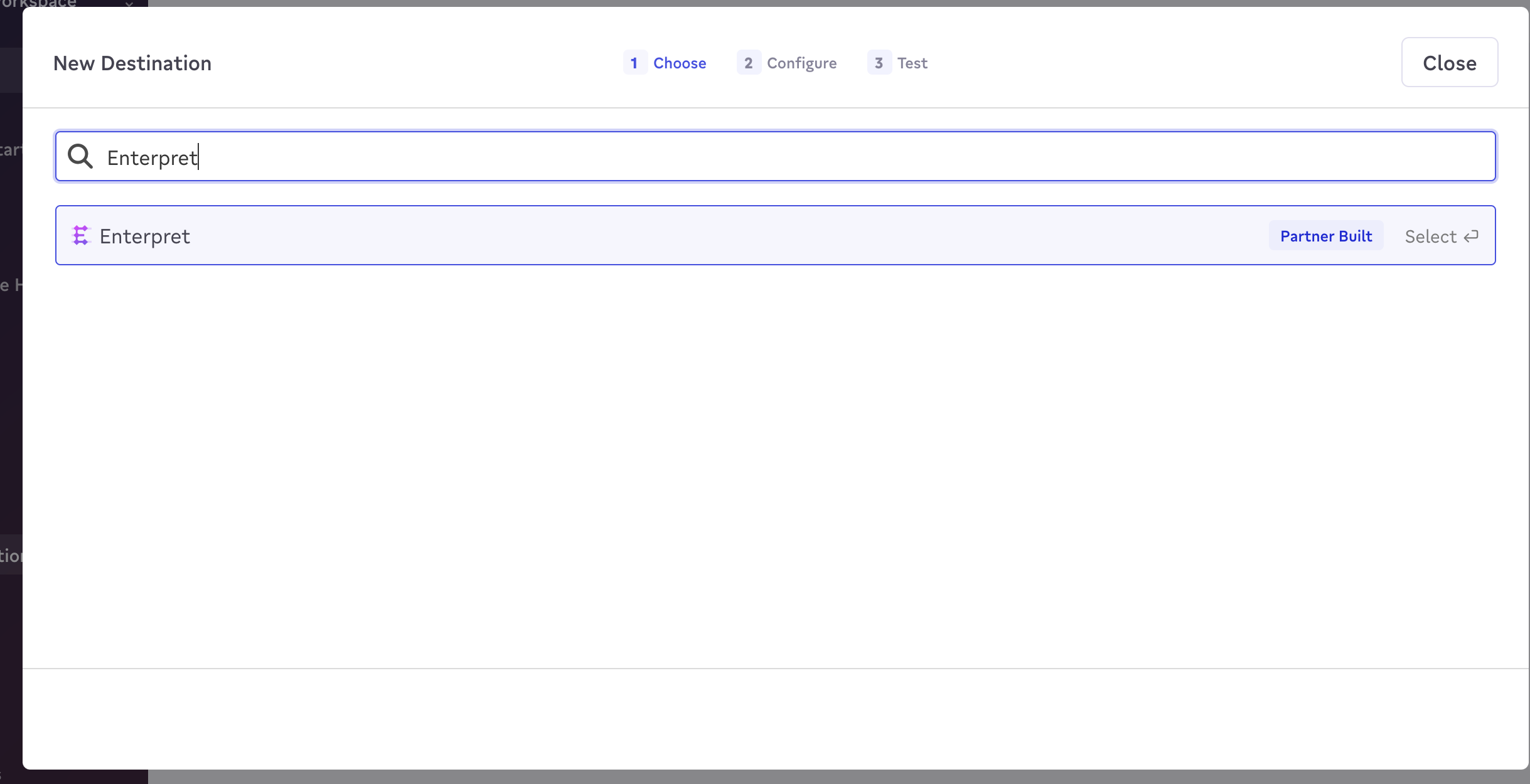
Click on New Destination and select Enterpret.
Provide a descriptive Name for your new destination and add your API Token
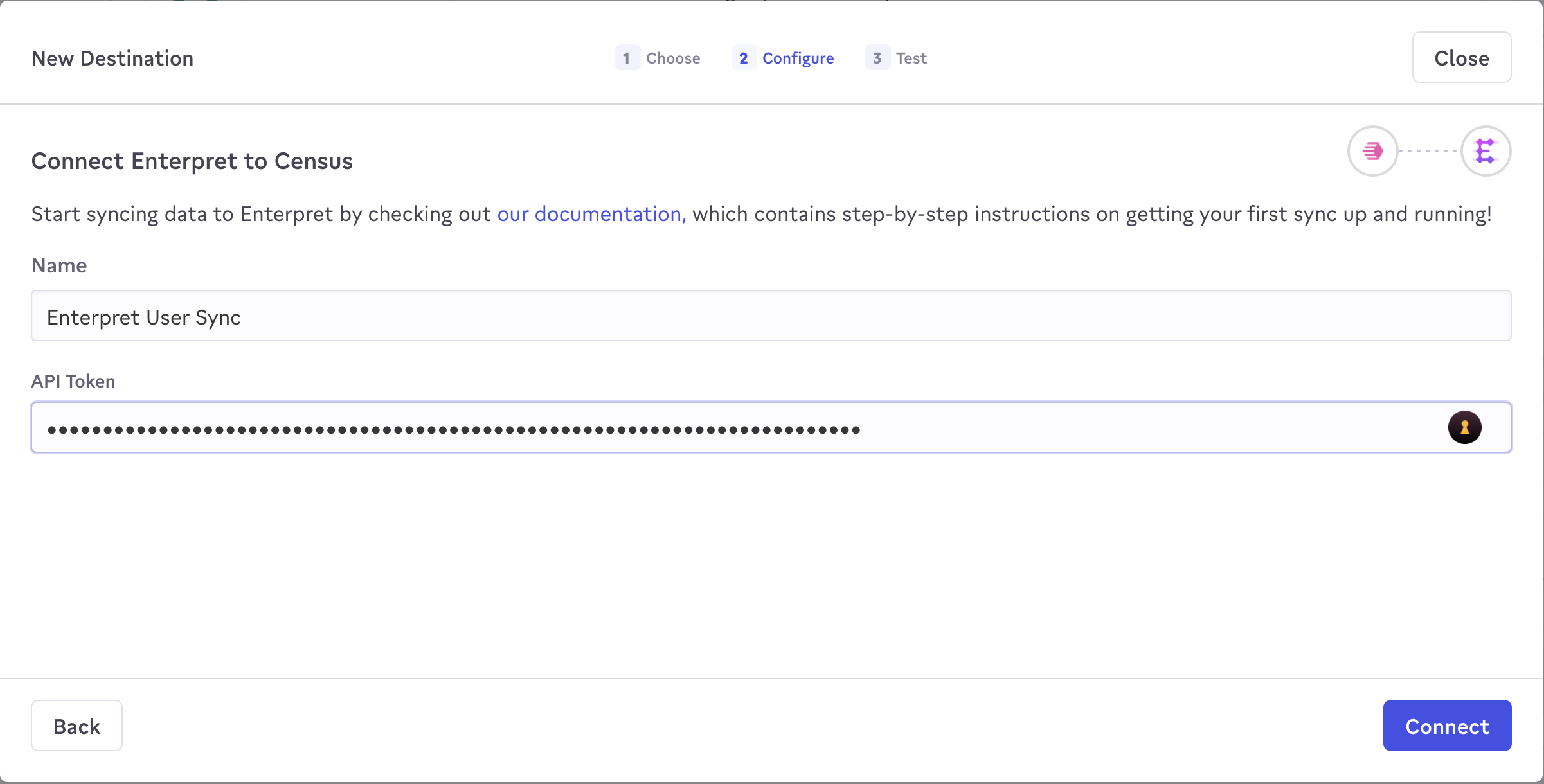
Click Connect to establish the connection.
Note: You need to create two different destination connections in Census if you plan to integrate both User and Account data, using the 2 different API Tokens acquired in the previous step, one for each type.
Set Up Data Sync
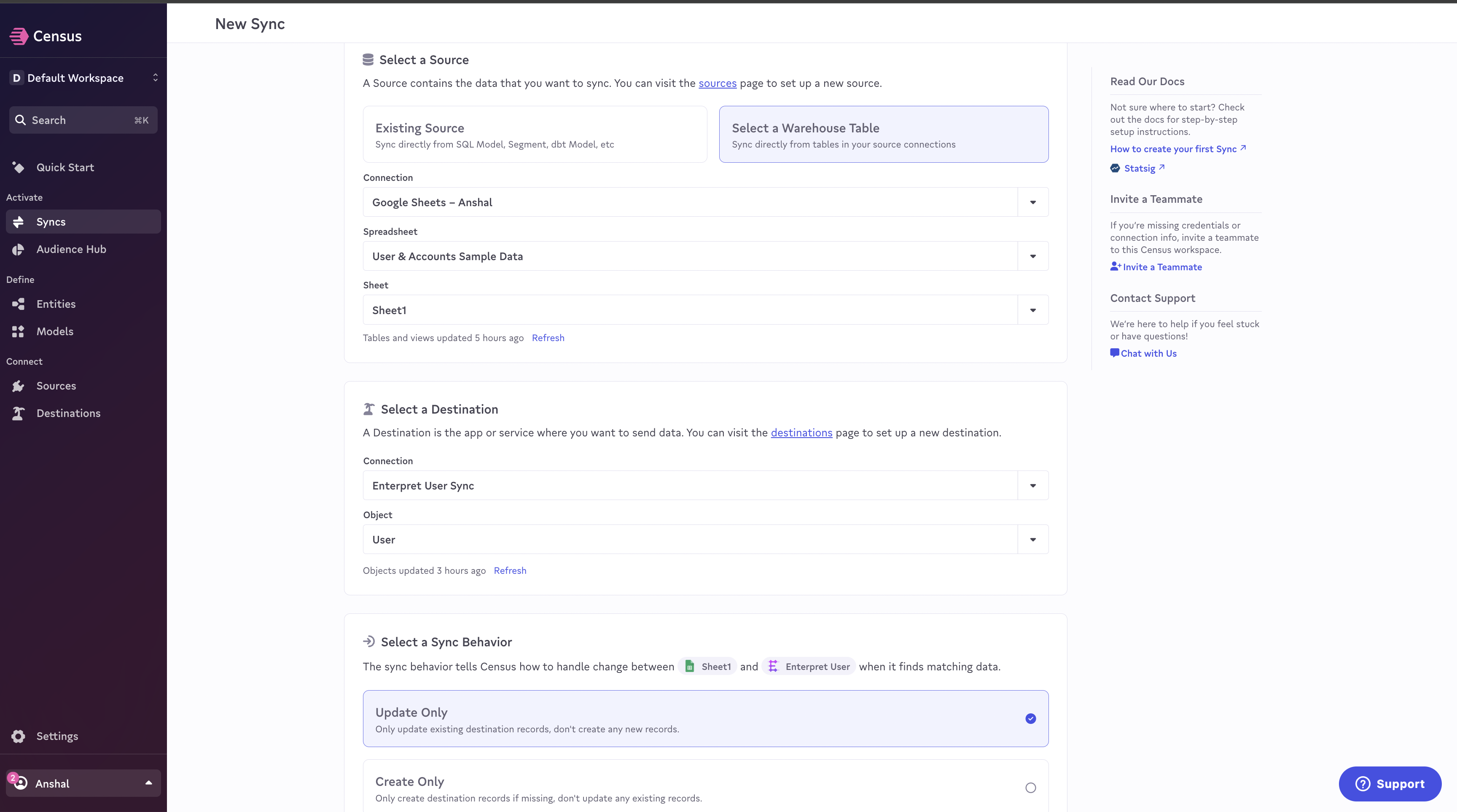
Open Syncs page, and click on Add Sync button.
Choose Object and Configure Mapping
Select either User or Account for syncing, depending on the selected destination connection. Select configurations as shown below.
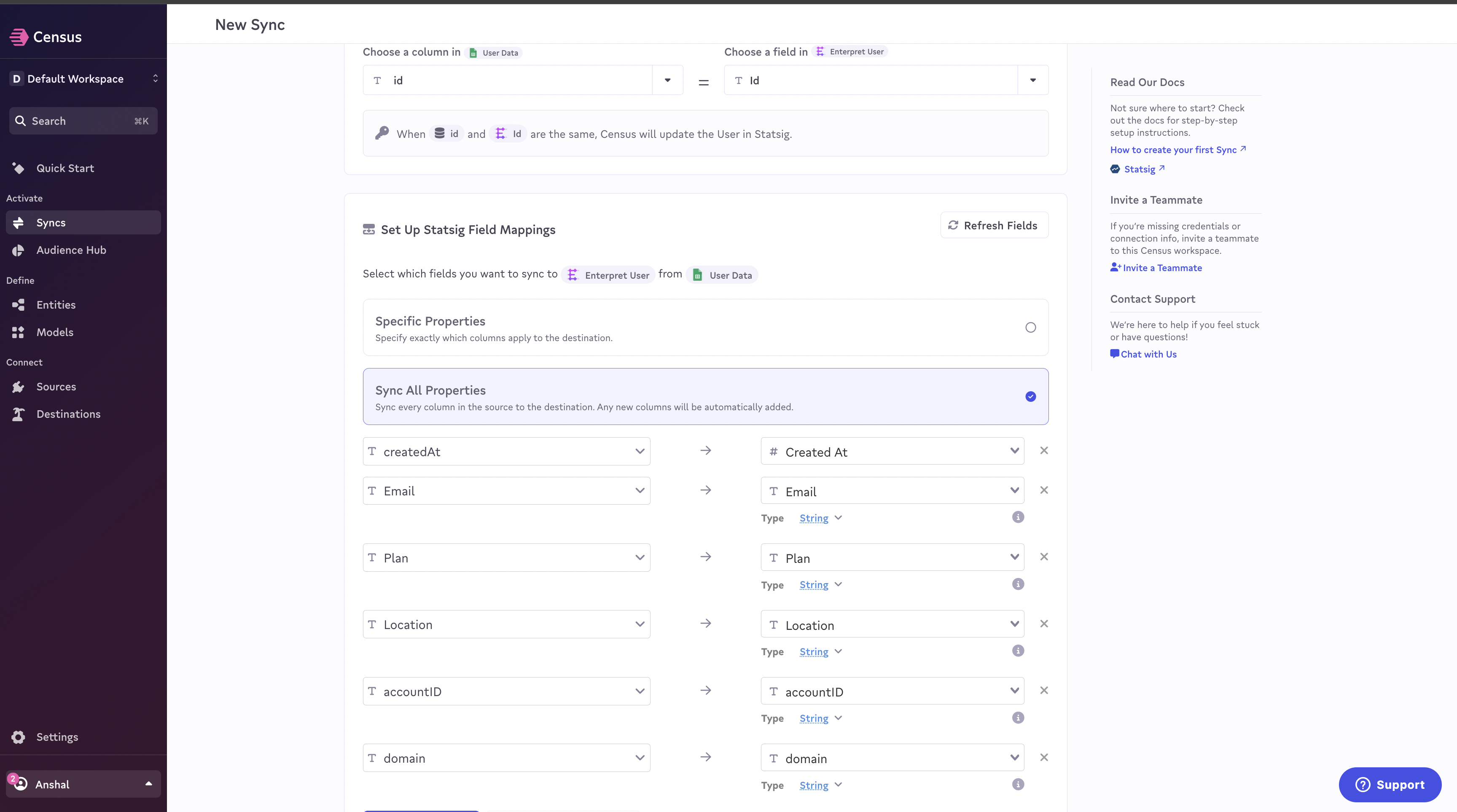
Map the ID and CreatedAt fields, along with any additional metadata, as shown below.
Note: Select the correct datatype for each of the fields, using the Type option under each field. This help you leverage data type specific operations in Enterpret, on these fields.
Testing and Finalization
Run a test to verify configurations.
Finalize the sync for data flow.
2. Ingesting Data Using Enterpret Webhook Endpoint
Ingesting User:
curl --location --request POST 'https://api.enterpret.com/webhook/users/custom' \
--header 'api-key: <API-Token>' \
--header 'Content-Type: application/json' \
--data-raw '{
    "users": [
        {
            "id": "id312378",
            "attributes": {
                "Name": {
                    "s": ["John Doe"]
                },
                "Age": {
                    "n": [45]
                },
                "Location": {
                    "s": ["NYC", "Seattle", "Dune"]
                }
            },
            "createdAt":   1698319745
        }
    ]
}'
You can send as many as up to 20 users, as part of each request.
Ingesting Account:
curl --location --request POST 'https://api.enterpret.com/webhook/accounts/custom' \
--header 'api-key: <API-Token>' \
--header 'Content-Type: application/json' \
--data-raw '{
    "accounts": [
        {
            "id": "id312378",
            "attributes": {
                "planType": {
                    "s": ["Freemium"]
                },
                "ARR": {
                    "n": [1235]
                },
                "Location": {
                    "s": ["NYC", "Seattle", "Dune"]
                }
            },
            "createdAt":   1698319745
        }
    ]
}'
You can send as many as up to 20 accounts, as part of each request.
Linking Users/Accounts with Feedback on Enterpret
When your Users and Accounts data has been processed, check its fields on the Integrations page! As the next steps, configure how this data links with your customer feedback.
For example, if you've integrated user data, you might want to use a property like User Email or User ID to link with customer feedback that also has the corresponding field.

Create similar links for all feedback integrations so that Users and Accounts are correctly mapped with relevant feedback!
Conclusion
By carefully preparing your data and configuring Census, you can effectively integrate your Users and Accounts data with Enterpret. This integration empowers you to enhance customer insights and feedback analysis, leveraging Enterpret's robust analytics platform to its full potential.
Use this context in Enterpret Agent reporting
Ask Enterpret Agent to use the relevant fields, customer attributes, or taxonomy conditions available in your workspace, with an explicit source scope and reporting period. For a daily report, weekly digest, or recurring summary, configure scheduled Agent automations with the same brief and verify the actual scope and output. Use connectors separately when a task needs external context or supported actions; data configuration here does not grant connector access.
Accounts webhook reference
The following rules apply to POST https://api.enterpret.com/webhook/accounts/custom. Use an Account integration API key. Users use their own integration key and /webhook/users/custom; feedback uses a different payload and update contract described in Webhook Integration.
Supported attributes and an initial account payload
Each account needs a nonempty string id and an attributes object. An empty object is valid. Supported custom attribute types are s (string), n (number), and b (boolean). Values are arrays, including a single value. Send actual JSON numbers and booleans rather than quoted strings.
Save this example as accounts.json. All names and values are examples. The month, quarter, and ARR band are calculated in the sending system.
{
  "accounts": [
    {
      "id": "acme-123",
      "createdAt": 1767225600,
      "attributes": {
        "account_name": {
          "s": [
            "Acme Example"
          ]
        },
        "customer_stage": {
          "s": [
            "prospect"
          ]
        },
        "firm_size": {
          "n": [
            50
          ]
        },
        "active": {
          "b": [
            true
          ]
        },
        "hubspot_company_ids": {
          "s": [
            "hs-123"
          ]
        },
        "intercom_company_names": {
          "s": [
            "Acme & Partners"
          ]
        },
        "arr_band": {
          "s": [
            "100k–250k"
          ]
        },
        "created_month": {
          "s": [
            "2026-01"
          ]
        },
        "created_quarter": {
          "s": [
            "2026-Q1"
          ]
        }
      }
    }
  ]
}
curl --request POST 'https://api.enterpret.com/webhook/accounts/custom' \
  --header 'api-key: YOUR_ACCOUNT_API_KEY' \
  --header 'Content-Type: application/json' \
  --data-binary @accounts.json
Updating an account or removing an attribute
Resending the same account identity updates that account. Send the complete set of custom attributes to retain: supplied attributes replace the previous set, and omitted attributes lose their values on that account. This is not a patch of individual attributes.
After the initial payload above, send this update through the same named Account webhook integration:
{
  "accounts": [
    {
      "id": "acme-123",
      "createdAt": 1767225600,
      "attributes": {
        "customer_stage": {
          "s": [
            "customer"
          ]
        }
      }
    }
  ]
}
The resulting custom attributes are:
{"customer_stage":{"s":["customer"]}}
firm_size and the other omitted custom values are removed from this account. To remove only firm_size, resend every other attribute you want to keep and omit only that one. Sending attributes: {} clears custom attributes; Enterpret still maintains the account ID. Removing a value does not automatically remove its field definition or values on other accounts. These updates do not retain earlier customer stages as a stage-history table.
Account identity across uploads and sources
Keep the workspace, Account object type, webhook source identity, integration name, and source id stable for later uploads to update the same account. The integration name is part of the webhook namespace. Renaming it changes the identity used for subsequent uploads.
Recreating a webhook with the same name and account ID retains the deterministic identity only when its source identity is unchanged. Legacy webhooks created before the August 2025 source migration can use a different source identity from newly created webhooks. Ask Enterpret Support to review a replacement or migration before relying on name and ID alone.
A webhook account with id: "123" and a native HubSpot account with ID 123 have different source identities. Enterpret does not automatically merge them merely because they describe the same company.
Changing a type, dates, and calculated attributes
Changing firm_size from {"s":["50"]} to {"n":[50]} creates or uses the numeric field; it does not convert the original string field across the workspace. Resend the complete desired attributes with the numeric value, verify the numeric field, and update affected filters, reports, and matching rules. The old string field definition and other accounts’ string values can remain. Contact Support before removing obsolete definitions.
Accounts do not currently support a native custom date attribute through this webhook. A timestamp sent as n remains a number: acceptance does not enable relative date filters or automatic month/quarter grouping. Compute labels such as created_month: {"s":["2026-01"]} and created_quarter: {"s":["2026-Q1"]} before sending, as in the example above. Standard Data Enrichment does not save these derived calculations onto account records.
What createdAt means
createdAt is the source account’s creation time, preferably supplied as integer Unix seconds. Omission or zero defaults to the current time. Millisecond timestamps are accepted through automatic conversion; use seconds to avoid ambiguity. The Accounts handler does not apply the feedback endpoint’s minimum-year or future-date validation. The integer must fit the supported signed 64-bit input; do not use a formatted date string.
createdAt does not select an export window, preserve old stages, or indicate when processing finished.
Linking directly to feedback
Users are not required for Accounts to link directly to feedback. Ask a workspace Admin to open Settings → Integrations, select the Account integration, and use its Link with … integrations section. Choose the target feedback integration and the corresponding field on each side. The exact layout can vary between integration views.
For example, map account hubspot_company_ids to the Gong feedback field containing the HubSpot account ID, or intercom_company_names to the Intercom company-name field. Discover the actual metadata path in your workspace. account_name is a separate display attribute and need not equal the field used in the rule.
Matching compares exact values. Keep case, whitespace, Unicode characters, and HTML entities unchanged; it does not trim, case-fold, normalize Unicode, or decode HTML entities for you. In the example above, the JSON string Acme & Partners contains literal &. If feedback stores that value, replacing it with Acme & Partners changes the match value. Use the same value type on both sides. For list-to-list matching, a shared nonempty value is sufficient; the entire lists need not be identical.
Linking runs asynchronously. The integration mapping can show In Progress and then a matching-record count. A green Linked label confirms a configured mapping, not completion of every historical match. Initial incremental linking considers a default 365-day window of Enterpret writes on either side of the relationship; it is not a 365-day cutoff on the feedback’s source creation date. A newly ingested or updated account can match older feedback. Contact Support to confirm historical reconciliation coverage or investigate missing matches.
Linking a User to an Account
There is no reserved top-level accountId to add to a Users webhook payload. Choose custom linking attributes and configure a matching rule. For the initial account above, send this to /webhook/users/custom with a User integration API key:
{
  "users": [
    {
      "id": "user-456",
      "attributes": {
        "email": {
          "s": [
            "person@example.com"
          ]
        },
        "company_key": {
          "s": [
            "hs-123"
          ]
        }
      }
    }
  ]
}
Have an Admin configure Users → company_key to match Accounts → hubspot_company_ids. Both contain hs-123, so the user links to that account. These attribute names are examples. User-to-Account linking is optional when accounts already link directly to feedback.
Checking stored values through the UI and MCP
Open a linked feedback record’s expanded details to view its Account metadata; an Account reference can open the associated records in search. The integration’s Manage Metadata area shows field definitions and sample values. An unlinked account may not yet appear on feedback, so use MCP or export to inspect its stored values directly.
In a connected MCP client, discover the tools and schema available to that connection. With the legacy public catalog, for example:
get_schema({})
execute_cypher_query({
  "cypher_query": "MATCH (a:Account) WHERE a.origin_record_id = 'acme-123' RETURN a.* LIMIT 10",
  "description": "Read the stored attributes for the example account"
})
Use the returned schema and field names to narrow the query and distinguish integrations if several accounts share a source ID. The result includes stored attributes, rather than assuming friendly names are query properties. Connections advertising the newer catalog can use get_graph_schema, search_graph_fields, and run_graph_query; follow the argument schema your client actually receives. See Enterpret MCP Server.
Exporting webhook account attributes
Webhook accounts are eligible for Export API v2. First list objects, following every paginationToken, and select the exact account object ID from your workspace’s catalog:
curl --request POST 'https://api.enterpret.com/export/external/v2/objects' \
  --header 'Authorization: Bearer YOUR_DATA_EXPORT_TOKEN' \
  --header 'Content-Type: application/json' \
  --data '{}'

# If the list response returns paginationToken, request the next catalog page:
curl --request POST 'https://api.enterpret.com/export/external/v2/objects' \
  --header 'Authorization: Bearer YOUR_DATA_EXPORT_TOKEN' \
  --header 'Content-Type: application/json' \
  --data '{"paginationToken":"TOKEN_FROM_PREVIOUS_LIST_RESPONSE"}'
Export the selected account object using completed UTC-hour processing windows. For an account created in January but written into Enterpret at 10:30 UTC on 27 October 2026, use the completed 10:00–11:00 UTC window on 27 October, after processing. January’s source createdAt is not the export selector.
curl --request POST 'https://api.enterpret.com/export/external/v2/export' \
  --header 'Authorization: Bearer YOUR_DATA_EXPORT_TOKEN' \
  --header 'Content-Type: application/json' \
  --data '{
    "objectID":"ACCOUNT_OBJECT_ID_FROM_CATALOG",
    "startTime":"2026-10-27T10:00:00Z",
    "endTime":"2026-10-27T11:00:00Z"
  }'
A response such as this still requires another page:
{"files":[],"cursor":"NEXT_CURSOR"}
Repeat the export request with "cursor":"NEXT_CURSOR" and the same object and time bounds. Download every returned file; continue until the cursor is absent or empty. Files can become available after processing, so an empty export is not a completion check. See Export API v2 for inclusive-start/exclusive-end bounds and the complete pagination contract.
Limits, naming, responses, and retries
Item | Accounts endpoint behavior |
|---|---|
Batch size | At most 20 accounts per request. More than 20 returns HTTP 400. |
Raw request body | At most 1,048,576 bytes (1 MiB), including all JSON structure, names, and accounts. Larger bodies return HTTP 413. |
Required fields | A nonempty string id and an attributes object on every account. Invalid JSON or required fields return HTTP 400. |
Attribute count and value sizes | No separate per-account attribute-count, string-length, or list-length quota is specified here. All values must fit the body limit; this is not a guarantee of unlimited fields or storage. Ask Support to review unusually large records. |
Attribute names | Use consistent lowercase snake_case. Field identifiers are lowercased and special characters can be encoded; case-only names can collide. Avoid path-like names and reserve ID, id, and their case variants; Enterpret derives the ID field from the top-level id. |
Request rate | Do not apply a feedback-webhook requests-per-minute allowance to Accounts. Contact Enterpret Support to agree bulk throughput. On HTTP 429, use bounded exponential backoff with jitter and honor Retry-After when returned. |
HTTP 200 with body {} means validation and queue handoff succeeded. It does not mean each account or its links finished processing, and it contains no per-account result or completion job ID. Verify final attribute values through the UI, MCP, or export. If values remain missing or incorrect, contact Support with the integration name, UTC request time, source account IDs, and any returned referenceID, code, and msg. Keep API keys private. Downstream processing errors require Support investigation; this response does not expose a customer per-account error report.
Workspace access and raw payload retention
Account values can be viewed and queried by Admin, Editor, Member, and Viewer roles. Matching-rule changes require an Admin. There is no supported role restriction for a single account attribute such as exact ARR. Hiding a field is not deletion or an access restriction; see View & Manage Metadata. Send an upstream ARR band instead of exact ARR if that is the value workspace users should receive.
The raw webhook troubleshooting archive has a 90-day retention period. Expiry of a raw payload does not delete an ingested account or feedback. Contact Support promptly to check availability and recovery options; see raw webhook payload retention. This archive expiry is separate from intentional account deletion through the User Privacy API and its documented cascade.