
Salesforce accounts
Enterpret imports Salesforce Accounts and available fields from each account’s most recently created opportunity. After the accounts sync, link them to feedback. Check ARR, owner, and deal stage against Salesforce before reporting on them, since imported fields depend on what the connection can read and what Salesforce returns.
Head over to https://dashboard.enterpret.com and log in to your instance.
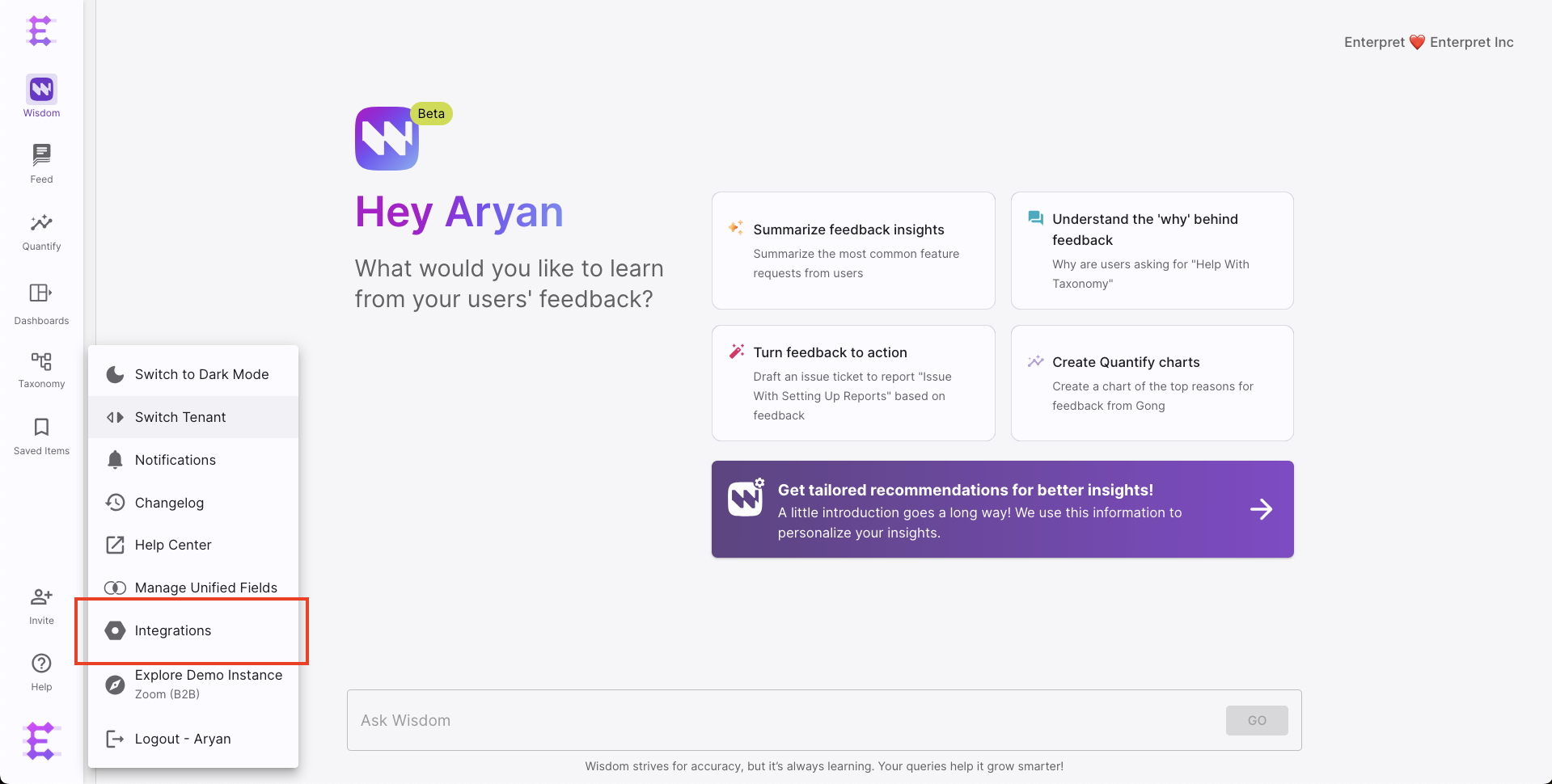
Open Settings → Integrations. Older navigation may place Integrations directly in the workspace menu shown below. You need an authorized Owner or Admin account to configure the integration.
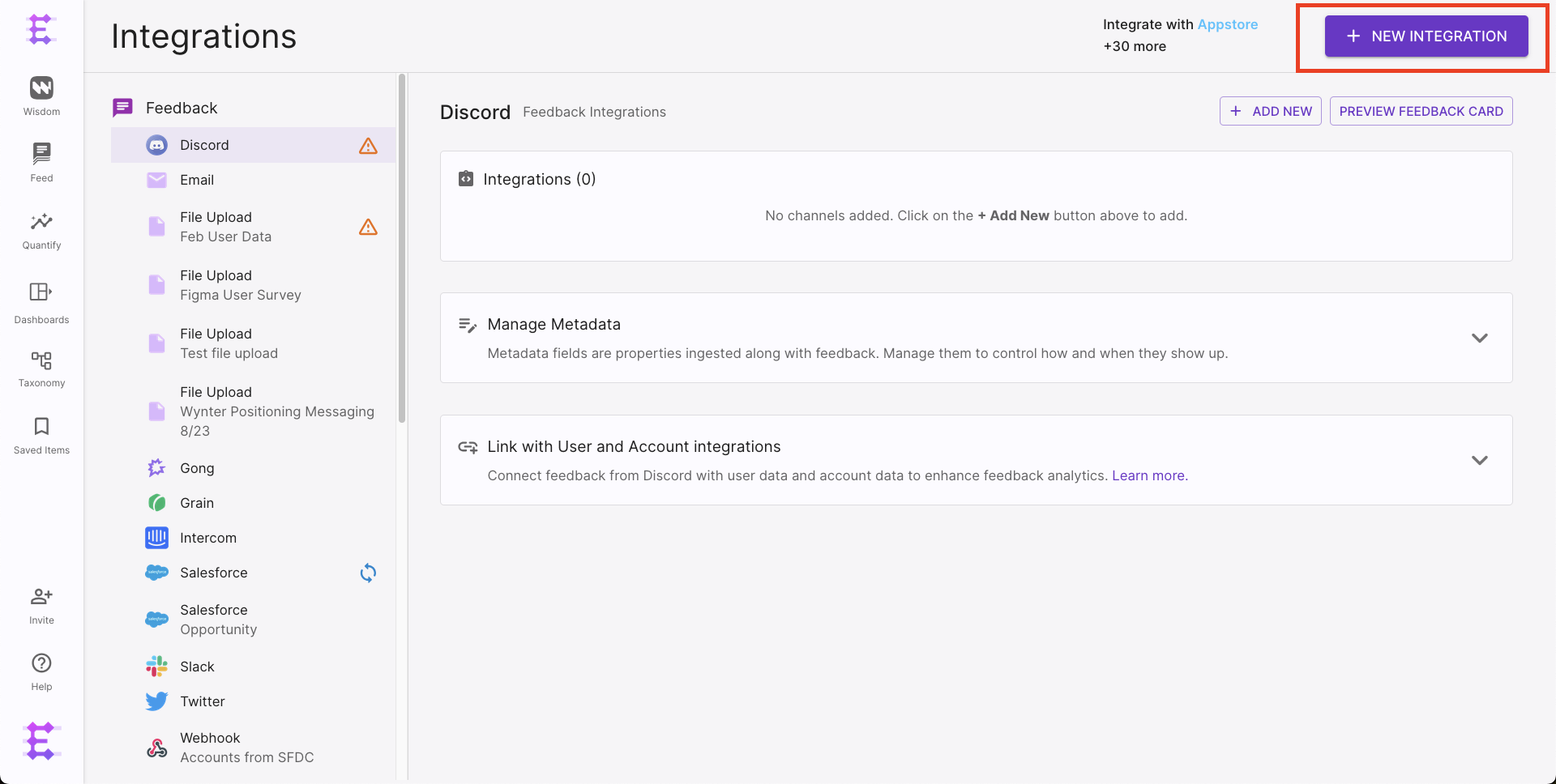
On the Integrations page, select
+ NEW INTEGRATIONat the top right.Search for Salesforce and select it.
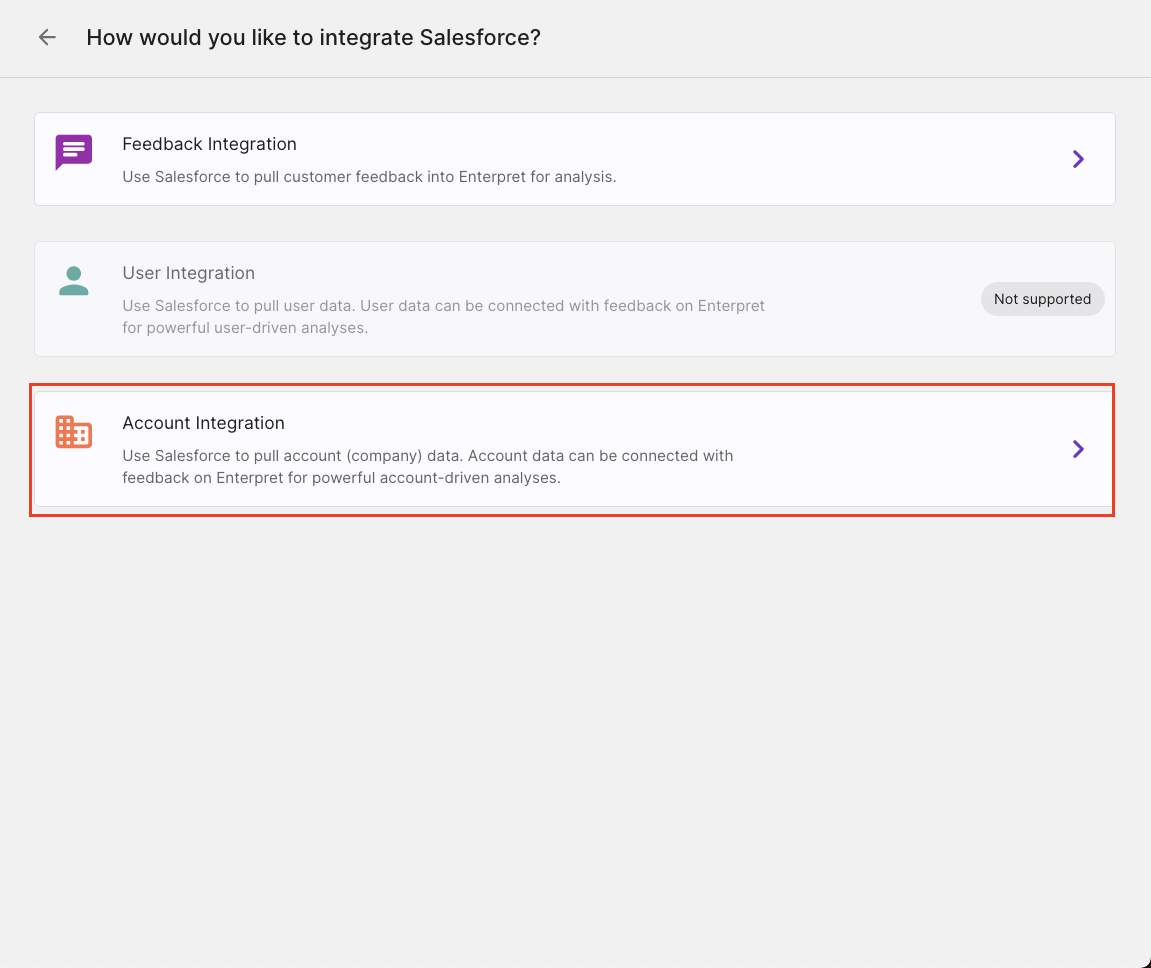
Select Account Integration.
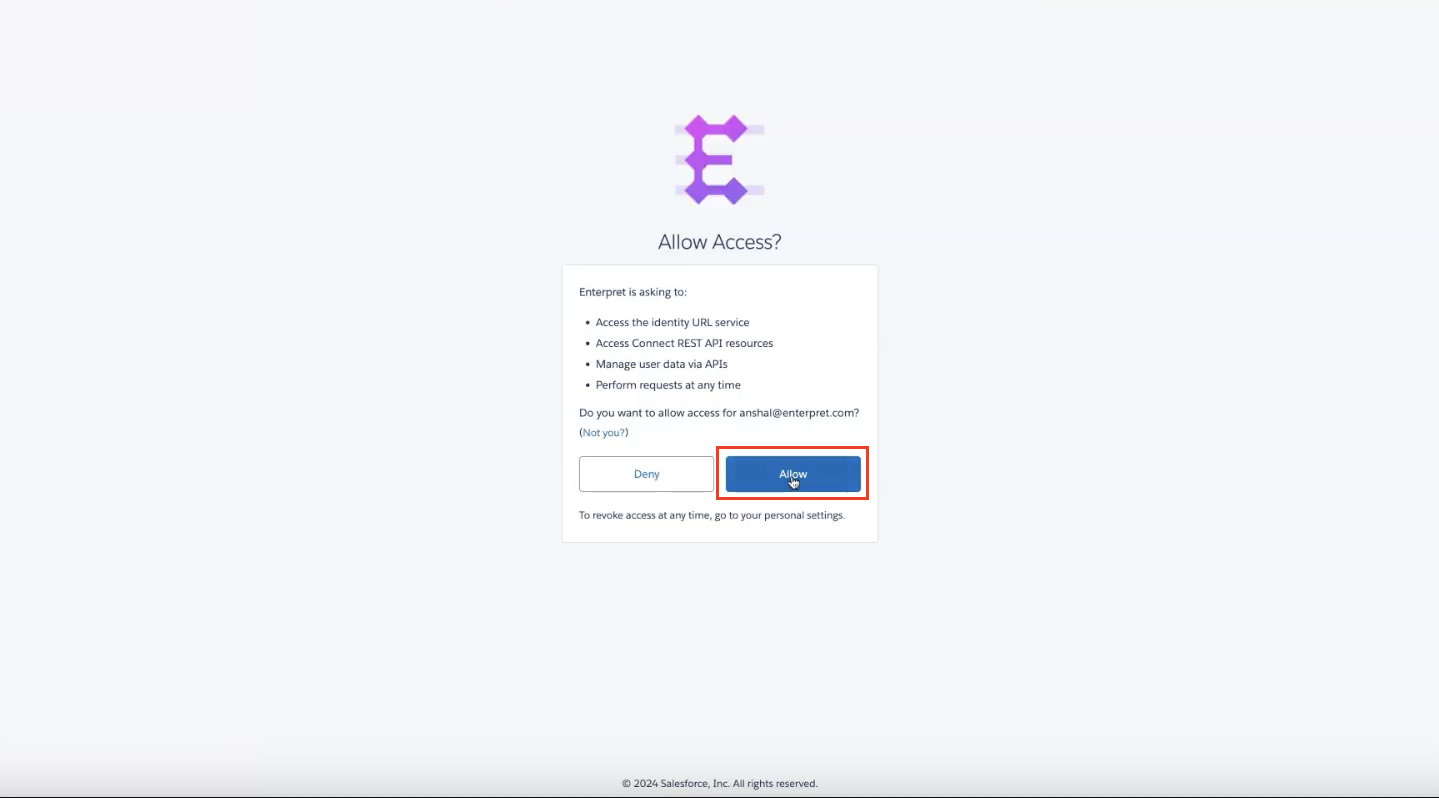
When Salesforce opens, sign in and authorize the Enterpret app to read your Salesforce data.
After authorization, return to Enterpret and check the connection’s status in Integrations. Accounts can take time to appear.
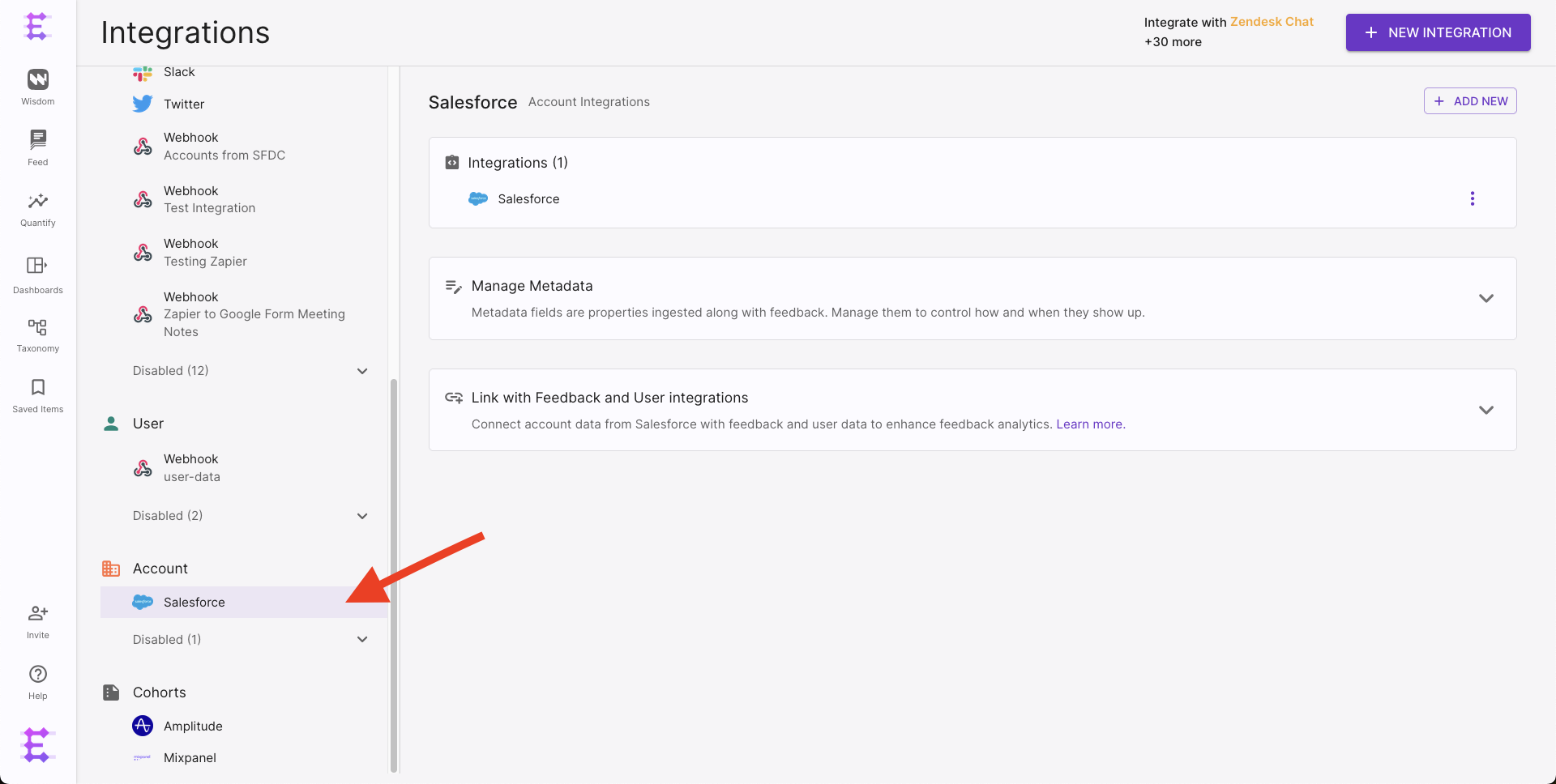
After the connection is configured, background ingestion can fetch the eligible account data. Processing time depends on the history window, source access, API limits, and queued work. Check integration status and sample imported accounts; contact Enterpret if you need help with progress.
After accounts sync, you can start linking feedback records. Configure matching fields or supported relationships and check example linked records. Ingesting an account alone does not guarantee accurate feedback matching. To learn more, visit Linking Users/Accounts with Feedback on Enterpret