
Sync Databricks users and accounts
Sync people and account attributes from Databricks to Enterpret. Link the records to feedback so you can filter or compare it by attributes such as user role, account plan, or region. Set up a separate connection for each user or account table or view you want to sync.
Beta availability. If Databricks is missing from your integrations catalog, contact your Enterpret team to ask about enabling it for your workspace.
Before you connect
- Use an Enterpret Owner or Admin account with permission to manage integrations.
- Have your HTTPS Databricks workspace URL, SQL warehouse ID, and the catalog, schema, and name of each table or view you want to sync.
- Get a Databricks personal access token for a user or service principal in the workspace. Its identity needs
CAN USEon the SQL warehouse,USE CATALOGon the catalog,USE SCHEMAon the schema, andSELECTon the table or view. For a scoped token, include the Databricks SQL (sql) scope. See how to create a Databricks personal access token. - Prepare one current row per stable, unique ID. Include non-null creation and update columns of type
TIMESTAMP. Enterpret imports source columns as metadata, so use a view to expose only the attributes and matching IDs you need.
Connect a source
- Go to Settings → Integrations → New Integration. Search for Databricks and select Continue.
- Choose User Integration for individual profiles or Account Integration for organizations.
- Give the connection a recognizable Integration name, such as Databricks Users or Databricks Accounts.
- Fill in Workspace URL, SQL warehouse ID, Catalog, Schema, and Table or view. Use the workspace URL without a path or query string. Paste the token into Personal access token.
Map your columns
Under Column mapping, enter the column names from your table or view.
- ID column. Use the stable identifier for a person or account. Keep the ID the same when a row changes.
- Created-at column. Use the timestamp when the source record was created.
- Updated-at column. Use the timestamp when the source record last changed. Advance this value whenever the row changes so Enterpret picks up the update.
User source
For example, map user_id, created_at, and updated_at. Include attributes such as role and the account_id you want to use to link the user to an account.
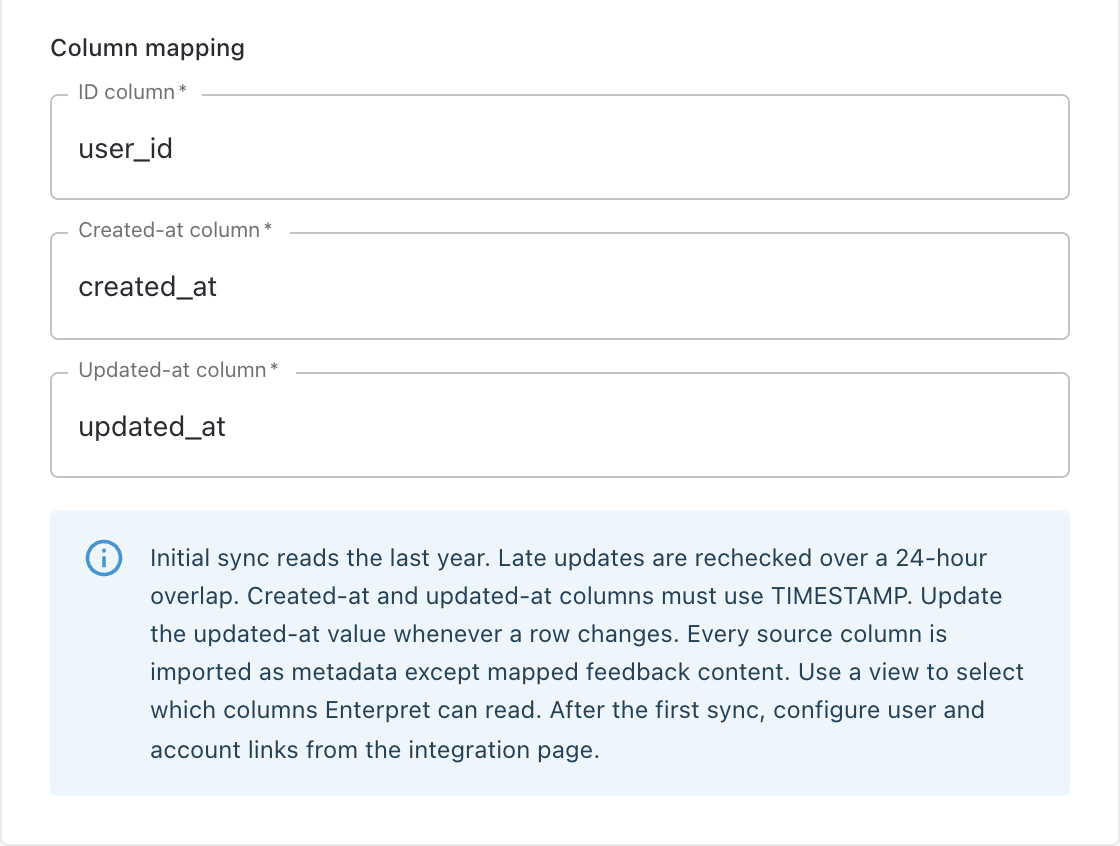
Example mapping for a Databricks User integration.
Account source
For example, map account_id, created_at, and updated_at. Include the account attributes you want to use in analysis, such as plan or region.
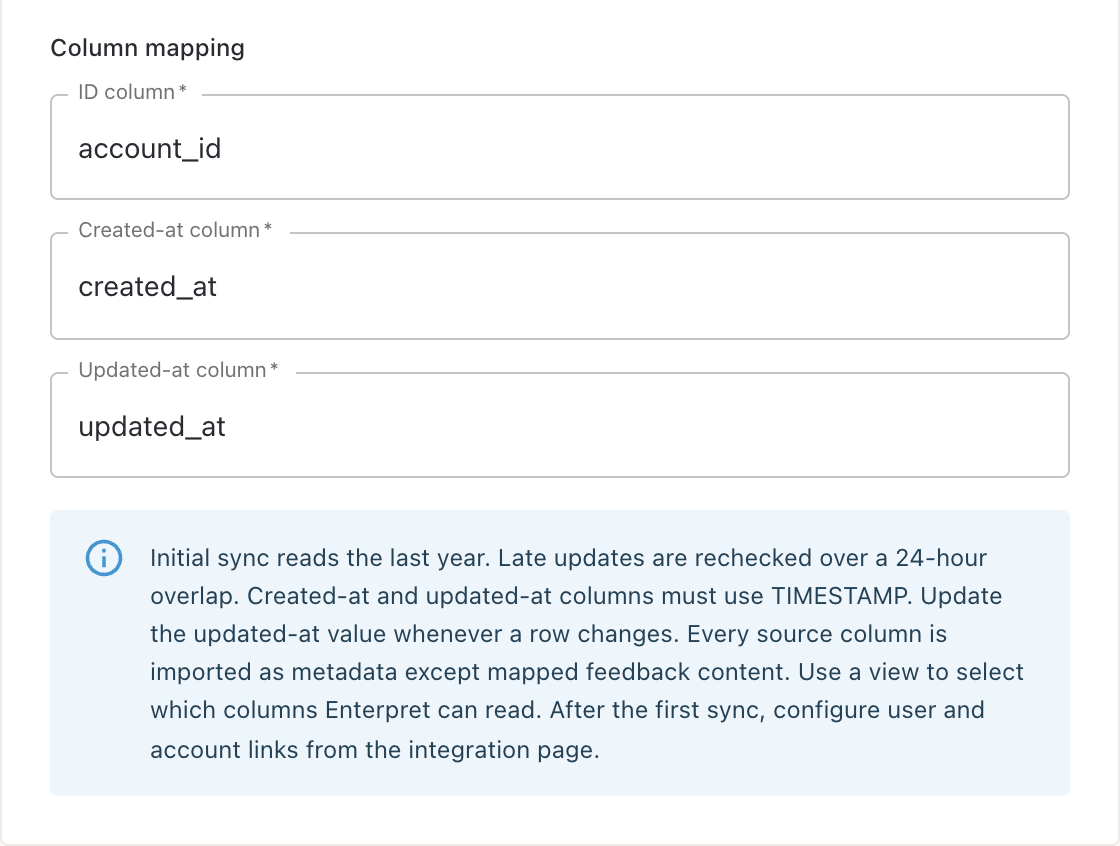
Example mapping for a Databricks Account integration.
Save and check sync
- Select Validate and Integrate. Enterpret checks the source permissions and mapping before saving.
- Open the saved integration and check that the object, table or view, and mapped columns are correct.
- Under Integration Details → Connection, select Validate Connection. Check Sample Data Preview for the IDs, timestamps, and attributes you expect.
- Check the sync status and Last Ingested Record on the integration page to confirm data is arriving. Repeat the setup for the other source type if you need both users and accounts.
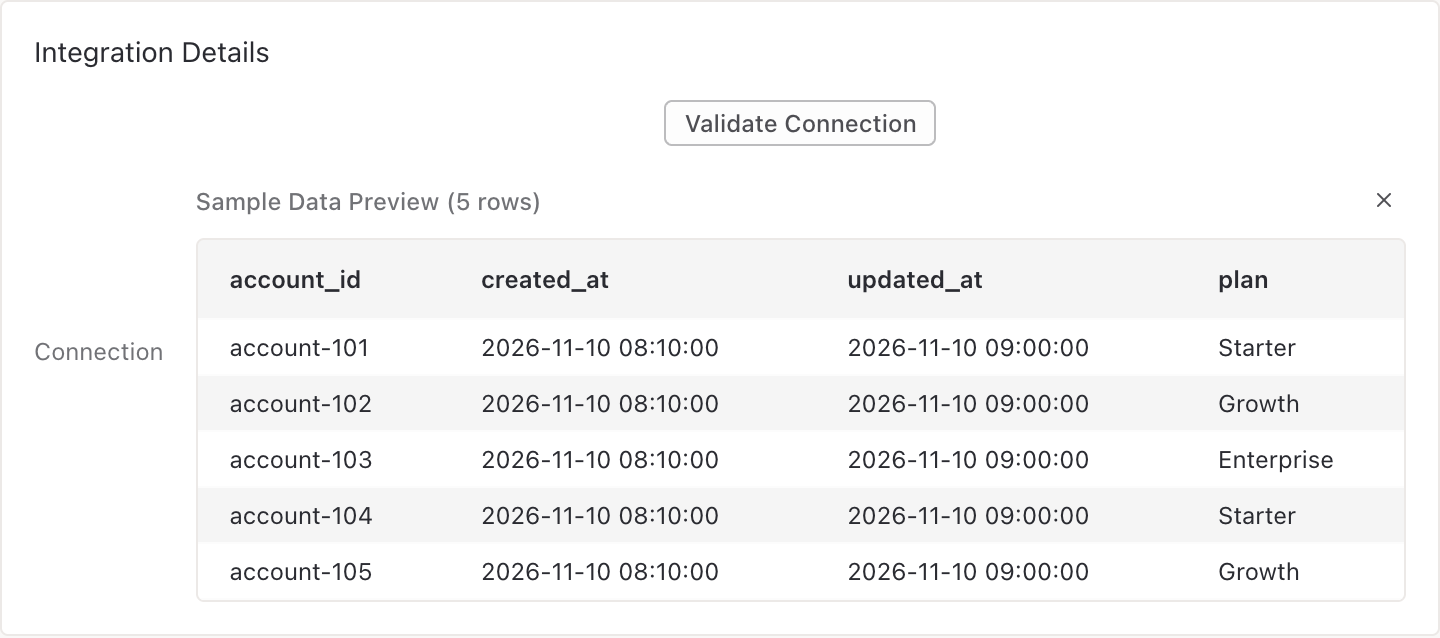
Sample Data Preview with five synthetic account rows.
By default, the first sync looks back one year from the date you create the connection, using the updated-at column. Later syncs recheck a 24-hour overlap to pick up late updates. User and account records remain in Enterpret when their source rows are removed from Databricks.
Link your records
After the sources you want to link have synced, open the saved integration and find the section whose heading starts with Link with. Choose the other integration and select a field from each source that contains the same identifiers. You can link to feedback from Databricks or another integration that exposes a matching field.
- Feedback to users. Match the feedback source’s
author_user_idto the User integration’suser_id. - Feedback to accounts. Match the feedback source’s
customer_account_idto the Account integration’saccount_id. - Users to accounts. Match the User integration’s
account_idto the Account integration’saccount_id.
Use the column names from your own sources. Once the link finishes processing, check its match count. Open a known feedback record and verify that the expected user or account attributes appear. See how to link users and accounts to feedback.
Troubleshooting
- Validation fails. Confirm that the token is active in the Databricks workspace, the token’s identity has the required permissions, and the table or view and column names match the source.
- Rows are missing or stale. Check the sync status, the last ingested record, and the mapped updated-at column. Confirm the missing row’s update timestamp falls within the sync window.
- The token expired or was revoked. Open the integration, select Edit, enter a Replacement personal access token, and select Validate and Save. Enterpret checks the new token against the saved source and keeps the connection’s current active or stopped state.
To ingest reviews, conversations, or surveys from Databricks, follow the Databricks feedback setup guide.