
Mixpanel
Overview
Mixpanel’s integration lets you import user cohort data into Enterpret to analyze customer feedback in new dimensions. For example, with user cohorts, you can group users who share a specific characteristic and tweak features on your website or app to engage them better.
How to integrate Mixpanel?
Steps to integrate Mixpanel to your feedback data :
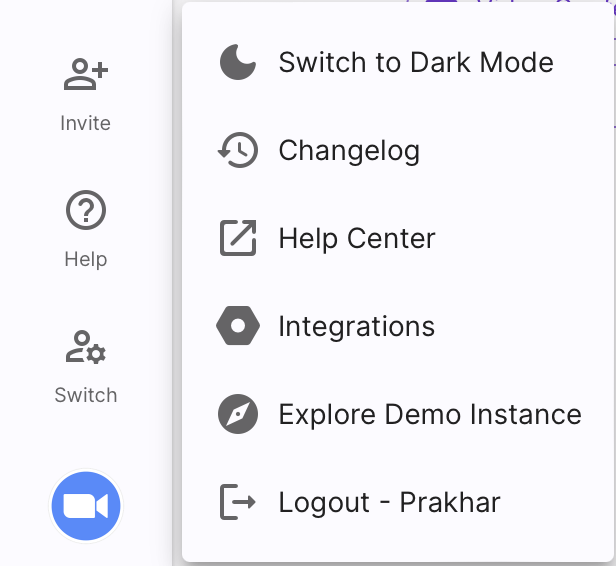
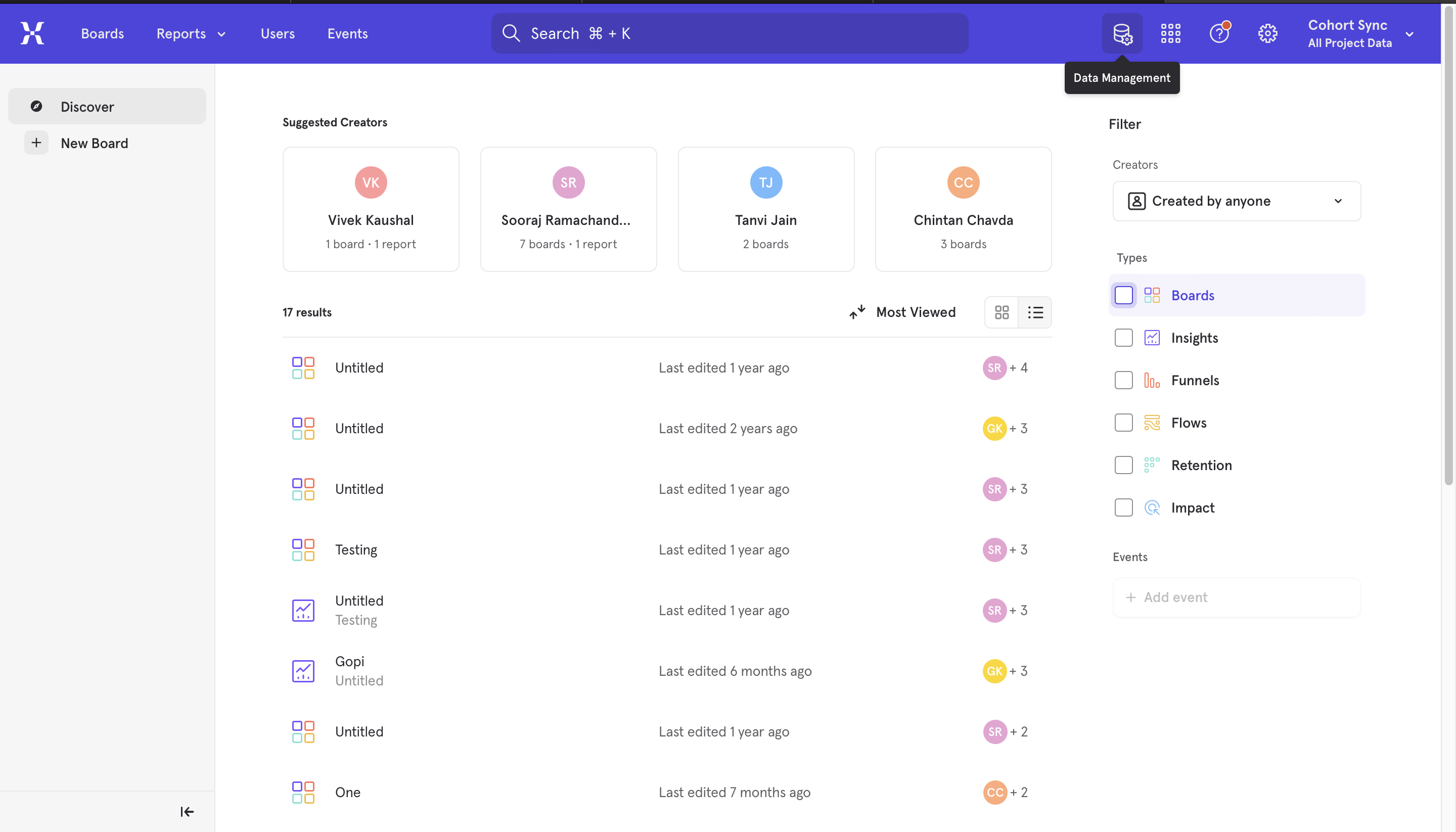
Go to lower left of the screen and click on the logo, a panel will open up, click on
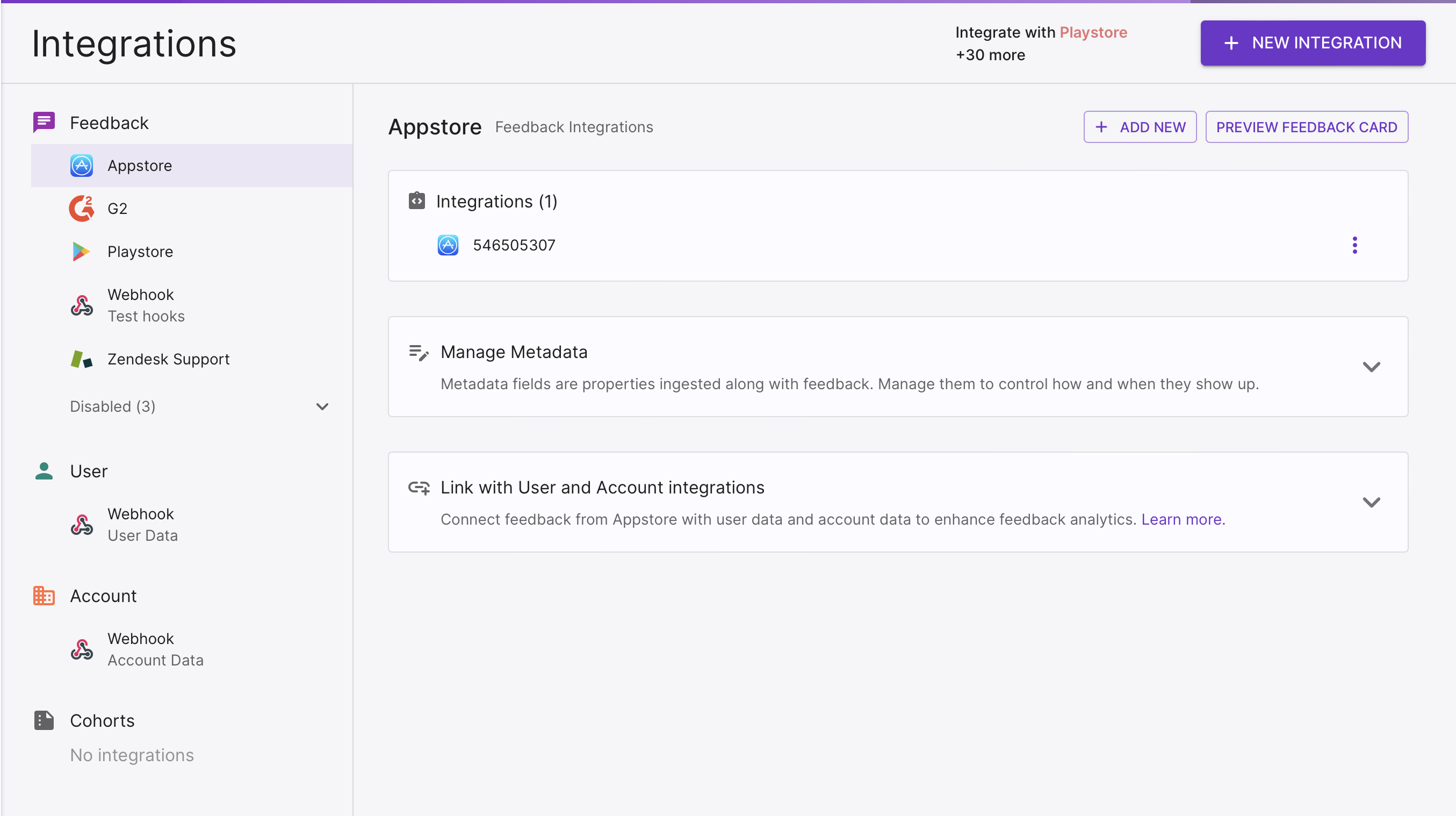
Integrations.On clicking
Integrations, this screen will open up.On the top right corner of the screen, click on the
+ NEW INTEGRATIONbutton.
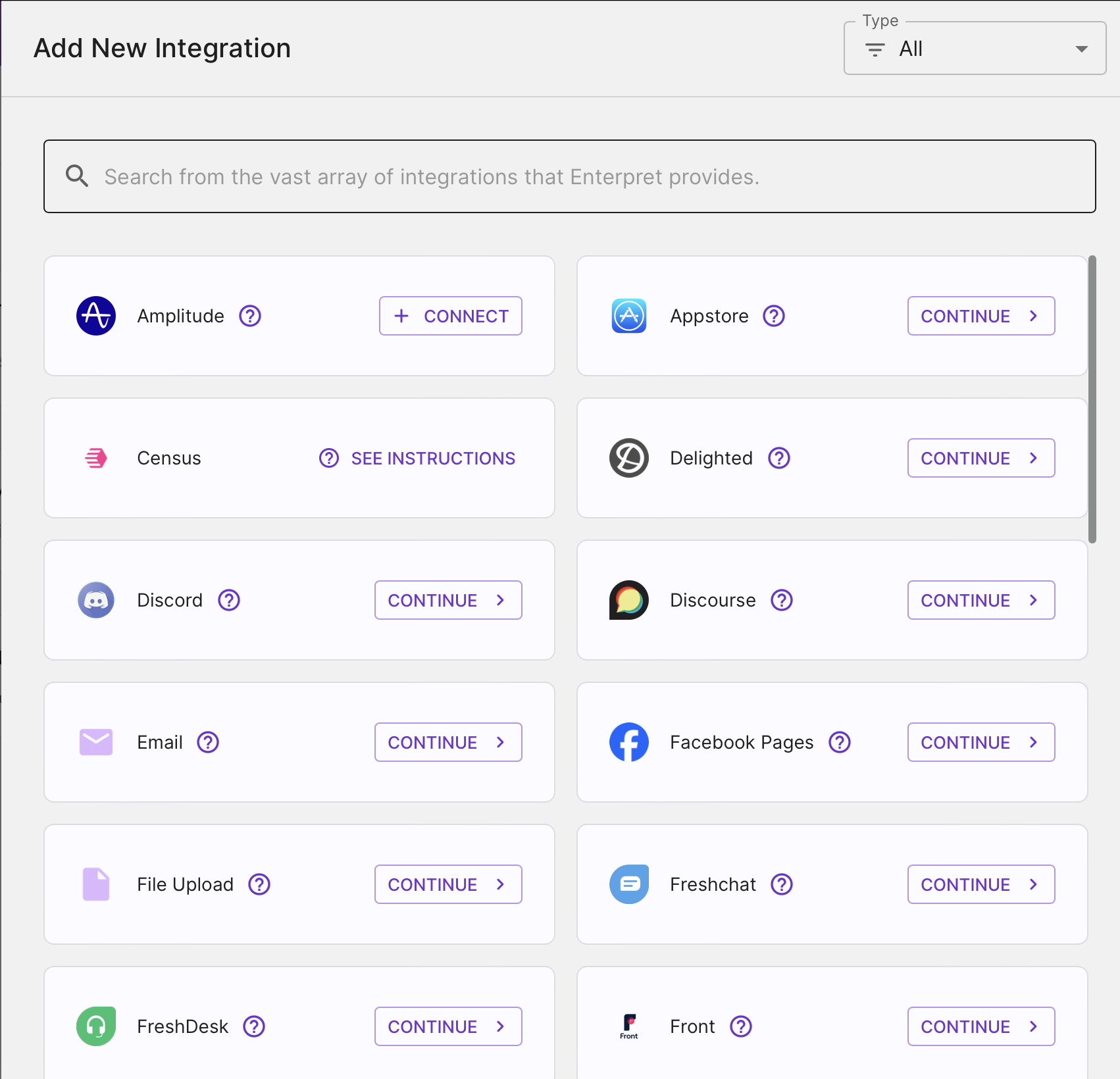
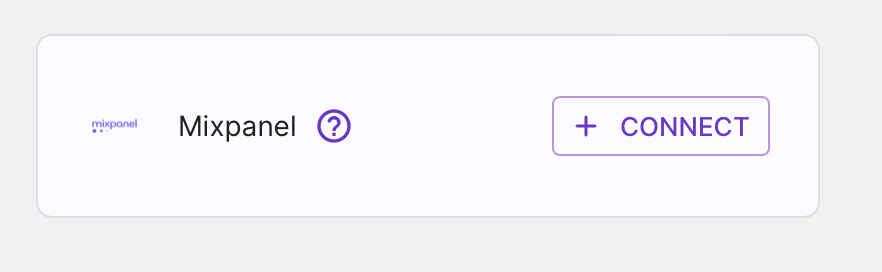
A list of all available integrations that can be done through Enterpret is shown on this screen.Search around for Mixpanel, Click on
Connectto move forward with the process of integration.In your Mixpanel account, navigate to
Datain the navigation bar. The screenshots illustrate an older layout; current setup is under Data → Destinations.Select Destinations from the Data navigation, then choose Add Destination.
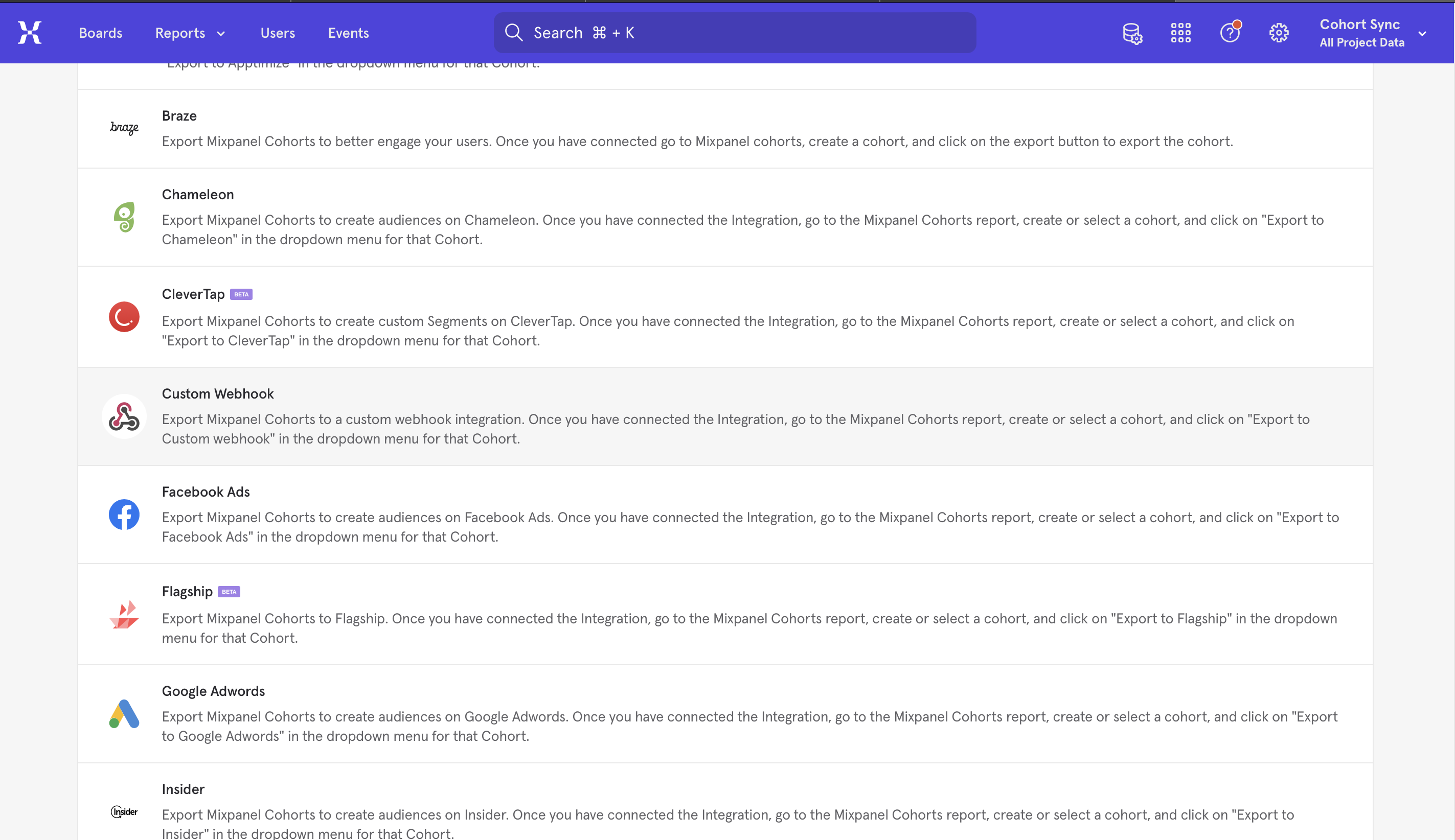
Select Custom Webhook from the list of integrations.
In the Integration Set-up window, add a Connector Name and enter this URL https://api.enterpret.com/webhook/mixpanel/<your generated API-key>
Click
Connectto complete the set-up process

Sync a Mixpanel Cohort
To sync your first user cohort, follow these steps:
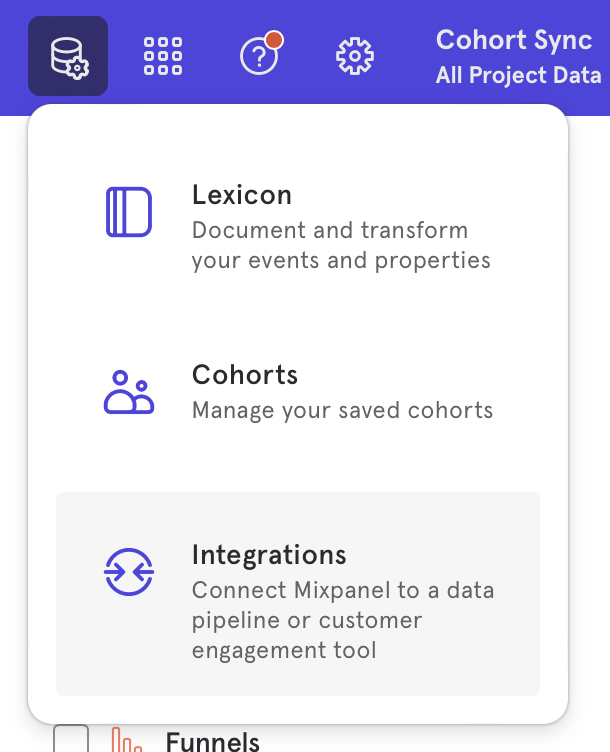
Navigate to Cohorts from Lexicon in Mixpanel. In the current interface, open its Cohorts tab
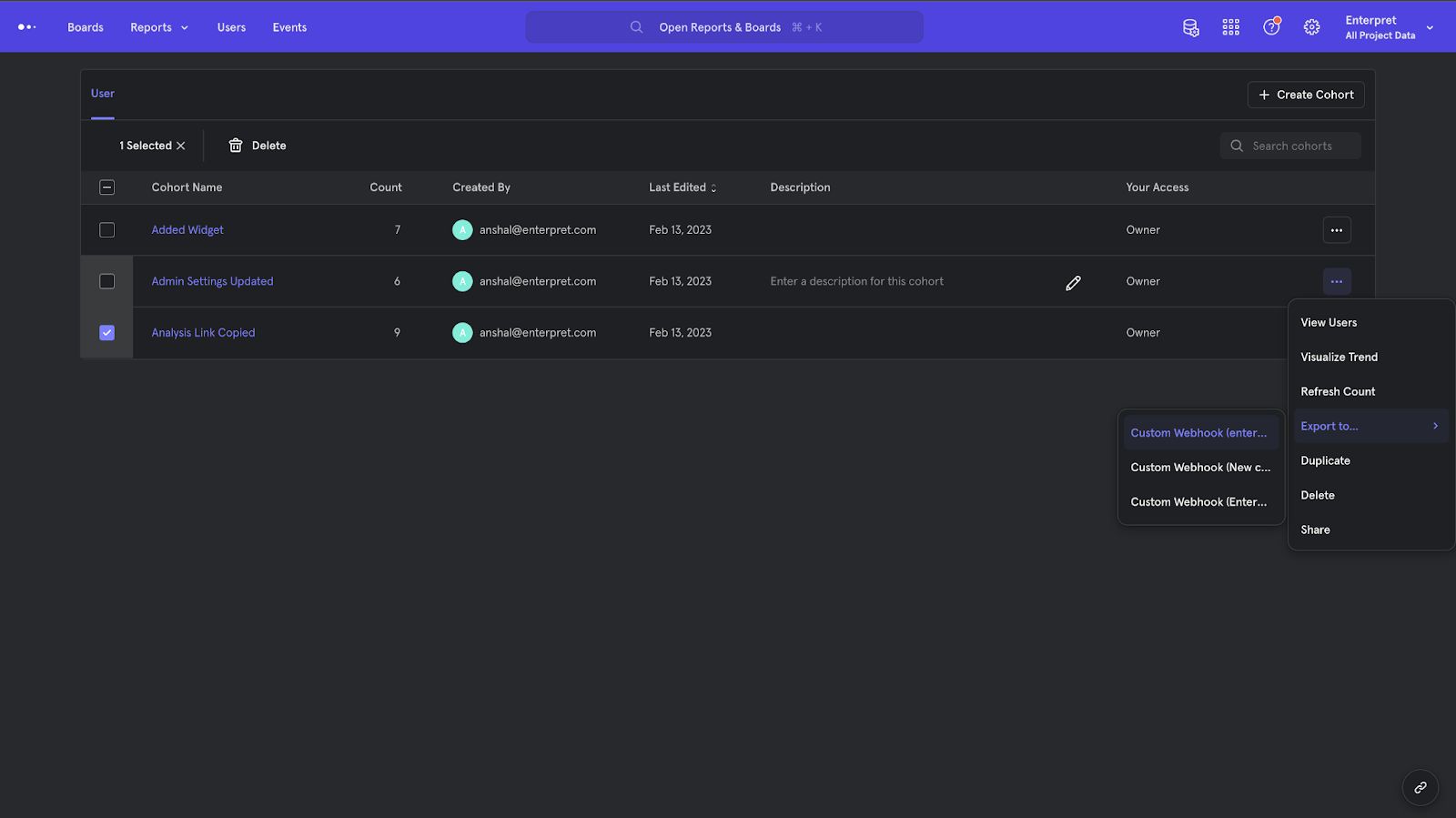
Click the Export to option from the hamburger menu of your preferred cohort (as shown)
From Export to…, select the Webhook connection you created above, choose a one-time export or recurring sync, then click Start Sync. You can also start this from Data → Destinations → your Webhook → Syncs → Add Cohort Sync.
Note: Specify the User Identifier for different feedback integrations before syncing the cohort. We use this ID to join Mixpanel’s cohort data with Enterpret’s feedback data.
Refer to the Editing User Identifier section in the guide below for instructions on setting matching User Identifiers:
https://helpcenter.enterpret.com/article/view-manage-metadata
Renaming a source cohort does not guarantee historical membership labels are renamed in Enterpret. Validate the cohort’s identifiers and membership after a change; contact Enterpret before changing an established sync.