
Okta <> Enterpret: End-to-End SSO Setup Guide (OIDC)
Overview
Single Sign-On (SSO) allows users to log in to Enterpret using their organization’s Okta credentials. Enterpret supports OpenID Connect (OIDC) for SSO, providing a modern, secure authentication flow with simpler configuration compared to SAML.
This guide walks you through the complete, end-to-end process to configure OIDC-based SSO between Okta and Enterpret, including testing and optional dashboard-based login.
🔐 Understanding OIDC SSO Login Flow (Read This First)
OIDC behaves differently from SAML, and understanding this upfront avoids most setup issues.
OIDC Is Always App-Initiated or SP-Initiated
With OIDC:
The login flow always starts from the application (Enterpret)
Even when users click the Enterpret tile in Okta, Okta simply redirects them back to Enterpret, which then initiates the login
This means:
✅ No RelayState is required
✅ No distinction between SP-initiated and IDP-initiated flows
✅ Less ambiguity compared to SAML
How the OIDC Flow Works
User navigates to Enterpret (directly or via Okta dashboard)
Enterpret redirects the user to Okta
Okta authenticates the user
Okta redirects back to Enterpret with an ID token
Enterpret validates the token and logs the user in
👉 In all cases, Enterpret controls the login flow.
Prerequisites
Before starting, ensure you have:
Admin access to Enterpret
Admin access to Okta
Permission to create applications in Okta
User emails in Enterpret that exactly match Okta emails
High-Level Setup Flow
Create an OIDC Web Application in Okta
Copy Client ID, Client Secret, and Issuer URL
Configure OIDC SSO in Enterpret
Test login
(Optional) Enable Okta dashboard access
Step 1: Create an OIDC Application in Okta
1. Create App Integration
Log in to the Okta Admin Console
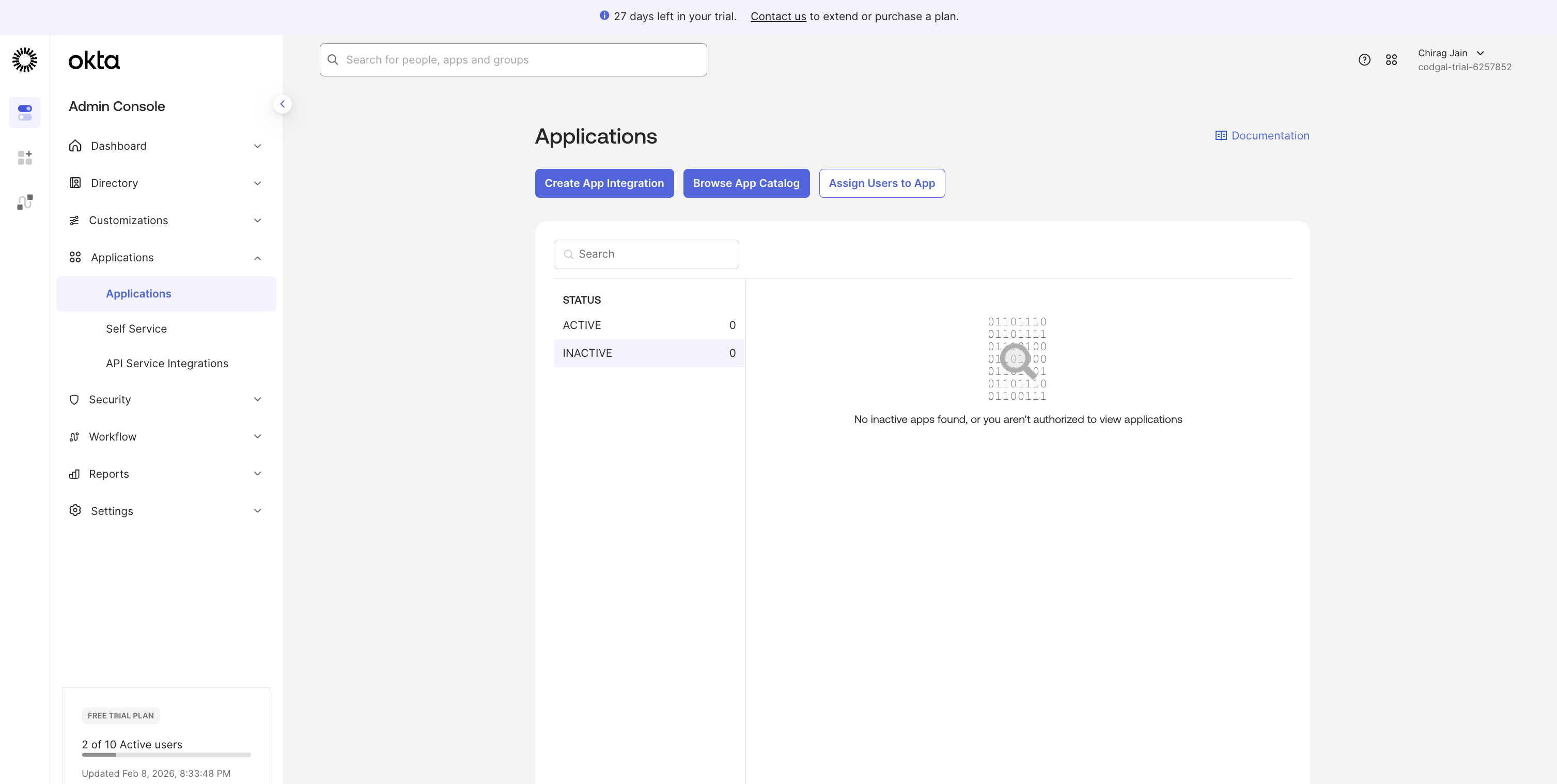
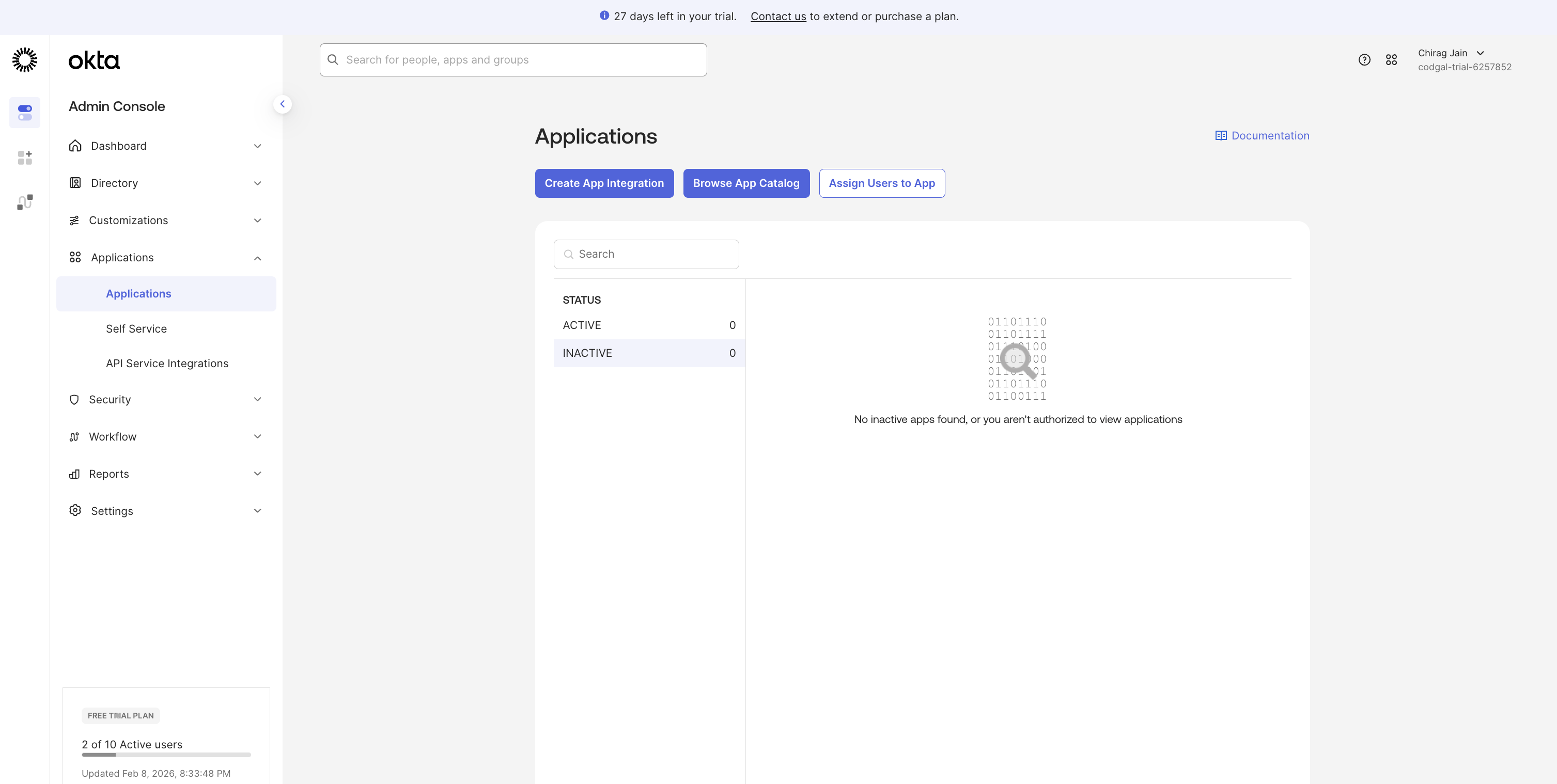
Go to Applications → Applications
Click Create App Integration
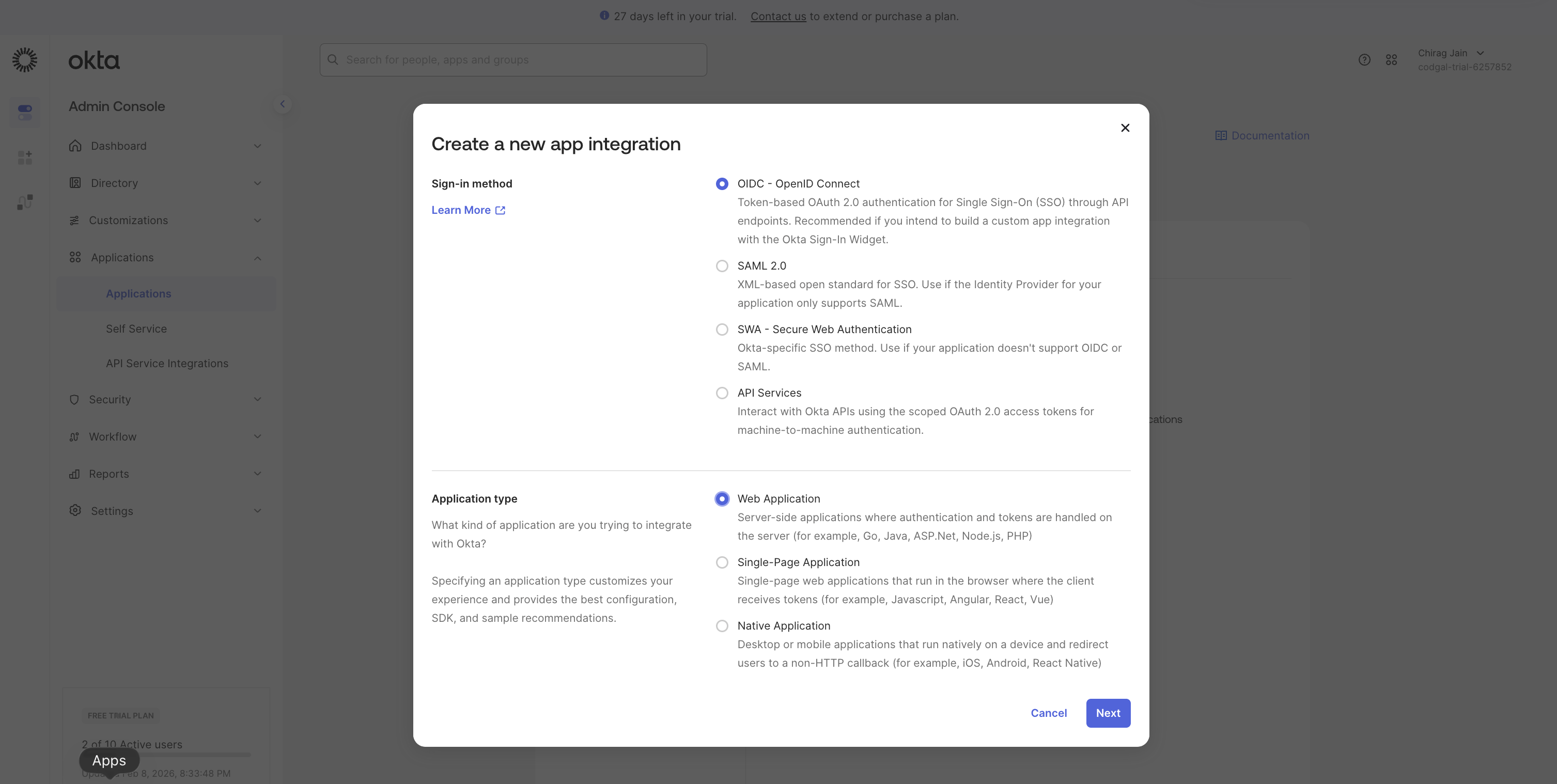
Select:
Sign-in method: OIDC – OpenID Connect
Application type: Web Application
Click Next
2. General Settings
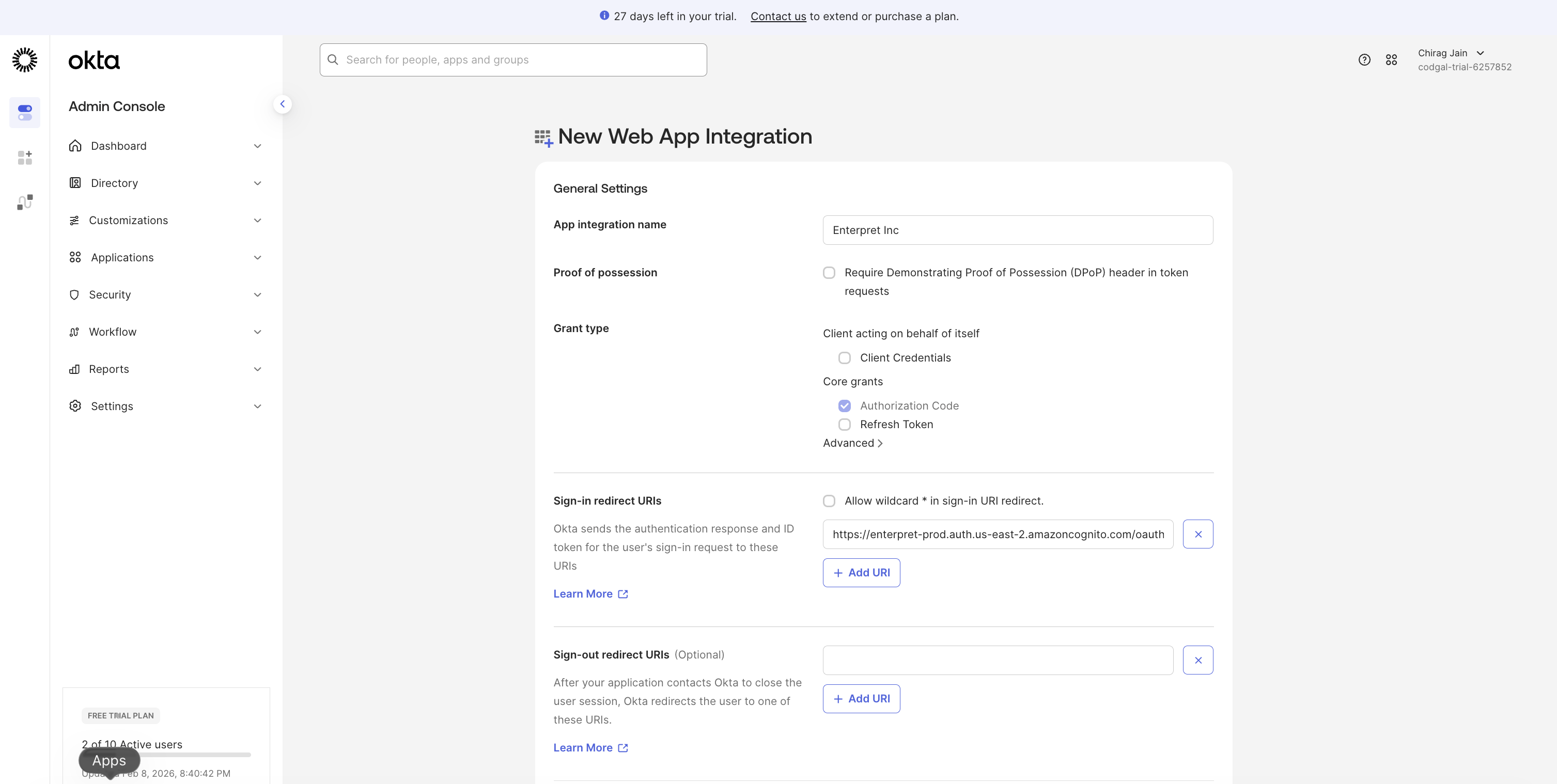
On the New Web App Integration page:
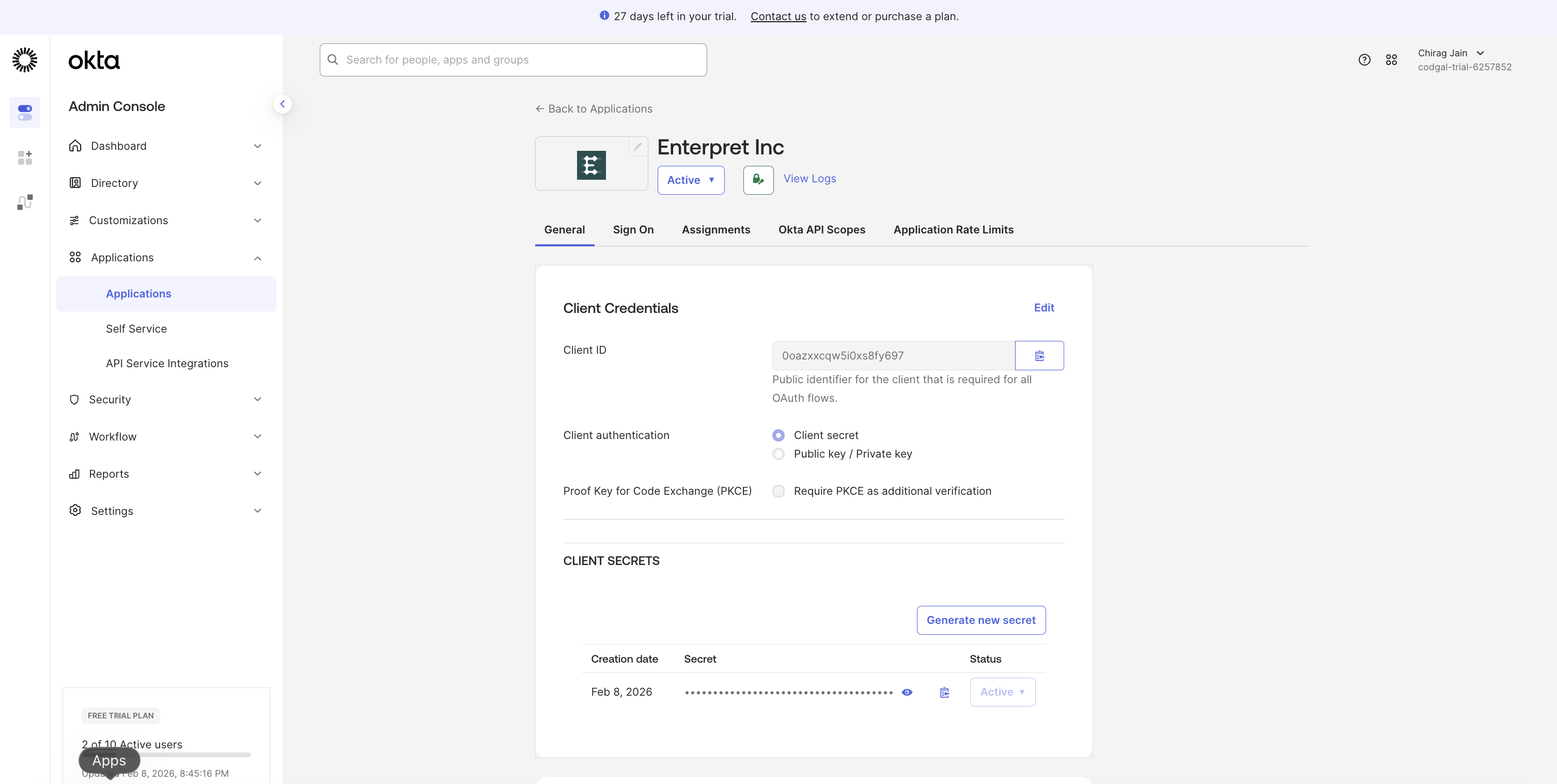
App Integration Name:
Enterpret Inc
3. Configure Redirect URI
Set the Sign-in redirect URI to:
https://enterpret-prod.auth.us-east-2.amazoncognito.com/oauth2/idpresponse
4. Configure who can access the app
Select in Controlled Access
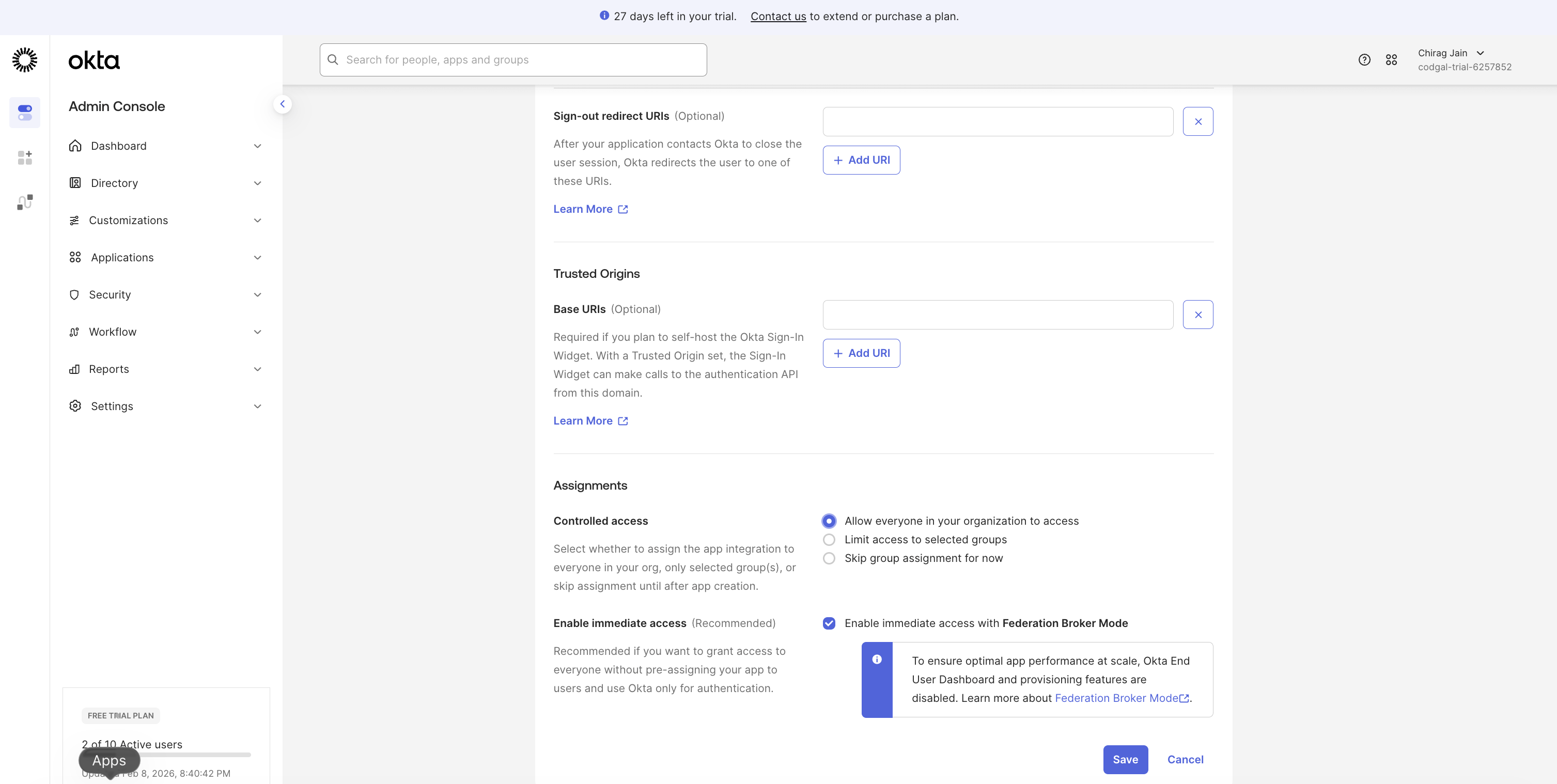
You can leave all other settings as their default values unless your organization has custom policies.
5. Added Enterpret Logo [Optional]
Logo: Enterpret [you can upload the Enterpret logo, which you can find it here]
Step 2: Copy Required Values from Okta
Enterpret requires three values from Okta.
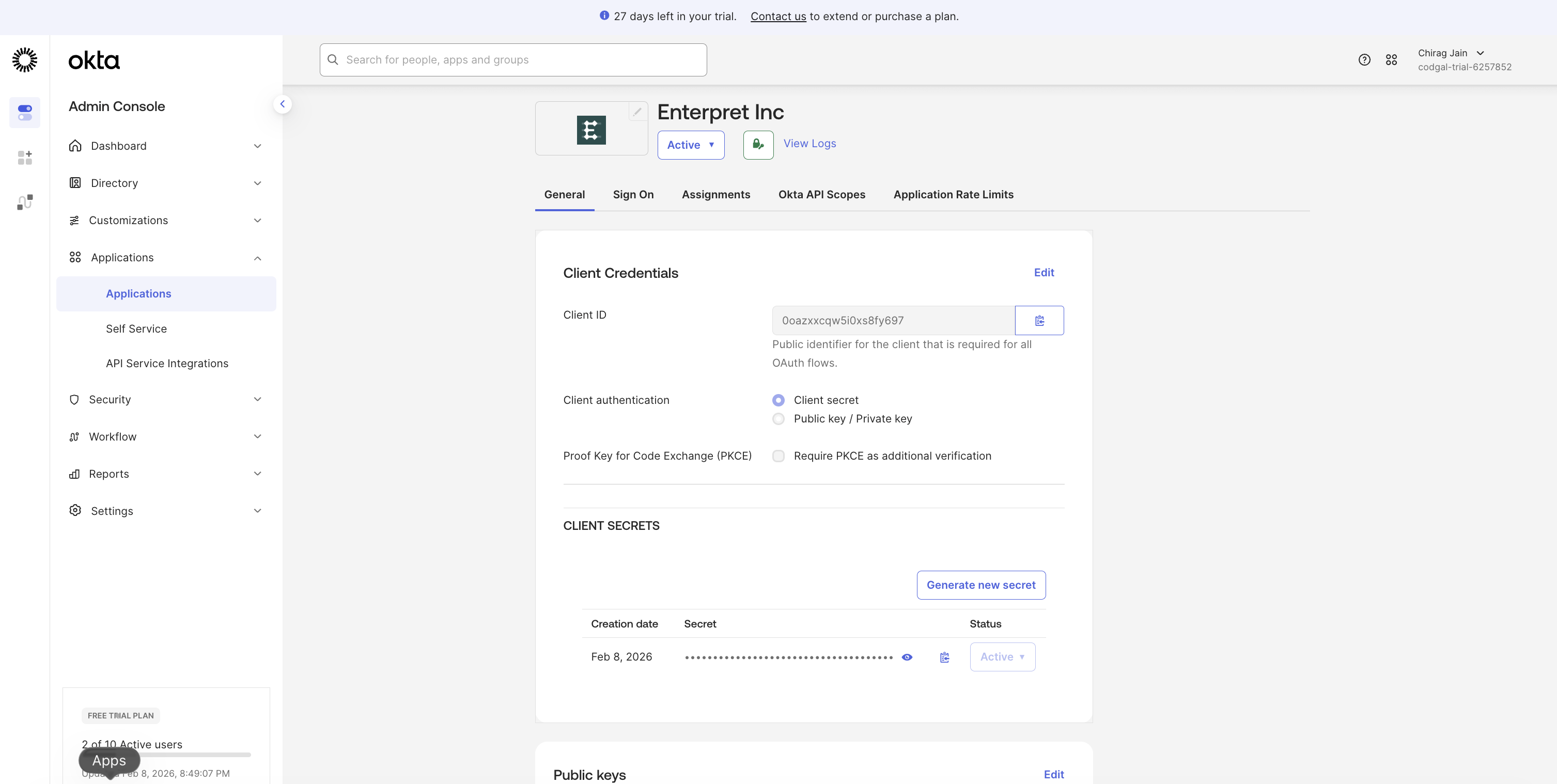
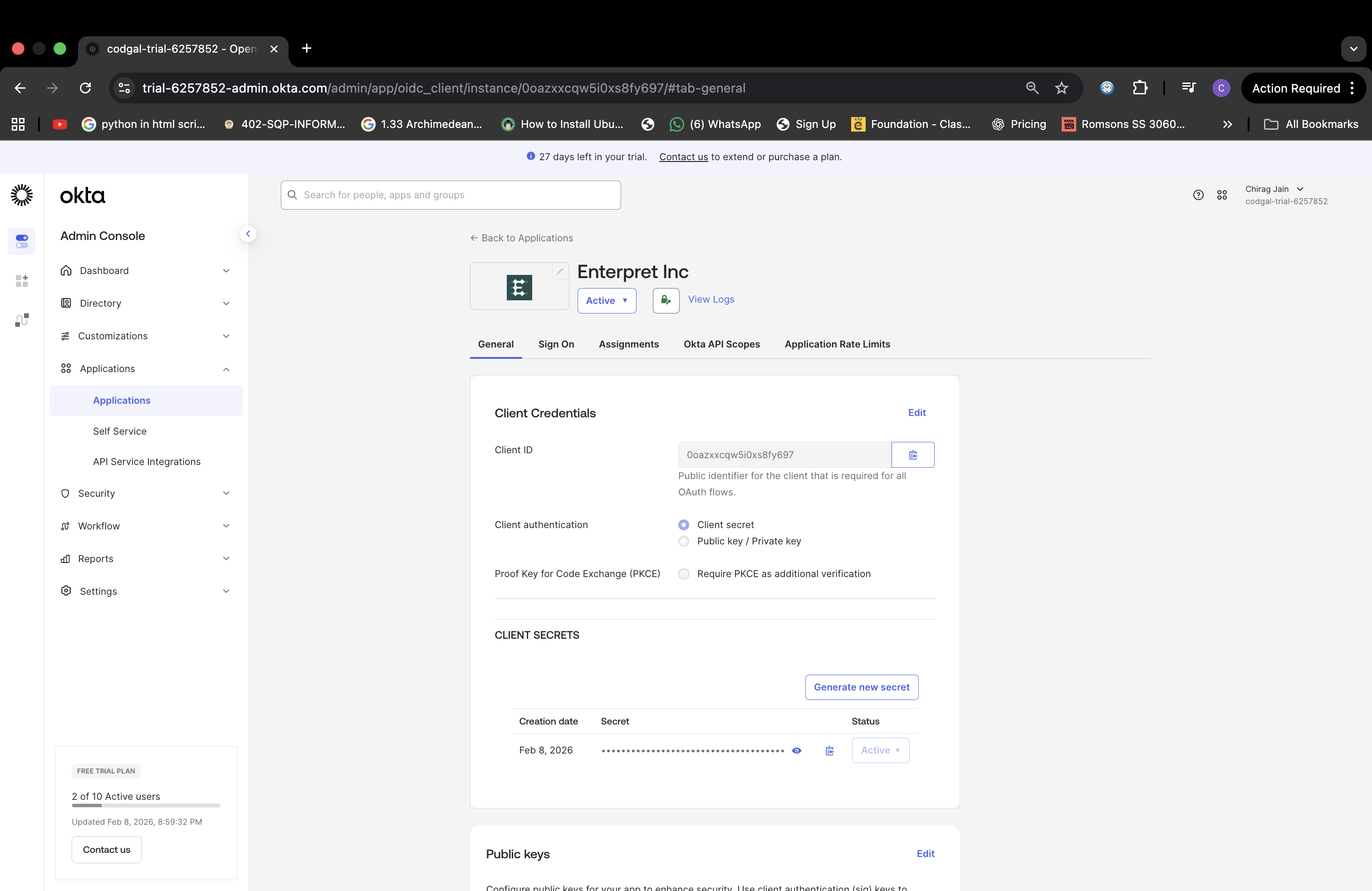
1. Client ID & Client Secret
Open the Enterpret Inc app in Okta
On the General tab:
Copy the Client ID
Copy the Client Secret
Store these securely
2. Issuer URL
Go to the Sign On tab of the app
Scroll to OpenID Connect ID Token
Click Edit
Set Issuer to:
Okta URL
Click Save
Copy the Issuer URL
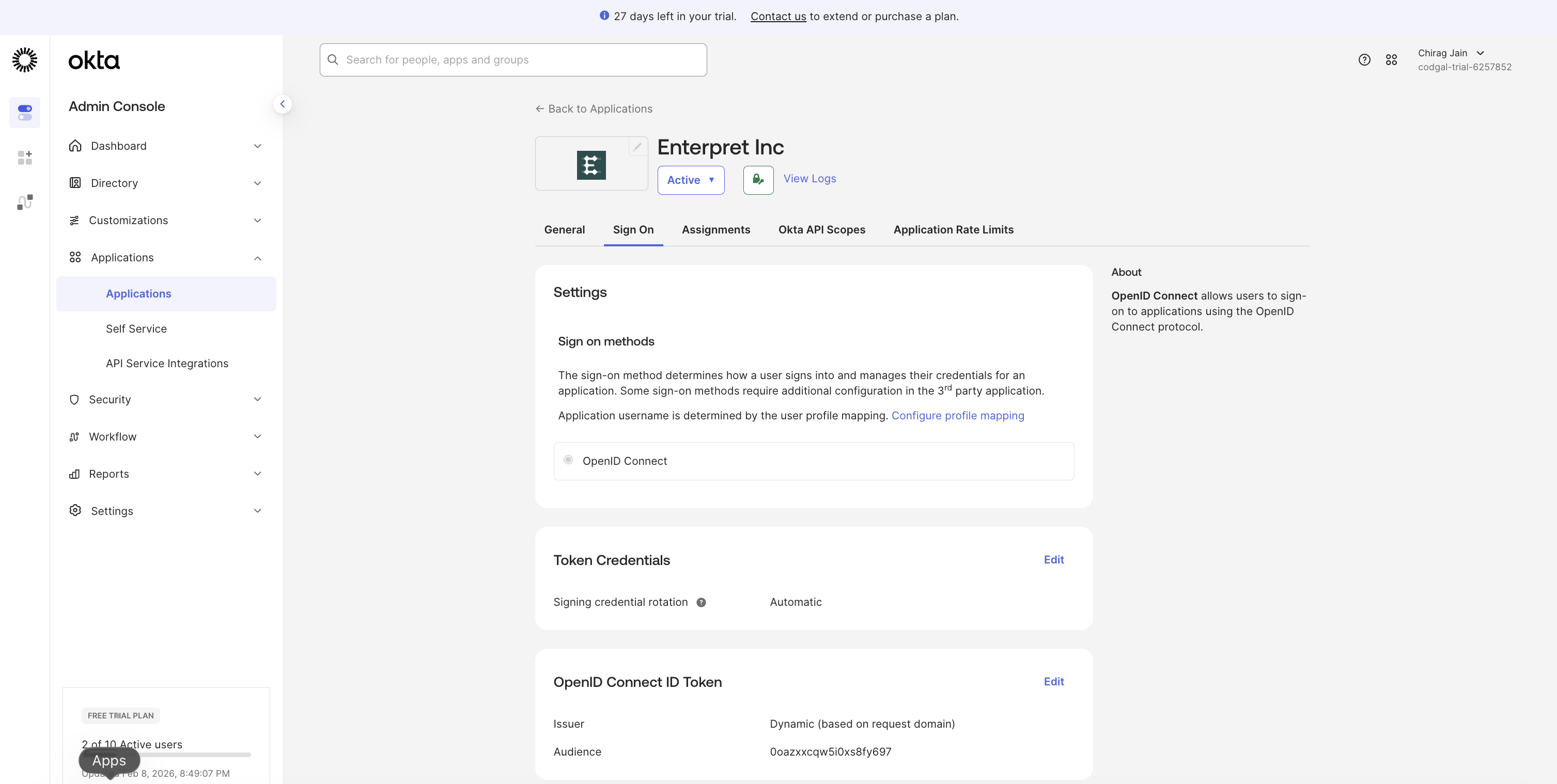
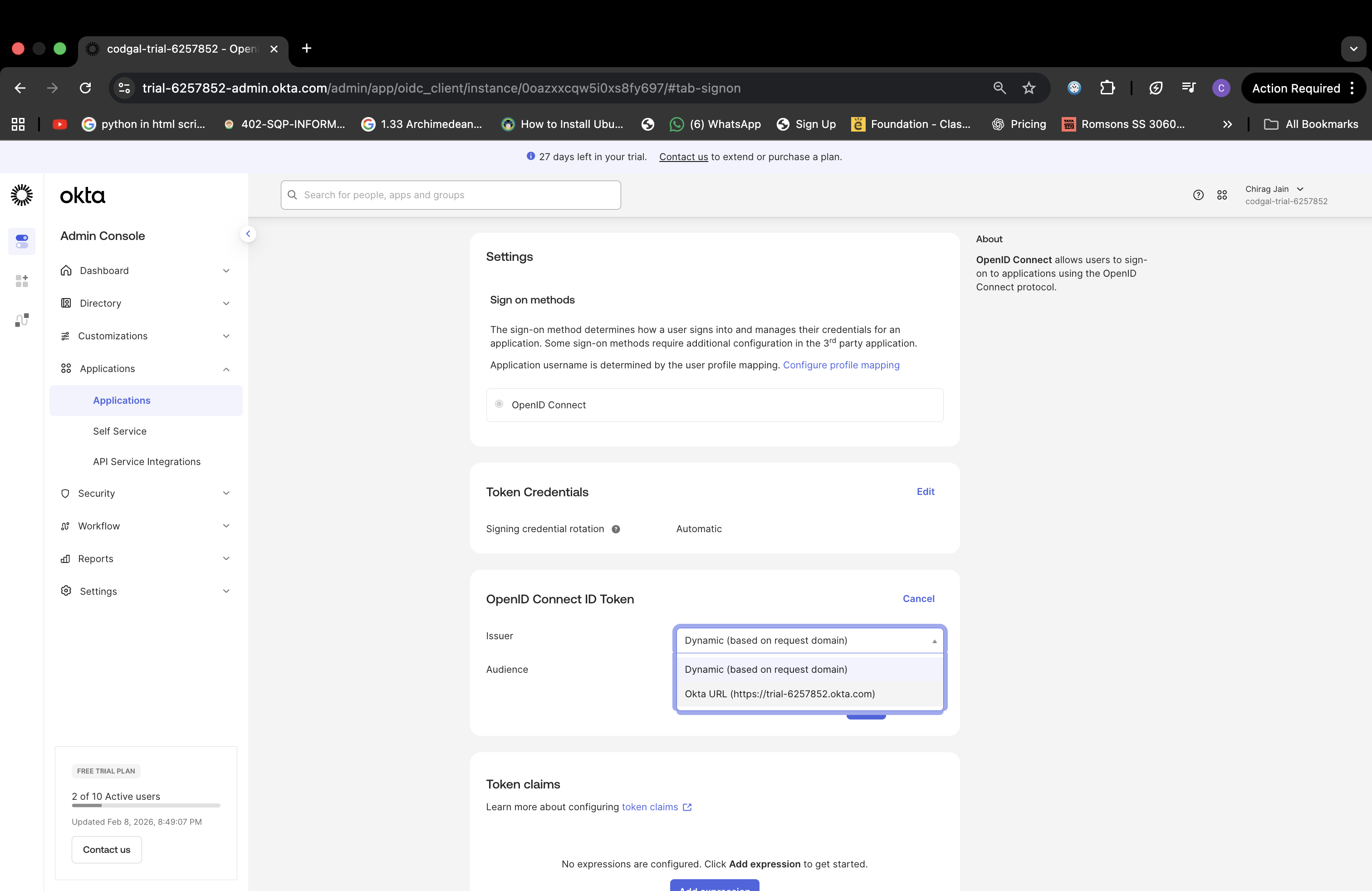
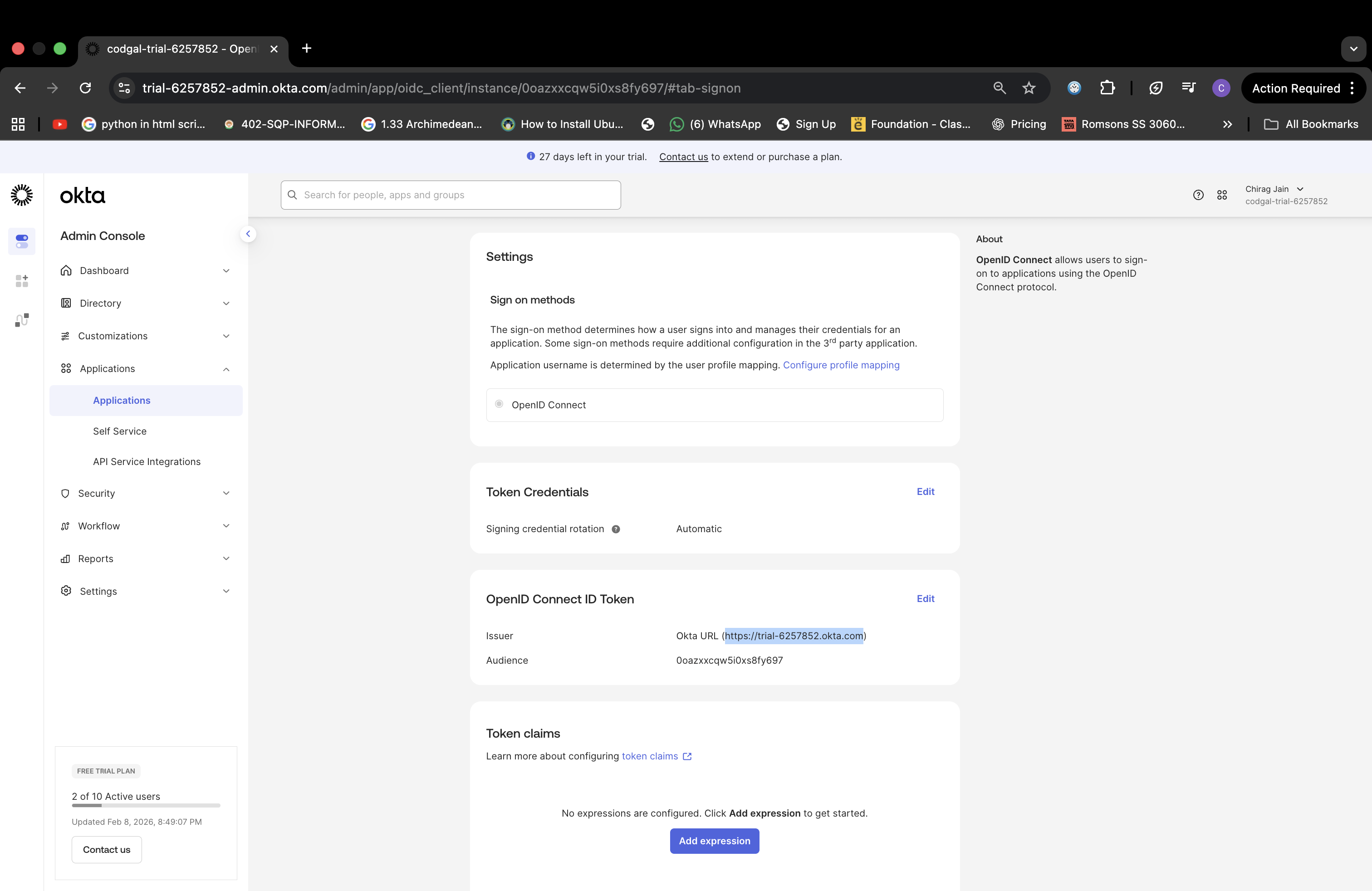
⚠️ The Issuer URL is specific to your Okta organization and must match exactly.
Step 3: Configure OIDC SSO in Enterpret
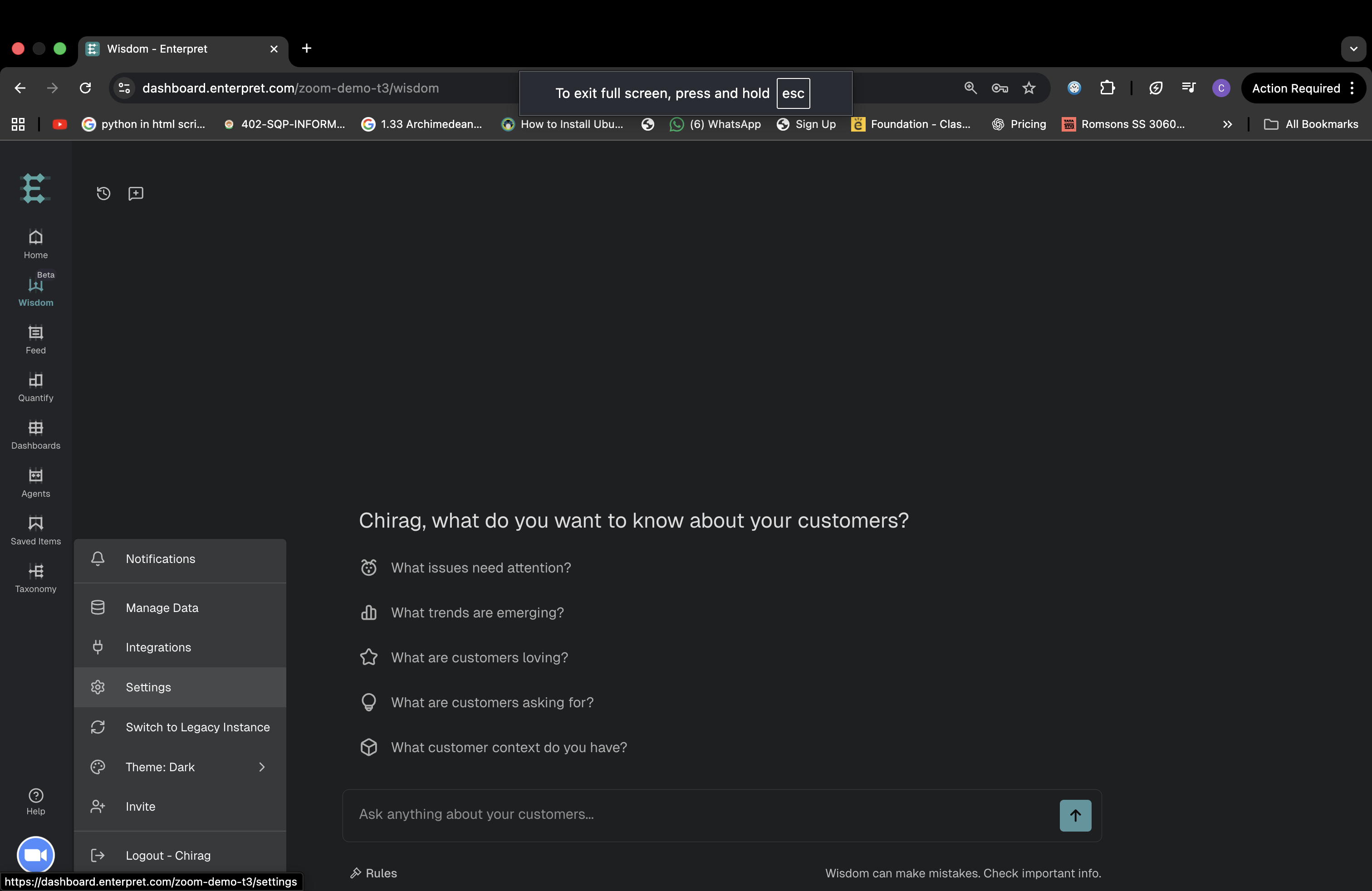
Log in to Enterpret
Click your organization logo (bottom-left)
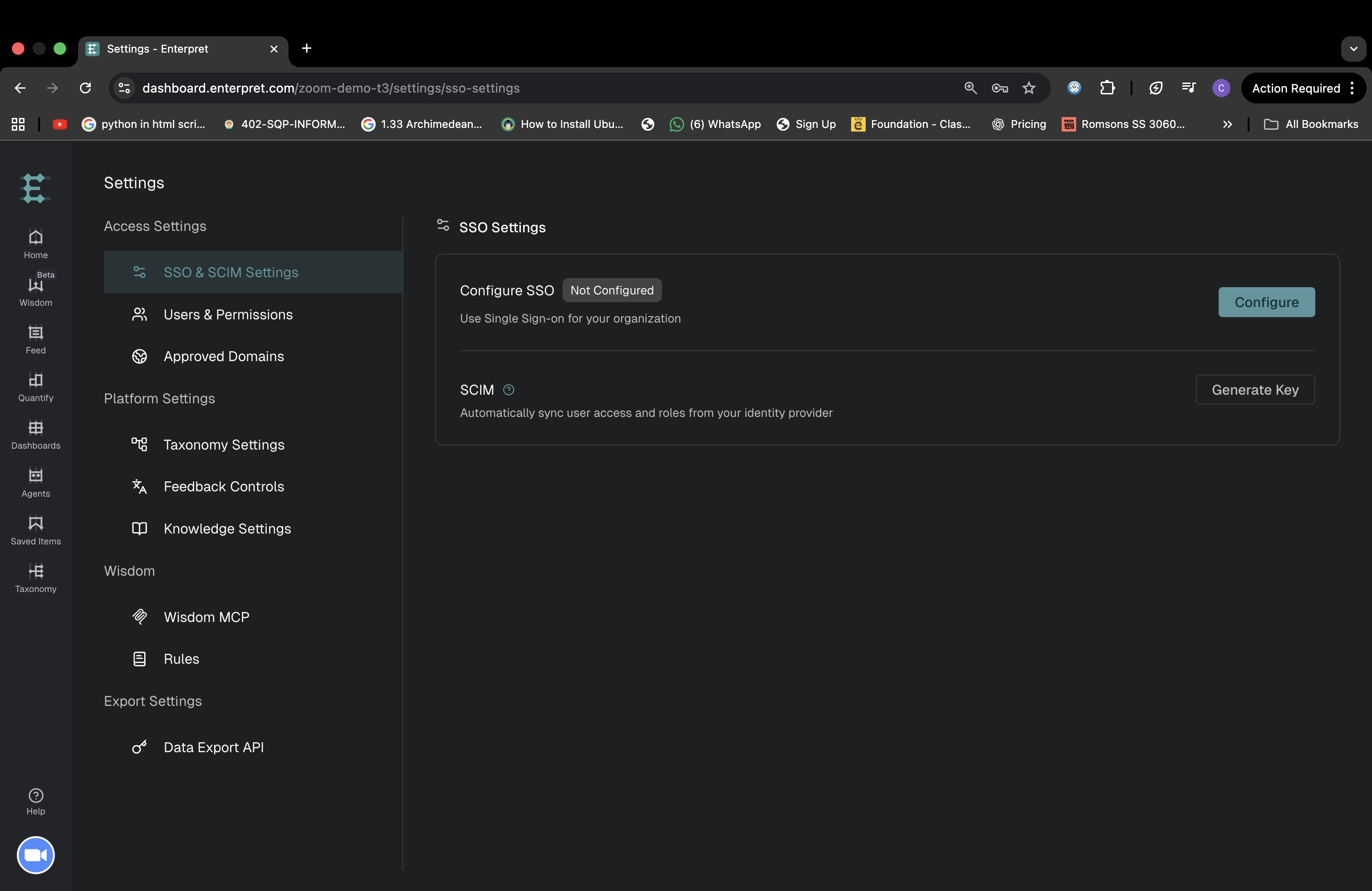
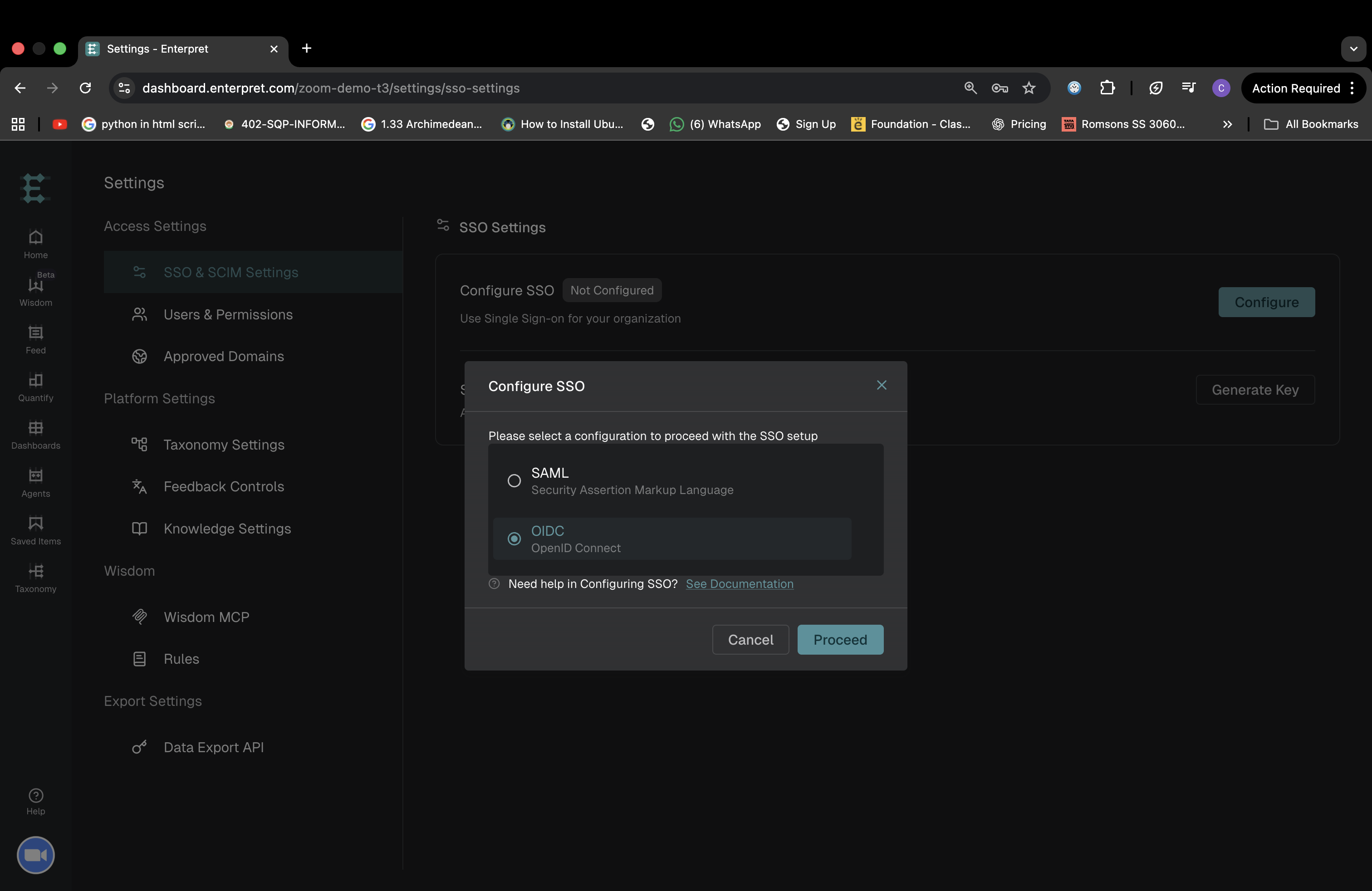
Go to Settings → Access Settings → SSO & SCIM Settings
Click Configure
Select OIDC
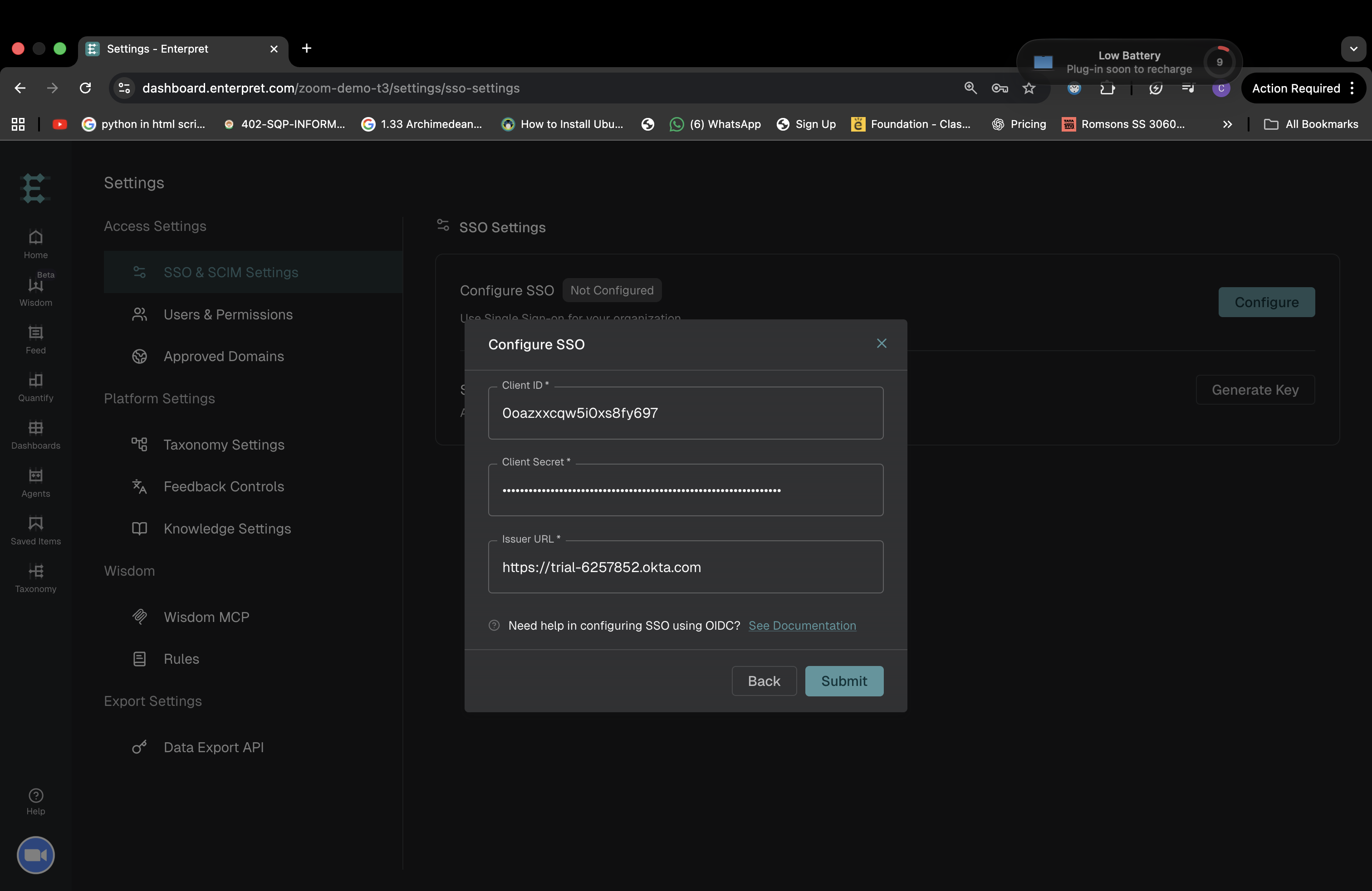
Enter:
Client ID
Client Secret
Issuer URL
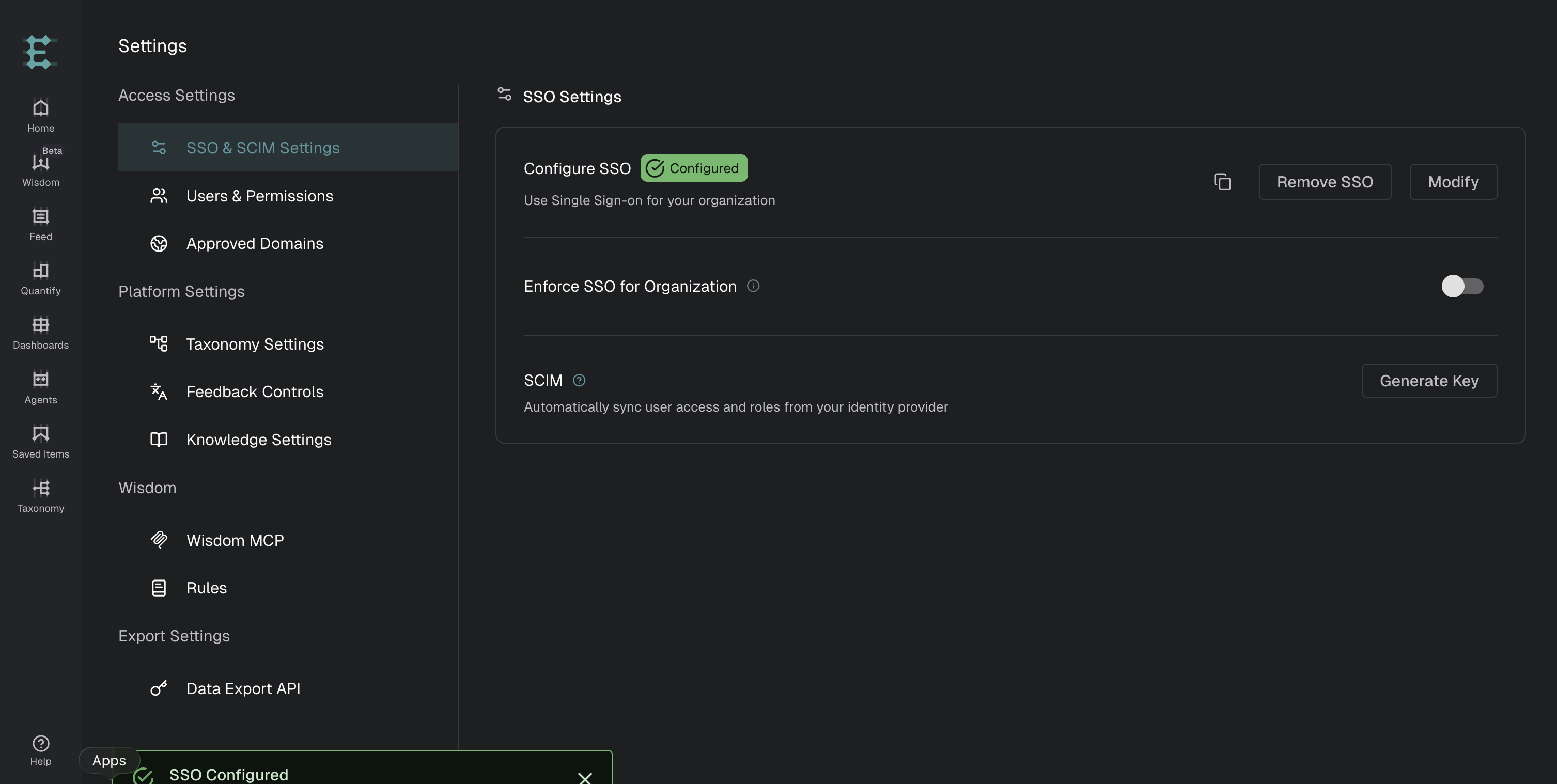
Click Submit
OIDC SSO is now configured 🎉
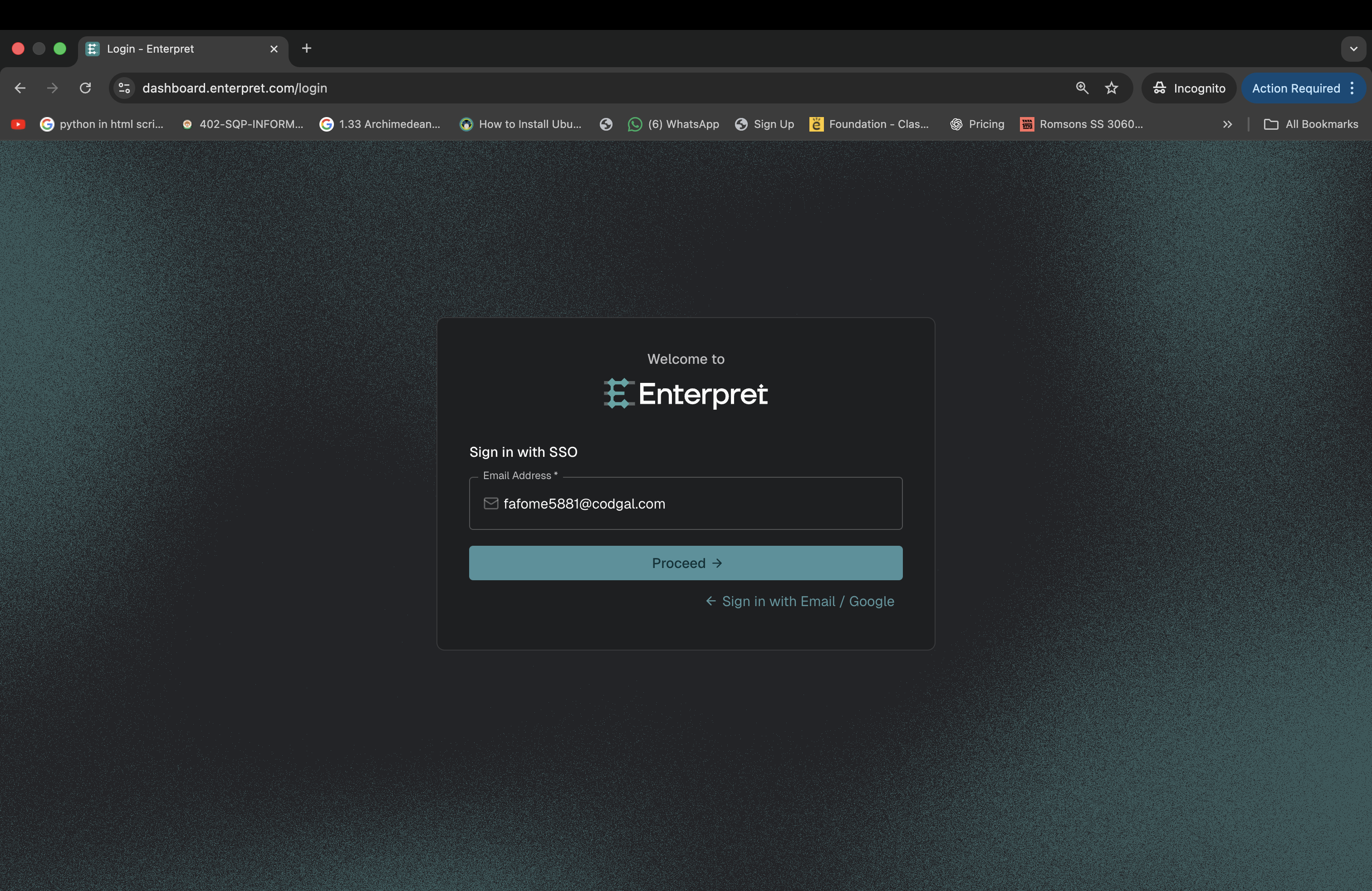
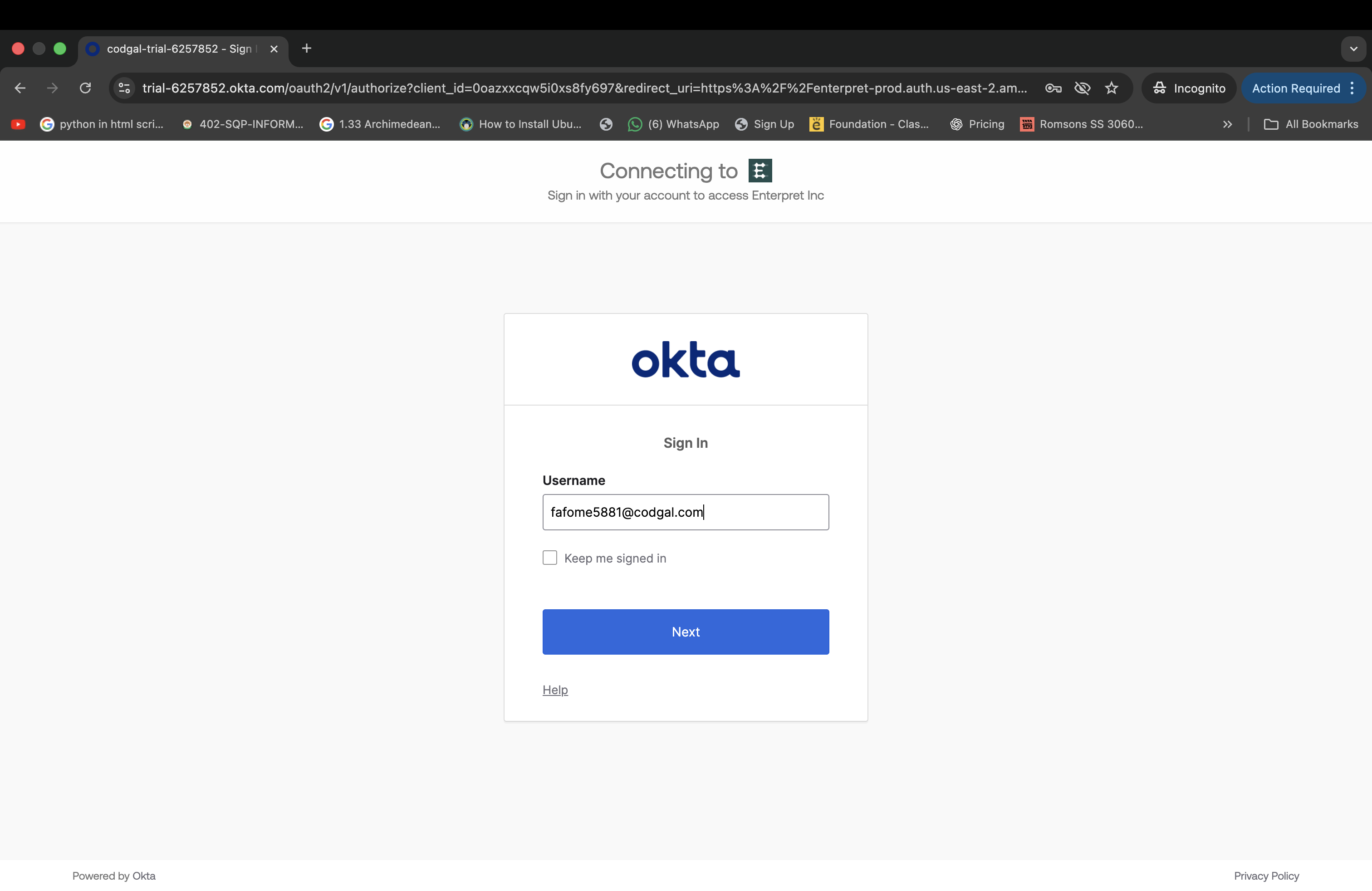
Step 4: Test OIDC SSO
Log out of Enterpret
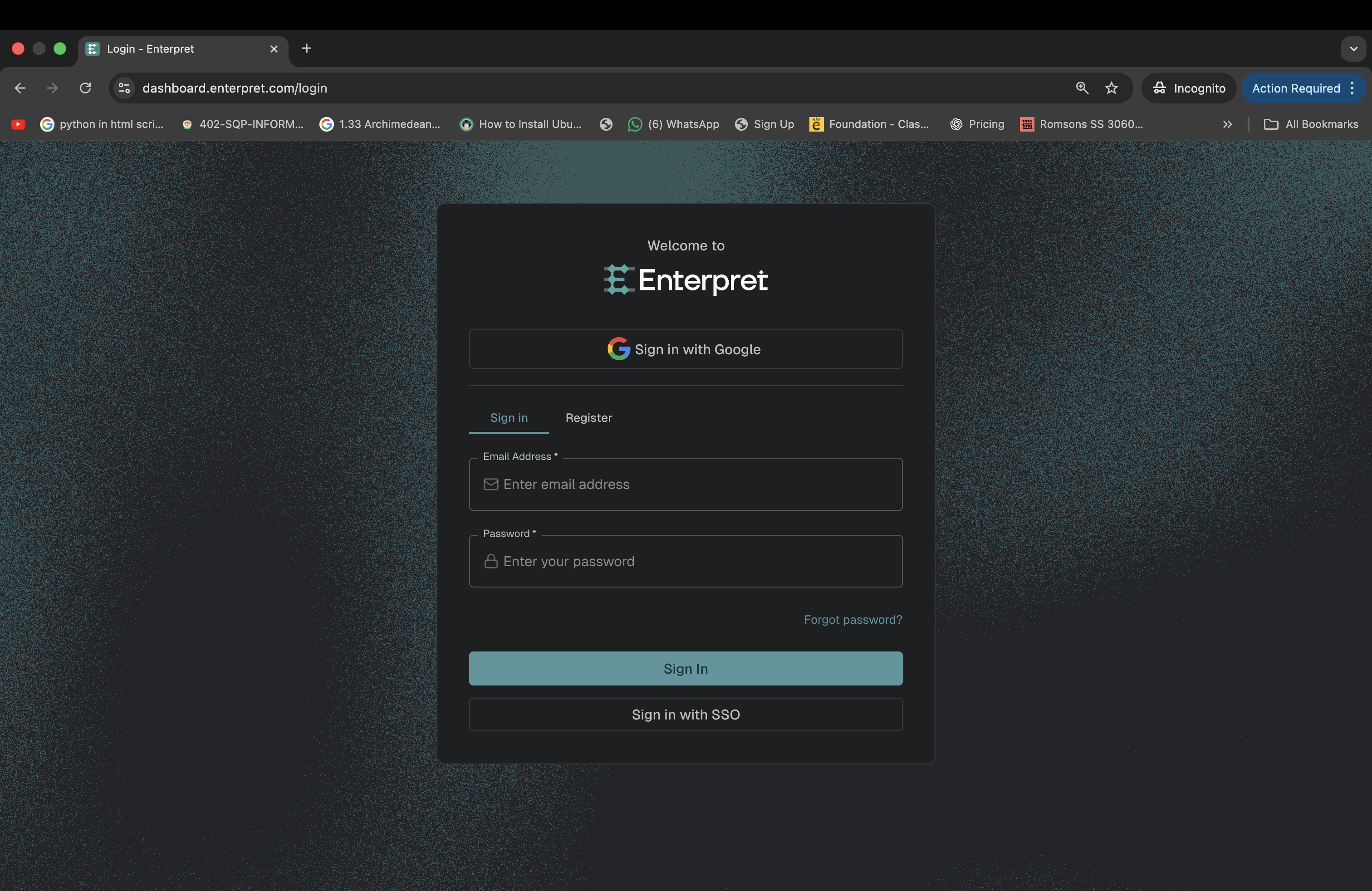
Go to the Enterpret login page
Click Sign in with SSO
Authenticate via Okta
Confirm successful login
Step 5: Enable Okta Dashboard Login (Optional)
Although OIDC is always app-initiated, you can allow users to launch Enterpret from the Okta dashboard.
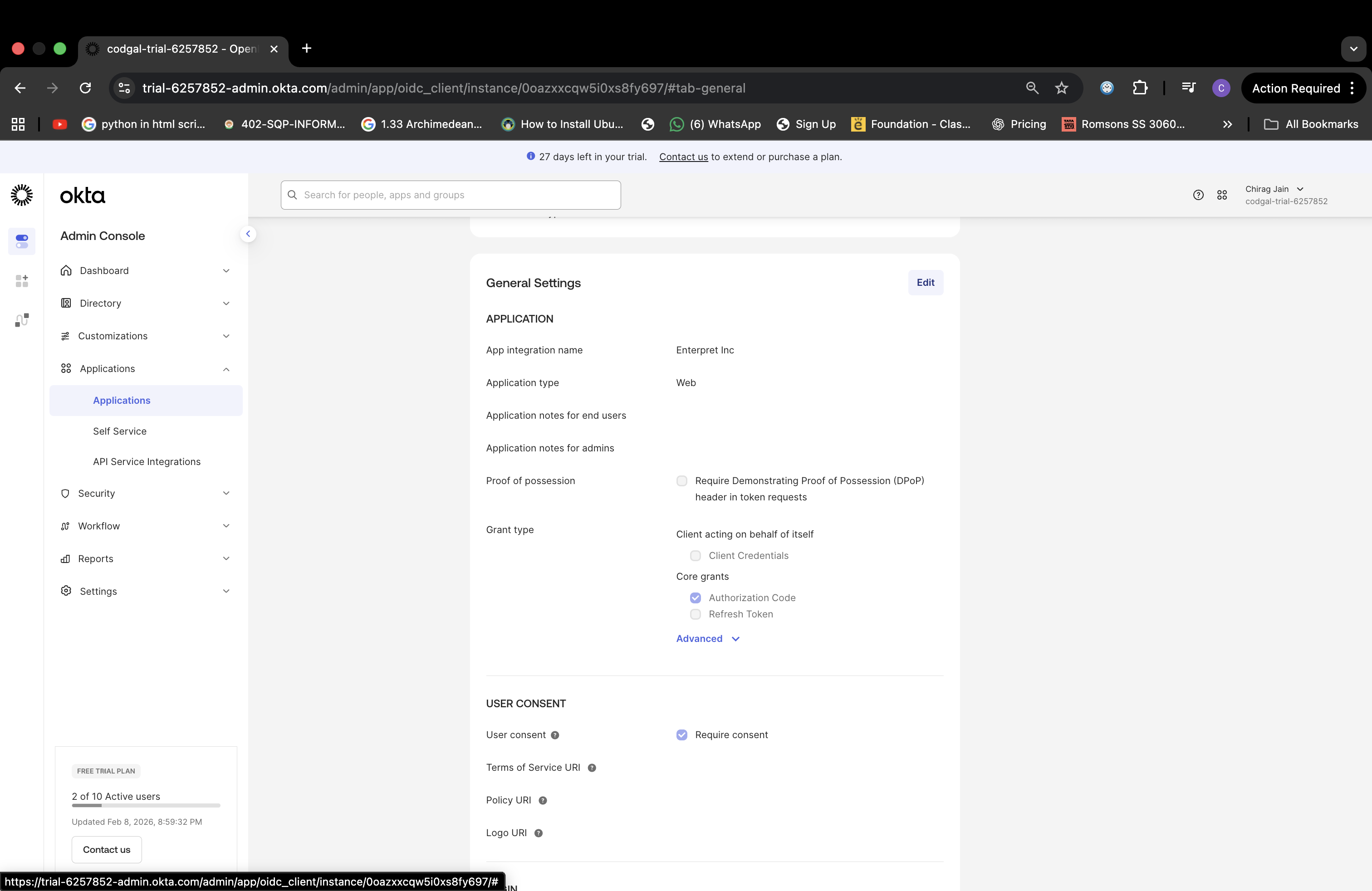
Configure App Visibility in Okta
Open the Enterpret Inc app in Okta
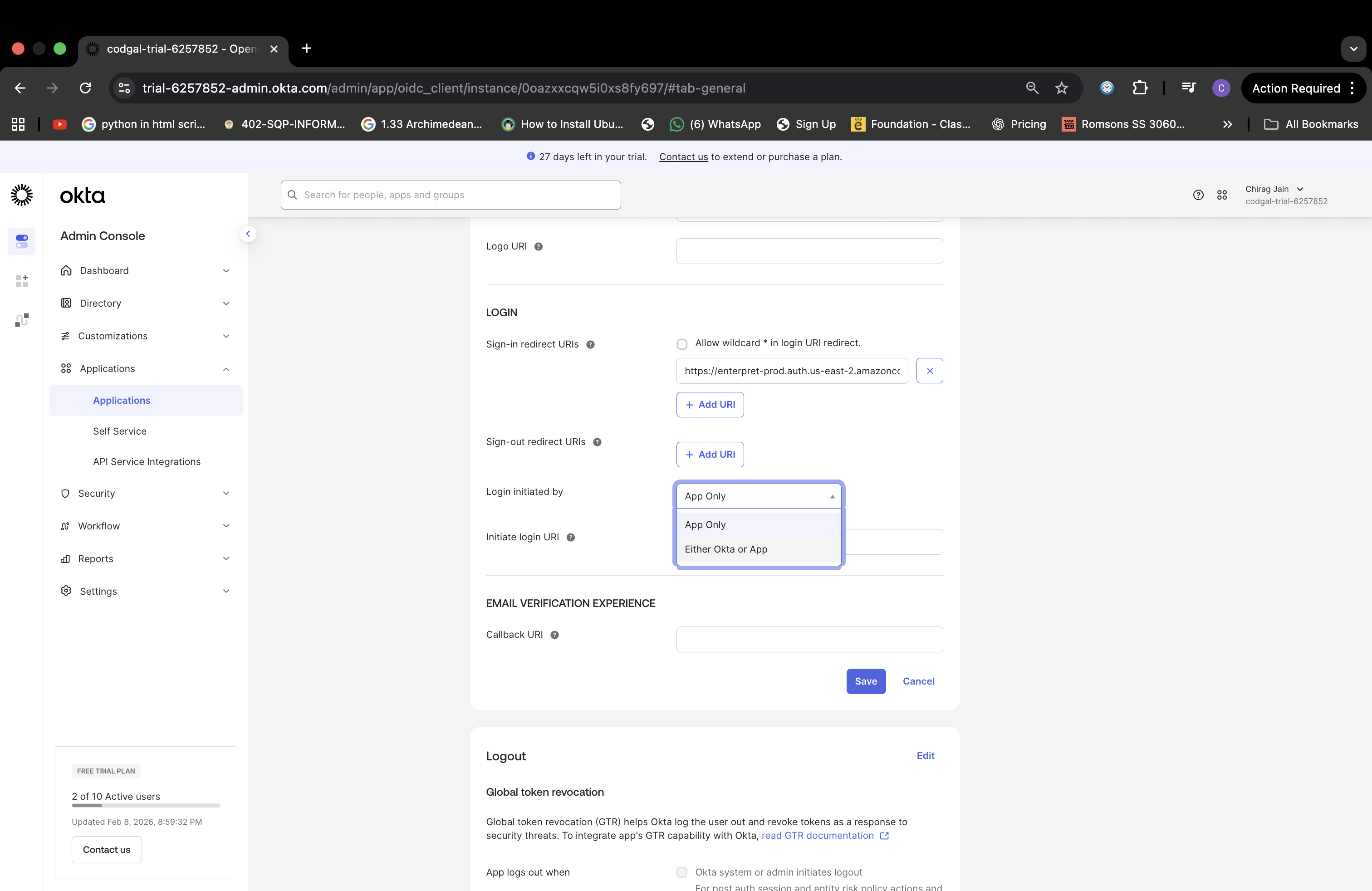
Go to General → General Settings → Edit
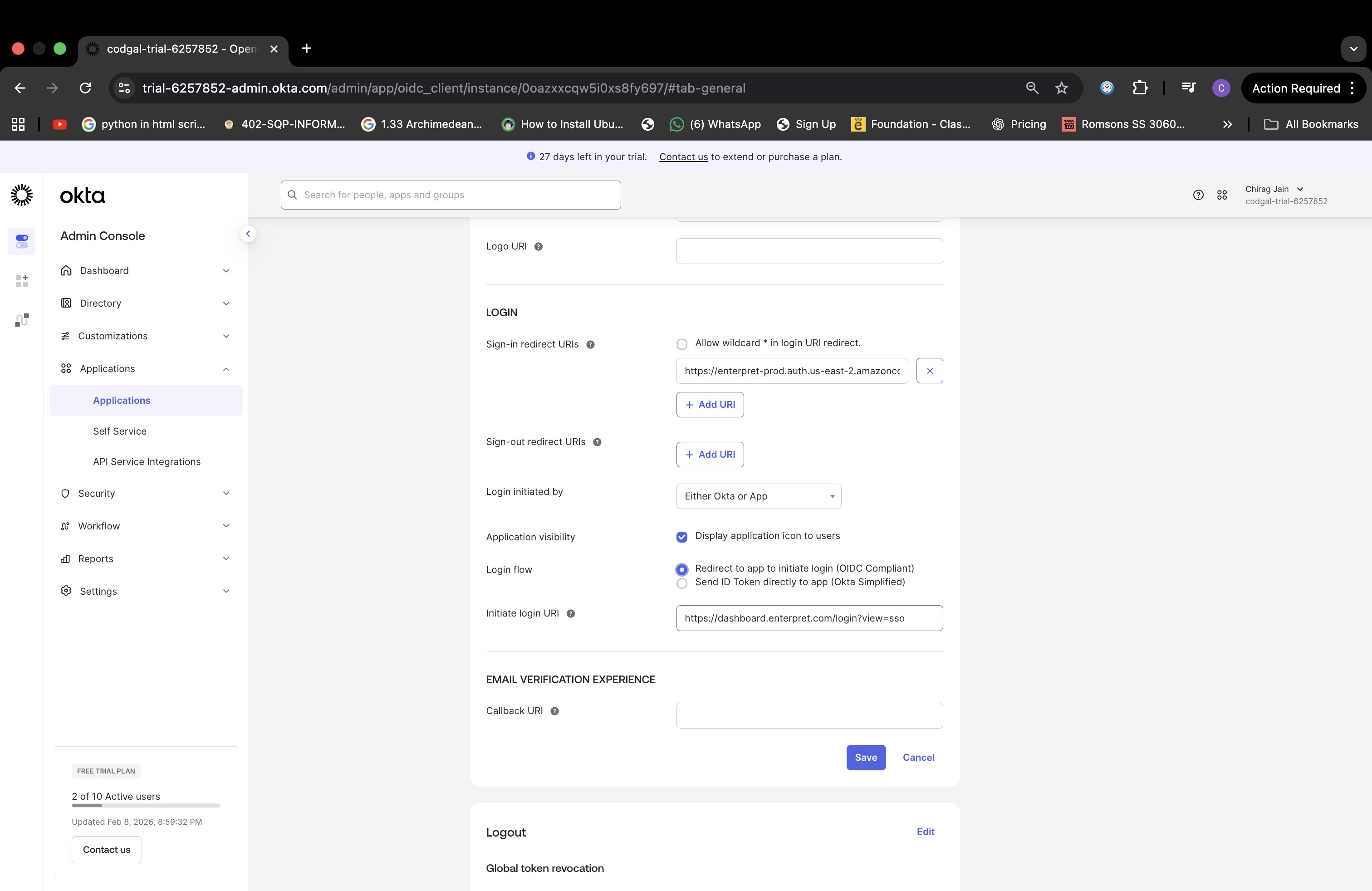
In the Login section:
Login initiated by: Either Okta or App
Login flow: Redirect to app to initiate login (OIDC Compliant)
Initiate login URI:
<https://dashboard.enterpret.com/login?view=sso>
Configure Application visibility as desired
Click Save
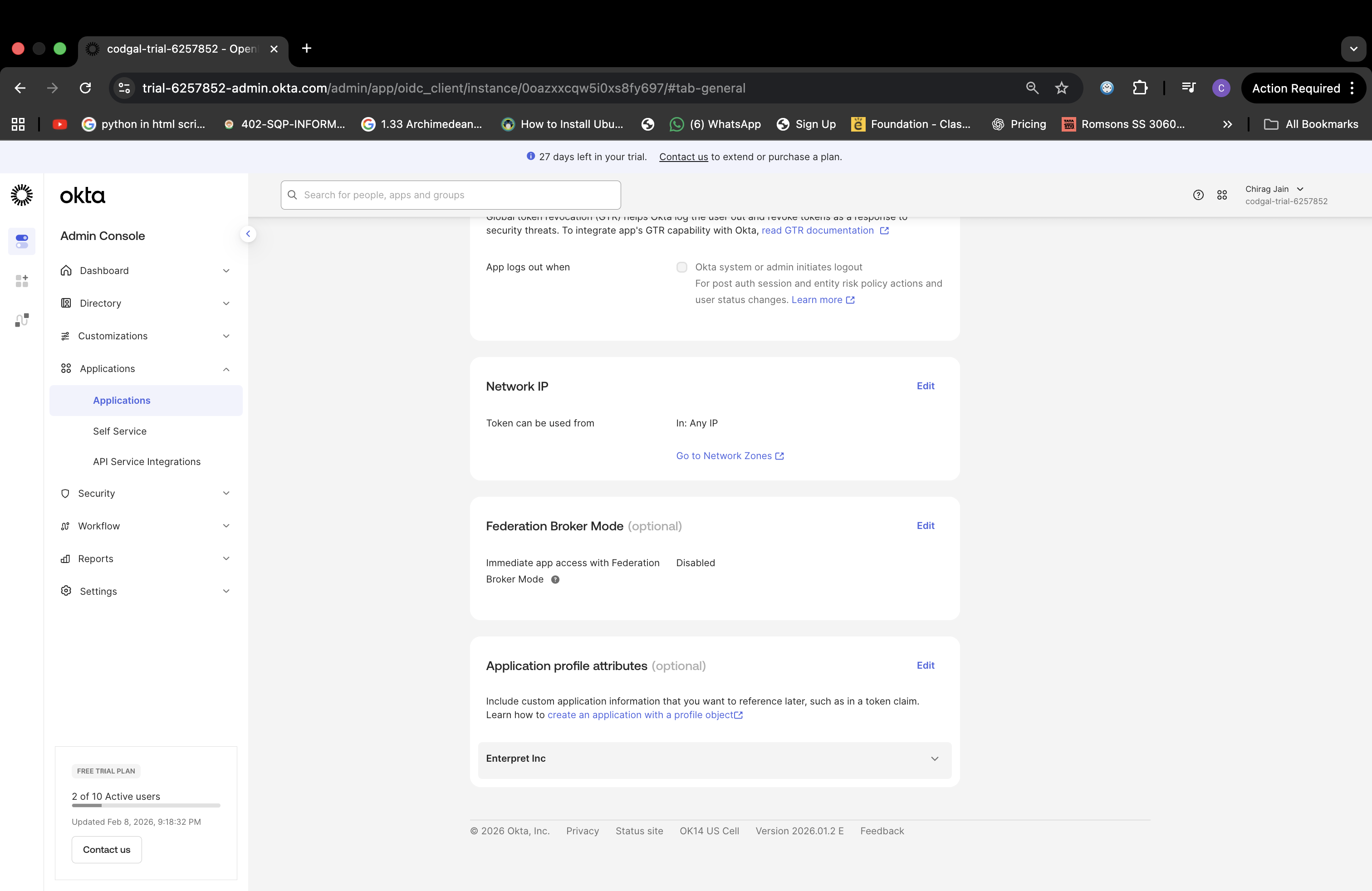
Go to General → Federation Broker Mode and Disable it.
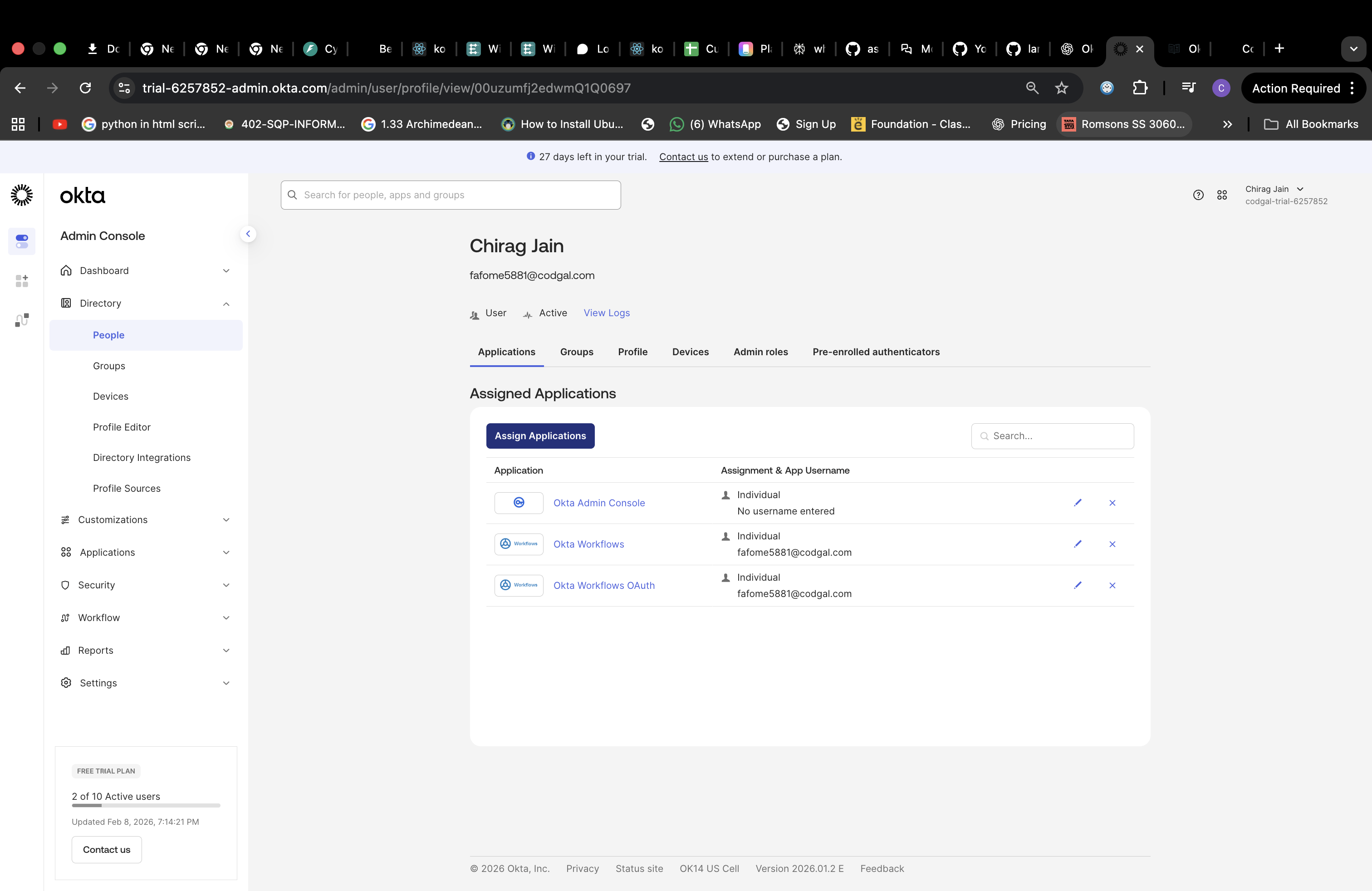
Attach Enterpret Application to Users in Okta
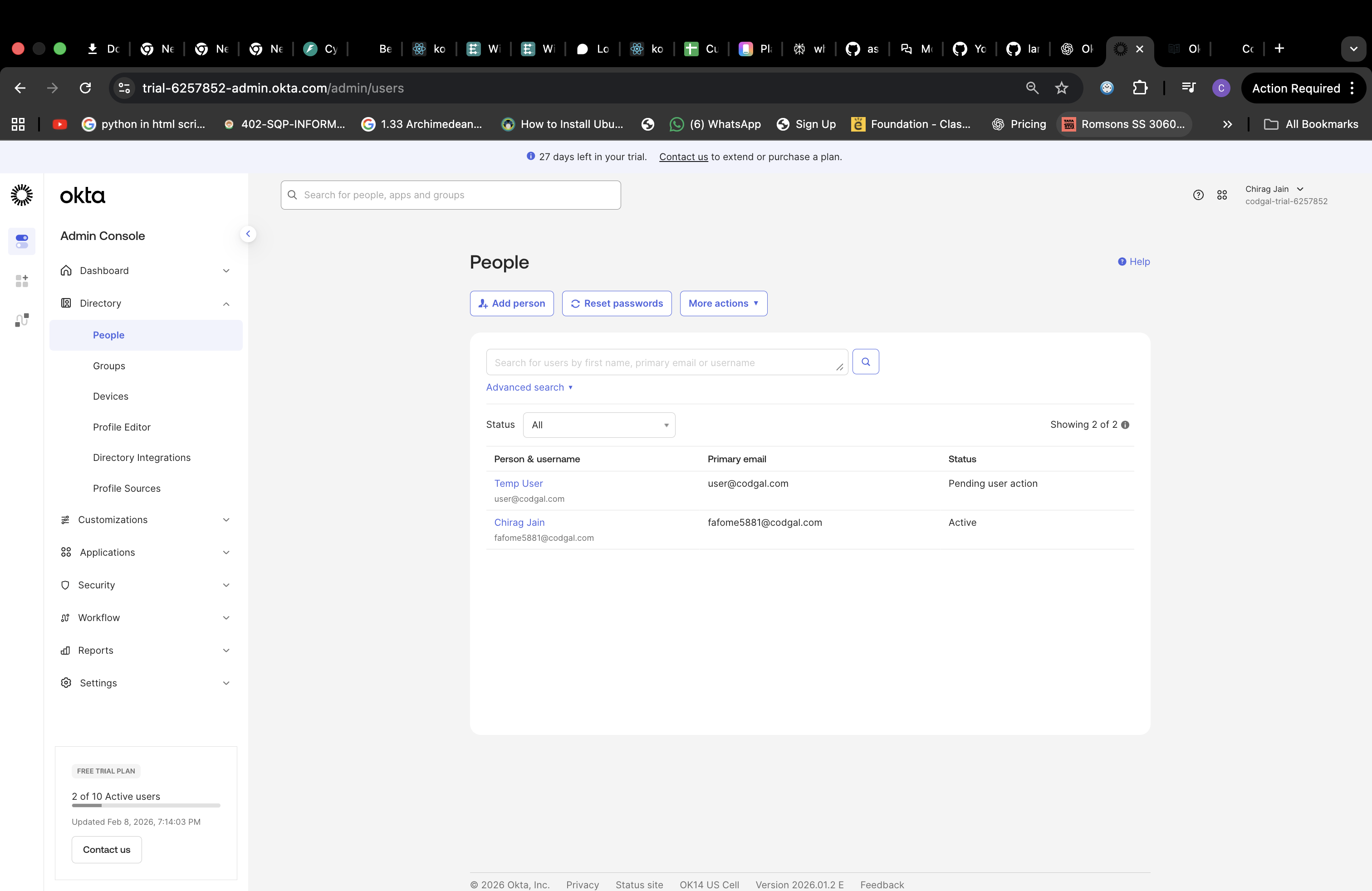
Go to Admin Console → Directory → People
Select User
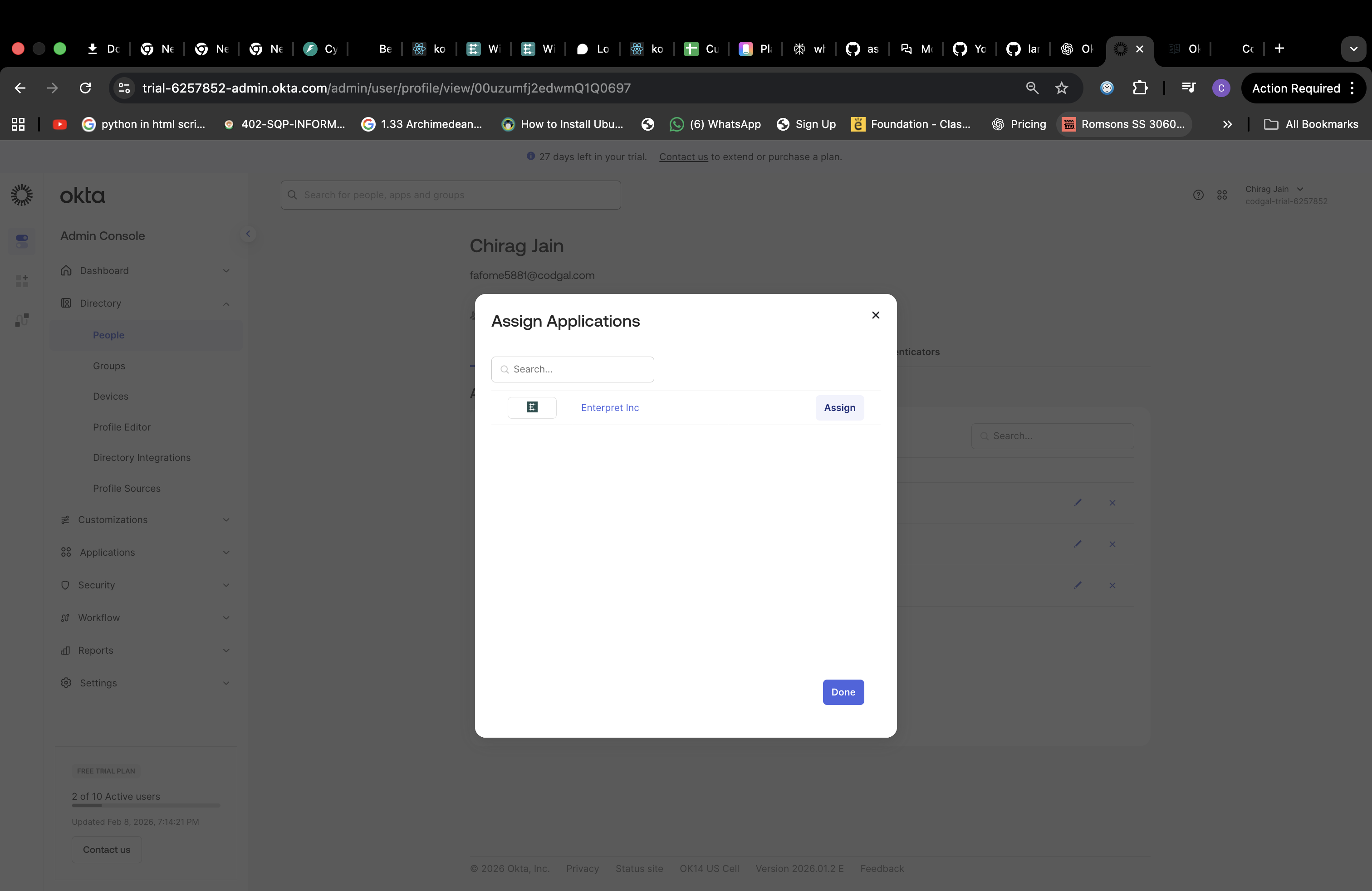
Click on Assign Applications
Assign Enterpret Inc and click on Done
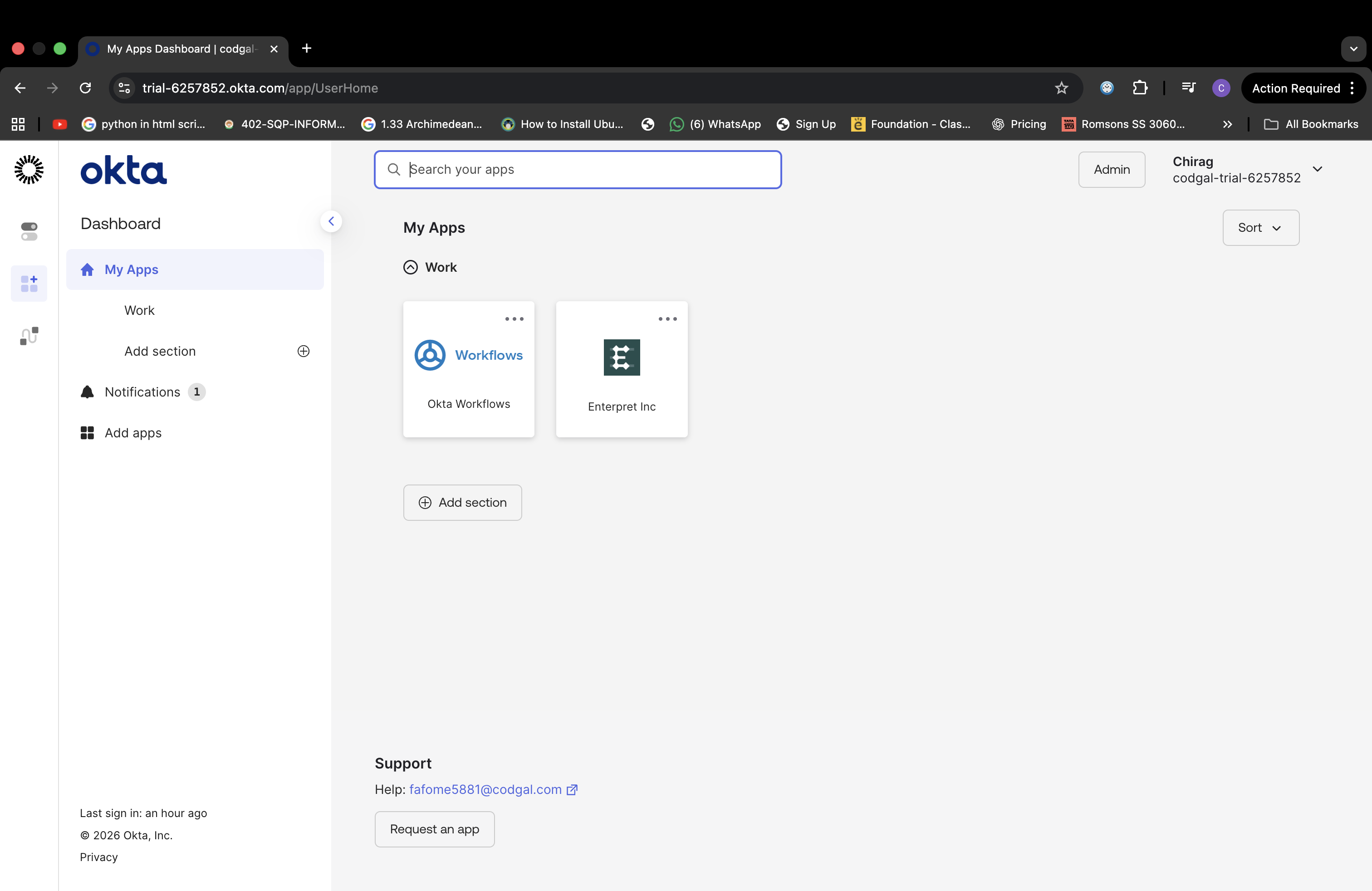
Users will now see Enterpret in their Okta dashboard.
Troubleshooting Checklist
Before contacting support, verify:
Emails match exactly in Okta and Enterpret
User is assigned to the Enterpret app in Okta
Client ID and Client Secret are correct
Issuer URL matches your Okta org exactly
Redirect URI is configured correctly
Login works via Sign in with SSO in Enterpret
Frequently asked questions
OIDC doesn’t mention RelayState — is that expected?
Yes. OIDC does not use RelayState. Enterpret always initiates the login flow.
Why does login fail even though Okta authentication succeeds?
Most commonly due to:
Incorrect Issuer URL
Incorrect Client Secret
Email mismatch between Okta and Enterpret
Is an email attribute required in OIDC like SAML?
No manual attribute configuration is required.
Enterpret reads the email claim from the ID token, which Okta includes by default.
Can we use a different identifier instead of email?
No. Enterpret currently uses email as the unique user identifier.
Can users still log in with email/password after enabling OIDC?
If Enforce SSO is enabled, users must log in via SSO.
Should we use OIDC or SAML?
OIDC: Simpler, fewer edge cases, recommended if available
SAML: Useful if required by org policy or legacy setups
Need Help?
If you’re unsure about:
Issuer URL configuration
Client credentials
Okta dashboard login behavior
Reach out to the Enterpret team — we’re happy to help you get OIDC SSO running smoothly 🚀