
Okta <> Enterpret: End-to-End SSO Setup Guide (SAML)
Overview
Single Sign-On (SSO) allows users to log in to Enterpret using their organization’s existing Okta credentials. Enterpret supports SAML 2.0–based SSO, enabling centralized authentication, improved security, and simpler user access management.
This guide walks you through the entire SSO setup flow, from configuring Okta to testing and enforcing SSO.
🔐 Understanding SSO Login Flows (Read This First)
Most SSO issues come from confusion between where the login starts. Enterpret supports both flows below, but they behave differently.
SP-Initiated SSO
What it is
Login starts from Enterpret
User is redirected to Okta to authenticate
Flow
User opens Enterpret login page
Clicks Sign in with SSO
Redirected to Okta
Authenticates
Redirected back to Enterpret
Why this matters
✅ No RelayState required
✅ Simplest flow
✅ Must work before enforcing SSO
👉 Always validate this flow first.
IDP-Initiated SSO
What it is
Login starts from Okta
User clicks Enterpret app in Okta dashboard
Key difference
❗ Requires RelayState
Without it, Enterpret can’t identify the correct workspace
What Is RelayState?
RelayState is a value generated by Enterpret that tells the Okta:
“This user belongs to this specific Enterpret workspace.”
SP-initiated: Not required
IDP-initiated: Required
Prerequisites
Admin access to Enterpret
Admin access to Okta
Permission to create Okta applications
User emails in Enterpret must exactly match Okta emails
High-Level Setup Flow
Create a SAML app in Okta
Configure attribute statements (important)
Configure SSO in Enterpret
Test SP-initiated login
Enable IDP-initiated login
(Optional) Enforce SSO
Step 1: Configure Okta for Enterpret (SAML)
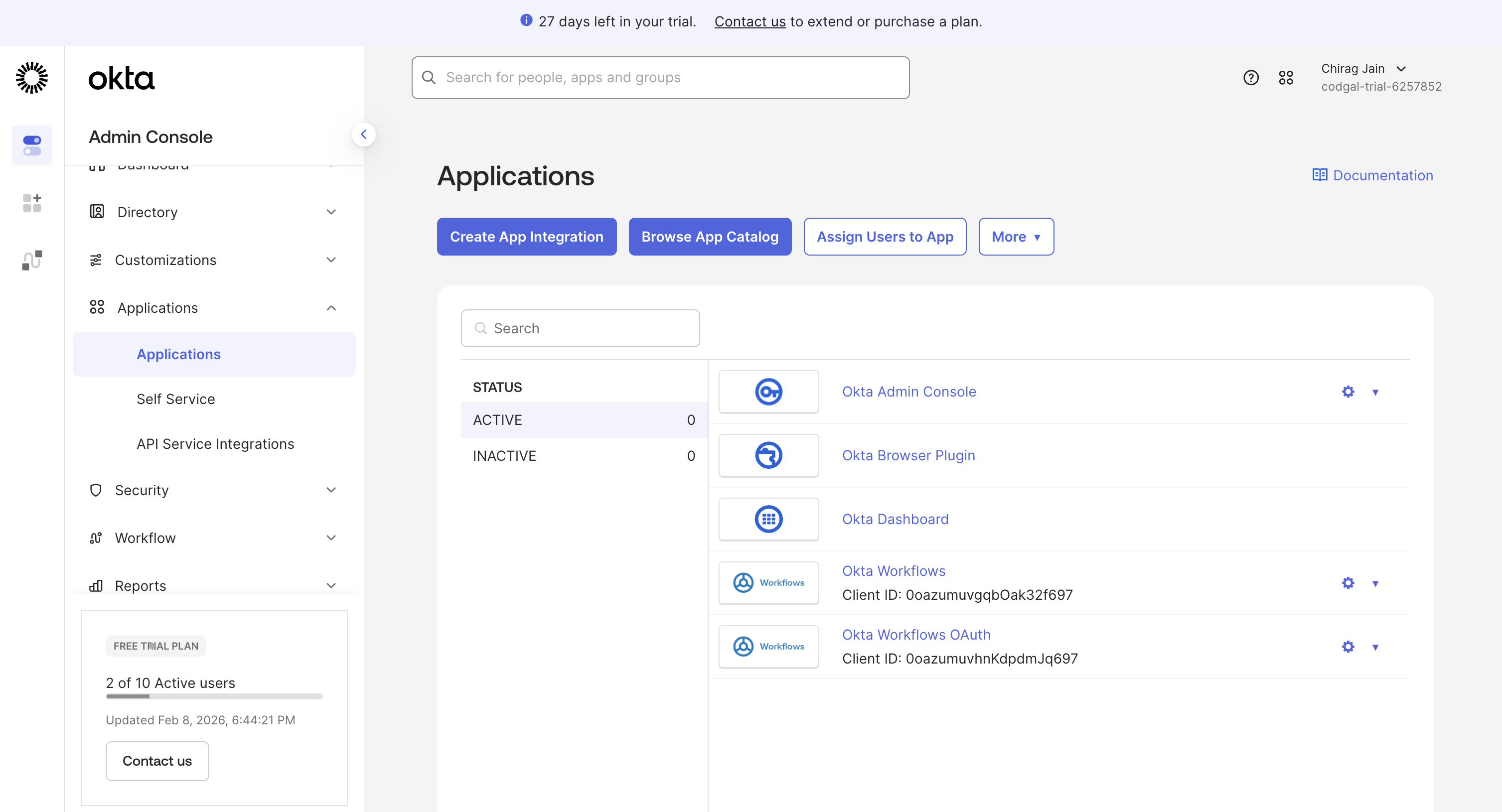
1. Create a New Application
Okta Admin Console → Applications → Applications
Click Create App Integration
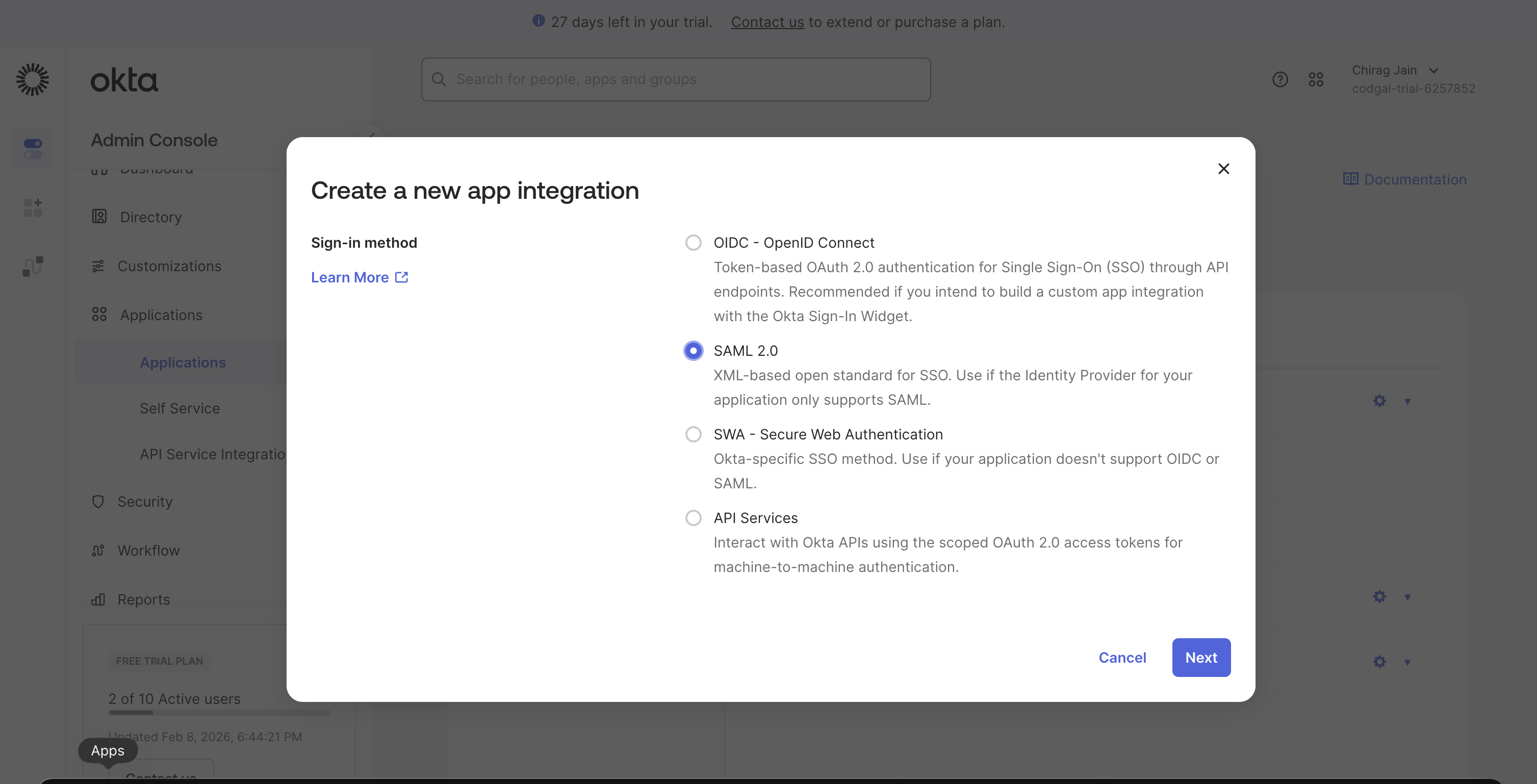
Select SAML 2.0
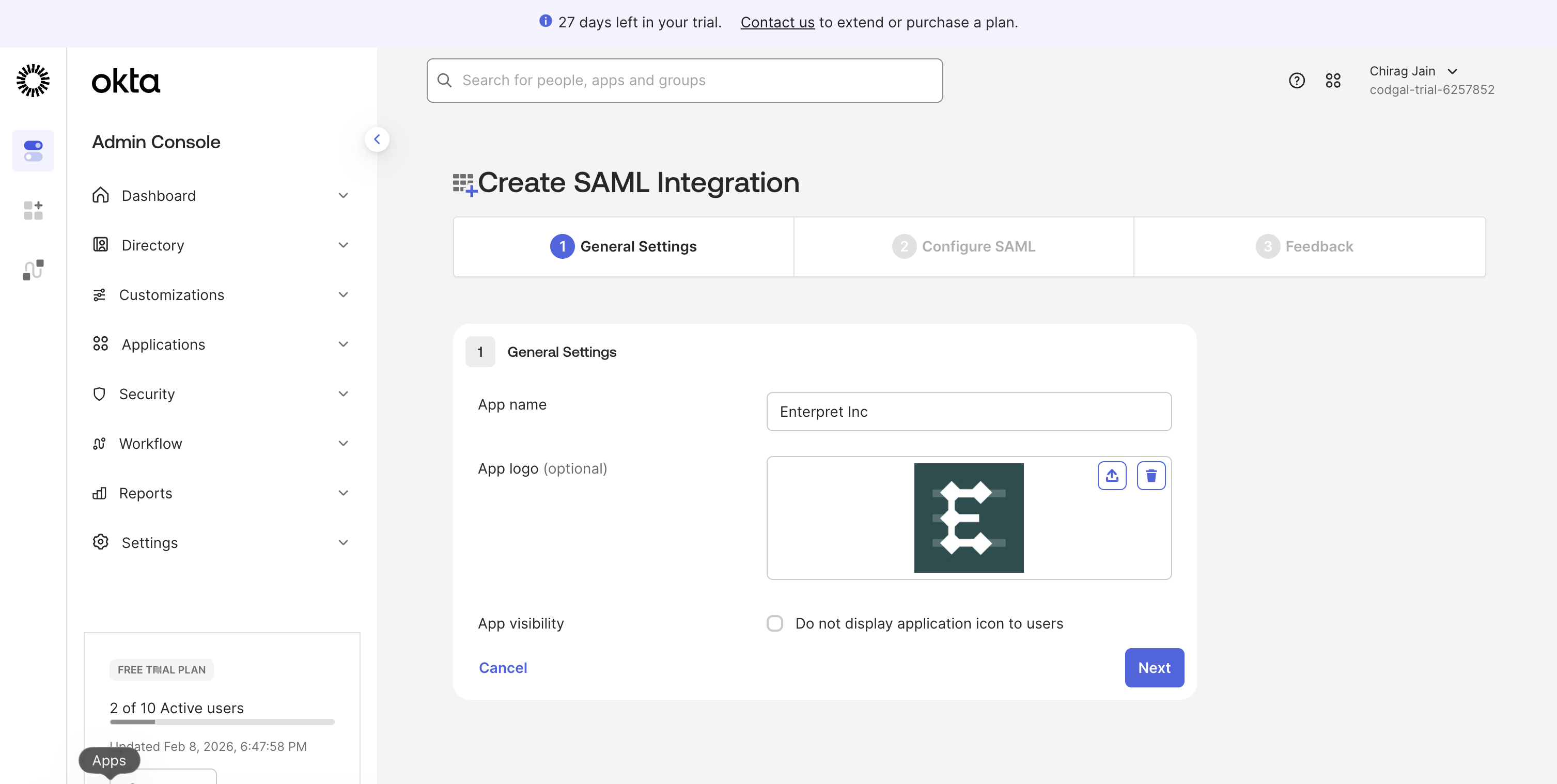
2. General Settings
App name:
Enterpret IncLogo: Optional
Click Next
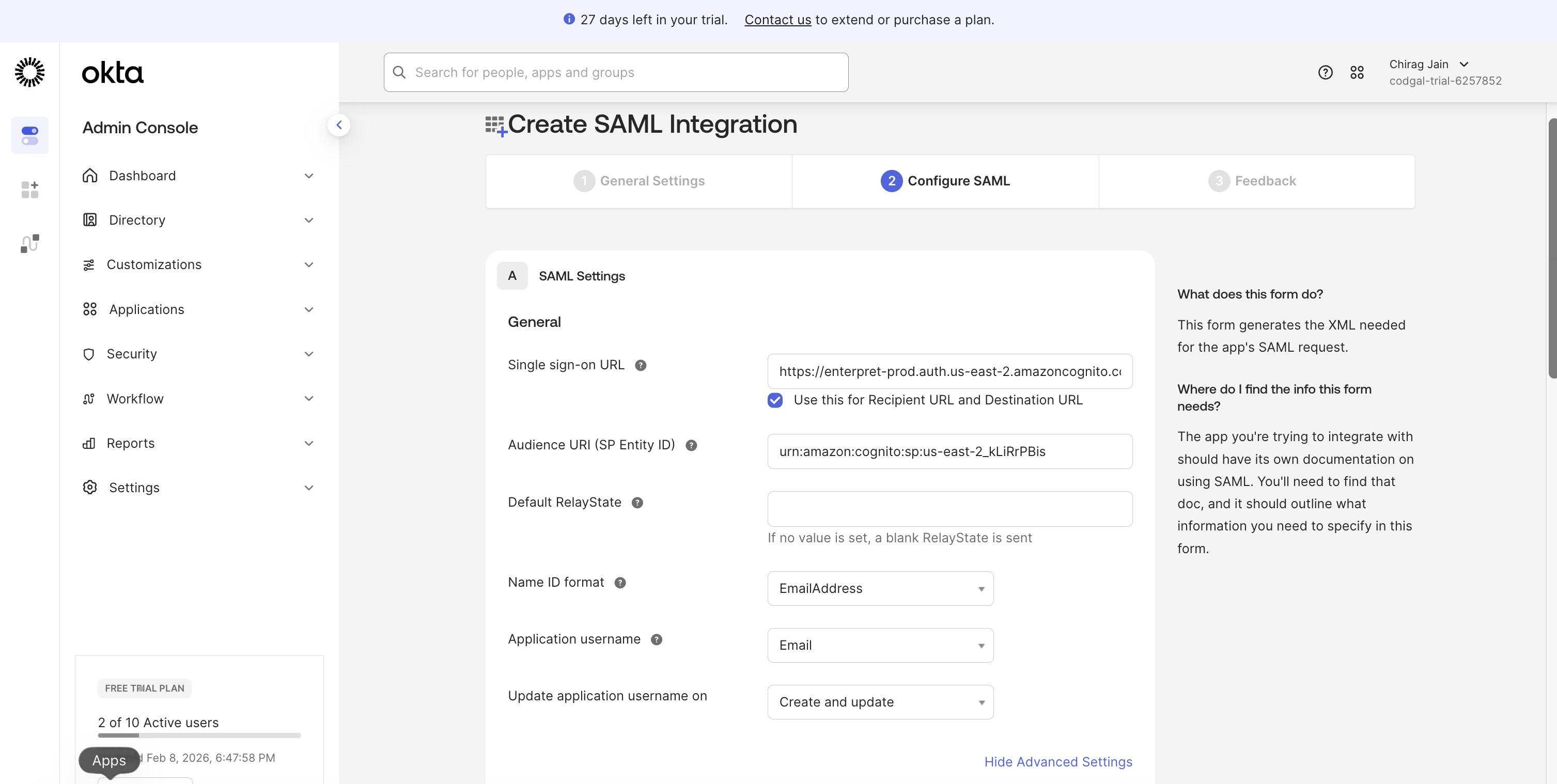
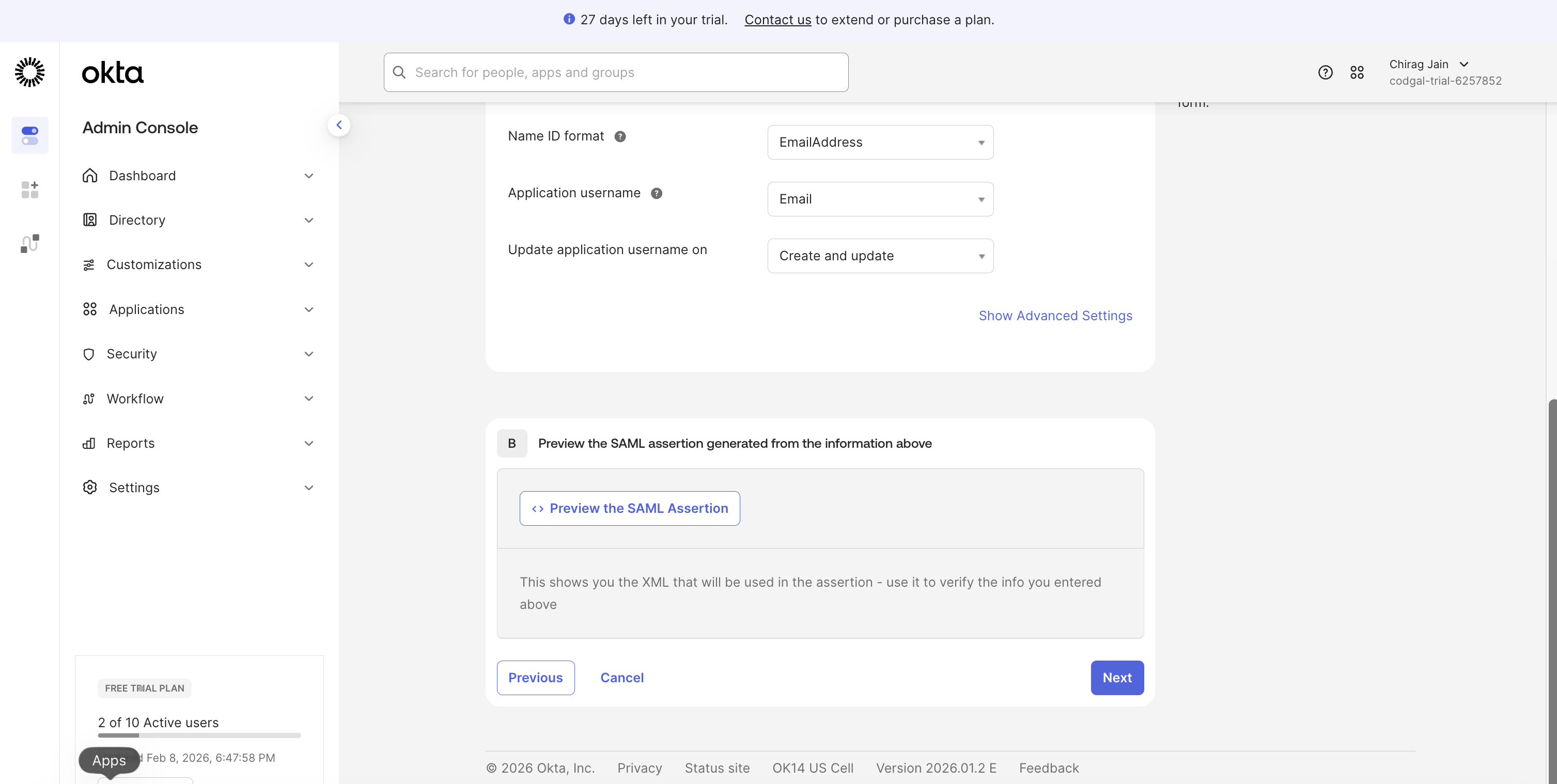
3. Configure SAML Settings
Update SAML Settings with following details
Field | Value |
Single sign-on URL (ACS) |
|
Audience URI (SP Entity ID) |
|
Default RelayState | Leave empty |
Name ID format | EmailAddress |
Application username | |
Update application username on | Create and Update |
Click on Next
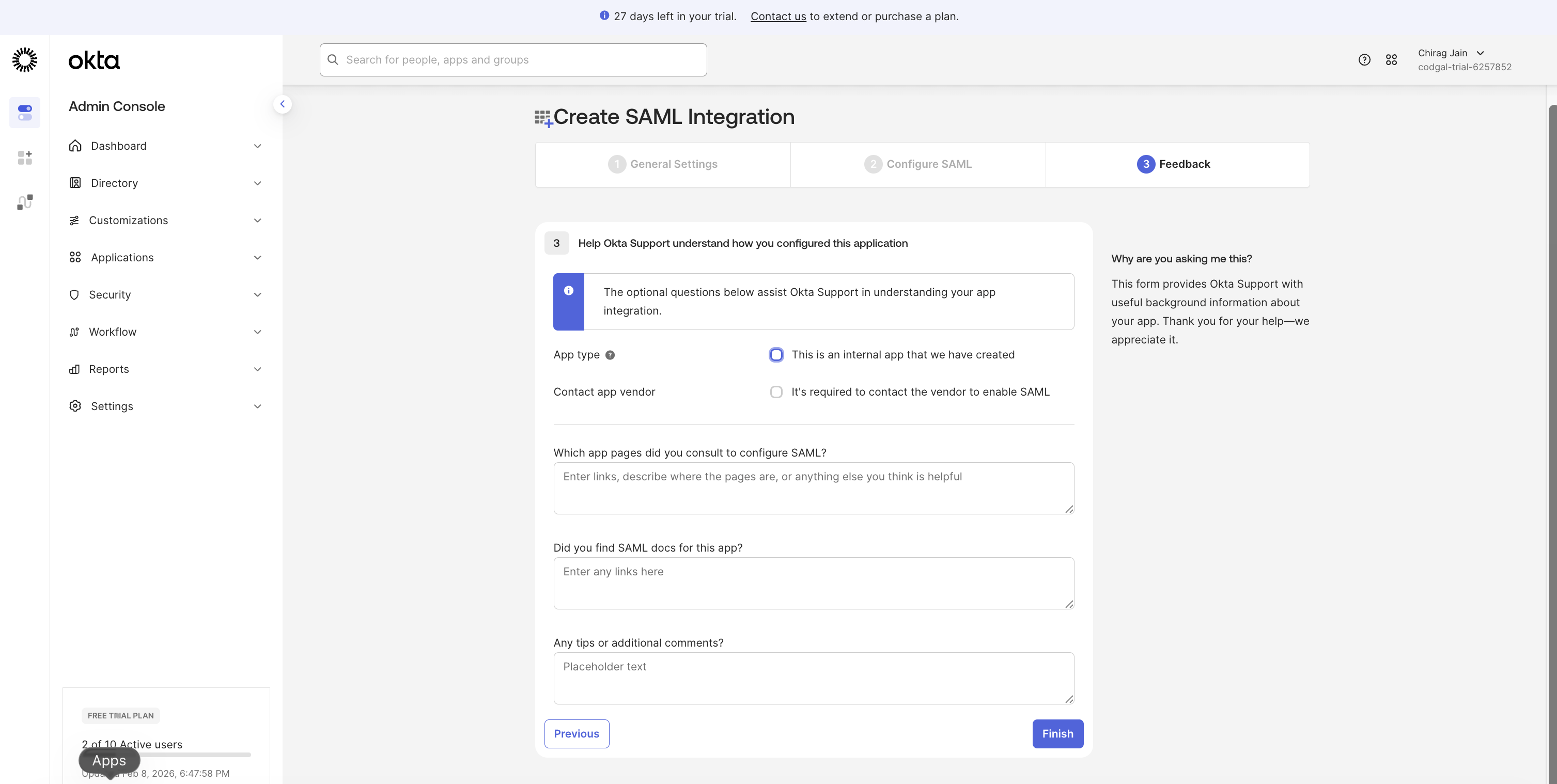
Give Okta Feedback (Optional)
4. Configure Attribute Statements
Open Enterpret Application’s Sign On tab
Scroll down to Attribute Statements and expand Show Legacy Configuration
Add following attribute to Profile attribute statements as shown above
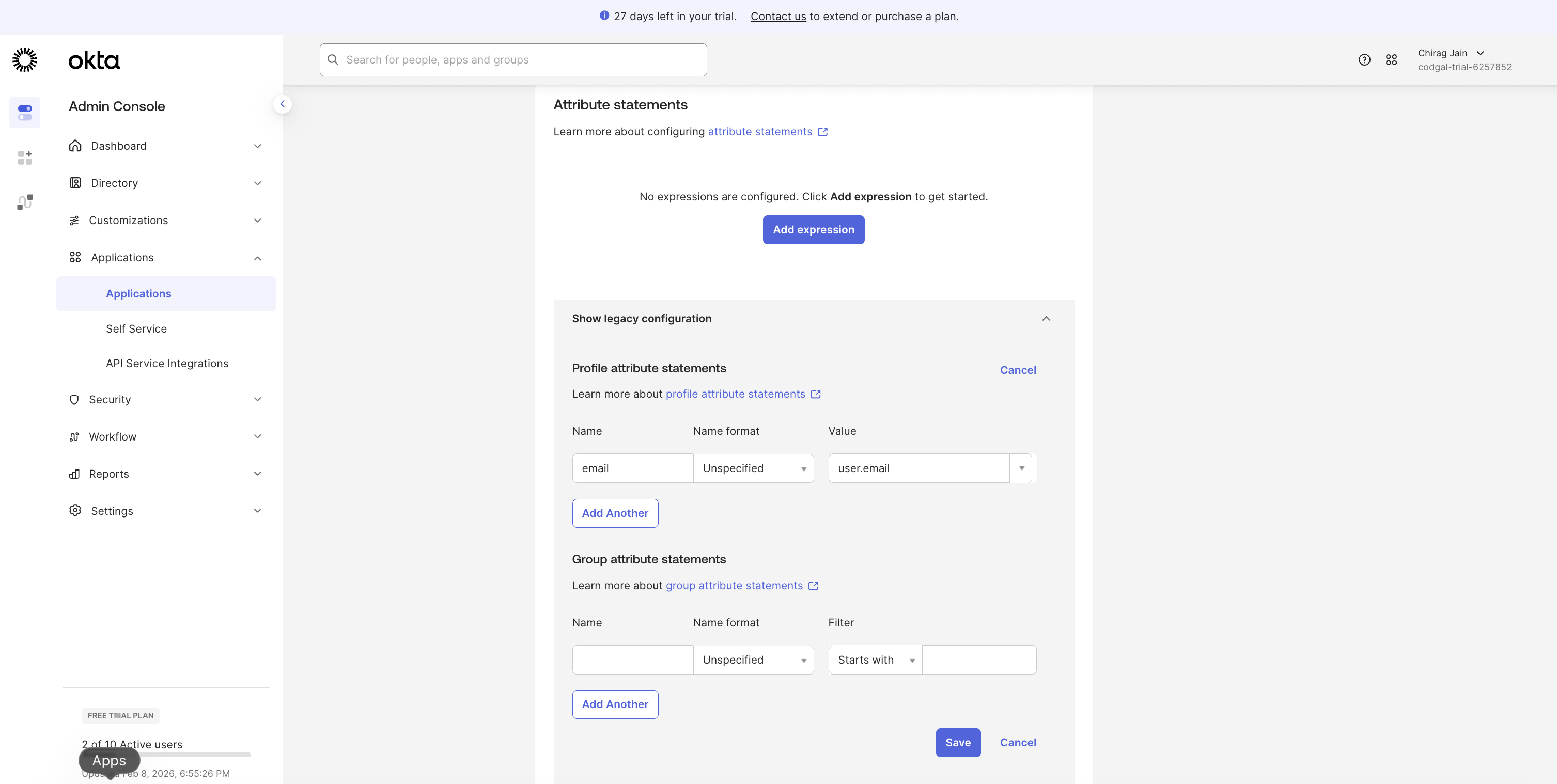
Name | Name format | Value |
| Unspecified |
|
Leave Group attribute statements empty and Save
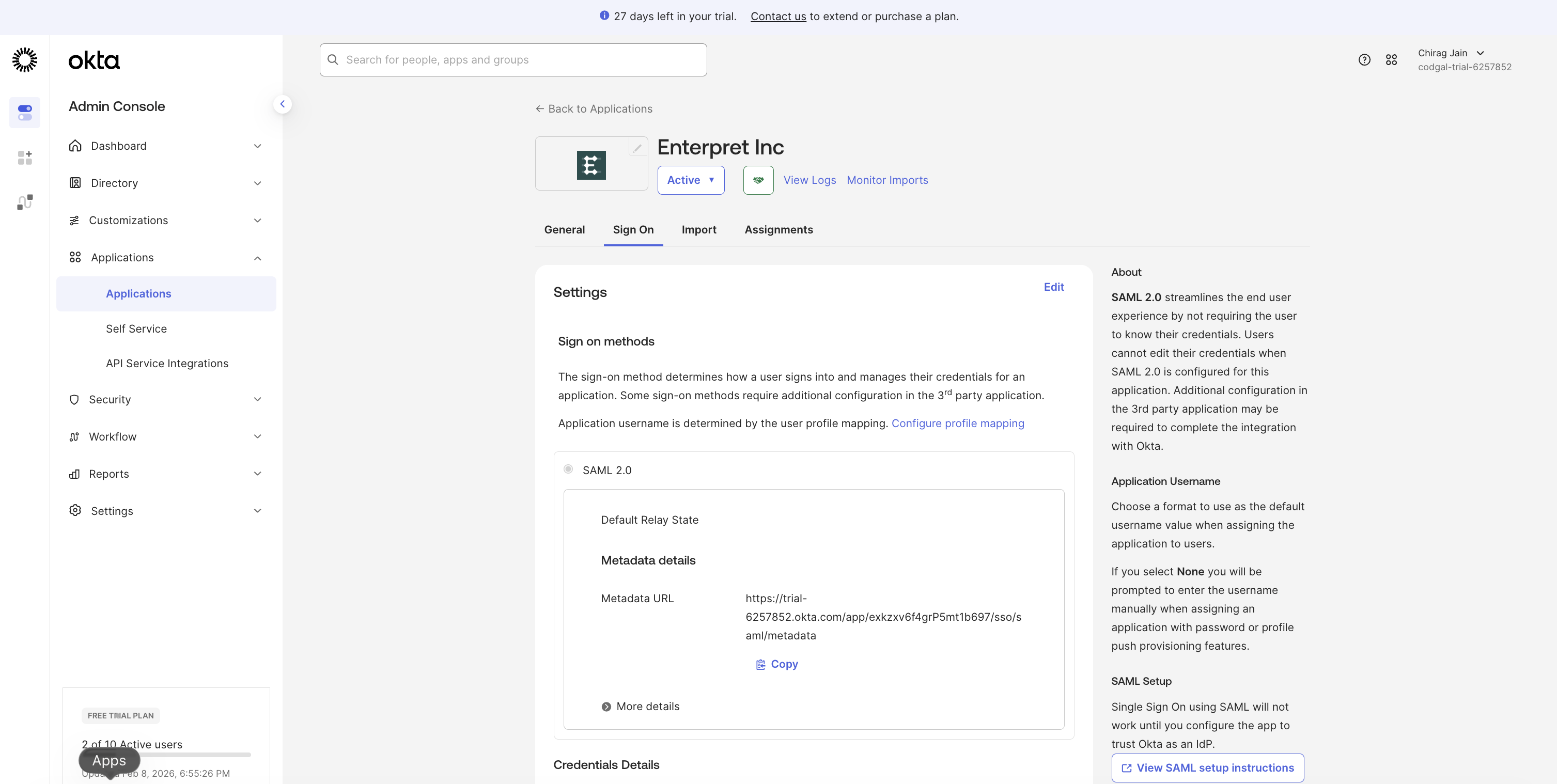
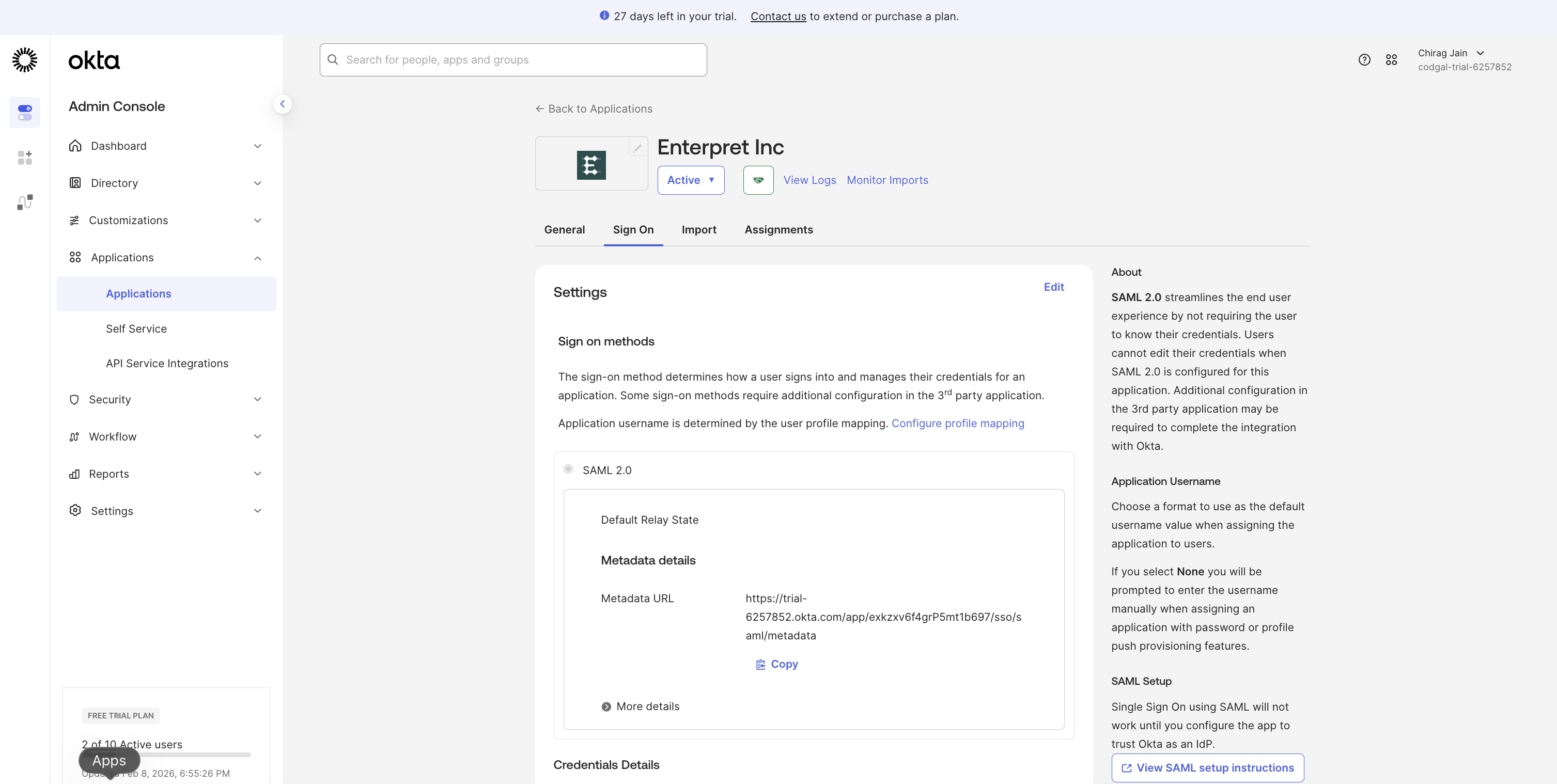
5. Copy Okta Metadata URL
Open Enterpret Inc app
Go to Sign On
Copy the Metadata URL
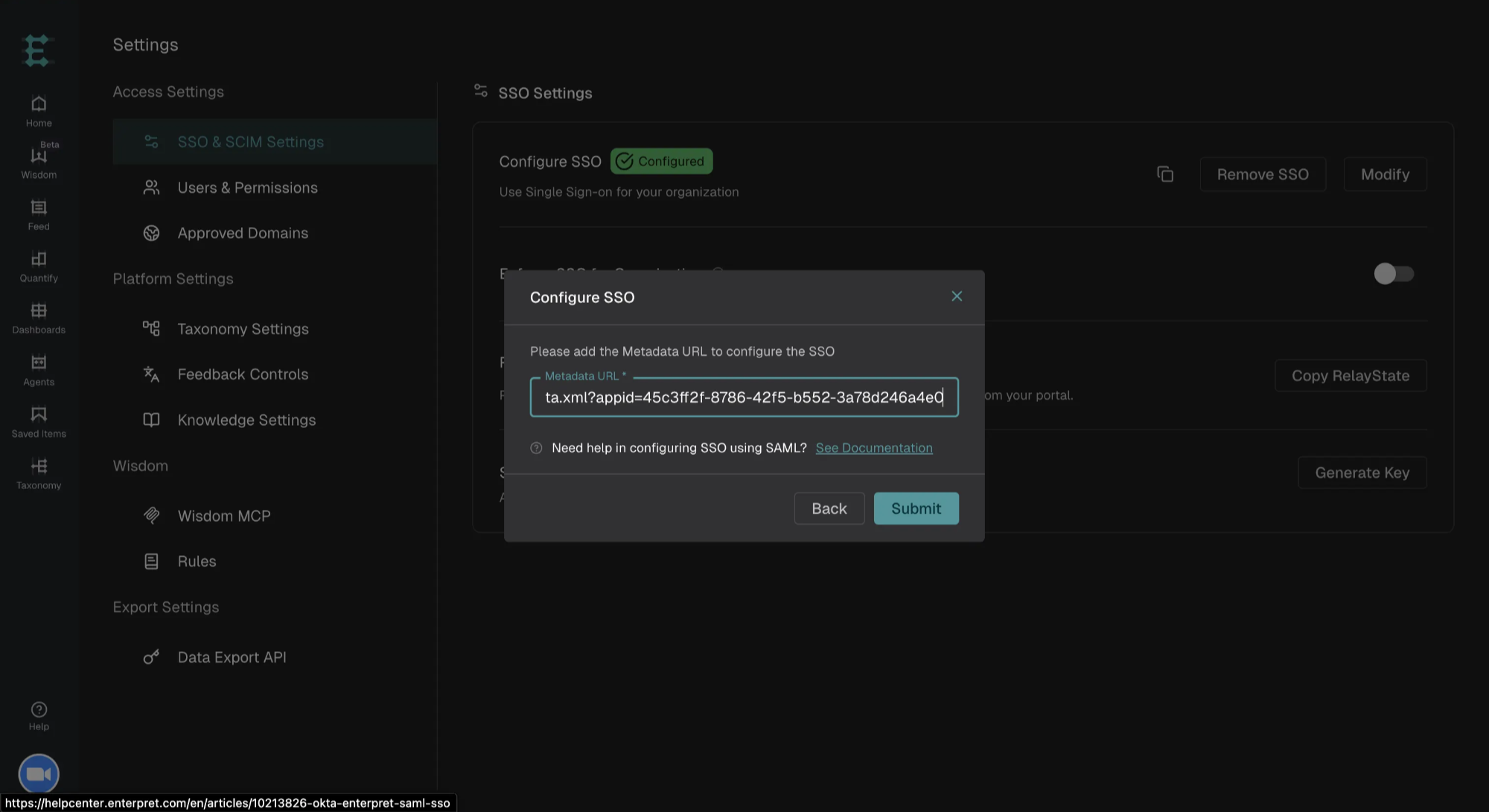
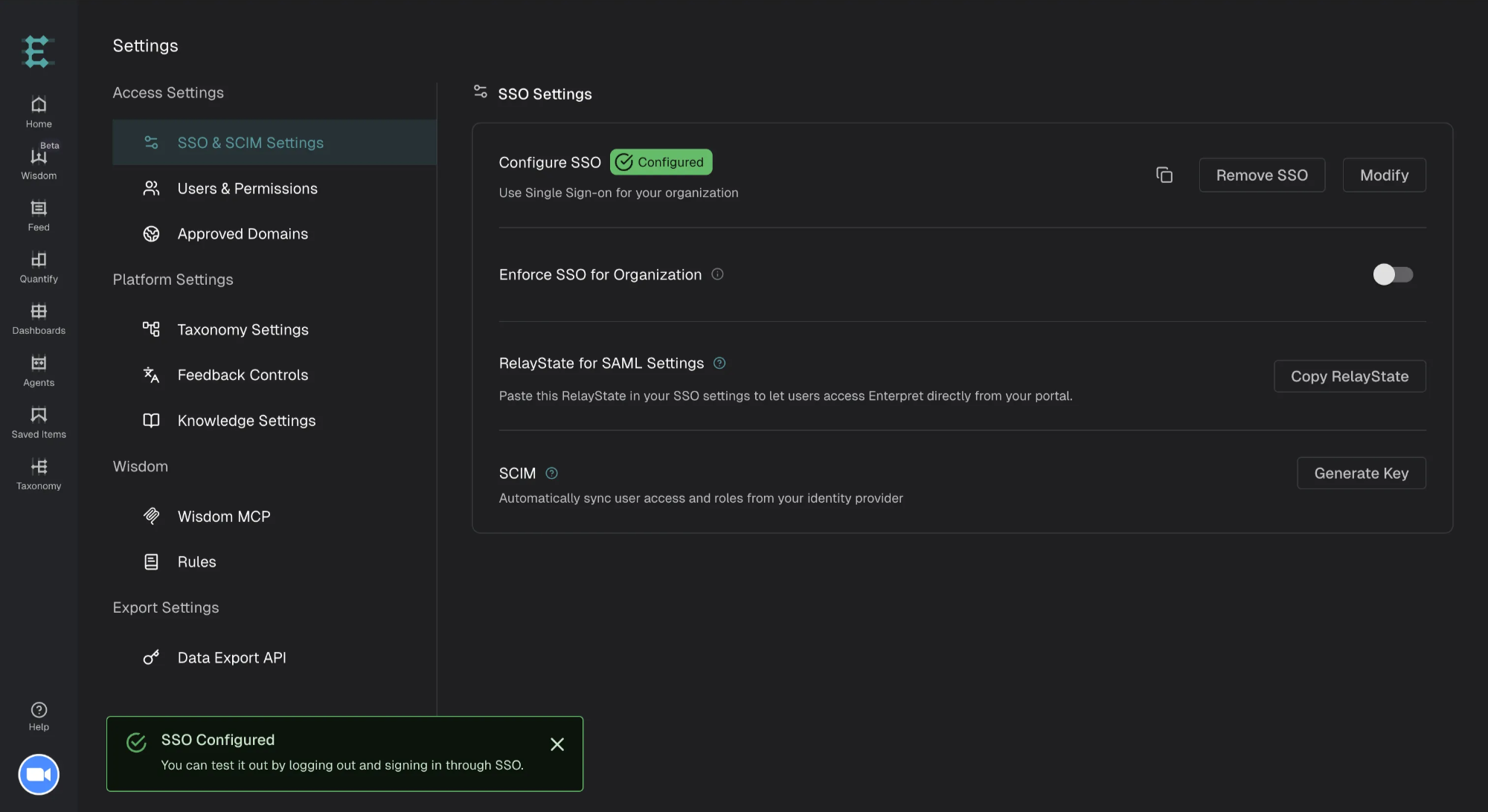
Step 2: Configure SSO in Enterpret
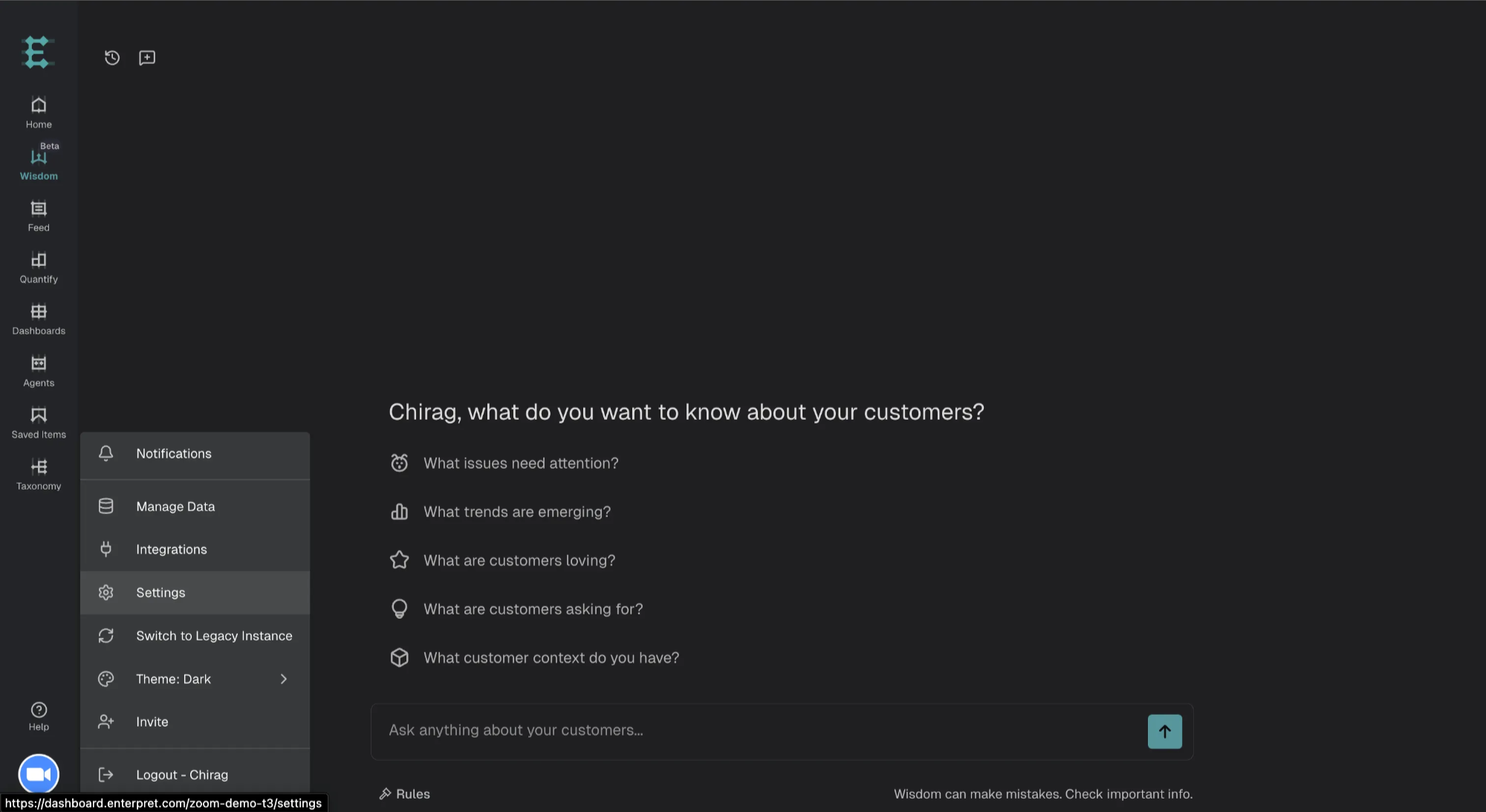
Log in to Enterpret
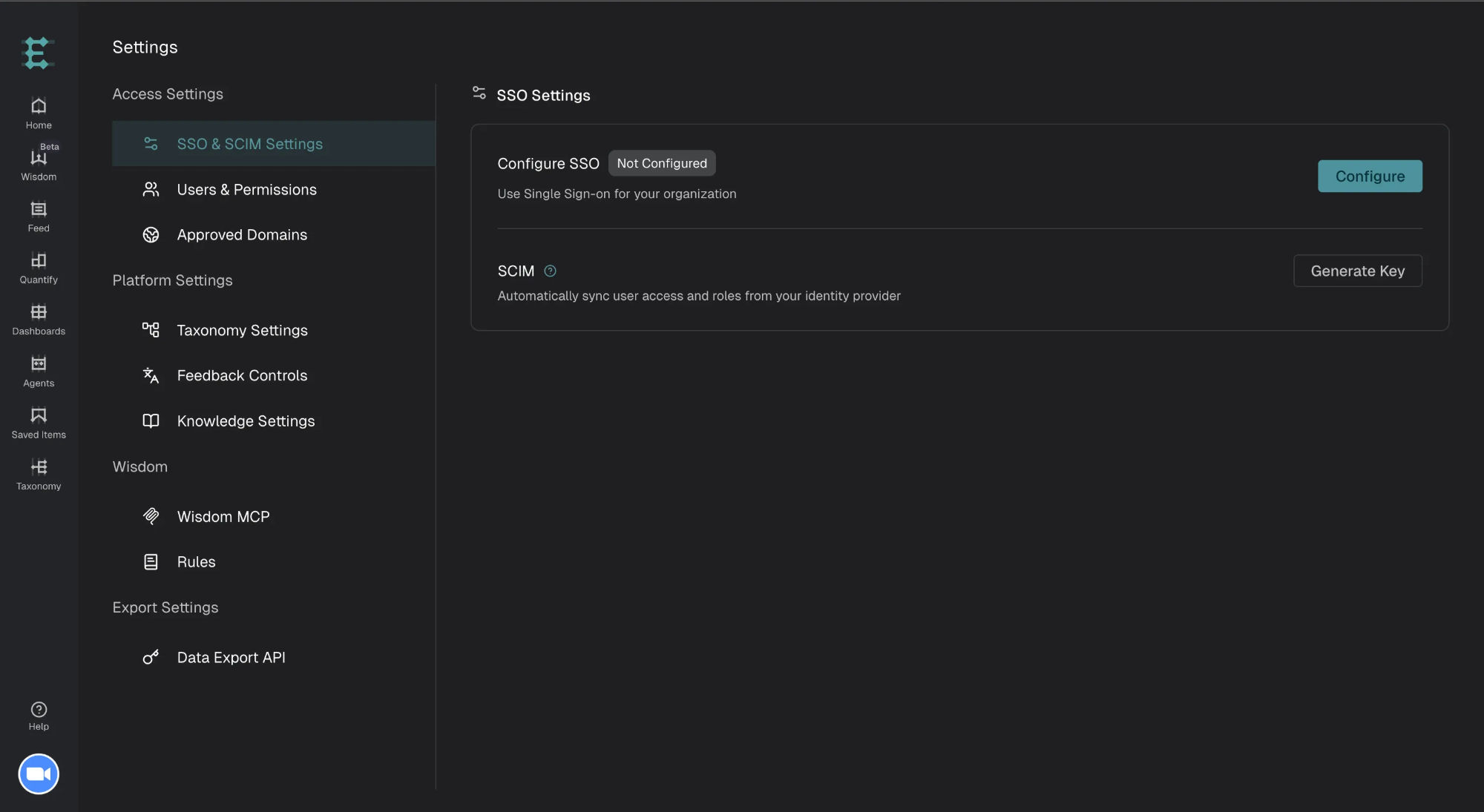
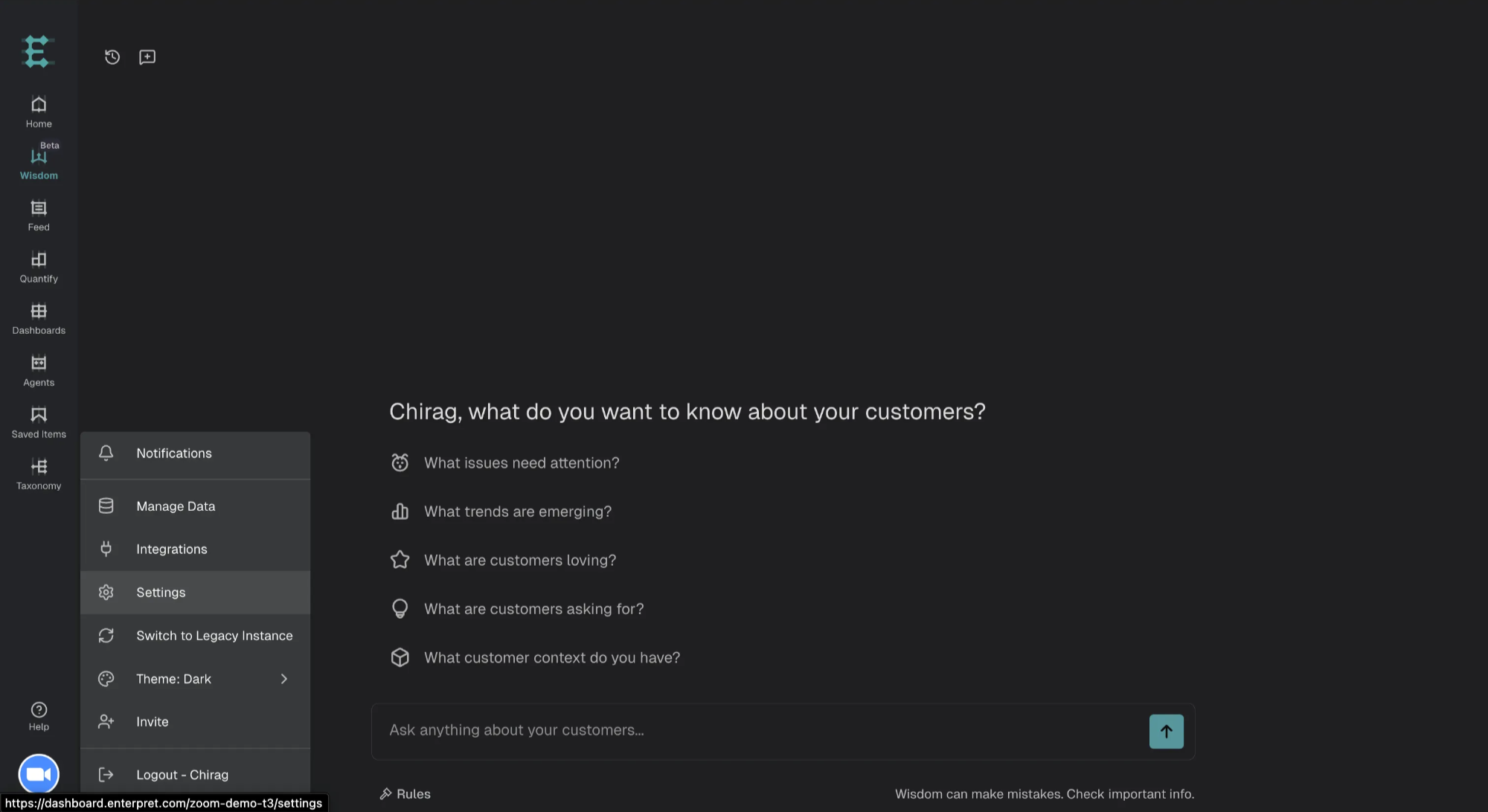
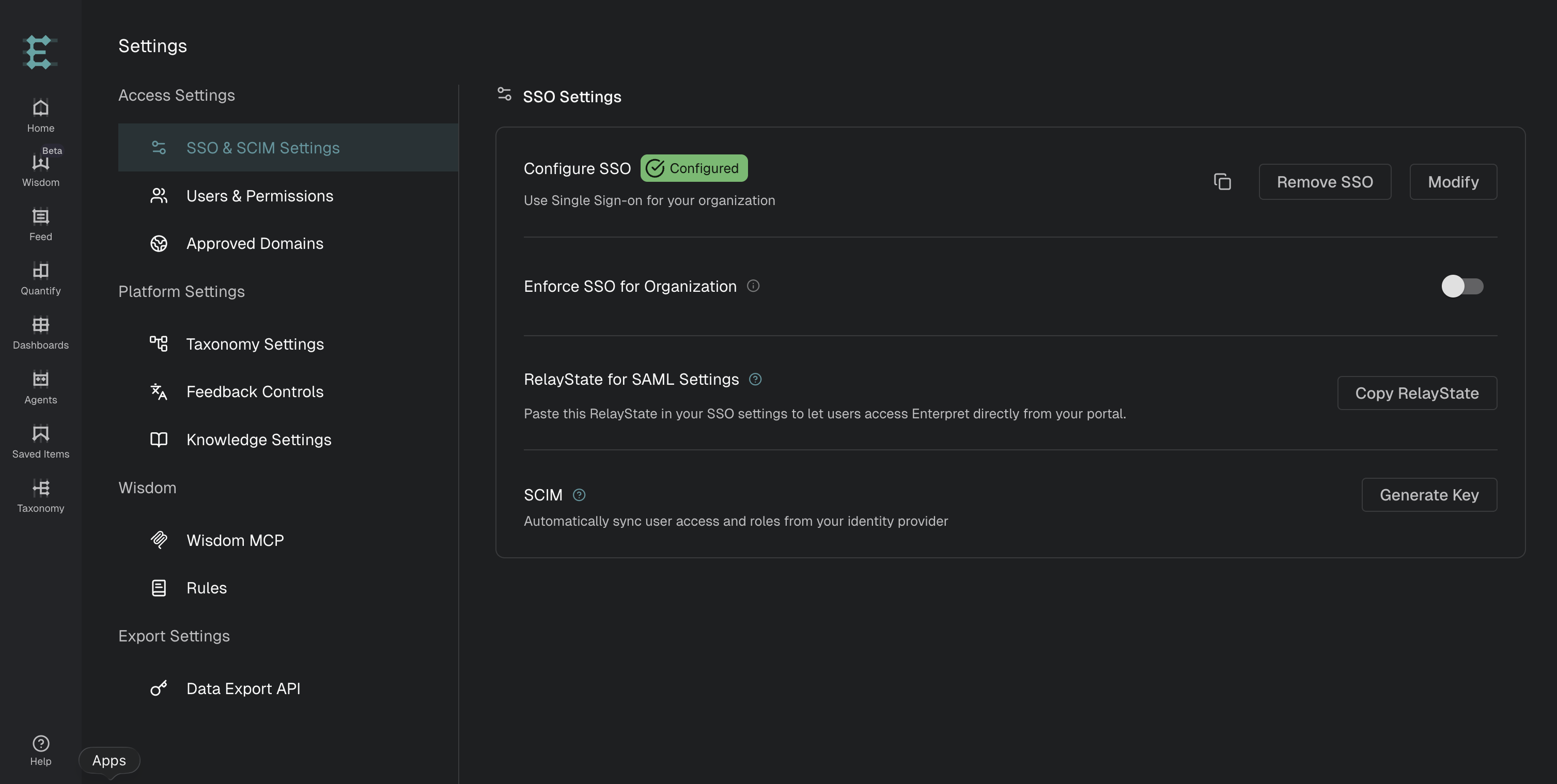
Click Organization logo → Settings → Access Settings → SSO & SCIM Settings
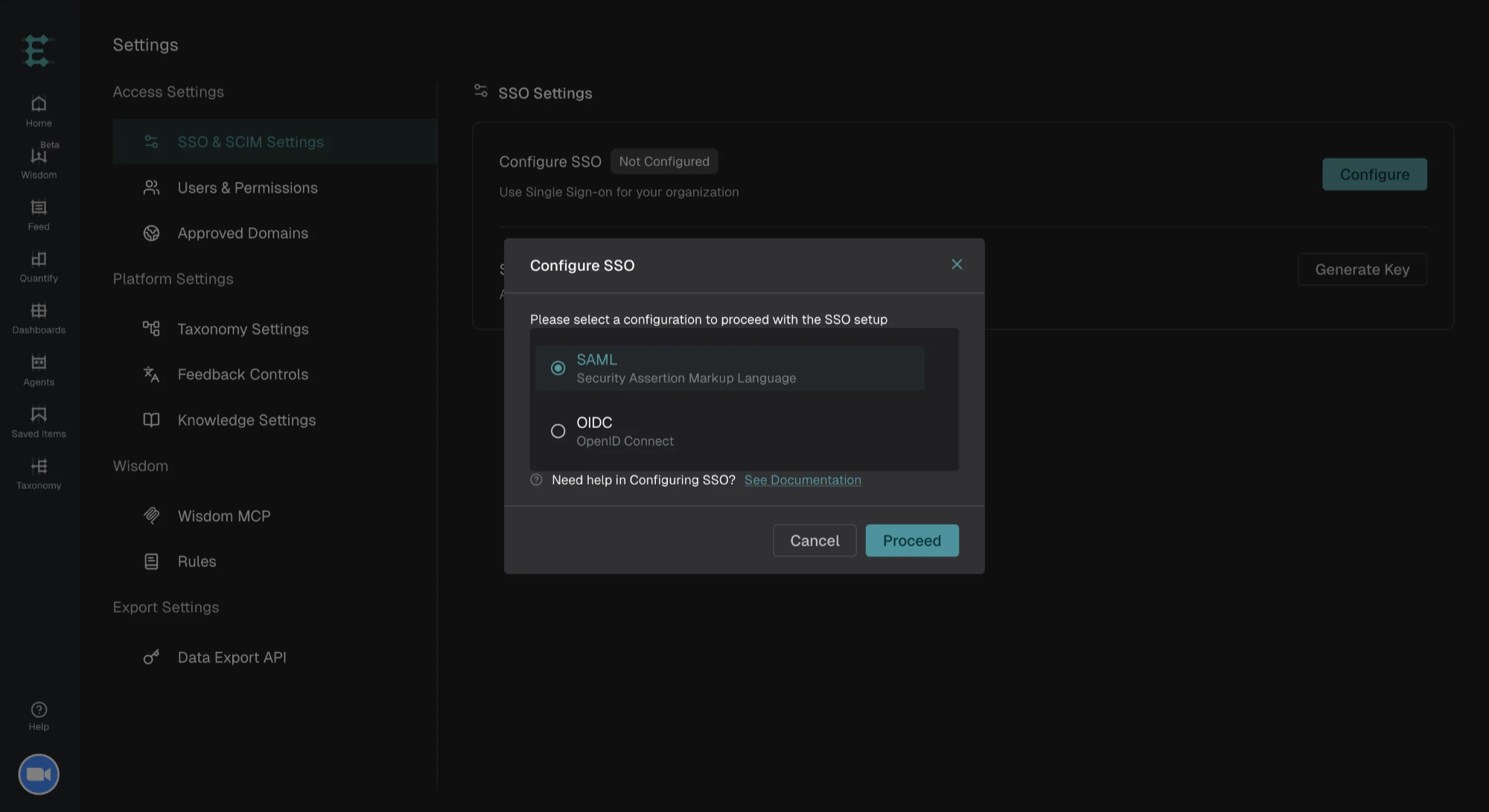
Click Configure
Select SAML
Paste the Metadata URL
Click Submit
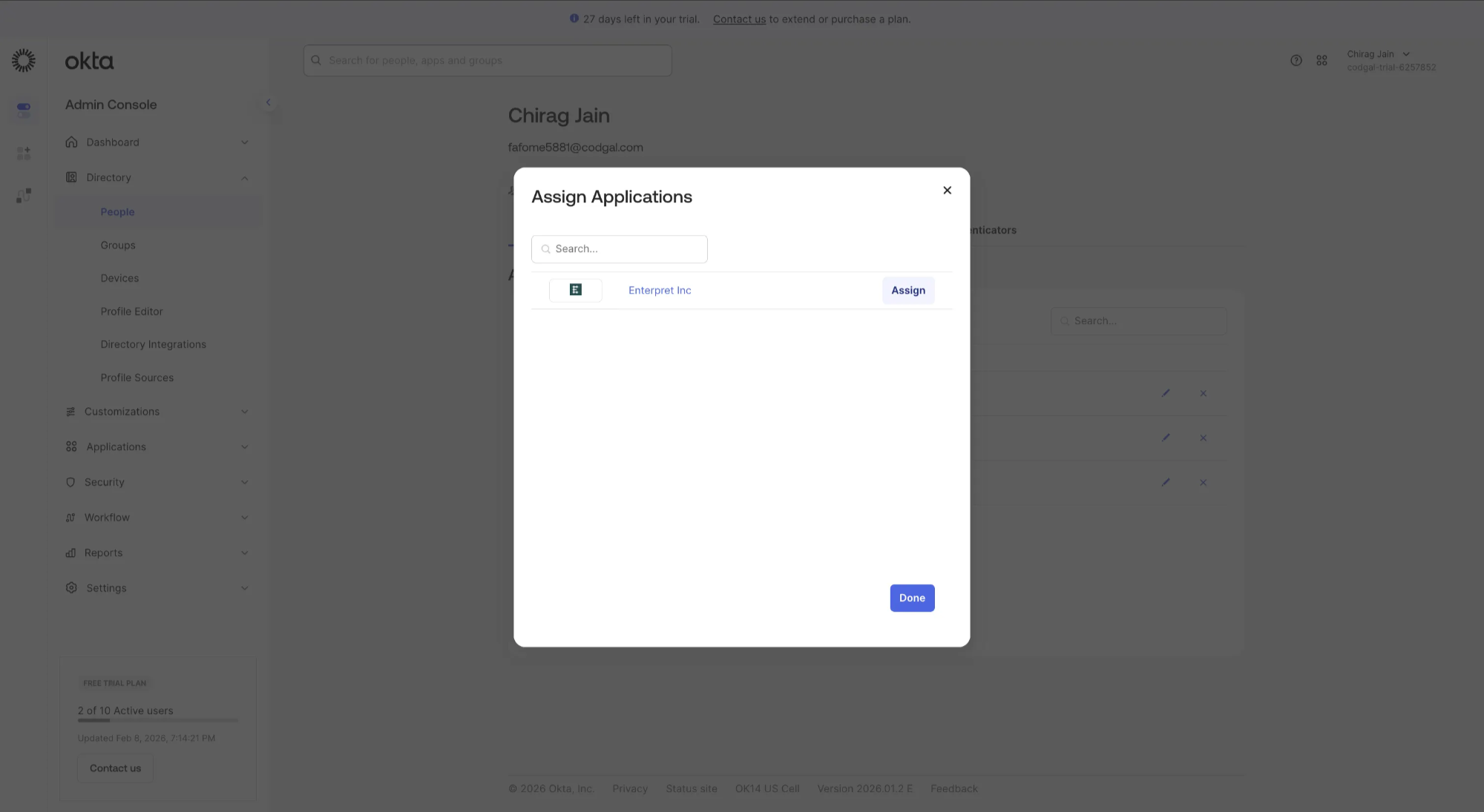
Step 3: Attach Enterpret Application to Users in Okta
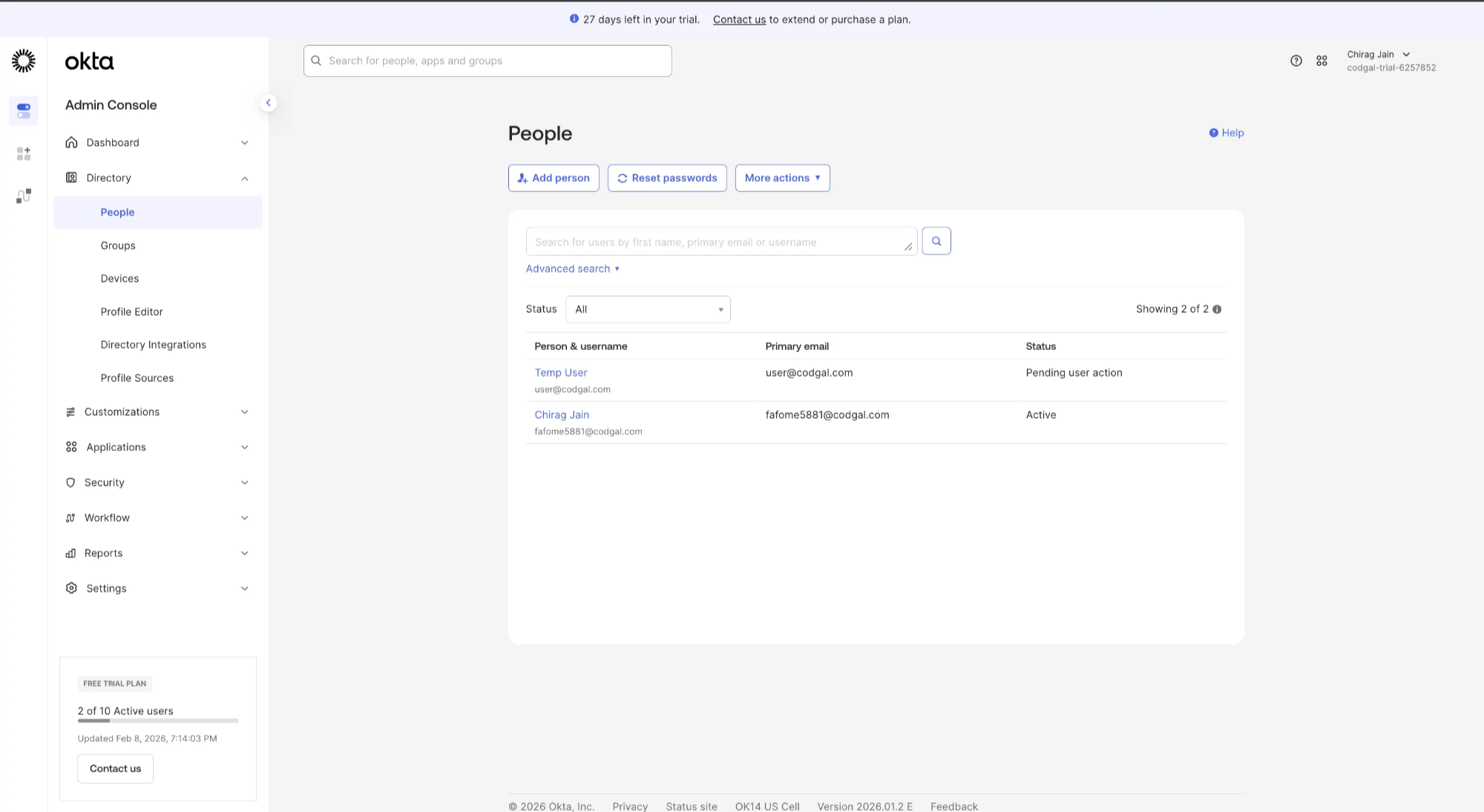
Go to Admin Console → Directory → People
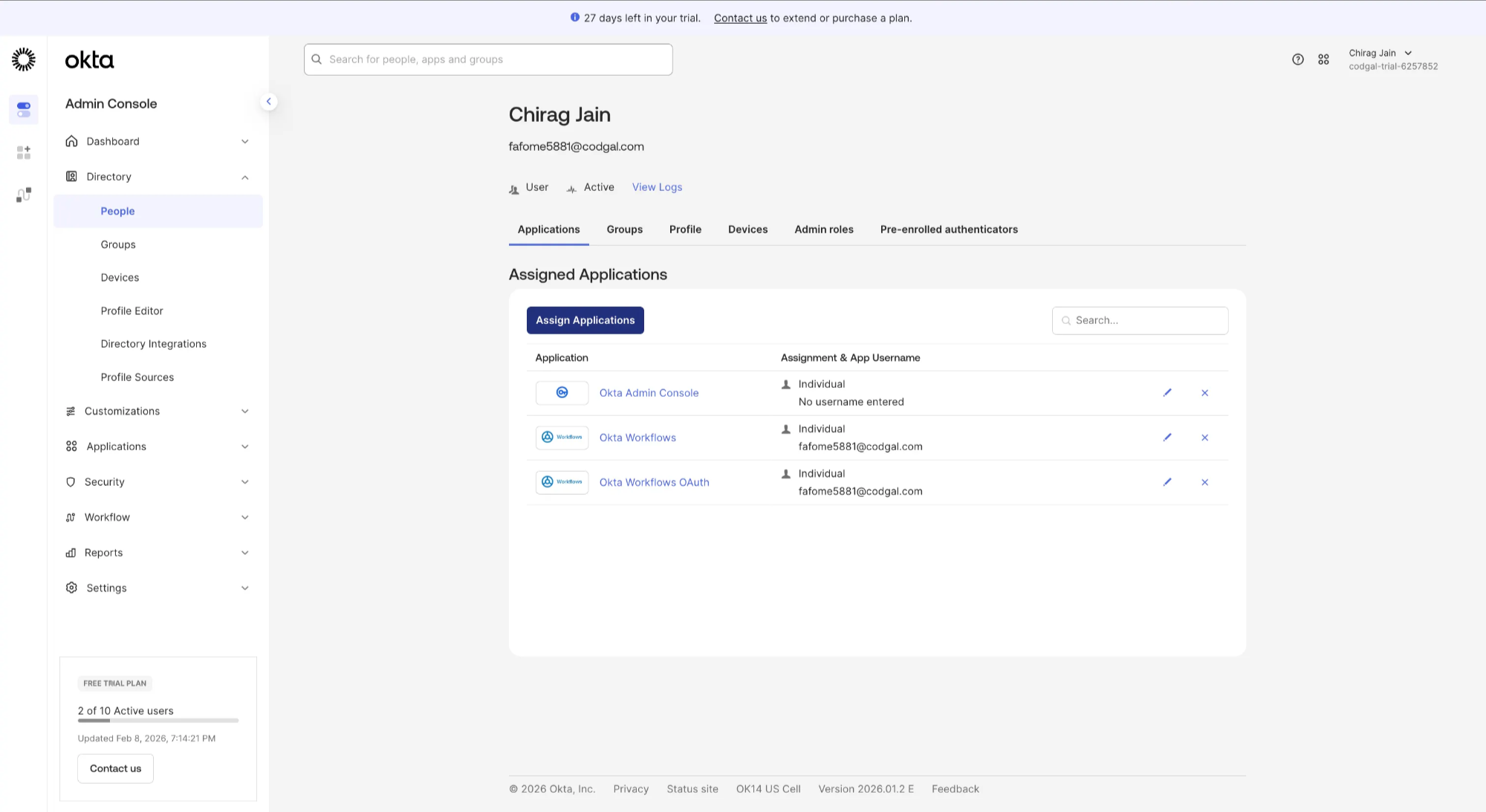
Select User
Click on Assign Applications
Assign Enterpret Inc and click on Done
Step 3: Test SP-Initiated SSO
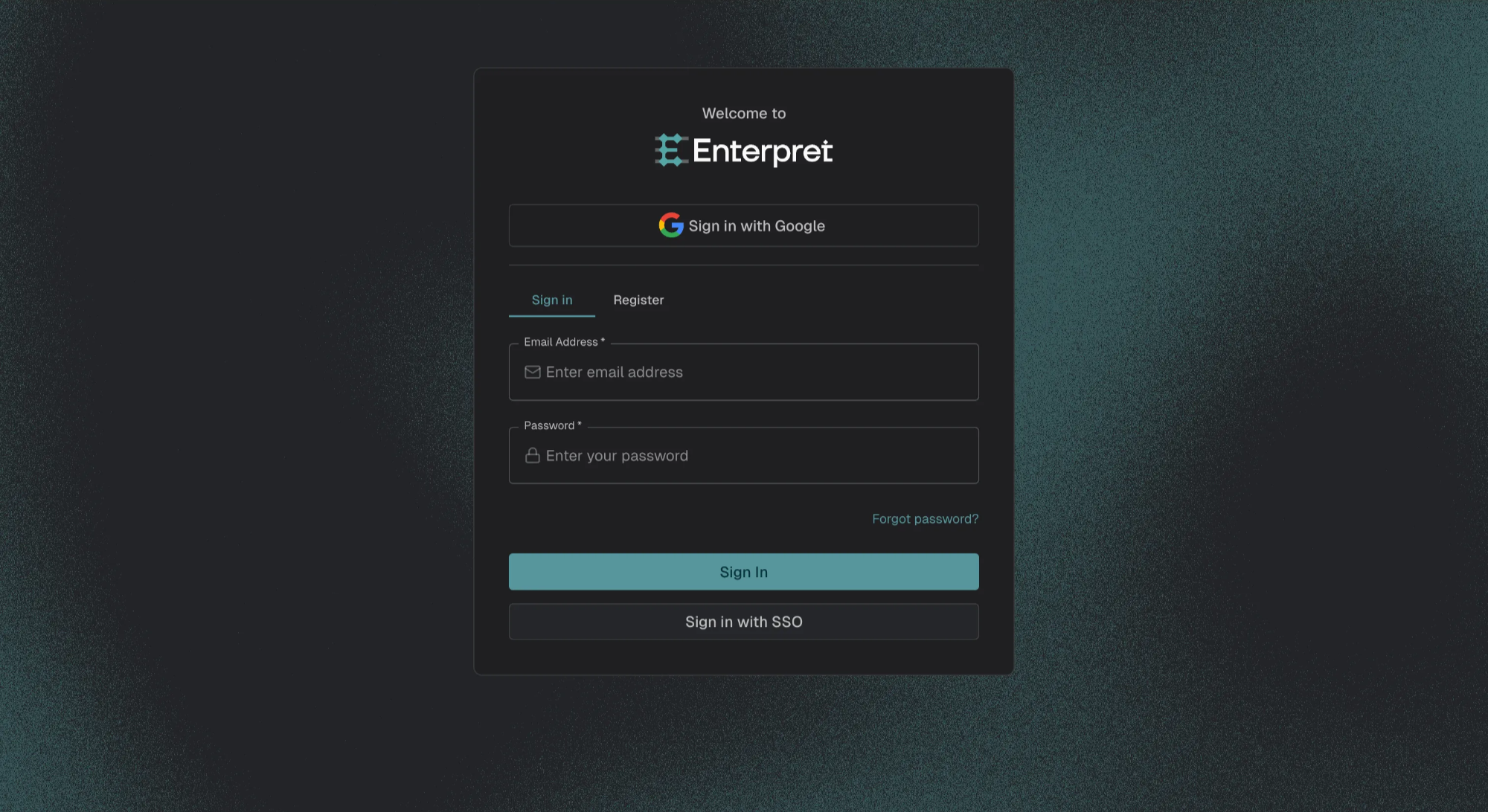
Log out of Enterpret
Go to Enterpret login page
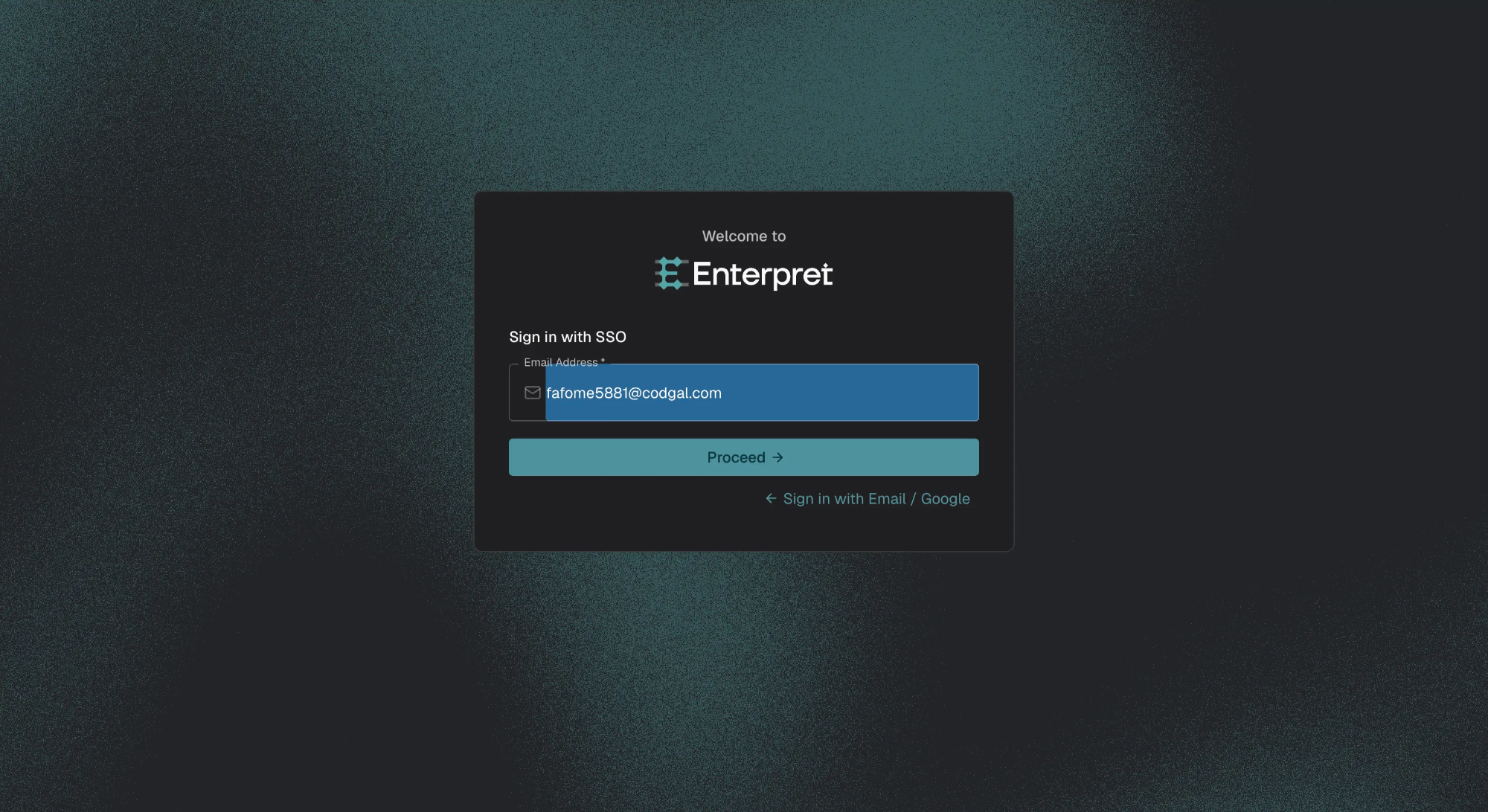
Click Sign in with SSO
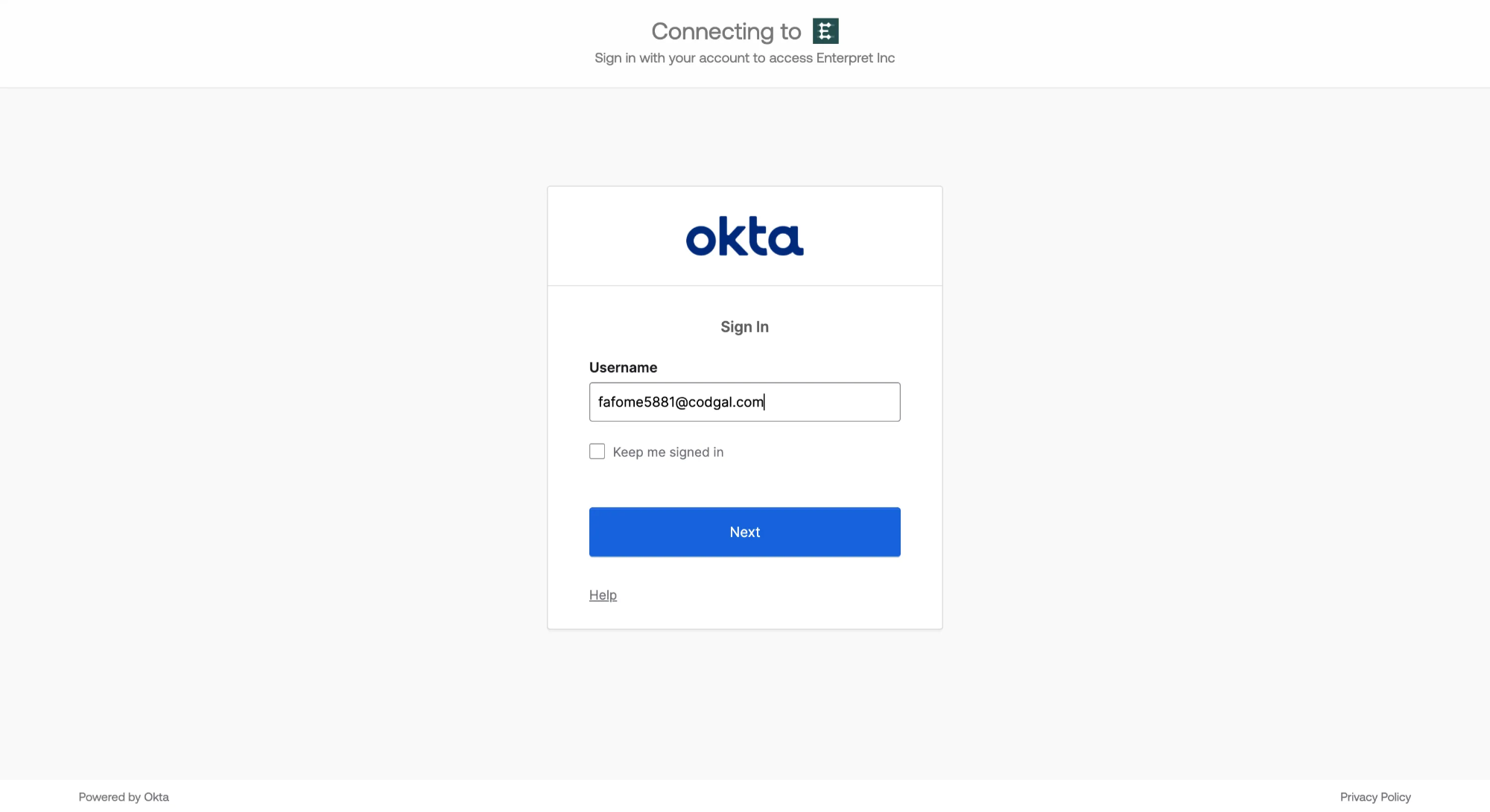
Enter your email
Authenticate via Okta
Step 4: Enable IDP-Initiated Login
Get RelayState from Enterpret
Click Organization logo → Settings → Access Settings → SSO & SCIM Settings
Copy RelayState
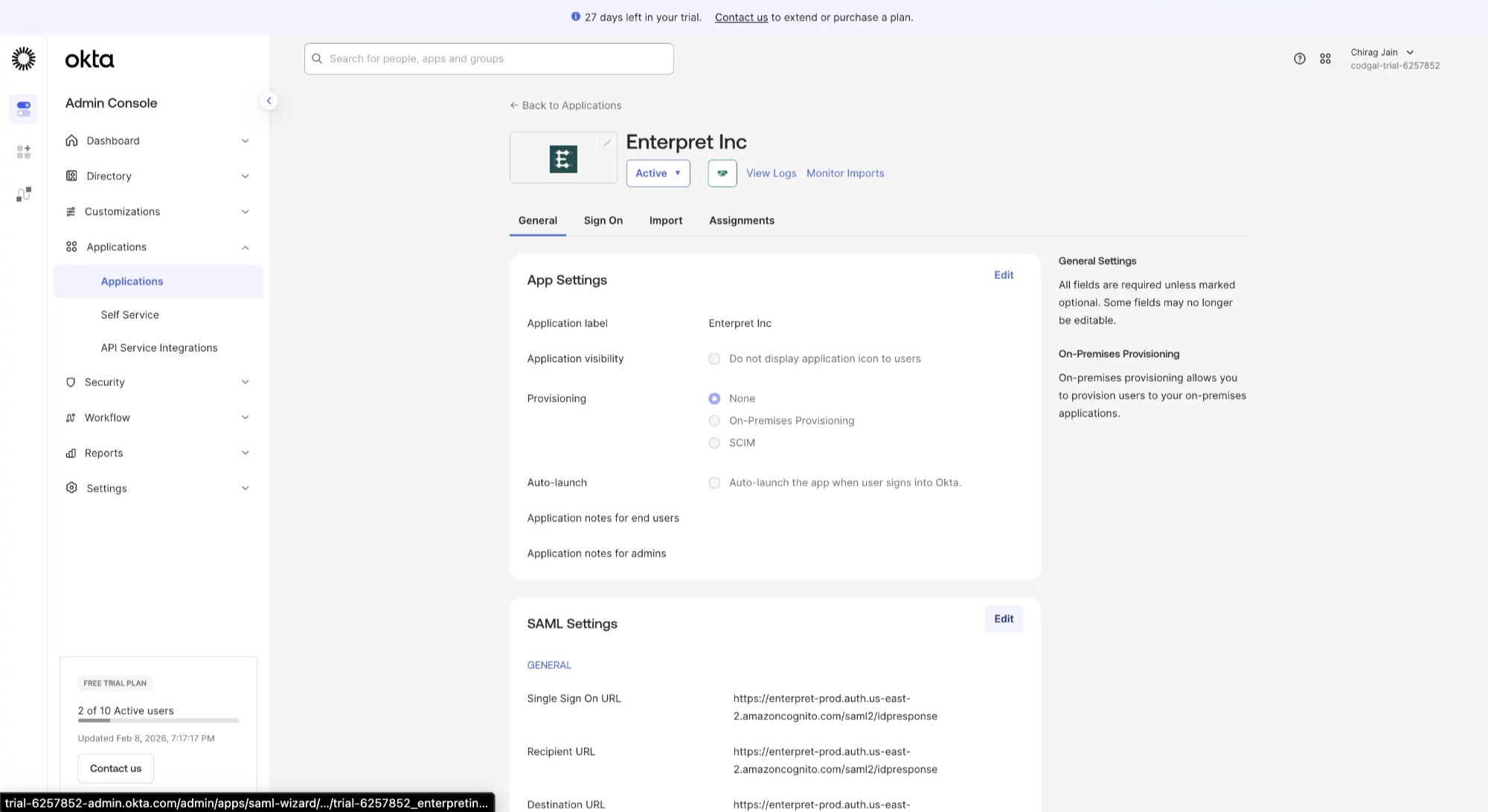
Add RelayState in Okta
Okta → Enterpret app
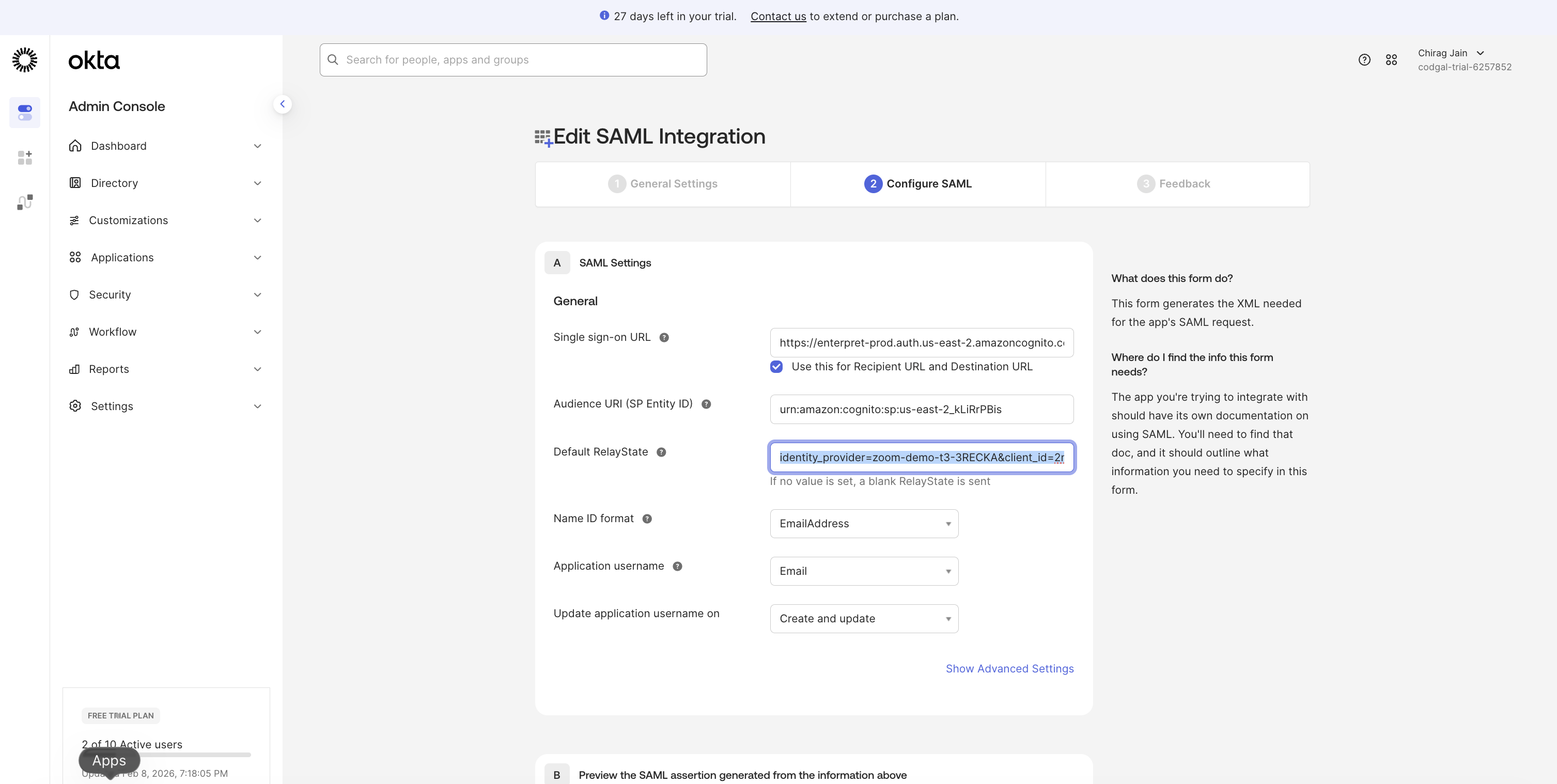
General → SAML Settings → Edit
Paste into Default RelayState
Save
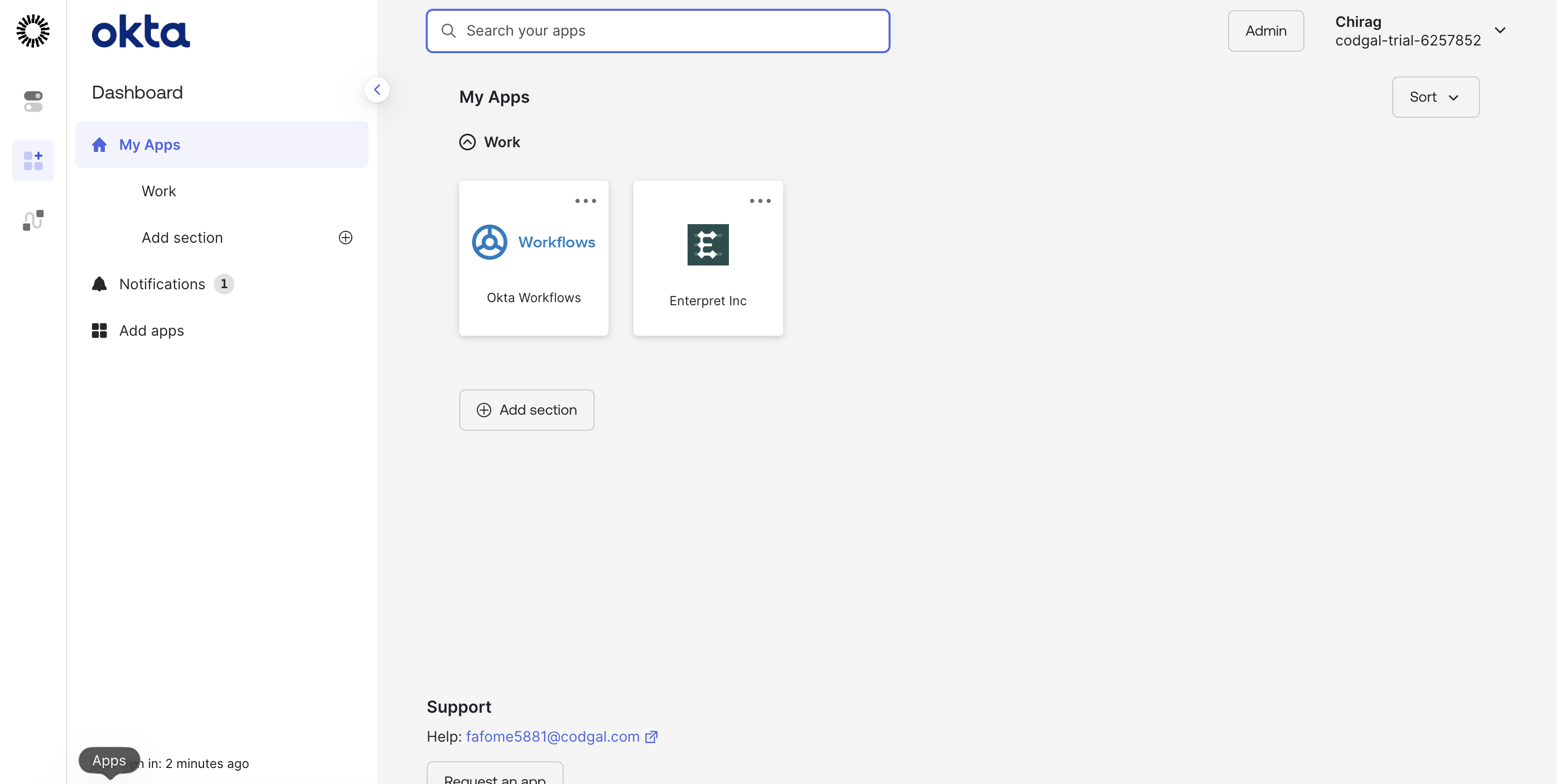
Goto My Apps and click on Enterpret App
Step 5: (Optional) Enforce SSO
Only after testing:
Click Organization logo → Settings → Access Settings → SSO & SCIM Settings
Toggle Enforce SSO
⚠️ Enforcing without testing can lock you out.
Troubleshooting Checklist
Before reaching out for support, double-check the following:
Emails match exactly in Okta and Enterpret
emailattribute exists and maps touser.emailUser is assigned to the Enterpret app in Okta
SP-initiated login works (Sign in with SSO from Enterpret)
Metadata URL is valid and up to date
RelayState is configured in Okta (required for IDP-initiated login)
Frequently asked questions
Why does SSO fail even though Okta shows a successful login?
This usually happens for one of two reasons:
The email attribute is missing or mapped incorrectly
The user is using IDP-initiated login (Okta dashboard) and RelayState is not configured
Even if Okta authenticates the user successfully, Enterpret still needs:
A valid email attribute to identify the user, and
RelayState (for IDP-initiated flows) to identify the correct workspace
SSO works from Enterpret, but not when clicking the Okta app. Why?
This is almost always due to a missing RelayState.
SP-initiated login (from Enterpret) does not require RelayState
IDP-initiated login (from Okta) does require RelayState
Without RelayState, Enterpret doesn’t know which workspace the user should be logged into.
Is NameID enough? Why do we still need the email attribute?
No. NameID alone is not sufficient.
Enterpret explicitly reads the
emailattribute from the SAML response to:Identify the user
Match them to an existing account
If the email attribute is missing or incorrect, login will fail even if NameID is present.
Can we map a different attribute instead of email?
No. Enterpret currently uses email as the unique identifier for users.
Do group attributes affect login?
No. Group attributes:
Are not required for authentication
Can be left empty
Should be managed via SCIM, not SAML
What should we test before enforcing SSO?
Before turning on Enforce SSO, verify:
✅ SP-initiated login works
✅ Email attribute mapping is correct
✅ At least one admin can log in successfully
✅ (If using Okta dashboard access) RelayState is configured
What Are Attribute Statements?
Attribute statements define what user information Okta sends to Enterpret during login.
Enterpret relies on these attributes to:
Identify the user
Match them to an existing Enterpret account
Grant access to the correct workspace
If attribute statements are missing or misconfigured, SSO will fail even if the rest of the setup looks correct.
Why the Email Attribute Matters
Enterpret uses the email claim as the unique identifier
During login, Enterpret checks:
“Does this email already exist in this workspace?”
If the email:
Is missing
Is mapped incorrectly
Uses a different format (aliases, domains, casing)
➡️ The user will not be able to log in
Common Attribute Statement Mistakes
❌ Attribute not added at all
❌ Attribute name is not exactly
email❌ Value mapped to something other than
user.email❌ Emails differ between Okta and Enterpret
✅ Correct mapping prevents the majority of SSO login issues
Group Attribute Statements
Not required for SSO
Can be left empty
SCIM should be used for user and role management instead
Need Help?
If you’re unsure whether:
Attribute statements are configured correctly, or
RelayState is missing for IDP-initiated login
Reach out to the Enterpret team — we’re happy to help you get SSO working smoothly 🚀