
Azure AD (Microsoft Entra ID) <> Enterpret: End-to-End SSO Setup Guide (SAML)
Written by Team Enterpret
Last updated: Feb 2026
Overview
Single Sign-On (SSO) allows users to log in to Enterpret using their organization’s Microsoft Azure AD (Microsoft Entra ID) credentials. Enterpret supports SAML 2.0–based SSO, enabling centralized authentication and easier access management.
This guide walks you through the complete end-to-end process to configure SAML SSO between Azure AD and Enterpret, including testing, attribute configuration, and optional IDP-initiated login.
🔐 Understanding SAML Login Flows (Read This First)
Azure AD supports both SP-initiated and IDP-initiated SAML flows. Understanding the difference avoids most setup issues.
SP-Initiated SSO
What it is
Login starts from Enterpret
User is redirected to Azure AD to authenticate
Flow
User opens the Enterpret login page
Clicks Sign in with SSO
Redirected to Azure AD
Authenticates
Redirected back to Enterpret
Why this matters
✅ Does not require RelayState
✅ Simplest and safest flow
✅ Must work before enforcing SSO
👉 Always test this flow first.
IDP-Initiated SSO
What it is
Login starts from Azure AD
User clicks the Enterpret app in the Microsoft My Apps portal
Key difference
❗ Requires RelayState
Without it, Enterpret cannot determine the correct workspace
What Is RelayState?
RelayState is a value generated by Enterpret that tells the system:
“This user belongs to this specific Enterpret workspace.”
SP-initiated SSO → RelayState not required
IDP-initiated SSO → RelayState required
Prerequisites
Before starting, ensure you have:
Admin access to Enterpret
Admin access to Azure AD (Microsoft Entra ID)
Permission to create Enterprise Applications
User emails in Enterpret that exactly match Azure AD emails
High-Level Setup Flow
Create a non-gallery Enterprise Application in Azure
Configure SAML settings
Configure email attribute claims
Copy Metadata URL
Configure SSO in Enterpret
Test SP-initiated login
Enable IDP-initiated login
Step 1: Create an Enterprise Application in Azure AD
Log in to the Azure Portal
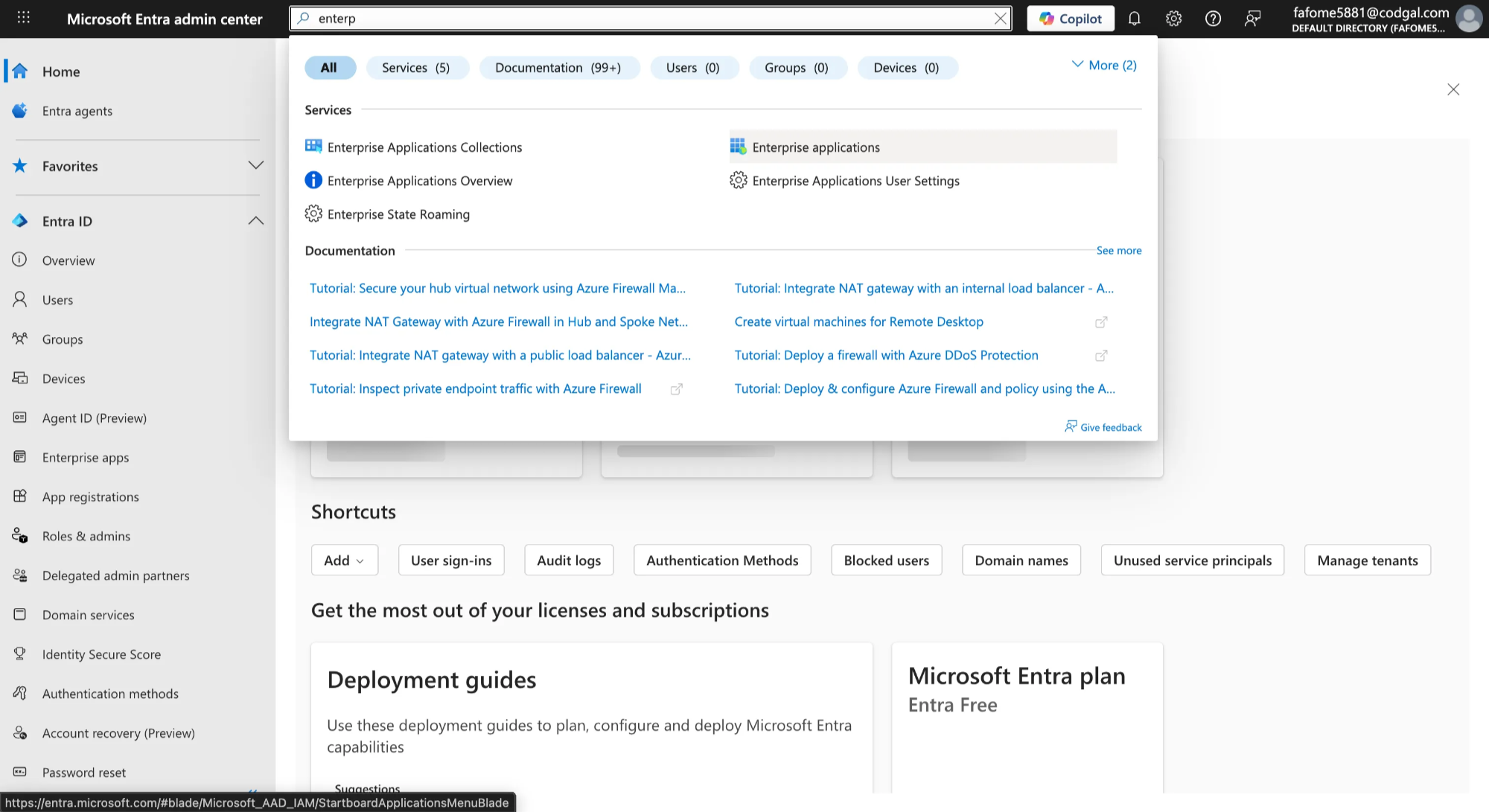
Navigate to Microsoft Entra ID → Enterprise Applications
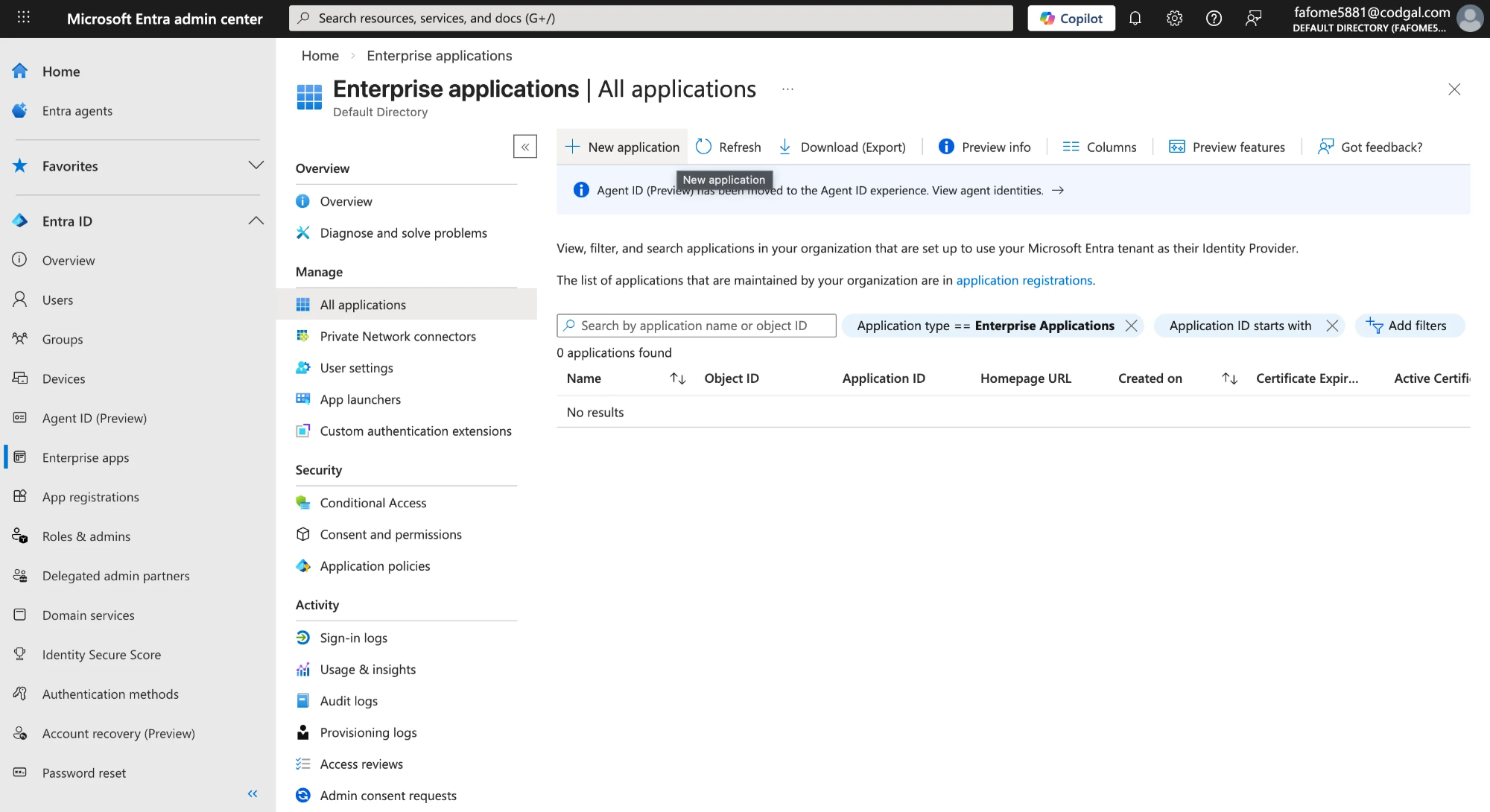
Click New application
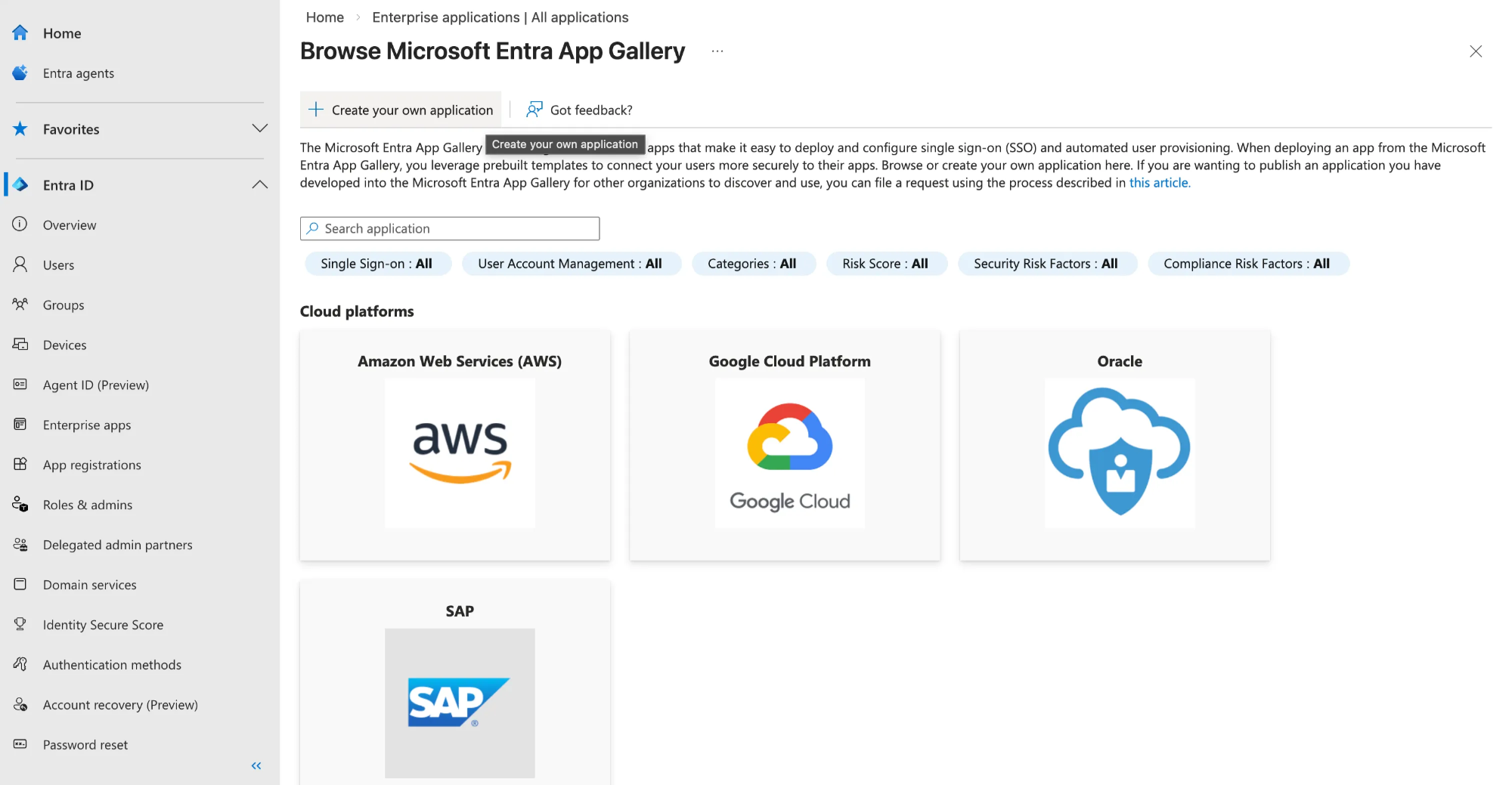
Click Create your own application
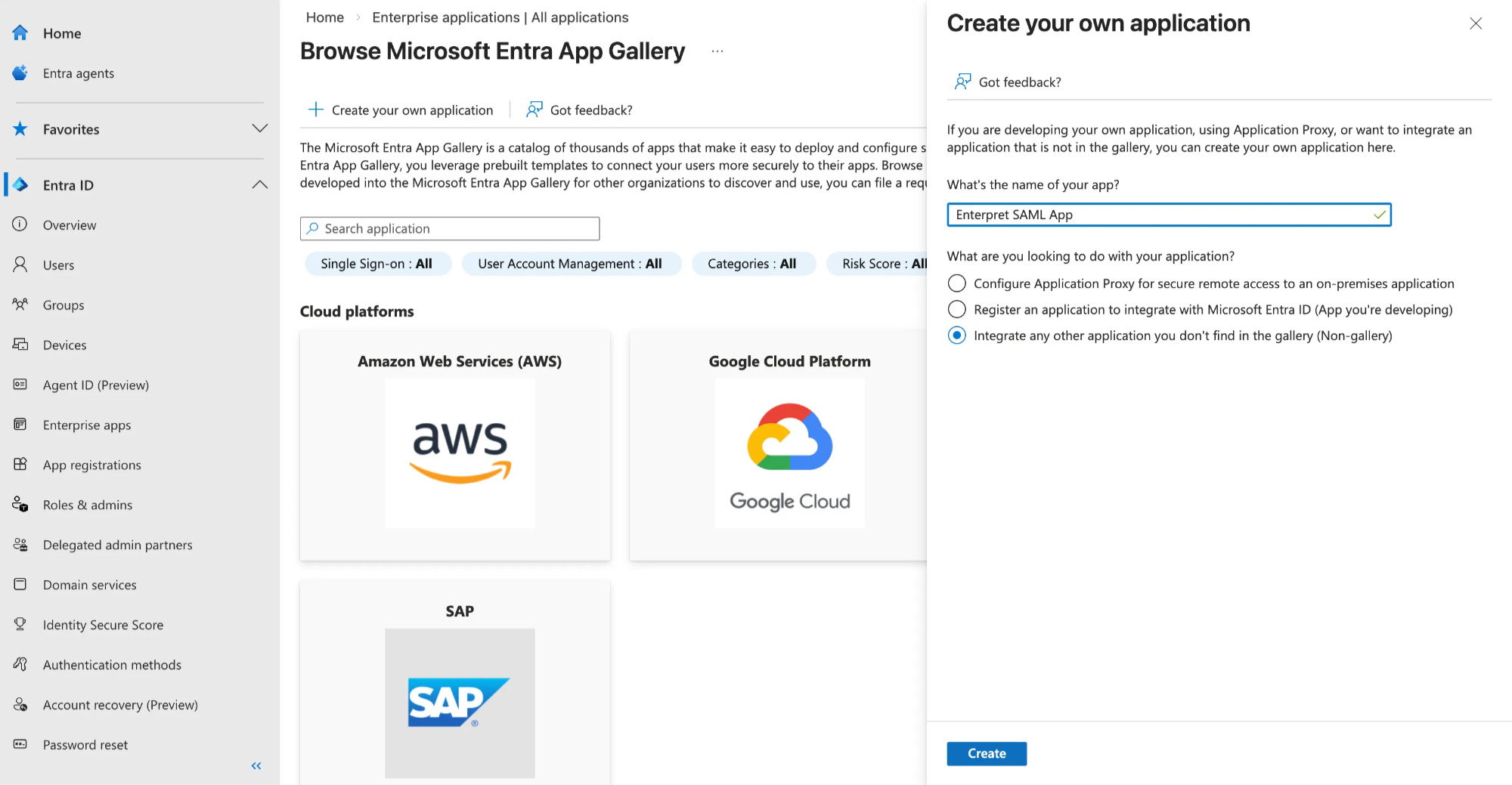
Enter:
Name:
Enterpret SAML AppApplication type:
Integrate any other application you don’t find in the gallery (Non-gallery)
Click Create
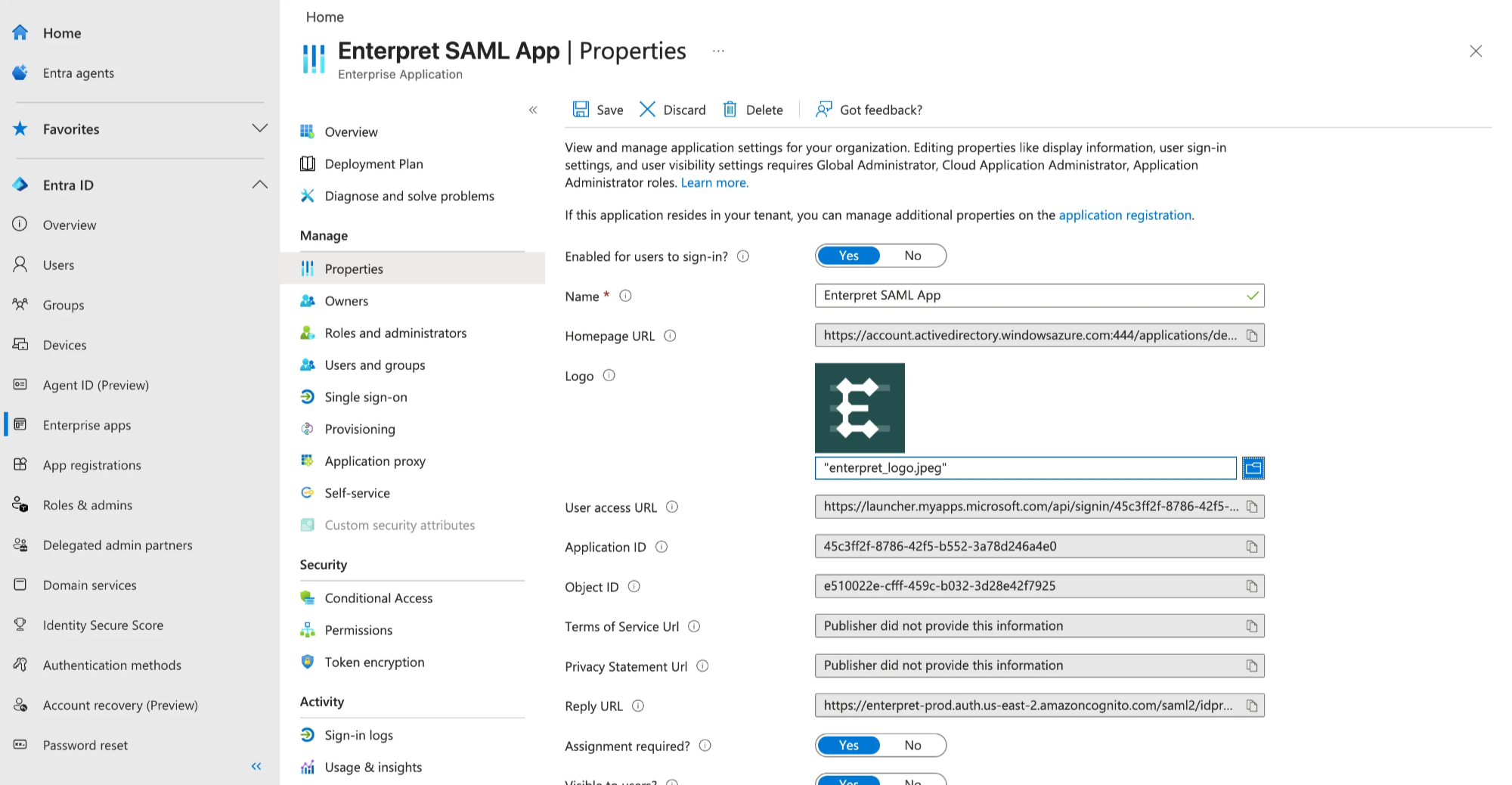
Add Enterpret Logo [you can upload the Enterpret logo, which you can find it here]
Step 2: Configure SAML Settings
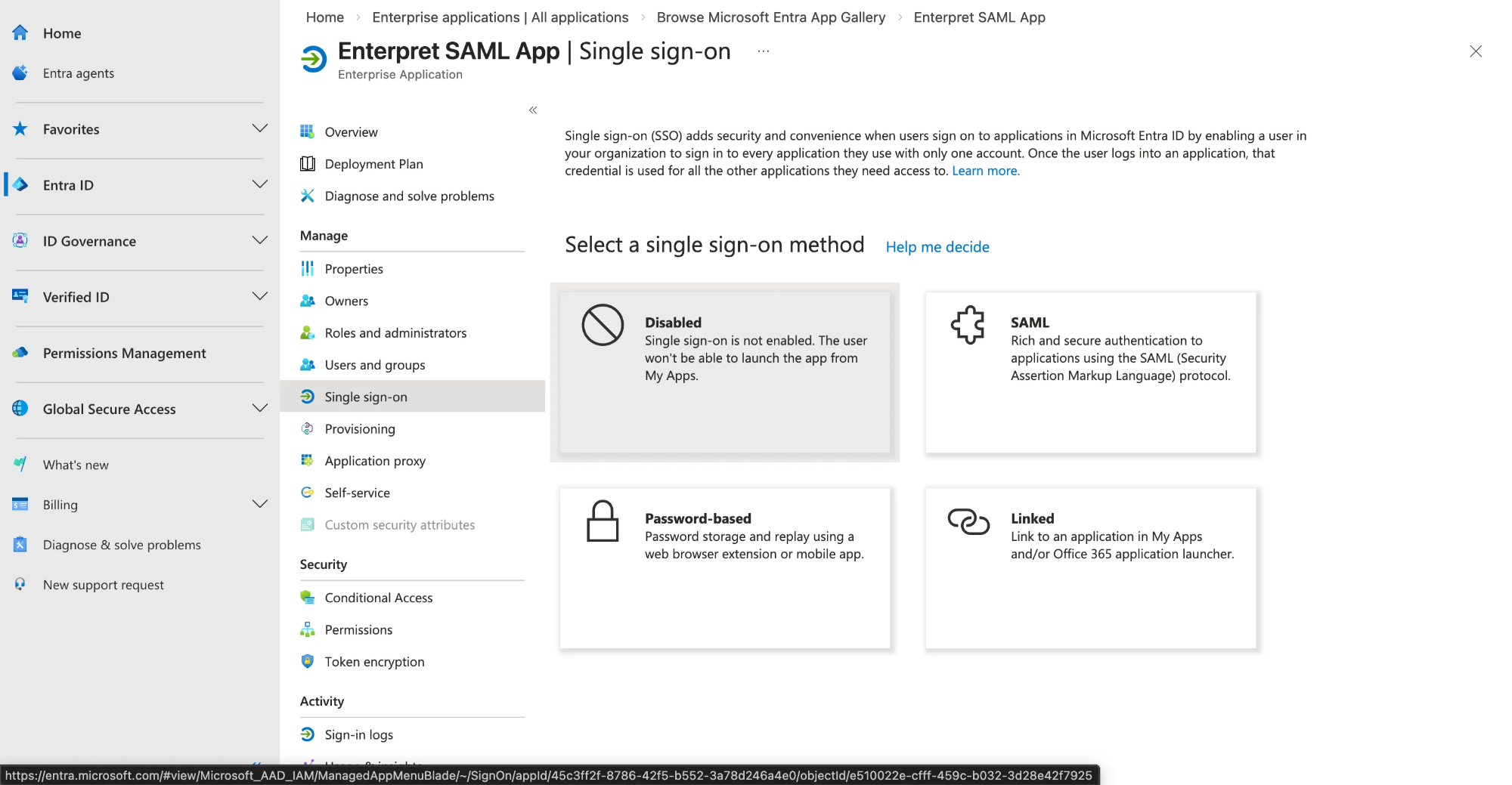
In the newly created app, go to Manage → Single sign-on
Select SAML
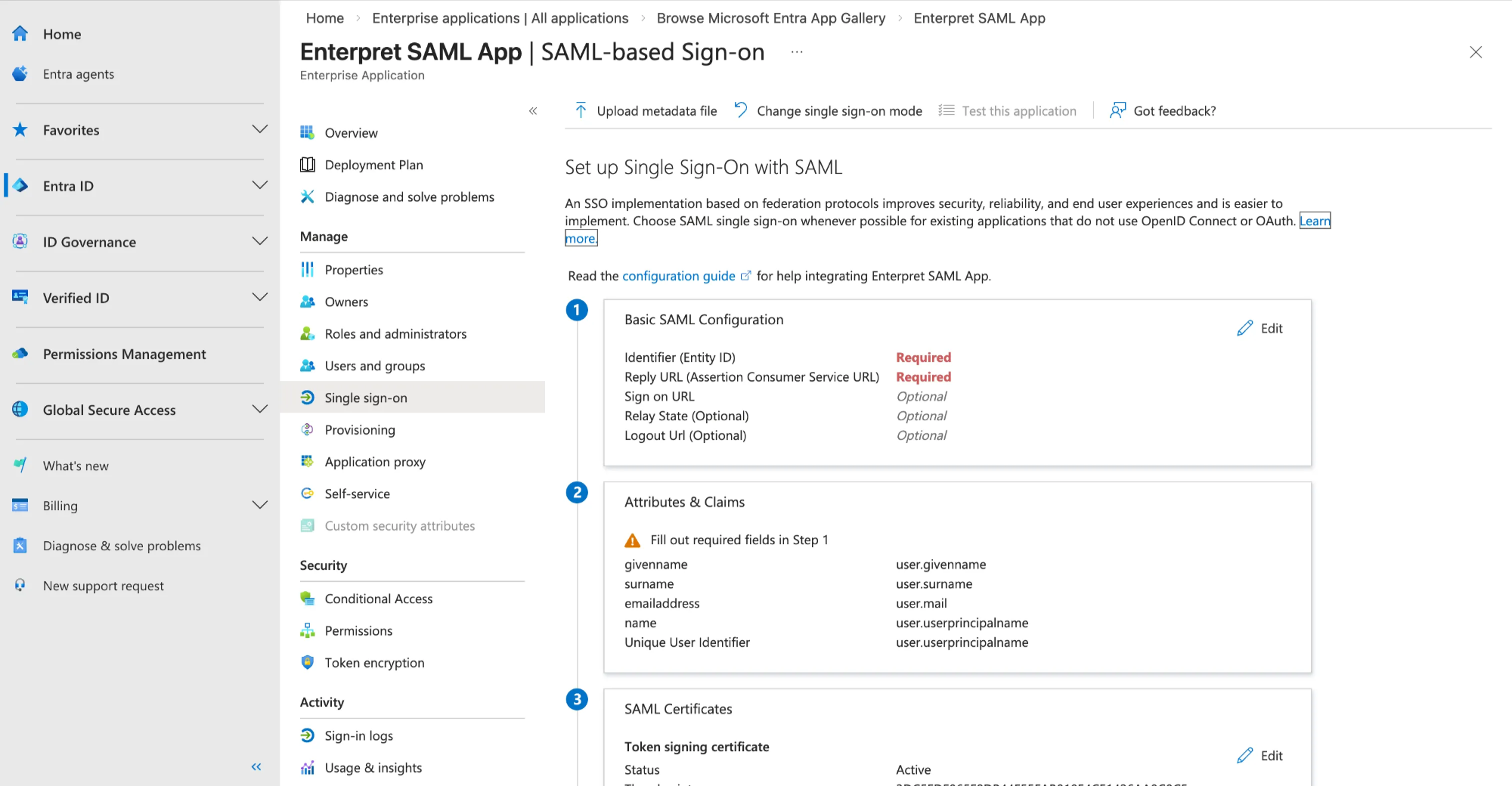
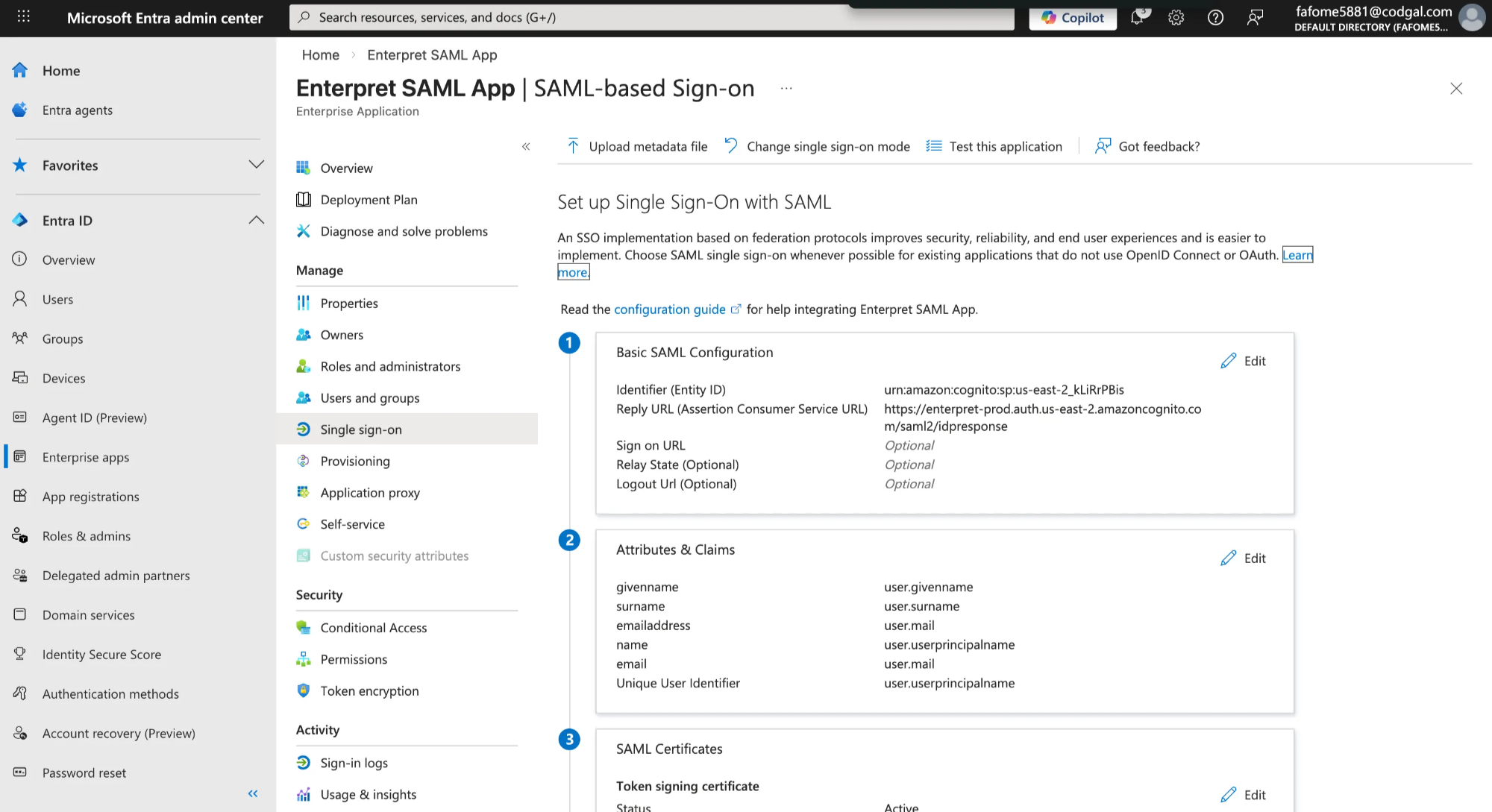
Basic SAML Configuration
Enter the following values exactly:
Field | Value |
Identifier (Entity ID) |
|
Reply URL (ACS URL) |
|
Sign-on URL | Leave empty |
Logout URL | Leave empty |
Default RelayState | Leave empty (for now) |
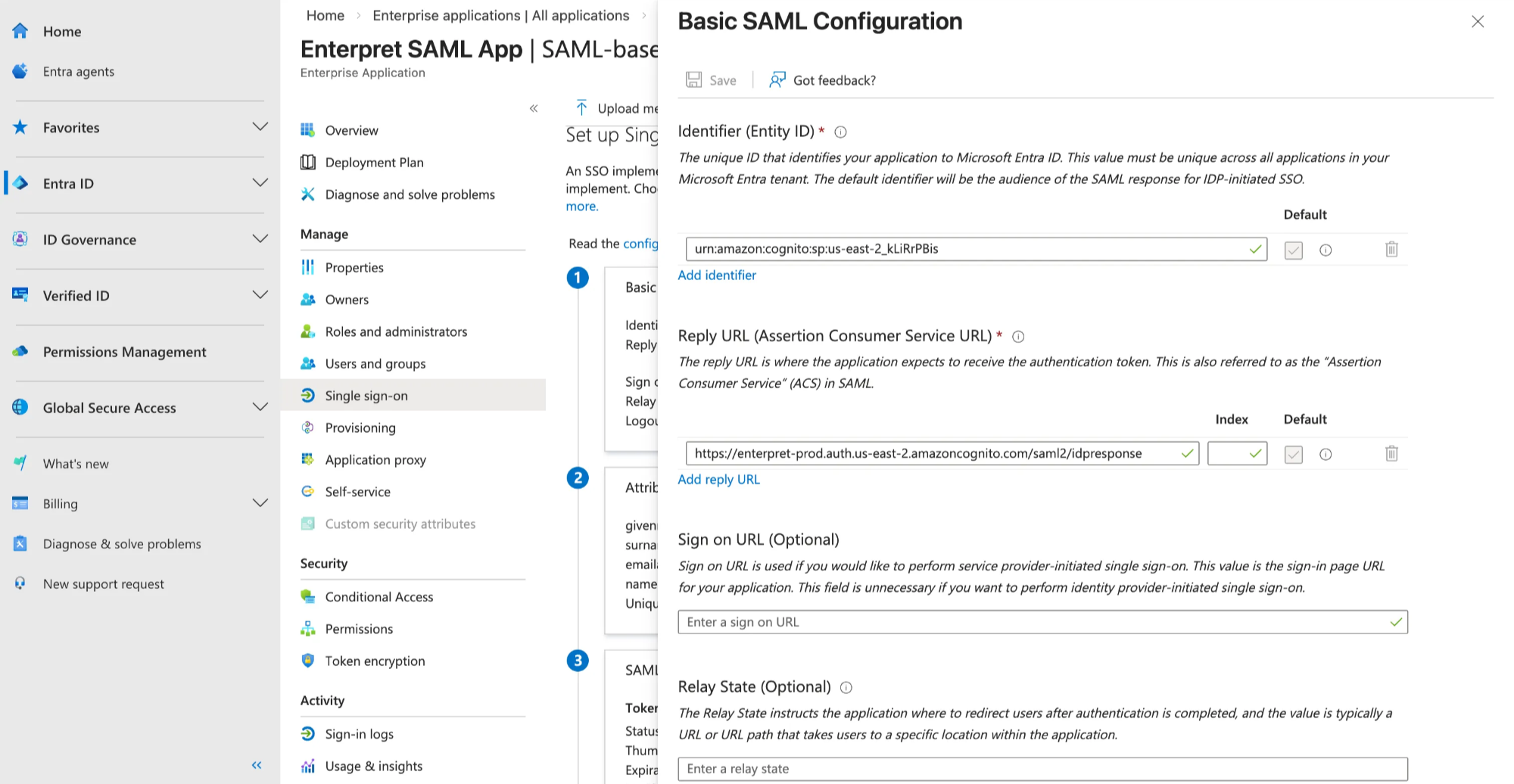
⚠️ IDP-initiated login requires RelayState, which is covered later.
🔑 Attribute & Claims Configuration (Very Important)
Azure AD does not always send email by default in the way Enterpret expects. Correct claim mapping is critical.
Step 1: Verify the Correct Email Source Attribute
Before adding claims, verify where Azure stores user email.
Go to Microsoft Entra ID → Users
Select a sample user
Check:
User Principal Name (UPN)
Mail
Choose one:
If UPN is always an email, use
user.userprincipalnameIf Mail contains the correct email, use
user.mail
👉 Confirm this with your IT admin before proceeding.
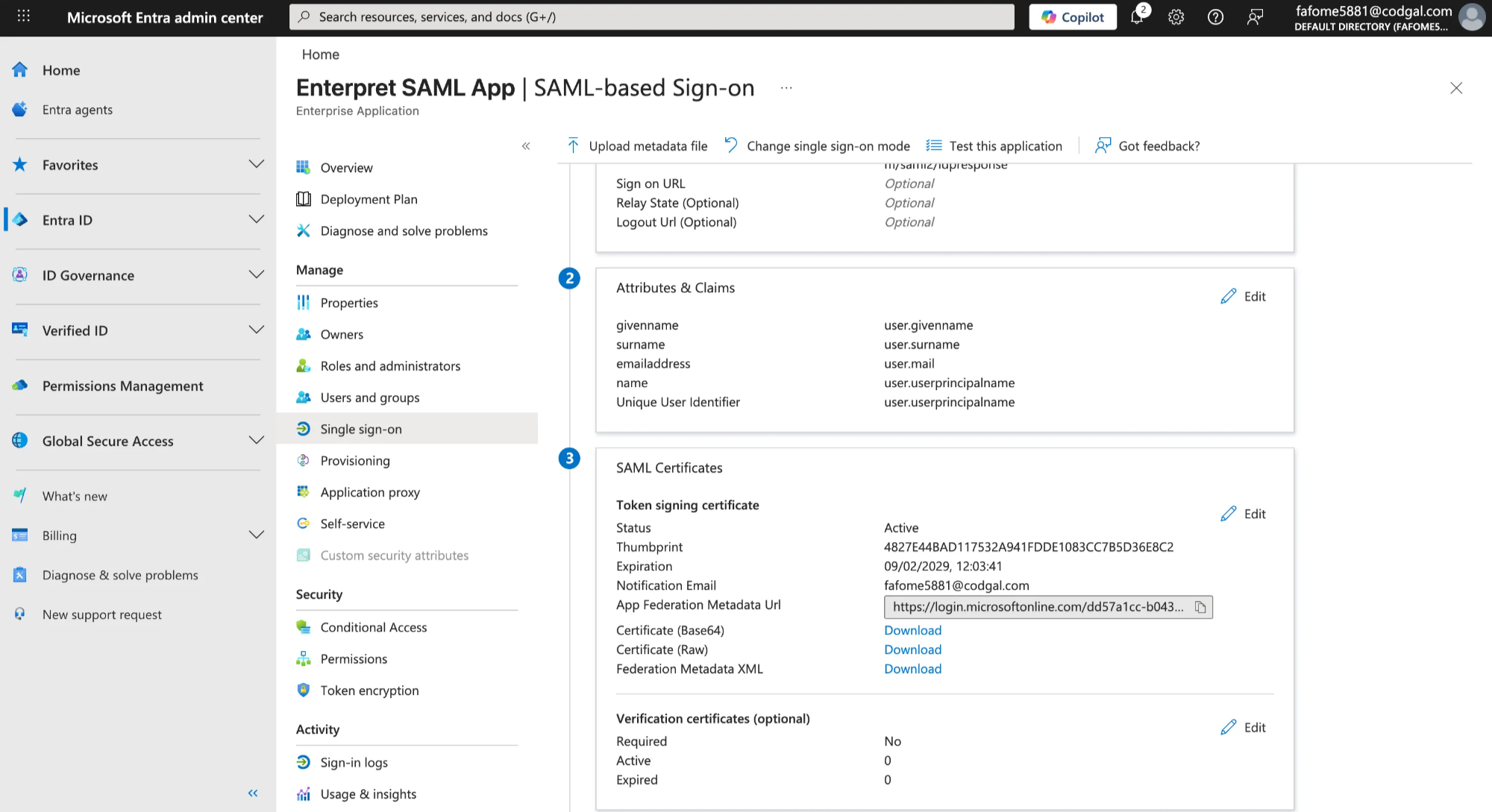
Step 2: Add Email Claim
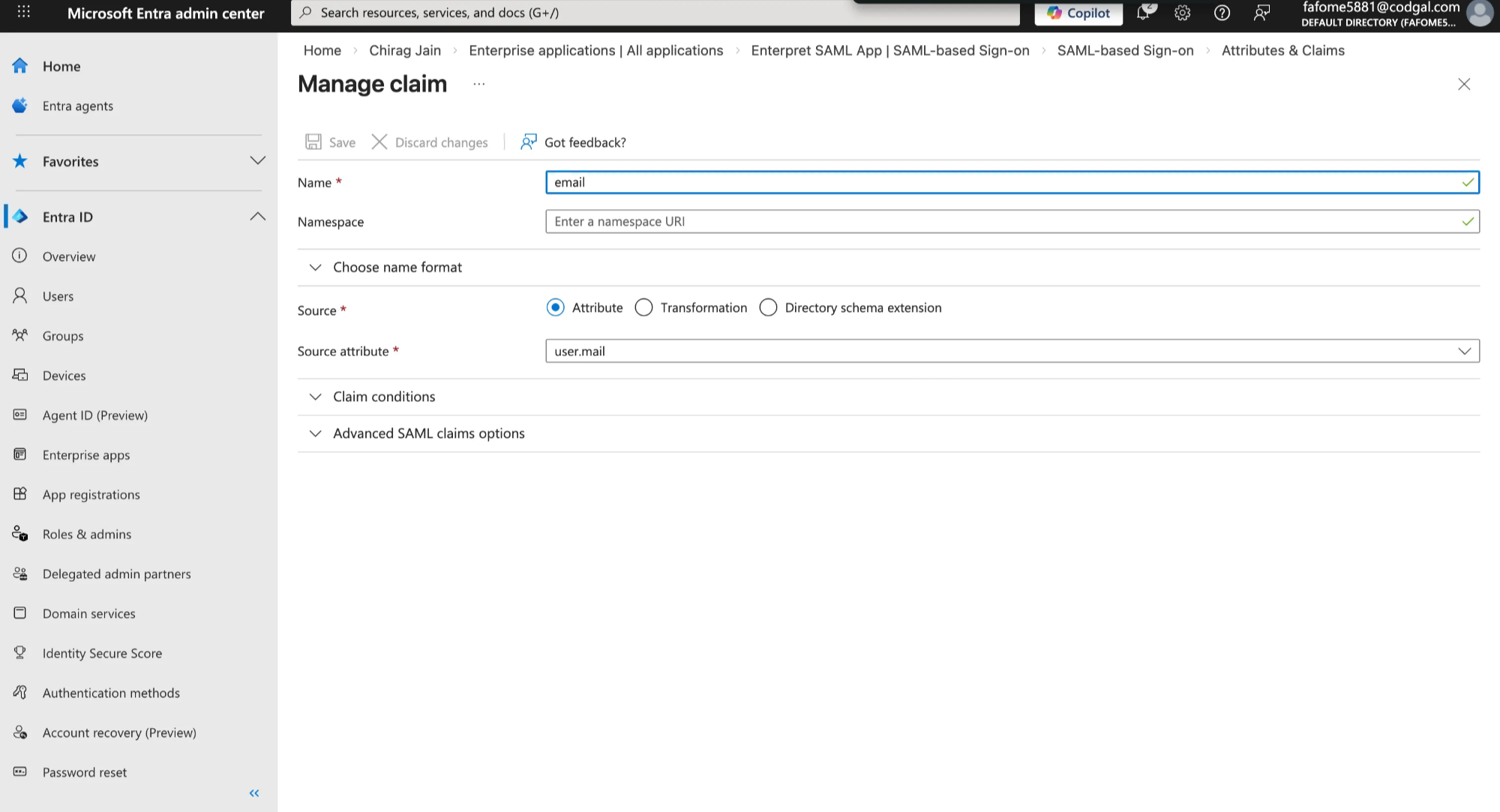
In the app, go to Attributes & Claims
Click Edit
Click Add new claim
Enter:
Name:
emailSource: Attribute
Source attribute:
user.userprincipalnameoruser.mail(based on verification)Namespace: Leave empty
Click Save
Why the Email Claim Matters
Enterpret uses the email claim as the unique identifier to:
Identify the user
Match them to an existing Enterpret account
Grant access to the correct workspace
If the email:
Is missing
Is mapped incorrectly
Does not match Enterpret
➡️ Login will fail even if Azure authentication succeeds.
Step 3: Copy Azure Metadata URL
Go to Single sign-on → SAML Certificates
Copy the App Federation Metadata URL
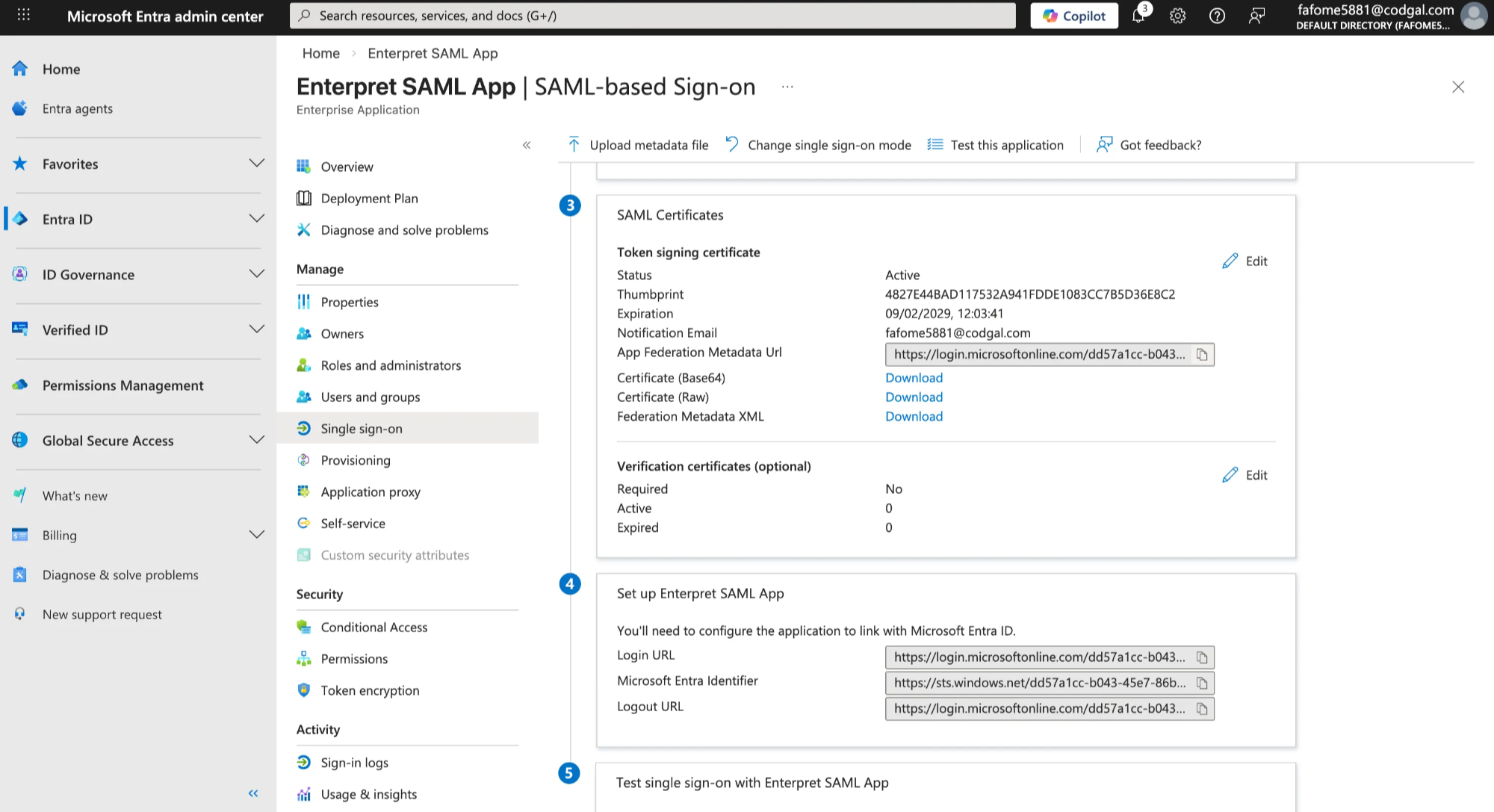
You’ll use this in Enterpret.
Step 4: Configure SSO in Enterpret
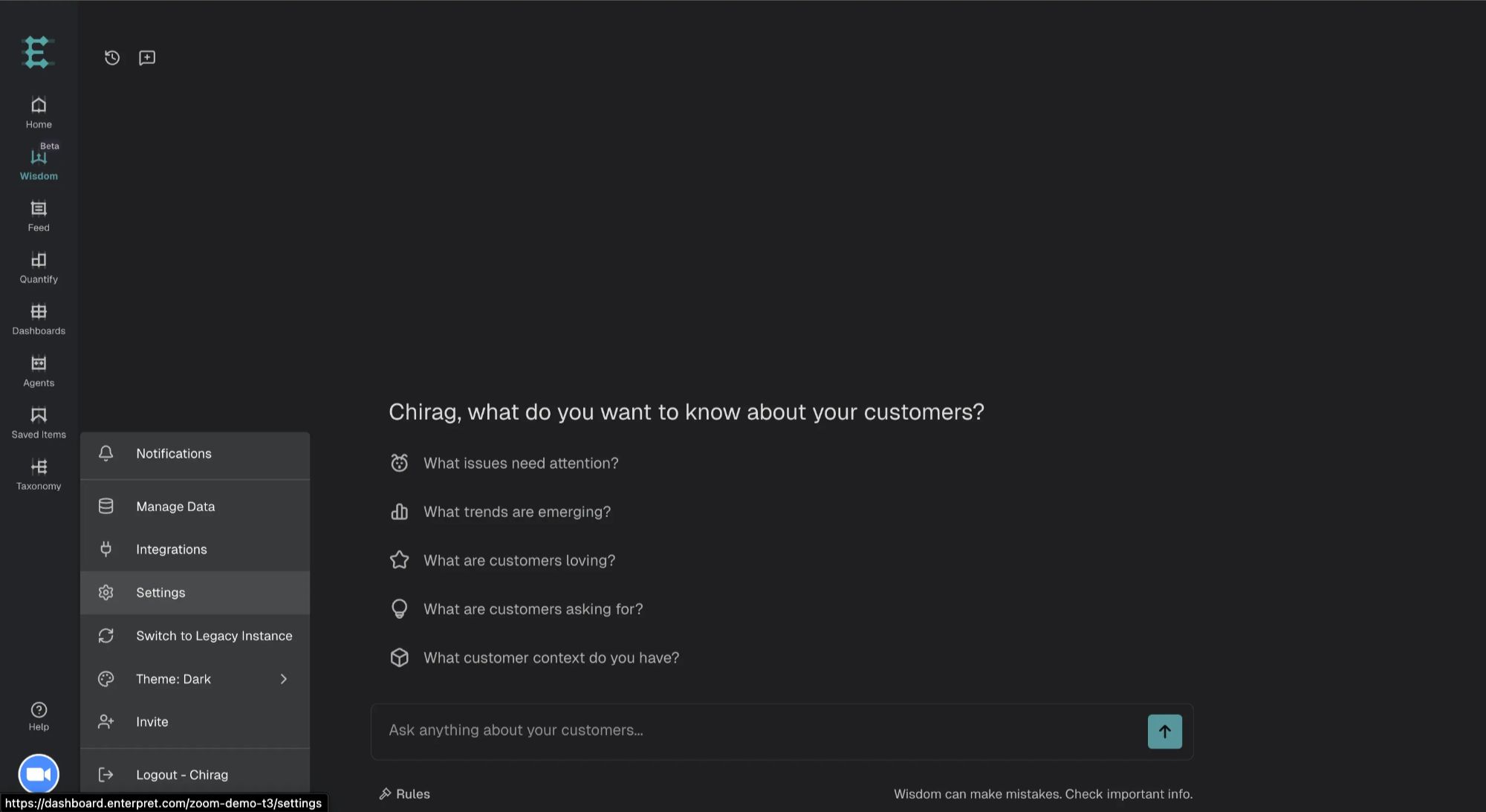
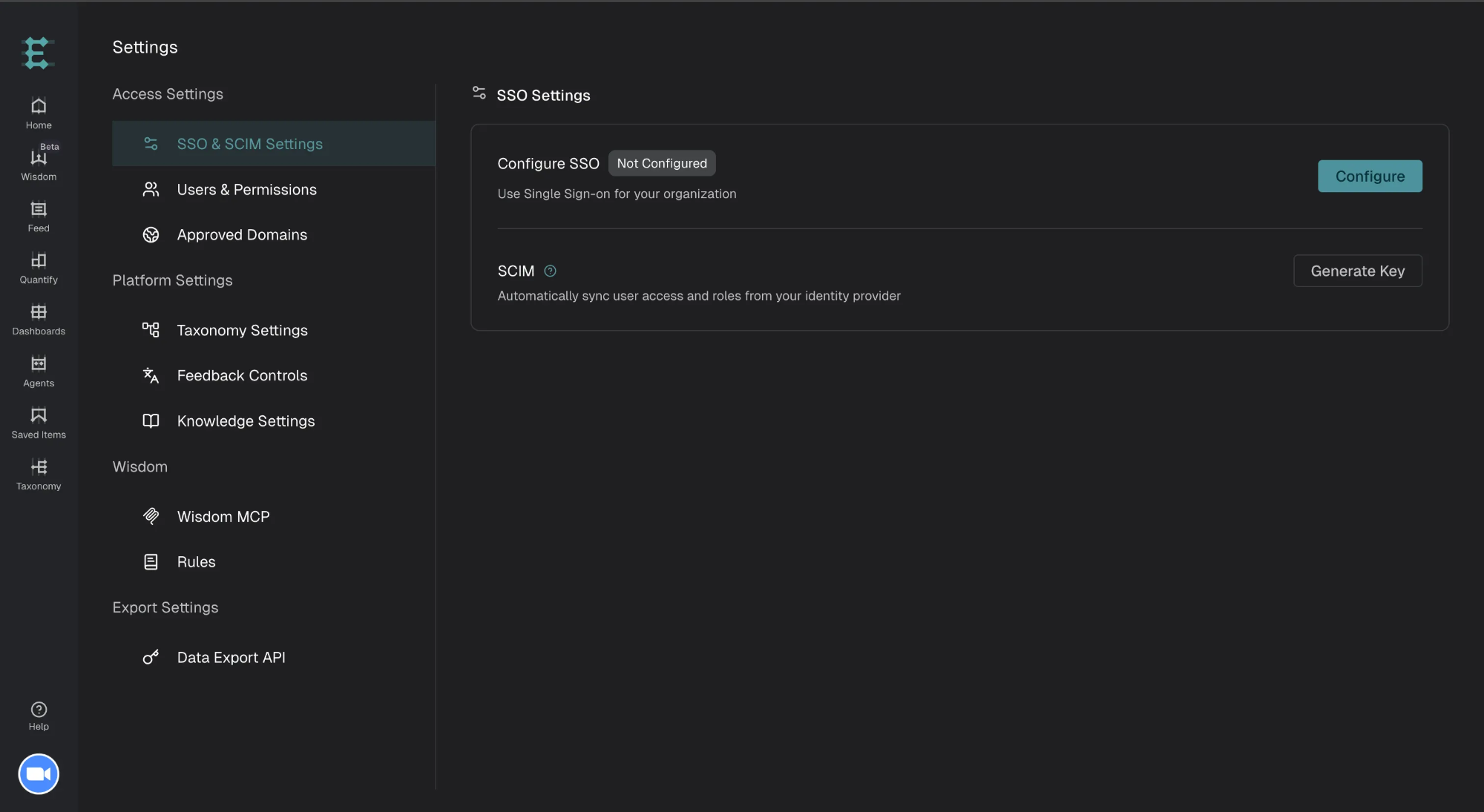
Log in to Enterpret
Click Organization logo → Settings → Access Settings → SSO & SCIM Settings
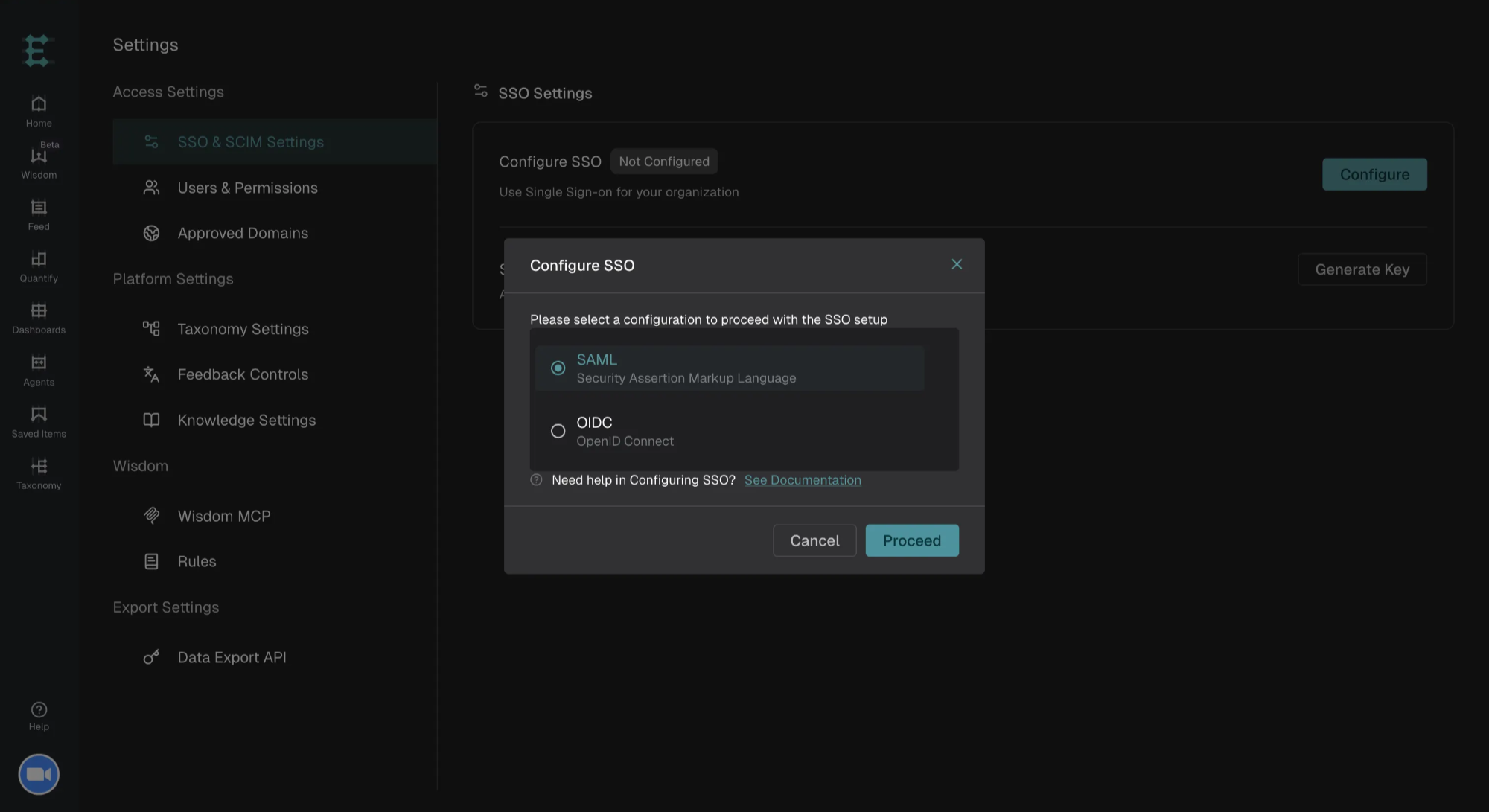
Click Configure
Select SAML
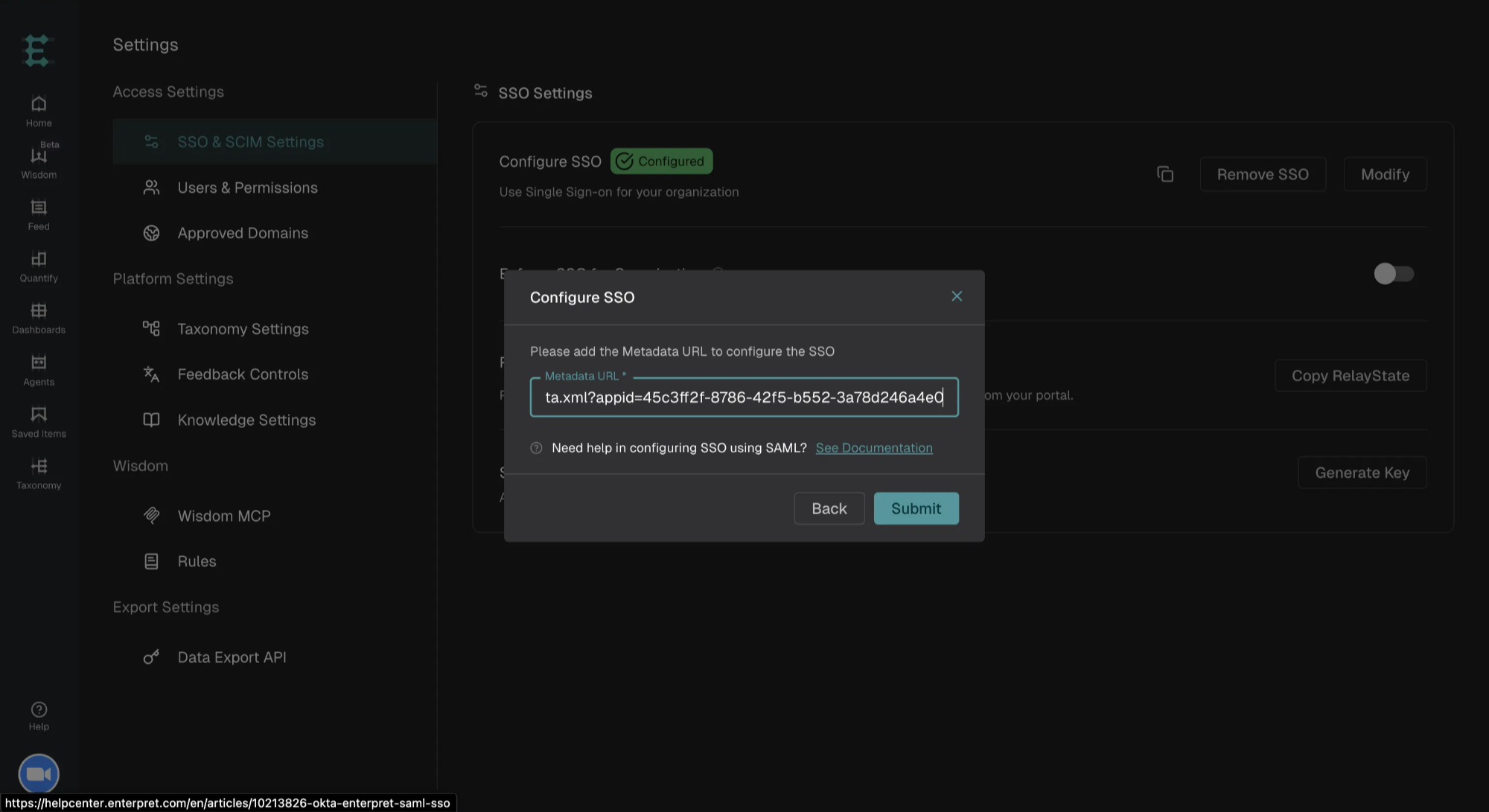
Paste the Metadata URL
Click Submit
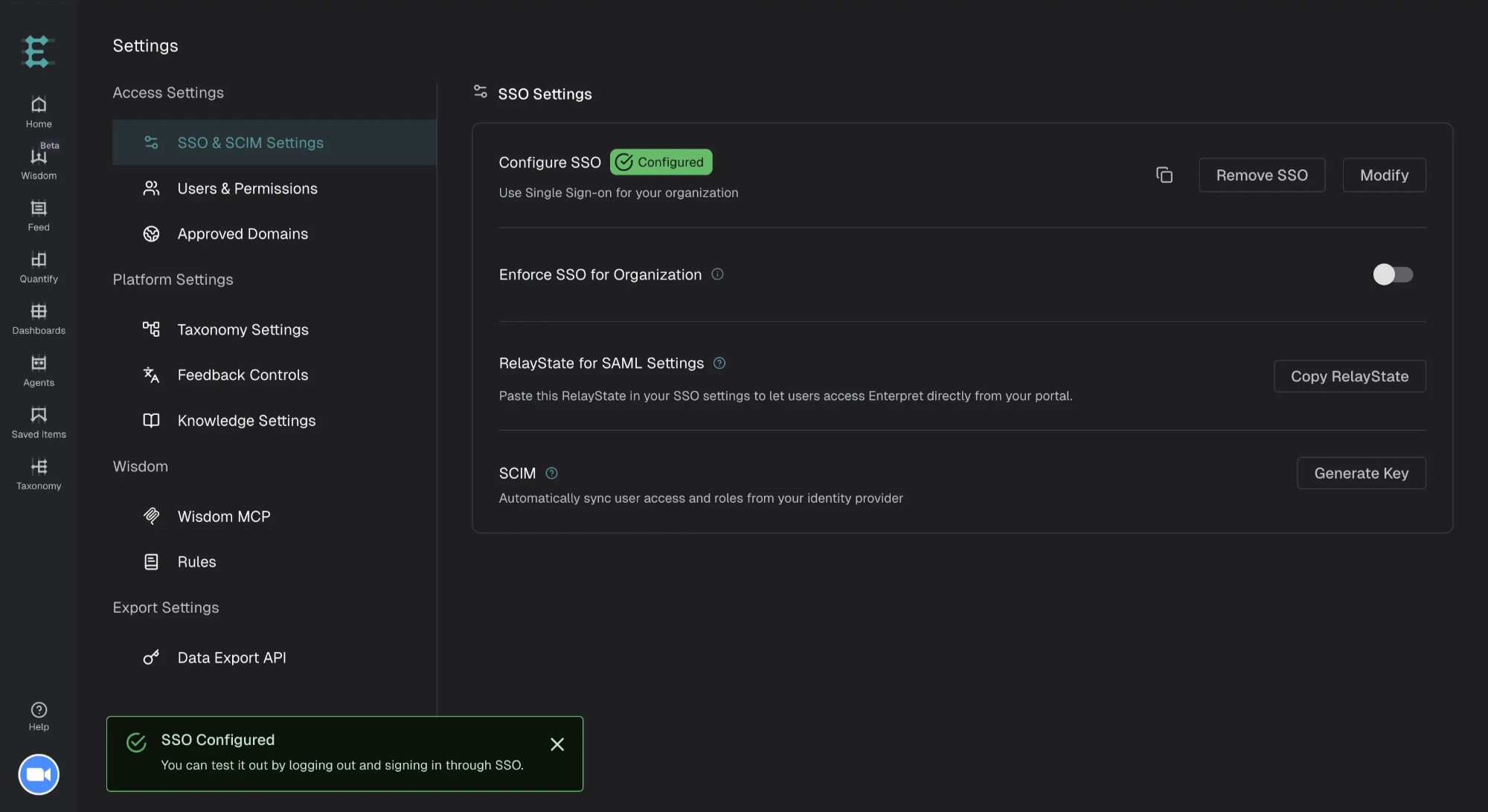
SSO is now configured 🎉
Step 5: Test SP-Initiated SSO
Log out of Enterpret
Go to Enterpret login page
Click Sign in with SSO
Enter your email
Authenticate via Azure AD
Confirm successful login
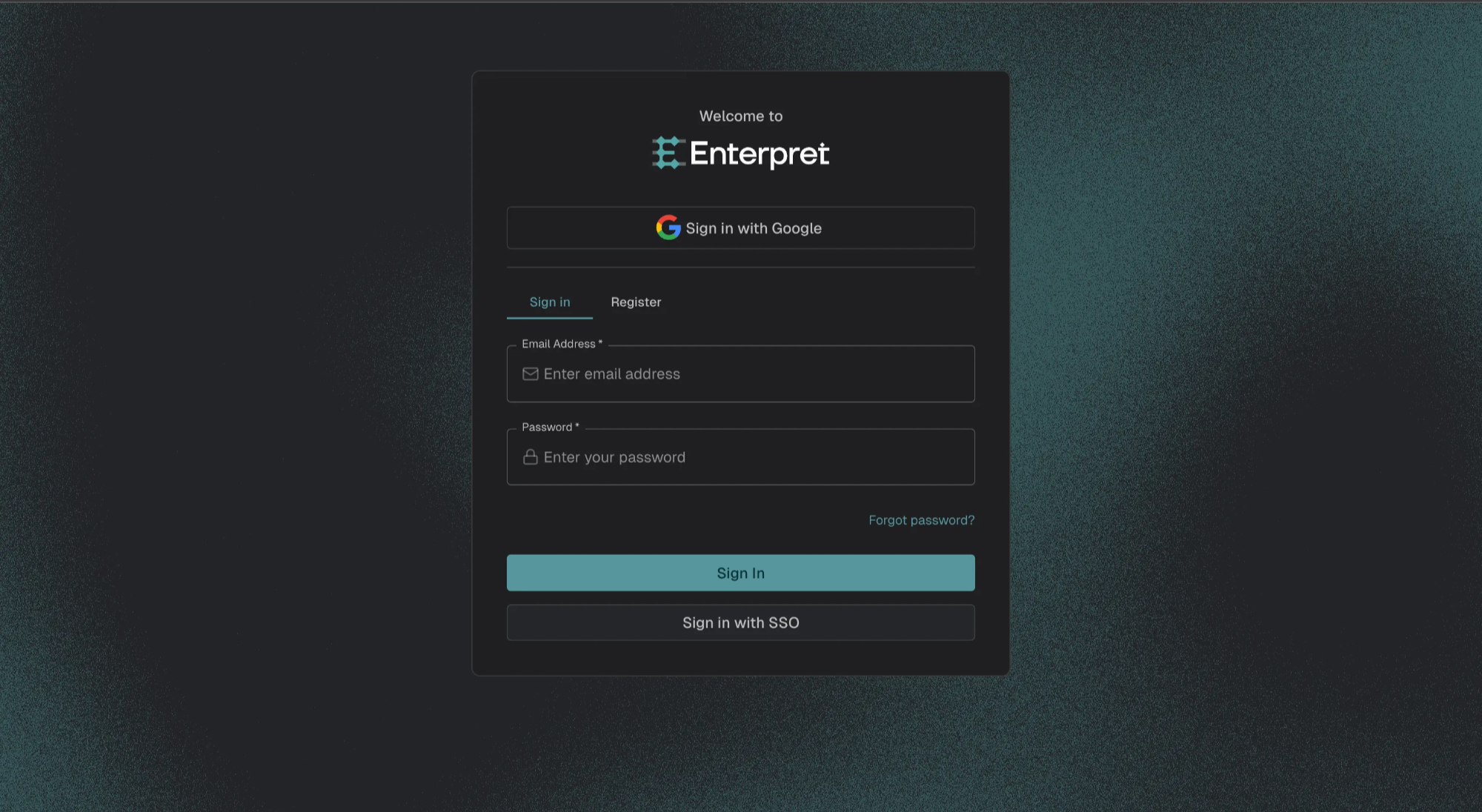
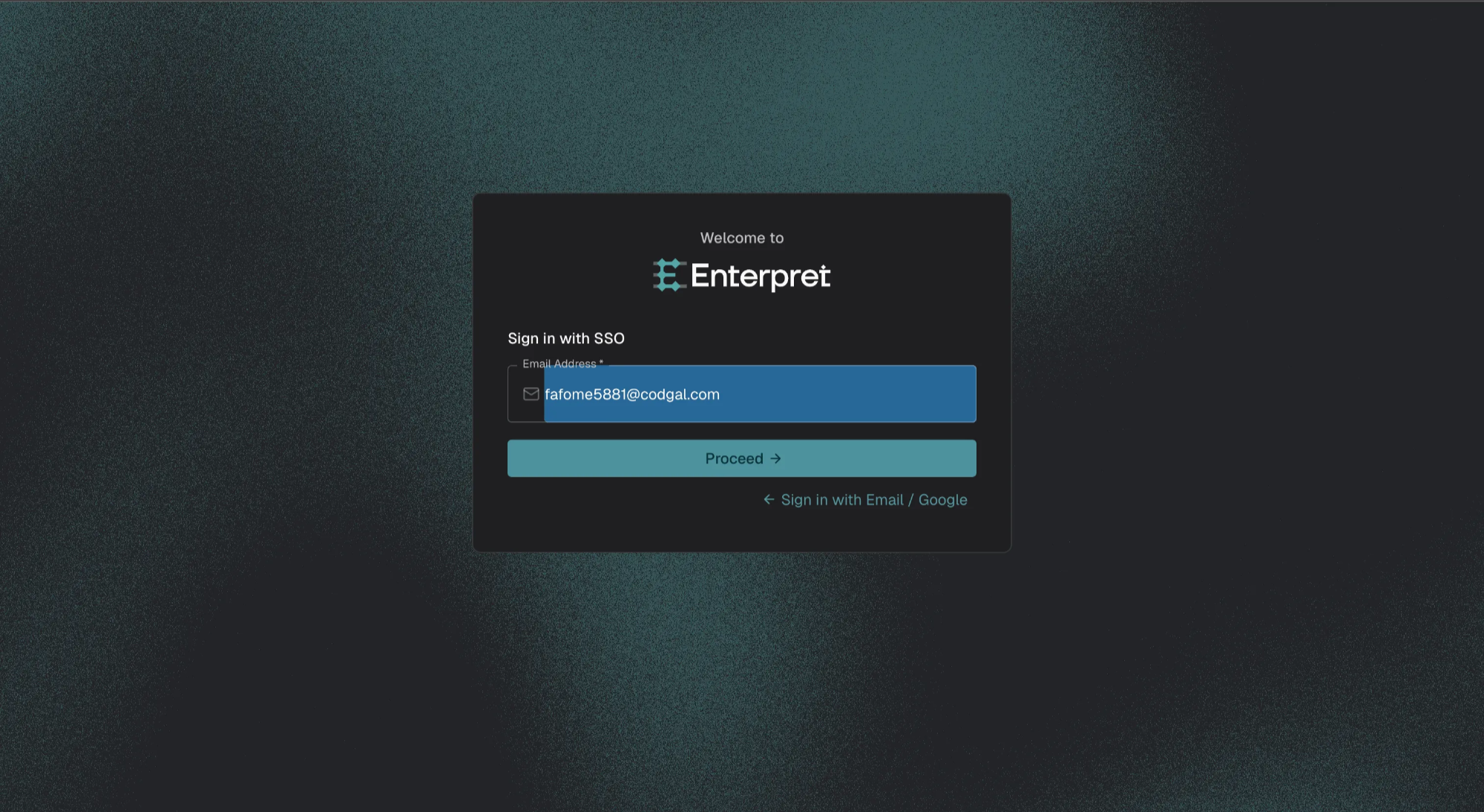
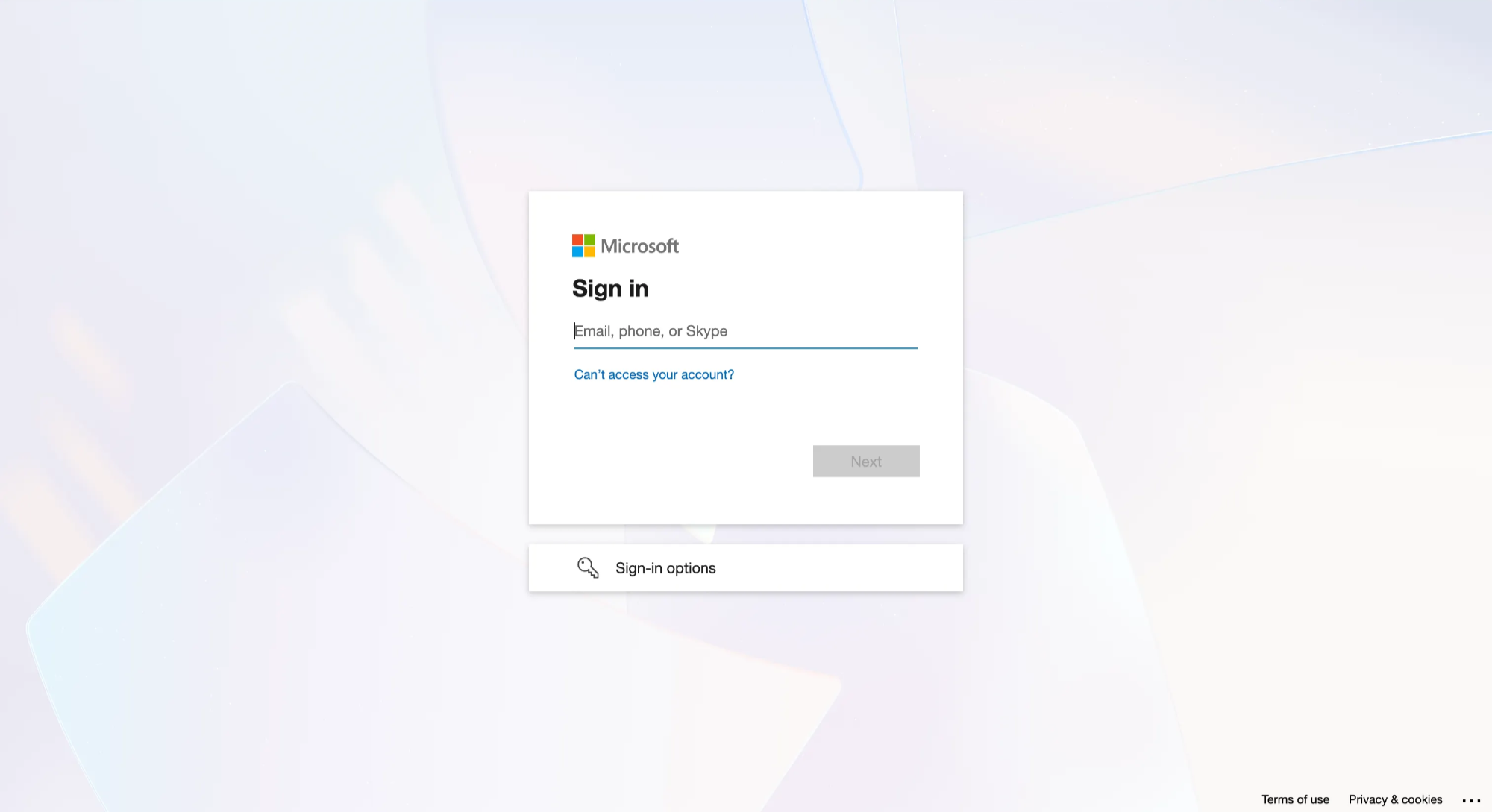
✅ If this works, your SSO setup is correct.
Step 6: Enable IDP-Initiated Login (Azure My Apps)
Make sure you have assigned Enterpret app to relevant users
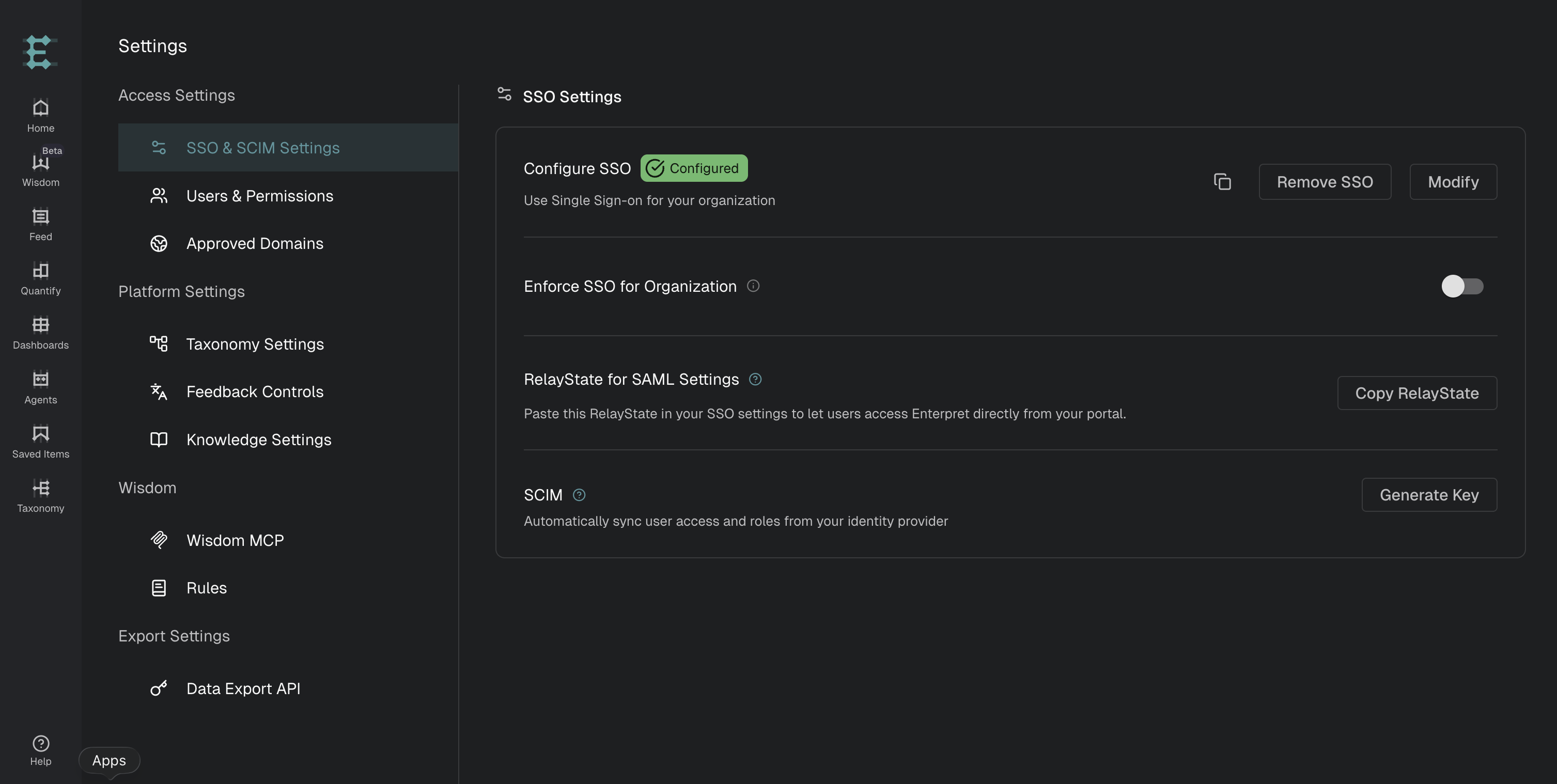
Get RelayState from Enterpret
Click Organization logo → Settings → Access Settings → SSO & SCIM Settings
Copy RelayState
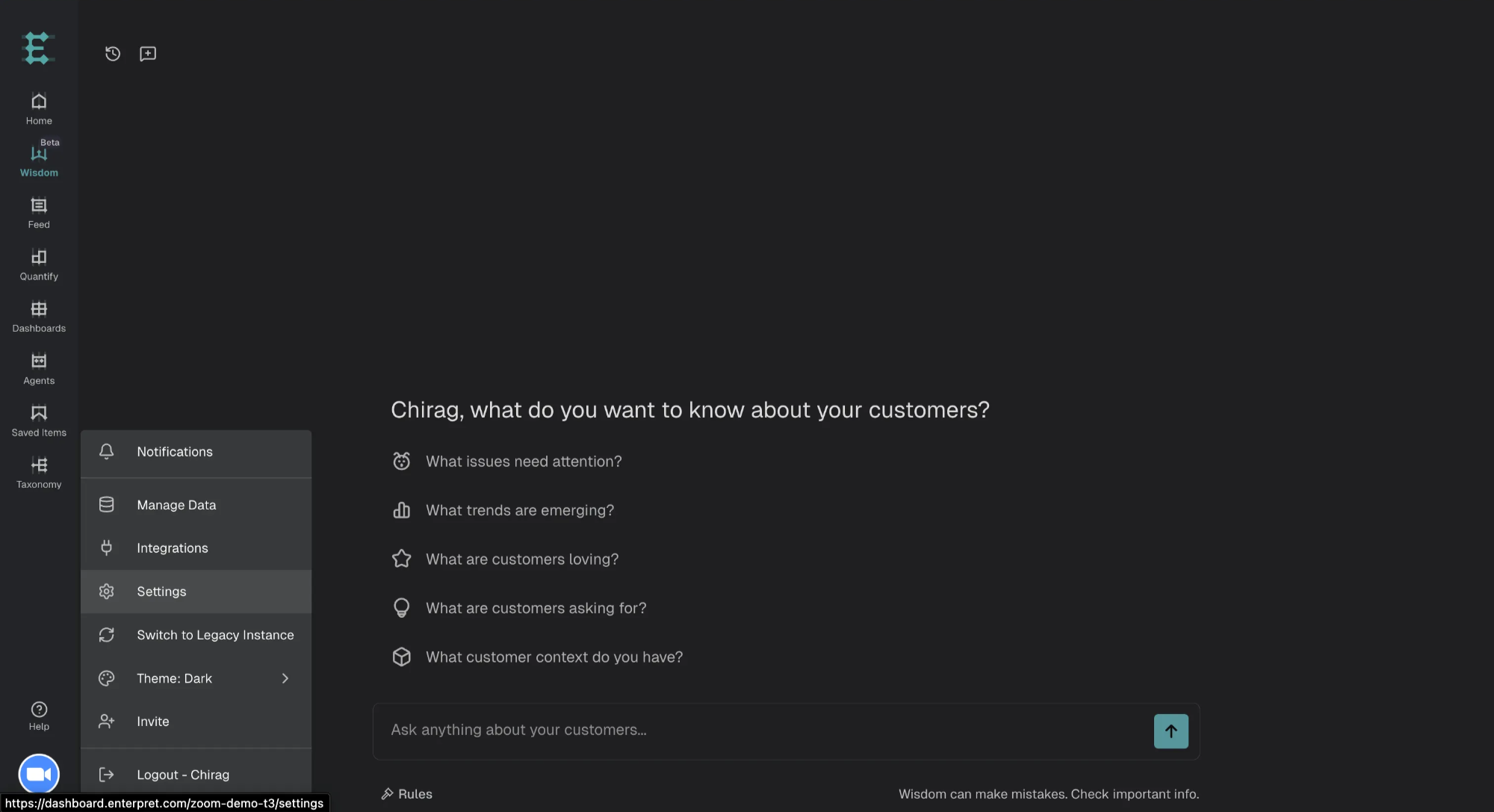
2. Add RelayState in Azure
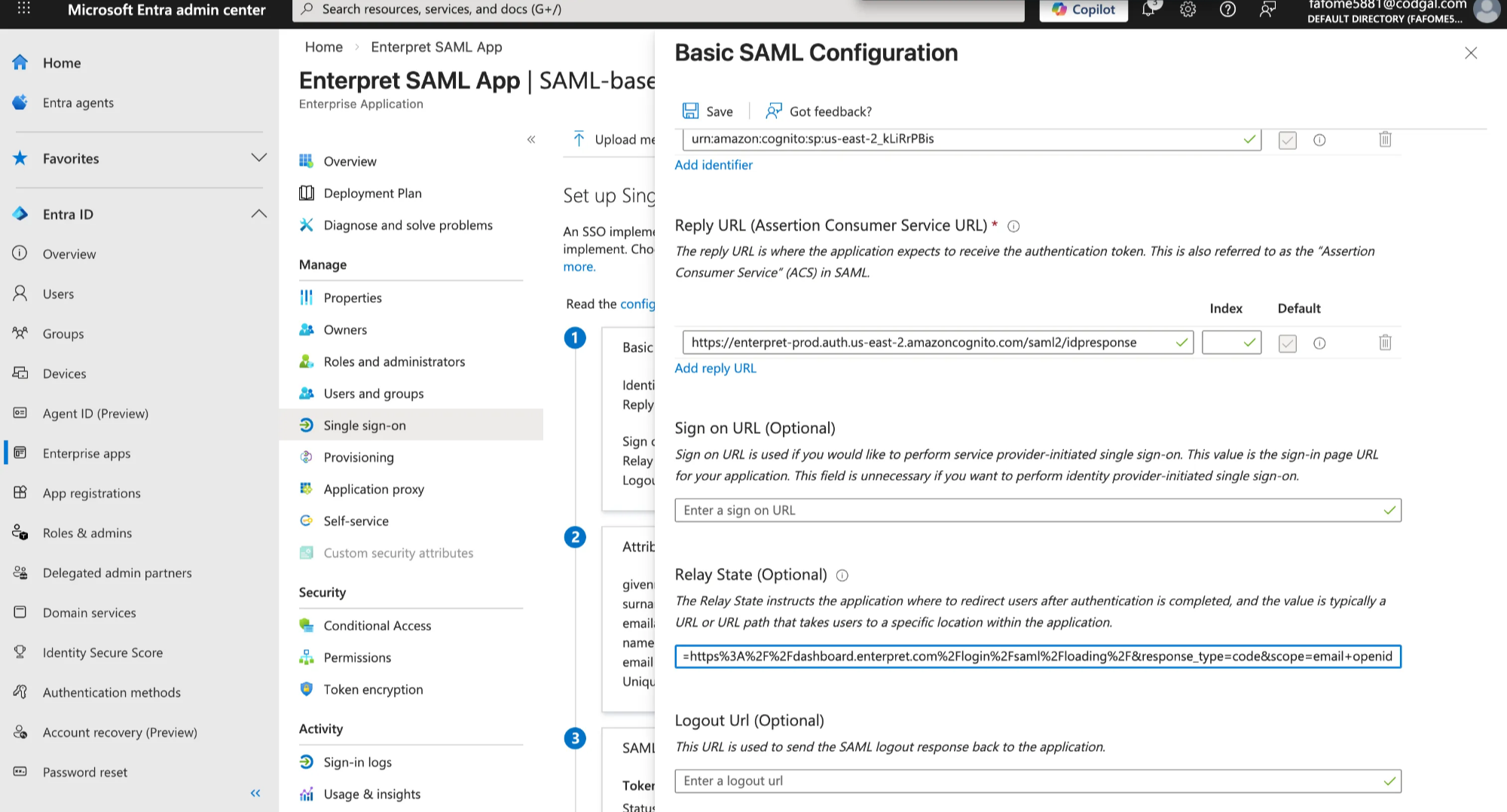
In Azure AD, open the Enterpret app
Go to Single sign-on → Basic SAML Configuration
Paste RelayState into Default RelayState
Save
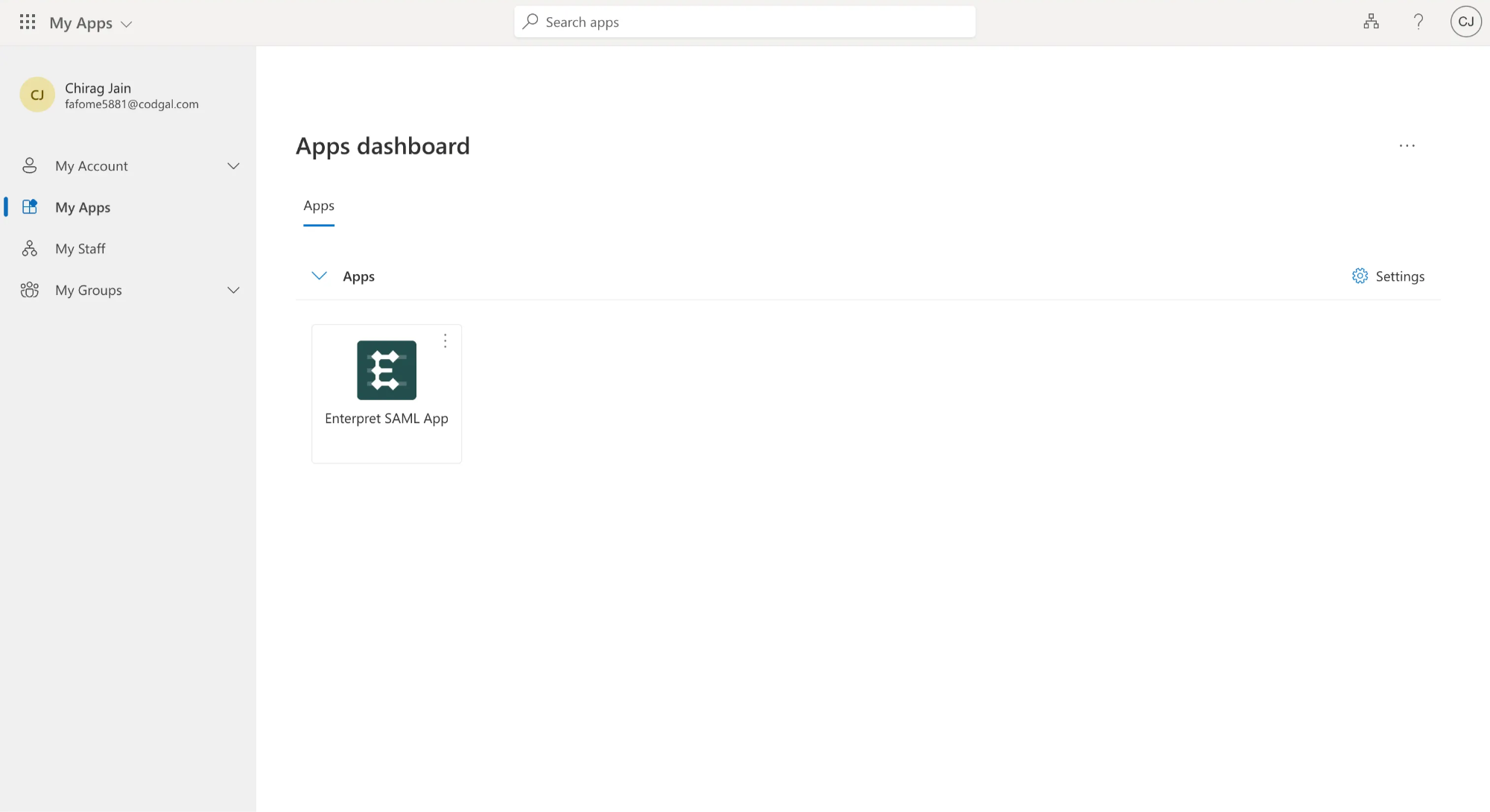
Users can now launch Enterpret from the Azure My Apps portal.
Troubleshooting Checklist
Before contacting support, verify:
Emails match exactly in Azure AD and Enterpret
emailclaim exists and maps correctlyUser is assigned to the Enterprise Application
SP-initiated login works
Metadata URL is valid
RelayState is configured (for IDP-initiated login)
Frequently asked questions
Azure login succeeds, but Enterpret login fails. Why?
Most commonly due to:
Missing or incorrect email claim
Email mismatch between Azure and Enterpret
SSO works from Enterpret, but not from Azure My Apps. Why?
You’re likely missing RelayState. IDP-initiated SSO requires it.
Is NameID enough for Enterpret?
No. Enterpret explicitly reads the email claim.
Can we use a different attribute instead of email?
No. Email is the unique identifier used by Enterpret.
Should we use Azure SAML or Okta OIDC?
OIDC (if available): simpler, fewer edge cases
Azure SAML: recommended when Azure AD is the primary IdP
Need Help?
If you’re unsure about:
Email claim mapping
RelayState configuration
Azure SAML behavior
Reach out to the Enterpret team — we’re happy to help you get SSO running smoothly 🚀