
Zendesk Chat
In this article
In this article group
- Amazon Connect
- Apple App Store
- Census Integration
- Connect Plain to Enterpret
- Decagon Integration
- Discord
- Discourse Integration
- Email Integration
- Facebook Pages Integration
- Fathom Integration
- File Upload: CSV data on Enterpret
- Freshchat
- Freshdesk
- Front
- G2
- Gainsight Communities Integration
- GitHub Issues Integration
- Gong Integration
- Google My Business Integration
- Google Play Store
- Grain
- Granola Integration
- Import HubSpot feedback
- Instagram Comments Integration
- Intercom
- Kustomer
- Livechat Integration
- Momentive (Formerly Survey Monkey)
- Pylon integration
- Qualtrics
- Refiner Integration
- Salesforce
- SFTP Integration
- Slack feedback ingestion: setup and troubleshooting
- Snowflake
- Sprig Integration
- Stella Connect
- TikTok Integration
- Trustpilot Integration
- Typeform
- X (formerly Twitter) Integration
- Connect YouTube videos and comments
- Zendesk Support
- Import Zoho Desk support tickets
- Zoom Integration
- Zapier Integration
- Reddit Search (UGC)
- Wispr Flow integration
Overview
Zendesk Chat's integration enables Enterpret to directly ingest data from your customer support conversations into Enterpret's data pipeline. This allows you to understand and make decisions based on the feedback you receive in Zendesk Chat.
We require OAuth authentication and ingest new data every 4 hours through our API integration system.
How It Works
Whenever someone responds to a conversation outside the 4-hour refresh window, Enterpret ingests the entire conversation, not just the new message. While this creates multiple copies of the same conversation in Enterpret, it does not affect your data count during analysis.
Enterpret ingests only resolved customer support conversations. Unresolved conversations or those without responses are not ingested.
Configure
Step 1: Create a Zendesk API Client
Enterpret needs access to your Zendesk Chat account. You must create an API client within Zendesk to proceed.
1. Navigate to Settings and Account in your Zendesk Chat account
2. Select API & SDKs from the top menu
3. Click Add API Client
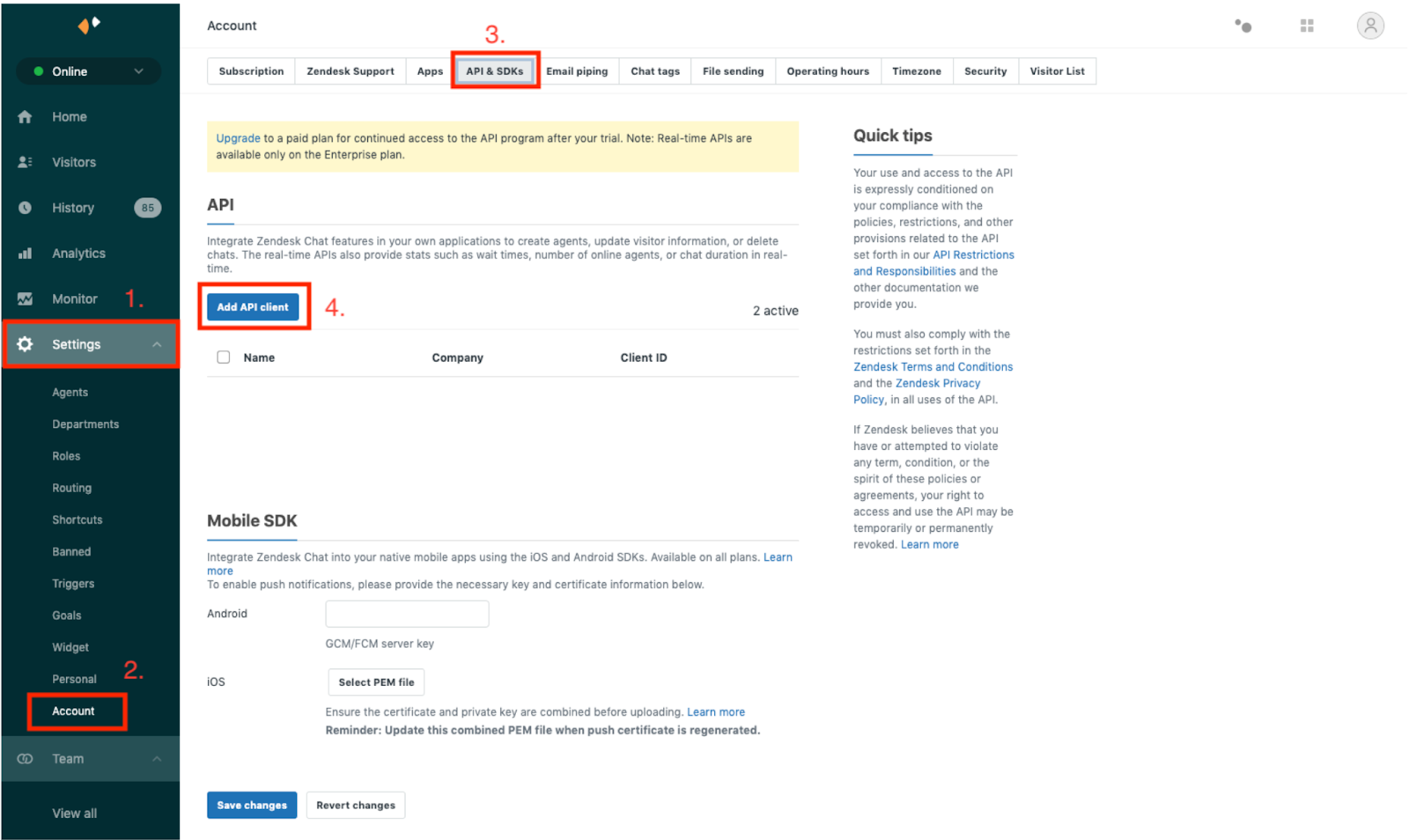
4. In the form, enter:
Client Name: Enterpret
Company Name: Enterpret
Redirect URLs: https://dashboard.enterpret.com/settings/integrations
5. Click Create API Client
6. Copy and save the Client ID and Client Secret temporarily
Step 2: Authorize Enterpret to Access Zendesk Chat
Click Sign in with Google and log in with your work email
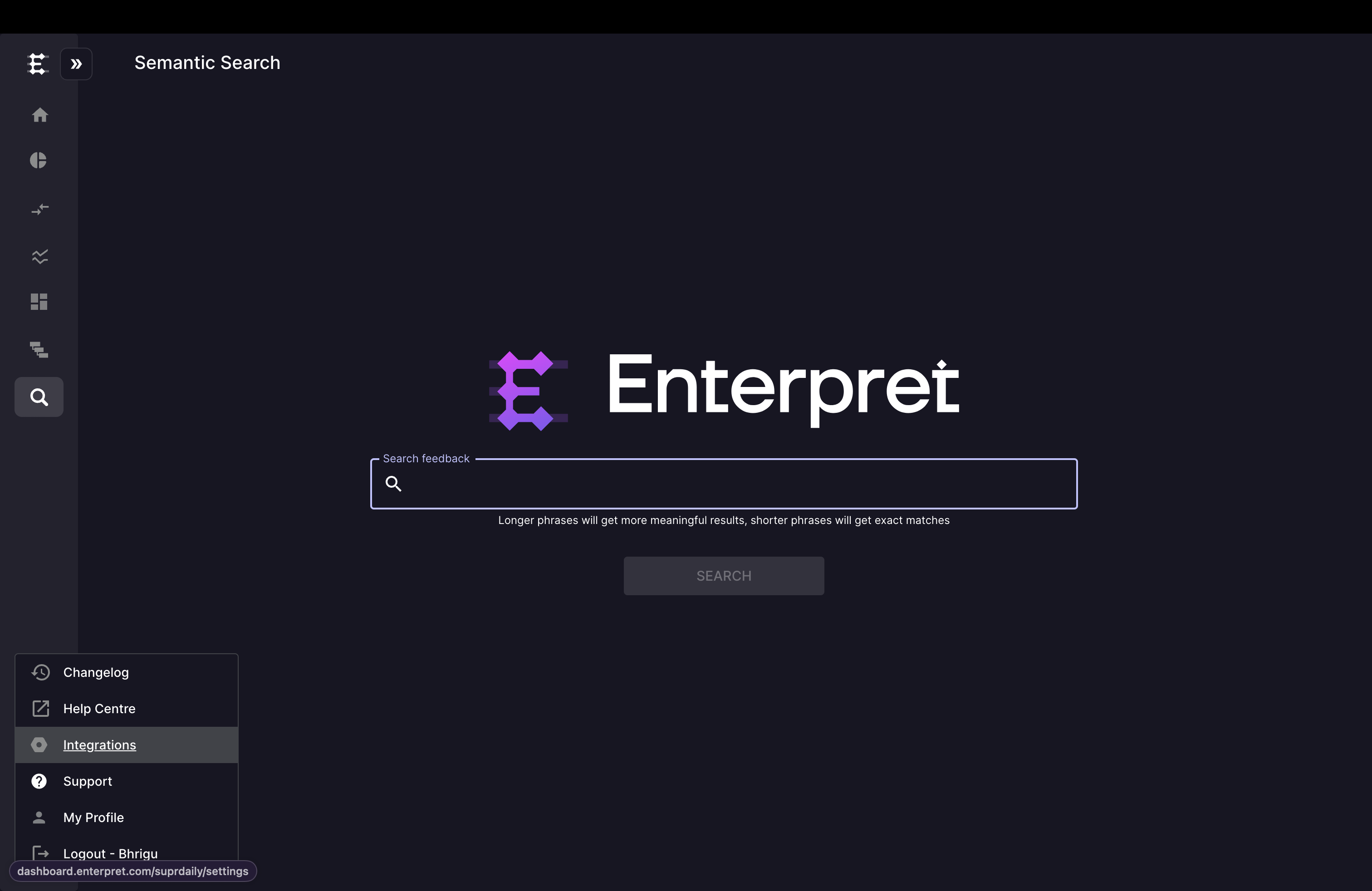
Click the logo icon on the left sidebar to open the integrations menu
Select Integrations from the menu
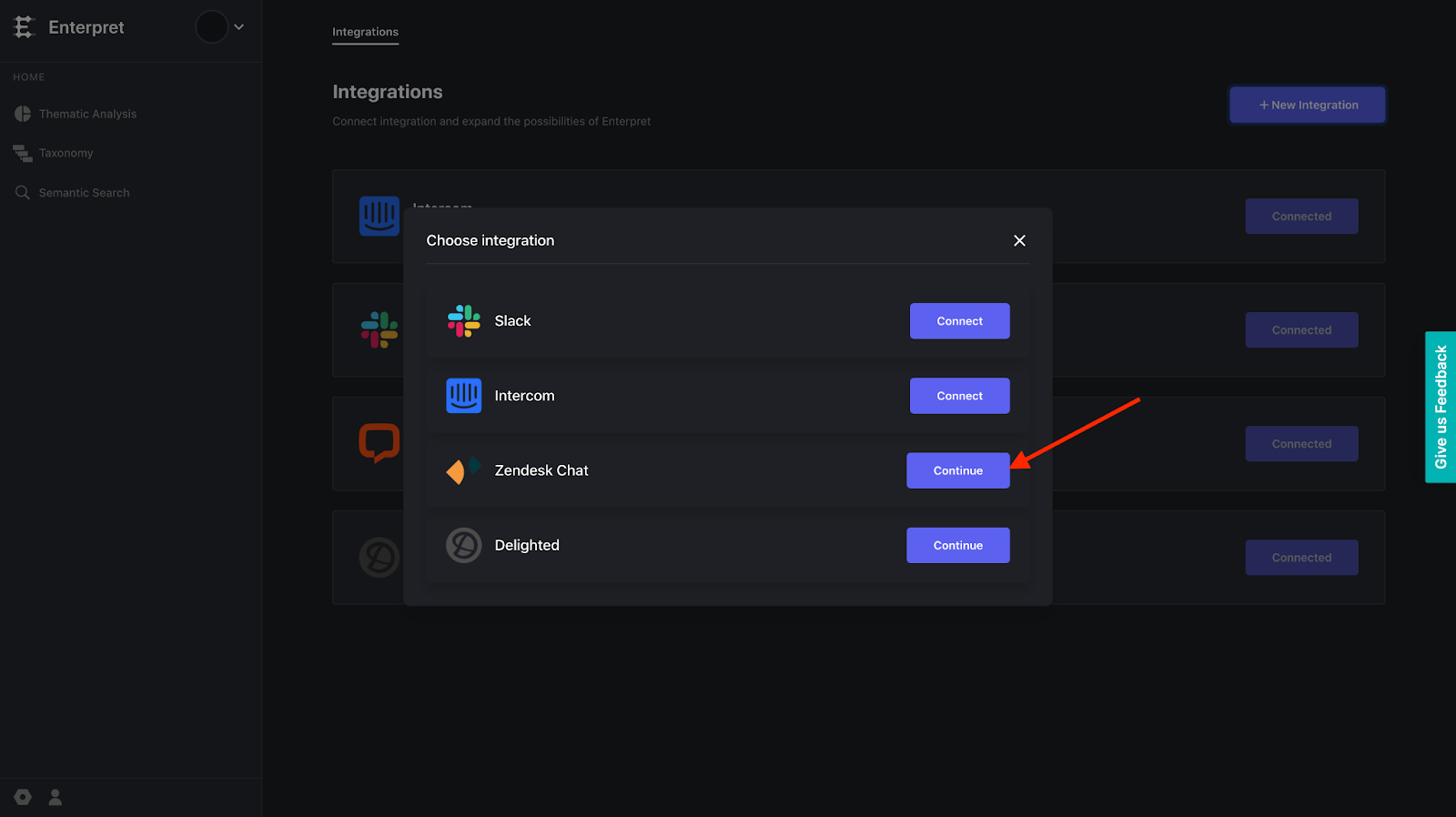
Click the + New Integration button
Select Zendesk Chat from the available options
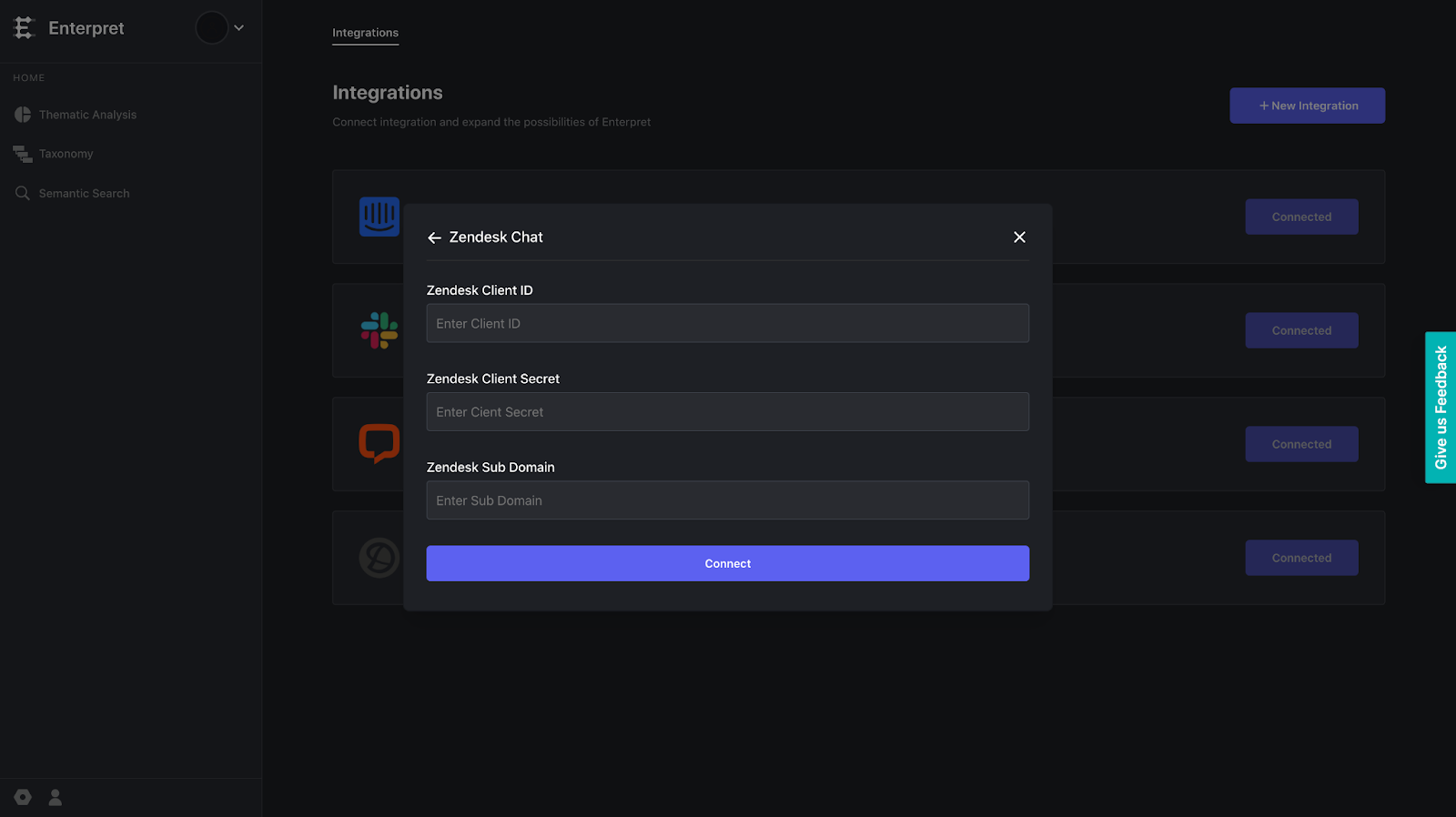
Fill in the following details:
Zendesk Client ID: The Client ID from Step 1
Zendesk Client Secret: The Client Secret from Step 1
Zendesk Subdomain: The subdomain in your Zendesk Chat URL (for example, in https://d3v-enterpret.zendesk.com, "d3v-enterpret" is the subdomain)
Click Connect
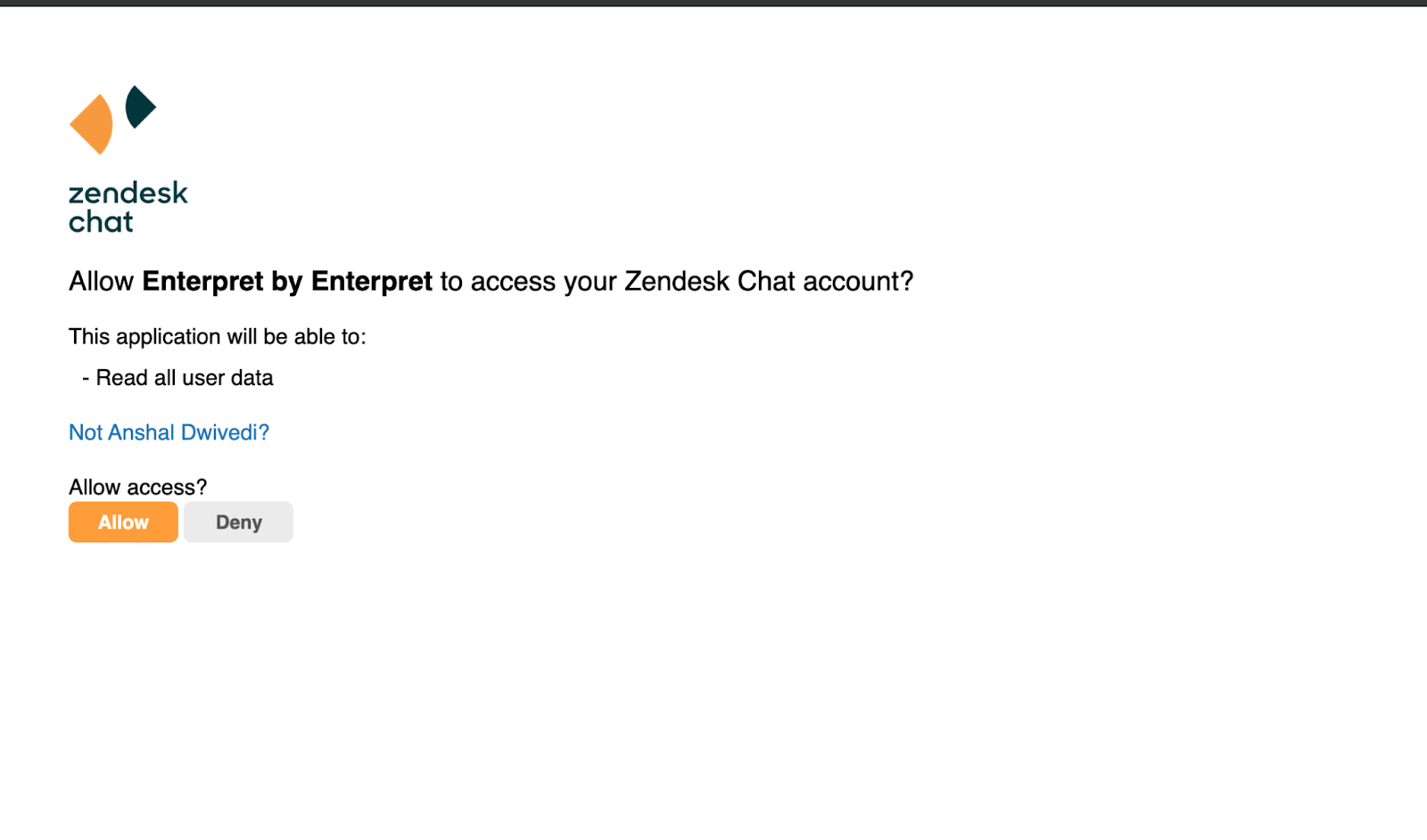
You will be redirected to your Zendesk account. Log in and click Allow to authorize Enterpret to read your Zendesk Chat data.
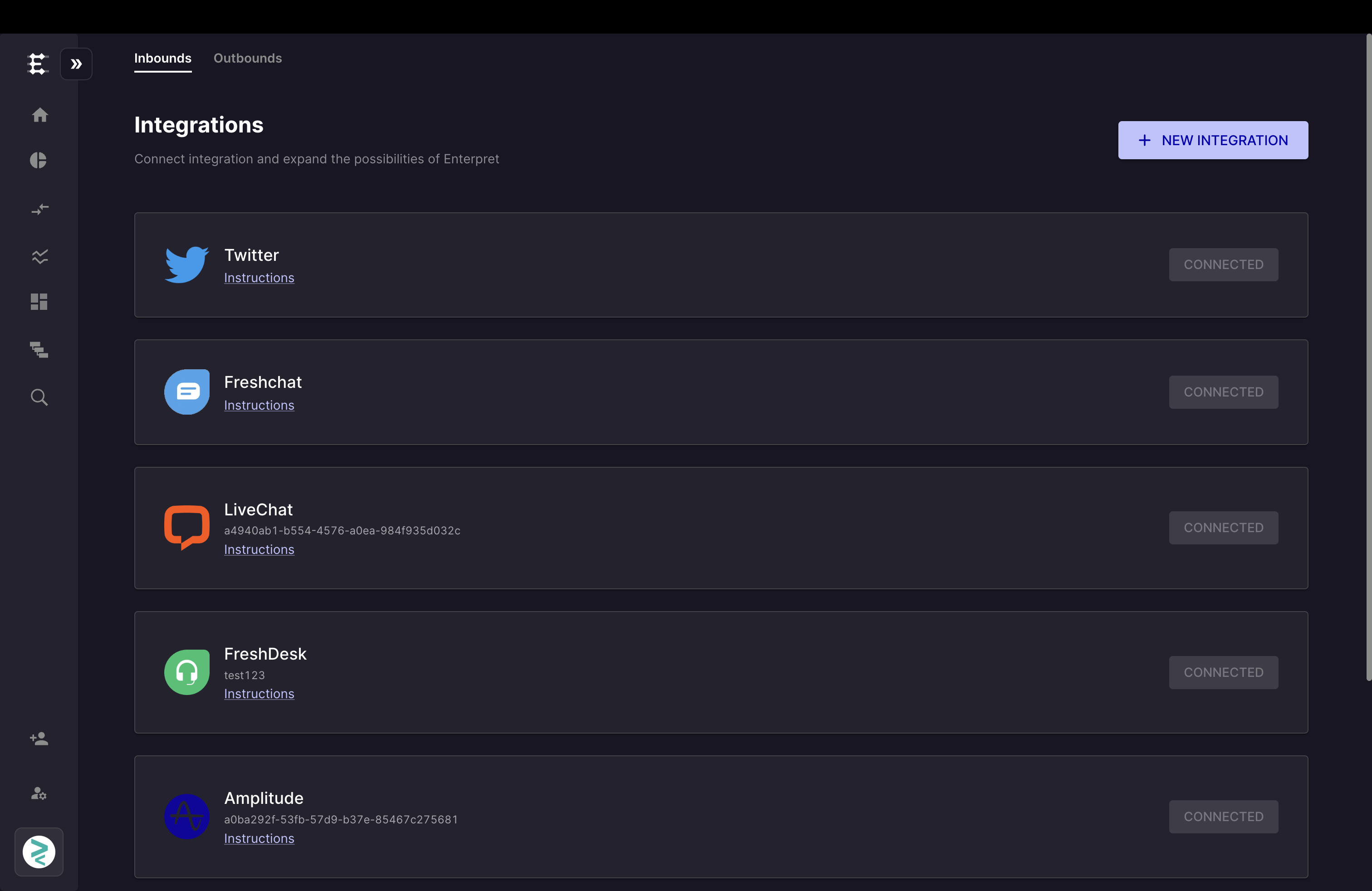
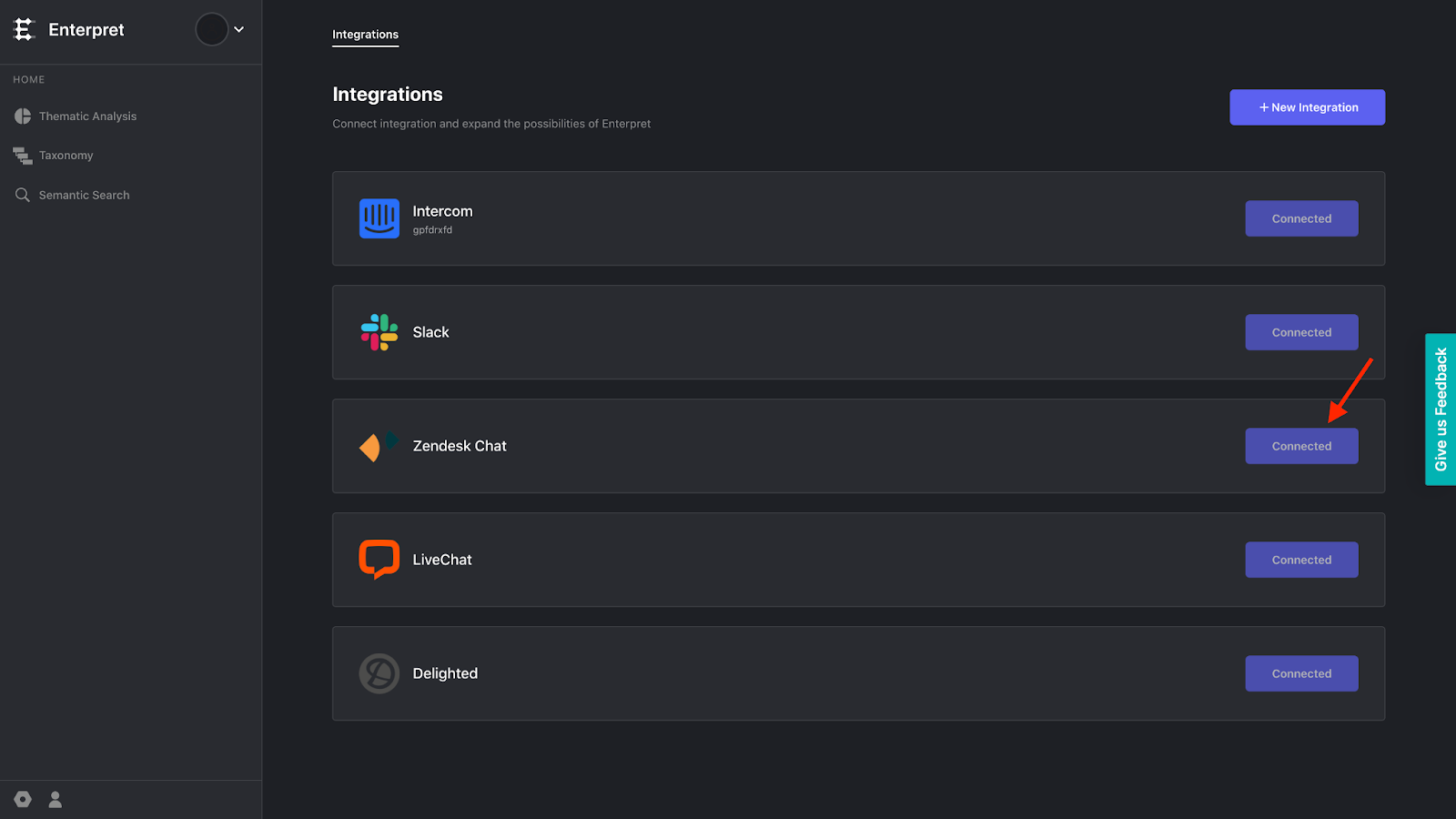
Once successful, you will see Zendesk Chat listed as a Connected integration in your Enterpret account.

Analyze this feedback with Enterpret Agent
Once this integration's feedback is available in Enterpret, use Enterpret Agent to investigate themes, summarize customer requests, and prepare reports. Specify this source and the reporting period in your request. For daily reports, weekly digests, and recurring reporting, configure scheduled Agent automations with Slack or email delivery.
This guide covers feedback ingestion. Agent connectors are a separate setup for reading external context or taking supported actions in other tools; connecting a feedback source does not automatically authorize those actions.