
Zendesk Support
In this article
In this article group
- Amazon Connect
- Apple App Store
- Census Integration
- Connect Plain to Enterpret
- Decagon Integration
- Discord
- Discourse Integration
- Email Integration
- Facebook Pages Integration
- Fathom Integration
- File Upload: CSV data on Enterpret
- Freshchat
- Freshdesk
- Front
- G2
- Gainsight Communities Integration
- GitHub Issues Integration
- Gong Integration
- Google My Business Integration
- Google Play Store
- Grain
- Granola Integration
- Import HubSpot feedback
- Instagram Comments Integration
- Intercom
- Kustomer
- Livechat Integration
- Momentive (Formerly Survey Monkey)
- Pylon integration
- Qualtrics
- Refiner Integration
- Salesforce
- SFTP Integration
- Slack feedback ingestion: setup and troubleshooting
- Snowflake
- Sprig Integration
- Stella Connect
- TikTok Integration
- Trustpilot Integration
- Typeform
- X (formerly Twitter) Integration
- Connect YouTube videos and comments
- Zendesk Chat
- Import Zoho Desk support tickets
- Zoom Integration
- Zapier Integration
- Reddit Search (UGC)
- Wispr Flow integration
Overview
The Enterpret integration for Zendesk Support allows our customers to view customer support tickets directly inside Enterpret. This allows our customers to save time in going through tickets on a manual basis and make better and faster product decisions.
We require OAuth to ingest data through the Zendesk API. The current default polling interval is 15 minutes. Your integration may use a different configured schedule, including an older interval. Contact your Enterpret team to confirm the schedule for your connection.
Polling schedules periodic checks for eligible source data. Data becomes available for analysis after fetching and processing; the polling interval does not guarantee when a particular record or the first import will appear.
Our Zendesk integration has support for Mutable Records.
Configure
Click on "Sign in with Google" and log in with your work email.
Once you have logged in successfully, navigate to the Integrations page:
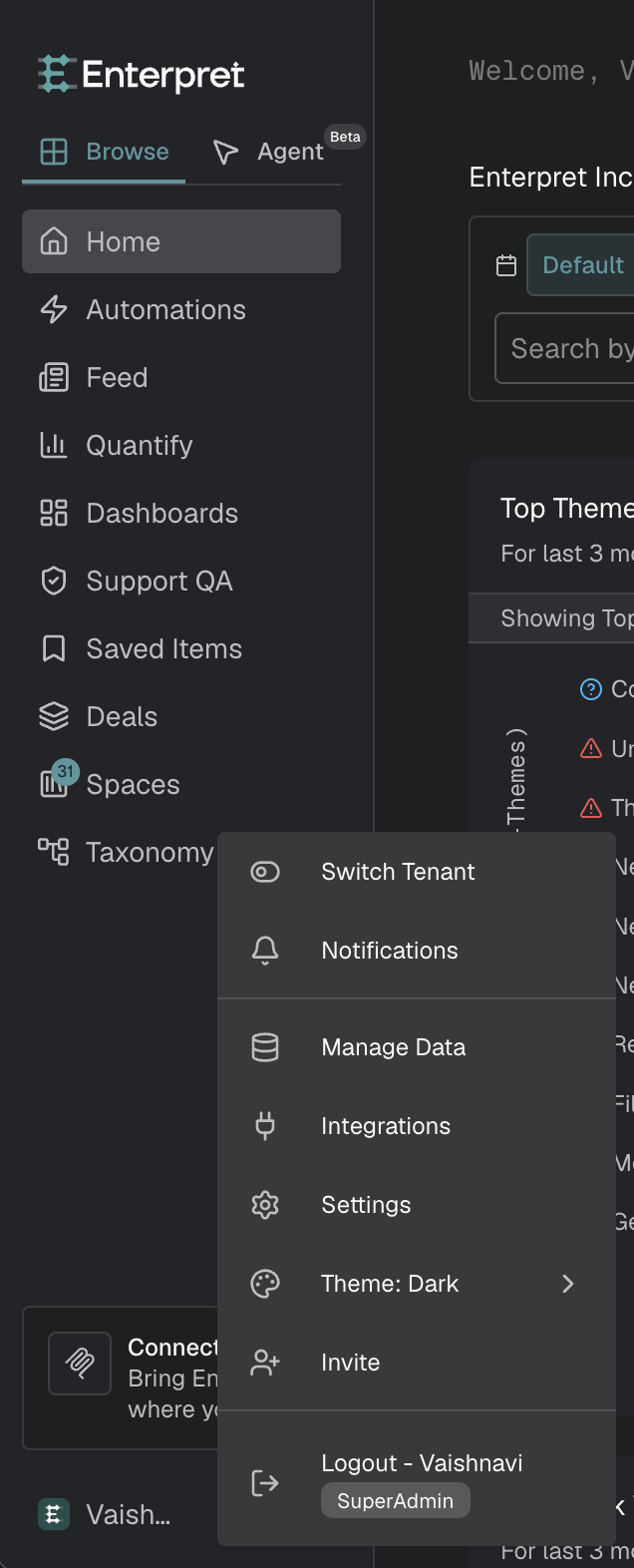
Click the logo icon or your account name on the left sidebar to open the integrations menu.
Select Integrations from the menu.
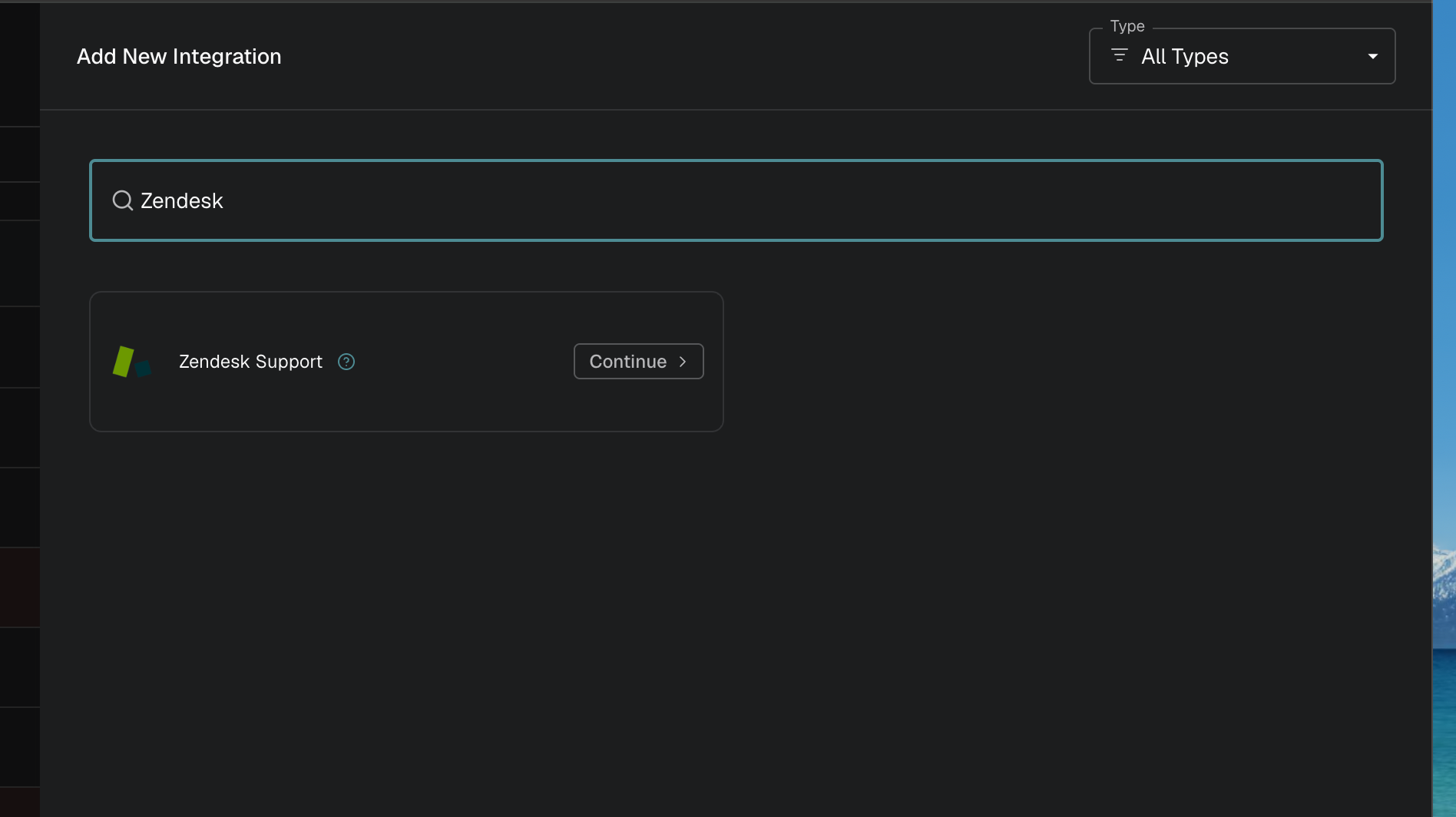
Click on the + New Integration button.
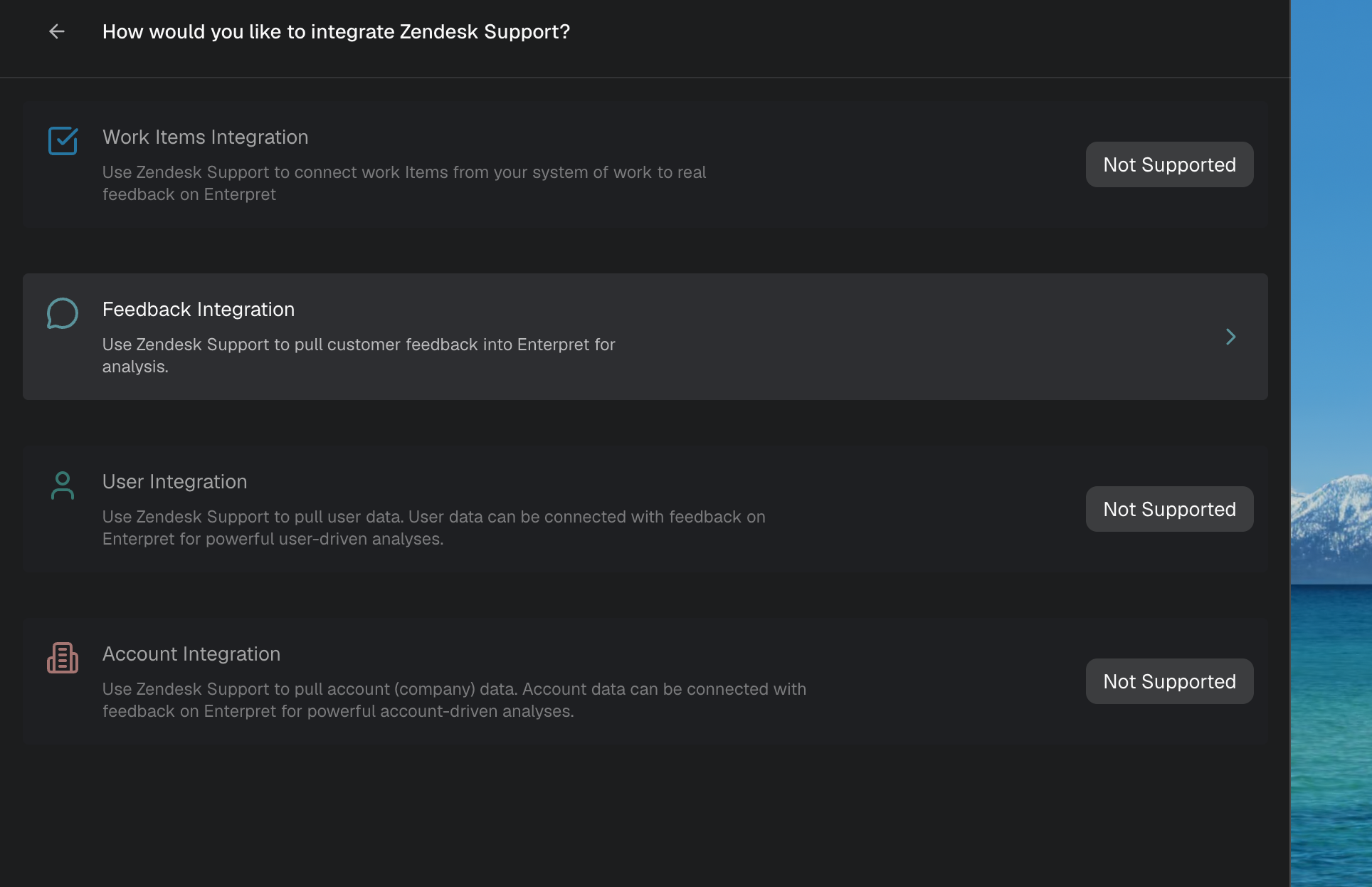
Choose Zendesk Support from the presented options by clicking the Continue button in front of it. Then select Feedback integration.
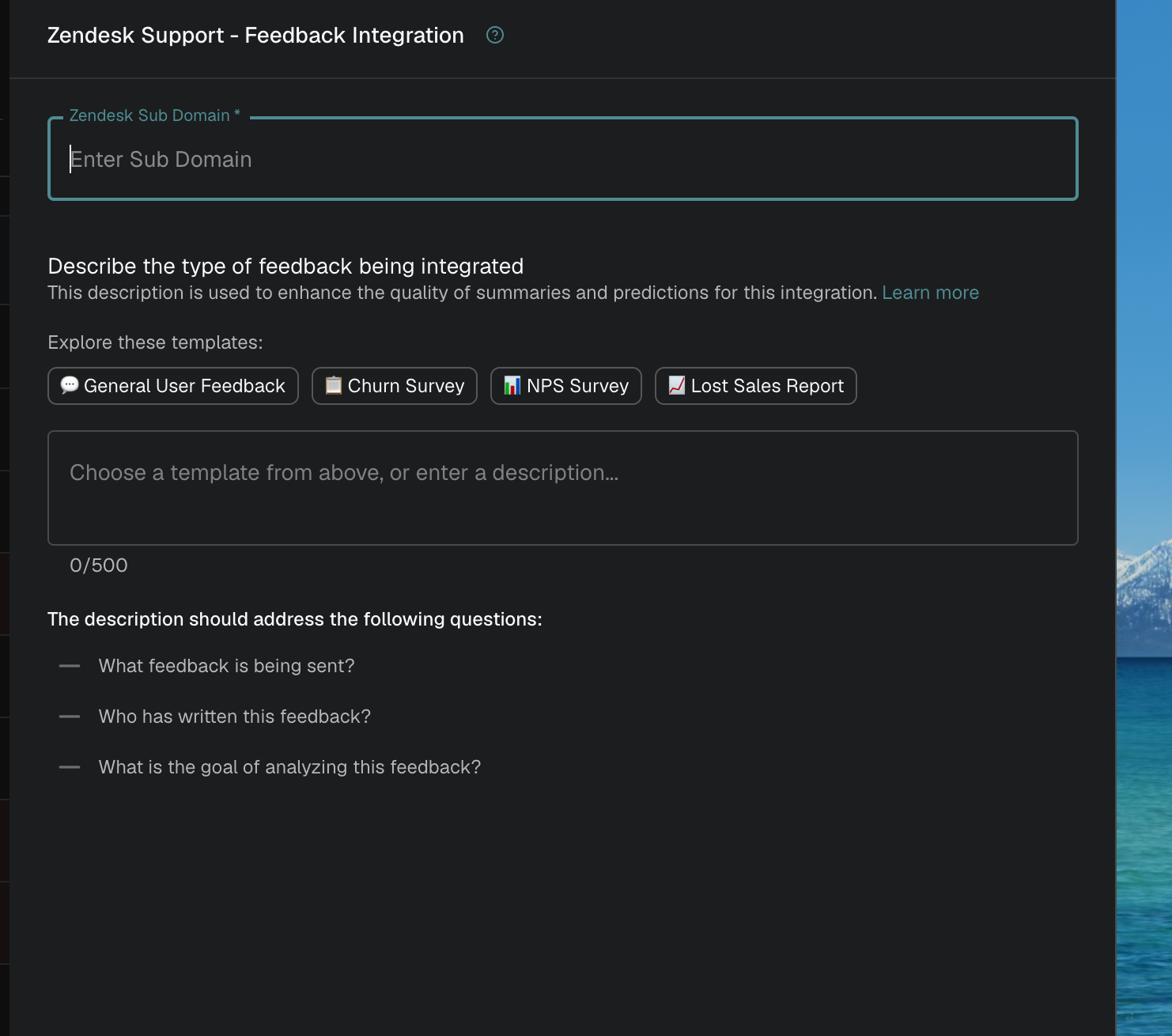
In the presented form, provide your Zendesk Subdomain. You can find this in your Zendesk Support URL.
In the above URL, "d3v-enterpret" is the Zendesk Subdomain.
Once you have filled the Zendesk Subdomain, click on the Connect button. You will be redirected to your Zendesk account. Log in to Zendesk and click Allow to authorize Enterpret to read Zendesk Support data.
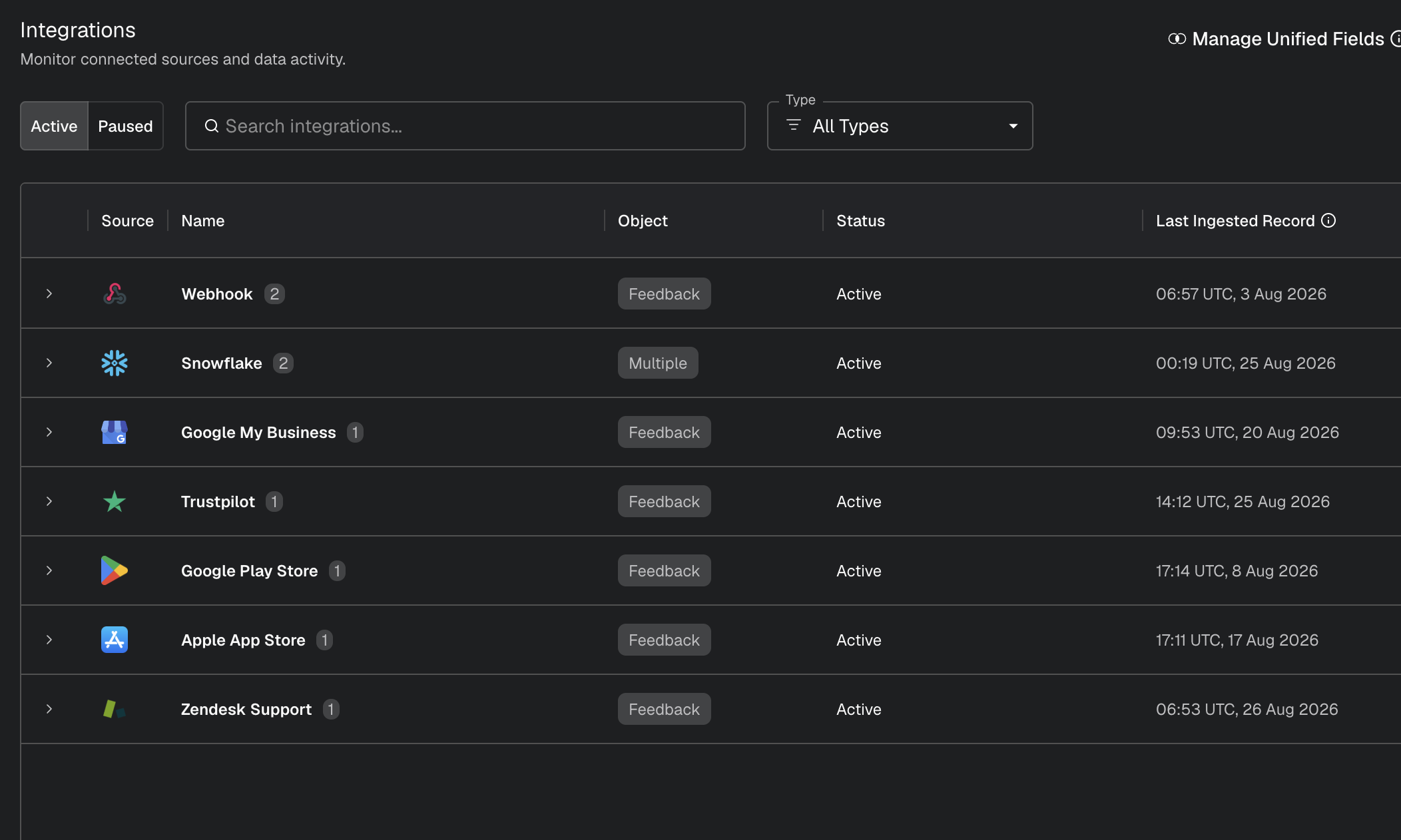
Once this succeeds, Zendesk Support will appear as an Active integration in your account.


Metadata fields imported
Each ticket can include the following fixed metadata:
Ticket ID
Requester ID
Zendesk ticket URL
Channel
Tags
Satisfaction rating
Requester email, when available
Custom fields
Zendesk ticket custom fields are imported dynamically under ZendeskSupport.CustomFields. The field names and values depend on the custom fields configured in your Zendesk account. Values are represented as strings in Enterpret, including empty or numeric values when returned by Zendesk.
The requester’s email is also included as the email custom field when Enterpret can retrieve the requester. The requester’s other profile fields and organization fields are not imported as part of the ticket metadata.
Optional ticket metrics
When Ticket Metrics is enabled for your Zendesk Support integration, Enterpret imports the fixed set of metrics below as ticket metadata. Individual metrics cannot currently be selected. If this option is available in your workspace, use the Fetch ticket metrics switch in the Zendesk Support setup or edit form and save the integration. If the switch is unavailable, ask your Enterpret team about availability. Enabling it does not by itself reprocess every historical ticket.
First reply time, in calendar minutes
First reply time, in business minutes
First resolution time, in calendar minutes
First resolution time, in business minutes
Full resolution time, in calendar minutes
Full resolution time, in business minutes
Requester wait time, in calendar minutes
Requester wait time, in business minutes
Agent wait time, in calendar minutes
Agent wait time, in business minutes
On-hold time, in calendar minutes
On-hold time, in business minutes
Number of reopens
Number of replies
Assignee stations
Group stations
Solved-at timestamp
First-reply-created timestamp
Business-minute values follow the business-hours schedule configured in Zendesk. Calendar-minute values include all elapsed time.
Zendesk calculates these values and updates them as the ticket changes. Some values may be unavailable if Zendesk has not calculated them for a ticket.
Historical availability depends on when Ticket Metrics was enabled and whether the ticket has been re-ingested.
Zendesk Talk recordings
When Zendesk Talk recording ingestion is enabled, voice recordings are imported as separate audio records linked to the ticket. These records can include the audio recording, ticket and comment IDs, call ID, brand ID and name, ticket form ID, status, call duration, start time, recording type, line type, location, channel, tags, satisfaction rating, custom fields, requester ID, and requester email when available.
Conversation content
The ticket conversation is built from Zendesk comments. Each message preserves its text and author classification. Depending on the Zendesk fetch mode, Enterpret may also use Zendesk audit history to reconstruct conversation and chat messages.
The integration does not import every property returned by the Zendesk API. In particular, ticket submitter, assignee, group, recipient, organization profile fields, requester profile fields other than email, and other raw API properties are not exposed as fixed ticket metadata unless they are included in Zendesk custom fields.
Analyze this feedback with Enterpret Agent
Once this integration's feedback is available in Enterpret, use Enterpret Agent to investigate themes, summarize customer requests, and prepare reports. Specify this source and the reporting period in your request. For daily reports, weekly digests, and recurring reporting, configure scheduled Agent automations with Slack or email delivery.
This guide covers feedback ingestion. Agent connectors are a separate setup for reading external context or taking supported actions in other tools; connecting a feedback source does not automatically authorize those actions.