
Unified Fields
If you are looking to analyze the same information across different feedback sources, Unified Fields can help by bringing equivalent fields, such as App Store ratings and Play Store scores, into one field.
Understanding Unified Fields
A Unified Field lets you use metadata from different sources in the same filter or analysis.
For instance, "Playstore Score" and "Appstore Rating" can be merged into one "App Rating" field. "Conversation ID" from Intercom and "Ticket ID" from Zendesk can be unified into a single "Ticket ID" field.
Managing Unified Fields requires the relevant metadata-management permission. Ask your workspace administrator if creation or editing is unavailable.
Unified fields in Agent
Workspace Owners and Admins can list, create, or delete unified fields in Enterpret Agent. Choose Ask Agent or open Agent → New session. Listing fields does not require approval.
List: Ask “List the unified fields in this workspace.”
Create: Give the Agent a name and description and identify at least two distinct feedback-record fields of the same data type. For example: “Combine Country from Salesforce and Zendesk into a unified field named Country. Use the description ‘Customer country across feedback sources.’” You can also ask to hide the original fields.
Delete: Ask the Agent to delete the unified field by name. Deleting hides the unified field. If its original fields were hidden, they stay hidden until you unhide them. You can ask the Agent to unhide those fields separately.
When the Agent shows an approval card for a change, review it and select Allow Once, Allow Always, or Deny. Allow Always saves your permission for future uses of that action.
How to create Unified Fields
Click your profile icon at the bottom left of the dashboard.
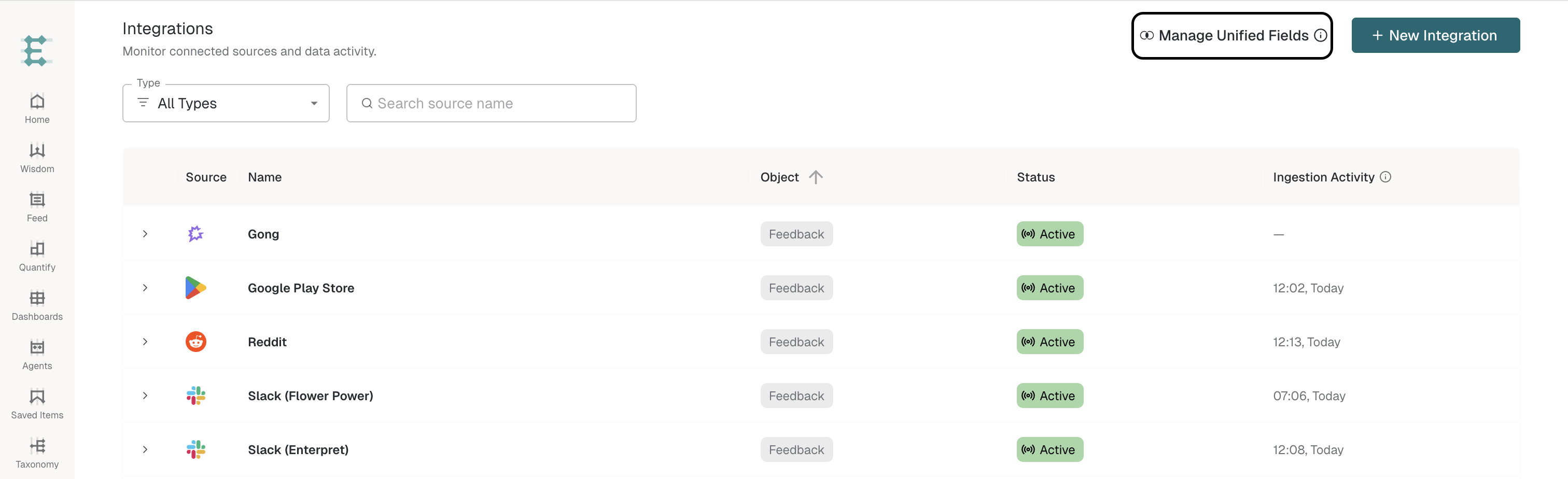
Select Integrations from the menu.
Click Manage Unified Fields.
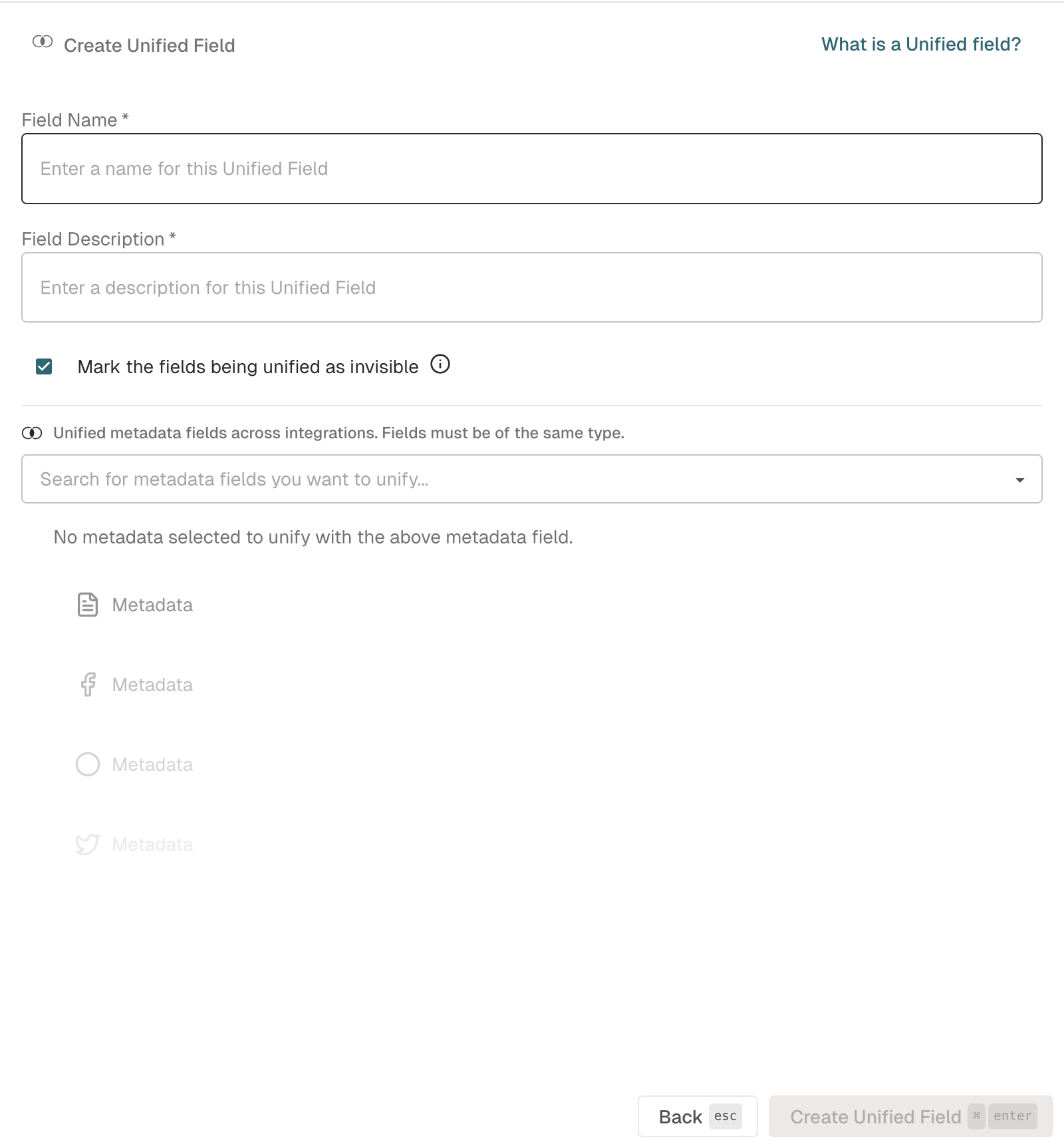
Click + CREATE NEW UNIFIED FIELD.
Enter a name and description, select source fields of the same data type, complete any type control shown, then choose Create Unified Field.
You can hide individual source fields from view. Enterpret keeps the underlying data.
How to edit Unified Fields
Once a Unified Field is created, it is available in three places across Enterpret:
Search bar filters — use your unified field to filter feedback directly from the search bar.
Quantify Plot and filters — use an available unified field as the grouping or a filter. The collapsed query summary may say Show me.
Metadata Management on the Integrations page — view and configure unified field visibility across your integrations.
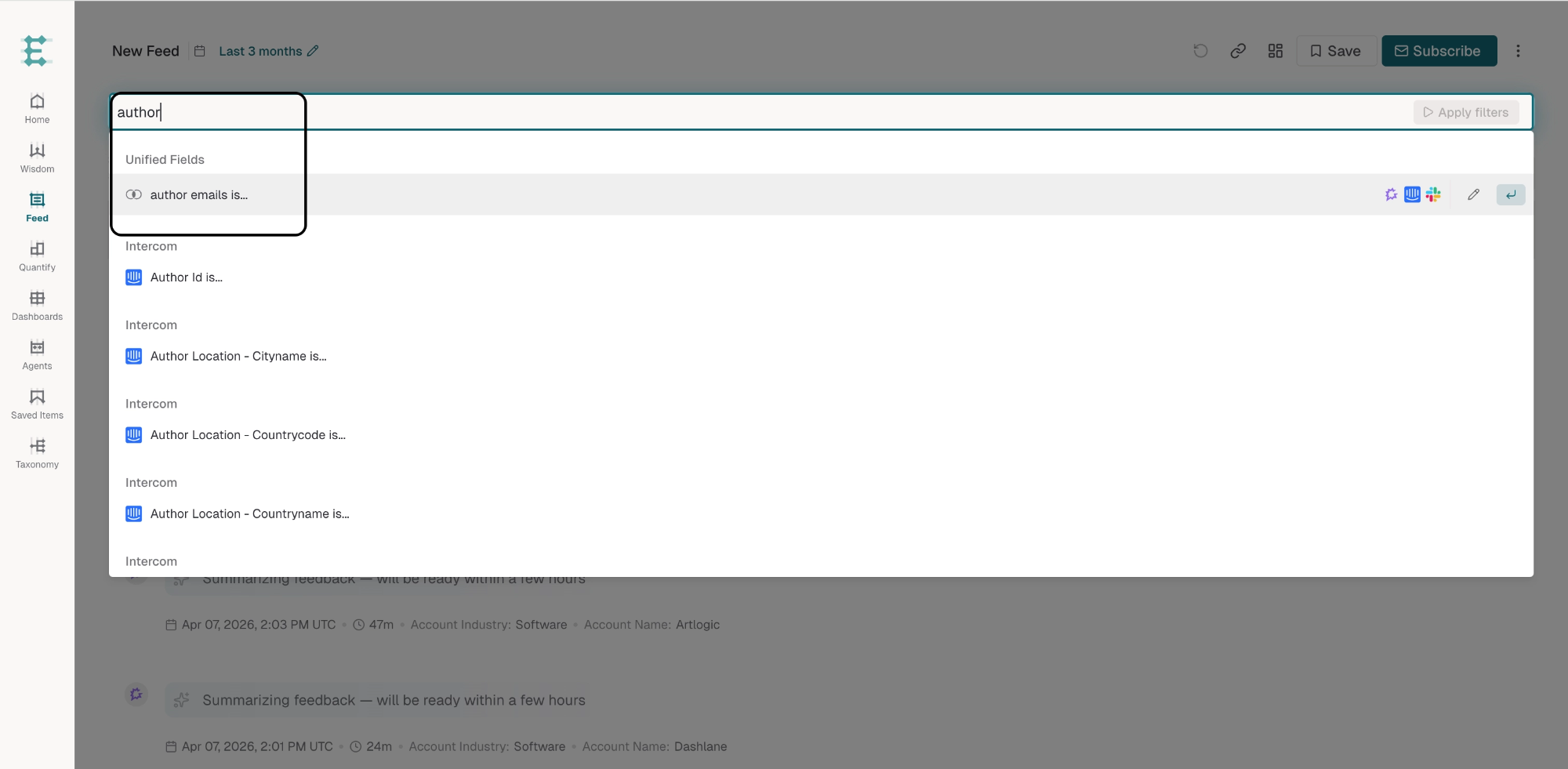
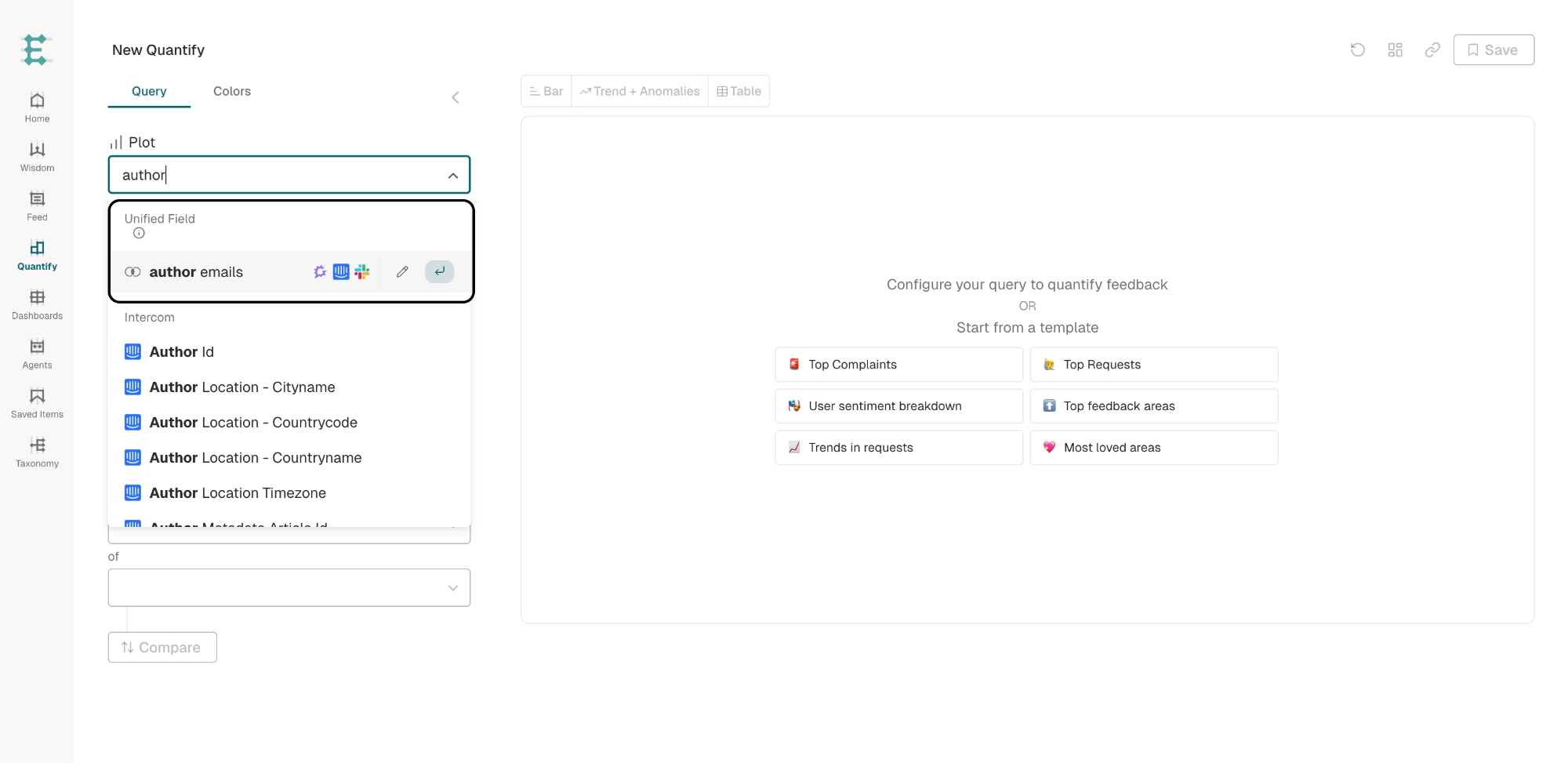
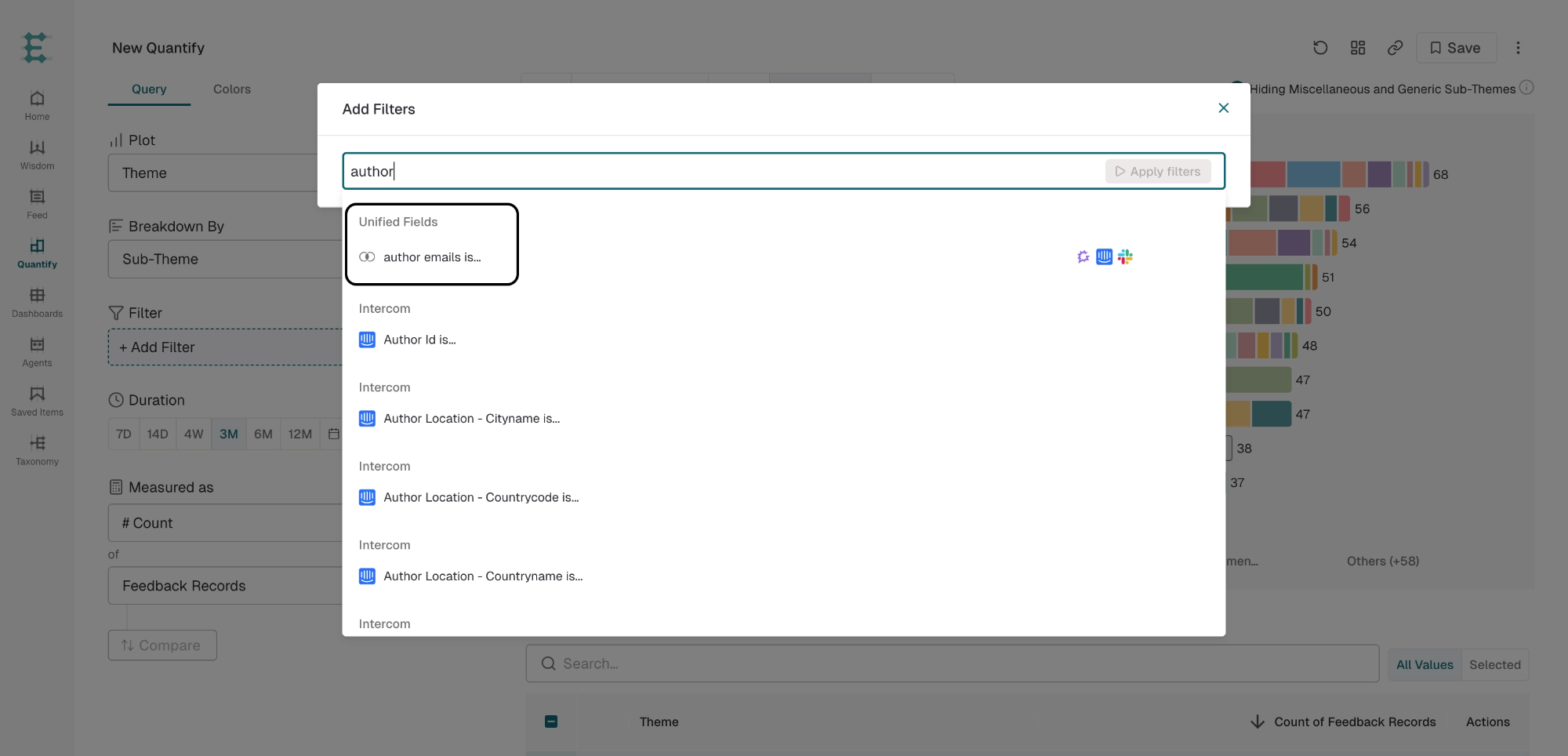
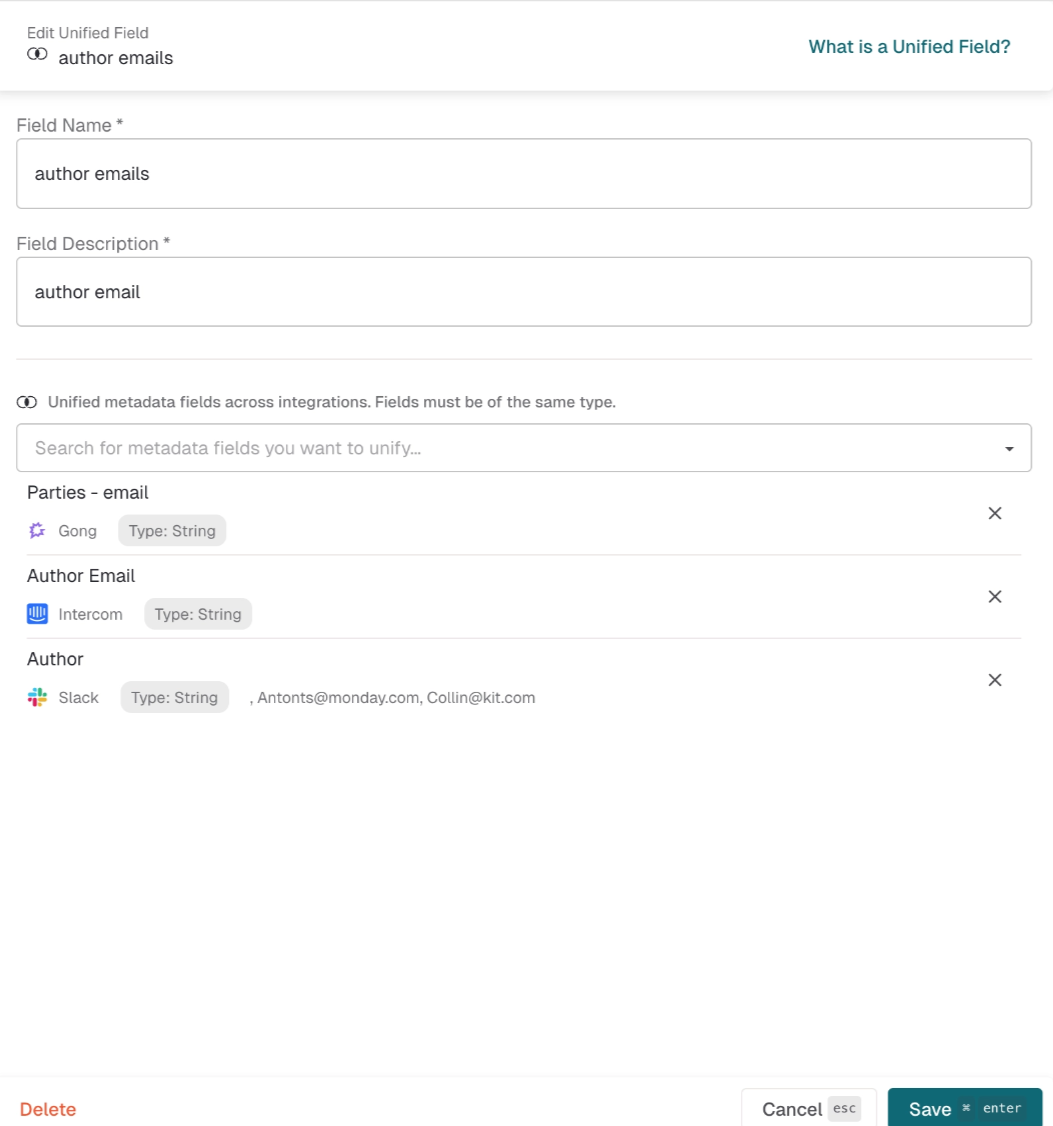
To edit a Unified Field, hover over it in any of the above locations and click the edit icon that appears.
Query performance: Performance depends on the fields and query. If a unified-field analysis is slow, share the query and field mapping with your Enterpret team.
Frequently asked questions
When should I use a Unified Field instead of Data Enrichment?
Use a Unified Field when different feedback sources already contain equivalent information in fields of the same data type. Use Data Enrichment when you need to extract information, calculate a value, or standardize its format. If your rule needs to combine several inputs into a new value, share the inputs and expected output with your Enterpret team to check whether a suitable enrichment function is available.
Does creating a Unified Field automatically link feedback to accounts?
No. A Unified Field brings existing feedback fields together; creating it does not configure an account link or establish a customer’s identity. Account linking needs a reliable matching value on both the feedback and account records, plus a configured matching rule. Share the fields and example values with your Enterpret team to confirm the linking setup.