
Use Enterpret Agent in Slack
Mention @Enterpret in Slack to use Enterpret Agent. Ask it about customer feedback, or use it to set up an automation or create a file your team can open. What it can do depends on your access and the tools you’ve connected. Some settings are only available in Enterpret.
See Credits for the Slack offer and when it starts.
Only Enterpret admins can add or remove a Slack workspace. Everyone, admins and members, connects their own Slack account and can disconnect it.
Add a Slack workspace (admins)
Open Settings → Enterpret on Slack. Select Connect Workspace, or Add Workspace for an additional Slack workspace.
In Slack, choose the workspace and approve the install. If your Slack workspace needs app approval, follow its process. If the connection needs authorization, select Authorize.
The Slack workspace appears in the list. Connect your own account next.
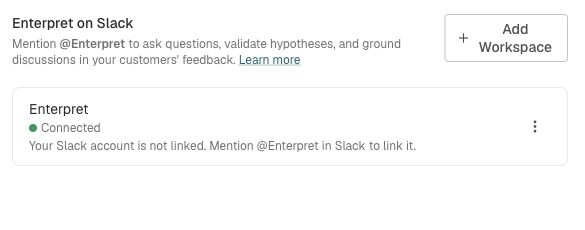
Settings → Enterpret on Slack. Add Workspace connects another workspace; each card shows its connection status and whether your account is linked.
Connect your account
The first time you mention @Enterpret in a Slack workspace, it asks you to connect your account. Follow the prompt. This links your Slack account to your Enterpret account. You do this once for each Slack workspace.
Work with Enterpret Agent
Start by naming the topic and period you want to investigate. Then use the thread to explore the findings and decide what to do next.
Investigate customer feedback
@Enterpret What are customers saying about search this week? What changed from last week?
Follow up with:
@Enterpret Which issues are still unresolved? Show me customer examples.
Or bring in your other connected tools:
@Enterpret What else do we know about this from our other tools?
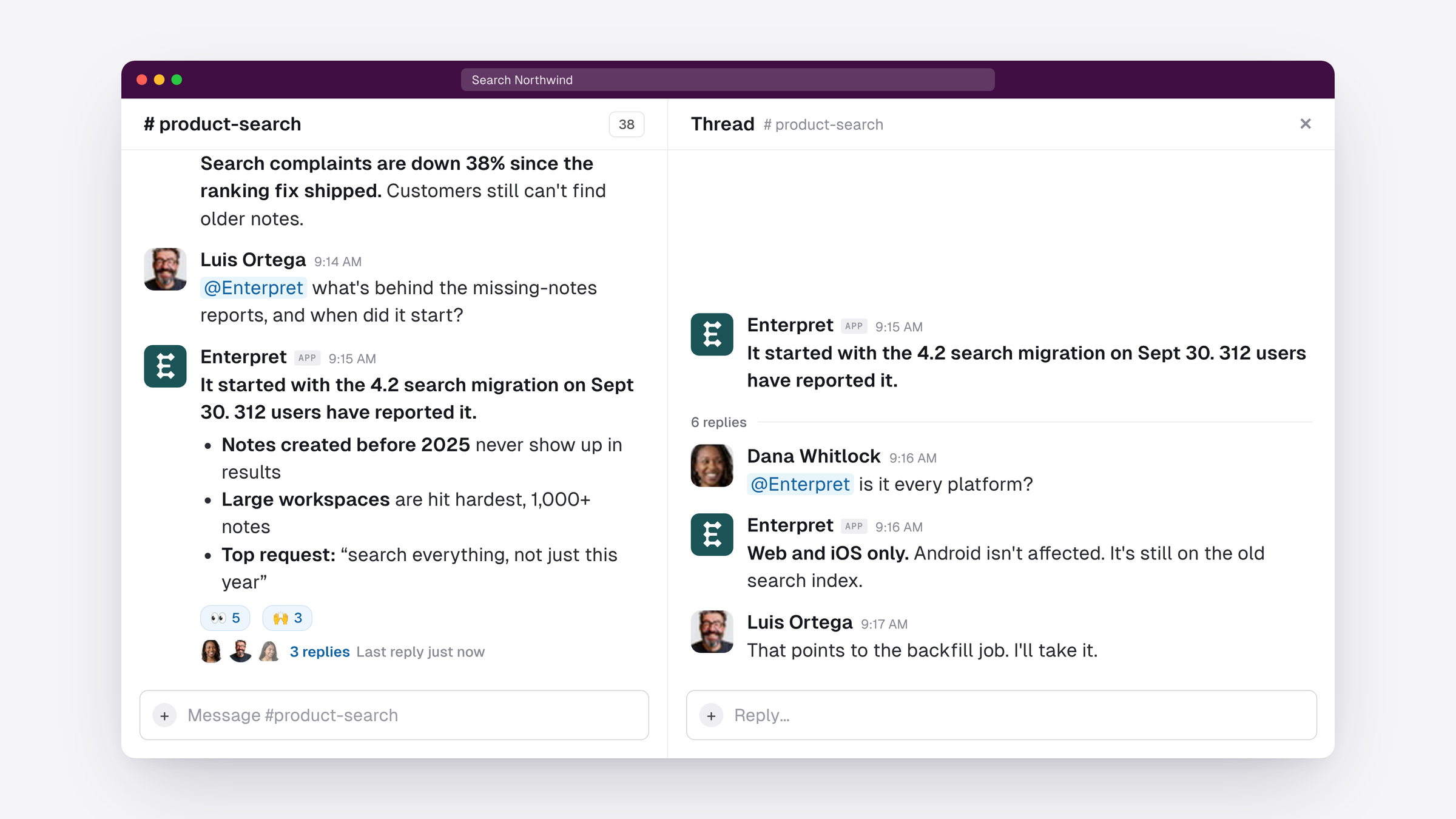
Illustrative example with fictional Northwind data: keep follow-up questions in the Slack thread.
Create an artifact
@Enterpret Create a report with the main issues, affected customers and supporting feedback.
Open the artifact link in the reply to see the full output.
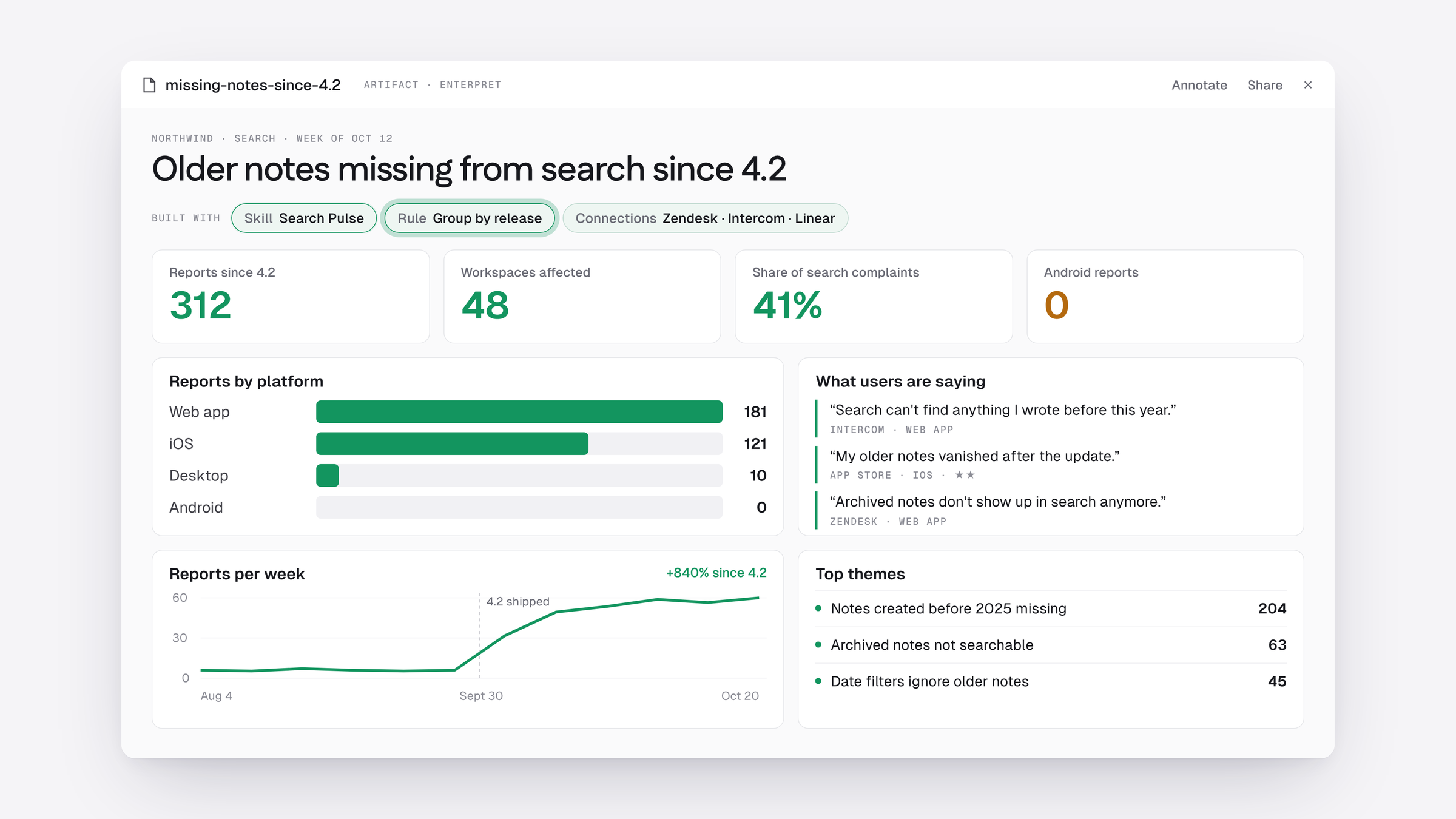
Illustrative artifact with fictional data. Open the artifact link in the Slack reply to view the full report.
Set up or update an automation
@Enterpret Post an updated version of this report in this channel every Monday at 9:00 a.m. in [team time zone].
Replace [team time zone] with the time zone to use. In the agent’s confirmation, check the day, time, time zone, and destination. Some actions pause for your approval in Slack. Review the tool, connected account, and requested action before approving or denying it. Existing approval settings can allow later actions without another prompt.
You can also reply to a report delivered by an automation to investigate its findings or change what it tracks:
@Enterpret Track complaints about missing results apart from complaints about wrong results.
If a workflow needs an additional connection, set it up in Enterpret before using it from Slack.
Choose where to ask
Channel: add @Enterpret to the channel, then mention it. Everyone in the channel sees what you ask and the reply. This includes private channels.
Thread: mention @Enterpret in a thread to ask about it. When Slack access permits, @Enterpret can read the current thread or a short window of earlier channel messages when needed to answer your request. These context reads do not include replies from other channel threads.
Direct message: message @Enterpret directly to keep the question and reply out of the channel. Your conversations with Enterpret in Slack also appear in Enterpret.
@Enterpret does not reply in channels shared with another company (Slack Connect), or in channels with a pending share. Use another channel or a direct message.
Check the answer
Answers can include links to the feedback behind them. Open them to see what customers said before you act on a finding. If an answer misses what you meant, ask again with a clearer topic, time range or customer segment.
Credits
30 free days. While this offer runs, everyone in your organization can use @Enterpret in Slack free for 30 days. If your organization already used @Enterpret in Slack, the 30 days started on November 3, 2026. If not, they start when an admin adds the first Slack workspace. Your organization gets the 30 days once. Adding another Slack workspace, or disconnecting and connecting again, does not restart them.
During the 30 days, using @Enterpret in Slack does not use your credits or your organization's, so it does not show in your credit usage on the Credits page.
After the free period ends, requests in Slack use your workspace’s usual credit and access limits. Automations use credits even during the free period, including automations you set up in Slack.
Your Slack conversations also show in Enterpret. If you continue one there, what you ask there uses credits. Replies you add in Enterpret do not show in Slack.
Disconnect
Disconnect your account. Open Settings → Enterpret on Slack. In the Slack workspace's card, find Your account and select Disconnect. If your card uses a three-dot menu, choose Disconnect for me instead. This option appears when your Slack account is linked. This disconnects only your Slack account. The Slack workspace and everyone else stay connected. To connect again, mention @Enterpret in Slack.
Remove Enterpret from a Slack workspace (admins). In the Slack workspace's card, find Slack workspace and select Disconnect. If your card uses a three-dot menu, choose Disconnect for everyone instead. Review the confirmation before proceeding. This removes Enterpret from that Slack workspace for everyone in it. Your other Slack workspaces stay connected.
Get help
Email support@enterpret.com with the message link and the Slack workspace.
Related articles
This is separate from importing Slack conversations as feedback and from the Slack connector you use inside Enterpret Agent. To get reports in Slack, see Reports in Enterpret. For how we handle data, see Enterpret's Privacy Policy.