
Grain — connect and manage your integration
Overview
Connect Grain to Enterpret to import call transcripts and meeting details. Use the enterpret tag in Grain to choose which recordings to import.
Before you begin
In Grain, a workspace administrator must authorize the connection. Your plan needs Workspace API access, which Grain offers on Business and Enterprise plans. See Grain’s API requirements.
In Enterpret, you need permission to add integrations. If you don’t see New Integration, ask your Enterpret workspace administrator.
Prepare the Grain workspace and authorization
Sign in to the Grain workspace whose recordings you want to analyze. Confirm that you are a workspace administrator and that the workspace has the required API access. A personal API token is not a substitute for this connection’s workspace authorization.
You do not need to create an OAuth application, copy a Client ID or Client Secret, generate an API token, or enter a webhook URL. Start from Enterpret’s Grain integration and complete the Grain sign-in and consent flow that opens. Review the workspace and requested access before approving. If the account or workspace is wrong, cancel and sign in to the intended workspace before restarting.
Choose one finished recording with a transcript for your first check. If you need recordings from several teammates, include a teammate-owned recording in your validation. Review which meetings should carry the enterpret tag before authorizing workspace access.
Configure
Tag recordings in Grain
- In Grain, open a meeting recording you want to import.
- Open the three-dot menu in the upper-right corner and select Add tags.
- Type
enterpretto create the tag, or select it if it already exists. Apply it to each recording you want to import.
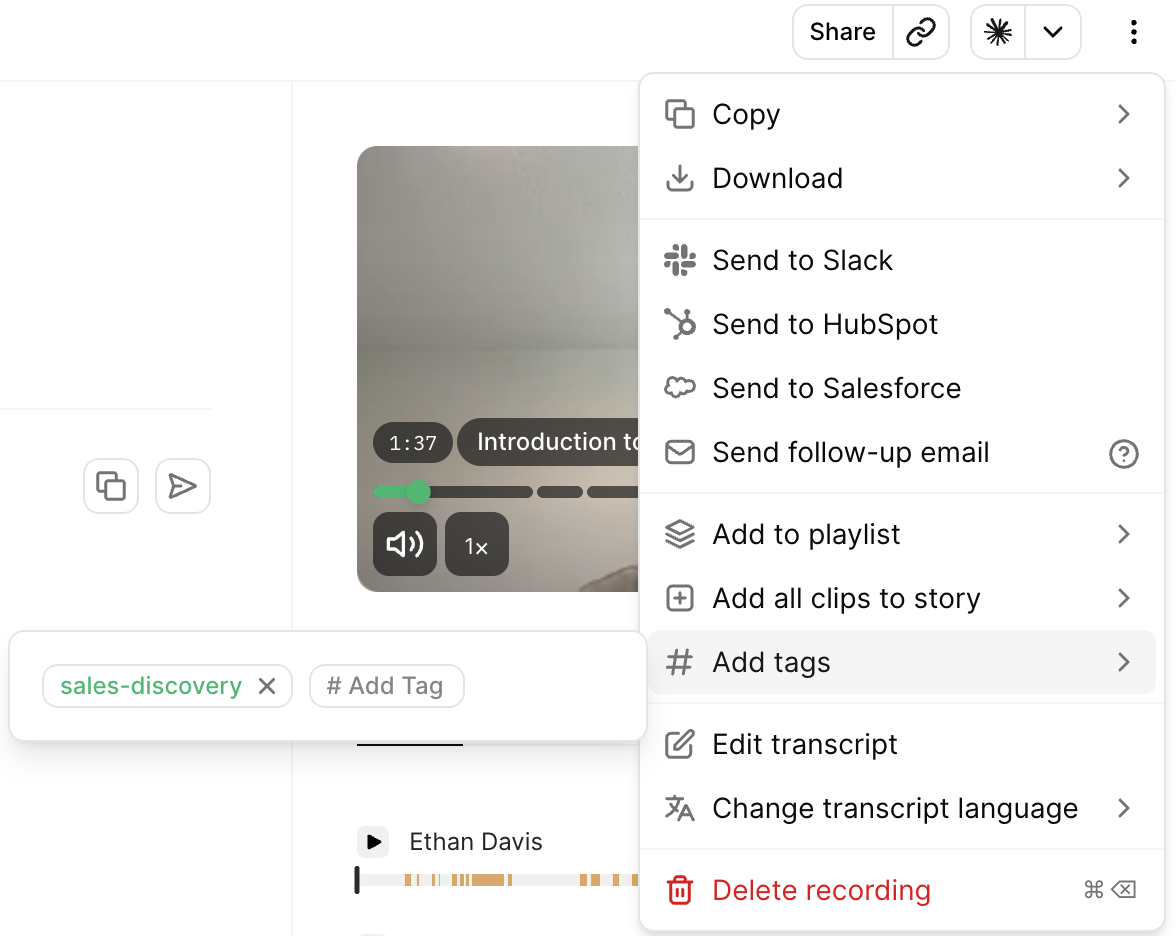
Grain’s recording menu: choose Add tags, then Add Tag and enter enterpret. This official example shows sales-discovery; use enterpret for this integration. Source: Grain’s Tags guide.
Tag past recordings before connecting so they can be included in the initial import. You can also tag upcoming meetings in Grain. The tag carries over to the recording after the meeting ends. See how to apply tags in Grain.
Tag upcoming meetings
In Grain’s Meetings page, make Meeting tags visible, click the tag (#) icon, and choose or create enterpret. Grain carries that meeting tag onto the recording. Apply the tag to the meeting or recording itself; a hashtag on a clip title or a tag on a story is not a replacement for the recording tag.
Use the exact tag name enterpret without extra spaces. Capitalization does not affect the match, but a different name does. Grain does not rename existing tags; create the correctly named tag if needed.
Connect Grain in Enterpret
Sign in to Enterpret. Click your name at the bottom of the left sidebar to open the account menu, then select Integrations.
Select New Integration and search for Grain.
Select Continue, then Feedback Integration. If you filtered the list to Feedback, select Connect instead.
Sign in to Grain if prompted. As a Grain workspace administrator, authorize the connection for the workspace whose recordings you want to import.
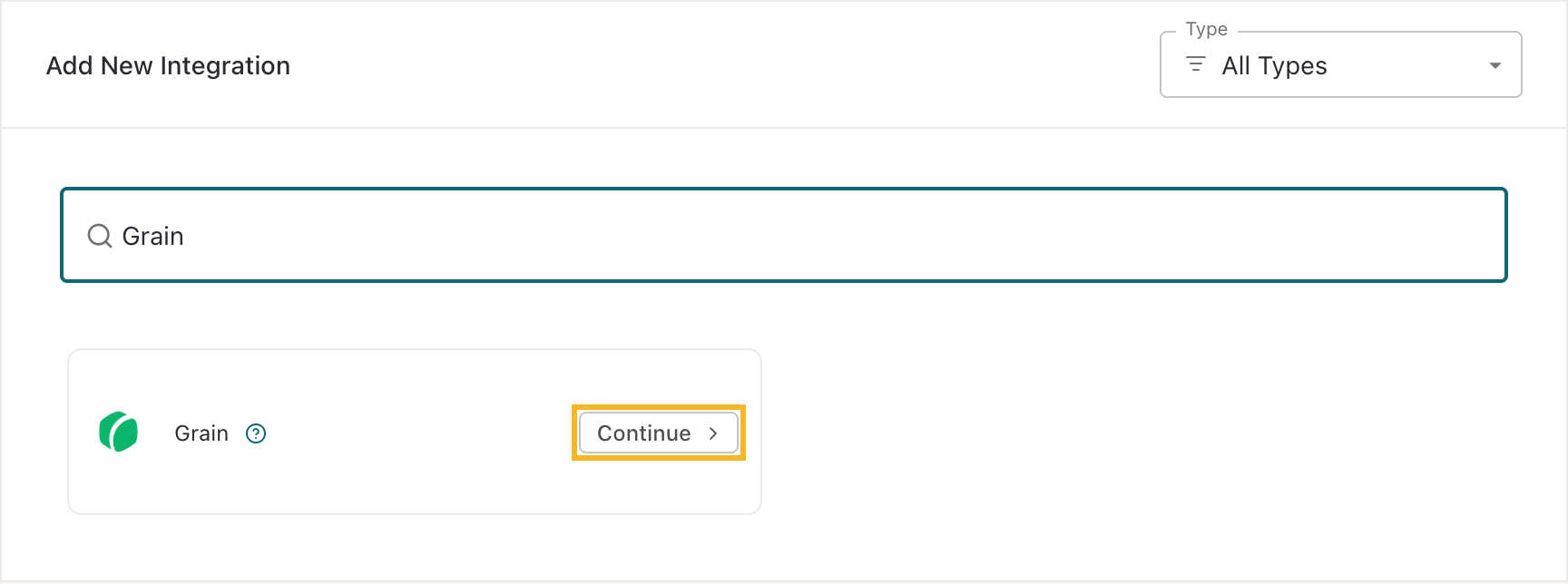
Search for Grain, then choose Continue on its card.
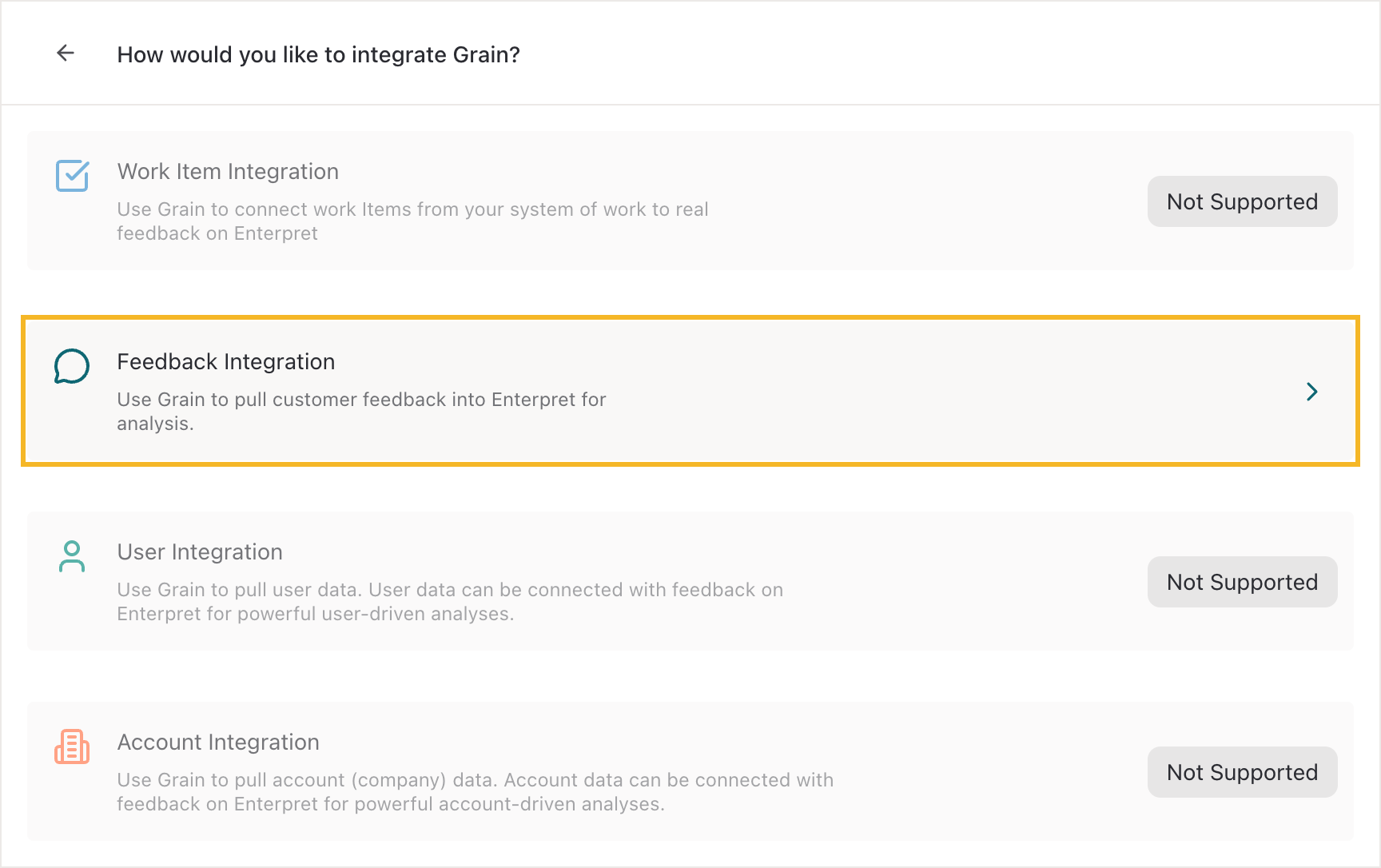
Choose Feedback Integration to import Grain call feedback.
Describe the feedback after connecting
After authorization, Enterpret returns you to the connection. If the description editor opens, complete Describe the type of feedback being integrated and select Save Changes. You can also open the active Grain connection and choose Edit.
In up to 500 characters, explain what the calls cover, who is speaking, and what you want to learn. Complete the displayed checks. For example: “Customer discovery calls recorded in Grain. Customers describe their workflows and product needs. We analyze these conversations to understand recurring problems and improve the product.” See Writing integration descriptions.
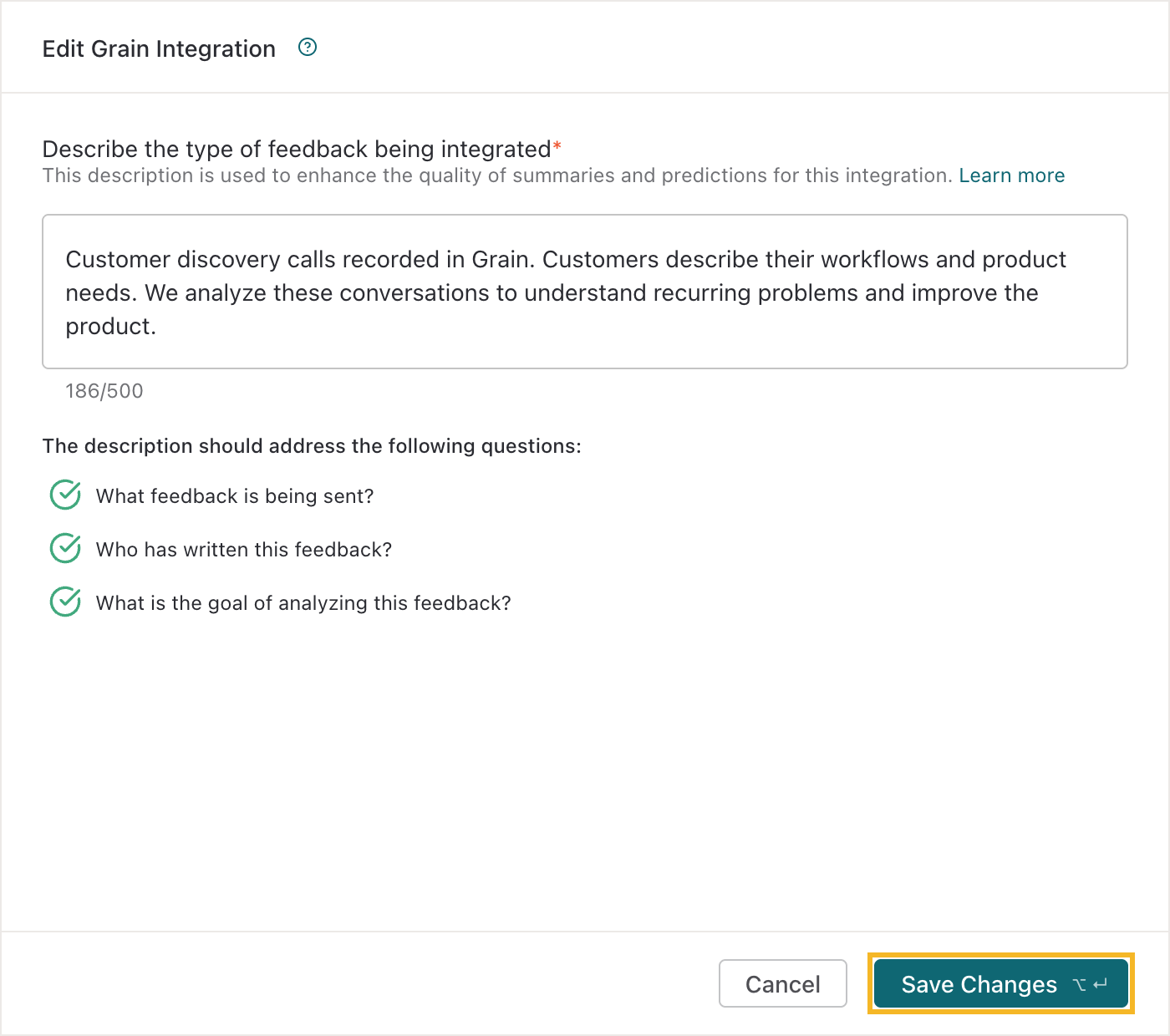
Describe the call feedback and select Save Changes. The example contains no customer data.
Confirm the import
Back in Enterpret, open the Grain integration and check its status and Data Ingestion activity.
In Feed, filter by Source and select your Grain integration. Set a date range that includes a recording you tagged. Open the feedback record and check its transcript and link to the original recording.
Active does not mean the import is complete. Review visible errors, ingestion activity, and the most recent timestamps. Where shown, Latest Source Timestamp describes the latest feedback’s source date; Latest Ingestion Timestamp shows when Enterpret last pulled a record. Older layouts may show Last Ingested Record.
You can also open the Grain page’s three-dot menu and choose View all Records. Compare a known tagged recording’s title, meeting date, transcript speaker labels, timestamps, and metadata with Grain. Enterpret dates the record by the recording’s start time, so include the meeting date in your Feed filter, even if you tagged it later.
How it works
Initial import. Enterpret looks for tagged recordings within the configured history window. Contact your Enterpret team to confirm the date range.
After setup. Keep applying
enterpretto recordings you want to import. New recordings with the tag and existing recordings you tag later are eligible to sync.Removing the tag. Removing
enterpretin Grain does not delete feedback already imported into Enterpret.
Add more recordings after setup
Apply enterpret to each additional Grain recording you want to import. You do not need to create another Enterpret connection for every call or select recordings in an Enterpret form picker. The connection receives notifications for new and updated recordings and checks the recording tag.
For older recordings tagged after setup, confirm that the recording appears in Enterpret rather than assuming that adding the tag completes the import. If it does not appear, use the checks below and ask Support to confirm the required history. Source processing and Enterpret processing take time; authorization or a tag change is not an immediate-arrival guarantee.
What Enterpret imports
Enterpret imports the call transcript with speaker labels and timestamps. To play the original audio or video, open the recording link in Grain with an account that has access.
Enterpret also imports this metadata when Grain supplies it.
Recording title, start and end times, link, and tags
Recorder email addresses
Names and email addresses of participants reported by Grain, plus their classification as internal, external, or unknown
Grain’s AI summary
The Grain integration imports a predefined set of fields. Open the Grain integration and go to Manage Metadata to see the fields available in your workspace. See View & Manage Metadata for details.
Manage your Grain connection
Edit the feedback description
Open Integrations → Grain, select the active connection, and choose Edit. Update the feedback description and select Save Changes. This changes the context used for summaries and predictions; it does not change the connected Grain workspace, the required tag, or its access permissions.
Organize metadata and link customer context
In Manage Metadata, review the predefined Grain fields before building filters. With the required permission, edit the available field names, descriptions, visibility, starred status, or unified-field mappings. Available data-type changes depend on the field. See Unified fields to combine equivalent fields across sources.
If Link with User and Account integrations is available, choose an appropriate Grain metadata identifier that matches an existing user or account integration. Verify a sample match before using linked attributes. This optional enrichment does not change which recordings are imported.
Renew authorization
Open the existing Grain connection and choose Reauthorize from its actions.
Sign in as an administrator of the same Grain workspace and approve workspace access.
Return to Enterpret, check the status, and validate a newly eligible tagged recording.
Reauthorization is not a way to switch an existing workspace connection to another Grain workspace. Start a new connection for another workspace where available, or ask Support for help. If the action is unavailable or access still fails, contact Support with the visible error. Do not include passwords, API tokens, or authorization codes.
Remove a tag, stop importing, or delete data
Remove a recording’s tag: in Grain, open the recording’s three-dot menu → Add tags, then remove
enterpretusing its × control. This changes its eligibility for future imports. It does not cancel work already in progress or delete feedback already imported into Enterpret.Stop the connection: choose Stop integration from the connection’s actions and review the confirmation. Enterpret stops new ingestion while retaining existing feedback. The dialog warns that stopping cannot be undone; create a new integration to ingest again.
Delete the connection and its data: if Delete Integration is available, read its confirmation carefully. Deletion permanently removes the integration and its imported feedback and can affect saved analyses, metrics, dashboards, and reports. Contact Support if this action is unavailable, specifying whether you want to retain or remove existing feedback.
Do not assume that deleting or editing a recording in Grain will remove or replace its already imported Enterpret feedback. If you need a correction or deletion in Enterpret, contact Support with the recording link and intended change.
Missing recordings
Confirm that you authorized the correct Grain workspace.
Check that
enterpretis applied to the meeting recording itself and that Grain shows a transcript.For an initial import, confirm the recording falls within the configured history window. In Feed, check that your date range includes the recording.
If the recording is still missing, contact Enterpret Support with the Grain recording link and the meeting date. See troubleshooting missing integration data.
Authorization and workspace problems
Grain asks for workspace-admin access: ask an administrator of the intended Grain workspace to authorize. Confirm the workspace plan includes Workspace API access. Personal API availability does not satisfy this requirement.
Wrong workspace after sign-in: cancel, switch to the intended workspace/account in Grain, and restart from Enterpret. Do not keep authorizing a different workspace against the same existing connection.
Connection expired or authorization failed: use Reauthorize on the existing connection. If the problem continues, send Support the error text and the workspace you intended to connect.
Your recordings import but a teammate’s do not: verify that the teammate’s recording has the tag and a transcript. Ask a Grain workspace administrator to reauthorize the existing connection with workspace access, then validate a teammate-owned recording.
Record is present but a field is missing: compare that field in Grain and check Manage Metadata. Fields are populated when Grain supplies them; an imported transcript does not guarantee that every participant email or summary is available.
When reporting a missing recording, also include the integration name, the time the tag was applied, the visible status/error, and whether the problem affects one recording or several. Keep credentials out of the request.