
Feed: Basics
What is a Feed?
A Feed is a saved view of feedback records that match your chosen filters. Teams use Feeds to follow specific topics, product areas, or customer segments without rebuilding the same query. Once you save a Feed, you can subscribe to regular email or Slack digests to receive feedback without logging in to check.
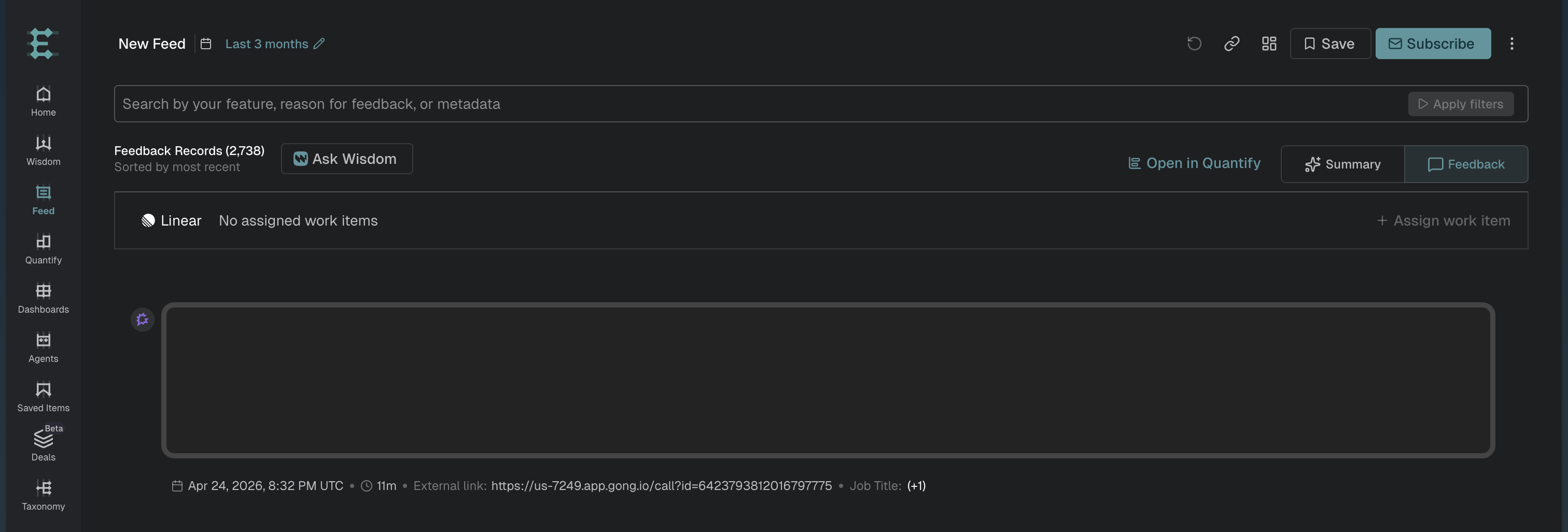
Note: A new Feed is created by adjusting the time period and filtering feedback using the Enterpret query builder.
Adjusting the Time Period of the Feed
Use the time-range control beside the Feed name. Select a preset or Custom and review the displayed dates.

Setting up Filters on Feed
Use the query builder to filter the available feedback by text, source metadata, sentiment, or taxonomy fields such as keyword paths and Themes / Sub-Themes. The fields offered depend on your workspace and data.
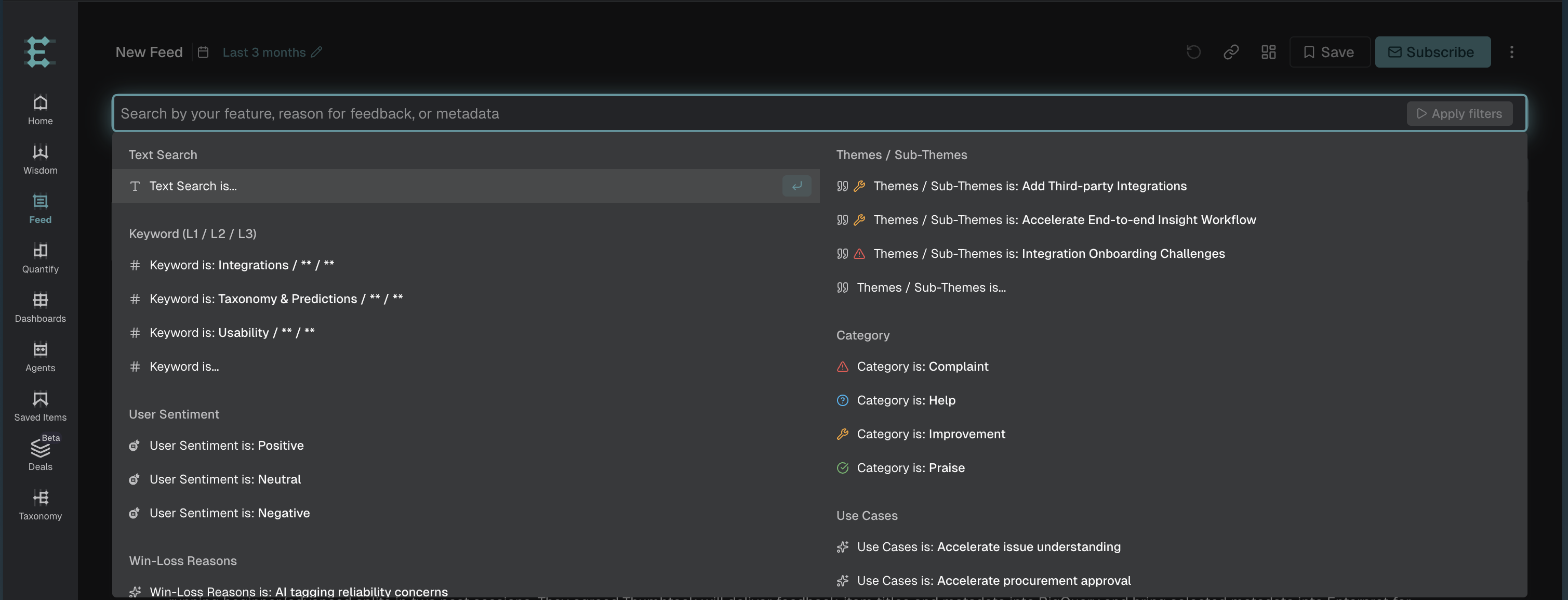
The applied conditions define which records match. Check fields, operators, values, and AND/OR groups; a matching result is not a guarantee that every relevant record has the required metadata or prediction.
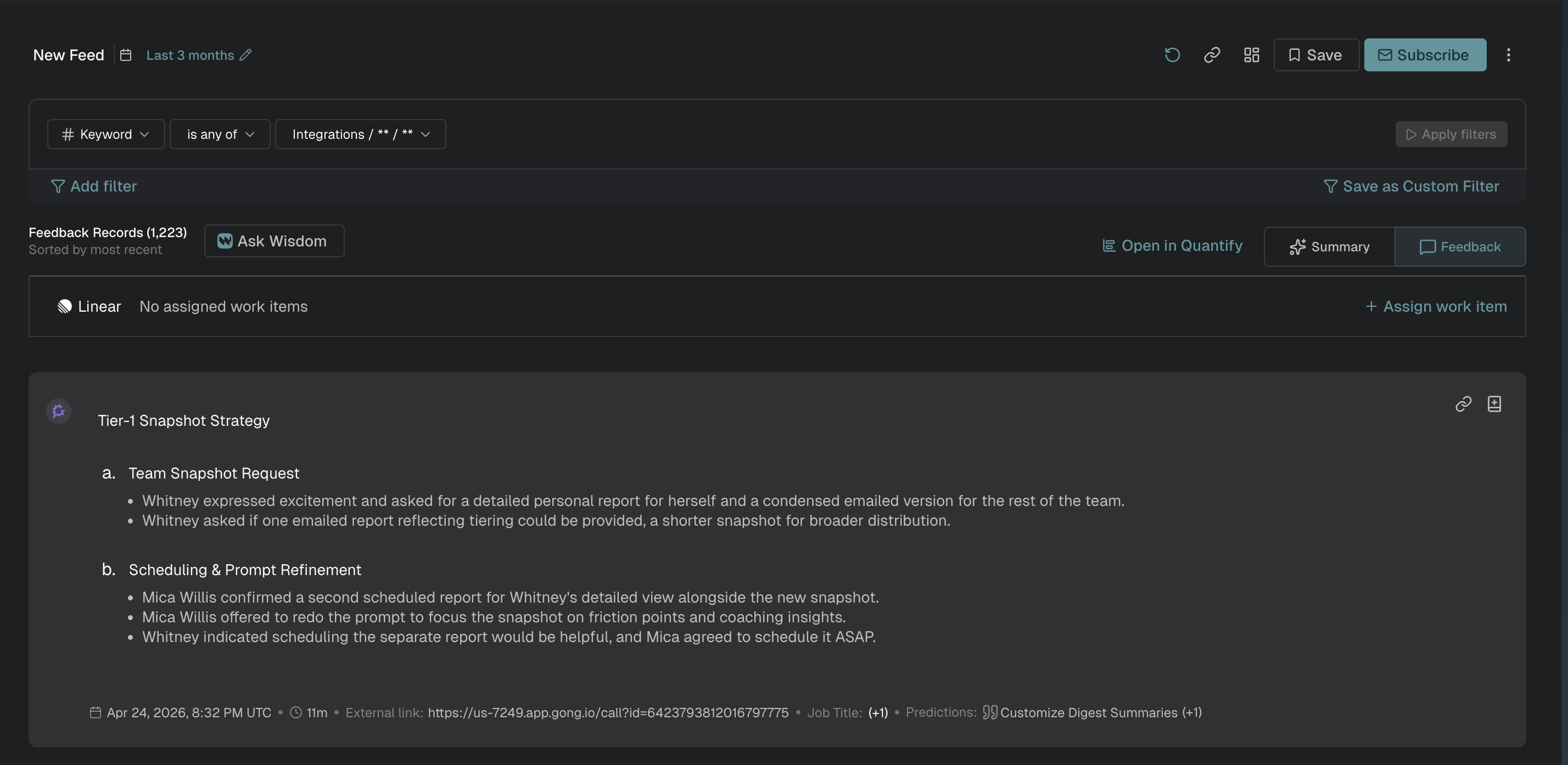
Once you've constructed your query, click "Apply Filters" to see results.

Feed — Verbatim and Summary views
Use the Summary and Verbatim controls to switch record presentation. Older screenshots call the Verbatim option Feedback.
The Verbatim view shows available source content for a record. Formatting, transcripts, translations, redaction, and available content can differ by source; open the original source when you need to verify it.
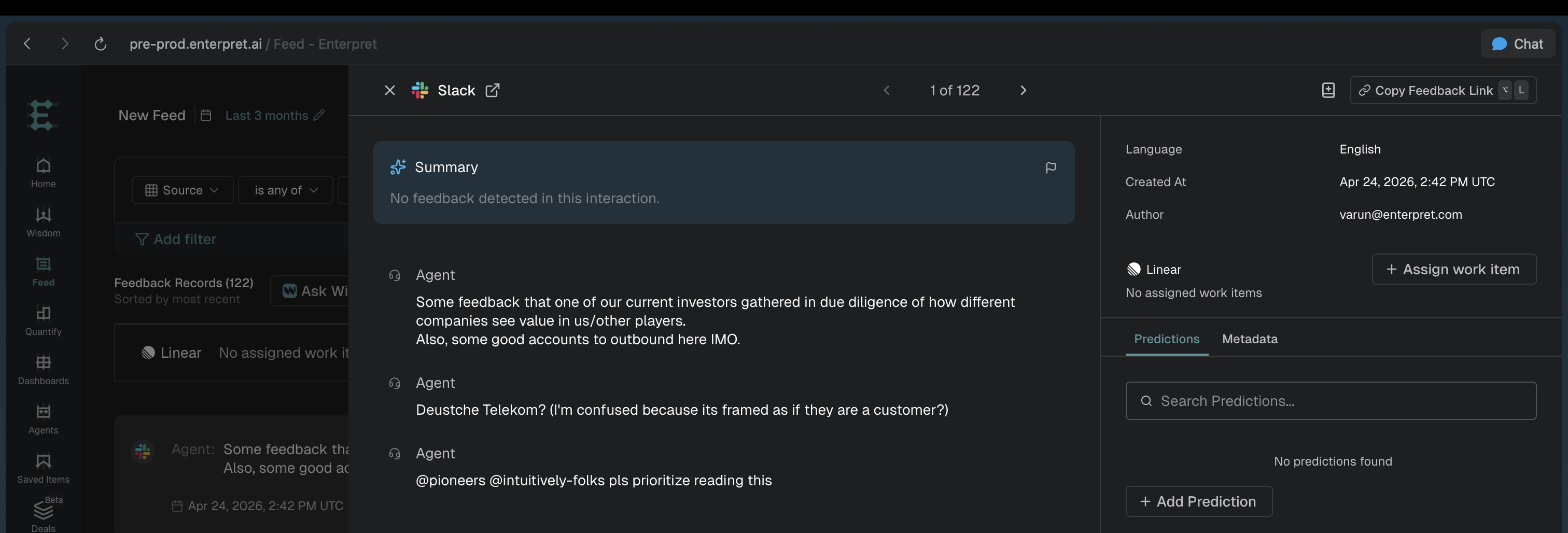
The Summary view shows an AI-generated summary when available. It can help you browse records, but may be incomplete or inaccurate; verify important details in the source content.
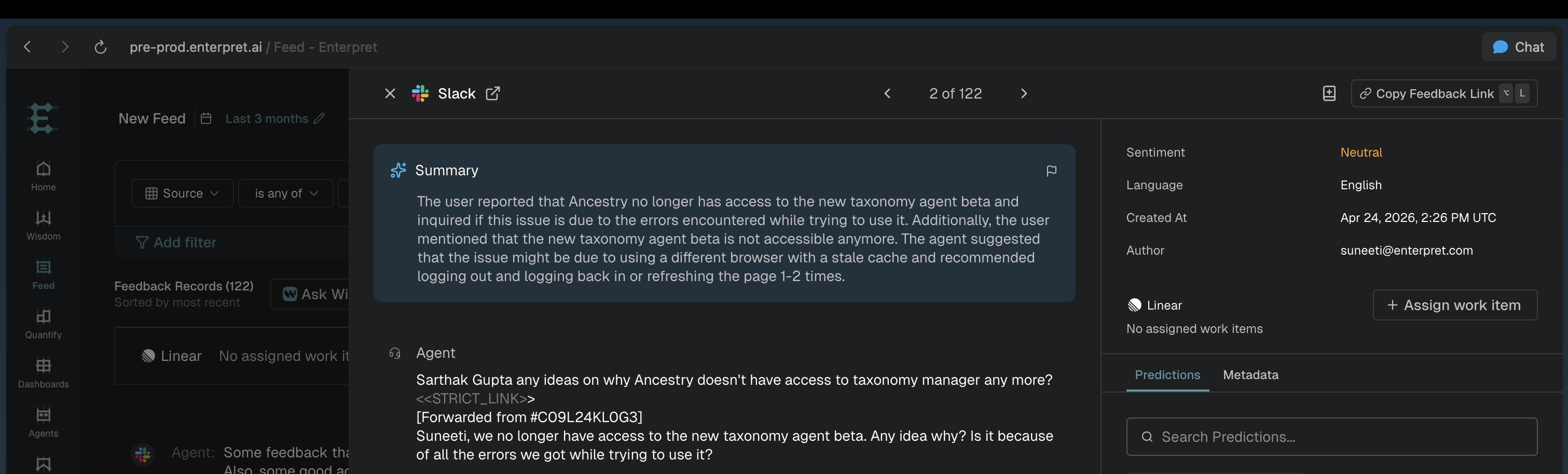
Switch between Summary and Verbatim to inspect the available record content and its generated summary.
How to Subscribe to a Feed?
You can subscribe to your Feed to receive reports and stay updated with new entries.
Saving Your Feed
You must save your Feed to subscribe to it. Click the SAVE button at the top right.

Enter a descriptive name for the Feed, so you can retrieve it later, then click `SAVE`.
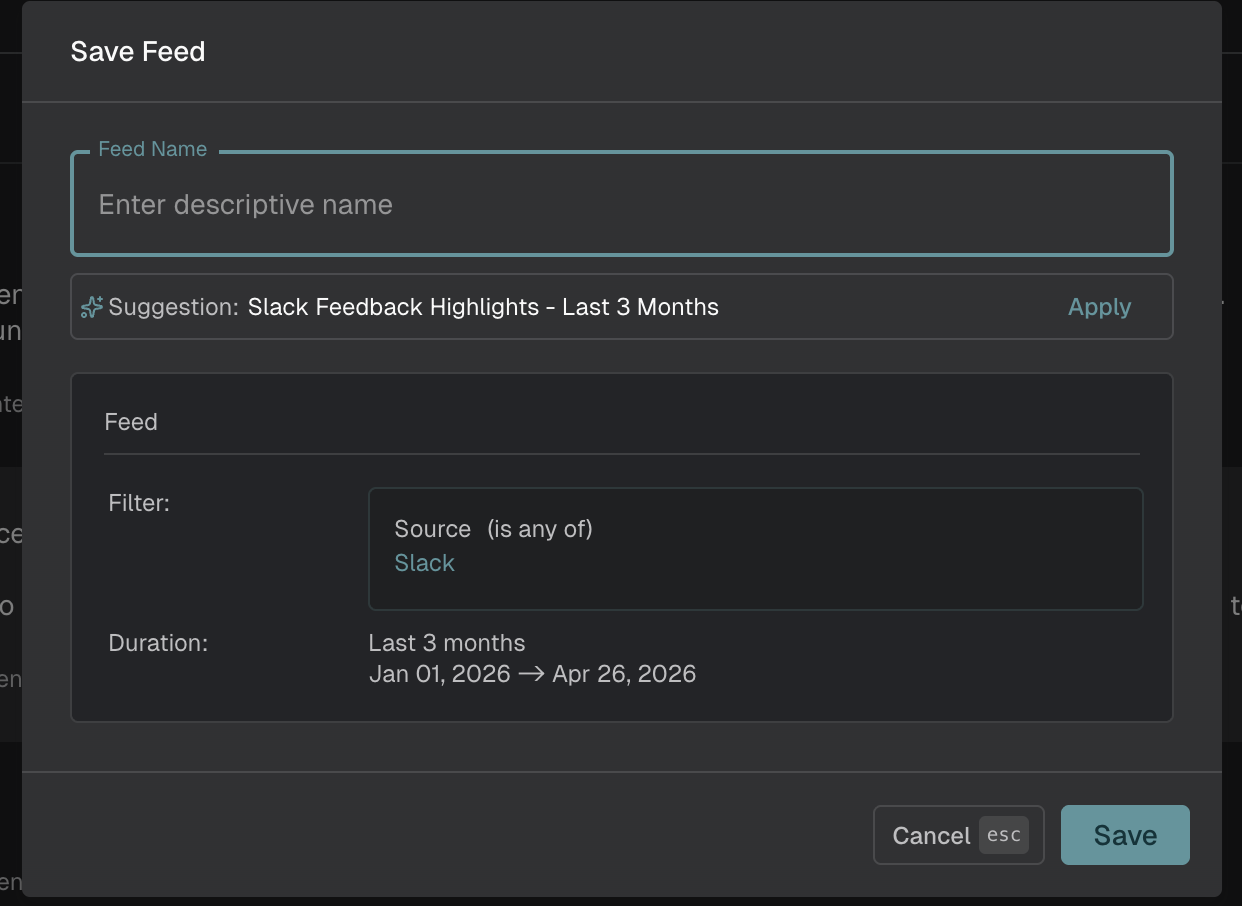
Proceeding to Subscribe to Your Feed
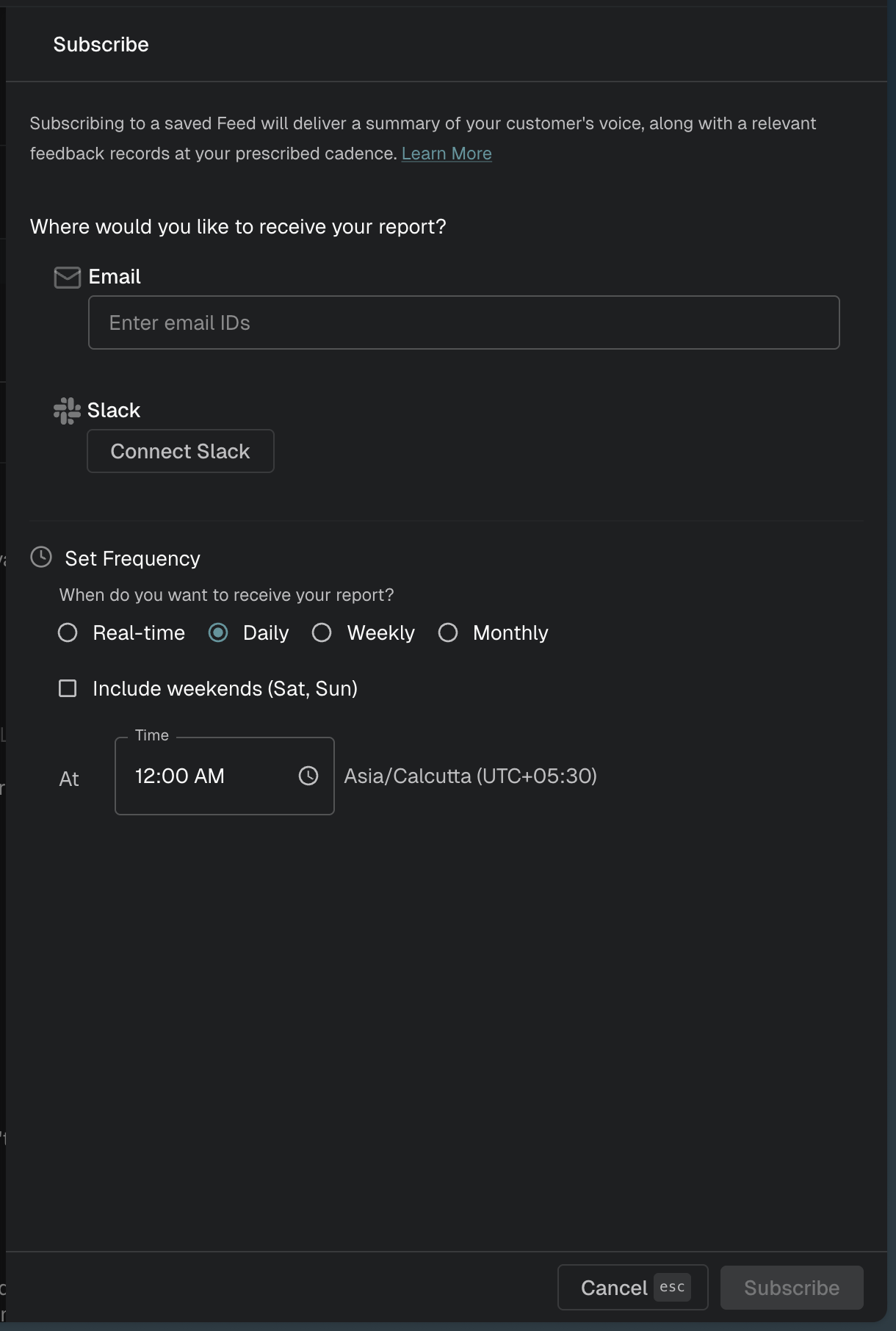
Open the Feed toolbar’s more menu and choose Subscribe. If your workspace shows a direct Subscribe button, use that control. Save pending changes before configuring delivery.

Choose email recipients, Slack channels, or both, then set an offered frequency and review the delivery time and timezone. Confirm with Subscribe, or Update for an existing subscription. You need permission to edit the Feed and manage outbound integrations.
What a Feed Report Looks Like
Feed reports contain the configured summary and supporting feedback available for the report. Use the report’s View Feed link when offered to reopen the saved view. Do not assume a digest contains every new matching record.
How to Unsubscribe from a Feed?
Open the Feed toolbar’s more menu and select Edit Subscription, or use an existing subscription control offered in your workspace.
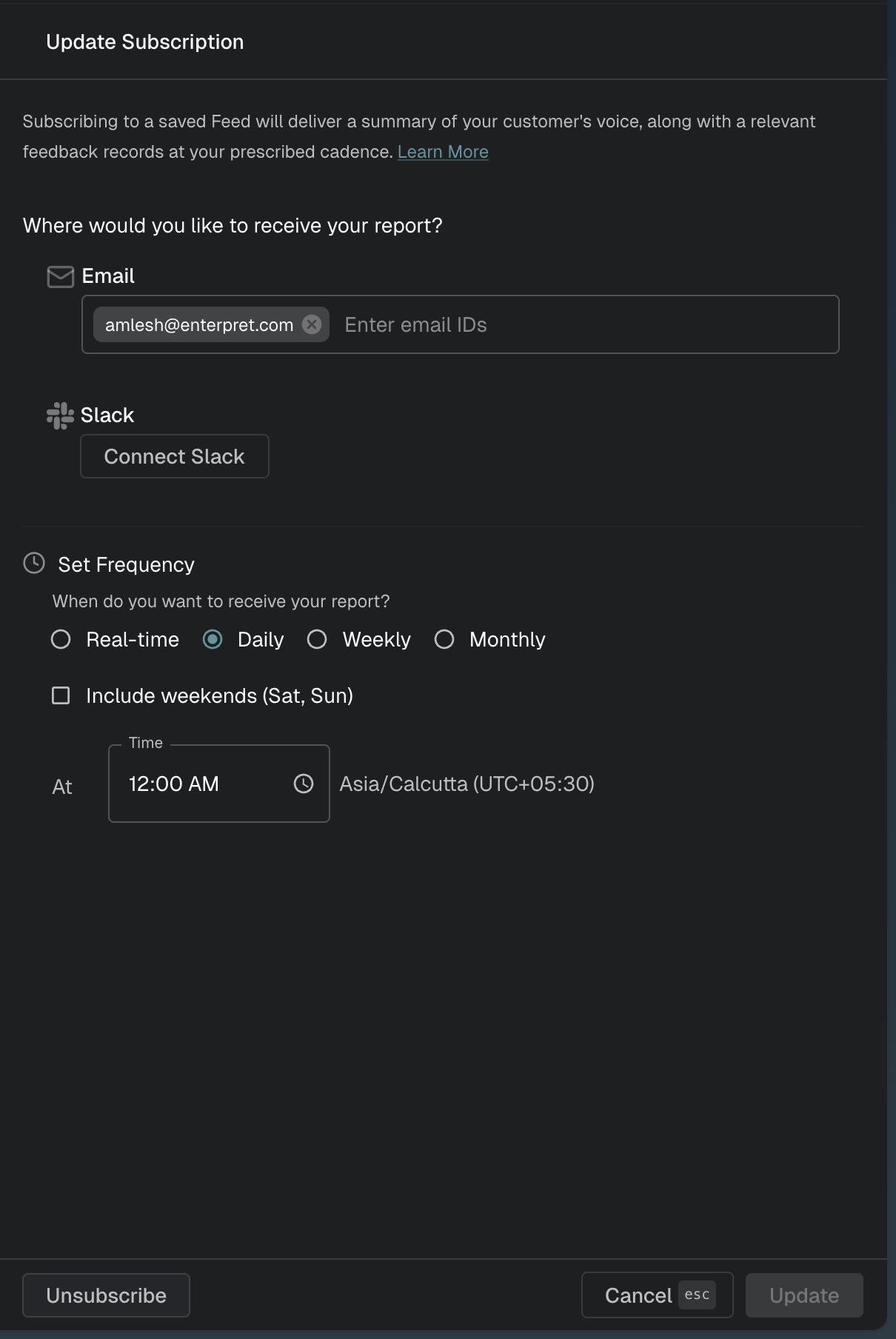
Click the `Unsubscribe` button at the bottom left of the Subscribe flow window.
How to Disconnect Slack?
Disconnecting Slack will remove subscribed Slack channels from all reports. These will not automatically resume by re-connecting Slack.
Note: To disconnect Slack, click the 3-dot menu icon above the Slack channels.
Click the 'Disconnect Slack' option in the panel.
Click `YES, DISCONNECT` to finally disconnect your Slack from Enterpret.