Freshdesk
In this article
In this article group
- Amazon Connect
- Apple App Store
- Census Integration
- Connect Plain to Enterpret
- Decagon Integration
- Discord
- Discourse Integration
- Email Integration
- Facebook Pages Integration
- Fathom Integration
- File Upload: CSV data on Enterpret
- Freshchat
- Front
- G2
- Gainsight Communities Integration
- GitHub Issues Integration
- Gong Integration
- Google My Business Integration
- Google Play Store
- Grain
- Granola Integration
- Import HubSpot feedback
- Instagram Comments Integration
- Intercom
- Kustomer
- Livechat Integration
- SurveyMonkey
- Pylon integration
- Qualtrics
- Reddit Integration
- Refiner Integration
- Salesforce
- SFTP Integration
- Slack feedback ingestion: setup and troubleshooting
- Snowflake
- Sprig Integration
- Stella Connect
- TikTok Integration
- Trustpilot Integration
- Typeform
- X (formerly Twitter) Integration
- Connect YouTube videos and comments
- Zendesk Chat
- Zendesk Support
- Import Zoho Desk support tickets
- Zoom Integration
- Zapier Integration
- Reddit Search (UGC)
- Wispr Flow integration
Overview
The Freshdesk integration enables Enterpret to ingest customer support tickets directly into Enterpret.
Enterpret uses a Freshdesk API key to authenticate and periodically checks the Freshdesk API for eligible data. The default polling interval is four hours; your integration may use a different configured schedule.
Initial import time depends on the configured history range, source volume, API access and rate limits, and Enterpret fetching and processing. The polling interval is not an import-completion or first-arrival guarantee. Contact your Enterpret team to confirm the intended history range or investigate missing records.
Configure
Getting the Freshdesk API key
Reference Link: https://support.freshdesk.com/en/support/solutions/articles/215517-how-to-find-your-api-key
Here's how you can get your API key:
Log in to your Freshdesk account
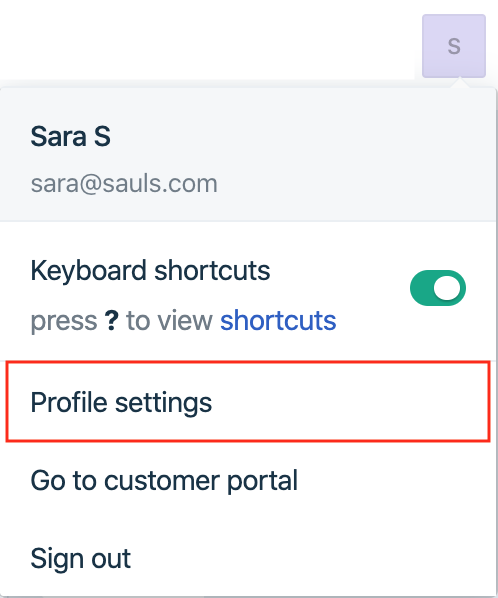
Click on your profile picture on the top right and select 'Profile Settings'
In the pane on the right, select View API key and complete the verification prompt
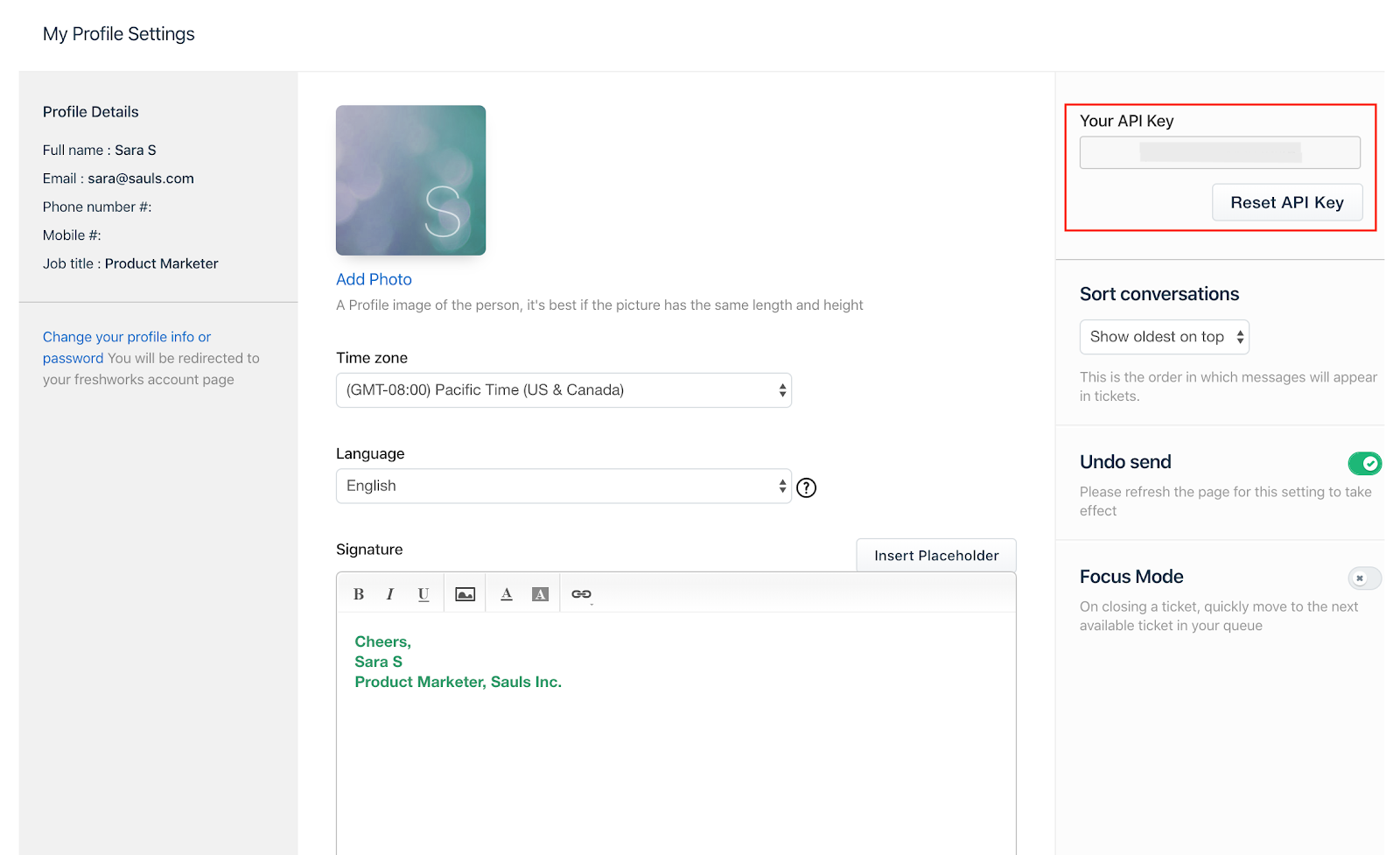
Copy the raw API key shown in Freshdesk Profile Settings.
⚠️ Enter the raw API key only.
Do not include the Basic prefix, paste a complete Authorization header, or Base64-encode the key. Enterpret applies the required authentication encoding automatically.
You can reset the API Key to deauthorize an app from connecting to your helpdesk. But doing so will disconnect all other apps that were using this key to connect to the helpdesk as well. You will need to provide the new key to the other apps to continue using them again.
Note: The API key will be displayed only when the agent is verified.
Authorize Enterpret to access Freshdesk data
Click on "Sign in with Google" and log in with your work email
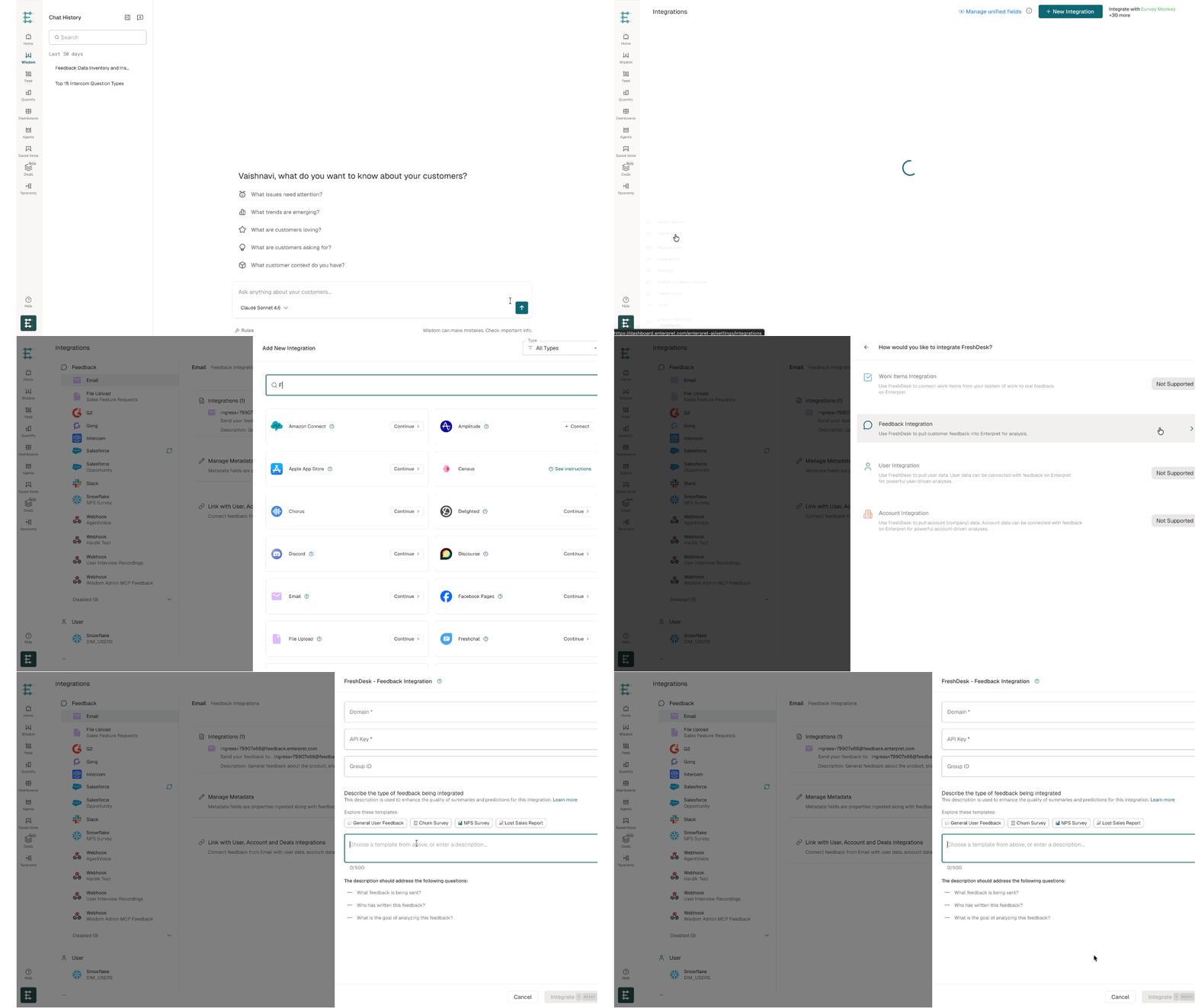
Once you have logged in successfully, navigate to integrations page by clicking on Logo at bottom left then 'Integrations'.
Click on the "+ New Integration" button.
Select Freshdesk using the action shown and choose Feedback Integration if prompted.
Enter your Freshdesk company subdomain, raw API key, and optional Group ID in the configuration modal.
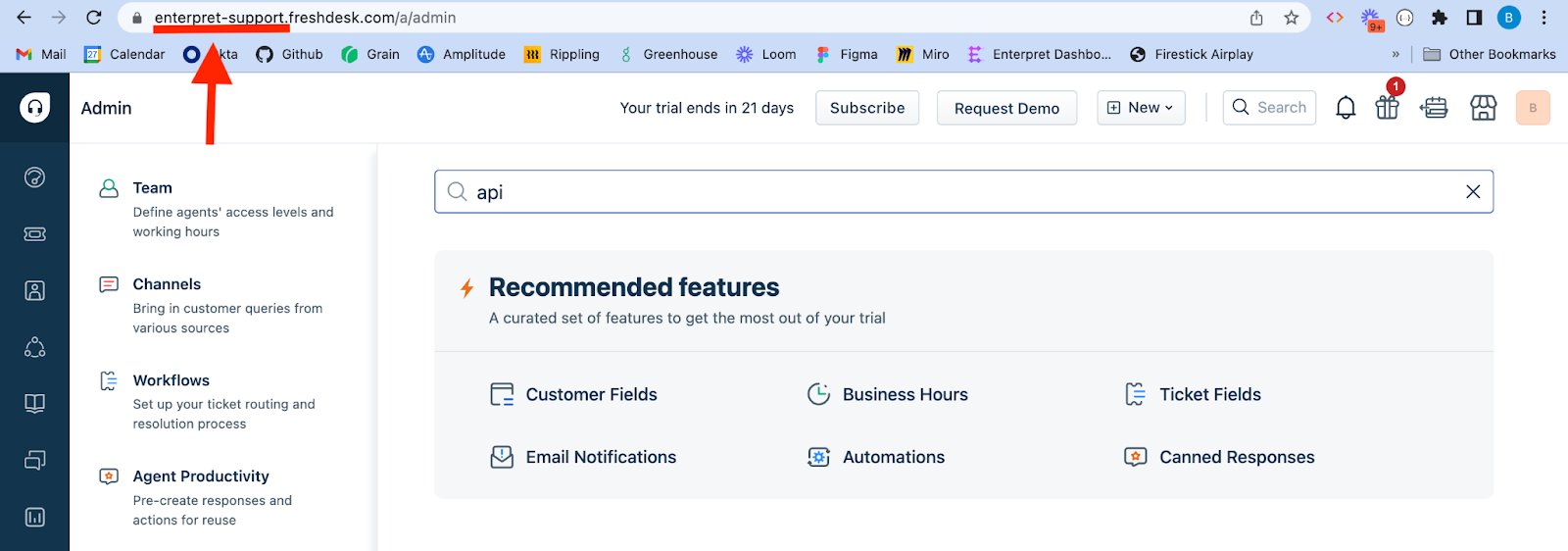
⚠️ Enter only your Freshdesk company subdomain — not the full URL.
Your Freshdesk URL looks like https://<subdomain>.freshdesk.com. Enter only the <subdomain> part.
✅ yourcompany
✅ yourcompany.freshdesk.com (the .freshdesk.com suffix is removed automatically)
❌ https://yourcompany.freshdesk.com
✅ yourcompany.freshdesk.com (the .freshdesk.com suffix is removed automatically)/a/tickets
❌ support.yourcompany.com (custom domains aren't supported — use the subdomain from your *.freshdesk.com URL)
Use the bare subdomain where possible. The connection validates the value and rejects full URLs, paths, and custom domains.
Choose which Freshdesk groups to import
Group ID is optional and must be a numeric value.
To import tickets from every group in the Freshdesk account, leave Group ID blank.
To import tickets from one specific group, enter that group's numeric Group ID.
To import several groups as separate integrations, create one Freshdesk integration for each Group ID. Reuse the same company subdomain and raw API key, but enter a different Group ID for each integration.
Troubleshoot invalid credentials
If the integration reports 401 invalid_credentials or Connection expired:
Confirm that the API key was copied directly from Freshdesk Profile Settings.
Remove any
Basicprefix, complete Authorization header, or Base64 encoding.Confirm that the Freshdesk agent associated with the key is verified and can access the required groups and tickets.
Update the API key and retry the connection.
Freshdesk uses API-key authentication for this integration; there is no OAuth authorization flow to renew.
Note: You can find your Freshdesk subdomain in the URL of your Freshdesk homepage.