
Freshchat
In this article
In this article group
- Amazon Connect
- Apple App Store
- Census Integration
- Connect Plain to Enterpret
- Decagon Integration
- Discord
- Discourse Integration
- Email Integration
- Facebook Pages Integration
- Fathom Integration
- File Upload: CSV data on Enterpret
- Freshdesk
- Front
- G2
- Gainsight Communities Integration
- GitHub Issues Integration
- Gong Integration
- Google My Business Integration
- Google Play Store
- Grain
- Granola Integration
- Import HubSpot feedback
- Instagram Comments Integration
- Intercom
- Kustomer
- Livechat Integration
- SurveyMonkey
- Pylon integration
- Qualtrics
- Reddit Integration
- Refiner Integration
- Salesforce
- SFTP Integration
- Slack feedback ingestion: setup and troubleshooting
- Snowflake
- Sprig Integration
- Stella Connect
- TikTok Integration
- Trustpilot Integration
- Typeform
- X (formerly Twitter) Integration
- Connect YouTube videos and comments
- Zendesk Chat
- Zendesk Support
- Import Zoho Desk support tickets
- Zoom Integration
- Zapier Integration
- Reddit Search (UGC)
- Wispr Flow integration
Overview
The Enterpret integration for Freshchat allows your team to integrate feedback from customer support conversations into Enterpret's data pipeline. This enables you to understand and make decisions based on all the feedback you receive in Freshchat.
The connection uses a Freshchat API token. The default polling interval is four hours; your integration may use a different configured schedule.
How It Works
Enterpret retrieves eligible conversations and messages on the configured schedule. Conversation segments and update coverage depend on the integration’s ingestion settings. Confirm these settings with your Enterpret team if later messages are missing.
Conversation eligibility depends on the configured ingestion path and available messages. Resolution events can be used to segment conversations; do not assume every imported segment is a resolved, answered ticket.
Configure
Step 1: Generate a Freshchat API Token
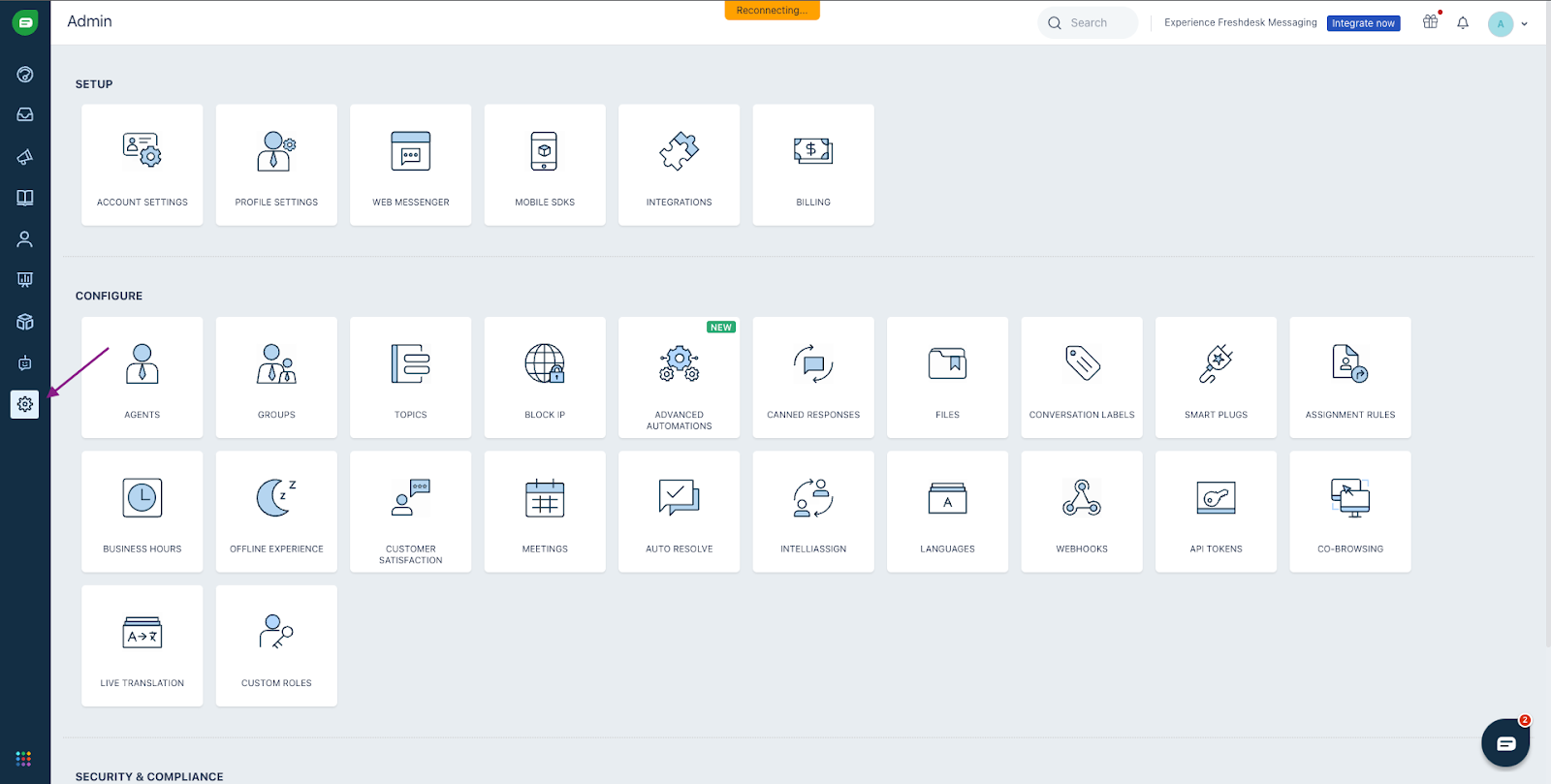
Open Freshchat administration settings. The token path varies for standalone Freshchat and bundled Freshsales accounts.
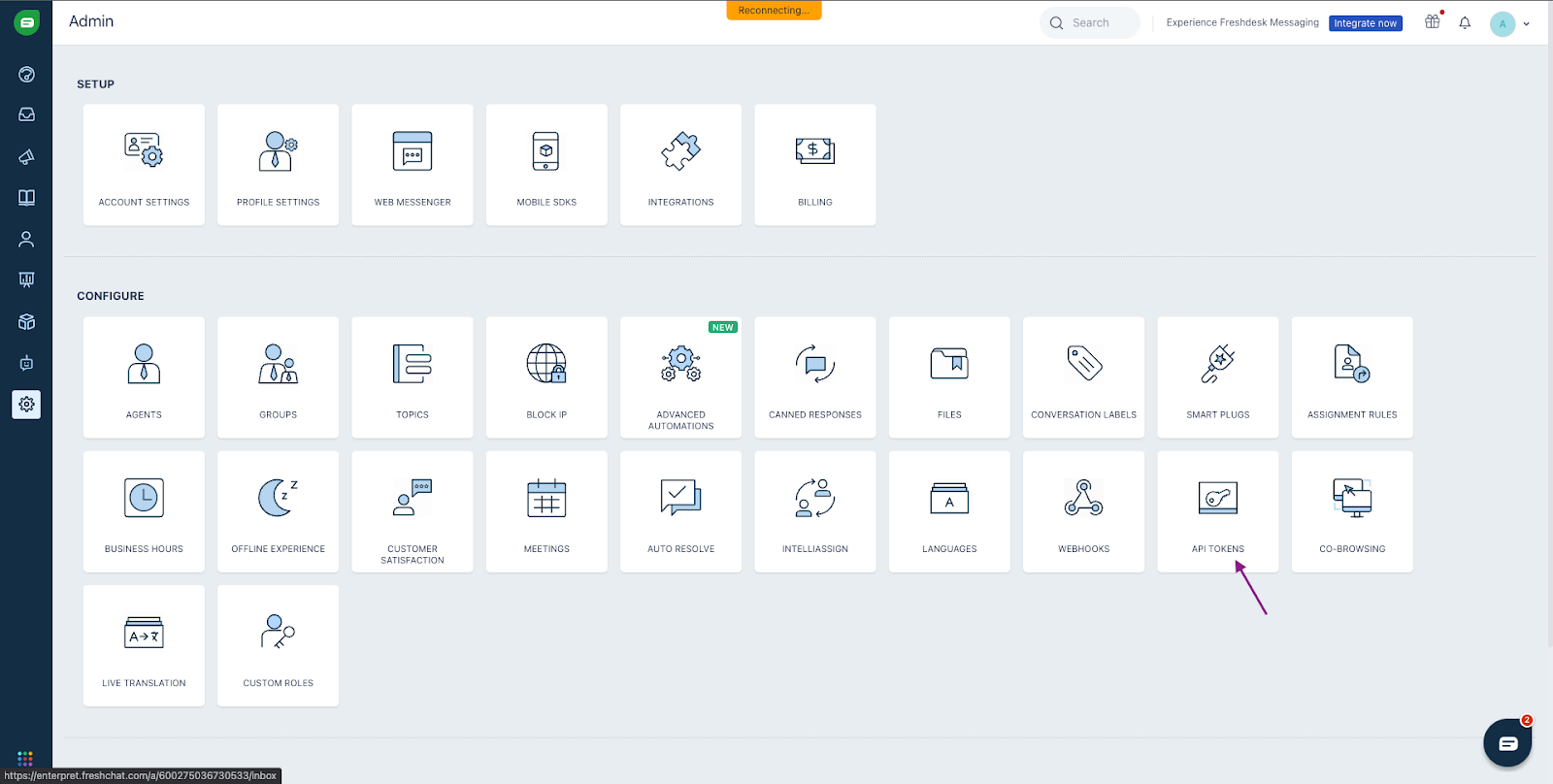
For standalone Freshchat, open Admin > Configure > API Tokens. For bundled Freshsales, open Settings > Admin Settings > Website Tracking and APIs > API Settings.
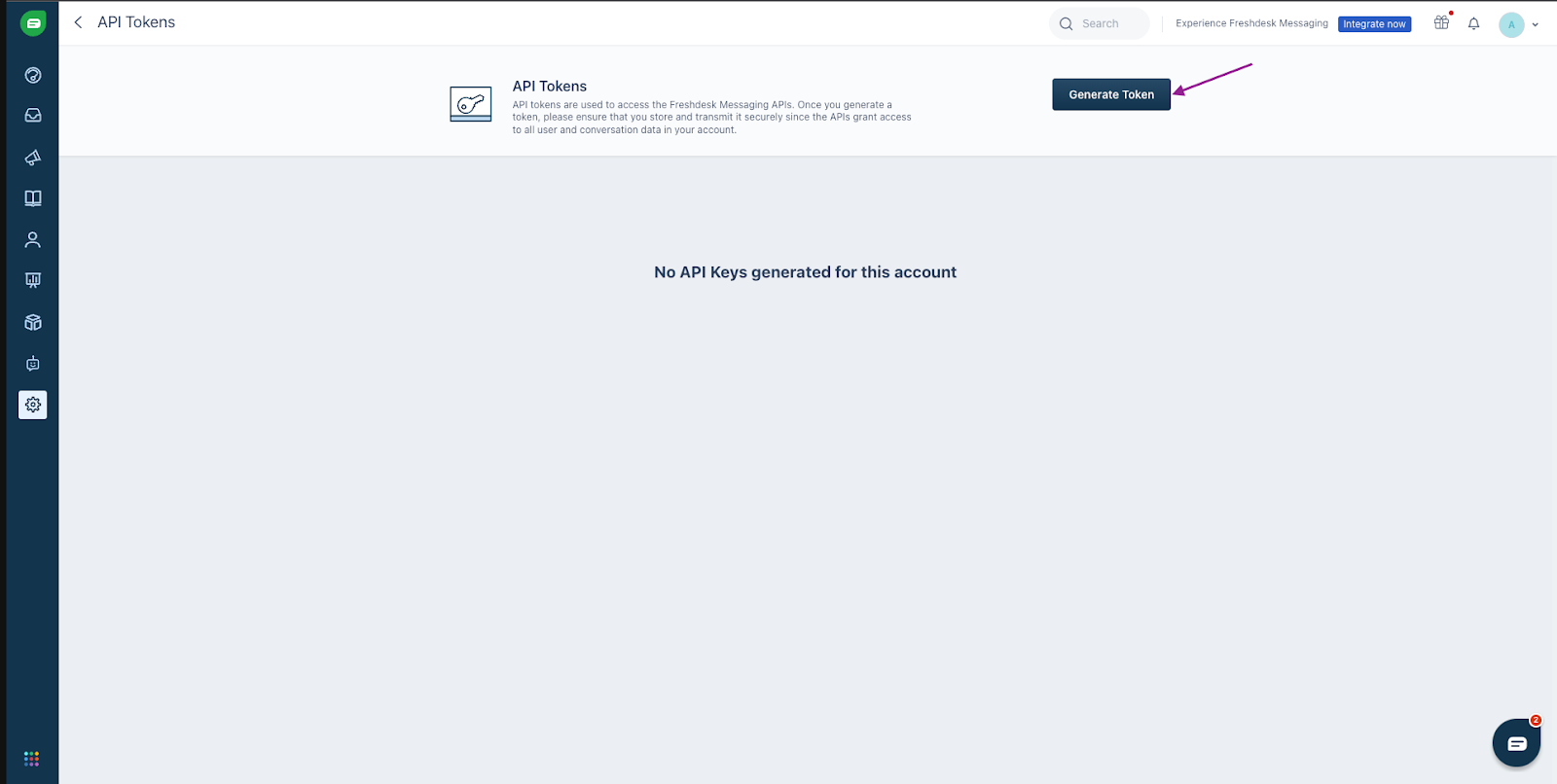
Click
Generate Tokento create a new API tokenClick the
Copybutton to copy your tokenCopy the generated token and paste it only into the Enterpret connection form. Keep the token private.
Step 2: Connect Freshchat to Enterpret
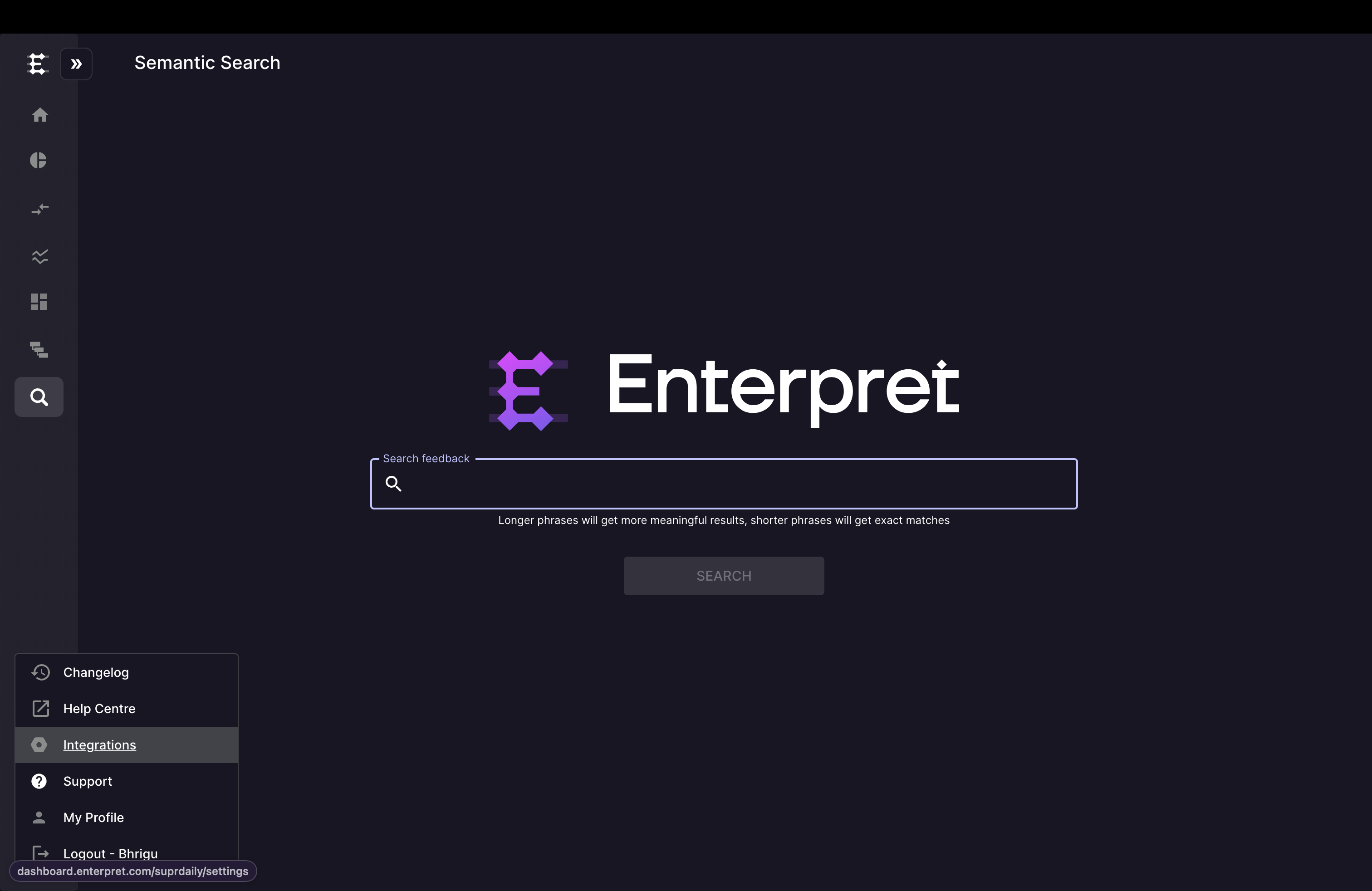
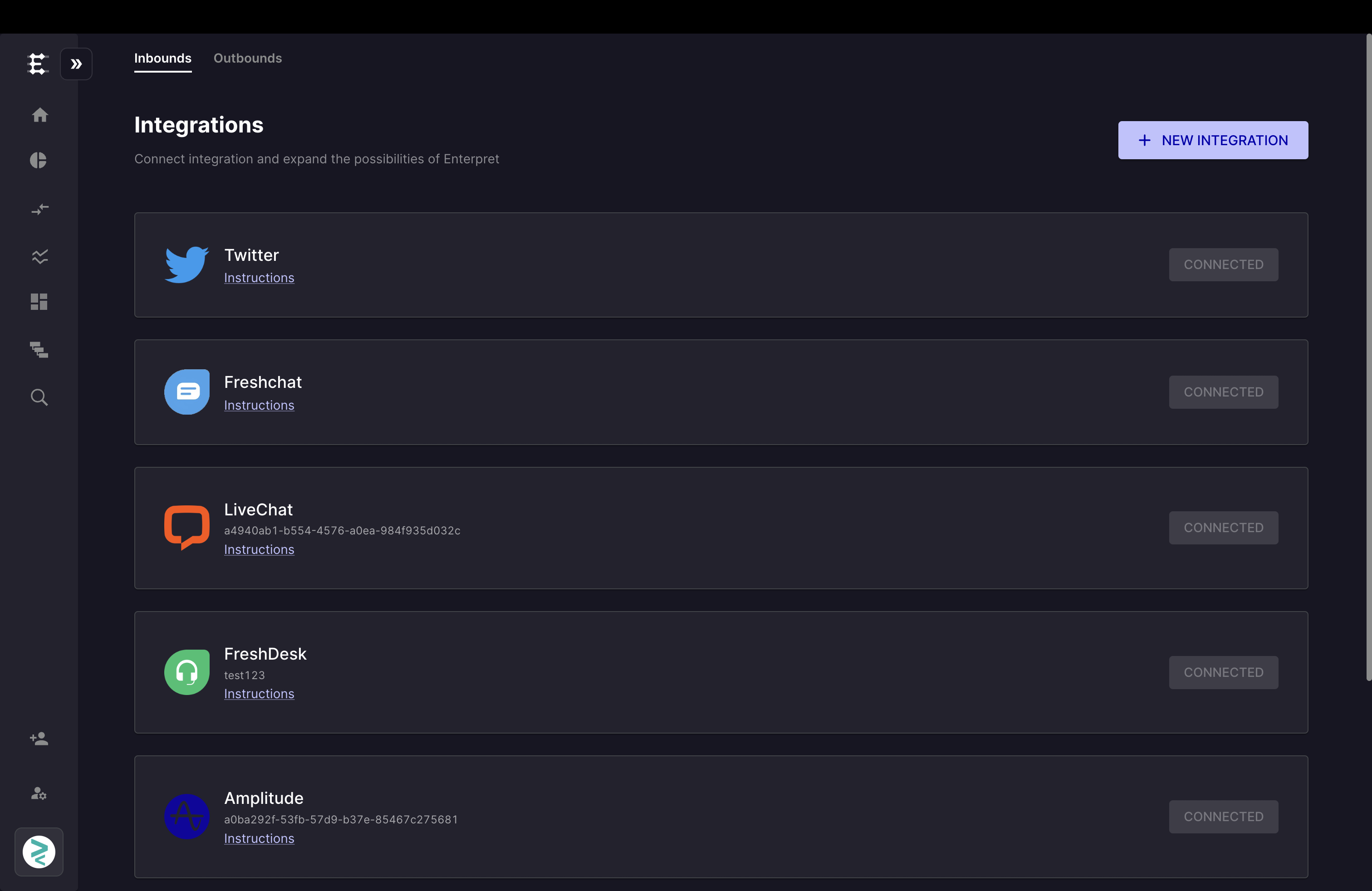
Go to your Enterpret dashboard and click the logo icon on the left sidebar to open the integrations menu
Select Integrations from the menu
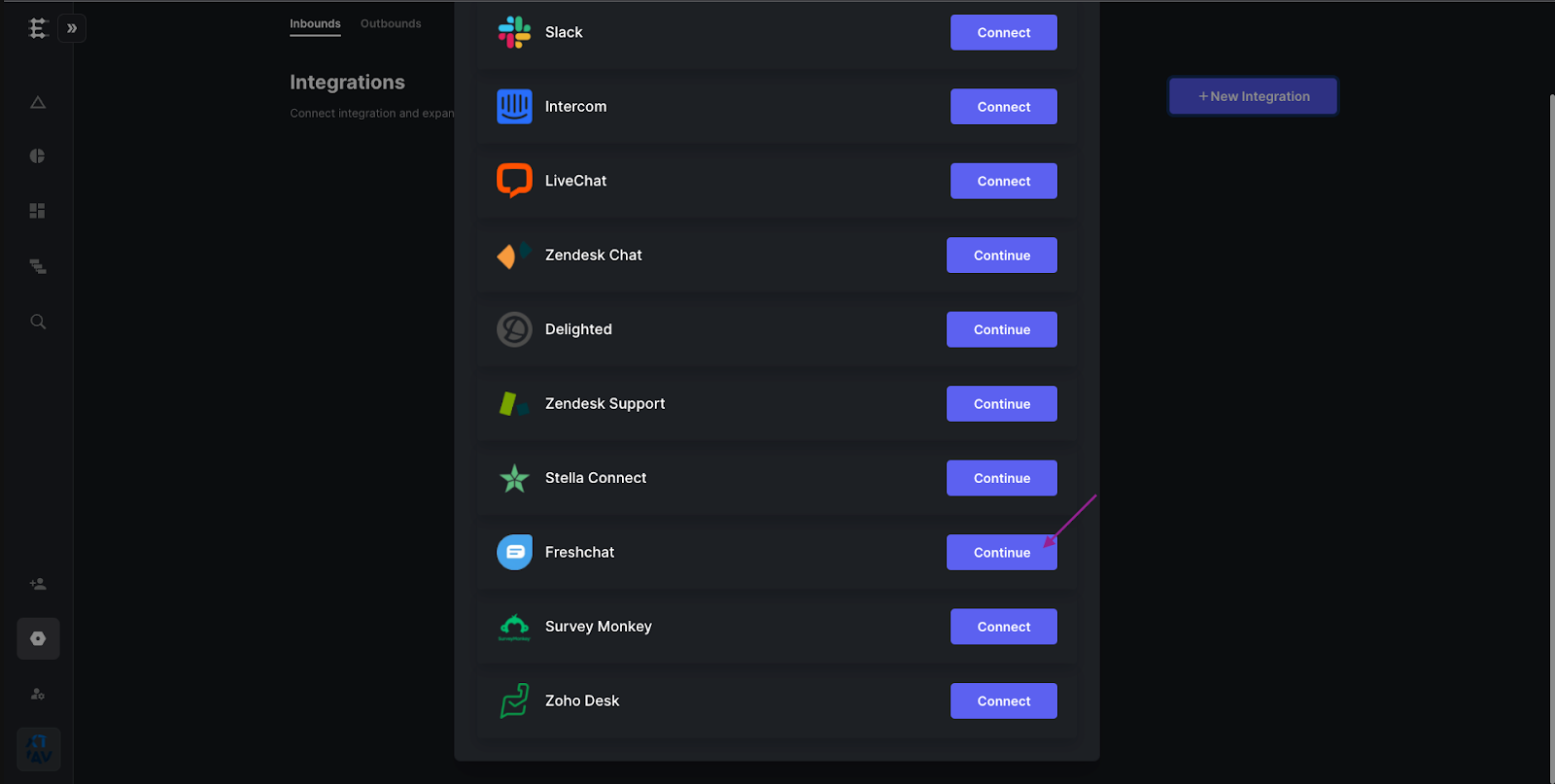
Click the
+ New IntegrationbuttonSelect Freshchat from the available integrations
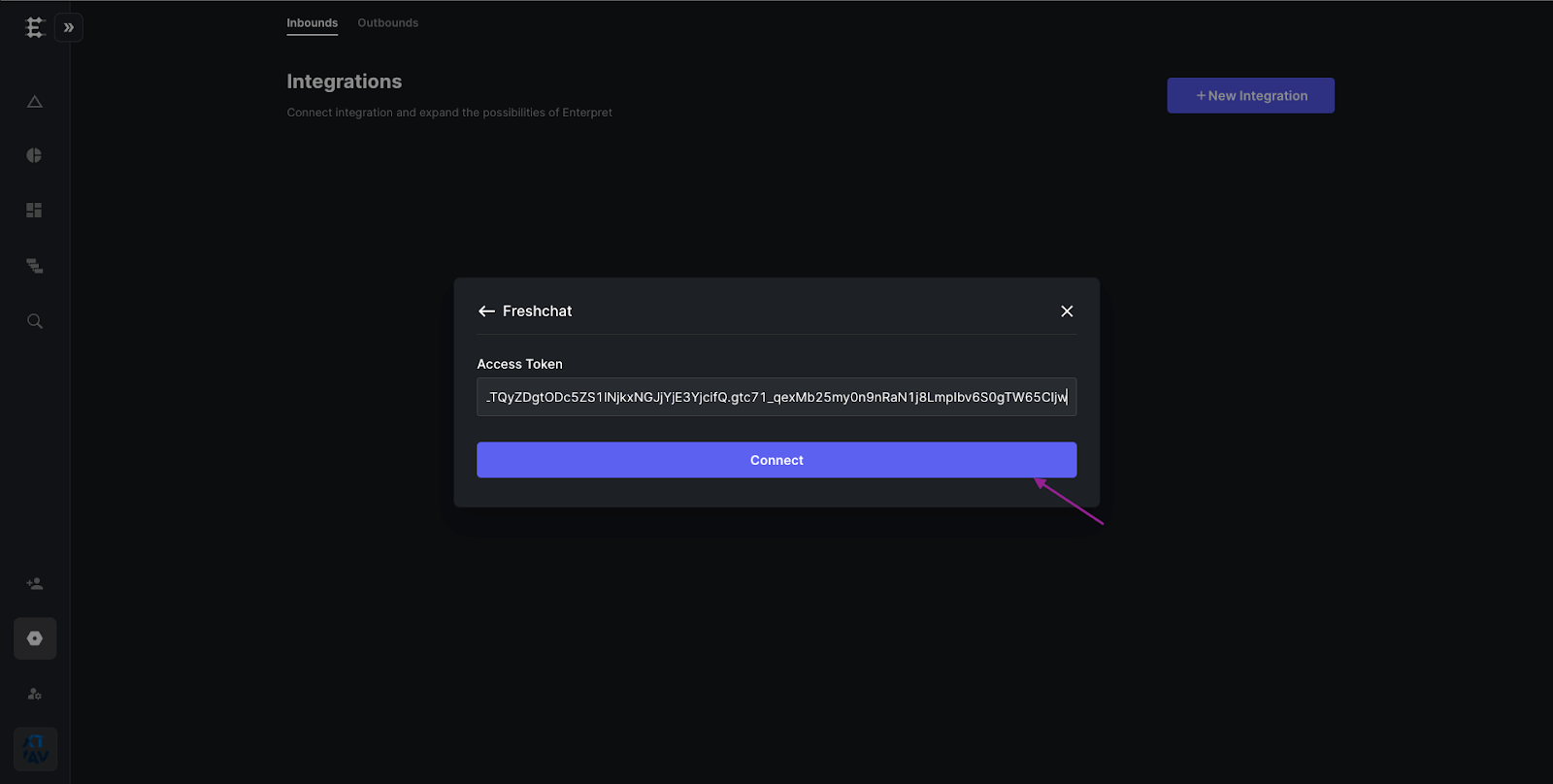
Paste the API token you copied from Freshchat
Complete the credential form and click Integrate.
After connecting, review the integration status. The default polling interval is four hours; actual record availability depends on eligibility, the configured schedule, and processing.