
Salesforce Writeback
Enterpret can write customer insights back to Salesforce in two ways:
Case fields: add a feedback summary, sentiment, and taxonomy paths directly to each Salesforce Case.
Call Transcript records: create one related custom-object record for each linked call, so agents can read the conversation from the Case's Related tab.
These options can be enabled separately. Existing Case summary, sentiment, and taxonomy fields remain separate from Call Transcript records.
Write insights to Salesforce Case fields
To write Enterpret insights to Case fields, complete the following steps:
Create three custom fields on the Case object.
Make sure the Connected App has API write access.
Give the integration user permission to edit those fields.
Re-authorize the Salesforce integration in Enterpret.
1. Create the custom fields
Create these three custom fields on the Case object. Use these exact API names — they are what Enterpret writes to.
Field label (your choice) | API name (must match) | Recommended type |
Enterpret Summary |
| Long Text Area (32,768) |
Enterpret Sentiment |
| Text (255) |
Enterpret Taxonomy Paths |
| Long Text Area (32,768) |
Notes:
Summary can be long (and may combine multiple feedback items), so use a Long Text Area, not a short Text field.
Sentiment is a single value such as
Positive,Negative, orNeutral. We recommend a plain Text field rather than a restricted picklist — a restricted picklist will reject any value that isn't on your list and the write will fail. If you prefer a picklist, tell us and we'll confirm the exact set of values Enterpret emits first.Taxonomy Paths is multi-line text, one path per line, formatted like
Level1 > Level2 > Level3 > Theme > Subtheme. Use a Long Text Area.
If you must use different API names, that's fine — just send us the names you chose and we'll match our configuration to them.
2. Confirm the Connected App has API write access
Enterpret connects to Salesforce through an OAuth Connected App. To write data (not just read it), that app needs the api OAuth scope ("Manage user data via APIs").
Your Salesforce admin should open the Enterpret Connected App → OAuth settings → Selected OAuth Scopes, and confirm
apiis included. Add it if it isn't.This is a small admin change, but it must be done before the re-authorization in step 4, otherwise the new login won't carry write permission.
3. Grant the integration user edit access
The integration user is the Salesforce user whose login authorizes the Enterpret integration. That user needs:
Object permission: Read + Edit on the Case object.
Field-Level Security: Visible and Editable (not read-only) on all three custom fields above.
This is usually done with a dedicated Permission Set assigned to the integration user, rather than changing a profile.
Please also be aware: when Enterpret writes to these fields, Salesforce treats it as a normal record update. That means:
The Case's
LastModifiedBy/LastModifiedDatewill reflect the integration user.Any Apex triggers, Flows, Workflow Rules, or Validation Rules tied to these fields (or to the Case) will fire on our writes.
If you have automations or notifications on the Case object, review them so an Enterpret write doesn't cause unintended emails or rule failures. You may want to exclude the integration user from those automations.
4. Re-authorize the Salesforce integration in Enterpret
Existing access tokens do not automatically gain the new write scope. After steps 1–3 are done, re-run the OAuth authorization for the Salesforce integration inside Enterpret so the new token includes write access. Your Enterpret CSM will coordinate the timing with you.
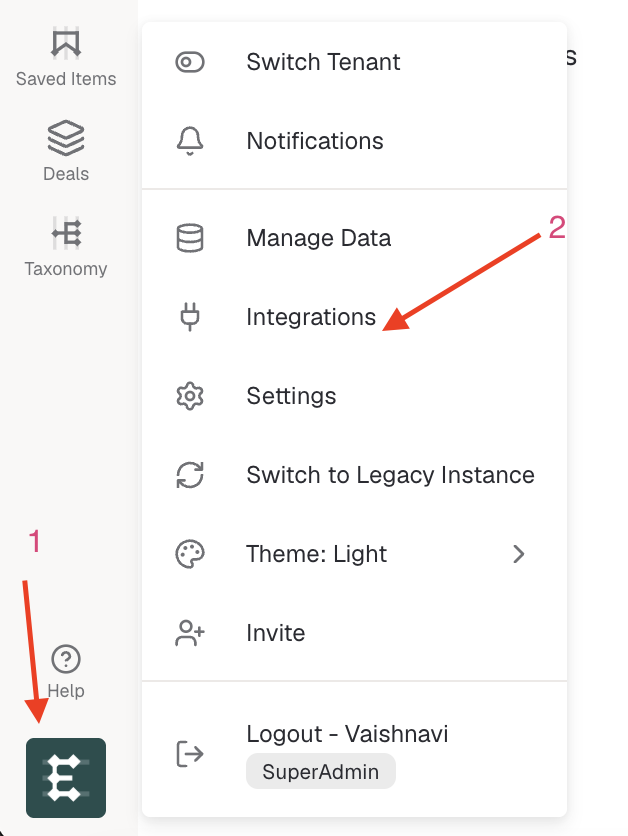
1. Click on your Logo at left bottom corner. And then on 'Settings'
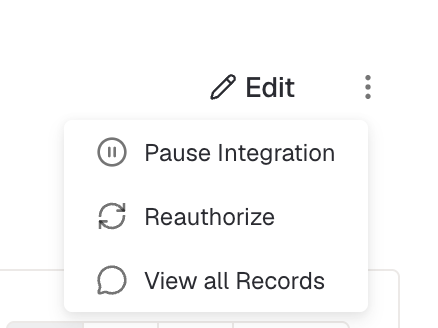
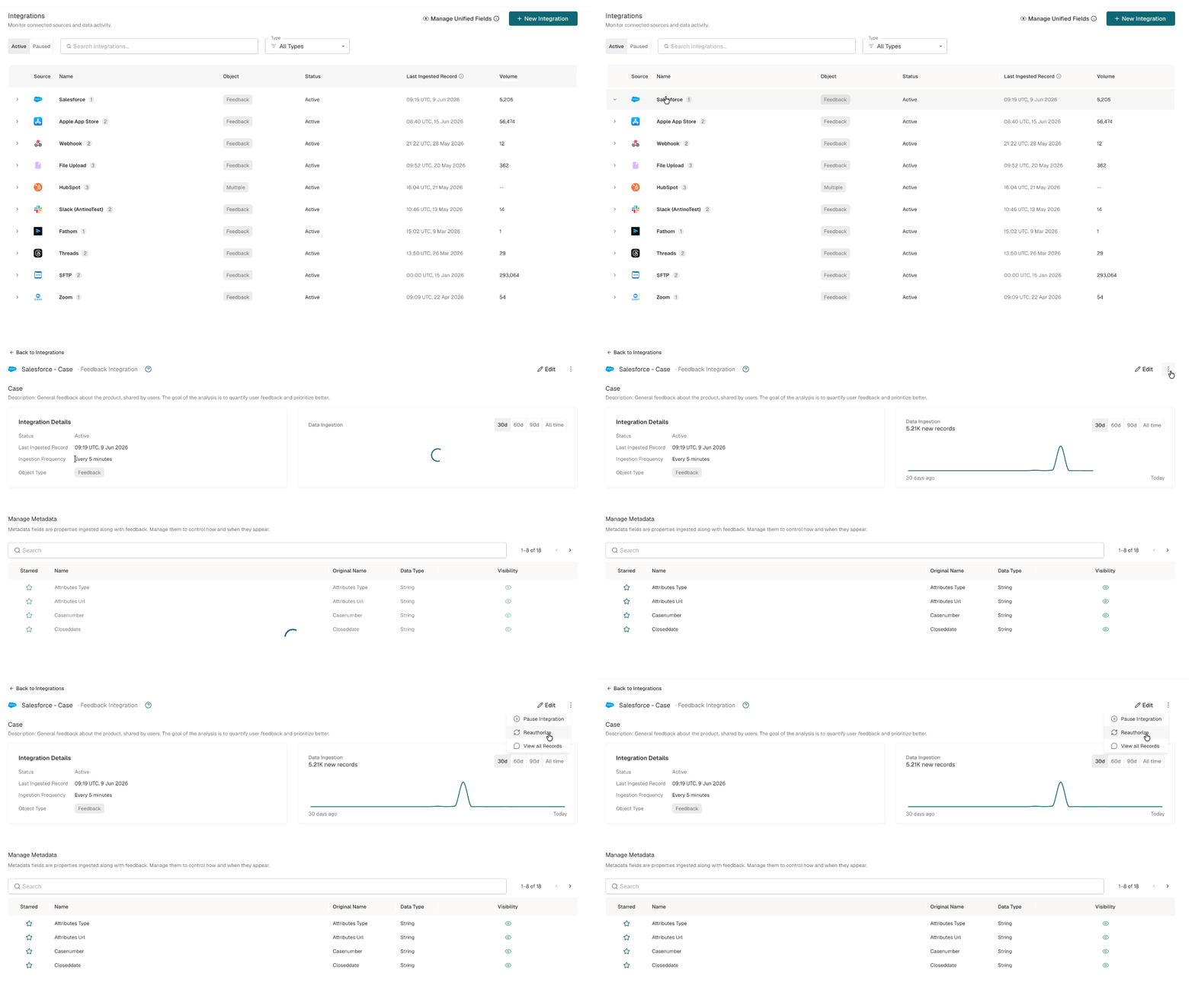
2. Find 'Salesforce' then from the drop-down on top-right corner select 'Re-authorize'
5. Enterpret finishes the setup
Once the above is done, send your CSM:
Confirmation the three fields exist (and the API names, if you changed them).
Confirmation the integration user has edit access on Case and the fields.
Confirmation the
apiscope is on the Connected App and the integration has been re-authorized.
The Enterpret team then enables the write-back for your account. After that, Enterpret keeps these fields up to date on your Cases automatically as it analyzes the underlying feedback — re-writing them if the analysis changes.
Write call transcripts to a Salesforce custom object
Use this setup when your team wants agents to open a Salesforce Case, select Related → Call Transcripts, and read each linked call's conversation inside Salesforce.
Each call is stored as a separate Call Transcript record. For example, a Case with several linked calls shows several rows in the related list, rather than placing multiple transcripts into Case fields.
Before you begin
Ask a Salesforce administrator to complete the setup.
Identify the Salesforce integration user connected to Enterpret.
Decide which agents should be able to read transcripts.
Agree on your transcript retention and deletion policy. Excluding older calls from future writeback does not delete transcript records already exported to Salesforce. Confirm a separate deletion procedure with your Salesforce administrator and Enterpret representative.
Completing the Salesforce setup does not start writeback automatically. Your Enterpret representative will enable it after both teams validate a small test.
1. Create the Call Transcript object
In Salesforce, open Setup → Object Manager → Create → Custom Object. If Enterpret_Call_Transcript__c already exists, review it instead of creating a duplicate.
Setting | Value |
|---|---|
Label | Enterpret Call Transcript |
Plural Label | Enterpret Call Transcripts |
Object Name |
|
Record Name | Transcript Number |
Record Name Data Type | Auto Number |
Display Format |
|
Starting Number | 1 |
Deployment Status | Deployed |
Salesforce adds __c automatically to the Object Name. Do not type the suffix into the Object Name field. You may enable reports if your team wants to report on transcript records.
2. Create the required fields
Open Enterpret Call Transcript → Fields & Relationships and create these seven fields. Enter each Field Name without __c; Salesforce adds the suffix automatically.
Field | API name | Type and settings |
|---|---|---|
Case |
| Lookup Relationship to Case |
Transcript |
| Long Text Area, length 131,072, 20 visible lines |
Call ID |
| Text (255); not unique and not an External ID |
Enterpret Record ID |
| Text (36); not unique and not an External ID |
Call Started At |
| Date/Time |
Enterpret URL |
| URL |
Export Key |
| Text (64); Unique and External ID enabled |
For the Case lookup, use Enterpret_Call_Transcripts as the Child Relationship Name and Call Transcripts as the Related List Label. Your Salesforce administrator should select the appropriate behavior when a linked Case is deleted.
Do not add other required fields without coordinating with Enterpret. If your organization requires different API names, share the final names with your Enterpret representative.
3. Grant access with a permission set
Create or open an approved permission set, then open Object Settings → Enterpret Call Transcript → Edit.
For the Salesforce integration user, enable Read, Create, and Edit for the Call Transcript object.
Give the integration user Read and Edit access to all seven custom fields.
Ensure that the integration user can access the Cases being linked.
For agents who only read transcripts, provide object and field Read access, plus access to the transcript records through your Salesforce sharing rules.
Writeback does not require Delete, View All, Modify All, or administrator access. Access to a Case does not automatically provide access to lookup-linked transcript records, so verify the setup with a standard agent account.
4. Configure the Call Transcript page layout
Open Object Manager → Enterpret Call Transcript → Page Layouts and edit the layout used by your agents.
Add Case, Call ID, Call Started At, Enterpret Record ID, Enterpret URL, and Export Key to a section such as Call Details.
Add a one-column section named Full Transcript and place the Transcript field there.
Save the layout and confirm its assignment to the intended profiles and record types.
5. Add Call Transcripts to the Case layout
Open Object Manager → Case → Case Page Layouts and edit the layouts used by your support team.
Select Related Lists and add Call Transcripts.
Open the related-list settings and add Transcript Number, Call ID, and Call Started At as columns.
To show the newest calls first, sort by Call Started At in descending order.
Save the Case page layout.
If the Lightning Case page does not include a related-list area, add a Related Lists component in Lightning App Builder and confirm its activation and assignment.
6. Activate and validate
Send your Enterpret representative:
Your Salesforce organization and environment
Confirmation that the connected integration user has the required object and field access
Your retention or deletion policy
One or more approved Cases to use for validation
Start with a small test. On an approved Case, open Related → Call Transcripts and confirm:
There is one transcript record for each eligible linked call.
The Case, Call ID, and call date and time are correct.
The Transcript contains the expected conversation.
The intended agents can open the records, while unauthorized users cannot.
If you need eligible historical transcripts written to Salesforce, ask your Enterpret representative about a managed backfill after the test is approved.
Troubleshooting Call Transcript writeback
No Call Transcripts related list: confirm that it was added to every Case layout used by your team and that the Lightning page includes a related-list component.
An agent cannot open a transcript: check object access, field access, record sharing, and page-layout assignment.
A transcript is missing or writeback fails: confirm that
Transcript__cis a Long Text Area with a length of 131,072. The current writer rejects a transcript that exceeds the destination field length rather than truncating it. Share the affected Case and call with your Enterpret representative if the configured field is too small or the transcript exceeds Salesforce’s limit.Writeback does not start: confirm that the Salesforce integration has been reauthorized, the integration user has the required access, and Enterpret has activated the configuration.