
Import YouTube comments and replies
What this integration imports
Connect a YouTube channel to import eligible comments and replies into Enterpret as feedback, with video context and links back to the source comments. This guide covers the YouTube channel integration. If you are setting up YouTube UGC for keyword-based discovery or transcripts, ask your Enterpret team for that setup.
Once connected, the comments integration can:
Import comments and replies from eligible videos available through the connected channel and YouTube API.
By default, look for videos published in the previous 90 days and import available comments and replies from those videos.
Check for new comments during periodic syncs.
Revisit recent videos to pick up new comments and replies.
Mark comments that match the integration's spam checks as filtered spam.
Use the imported feedback in Enterpret to investigate topics, sentiment, and themes. Import coverage depends on video eligibility, API access, sync limits and processing.
Prerequisites
Before setting up the YouTube integration, make sure you have the following:
Google Account: Use the Google account that can authorize the YouTube channel you want to connect.
YouTube Channel: The Google account must have an active YouTube channel associated with it.
Channel Access: Confirm that Google makes the intended channel available during authorization. If the channel is missing, check the account and channel access with your administrator or Enterpret Support.
Comments Enabled: Comments must be enabled on the videos you want to analyze. Videos with comments disabled will be gracefully skipped. They won't cause errors, but no data will be collected from them.
Enterpret Account: You must have an active Enterpret account with permission to manage integrations.
Connect your YouTube channel
Follow these steps to connect your YouTube channel:
Step 1: Navigate to Integrations
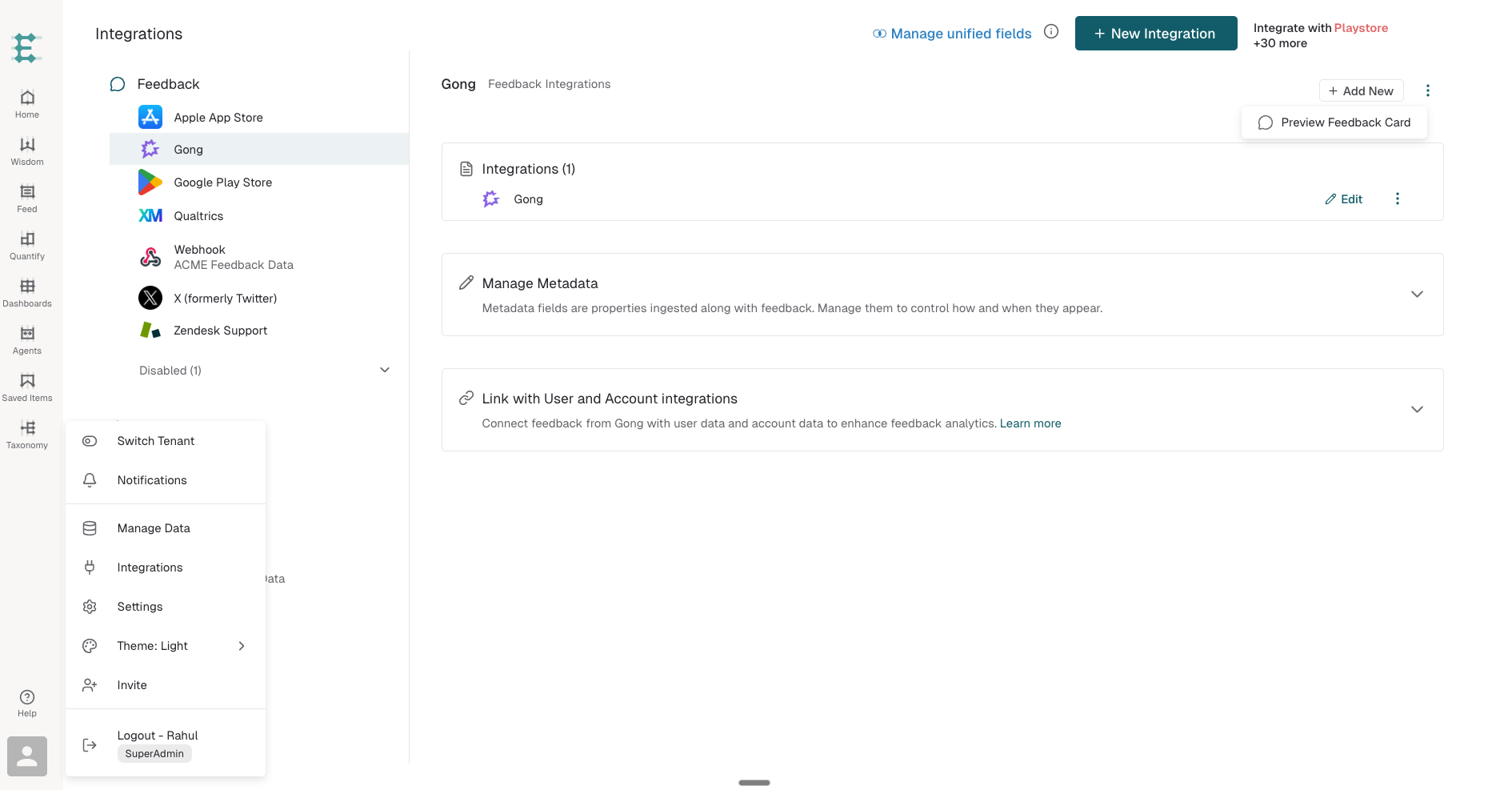
In the Enterpret app, click on your profile icon in the bottom-left corner of the sidebar.
From the menu, click Integrations.
Step 2: Add a New Integration
Click the New Integration button at the top of the Integrations page.
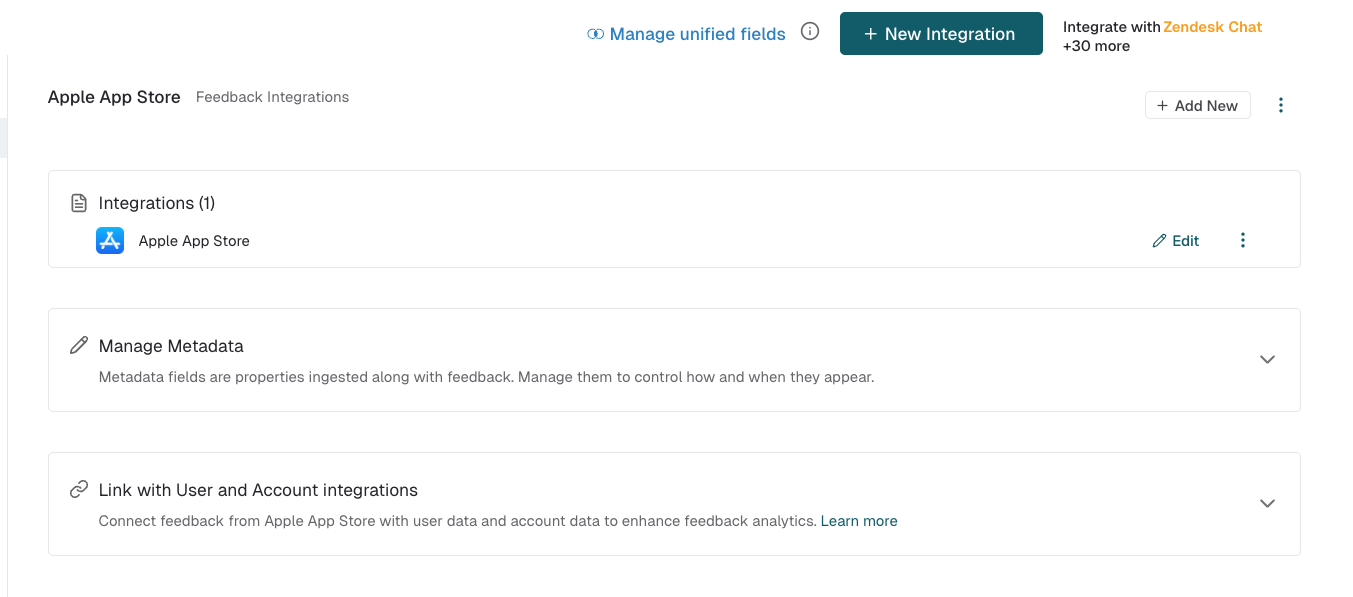
In the search bar, type YouTube to find the integration.
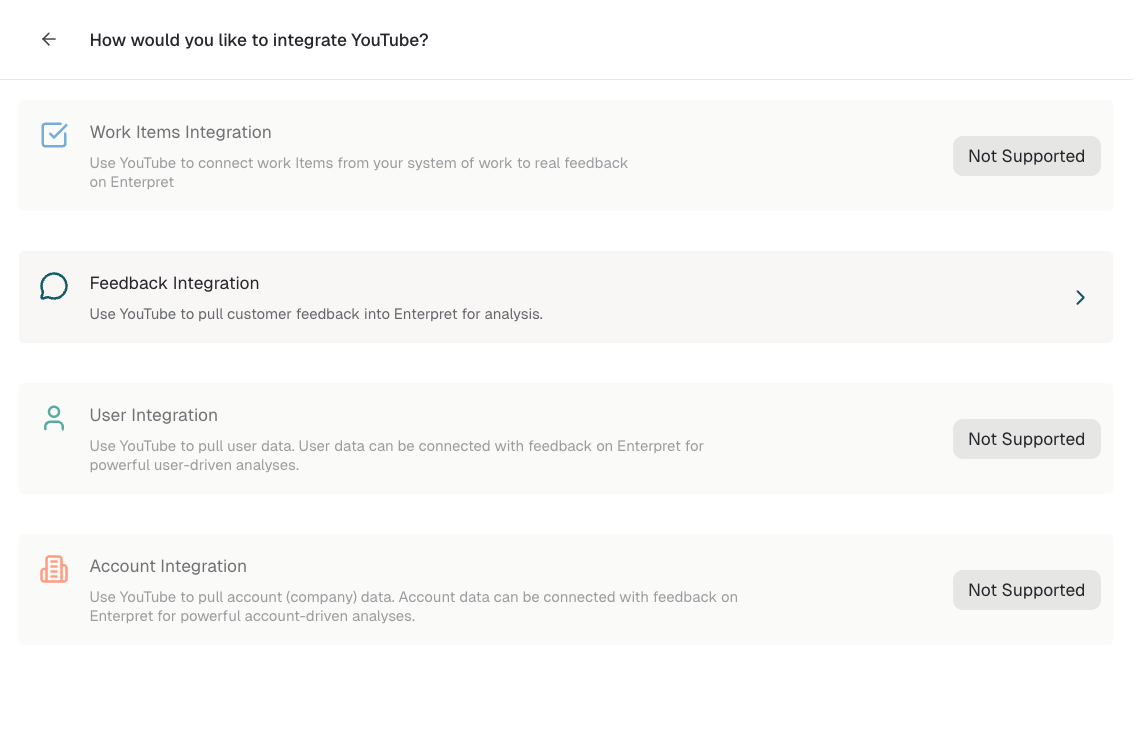
Click Continue or Connect on the YouTube card, then choose Feedback Integration if prompted.
Step 3: Authenticate with Google
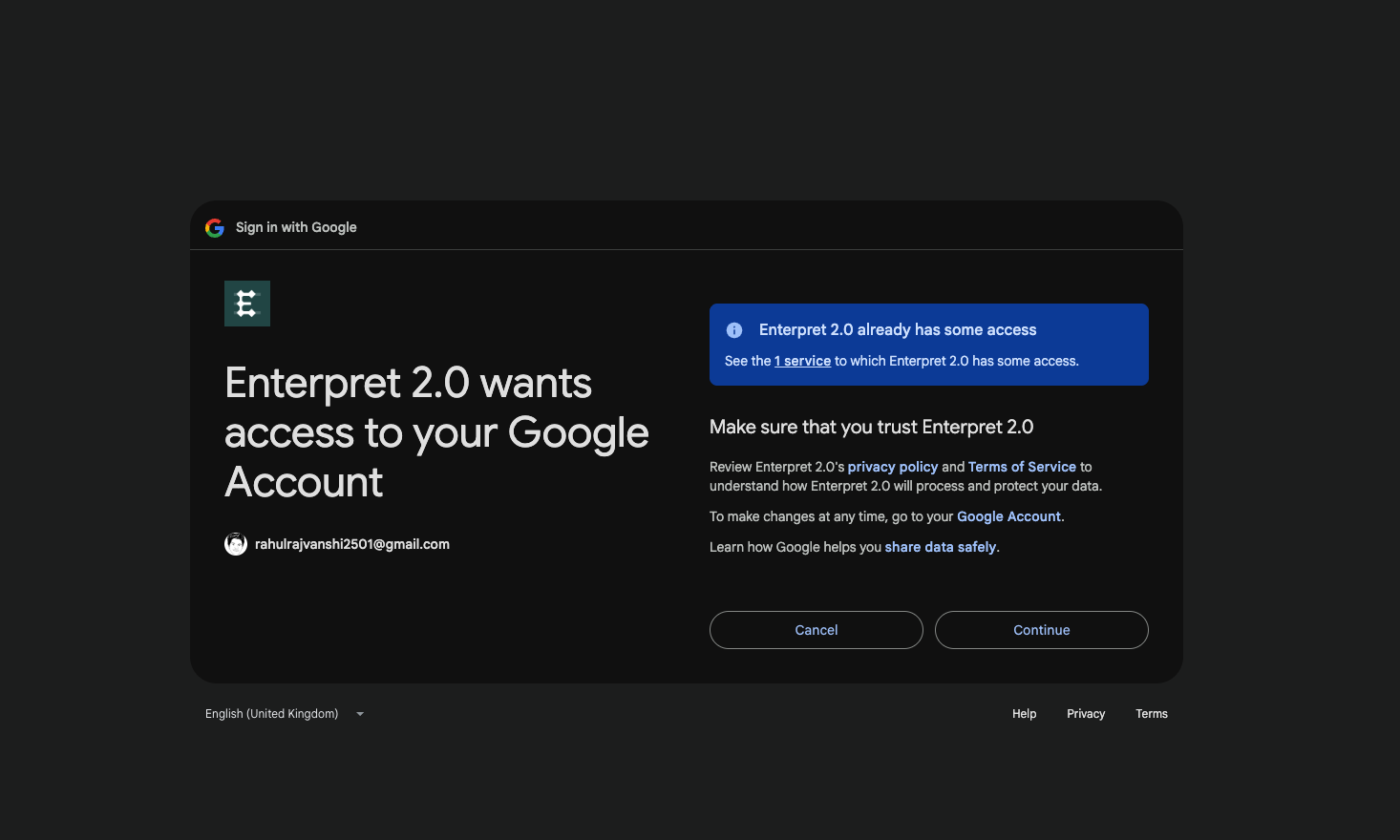
You will be redirected to Google's OAuth consent screen.
Sign in with the Google account that can authorize the intended YouTube channel.
Click Allow to grant Enterpret access.
Step 4: Confirm the Connection
You will be redirected back to Enterpret. Please select General user feedback and click on "Save Changes"
The integration will appear in your Integrations list, showing the channel name and a connected status.
Enterpret will start processing the channel integration. By default, initial video discovery starts 90 days back; this is a video publication window, not a 90-day cutoff on comment dates.
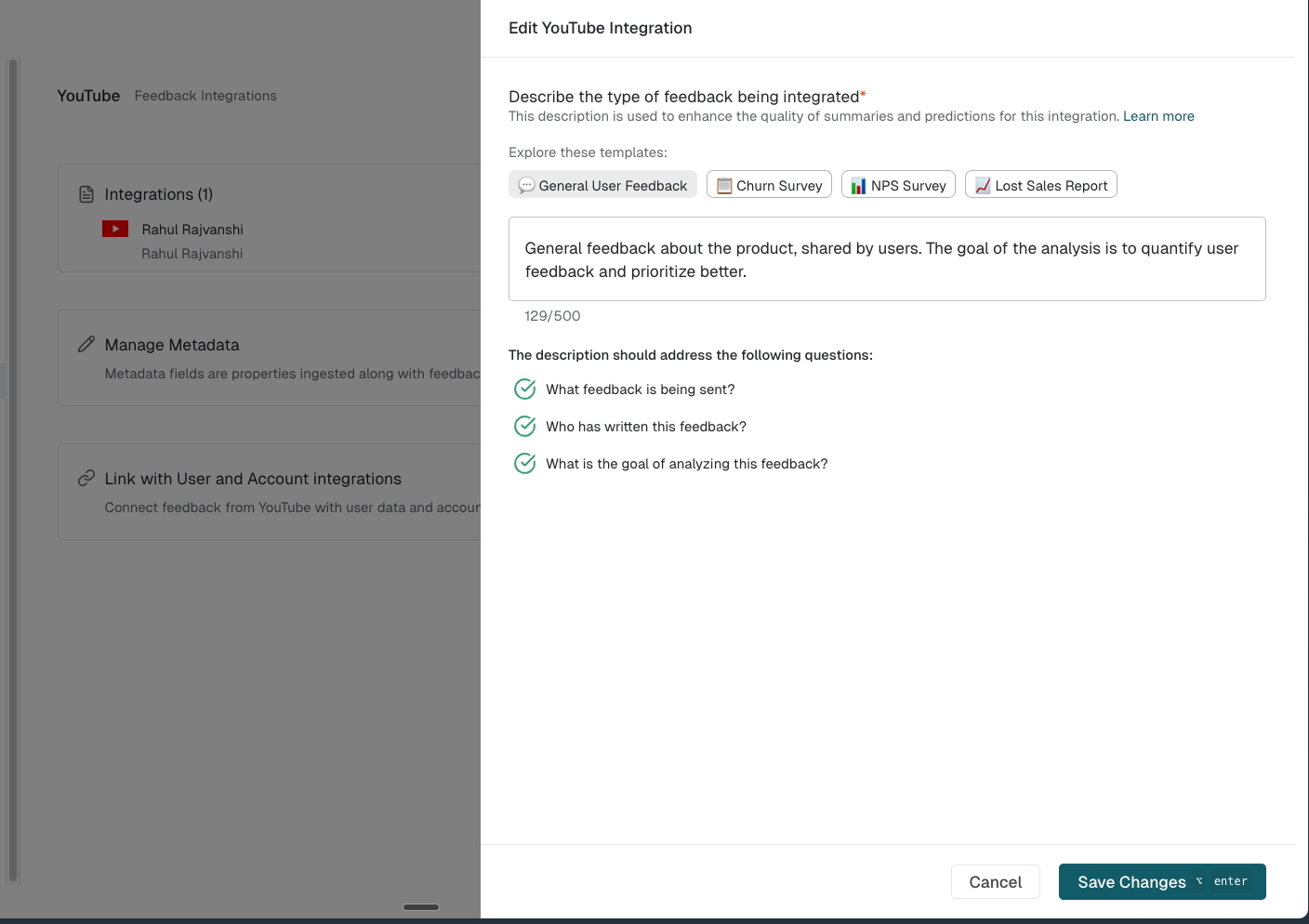
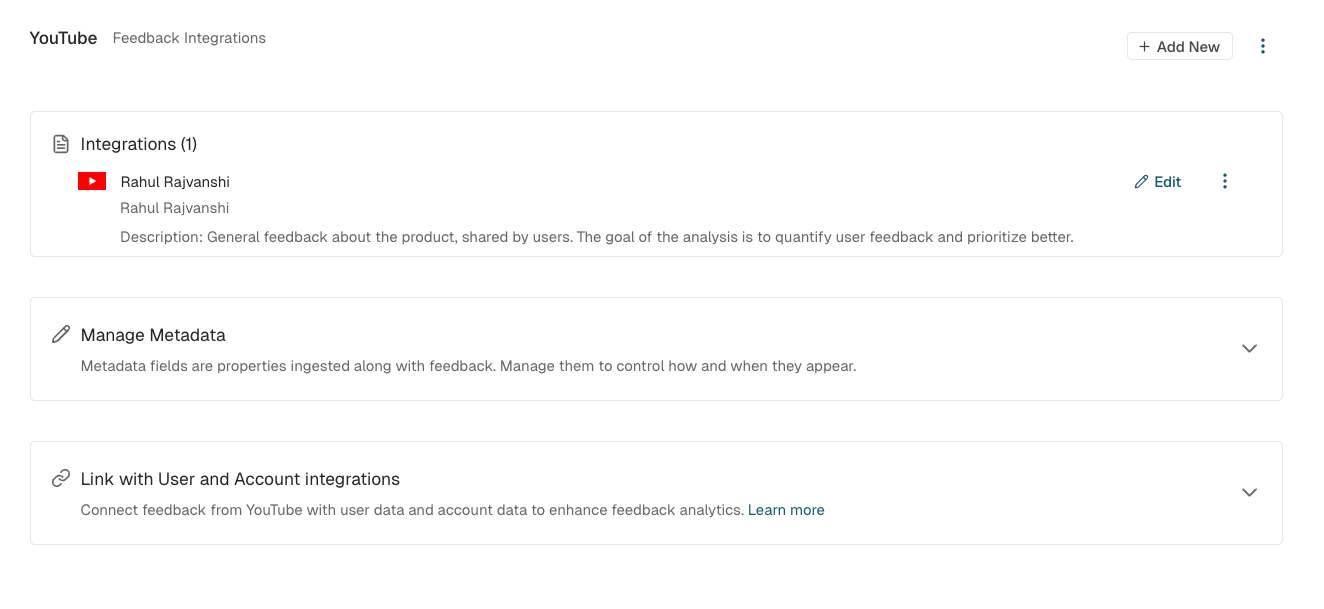
That's it. No additional configuration is required.
Permissions and OAuth Scopes
When you connect your YouTube channel, Google will ask you to authorize specific permissions. Here is exactly what Enterpret requests and why.
OAuth Scope Requested:
The current YouTube connection requests youtube.force-ssl. Review the permissions shown by Google before authorizing Enterpret.
What does this permission allow?
With this scope, Enterpret can:
Read your channel information, to identify which channel you are connecting and display its name.
Read your video metadata (titles, descriptions, and publish dates), so comments can be associated with the correct video context.
Read comments and replies, the core data that Enterpret analyzes to surface insights.
How this feedback integration uses access:
The current import flow reads channel information, video metadata, comments and replies. It does not use posting, editing, deleting or uploading operations as part of this feedback import.
Authorize the connection only after reviewing the Google consent screen. Contact Enterpret Support if you need clarification about a requested permission.
What Data Does Enterpret Collect?
Channel Information:
Channel ID: Uniquely identifies your channel for the integration.
Channel Name: Displayed in the Enterpret dashboard to identify the source.
Video Metadata (for each video on your channel):
Video Title: Provides context for the comments being analyzed.
Video Description: Additional context for understanding comment themes.
Published Date: Used for time-based filtering and analysis.
Video URL: Direct link back to the source video in reports and dashboards.
Comments and Replies (for each comment and reply on your videos):
Comment Text: The primary content analyzed for insights, sentiment, and themes.
Author Display Name: Identifies the commenter (public YouTube display name only).
Like Count: Signals comment engagement and relevance.
Published Date: Enables time-series analysis and trend detection.
Reply Threading: Preserves conversation context. Each reply includes its parent comments for accurate analysis.
What Enterpret does NOT collect:
Subscriber lists or subscriber data
Watch history or analytics/revenue data
Private messages
Video view counts or performance metrics
Email addresses or personal contact information
Unlisted or private video content beyond what the authenticated account can access
Multiple Channels
Yes, you can connect multiple YouTube channels to Enterpret.
Each YouTube channel is set up as a separate integration. To connect additional channels:
Follow the same setup steps above.
When prompted to authenticate with Google, sign in with the account that can authorize the additional channel.
Each channel will appear as its own integration entry in your Integrations list.
Important notes on multiple channels:
Each integration is tied to a specific YouTube channel, identified by its unique Channel ID during the OAuth flow.
If the Google account has access to multiple channels, confirm the channel name shown in Enterpret after authorization.
If the intended Brand Account channel is not shown, contact your administrator or Enterpret Support before continuing.
How the Sync Works
Once connected, Enterpret automatically manages the data sync for you. Here's what happens behind the scenes:
Initial Backfill:
By default, initial discovery includes videos published in the previous 90 days, then imports available comments and replies from those videos. The window can be configured for an integration; it does not filter comments by their publication date.
Initial processing time depends on comment volume, API access, quotas and the sync backlog. Contact Enterpret Support if expected feedback is missing.
Ongoing Sync:
After initial processing, Enterpret checks for new videos and comments on periodic sync cycles.
Enterpret also revisits recent videos to pick up newly posted comments and replies on existing videos.
Up to 50 videos are retained for ongoing comment checks. This does not guarantee monitoring of every older video.
The sync runs automatically. No manual action is needed.
Other important notes:
Comments disabled on a video: The video is skipped gracefully. Other videos continue to sync.
Video is deleted or made private: The video is automatically removed from tracking.
YouTube API rate limit reached: Syncing can be delayed or interrupted. If expected comments are missing, contact Enterpret Support to review the integration.
OAuth access token expires: Enterpret attempts to refresh it in the background. If authorization is revoked or refresh fails, follow the re-authentication prompts.
Re-authenticating the Integration
If your integration's authentication expires or you need to refresh credentials:
Go to Integrations in Enterpret.
Find your YouTube integration and click on it.
Follow the re-authentication prompts to sign in with Google again.
Important: Re-authentication must return the same YouTube channel as the original integration. Confirm the channel name when signing in; authorizing a different channel will fail the channel-ID check.
If you need to switch to a different channel, create a new integration instead.
Frequently Asked Questions
Do I need a YouTube Premium or YouTube Partner account?
No. The integration works with any standard YouTube channel. You do not need YouTube Premium, YouTube Partner Program membership, or any paid YouTube features.
2. Can I choose which videos to sync?
This channel setup does not offer a per-video selection. Import eligibility depends on the video discovery window, API access and sync limits. Use Enterpret's filters to focus analysis on available video feedback.
3. How far back does the initial sync go?
By default, initial discovery looks for videos published in the previous 90 days. This is not a cutoff on the dates of comments on those videos. Contact Enterpret Support if you need a different history window or comments from older videos.
4. How quickly do new comments appear in Enterpret?
New comments can be picked up during periodic sync cycles for eligible and tracked videos. Timing depends on API availability, quotas and processing; contact Enterpret Support if expected comments are missing.
5. Will connecting Enterpret affect my YouTube channel in any way?
The current feedback import reads channel, video and comment data. Posting comments or changing channel content is not part of this integration's import flow.
6. Does Enterpret collect comments from YouTube Shorts?
Yes. YouTube Shorts are treated as regular videos by the YouTube Data API. If Shorts have comments enabled, those comments will be collected and analyzed like any other video.
7. What happens if I revoke access from my Google account?
If you revoke Enterpret's access from your Google account (via Google Account Permissions at myaccount.google.com/permissions), the integration will stop syncing. Any data already collected in Enterpret will remain available, but no new comments will be fetched. You can re-authorize at any time by re-authenticating the integration in Enterpret.
8. Can I connect a channel I manage but don't own?
Use an account that can authorize the intended channel. Availability depends on Google's account and channel permissions; if the channel does not appear, contact your administrator or Enterpret Support.
9. Is my data secure?
Yes. All communication between Enterpret and YouTube uses encrypted HTTPS connections. Your OAuth credentials (access tokens and refresh tokens) are encrypted at rest within Enterpret's infrastructure. Enterpret follows industry-standard security practices for credential storage and data handling.
Troubleshooting:
"No YouTube channel found" error during setup:
This means the Google account you authenticated with does not have a YouTube channel. Make sure you are signing in with the correct Google account, and that the account has an active YouTube channel.
2. Comments from certain videos are missing: If specific videos don't show comments in Enterpret, check whether:
Comments are disabled on those videos (Enterpret skips videos with comments disabled).
The videos are unavailable to the connected account or API.
The videos fall outside the configured initial discovery window or are no longer retained for ongoing checks.
3. I connected the wrong channel:
If you connected the wrong YouTube channel, you can disable the integration from the Integrations page and create a new one with the correct Google account.
If you need further assistance, contact Enterpret support at support@enterpret.com.