
Zendesk Writeback
In this article
In this article group
Write Enterpret insights back to the Zendesk tickets where your support teams already work.
Overview
Zendesk writeback adds selected Enterpret outputs to ticket fields. This helps support, success, and product teams use customer insights without leaving their usual workflows.
Writeback is a managed, organization-specific capability. Your Enterpret representative will confirm the supported outputs, destination fields, update schedule, and rollout plan for your account.
Note: Writeback is not a webhook integration. It updates supported fields in Zendesk on a configured schedule.
How this helps day to day
Give frontline teams a concise summary of a customer conversation.
Surface sentiment and taxonomy classifications directly on Zendesk tickets.
Help teams search, filter, route, and report using Enterpret insights.
Keep ticket fields updated as supported Enterpret outputs change.
Before you begin
Contact your Enterpret representative to enable writeback. Together, confirm:
The Zendesk integration and tickets to update
The Enterpret outputs to write back
The destination fields and field types
The update cadence
A small set of tickets to use for validation
You can request a supported subset of outputs, such as sentiment only, summary only, or summary and taxonomy. Additional outputs or destination field types require a separate review.
Set up Zendesk ticket writeback
Zendesk writeback can add a supported subset of Enterpret summary, sentiment, and taxonomy outputs to ticket fields.
Create the Zendesk fields
Create the following custom ticket fields in Zendesk, or identify existing fields with compatible types:
Suggested field | Zendesk field type | Value |
|---|---|---|
Enterpret Summary | Multi-line text | Feedback summary |
Enterpret Sentiment | Text | One sentiment label |
Enterpret Taxonomy | Multi-line text | Taxonomy paths, one per line |
Field names can be different, but their types must support the selected values.
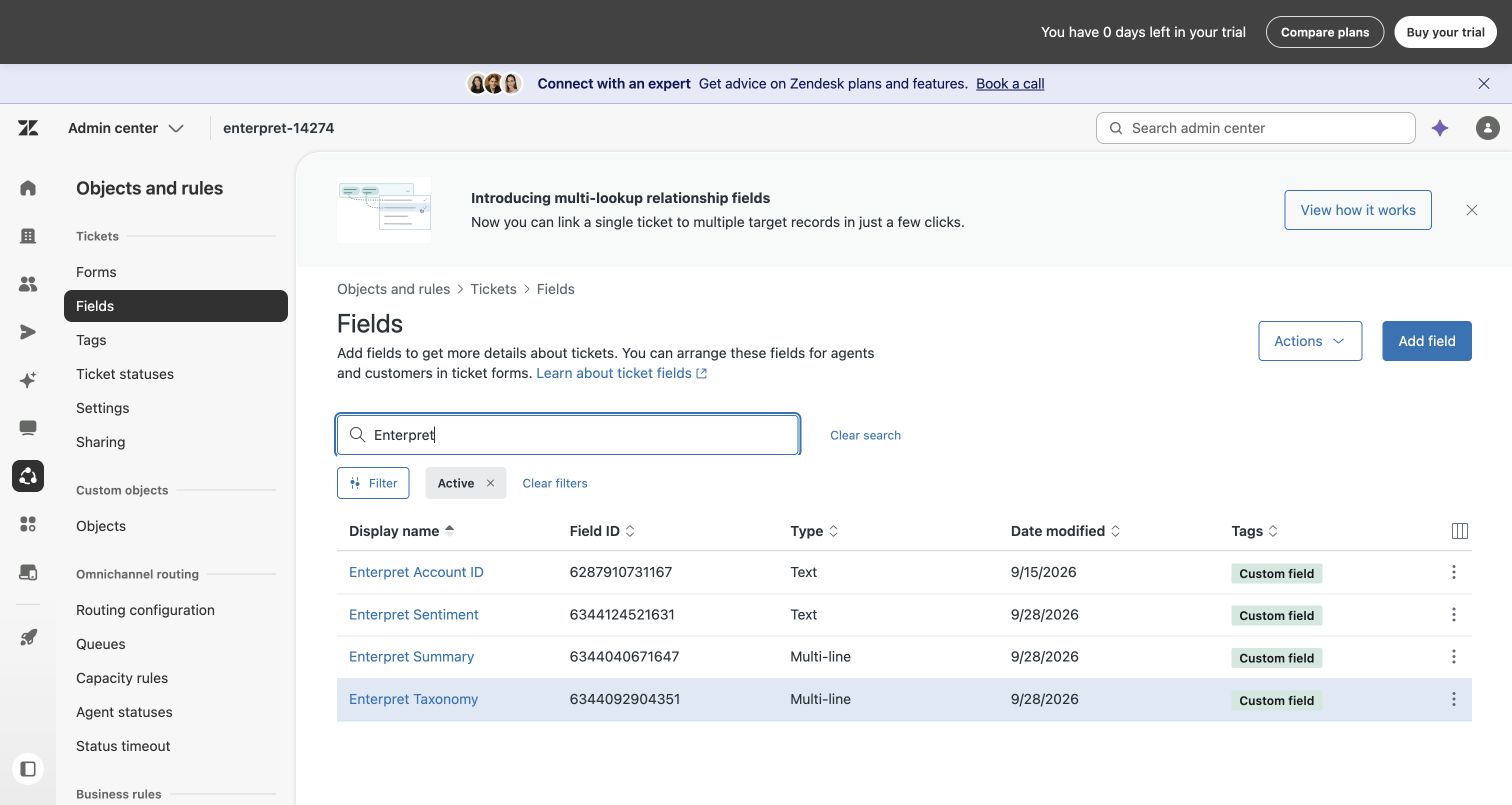
Example custom ticket fields. Use the field IDs from your own Zendesk account.
Authorize ticket writeback
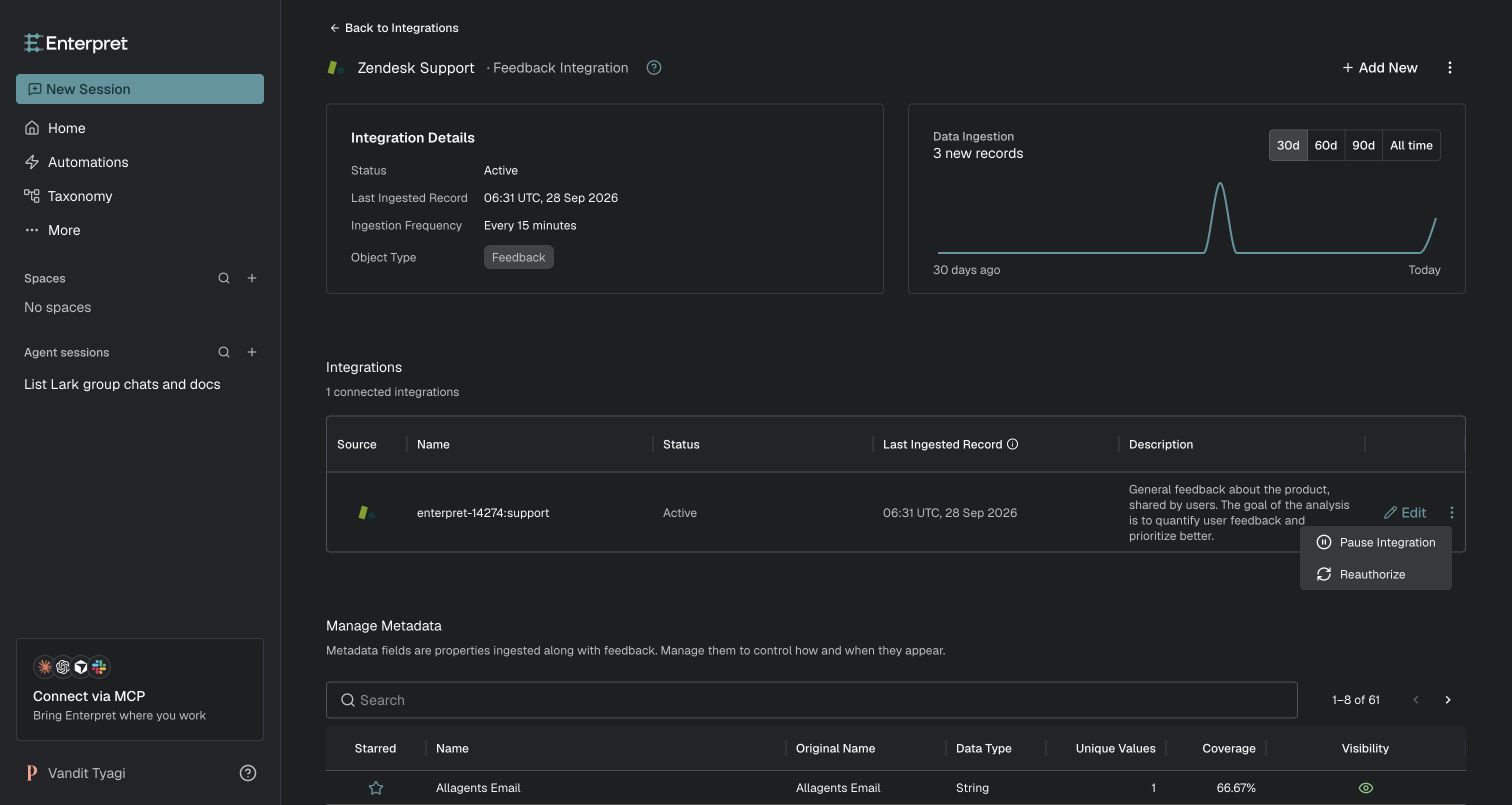
In Enterpret, go to Settings → Integrations → Zendesk Support. Open the three-dot menu beside your connected account and choose Reauthorize.
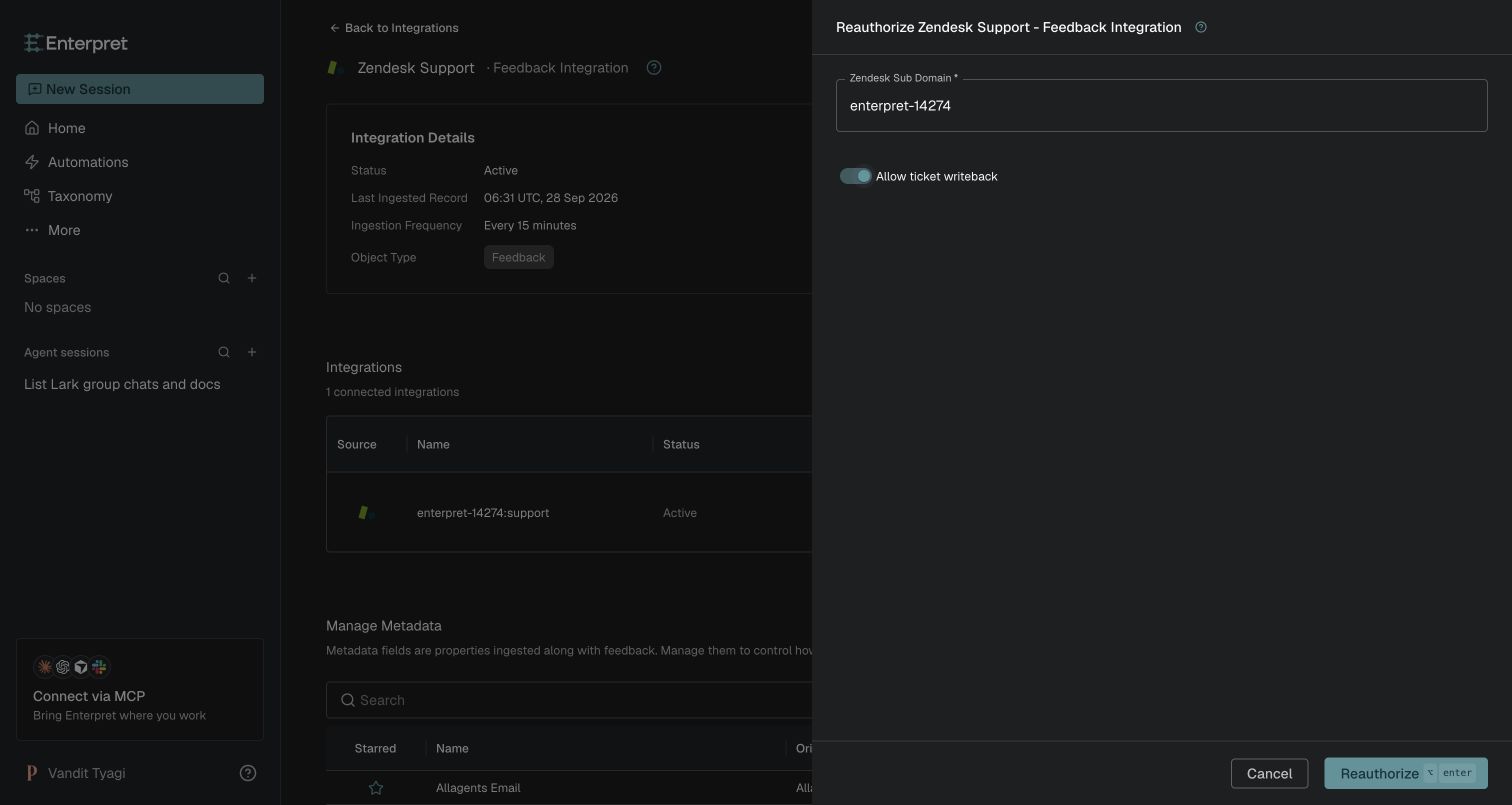
Enter your Zendesk subdomain, switch on Allow ticket writeback, and click Reauthorize. On Zendesk’s permission screen, check the account and choose Allow. Leave the writeback switch on whenever you reauthorize a connection that should retain ticket-write access.
Send your Enterpret representative:
Your Zendesk subdomain
The numeric IDs of the destination ticket fields
A Zendesk ticket URL to use for validation
The outputs you want enabled
Enterpret will confirm that the existing Zendesk connection can update the selected fields and configure writeback for your organization.
Validate the result
After activation, review the test ticket in Zendesk and confirm that each selected field contains the expected value. Test any Zendesk views, triggers, automations, or reports that use these fields before a broader rollout.
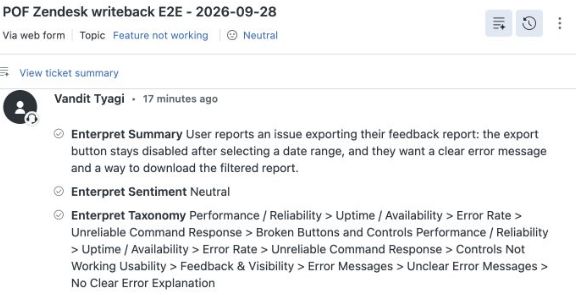
Example ticket activity with Enterpret Summary, Enterpret Sentiment, and Enterpret Taxonomy populated.
Historical Zendesk tickets
Writeback begins according to the agreed configuration. If you need eligible historical tickets updated, ask your Enterpret representative about a managed backfill. There is no self-service backfill button for Zendesk writeback.
Important behavior
Only the outputs and destination fields agreed for your organization are updated.
The update cadence is configurable. One hour is the current minimum interval.
A ticket may be updated again when the configured Enterpret outputs change.
Writeback does not replace the original Zendesk ticket content.
Empty or unavailable insights are handled according to the configuration agreed during setup.
Troubleshooting
A field is not updating
Confirm that writeback is enabled for the correct organization and Zendesk integration.
Check that the configured destination field ID is correct.
Confirm that the integration user can edit the ticket field.
Review Zendesk triggers, automations, and field restrictions.
Allow time for the configured update interval.
The value is too long or appears incomplete
Confirm that the destination field uses the recommended type and length. Summary and taxonomy outputs should use multi-line text fields.
Only some outputs appear
Writeback may be configured for a subset of supported outputs. Contact your Enterpret representative to confirm the current configuration or request an additional output.
Getting help
If an issue remains unresolved, contact your Enterpret representative with an example Zendesk ticket, the destination field IDs, and the approximate time you expected the update.
Enterpret Agent connectors and recurring follow-up
For an investigation, report, or supported action in another tool, start with Enterpret Agent and the available connectors. For recurring reporting or scheduled follow-up work, use scheduled Agent automations and verify the connected account, permitted tools, and run result. The integration described above has its own configuration; it does not automatically enable every Agent connector action.