
Import Zoho Desk support tickets
In this article
In this article group
- Amazon Connect
- Apple App Store
- Census Integration
- Connect Plain to Enterpret
- Decagon Integration
- Discord
- Discourse Integration
- Email Integration
- Facebook Pages Integration
- Fathom Integration
- File Upload: CSV data on Enterpret
- Freshchat
- Freshdesk
- Front
- G2
- Gainsight Communities Integration
- GitHub Issues Integration
- Gong Integration
- Google My Business Integration
- Google Play Store
- Grain
- Granola Integration
- Import HubSpot feedback
- Instagram Comments Integration
- Intercom
- Kustomer
- Livechat Integration
- Momentive (Formerly Survey Monkey)
- Pylon integration
- Qualtrics
- Refiner Integration
- Salesforce
- SFTP Integration
- Slack feedback ingestion: setup and troubleshooting
- Snowflake
- Sprig Integration
- Stella Connect
- TikTok Integration
- Trustpilot Integration
- Typeform
- X (formerly Twitter) Integration
- Connect YouTube videos and comments
- Zendesk Chat
- Zendesk Support
- Zoom Integration
- Zapier Integration
- Reddit Search (UGC)
- Wispr Flow integration
Connect Zoho Desk to import eligible support ticket conversations into Enterpret as feedback. Use the imported conversations to analyze customer issues and follow the source link back to a ticket in Zoho Desk.
What gets imported
This feedback integration imports ticket conversations from Zoho Desk. Tickets whose status type is Open are skipped.
Sign in to Zoho and authorize Enterpret to read your Desk data using the connection flow below. Enterpret checks for ticket updates on a default four-hour schedule. Processing time can vary.
Connect Zoho Desk
Updated for Enterpret 2.0
Go to the Enterpret dashboard at https://dashboard.enterpret.com/
Click on "Sign in with Google" and log in with your work email
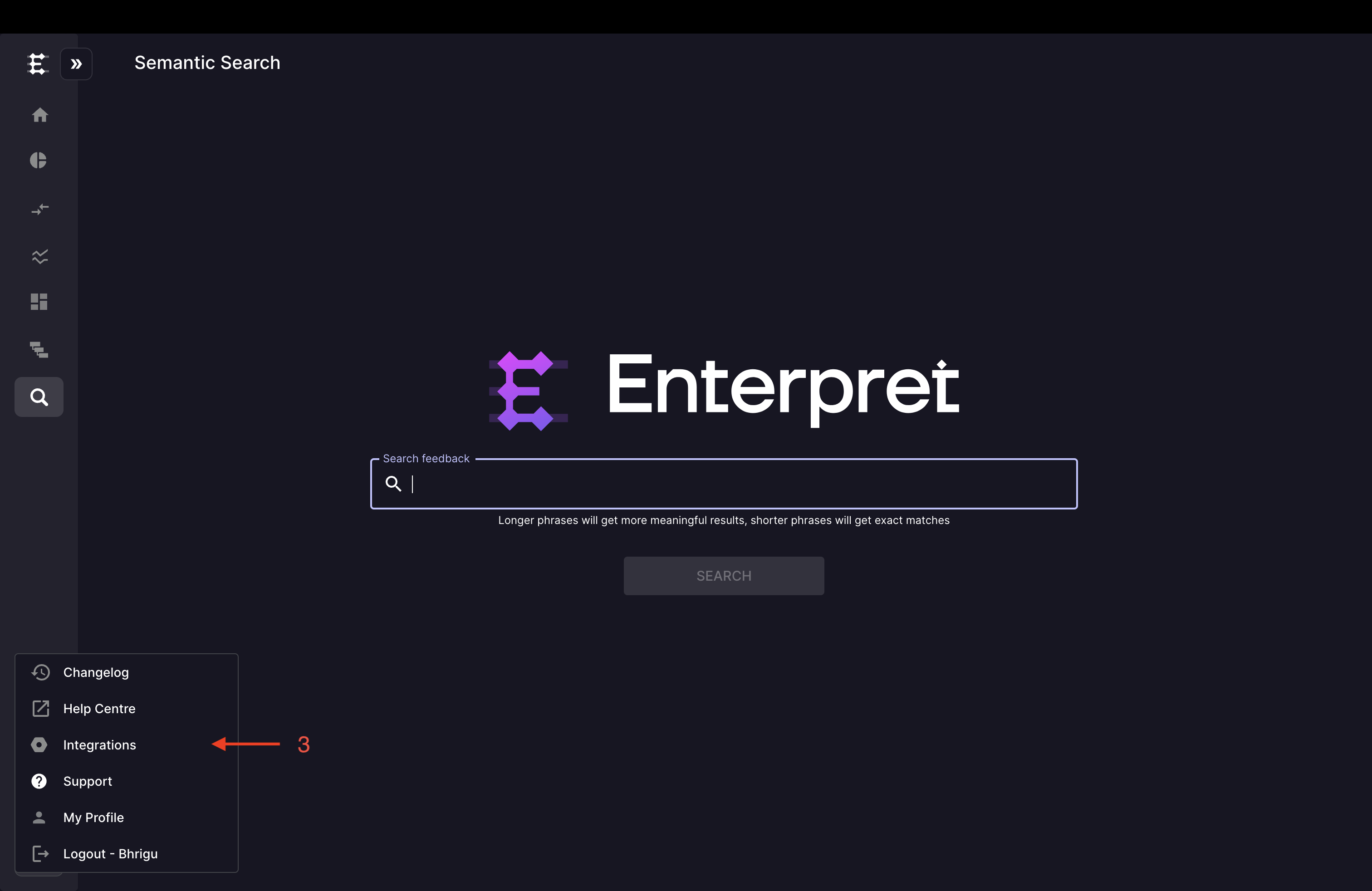
Once you have logged in successfully, locate the "Integrations" option in the left sidebar menu.
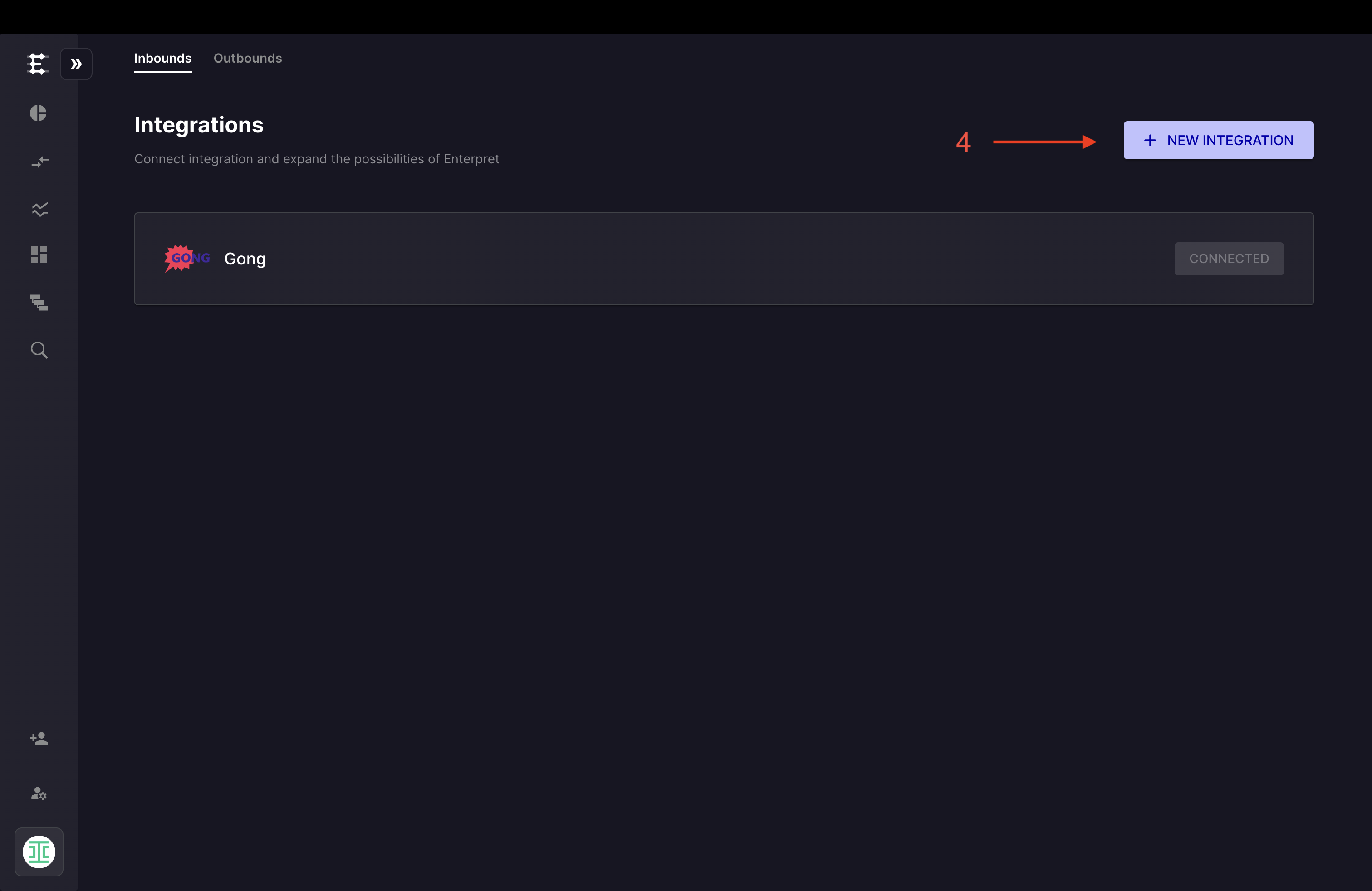
Click on the "+ New Integration" button.
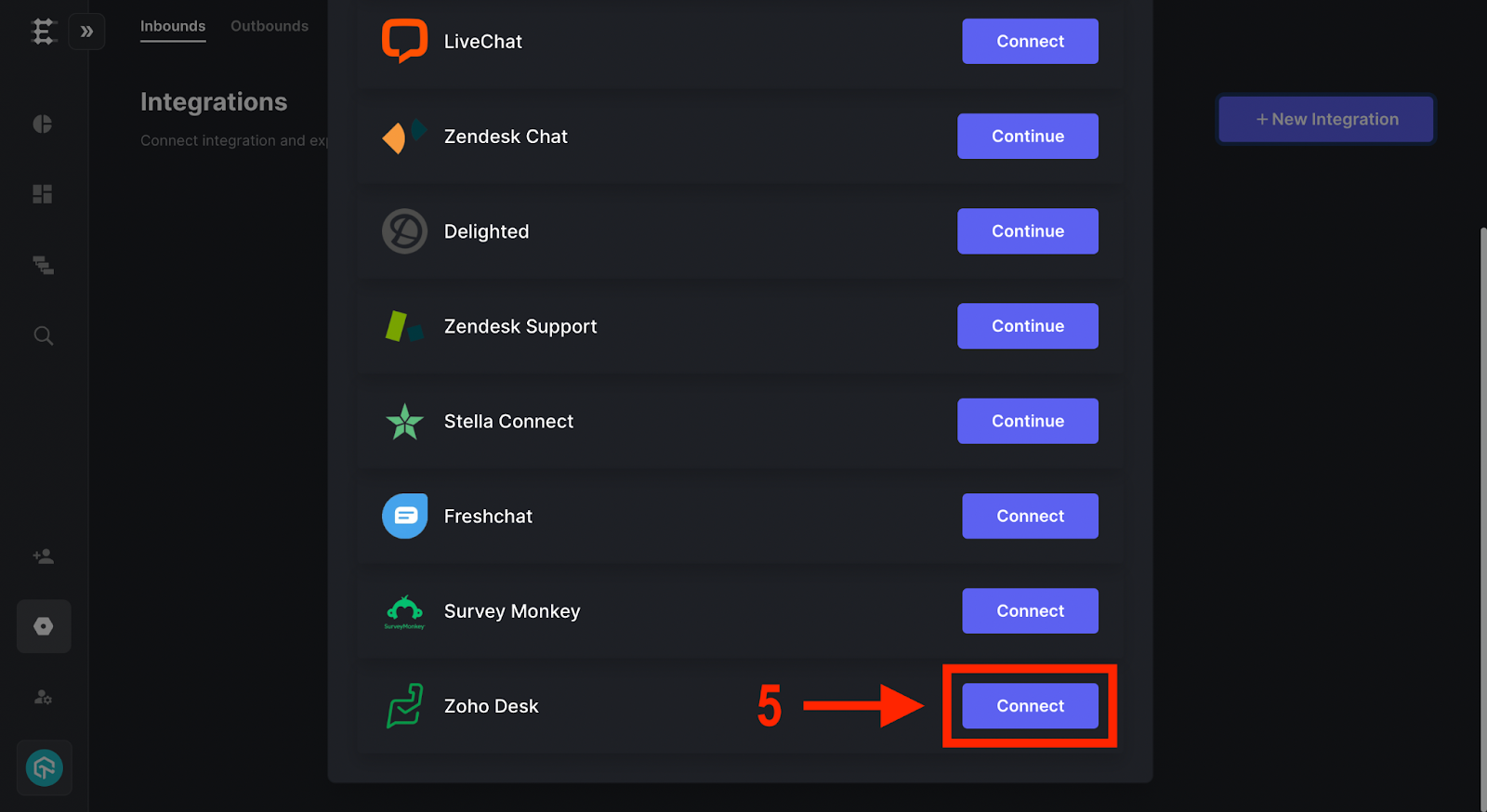
Choose "Zoho Desk" and click Continue or Connect, as shown in your flow. If prompted for a data type, choose Feedback Integration.
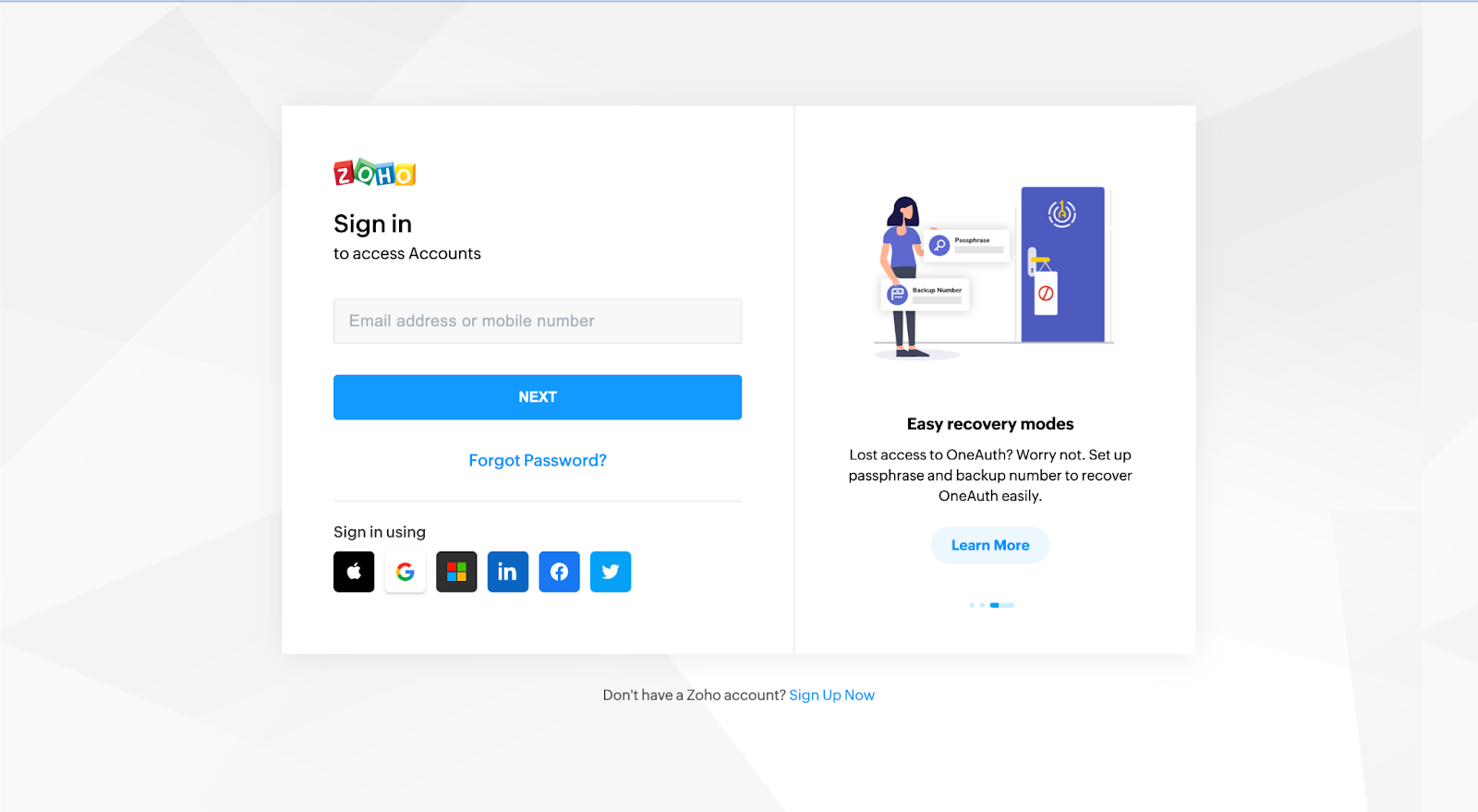
You will be redirected to the Zoho Desk login page. Login using your account credentials.
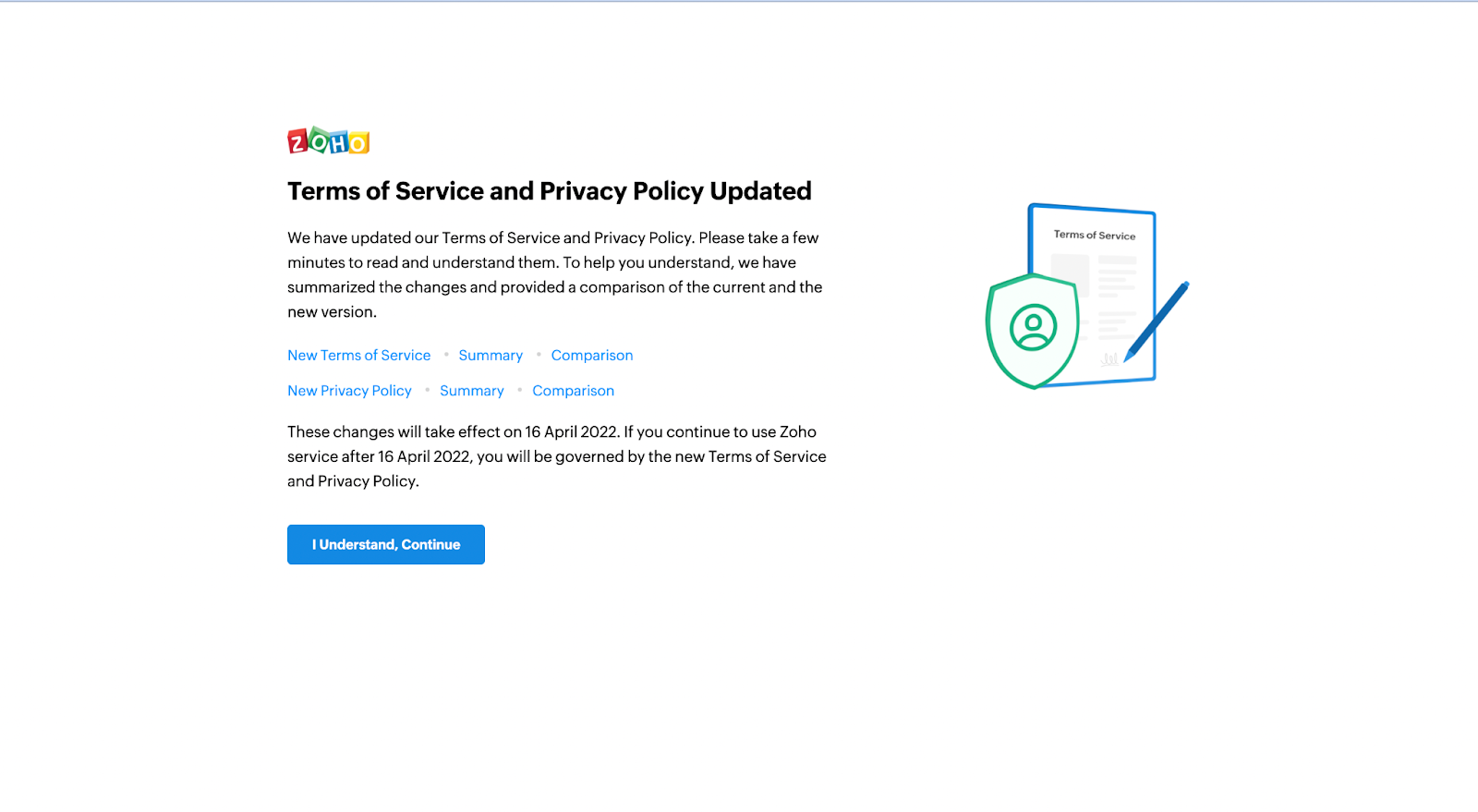
Accept the terms and conditions.
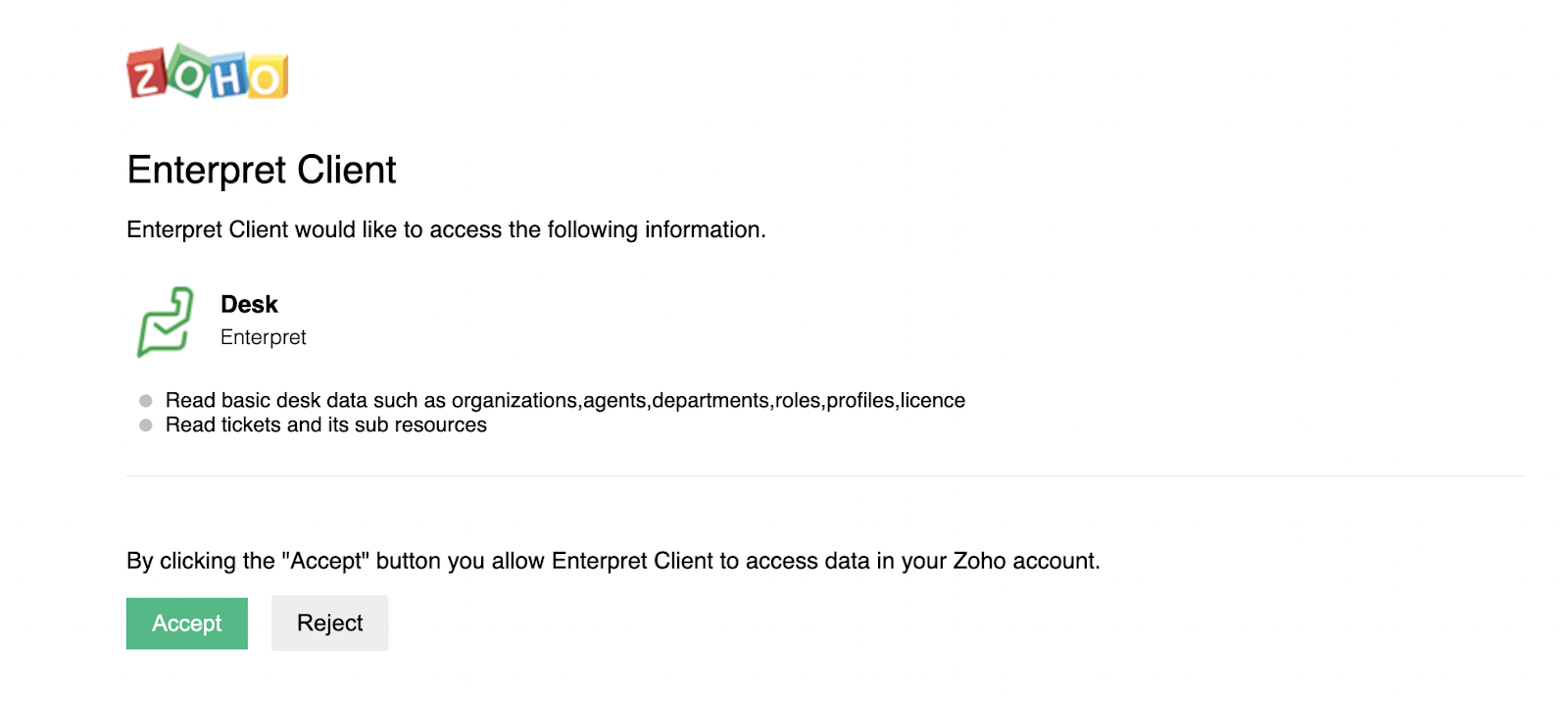
Provide the required permissions to the Enterpret Client by clicking on "Accept".
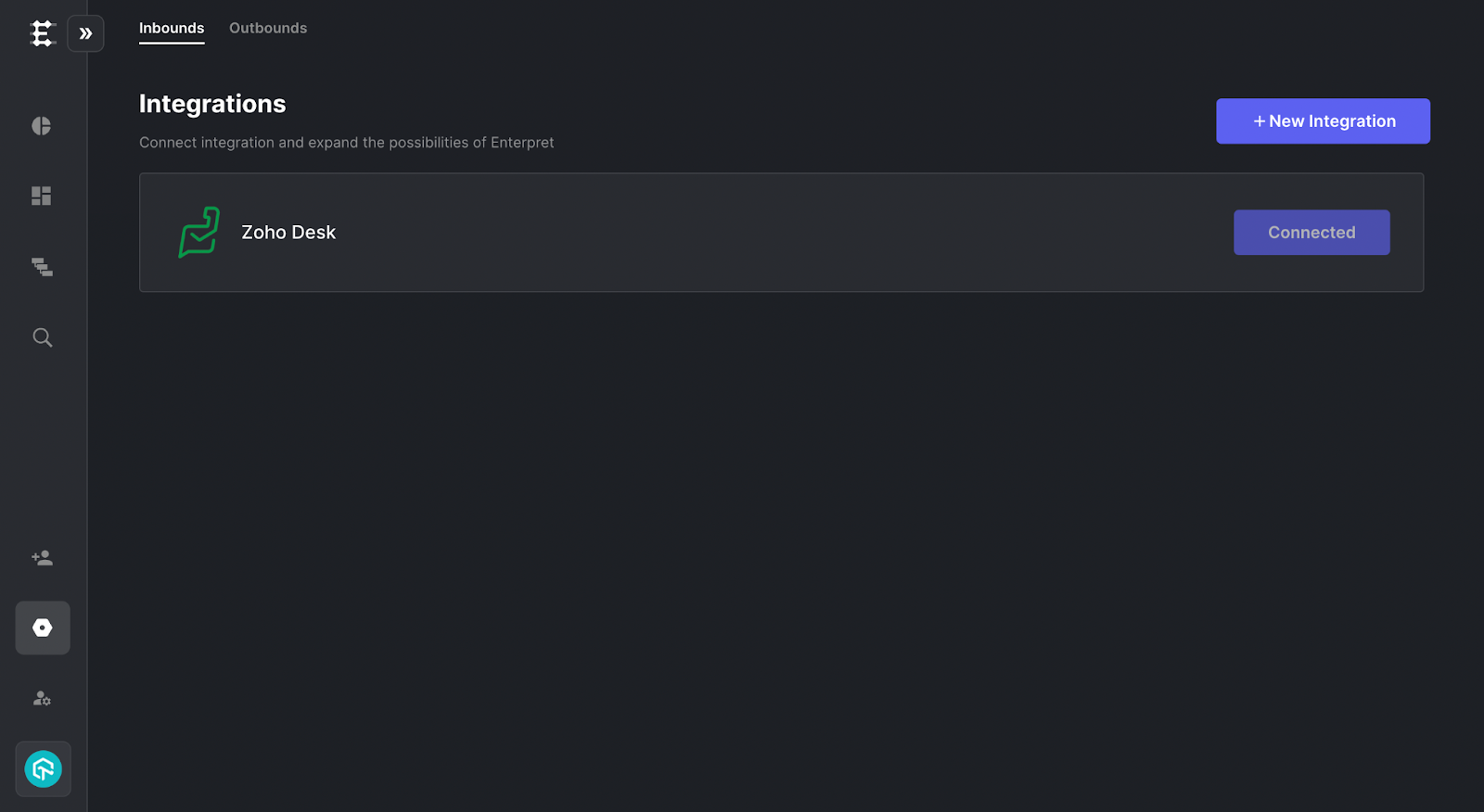
Once the above step succeeds, you would see Zoho Desk as a "Connected" integration in your account.
Analyze this feedback with Enterpret Agent
Once this integration's feedback is available in Enterpret, use Enterpret Agent to investigate themes, summarize customer requests, and prepare reports. Specify this source and the reporting period in your request. For daily reports, weekly digests, and recurring reporting, configure scheduled Agent automations with Slack or email delivery.
This guide covers feedback ingestion. Agent connectors are a separate setup for reading external context or taking supported actions in other tools; connecting a feedback source does not automatically authorize those actions.