Stella Connect
In this article
In this article group
- Amazon Connect
- Apple App Store
- Census Integration
- Connect Plain to Enterpret
- Decagon Integration
- Discord
- Discourse Integration
- Email Integration
- Facebook Pages Integration
- Fathom Integration
- File Upload: CSV data on Enterpret
- Freshchat
- Freshdesk
- Front
- G2
- Gainsight Communities Integration
- GitHub Issues Integration
- Gong Integration
- Google My Business Integration
- Google Play Store
- Grain
- Granola Integration
- Import HubSpot feedback
- Instagram Comments Integration
- Intercom
- Kustomer
- Livechat Integration
- SurveyMonkey
- Pylon integration
- Qualtrics
- Refiner Integration
- Salesforce
- SFTP Integration
- Slack feedback ingestion: setup and troubleshooting
- Snowflake
- Sprig Integration
- TikTok Integration
- Trustpilot Integration
- Typeform
- X (formerly Twitter) Integration
- Connect YouTube videos and comments
- Zendesk Chat
- Zendesk Support
- Import Zoho Desk support tickets
- Zoom Integration
- Zapier Integration
- Reddit Search (UGC)
- Wispr Flow integration
Overview
Stella Connect's integration enables Enterpret to directly ingest survey responses from Stella Connect into your data pipeline. This allows you to quantify and analyze both quantitative and qualitative feedback at scale.
We require both an API key and API secret to fetch data through the API. The current default polling interval is 4 hours. Your integration may use a different configured schedule, including an older interval. Contact your Enterpret team to confirm the schedule for your connection.
Polling schedules periodic checks for eligible source data. Data becomes available for analysis after fetching and processing; the polling interval does not guarantee when a particular record or the first import will appear.
Fetches use response-time windows and source availability. A survey being sent does not by itself mean its response is ready to appear in Enterpret.
Configure
Step 1: Enable Stella Connect API
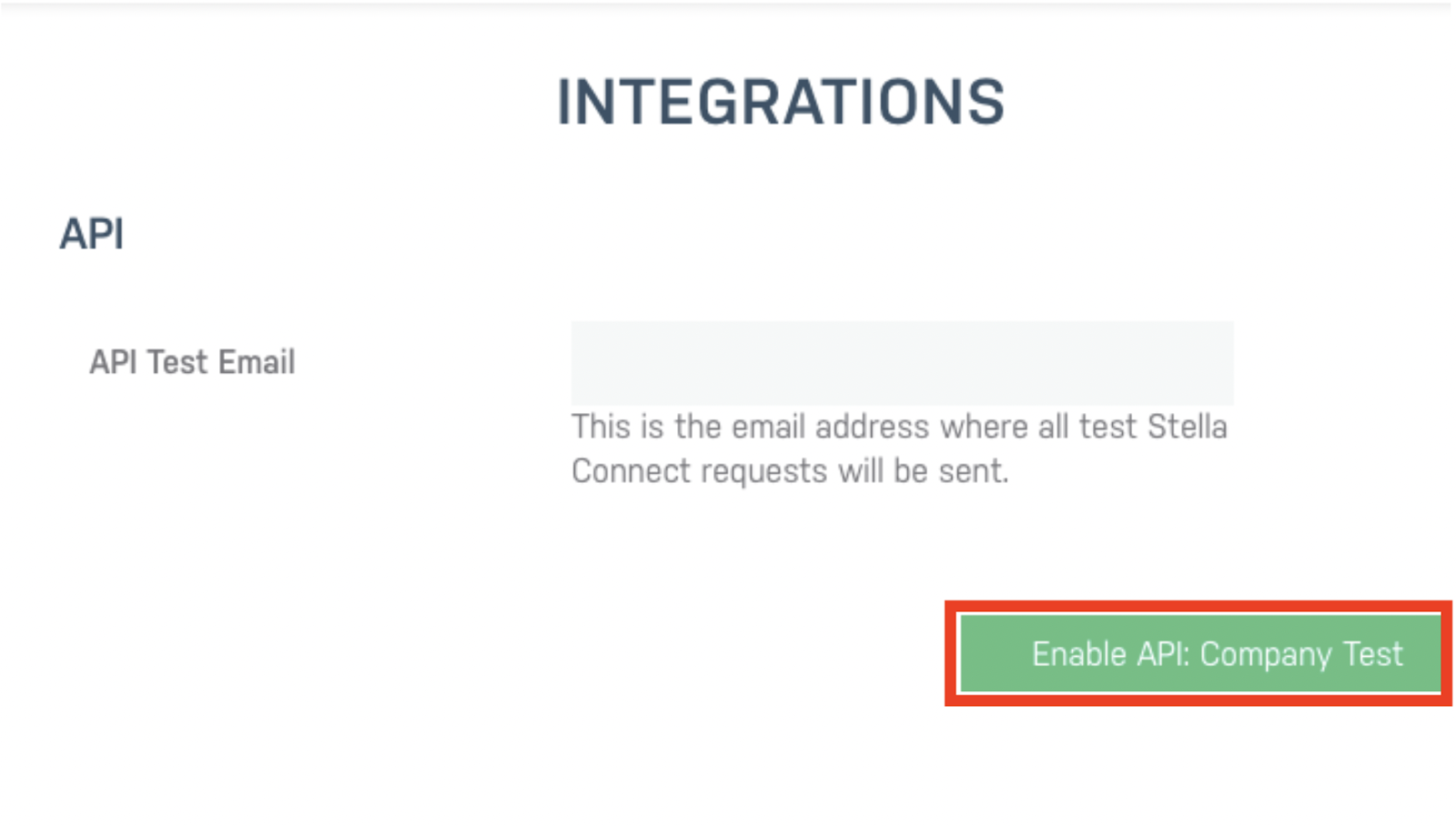
Enterpret needs access to your Stella Connect account. You must enable the API within Stella Connect to proceed.
In Stella Connect, open the API or integration settings available to your account. The screenshots below illustrate an older setup and labels may differ.
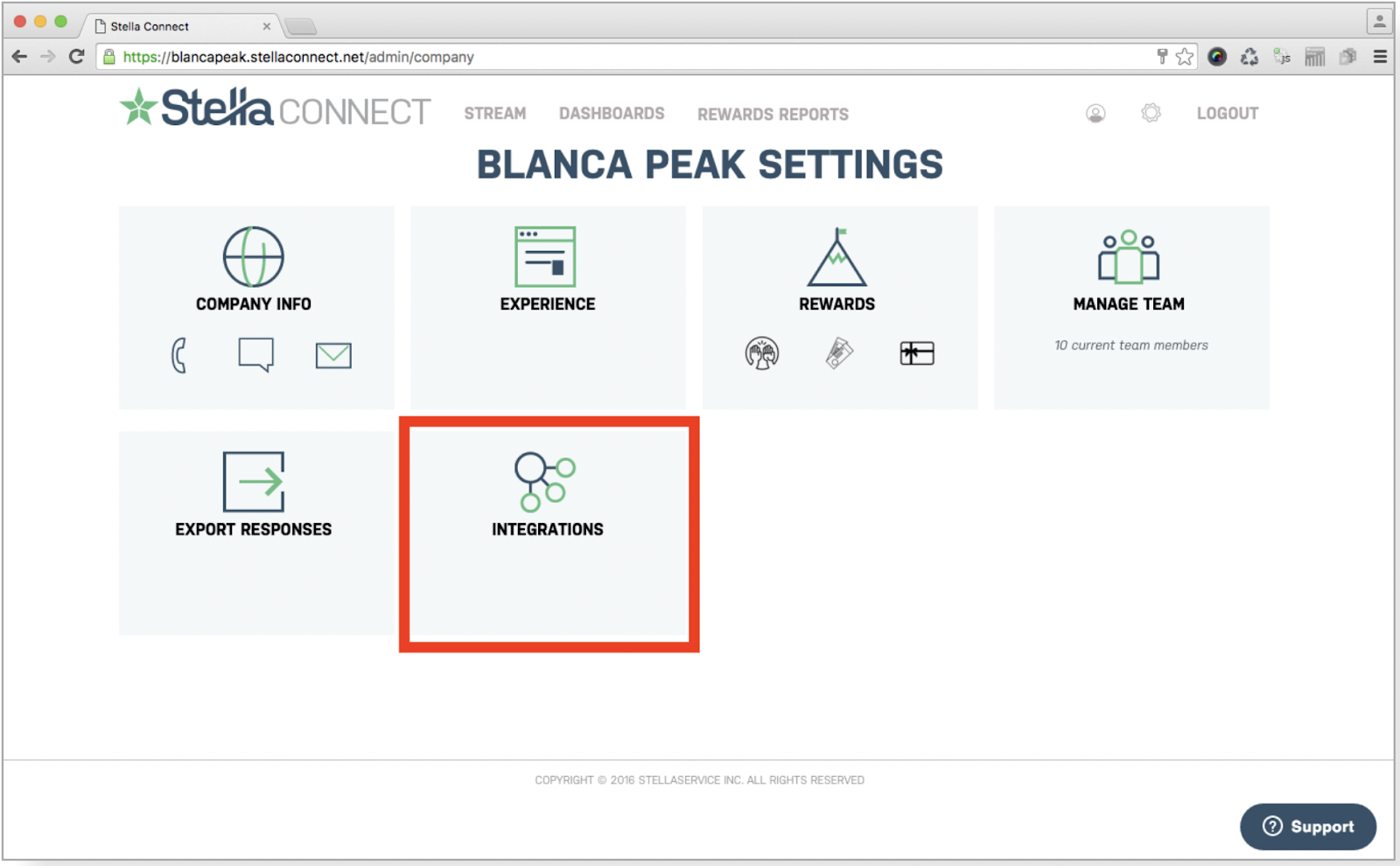
Enable the applicable API access if your account offers that control, and obtain the API key and secret required by Enterpret. Contact your Stella administrator if API access is unavailable.
Step 2: Download API Credentials
To use Stella Connect's Data Return API, you will need:
Your company's production API key. This is the same API key used for the Request API, available to your Stella Connect Administrator via the Integrations page
Your company's API secret. This is also available to your Administrator, from the Integrations page
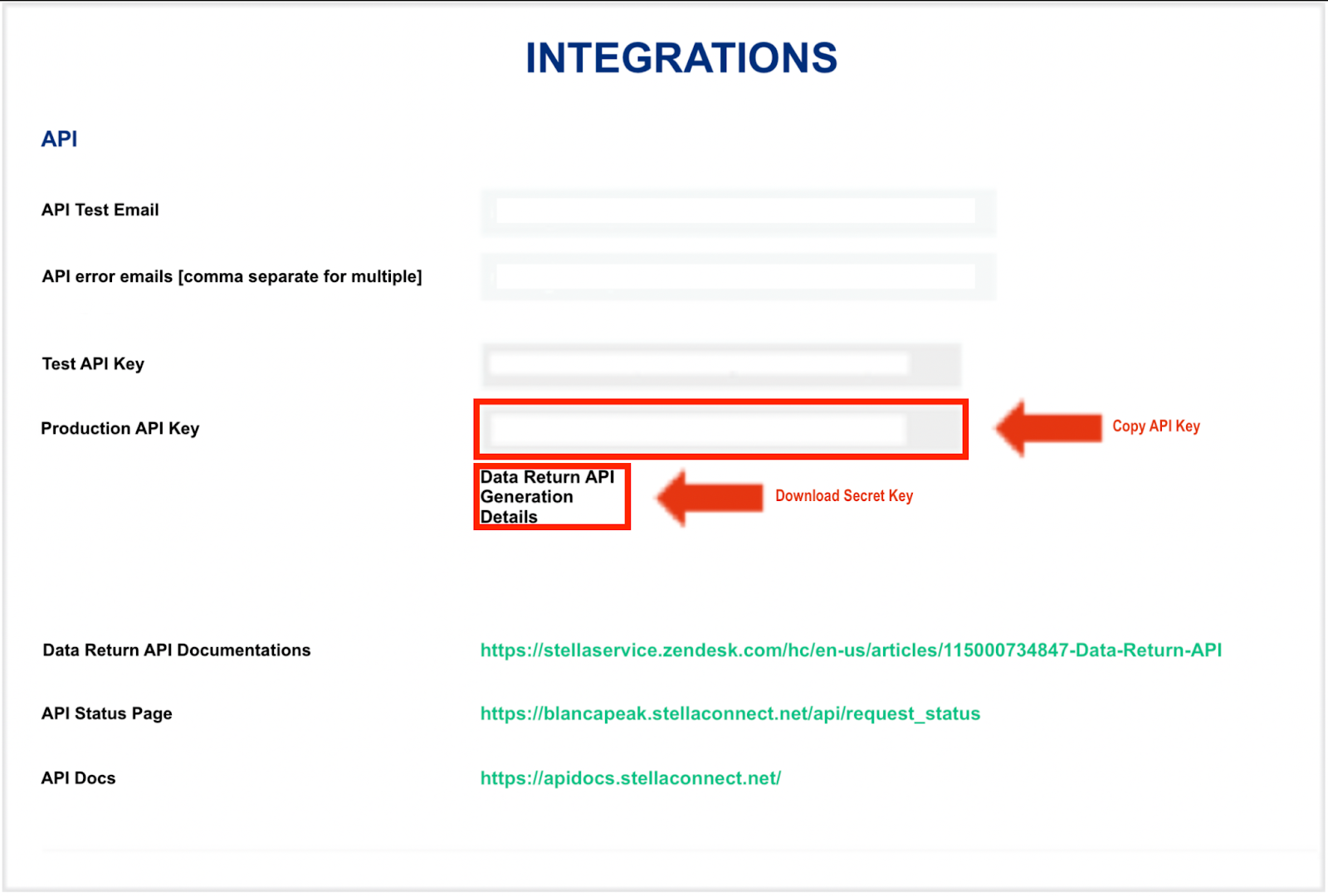
Copy and temporarily save the API key. Download the API secret file and keep it secure.
Step 3: Access Stella Connect
Click "Sign in with Google" and log in with your work email
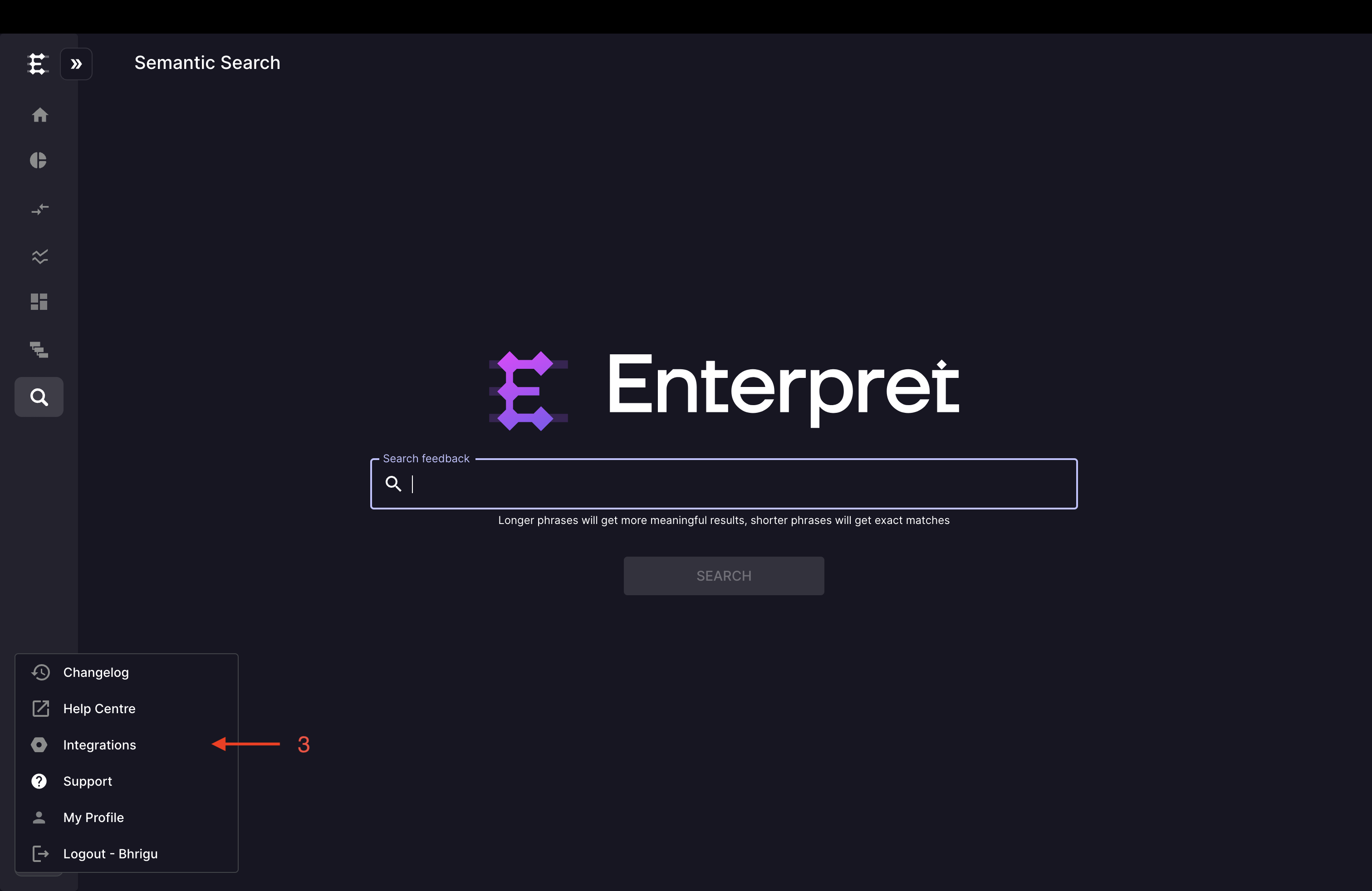
Click the logo icon on the left sidebar to open the integrations menu
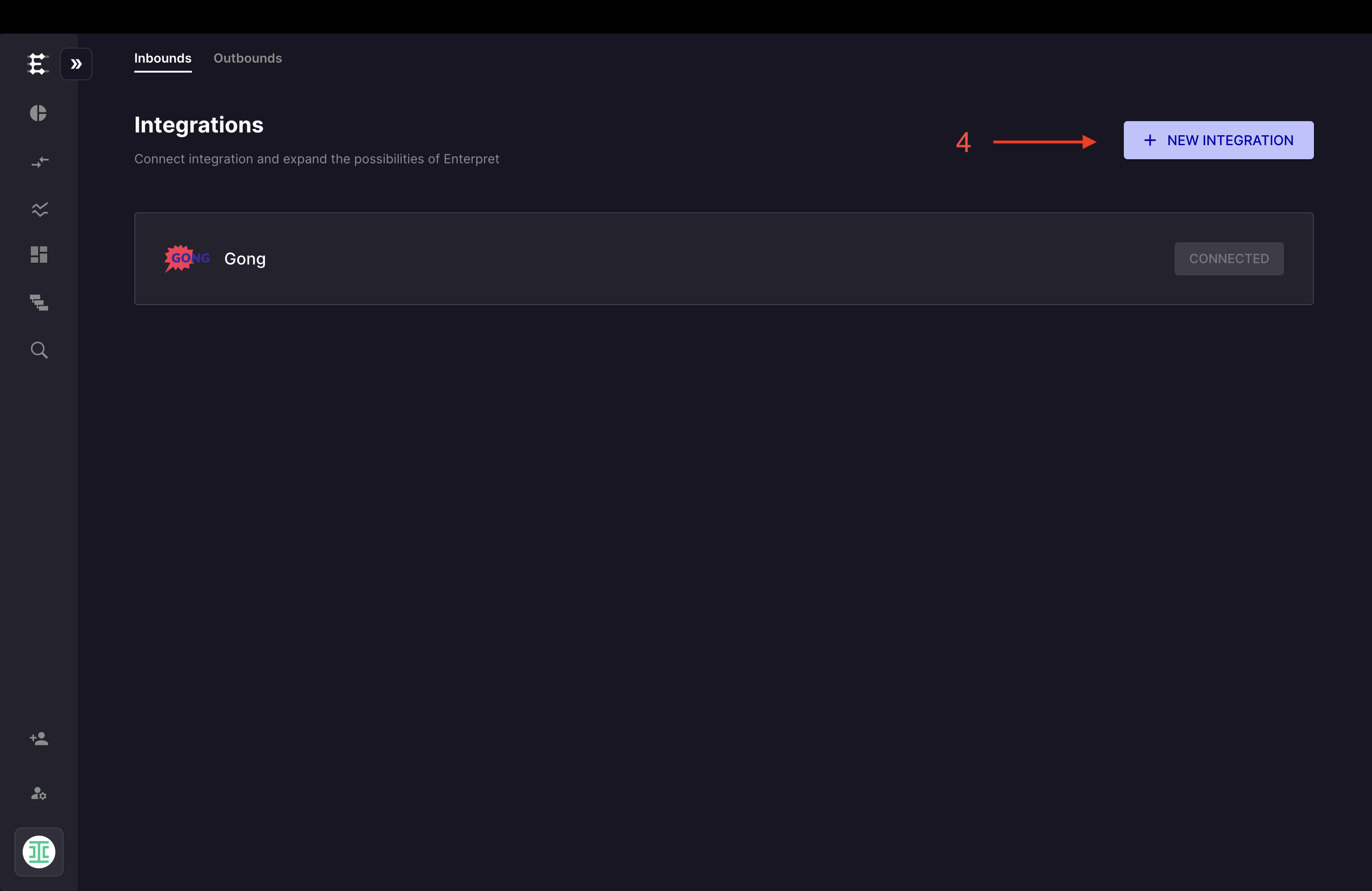
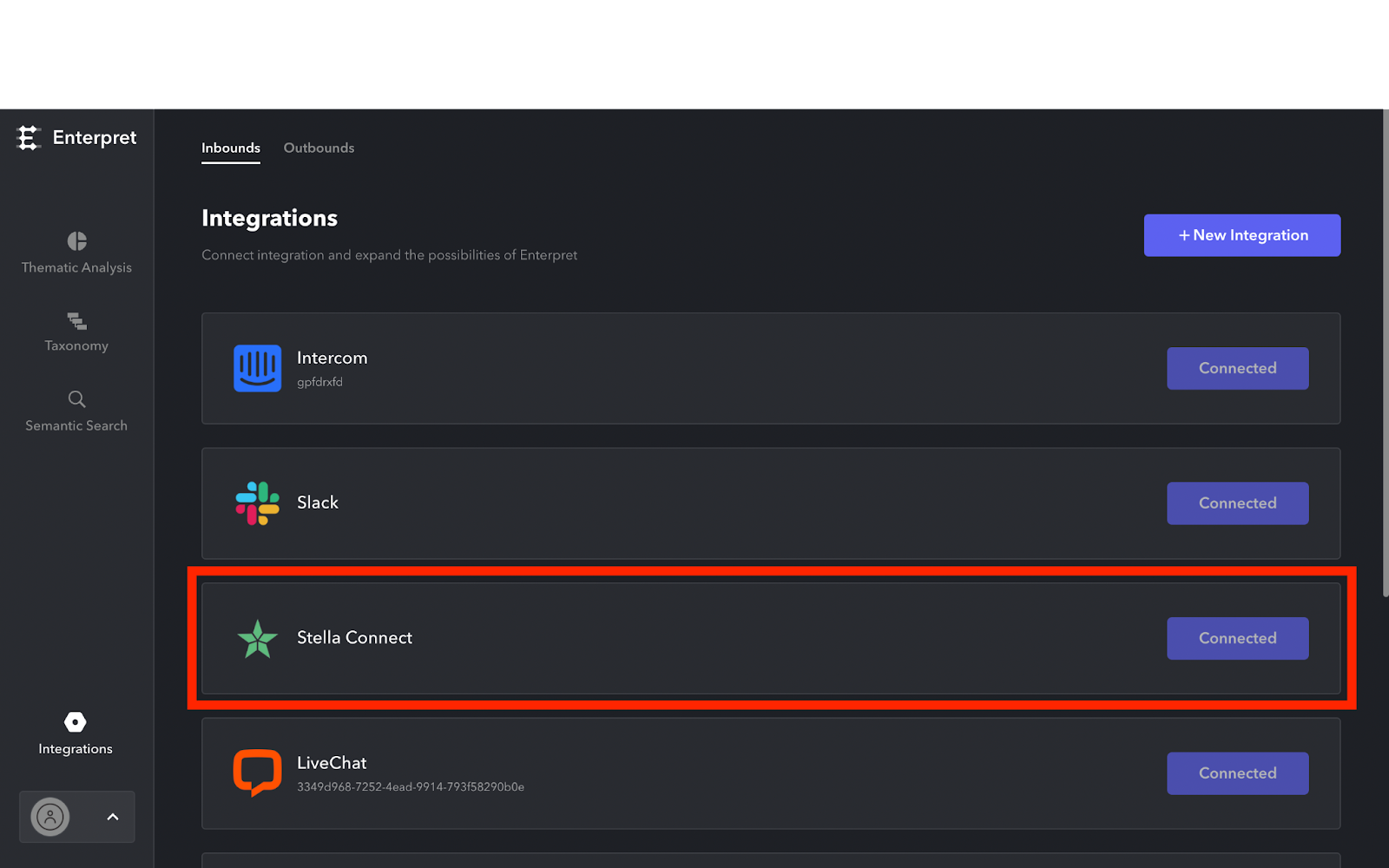
Select Integrations from the menu
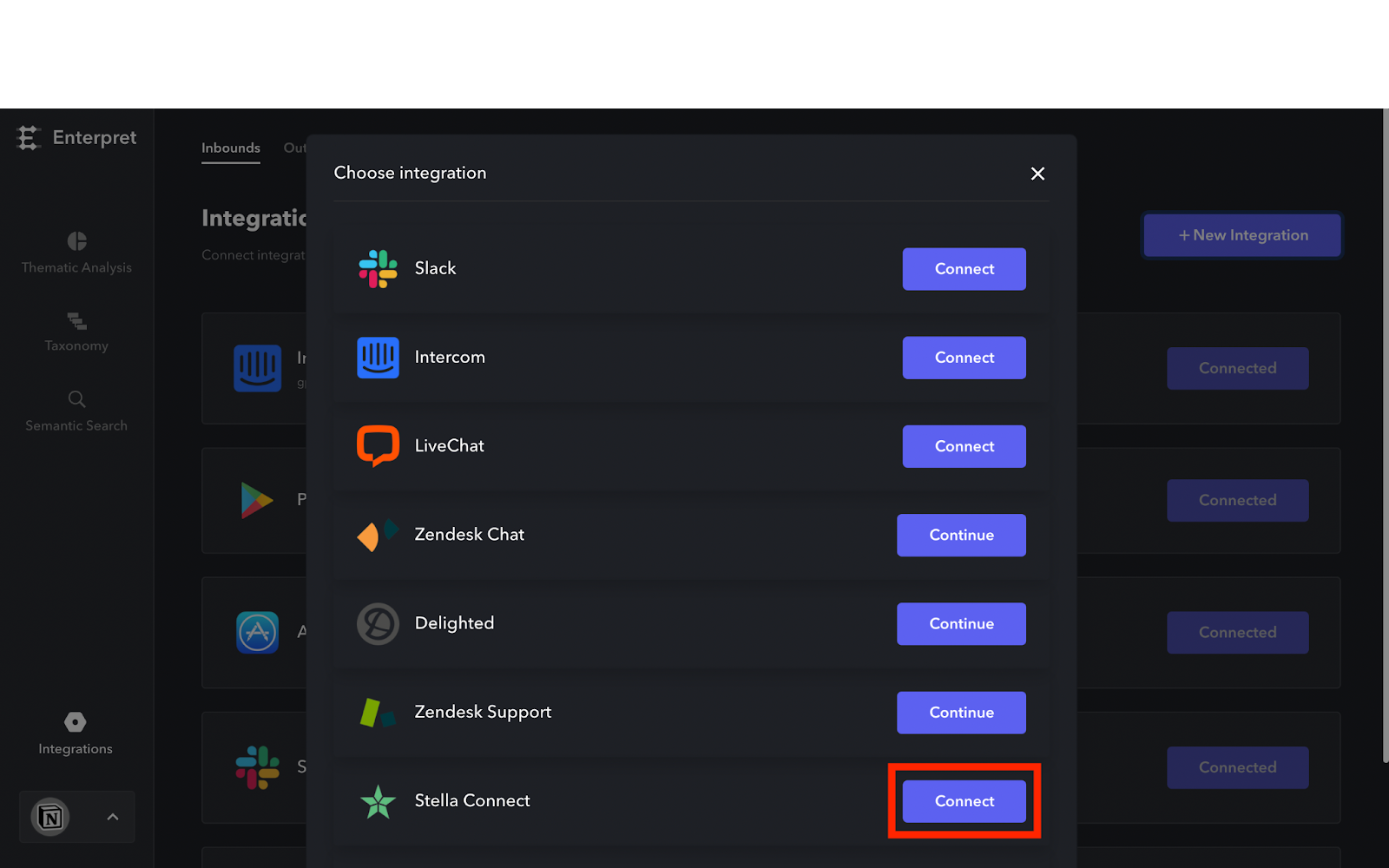
Click the + New Integration button
Select Stella Connect from the available options
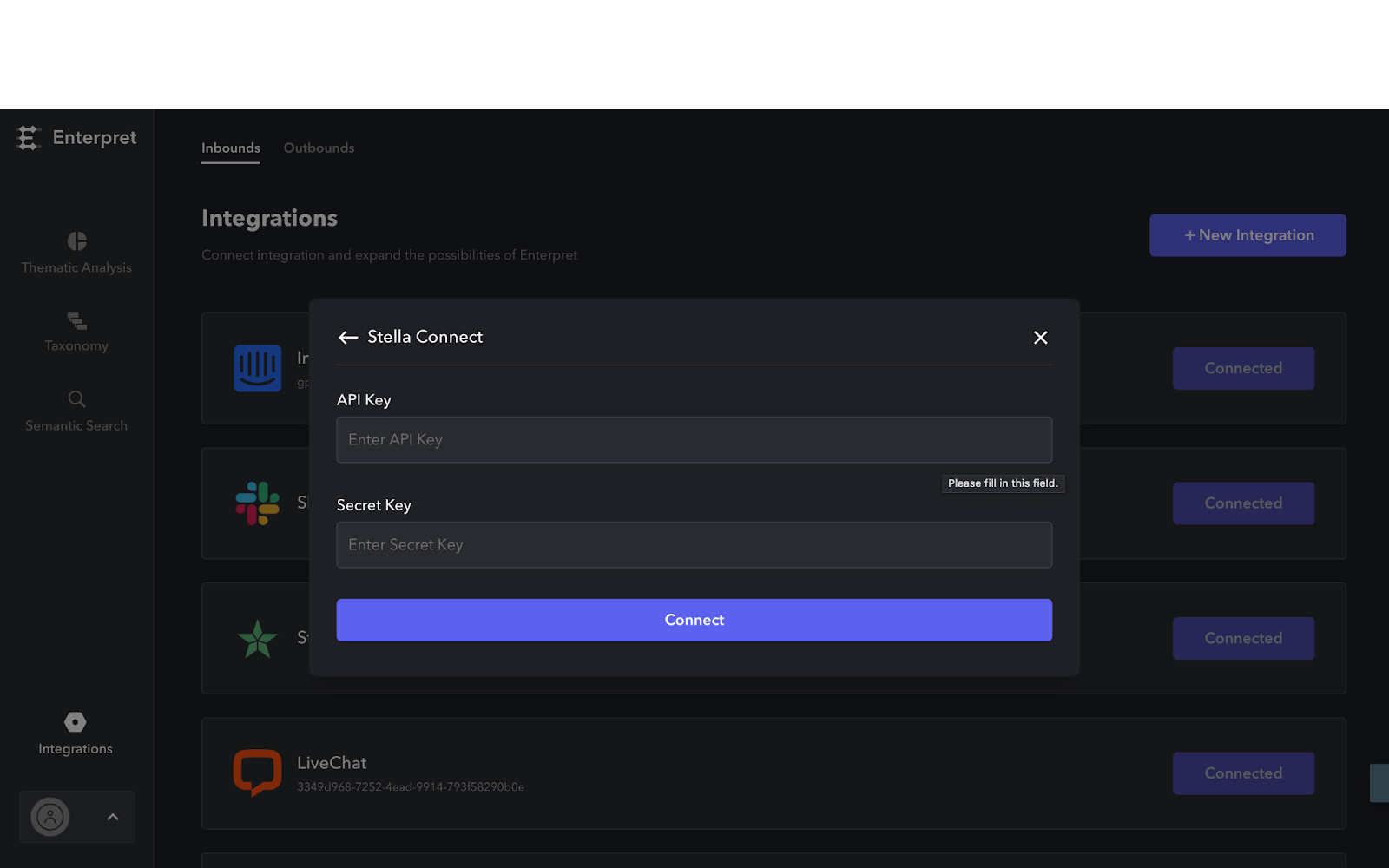
Fill in the following details:
Stella Connect API Key: The key you copied in Step 2
Stella Connect API Secret: The secret you downloaded in Step 2
Enter the API Key and Secret Key requested by the form, then complete the feedback description if prompted.
Complete the credential form and click Integrate.
After setup, review the Stella Connect integration’s displayed status and resolve any setup or access errors. Feedback appears after eligible source data has been fetched and processed.