
Qualtrics
In this article
In this article group
- Amazon Connect
- Apple App Store
- Census Integration
- Connect Plain to Enterpret
- Decagon Integration
- Discord
- Discourse Integration
- Email Integration
- Facebook Pages Integration
- Fathom Integration
- File Upload: CSV data on Enterpret
- Freshchat
- Freshdesk
- Front
- G2
- Gainsight Communities Integration
- GitHub Issues Integration
- Gong Integration
- Google My Business Integration
- Google Play Store
- Grain
- Granola Integration
- Import HubSpot feedback
- Instagram Comments Integration
- Intercom
- Kustomer
- Livechat Integration
- Momentive (Formerly Survey Monkey)
- Pylon integration
- Refiner Integration
- Salesforce
- SFTP Integration
- Slack feedback ingestion: setup and troubleshooting
- Snowflake
- Sprig Integration
- Stella Connect
- TikTok Integration
- Trustpilot Integration
- Typeform
- X (formerly Twitter) Integration
- Connect YouTube videos and comments
- Zendesk Chat
- Zendesk Support
- Import Zoho Desk support tickets
- Zoom Integration
- Zapier Integration
- Reddit Search (UGC)
- Wispr Flow integration
Overview
Enterpret's integration for Qualtrics allows users to natively integrate customer survey responses directly into Enterpret's data pipeline.
We require the following details to kick start your Integration:
Qualtrics Data Center ID
Qualtrics Client ID
Qualtrics Client Secret
Qualtrics Integration vs. Delighted: Delighted was a separate survey product under Qualtrics ownership. Its final sunset date was June 30, 2026, and customer access ended on July 1, 2026. See the official Delighted Sunset FAQ for details.
Configuration on Qualtrics
Find your Qualtrics Data Centre ID
Login to your Qualtrics Account and go to Account Setting on top right of your console.
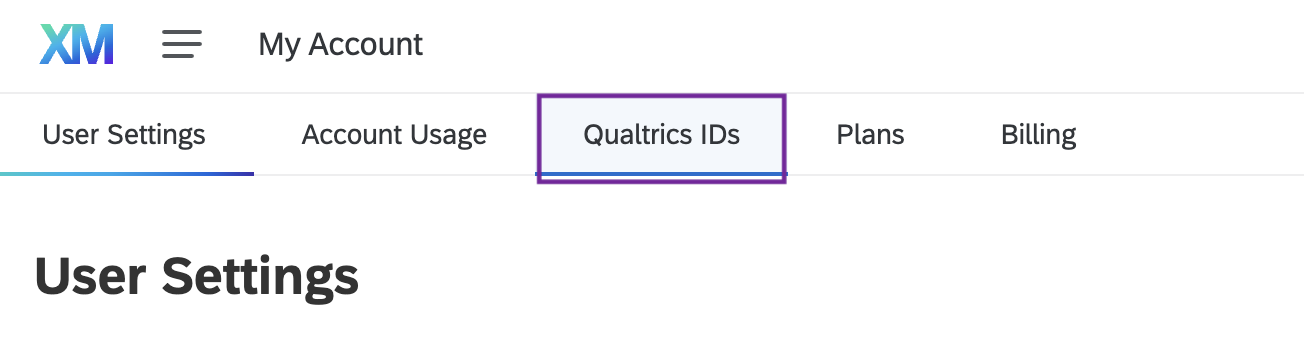
Go to Qualtrics IDs tab
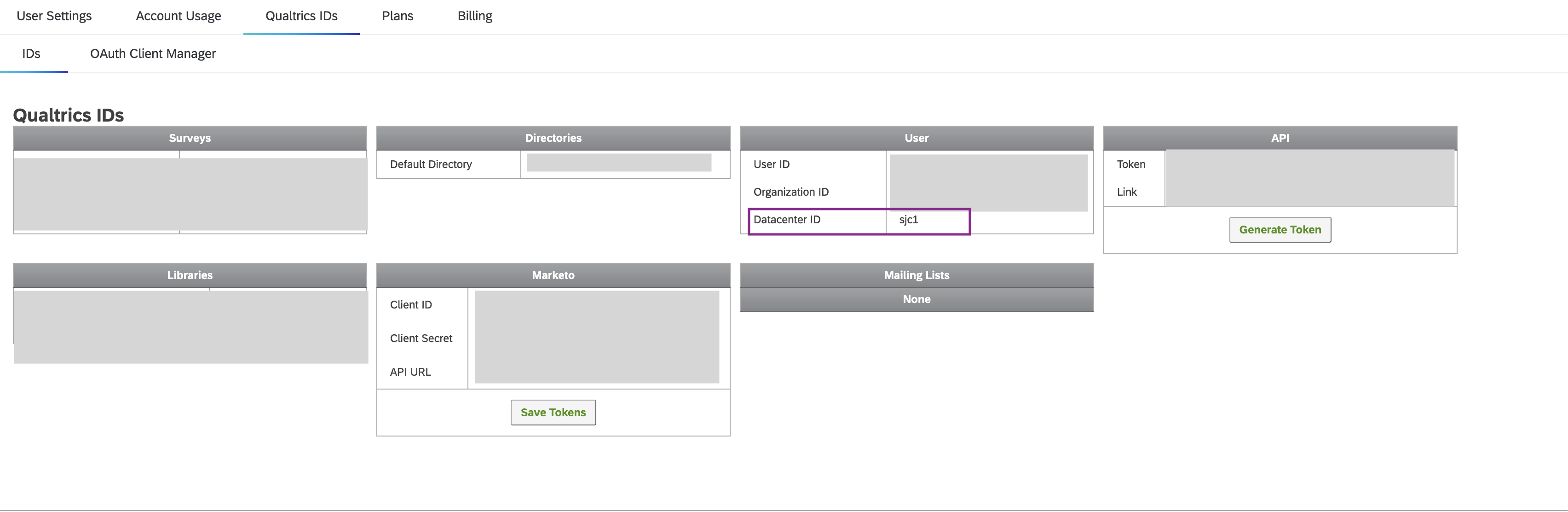
In the ID tab, look for the User section. This section would have Datacenter ID. The value of Datacenter ID is of the format - abc1.

Create your Client ID and Client Secret
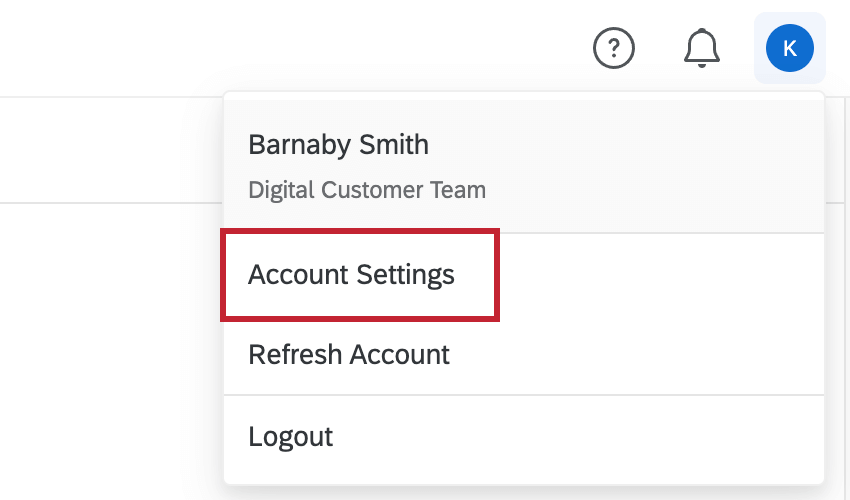
Click the user settings icon in the top right hand corner of your Qualtrics account.
Select Account Settings.
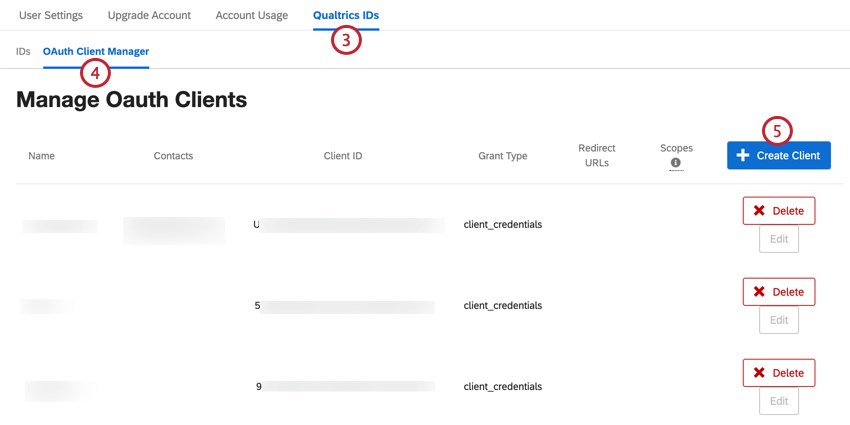
Navigate to Qualtrics IDs.
Choose OAuth Client Manager.
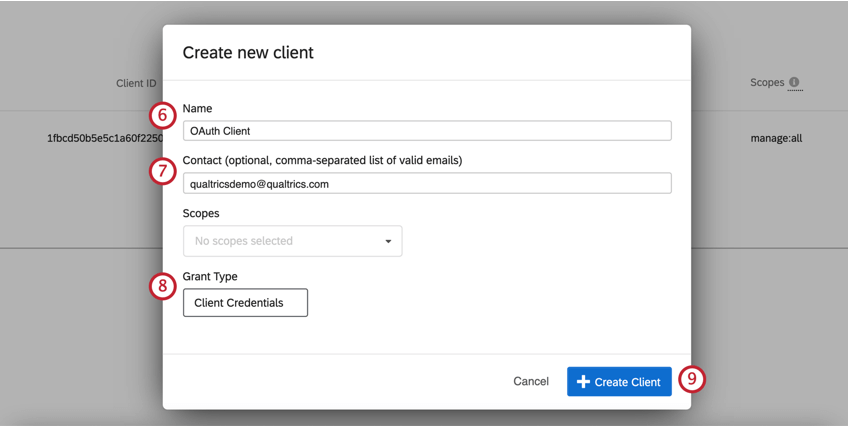
Click Create Client.
Enter a client name. This can be "Enterpret Integration"
If desired, enter a contact email address.
Choose the following scopes:read:survey_responsesread:surveysread:survey_sessions
We require read only permissions to access your survey data.For Grant Type, choose Authorization Code
ADD the REDIRECT URL as:https://dashboard.enterpret.com/settings/integrationsClick Create Client.
Write down the Client ID and Client Secret and store them in a secure location.
NOTE: Client Secret cannot be retrieved once you exit this window, please store them or you would need to create a new Client.
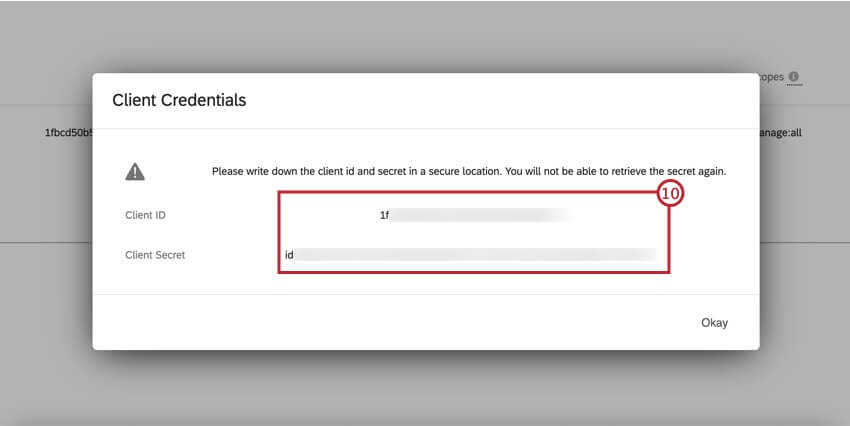
Using Client ID, Client Secret and Data Center ID, you can setup your Enterpret Integration.
Configuration on Enterpret
Click on "Sign in with Google" and log in with your work email
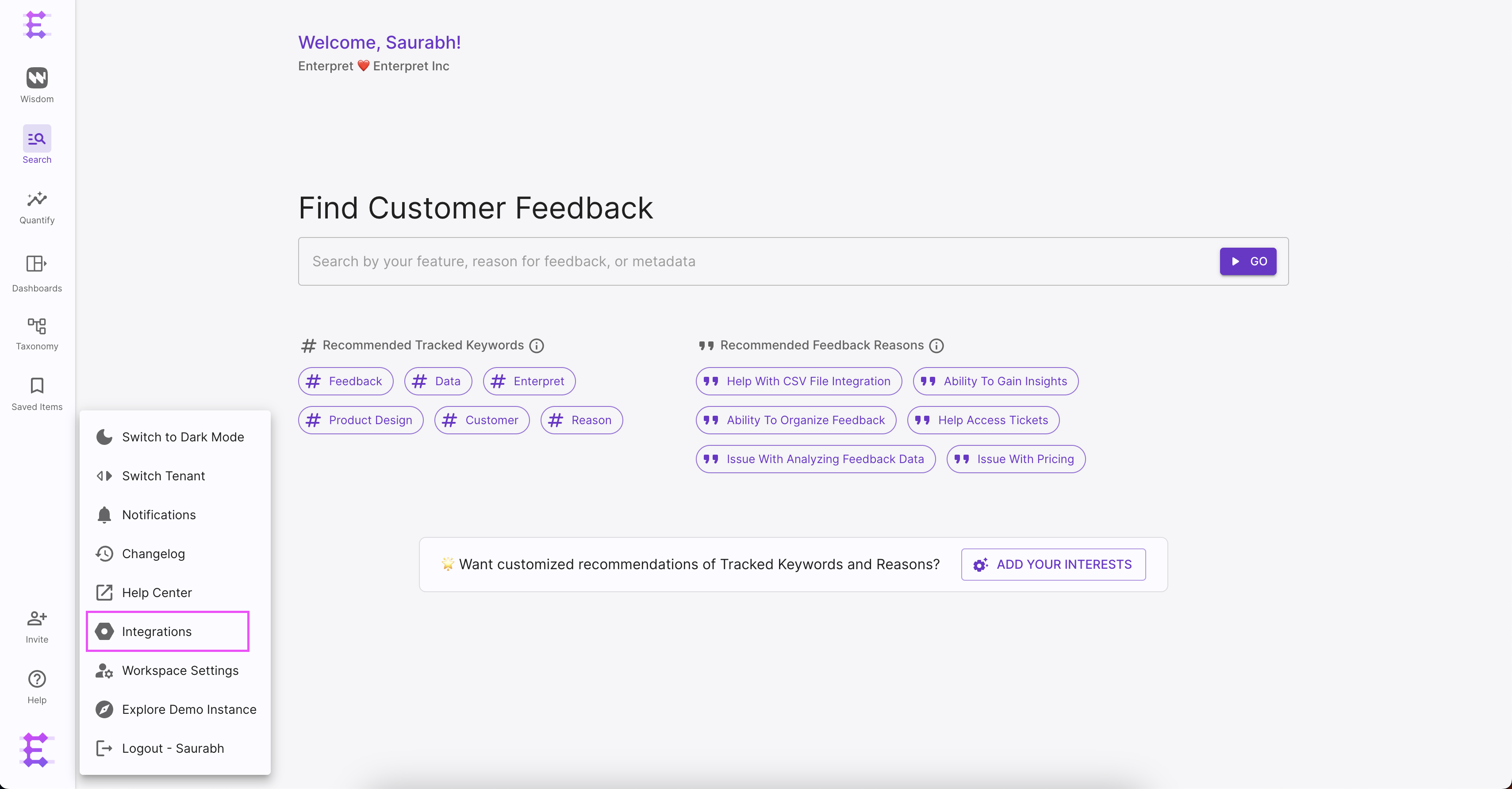
Once you have logged in successfully, navigate to integrations by selecting 'Integrations' under profile.
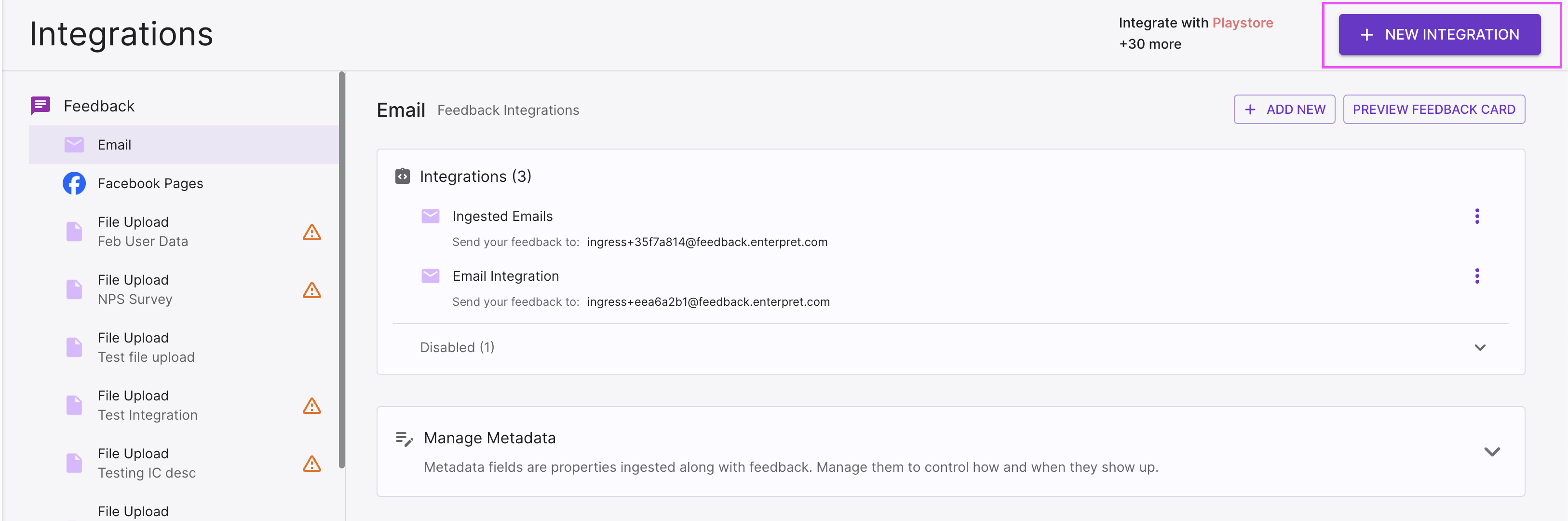
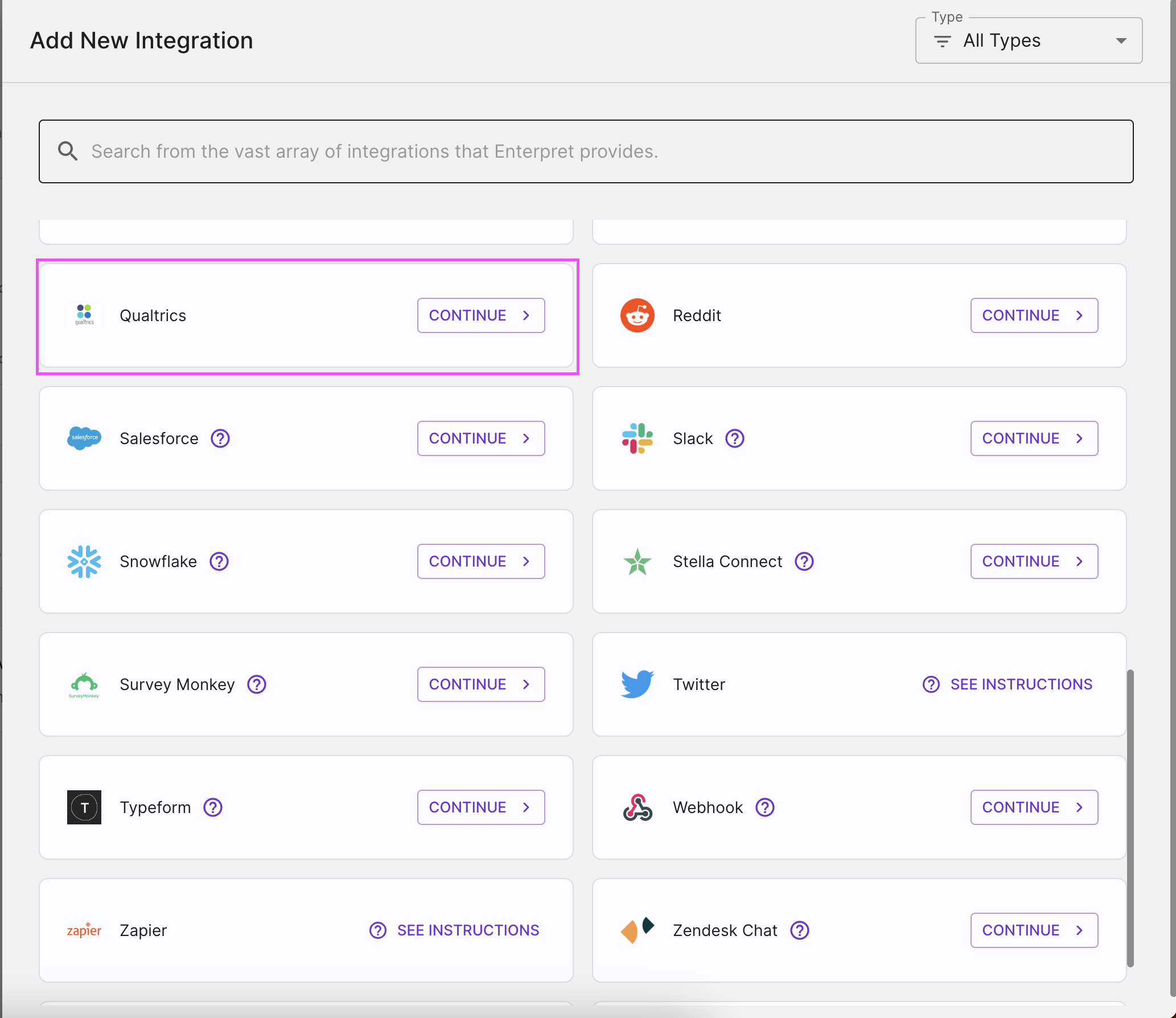
Click on the "+ New Integration" button.
Choose "Qualtrics" from the presented options, by clicking the "Continue" button in front of it.
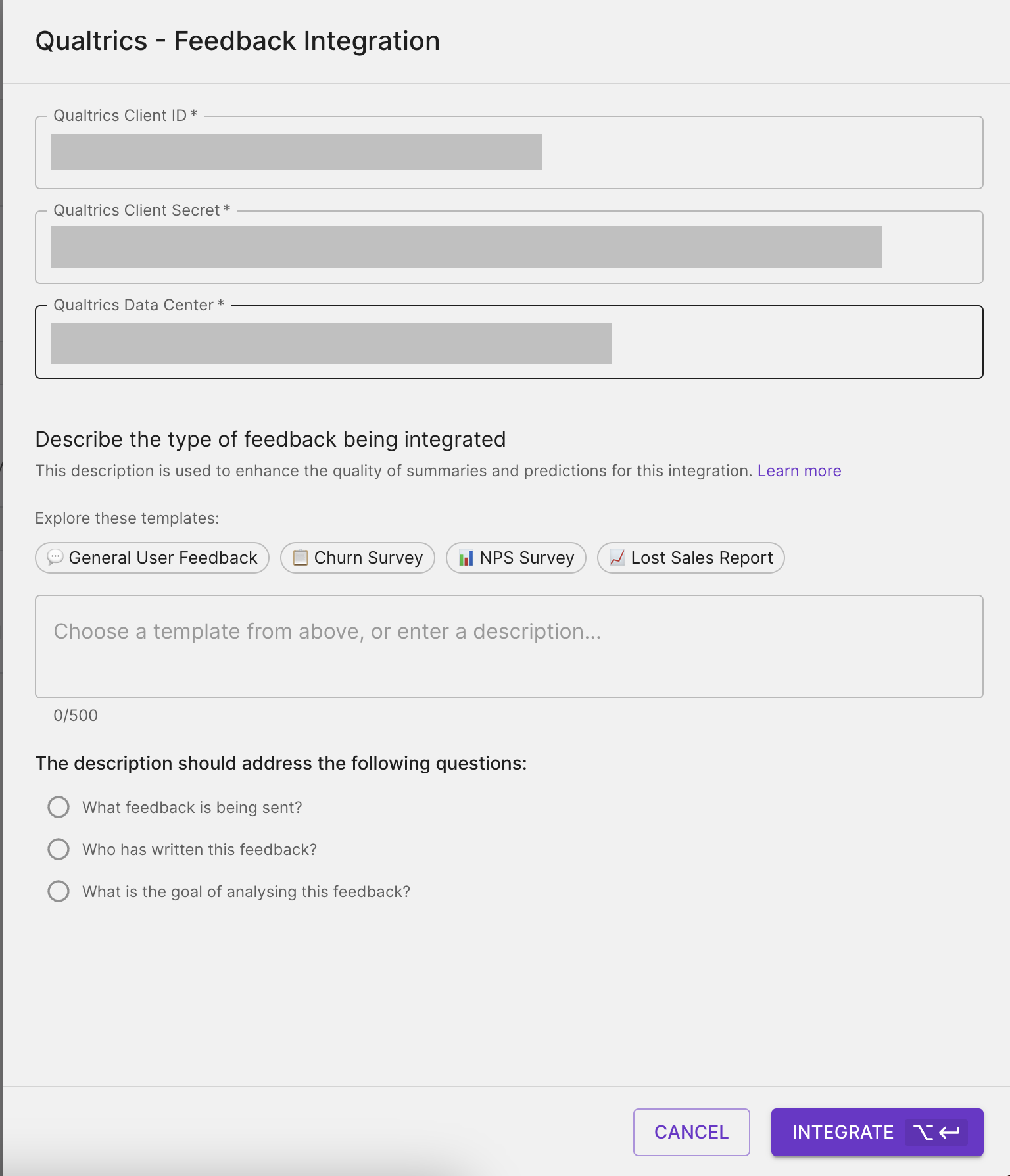
Provide Client ID, Client Secret (obtained above in Configuration on Qualtrics section), and select Data Center location. Click on INTEGRATE.
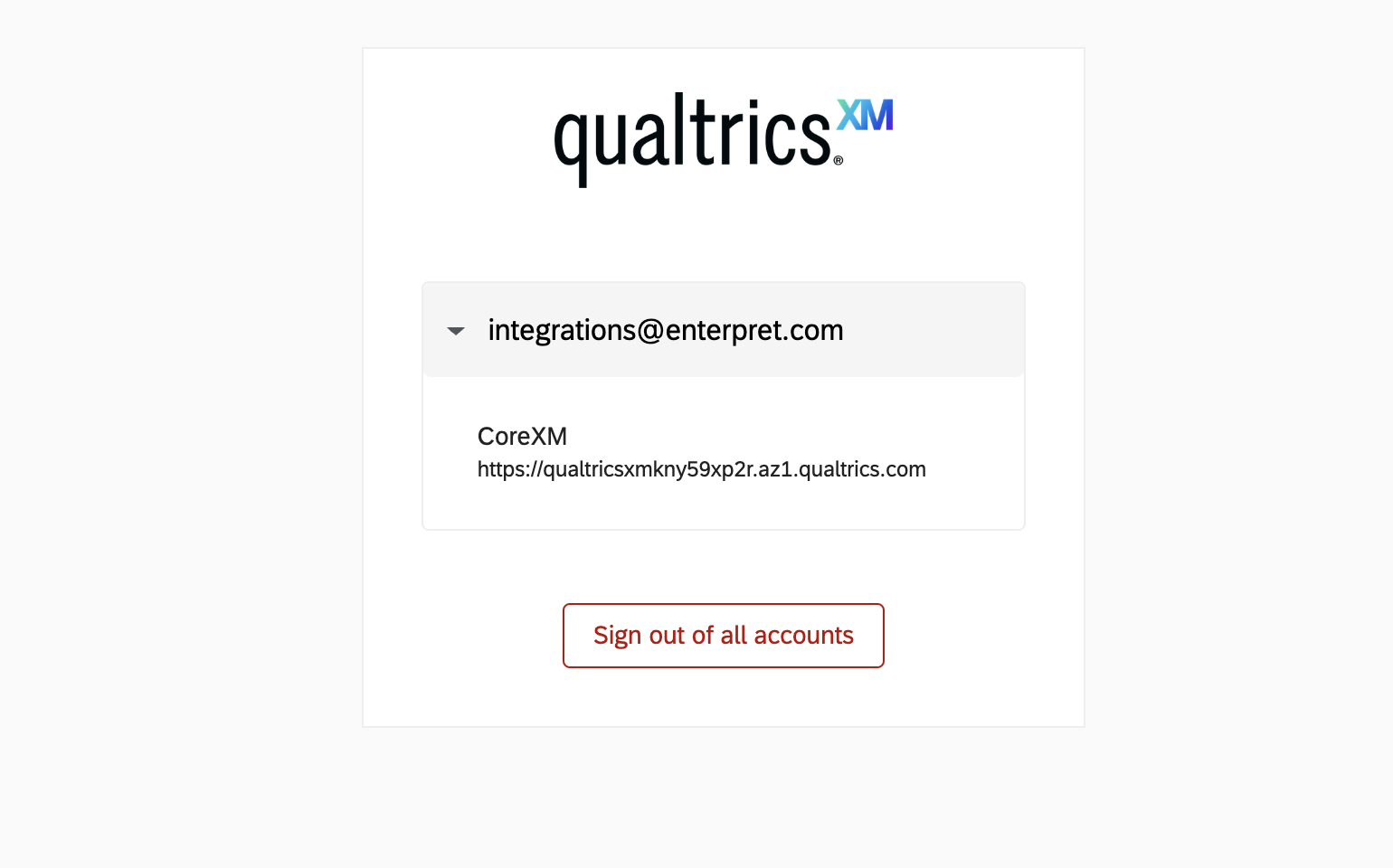
You will be redirected to the Qualtrics login page. Login using your Qualtrics account credentials.
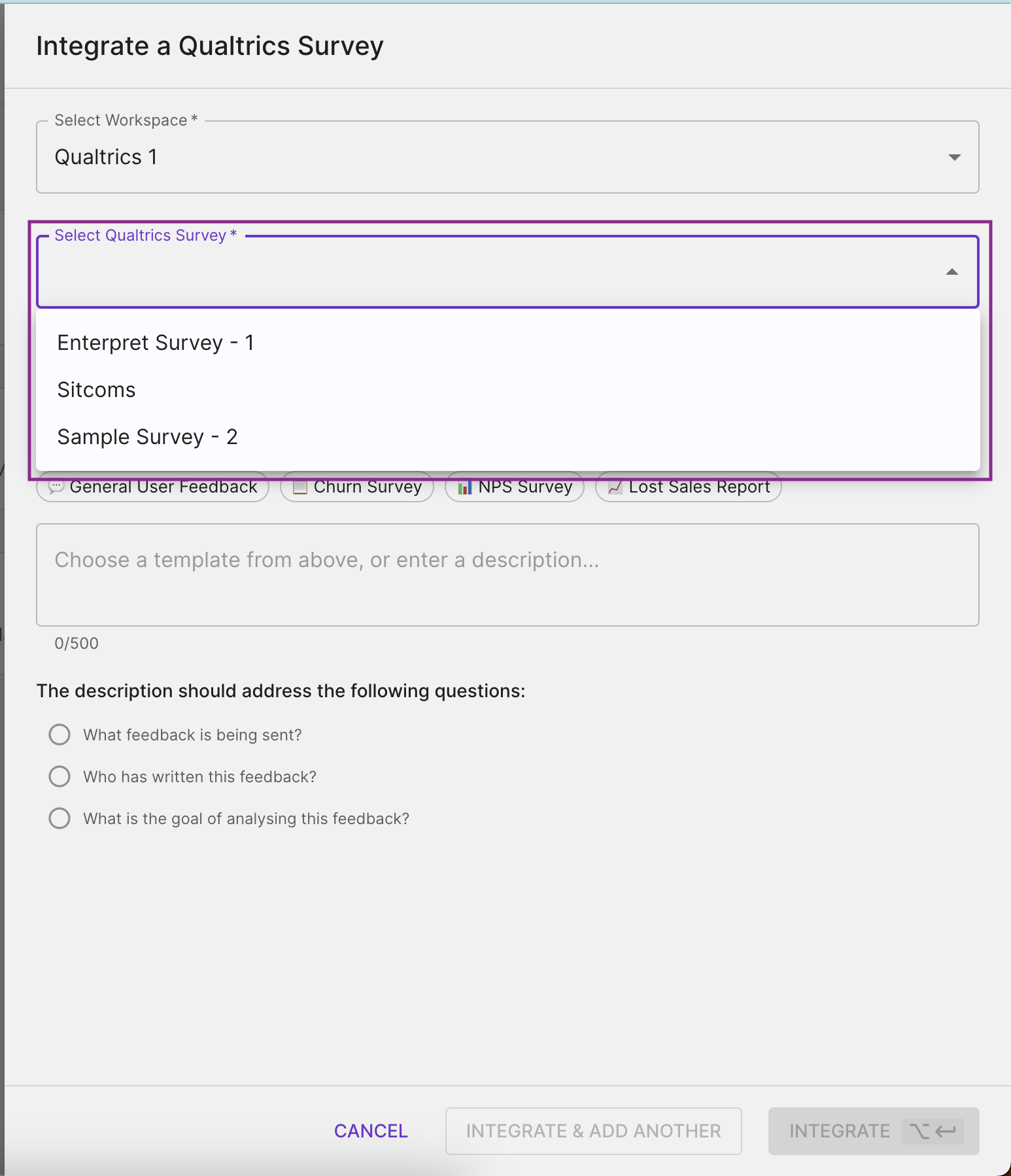
You would be redirected to Enterpret after successful login, you can select your Survey, add a description about the survey, and click on INTEGRATE. If you wish to select multiple surveys, please select INTEGRATE & ADD ANOTHER.
Analyze this feedback with Enterpret Agent
Once this integration's feedback is available in Enterpret, use Enterpret Agent to investigate themes, summarize customer requests, and prepare reports. Specify this source and the reporting period in your request. For daily reports, weekly digests, and recurring reporting, configure scheduled Agent automations with Slack or email delivery.
This guide covers feedback ingestion. Agent connectors are a separate setup for reading external context or taking supported actions in other tools; connecting a feedback source does not automatically authorize those actions.