
Mintlify
Last updated: 20 Nov 2026
Connect a Mintlify documentation project to Enterpret to analyze what visitors find confusing and what questions they ask. Enterpret imports individual page comments and groups each assistant conversation into a single feedback record.
Overview
At a glance
| Item | Mintlify |
|---|---|
| Access | Mintlify Admin API key with read scope |
| Unit of import | One documentation project per connection |
| Scope chosen in | Project ID in the Enterpret setup form |
| Direction | Enterpret pulls feedback from Mintlify |
| Default sync interval | Every 15 minutes |
| History on first import | Three months by default unless your workspace uses a different history setting. Eligible Trial and Growth workspaces use a 30-day history during workspace setup and choose their history afterward. |
| Record type and date | Page comments use the submission date. Assistant conversations use the date of the first turn. |
| Not imported | Standalone page votes, code snippet feedback, Mintlify agent feedback, search queries, and page views |
| Who is needed | An Enterpret workspace Admin or an Owner with integration management access, and a Mintlify user who can create an Admin API key |
| Limits | 100 analytics requests per Mintlify organization per hour, shared across its analytics API. See Limitations. |
Prerequisites
Blocker: Workspace and API access. Your Enterpret workspace needs access to Mintlify in the integration catalog. If the card is missing, contact Enterpret Support to check eligibility. Mintlify requires a Pro or Enterprise plan for analytics API access.
You need:
- In Enterpret: A workspace Admin or an Owner with access to manage integrations.
- In Mintlify: Access to the documentation project and permission to create an Admin API key.
| Value | Where to find it | Accepted format |
|---|---|---|
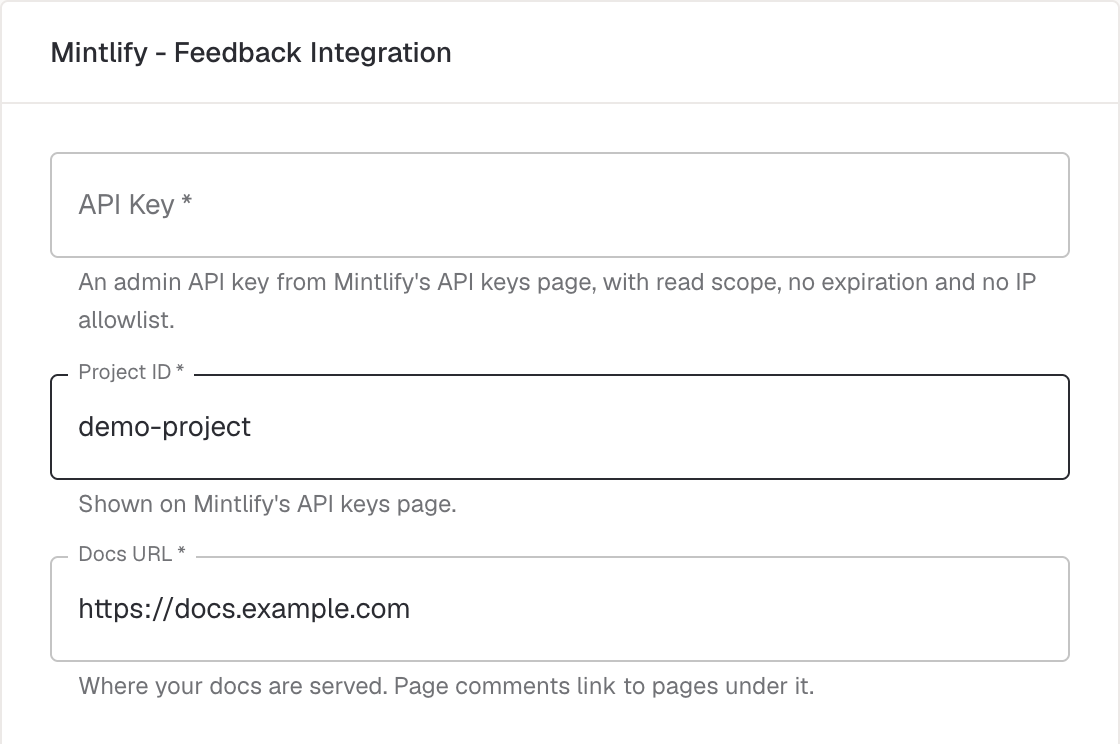
| API Key | API keys in Mintlify | Complete Admin API key beginning with mint_. Analytics access requires an Admin key. |
| Project ID | Mintlify's API keys page | Copy the ID for the intended project, for example demo-project. |
| Docs URL | The base address where visitors read your docs | An absolute URL starting with http:// or https://, for example https://docs.example.com. Omit individual page paths, query parameters, and anchors. Keep the base path if your docs are served under one. |
Choose what to import
Each connection reads one Mintlify documentation project. Enter its Project ID in Enterpret. Enable contextual page feedback in that project to collect comments, and enable the docs assistant to collect its conversations. Enterpret imports both supported types from the selected project when they are available. Both types use the same history window.
Prepare Mintlify
- Open the API keys page in Mintlify.
- Create an Admin API key with
readscope. Assistant keys start withmint_dsc_and have access to a different set of endpoints. - Select No expiration and leave the IP allowlist empty, as requested by the Enterpret setup form. If your organization requires either restriction, contact Enterpret Support to confirm which settings you can use before connecting.
- Copy the complete key and store it in your organization's approved secret manager.
- Copy the Project ID for the documentation project you want to import.
Connect Mintlify in Enterpret
Sign in to Enterpret and select the workspace you want to connect.
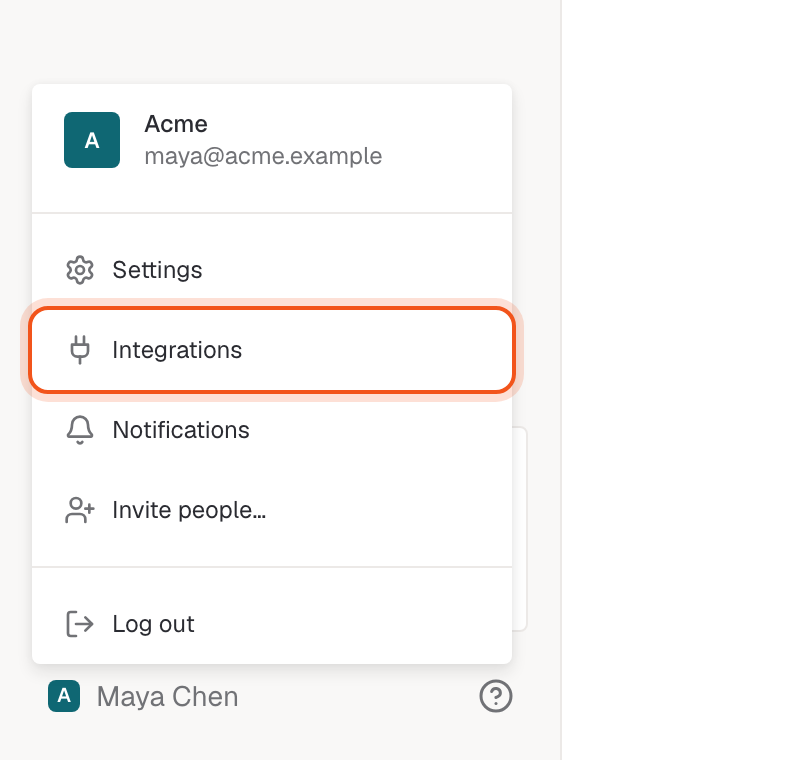
Open the workspace menu and select Integrations.
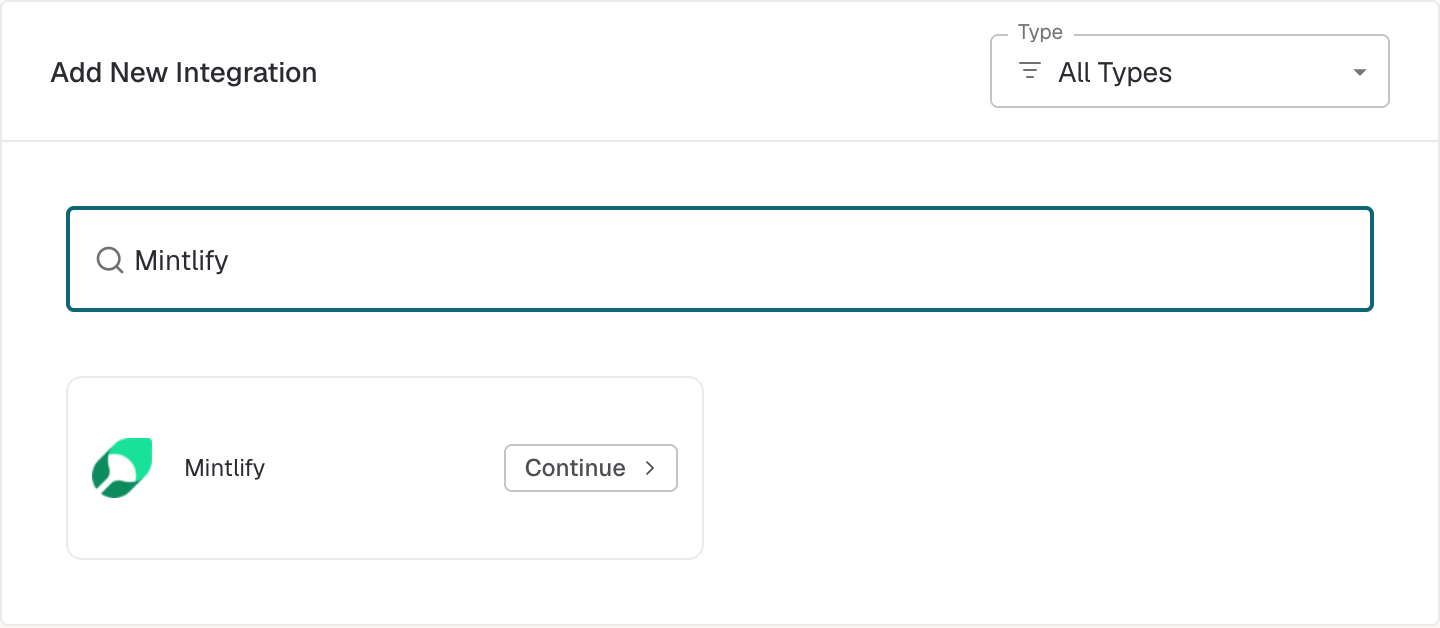
Select New Integration.
Find Mintlify under Documentation or search for it by name.
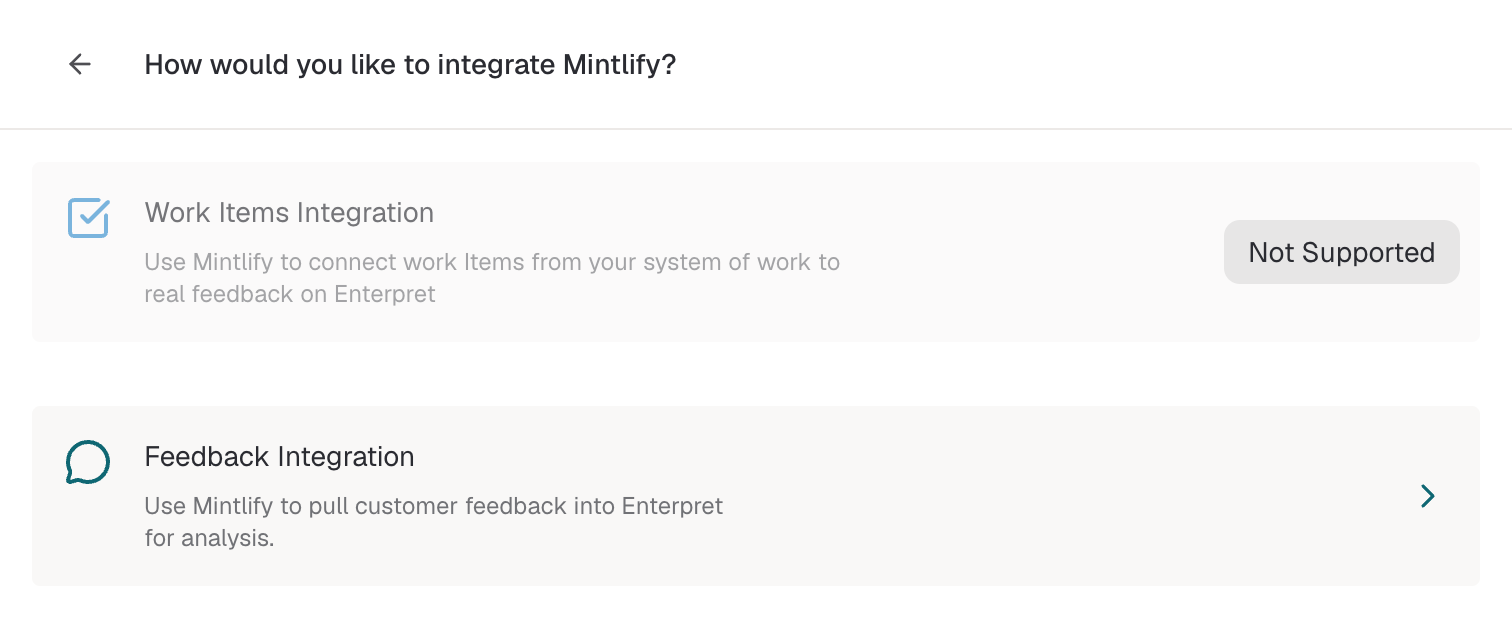
Select Continue on the Mintlify card, then choose Feedback Integration when asked to select an integration type.
Complete API Key, Project ID, and Docs URL. Use the complete key, the intended project ID, and the base address for your docs. The form below shows
demo-projectandhttps://docs.example.comas examples.Under Describe the type of feedback being integrated, explain what the docs cover, who uses them, and what you want to learn. See Integration Descriptions.
In eligible Trial and Growth workspaces after workspace setup, use Start from to choose Today, 7 days ago, 14 days ago, or 30 days ago.
In workspaces with feedback usage limits, users with permission to manage these limits can use Monthly limit. Choose No limit or Set a limit for the connection. The workspace's limits still apply.
Select Integrate.

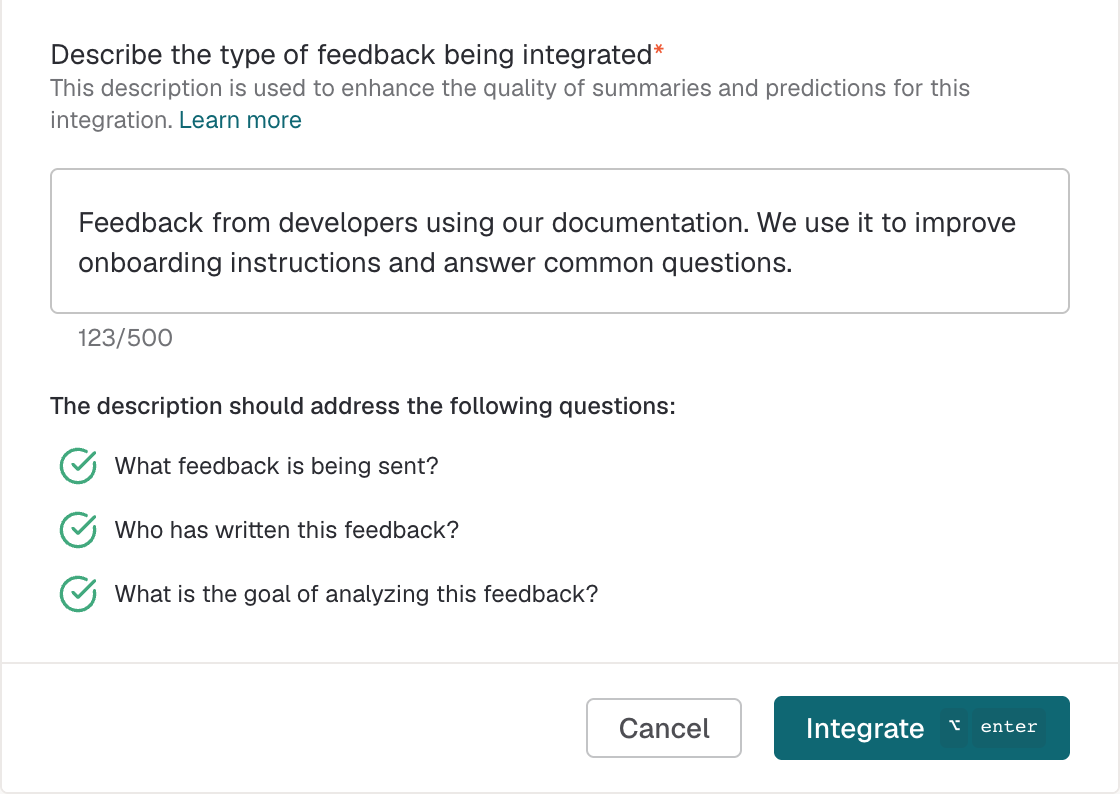
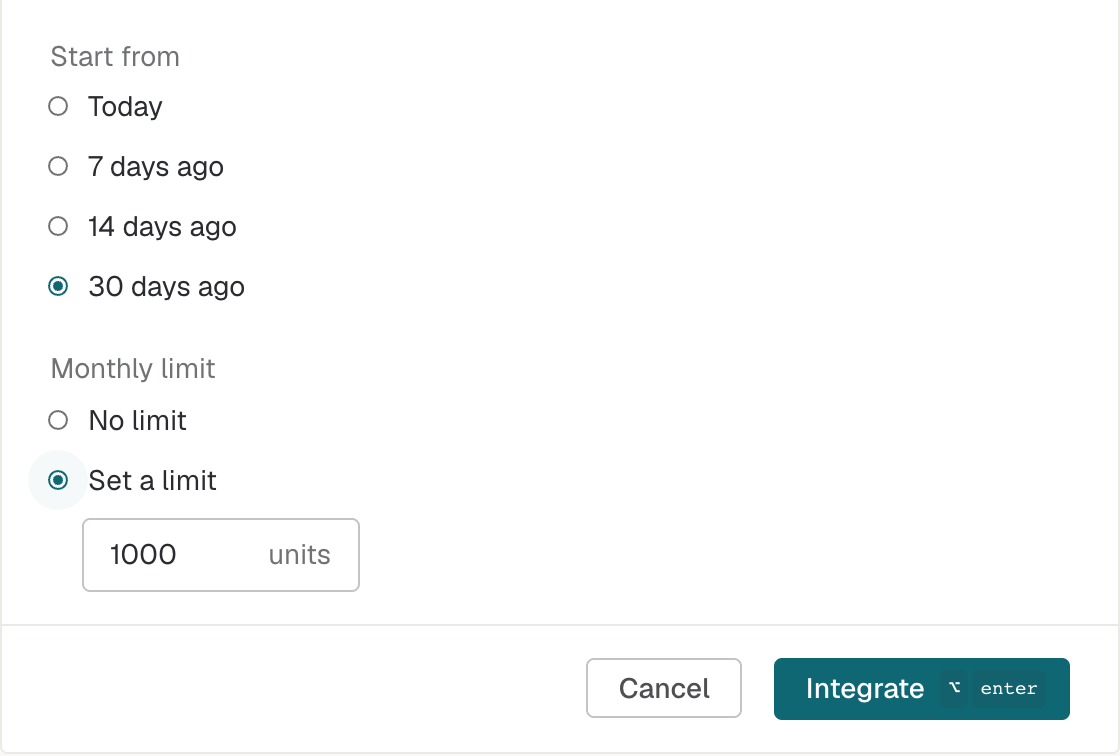

When it worked: the setup form closes and the saved connection appears in Integrations. Enterpret checks access to the project during collection. Confirm the connection with a known record.
What Enterpret imports
One page comment or one assistant conversation becomes one feedback record.
| Mintlify content | Becomes in Enterpret | Analyzed as text? |
|---|---|---|
| Contextual page comment | A Page comment record with the documentation page link and the visitor's text. When the visitor selects a reason without writing a comment, Enterpret uses the reason as the feedback text. | Yes |
| Docs assistant conversation | An Assistant conversation record with the visitor's questions and the assistant's replies grouped in order. When Mintlify supplies an associated page, the source link opens that page. | Yes |
| Page comment reason and contact email | Metadata when supplied by the visitor | No |
| Assistant response ratings, resolution status, response types, question categories, and cited document titles | Metadata when supplied by Mintlify | No |
Not imported: standalone thumbs-only page votes, comments without a submission date or content, code snippet feedback, Mintlify agent feedback, search queries, and page views.
Fields by name:
| Field in Enterpret | Comes from | Type |
|---|---|---|
| FeedbackType | The kind of item imported, either Page comment or Assistant conversation | Metadata |
| reason | The reason the visitor selected when leaving a page comment | Metadata |
| User Email | The optional contact email the visitor submitted with a page comment | Default field |
See View & Manage Metadata for the metadata available on a record.
Sync and history
- How new data arrives: Enterpret is scheduled to pull Mintlify feedback every 15 minutes. Data availability, collection limits, and processing can add time before records appear.
- How far back the first import goes: Both feedback types use the same start date. The default is three months unless your workspace uses a different history setting. Eligible Trial and Growth workspaces import 30 days during workspace setup. After workspace setup, use Start from to choose today, 7 days, 14 days, or 30 days.
- Later edits or deletions in Mintlify: Enterpret refreshes recent comments and conversations. Replies, ratings, or categories added to older conversations can be missing in Enterpret.
Limitations
| Limitation | Detail |
|---|---|
| Plan availability | Mintlify's analytics API requires Pro or Enterprise. Setup is available in Enterpret workspaces that have the Mintlify catalog card. |
| Supported feedback | Enterpret imports contextual page comments with a reason or text, and docs assistant conversations. Standalone page votes, code snippet feedback, Mintlify agent feedback, search queries, and page views stay in Mintlify. |
| Analytics quota | Mintlify allows 100 analytics requests per organization per hour, shared by all its analytics endpoints. Imports can be delayed when the quota is reached. |
| History | Both feedback types use the same start date. Contact Enterpret Support if you need to review what history can be imported for an existing connection. |
| Conversation links | The source link opens the associated documentation page when Mintlify supplies one. Find the conversation transcript in Mintlify's analytics. |
| Changing project or docs address | The Reauthorize form updates the key only. Contact Enterpret Support if you need to correct Project ID or Docs URL. |
Verify the import
Check one known record
In Mintlify, pick a page comment with text or a reason from the connected project and history window. If you collect assistant conversations, pick a conversation with a distinctive question as well.
Open Feed in Enterpret and filter to Mintlify. Search for the comment or question text. If record preview is available, you can also open More source actions on the saved connection and select View all Records.
Compare the text, date, and FeedbackType with the item in Mintlify. Open the source link to check that it leads to the expected documentation page. For an assistant conversation, compare the questions and replies in the record.

Check the status
Open Integrations and select Mintlify. Under Integration Details, check Status and any available error details.
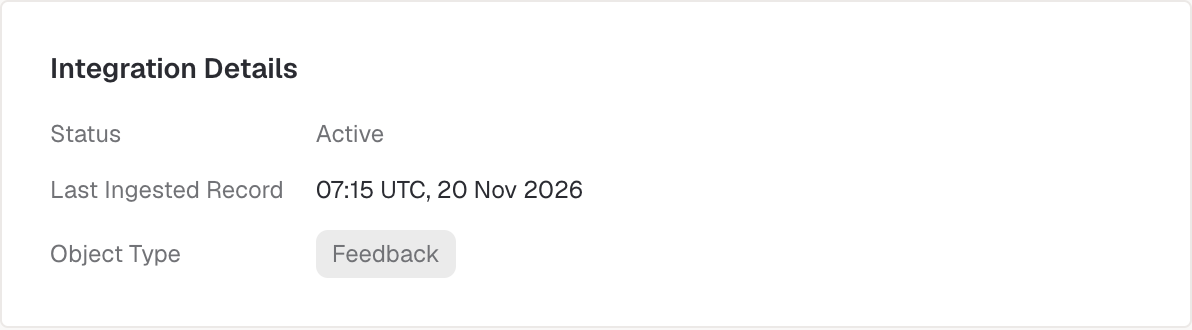
| Status | Meaning |
|---|---|
| Ingesting | Enterpret is collecting the initial feedback. Records can arrive while this is still in progress. |
| Active | Enterpret shows the connection as active. Check a known record to confirm it has finished processing. |
| Connection expired | Enterpret reported an authentication problem. Check the key and access settings, then review the troubleshooting steps. |
| Slow ingestion · Recovering | Collection is delayed. Check again after the next sync. |
| Ingestion blocked | A rate limit is preventing collection. Open the status details for the next action. |
| Paused | Collection is temporarily on hold. Feedback already imported stays available. |
| Disconnected | The connection has stopped collecting feedback. Feedback already imported stays available. |
| Deleted | The connection and its imported feedback were deleted. |
Manage the connection
On smaller screens, scroll horizontally to see all columns.
| Operation | Where | Effect | Reversible? | Needs a person |
|---|---|---|---|---|
| Add a connection | Integrations → New Integration → Mintlify | Starts collecting eligible feedback from the selected project | Collection can be stopped | Yes, an Enterpret workspace Admin or Owner with integration access |
| Edit the feedback description | Edit on the connection | Updates the description for future processing | Yes, edit it again | Yes, an Enterpret workspace Admin or Owner with integration access |
| Replace the API key | The connection menu → Reauthorize, or Reconnect on the expired connection | Updates the API key and keeps the same project, docs address, and imported feedback | Yes, by supplying another valid key | Yes, someone who can manage the connection and obtain the new key |
| Correct the project or docs address | Enterpret Support | Support can advise on correcting the scope or page links and what to do with existing feedback | Yes, Enterpret Support | |
| Pause or resume collection | Connection menu → Pause integration or Resume integration for connections that support pausing | Pauses or restarts collection and keeps imported feedback | Yes. The monthly limit can prevent immediate resumption. | Yes, an Enterpret workspace Admin or Owner with integration access |
| Disconnect | Connection menu → Disconnect integration | Permanently stops collection and keeps imported feedback searchable | No. Create a new connection to collect again. | Yes, an Enterpret workspace Admin or Owner with integration access |
| Delete the connection and its feedback | Connection menu → Delete Integration for workspaces with self-serve deletion | Permanently removes the connection and its imported feedback | No | Yes, someone with integration deletion access |
Add a connection
- Follow Connect Mintlify in Enterpret with the intended Project ID.
- Verify an imported record from that project before relying on the new connection.
Edit the feedback description
- Open Integrations and select the active Mintlify connection.
- Click Edit.
- Update Describe the type of feedback being integrated.
- Click Save Changes. See Integration Descriptions for how edits affect processing.
Replace the API key
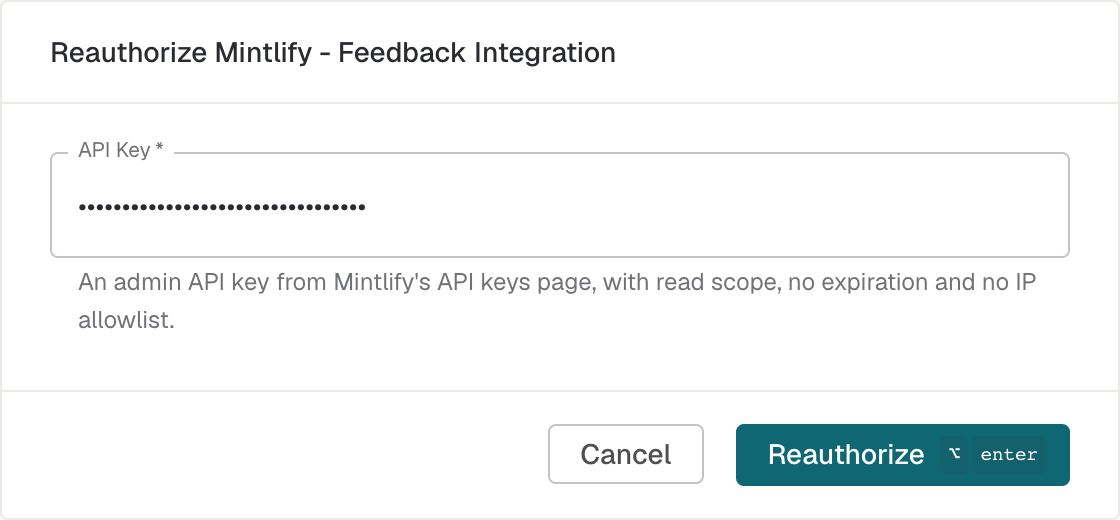
Create a replacement Mintlify Admin API key with
readscope using the settings in Prepare Mintlify. For a planned rotation, keep the previous key active until you verify the replacement.Open the saved connection in Integrations, open More source actions, and choose Reauthorize. For an expired connection, you can also choose Reconnect. In workspaces with feedback consumption enabled, review the start point in the reconnect step before continuing.
Paste the complete replacement key into API Key.
Select Reauthorize.
After the next collection cycle, check the status and look for a new record. For a planned rotation, revoke the previous key in Mintlify once the new key works and you confirm no other project or integration uses the old key.

Correct the project or docs address
- Ask Enterpret Support to review the saved connection before you add a replacement.
- Send the saved and intended project ID or base URL. Tell Support whether you need to keep the feedback already imported.
Pause or resume collection
- Open the Mintlify connection menu.
- Select Pause integration to stop collection temporarily. Confirm the pause.
- Select Resume integration to restart. If you see Monthly feedback limit reached, ask your workspace admin to review the limit.
Disconnect
- Open the Mintlify connection menu and select Disconnect integration.
- Confirm Disconnect integration to stop future imports permanently. Previously imported feedback stays searchable.
Delete the connection and its feedback
- In a workspace with self-serve deletion, open the Mintlify connection menu and select Delete Integration.
- Review the impact on existing feedback and analyses.
- Confirm Delete Integration to permanently remove the connection and its imported feedback. This action cannot be undone.
Troubleshooting
Before connecting
| Symptom | Cause | Fix |
|---|---|---|
| Mintlify is missing from the catalog | The workspace may lack access, or your role may lack permission to add integrations. | Ask a workspace Admin to check the catalog. If the card is still missing, contact Enterpret Support to check eligibility. |
| You cannot create an Admin API key | Your Mintlify plan or permissions may lack analytics API access. | Confirm that the Mintlify organization is on Pro or Enterprise and ask a user who can create Admin API keys to prepare the key. |
While connecting
| Symptom | Cause | Fix |
|---|---|---|
| Integrate is disabled | A required value is missing, the feedback description needs attention, or a history or limit setting needs attention. | Complete API Key, Project ID, and Docs URL. Review the description feedback and any message under Start from or Monthly limit. |
| The form rejects the docs address | Docs URL needs an absolute web address without a query or fragment. | Enter the base address where visitors read the docs, such as https://docs.example.com. |
After connecting
| Symptom | Cause | Fix |
|---|---|---|
| Connection expired | The analytics request was rejected. Causes can include an incomplete, expired, or revoked key, insufficient scope, or an IP allowlist. | Check the complete Admin API key and its read access. Reauthorize if you need to replace the key. If it remains valid and the status persists, contact Enterpret Support to review the connection. |
| The connection is saved, but feedback is missing | The project ID may be wrong, the project may have no supported feedback in the history window, or the initial sync may still be processing. | Check the saved status and project ID. Confirm that the source record is eligible, then check again after the next sync. |
| Page links open the wrong address | Docs URL is used to build links to pages visitors commented on. | Check the saved base URL. Send Enterpret Support the correct base URL and an example affected page. |
| A later assistant reply or rating is missing | Changes to older conversations can fall outside the refresh window. | Check again after the next sync. If it is still missing, send Support the conversation date and an example. |
| Counts differ from Mintlify | Mintlify's totals can include standalone votes and other analytics. Collection and processing can also affect the count. | Compare the same date range and supported feedback types. See Missing records and count differences. |
Contacting Support
Email Enterpret Support. Include the workspace, Project ID, Docs URL, the displayed status or error, and an example timestamp or affected page. Never send your API key.
Analyze this feedback
- In the app: Enterpret Agent
- In Slack: Enterpret for Slack
- From your own agent: the Enterpret MCP Server
Sample prompt: Review Mintlify feedback from the last 30 days. Separate page comments and assistant conversations, identify recurring documentation gaps and questions, and cite representative records and pages.
Use Scheduled Agent Automations to send a recurring summary through Slack or email.
Revision history
| Date | Change |
|---|---|
| 20 Nov 2026 | Added instructions and screenshots for connecting a Mintlify project, verifying imported feedback, and replacing the API key. |