
Zoom Integration
Zoom
A large share of customer feedback lives in Zoom conversations. Enterpret integrates directly with Zoom to automatically capture and process these meetings, mapping insights to your custom feedback taxonomy—so nothing gets missed.
With the Zoom integration, you can:
Track feature requests and pain points exactly as customers describe them on calls.
Pinpoint why customers churn or decide to buy using automated conversation analysis.
Understand sentiment and competitive mentions across different customer segments.
Spend less time taking notes and more time acting on the automated summaries generated for every call.
How it Works
Enterpret uses OAuth to securely integrate with Zoom and access your recordings. Upon connection, it performs a backfill of recordings from the past 90 days and continuously processes them for analysis.
Key Capabilities
Seamless Meeting Capture: Connect once and Enterpret flawlessly captures your standard video conferencing calls.
External Participant Detection: Enterpret syncs only calls with external participants by default, ensuring internal meetings remain private.
Targeted Tracking: Don't want everyone's calls synced? You can provide a specific allowlist of emails so Enterpret only ingests recordings for the people you choose.
Admin-Level Setup: Workspace admins can connect Enterpret once to activate tracking across the whole organization, saving individual reps from having to authorize their accounts manually.
Instant Insights via RTMS: Instead of waiting hours for massive recording files to process after a call, Enterpret connects directly to Zoom's Real-Time Media Stream (RTMS). We stream and securely store the audio in real-time as the conversation unfolds. The moment you hang up, the recording is instantly ready for automated summarization and analysis.
Historical Analysis: Jump-start your data by backfilling past Zoom recordings to instantly spot long-term historical trends.
PII scrubbing
Enterpret automatically masks detected PII in Zoom transcript text, including email addresses, phone numbers, and credit card numbers, before using it for analysis.
Scrubbing applies to transcript text only. Enterpret does not redact or bleep sensitive information in audio or video recordings.
Learn more about supported PII types and privacy controls in our PII management guide.
Pre-requisite: Admin Setup
To take full advantage of our Real-Time Media Stream (RTMS) capability and correctly apply the setup for everyone in the organization, a Zoom Administrator must configure a few settings in your Zoom account before connecting the integration.
⚠️ IMPORTANT
The integration must be performed by a workspace admin. This ensures it is globally applied across all users, avoiding the need for every employee to install the app individually.
1. (Optional) Enable Global Auto-Start for Automatic Recording of All Meetings
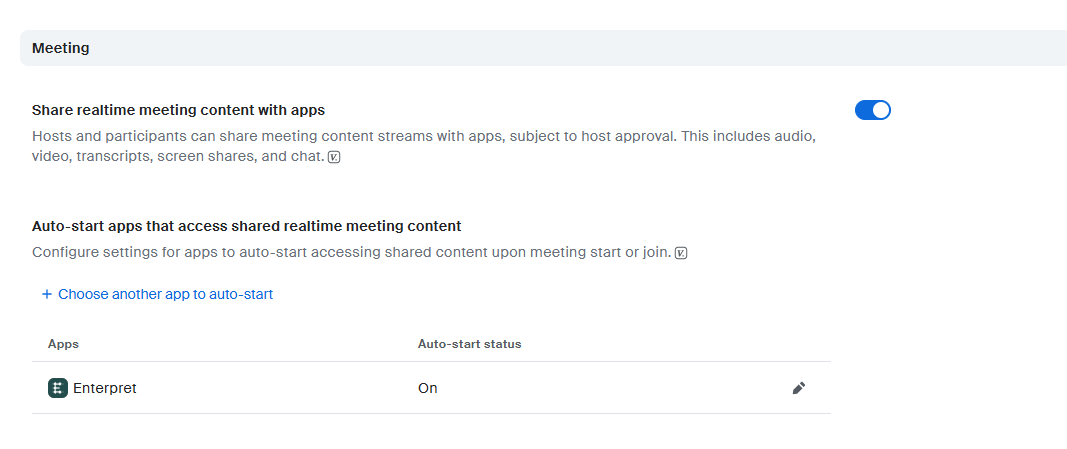
Enterpret uses Zoom's "Live Streaming Service" API under the hood to capture audio in real time. For the integration to automatically start the RTMS stream without the meeting host having to click anything, you must enable Auto-start apps that access shared realtime meeting content at the account level:
Log in to the Zoom web portal as an administrator and navigate to Account Management > Account Settings.
Click on the Zoom Apps tab, then select Meeting.
Scroll down and toggle Share realtime meeting content with apps to the ON position.
Click on the Auto-start apps that access shared realtime meeting content and choose our Enterpret app.
2. Deploying to all employees
To seamlessly ingest calls for your team, a Zoom Admin can install the Enterpret OAuth application across the whole workspace in a single swoop:
Instead of asking every employee to install the Enterpret app individually, an Admin initiates the integration connection from Enterpret's dashboard.
During the Zoom authorization flow (outlined below), the Admin should ensure the app is being installed for all users on the account.
Once installed globally, Enterpret will use its API access alongside your configured allowlists to silently and automatically initiate the RTMS stream the moment designated team members start a meeting.
What if this step is missed during setup?
No problem! If you've already connected Enterpret but missed the option to deploy it for all users, an administrator can manually fix this within Zoom:
Sign in to the Zoom App Marketplace as an account administrator.
In the top-right corner, click Manage.
Under the Admin App Management section on the left, navigate to Apps on Account (or Added Apps).
Find Enterpret in your list of apps and click on it.
On the app details page, look for the Add for Others option (or change permissions under the "Who can install" section) to All users on the account.
Follow the prompt and click Allow to push the Enterpret app down to your entire team.
Setting up the Zoom Integration
Connecting Zoom takes just a few clicks:
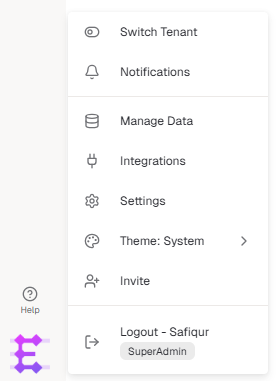
Navigate to the bottom-left corner of your Enterpret dashboard, click your workspace logo, and select Integrations from the menu.
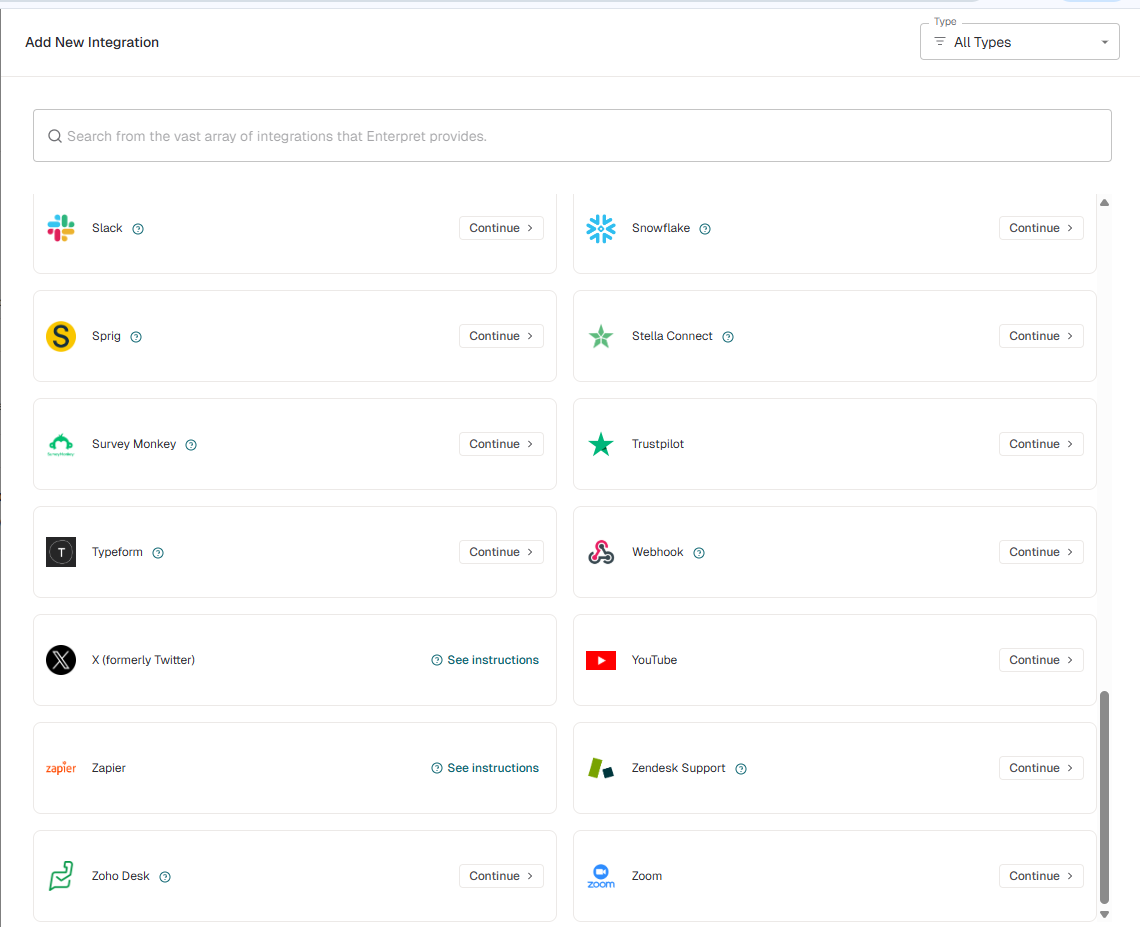
Look for the
+ NEW INTEGRATIONbutton in the top right corner and click it to browse the available options.Find Zoom in the list and click
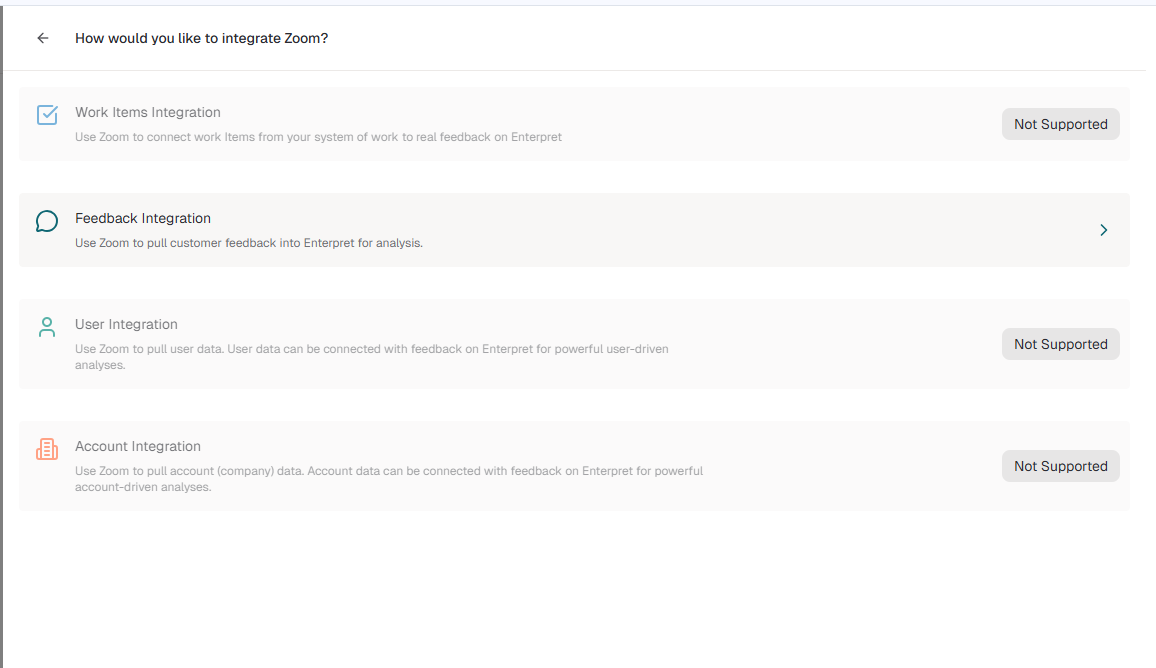
CONTINUE >to start the setup.When asked what kind of data source this will be, select Feedback Integration.
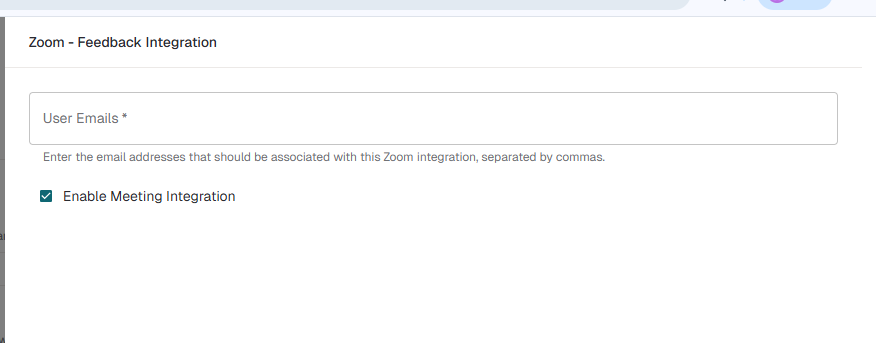
You will see a configuration pane for your tracking preferences. Here you must configure:
User Emails: Add the specific email addresses of the users whose recordings you want to associate with this integration, separated by commas.
Enable Meeting Integration: Check this box to turn on meeting tracking.
💡 TIP: Alternative tracking approach
If you'd prefer to control which meetings are recorded rather than listing individual user emails, you can create a dedicated email strictly for tracking (e.g., research@yourdomain.com).
Simply add this email to the User Emails field, and invite this email address as an attendee to any meeting you want recorded and sent to Enterpret!
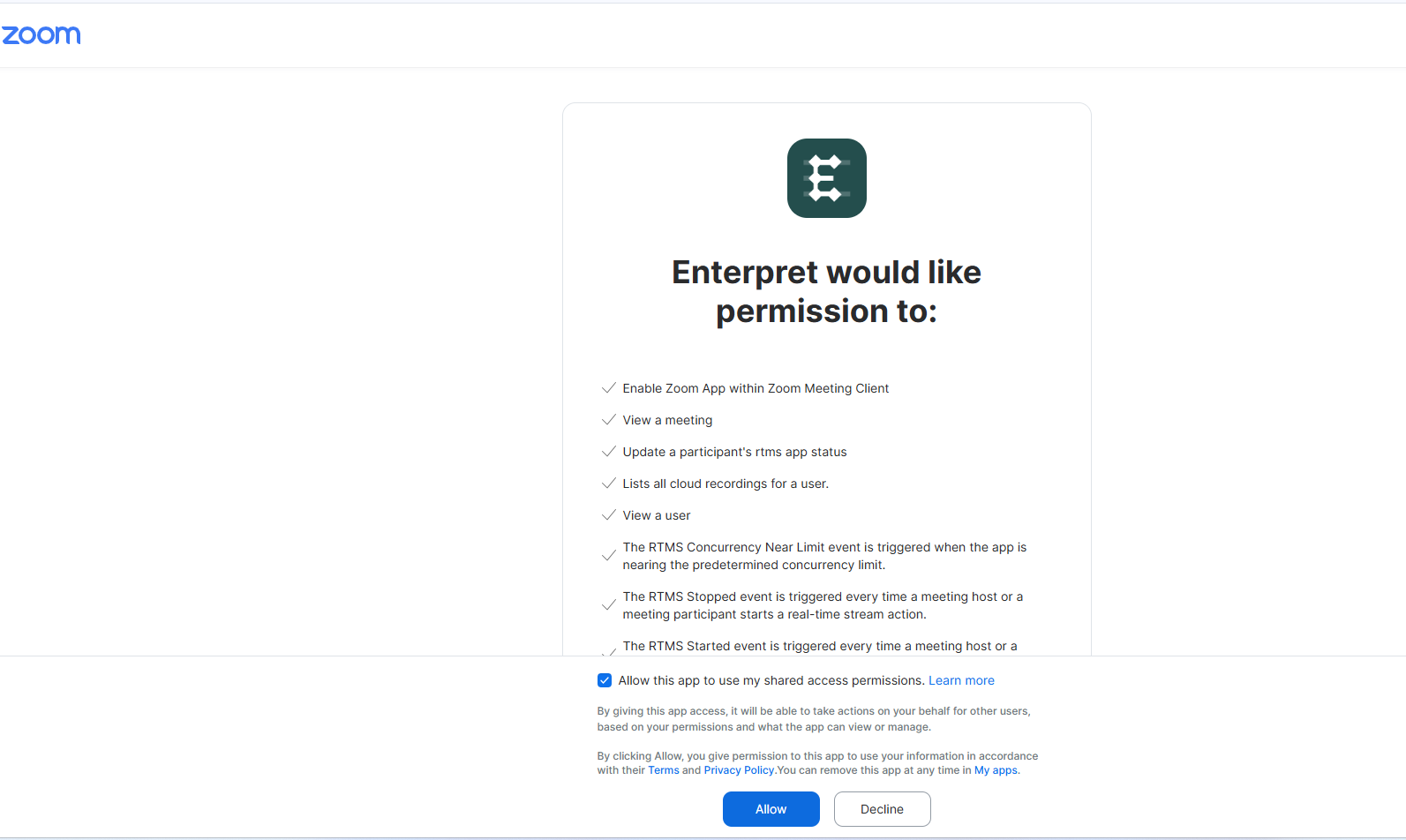
After configuring your settings, proceed, and you'll be whisked away to Zoom to authorize the connection. Click Allow to give Enterpret the necessary permissions. Make sure the app is being installed for all users on the account.
That's it! Once you grant permission, you'll be brought back to Enterpret and Zoom will appear in your list of connected integrations.

The RTMS Constraint You Must Know
Zoom's real-time streaming API (RTMS) is not available for every Zoom user by default. It's gated at the per-user level. A Zoom admin has to explicitly add each user to the RTMS-enabled list inside their Zoom marketplace app settings before that user's meetings will produce real-time transcripts for Enterpret.