
Linear Integration
Overview
Connect customer feedback in Enterpret to execution in Linear so teams can see what's already being worked on, link feedback to the right Linear issues or projects, and make decisions with full context.
These are collectively referred to as work items throughout this guide.
What This Solves
The problem it solves:
Feedback and delivery live in separate tools, making it unclear whether an idea is new, planned, or already in progress
Manually linking Linear work items to feedback wastes time and loses valuable context
Closing the loop with customers is difficult without a direct connection to who asked and why
What this integration unlocks:
Link Linear work items to Enterpret entities (Feedback Records, Themes/Sub-themes, Feeds & Collections)
View linked Linear work items as preview cards with key details in Enterpret
View backlinks to Enterpret and the number of linked feedback items directly in Linear via a Linear Doc
Who This Is For
CX, Product, and Engineering teams who want a shared source of truth linking feedback to execution.
Setup Instructions
Prerequisites
You're an Enterpret admin and have permissions to configure integrations
You have a Linear workspace with admin or owner rights for OAuth consent
Permissions required during consent:
Read access — to fetch issue or project details for preview cards
Write access — for creating Linear Docs with Enterpret references
Admin access — for creating webhooks for real-time updates
Step 1: Enable the Integration
In Enterpret, go to Integrations → New Integration → Linear
Select Linear and continue to OAuth
Review and approve requested scopes using a Linear admin account
You'll be redirected back to Enterpret
Step 2: Configure Access Control
We recommend using a service user (an admin user not tied to an individual) so the connection remains stable even if someone leaves the team.
If you want to limit Enterpret's access to certain Linear teams or projects, assign restricted permissions to the service account.
How to Use
Link Linear Work Items to Individual Feedback Records
Connect specific customer feedback to Linear work items for full traceability.
Open a Feedback record
Click Add Work Item
Enter the Linear Issue or Project title or Issue ID
Click Assign Work Item
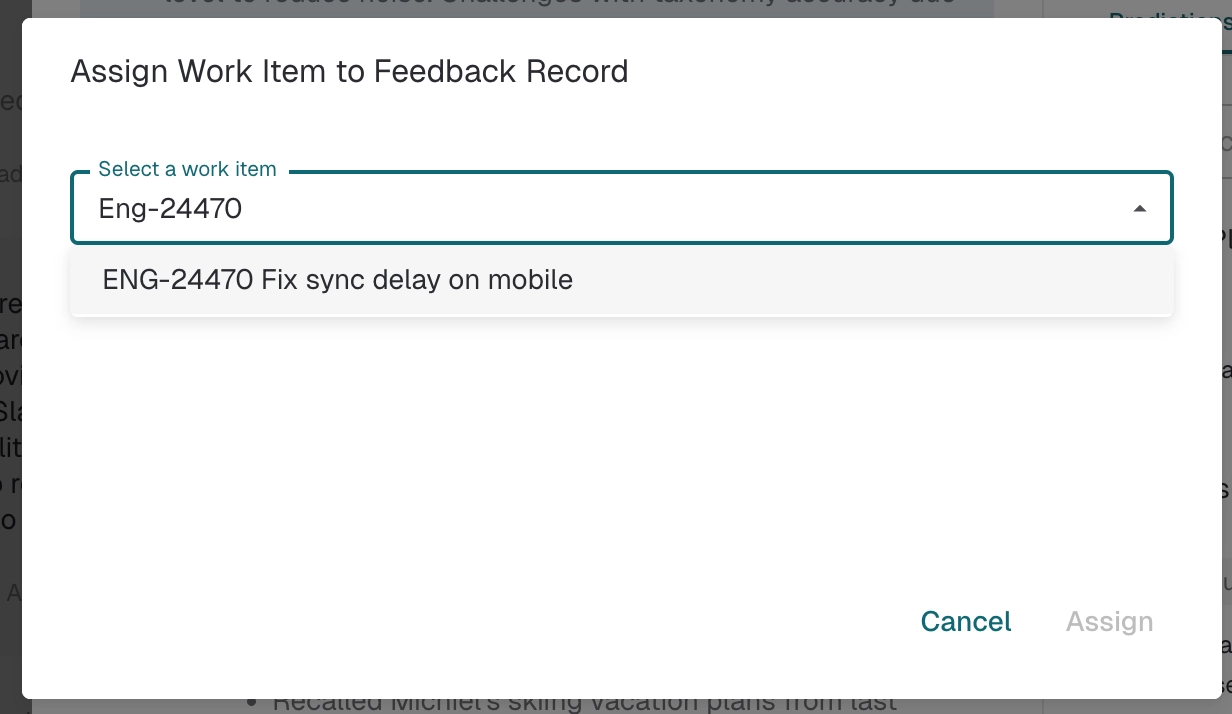
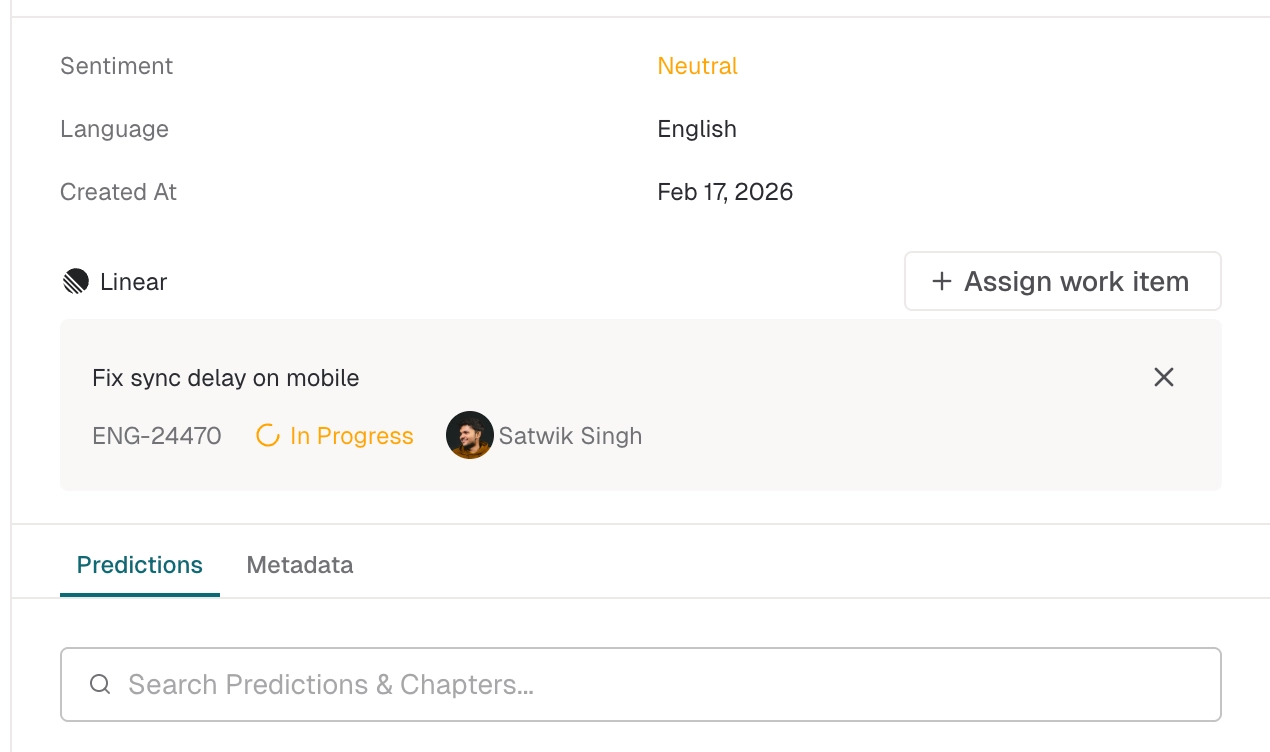
Once linked, a Linear preview card appears in the right panel above Predictions.
Best practices:
Link feedback to an existing Linear issue if the request is already being tracked.
If you have several feedback records describing the same issue, create a Collection in Enterpret and link the Linear issue or project to that Collection instead of linking each record individually.
Use one issue or project per distinct problem or feature request. If the feedback relates to a different problem or area of work, create or link a separate issue.
Link Linear Work Items to Feeds
Connect filtered views of feedback to related Linear work items.
Open a Saved Feed or create a new Feed
Click Add Work Item
Enter the Linear Issue or Project title or Issue ID
Click Assign Work Item

Once linked, a Linear preview card appears above the Feed items.
Best practices:
Use filters to narrow down to specific areas before assigning Linear work items.
Assign Linear work items to precise, well-defined segments rather than broad categories for better tracking and clarity.
Link Linear Work Items to Themes or Sub-Themes
Connect your taxonomy to roadmap items and epics.
In Quantify, plot a Theme or Sub-theme
Click the Theme or Sub-theme on the chart
Enter the Linear Issue or Project title or Issue ID
Click Assign Work Item
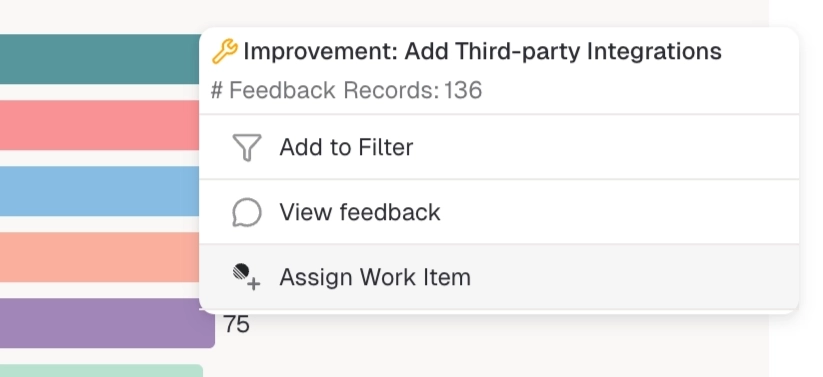
Themes or Sub-themes with linked Linear work items display a Linear icon next to them.
You can also assign Linear work items to themes and sub-themes from Quantify widgets in the dashboard.
Note: Quantify itself doesn't link to Linear work items. Assignments apply only to the selected Theme or Sub-theme.
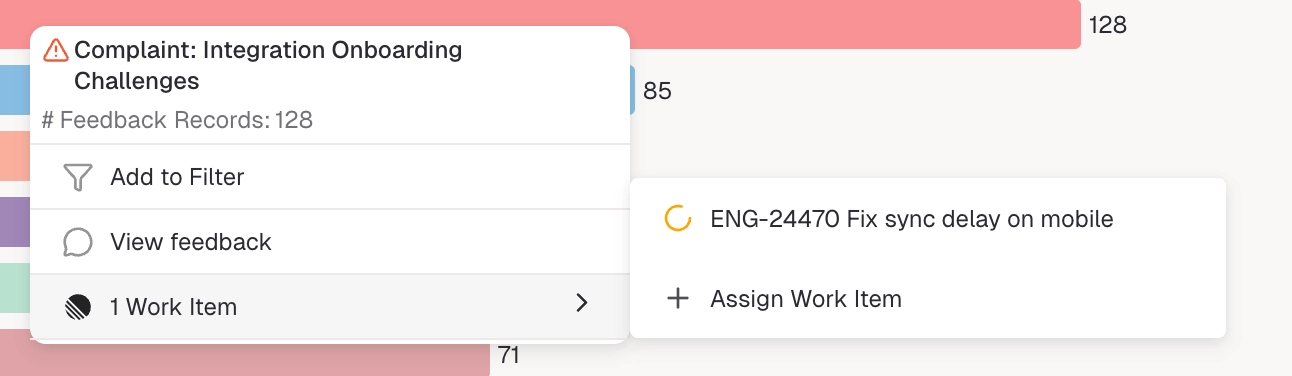
Best practices:
Use Theme-level linking for roadmap items that represent a cohesive problem area.
Avoid linking very high-level categories that span unrelated work.
Link Linear Work Items to Collections
Group related feedback and connect it to Linear work items.
Open a Saved Collection
Click Add Work Item
Enter the Linear Issue or Project title or Issue ID
Click Assign Work Item
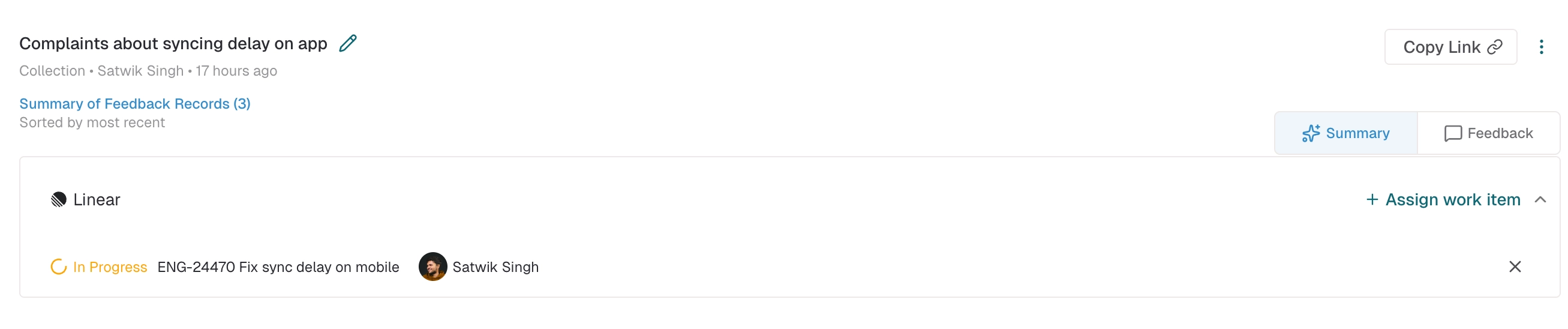
Once linked, a Linear preview card appears above the Collection feed.
Linear Previews in Enterpret
Preview cards display:
Issues: ID, title, status, and assignee
Projects: title, lead, and status
Both include a link back to Linear
When a Linear issue/project is linked for the first time, the preview appears immediately. Subsequent updates in Linear are reflected in Enterpret in near real-time via webhooks.
Enrich Linear Issues and Projects with Enterpret
When you link an Enterpret entity (Feed, Collection, Theme/Sub-theme, or Feedback Record) to a Linear issue or project, Enterpret creates a Linear Doc attached to that work item containing:
Total unique feedback count across all linked Enterpret entities
Backlinks to all linked Enterpret entities (Feeds, Collections, Themes, Feedback Records) with direct links back to Enterpret
Frequently asked questions
Setup & Permissions
Who can enable the Linear integration?
Only Enterpret admins who also have Linear workspace admin or owner rights can connect via OAuth. We recommend using a service account rather than an individual user account for stability.
Can I connect multiple Linear workspaces?
Currently, each Enterpret workspace supports one Linear workspace connection.
What OAuth scopes does Enterpret request, and why?
Enterpret requests the following scopes during the OAuth flow:
read — Used to read specific fields (ID, title, status, assignee/lead) from linked Linear issues and projects.
write — Used to create and update Linear Documents that contain Enterpret feedback context attached to linked items.
admin — Used only to create and manage webhooks so Enterpret receives real-time updates when linked items change.
issues:create — Reserved permission for issue creation. Contact Enterpret Support to confirm availability through this integration.
comments:create — Reserved permission for comment creation. Contact Enterpret Support to confirm availability through this integration.
Why does Enterpret need the “Admin” permission?
Enterpret uses the admin scope solely to create and manage webhooks in your Linear workspace. When a linked issue’s status, assignee, or other details change, webhooks allow those updates to appear in Enterpret in real time. Linear’s API requires the admin scope for webhook management — no narrower scope is available for this. Enterpret does not use this permission to read or modify workspace settings, or to manage workspace members.
Data & Privacy
What data can Enterpret access in Linear?
Enterpret connects to Linear via OAuth using the actor-as-user model, meaning the access token is tied to the user who authorizes the integration. However, Enterpret does not ingest Linear issues or projects in bulk. Linear data only appears in Enterpret when a user explicitly searches for and links a specific issue or project.
What fields are shown for linked Linear items?
The preview cards in Enterpret display a limited set of fields:
Issues: ID, title, status, and assignee
Projects: title, lead, and status
Both: a direct link back to the item in Linear
These fields update in near real-time via webhooks after the initial link is created.
Can we control which Linear data Enterpret syncs?
Since Enterpret does not perform a bulk import of Linear data, there are no separate controls to filter by team, project, or field. Only items that an Enterpret user explicitly links will appear in Enterpret, limited to the fields listed above.
What does Enterpret write to Linear?
When a Linear item is linked, Enterpret creates a Linear Document containing the total unique feedback count and backlinks to all connected Enterpret entities (records, feeds, themes, collections).
Usage
Are both Linear Issues and Projects supported?
Yes. Both Linear Issues and Projects are fully supported for linking and preview.
Who can see linked Linear items in Enterpret?
Everyone in your Enterpret workspace can see linked Linear items and their preview cards.
Can a single Linear item be linked to multiple Enterpret objects?
Yes. A single Linear issue or project can be linked to multiple feedback records, feeds, themes, or collections.
How do I unlink a Linear item?
Click the “×” icon next to the linked Linear item to remove the connection.
What happens if I deactivate the integration?
Enterpret will stop showing Linear assignments and all existing links will be removed. Any Linear Documents that Enterpret created will remain in Linear and can be deleted manually.
For questions or support, reach out to support@enterpret.com