
Quality Monitor
Quality Monitor watches your customer feedback for quality issues, such as a jump in checkout complaints after a release or a bug that shows up in support tickets and app reviews on the same day. Enterpret Agent investigates each possible issue before it reaches you. When an issue is confirmed, Quality Monitor sends the alert or starts the work you set up, such as a Linear or Jira ticket or a PagerDuty incident.
Existing monitors retain their configured filters and Slack or email destinations. The Agent-powered action setup described below is available only where enabled for your workspace.
What changed
Quality Monitor used to stop at a spike. It flagged topics that jumped and wrote the alert from summaries of the feedback. Someone on your team still had to check that the issue was real, find the cause, and measure its impact.
Enterpret Agent investigates possible issues before an alert is sent, checking supporting feedback and available context to decide whether the issue warrants action.
Two other things changed:
- An alert can start work. A confirmed issue can file a ticket, page on-call, or post to Slack or email.
- Alerts use AI credits. The investigation and the action behind each alert are Enterpret Agent work. See How Quality Monitor uses credits.
Your existing monitors
Where the Agent-powered Automations experience is enabled, existing monitors can appear under Running here. Open the monitor to review its filters, destinations, and available actions.
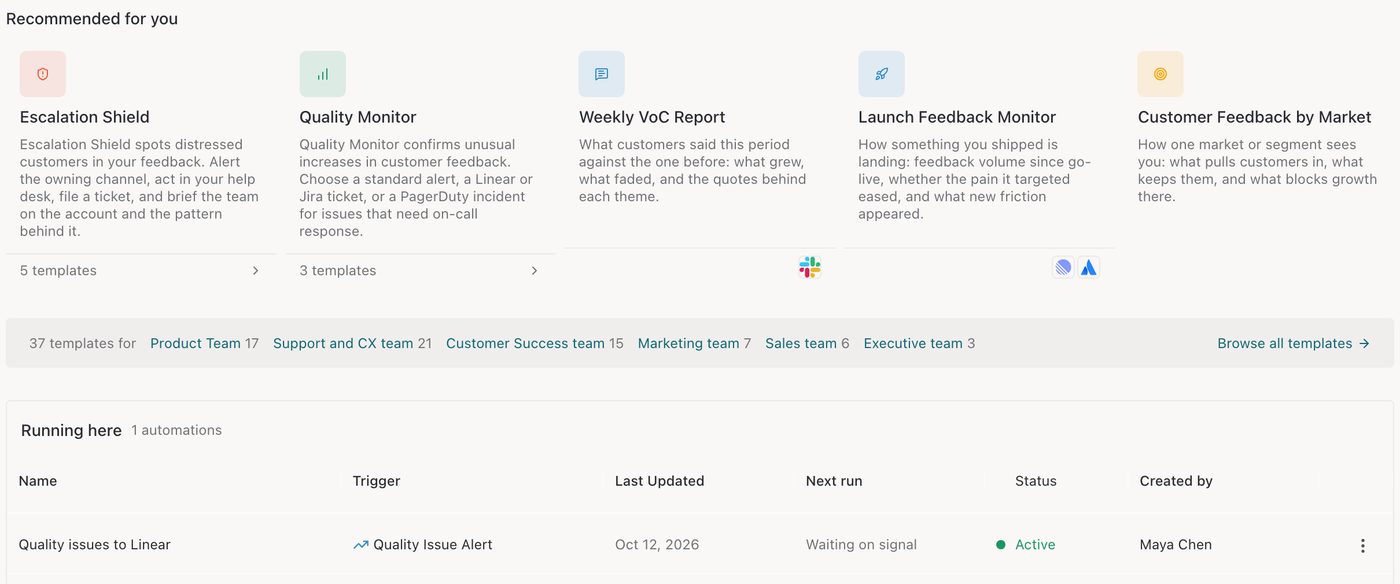
The Automations page shows the Quality Monitor templates and the monitors that run in your workspace. Sample data.
How it works
- Detect: Quality Monitor watches the feedback that matches your filter and flags unusual increases.
- Investigate: Enterpret Agent reads the feedback records behind the increase. It measures the supporting feedback, checks your Knowledge Base to tell expected behavior from breakage, and looks up recent releases when needed.
- Confirm or rule out: Candidates rejected by the investigation do not produce a customer alert. A retained finding proceeds to its configured delivery and action flow; delivery can still fail.
- Act: The automation does what you configured, such as posting an alert, filing a ticket, or opening an incident.
- Inspect: Open the alert's session to review its report and actions, and ask follow-up questions.
The investigation checks for possible explanations that can make a candidate unsuitable for an alert, such as:
- An outage that you already resolved.
- One customer who repeats the same complaint many times.
- A viral thread that does not reflect a wider problem.
- A feature that works as designed.
What Quality Monitor can do
Choose an available Quality Monitor template. The alert, ticket, and incident templates below run after an issue is confirmed.
| Template | What it does |
|---|---|
| Quality Issue Alert | Sends the alert to Slack or email, with a trend chart when one is available. |
| Quality Issue Ticket | Creates one Linear or Jira ticket with the confirmed problem, measured impact, and customer evidence. If a matching ticket is already open, it adds the evidence to that ticket. |
| PagerDuty Incident | Creates a PagerDuty incident when a confirmed issue meets your on-call criteria. |
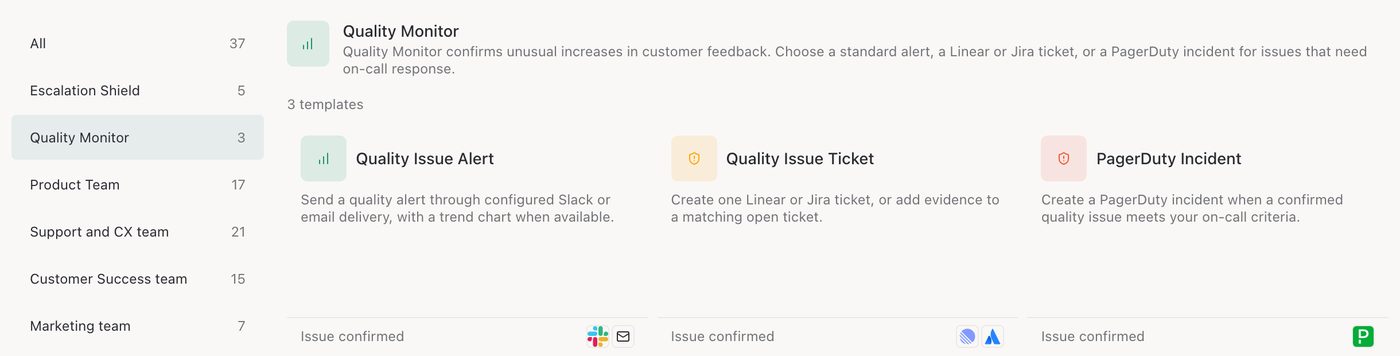
Choose a Quality Monitor template for an alert, a ticket, or an on-call incident.
You can also describe the action in plain language. For example, ask the agent to brief your Support team with what is known and a draft reply for affected customers. The available actions depend on the connectors and permissions set up for your workspace.
How to set up Quality Monitor
Where Quality Monitor action setup is enabled for your workspace, go to Automations in Enterpret. Start from an available Quality Monitor template, describe the automation you want in plain language, or build it step by step. If the trigger is unavailable or marked Soon, contact your Enterpret team to confirm access.
Step 1: Choose when it runs
Under Runs when, choose A quality degradation is detected. A Quality Monitor template sets this for you.
Step 2: Set the feedback to watch (optional)
Under Feedback to watch, click Add filter to limit the monitor to a product area, channel, customer segment, or tag. With no filter, the monitor watches all feedback.
Step 3: Choose what happens
- Report: Keep it on to send the alert report and daily-trend graph to Slack channels or email.
- Enabled connectors: Turn on the tools the agent can act in, such as Linear, Jira, Slack, or PagerDuty.
- Prompt: Tell Enterpret Agent what to do when an issue is confirmed. A template fills this in, and you can edit it.
For a ticket or incident template, replace the prompt placeholders with the exact Linear team, Jira project, or PagerDuty service and criteria. Enable the connected account and the actions it needs. Keep at least one Slack or email destination for the standard alert, even when an action also creates a ticket or incident.
Step 4: Name it and create it
Enter a Name, review the settings, and click Create.
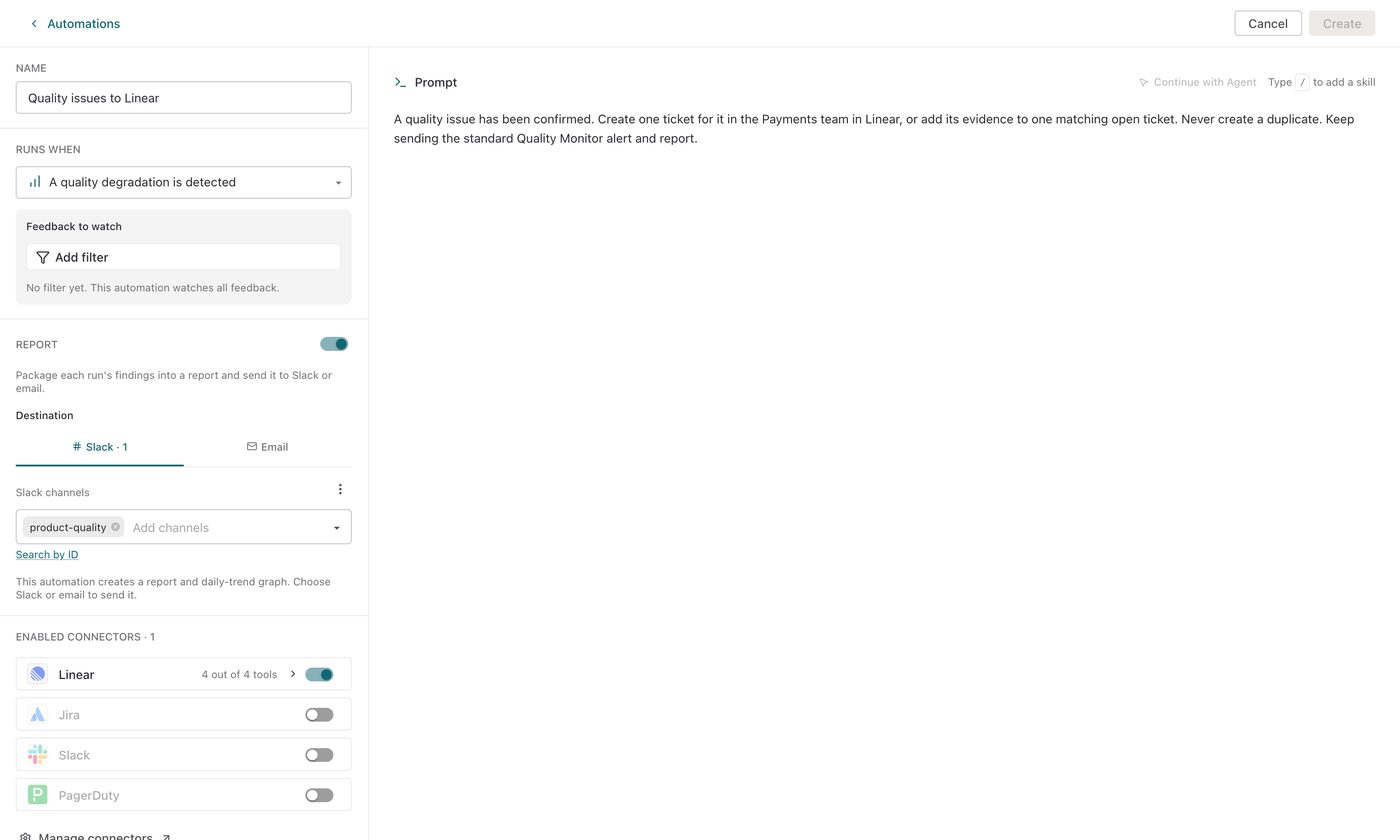
A Quality Monitor automation that files confirmed issues in Linear and keeps the standard alert in Slack. Sample data.
Note: Members can create automations and edit the automations they created, without Admin access.
What each alert includes
- A plain description of the problem and any likely cause supported by the evidence.
- The number of supporting feedback records, and a trend chart when one is available. A record count is not a count of distinct customers.
- The feedback records behind the issue, in the customers' own words.
- Links to the ticket, incident, or message the automation created.
- The alert's session, where you can review the report and actions and ask follow-up questions.
Quality Monitor checks recent alerts to reduce repeats. A growing issue may receive an update in its existing Slack thread rather than a new alert. Email does not receive these duplicate follow-up updates.
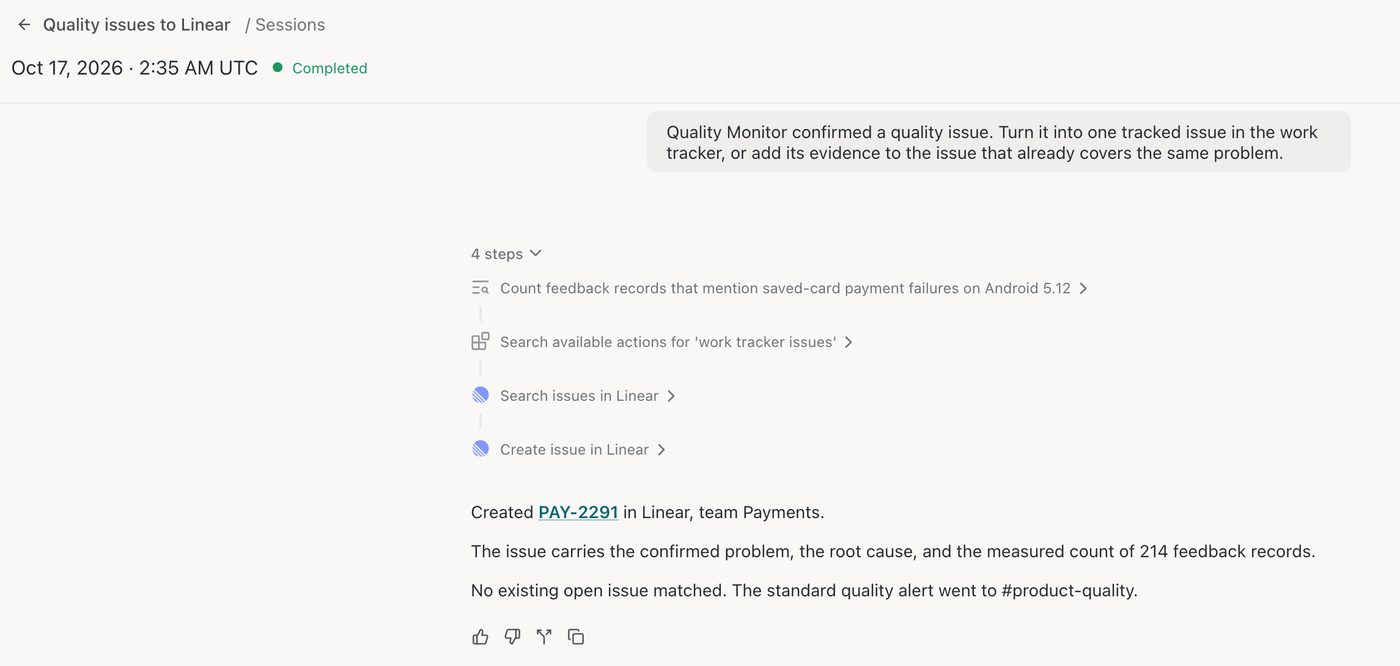
The session for one confirmed issue: the steps the agent took, the Linear issue it created, and where the alert went. Sample data.
How Quality Monitor uses credits
Quality Monitor uses AI credits when a confirmed finding proceeds to the configured alert or action. This can include the investigation retained for that finding and action work, even if a later delivery fails.
| Activity | Credit treatment |
|---|---|
| Detecting unusual increases in feedback | Detection does not use AI credits. |
| An investigation ruled out before proceeding to the configured alert or action | No credits. Enterpret covers this work. |
| A confirmed finding that proceeds to the configured alert or action, including its retained investigation | Uses credits |
| Follow-up questions in the alert's session | See the Session credit rules in How AI credits work in Enterpret |
An investigation can rule out a possible issue. Investigations that do not proceed to your configured alert or action remain Enterpret-funded. When a confirmed finding proceeds, its usage can include the retained investigation and the action itself; check execution results for delivery failures.
How many credits an alert uses
Credit usage varies with the investigation and configured action. Reviewing more evidence, filing a ticket, or opening an incident can require more Agent work. Review your actual automation usage to plan a budget.
There is no fixed credit amount per alert. Usage depends on the work completed.
Quality Monitor credits come from the same balances as your other Automations. For how personal credits, organization credits, and limits apply, see How AI credits work in Enterpret.
See your usage
Open Settings → Credits to see the credits each automation used, listed by name under Automations. Users see their own usage. Owners and Admins can also see usage for every user.
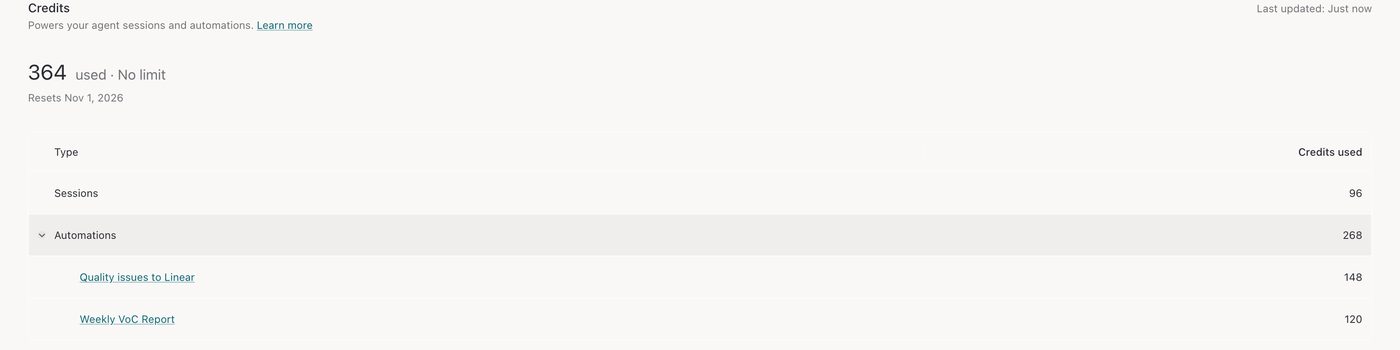
Settings → Credits splits usage into Sessions and Automations, with one row for each automation. Sample data.
Use fewer credits
- Narrow the filter: A monitor that watches fewer product areas or channels has fewer possible issues to confirm.
- Remove duplicate monitors: Two monitors that watch the same feedback can confirm the same issue twice.
- Pause what you do not use: Pausing removes a monitor from future automatic monitoring runs. Work already accepted or running may still finish and use credits.
Best practices
- One monitor per product area: Separate monitors keep alerts focused and send them to the team that owns the area.
- Give each alert an owner: Route tickets and alerts to a team that can respond.
- Reserve paging for critical issues: Add clear conditions before you send an issue to PagerDuty.
- Inspect and refine: Read the first few sessions, then adjust the filter or the action.
Frequently asked questions
Do I need to change my existing monitors?
Your existing filters and Slack or email destinations are retained. Agent-powered actions and the updated Automations setup appear only where enabled for your workspace.
Does Quality Monitor use credits when it finds nothing?
Detection does not use AI credits. An investigation ruled out before proceeding to the configured alert or action is Enterpret-funded. If a confirmed finding proceeds, the retained investigation and action work can use credits even if a later delivery fails.
Why did one alert use more credits than another?
Credits follow the work completed. A larger issue has more records to read, and an alert that files a ticket or opens an incident does more work than one that only posts a message.
Can I change how the investigation works?
You control the feedback filter and the action. The investigation uses Enterpret’s managed workflow. Its behavior can depend on the available data and runtime; review the alert Session to see what it did.
Can I see what Enterpret Agent did?
Yes. Open the session for the alert to review its report, supporting evidence, and actions.
What happens when my organization runs out of credits?
Quality Monitor follows the same rules as other Automations. See What happens when credits run out.
How is Quality Monitor different from Escalation Shield?
Quality Monitor watches for emerging product and service issues across feedback. Escalation Shield watches for one customer who is about to escalate. Many teams run both.
Need help setting up Quality Monitor? Contact support@enterpret.com.
Quality alerts or recurring reports?
Quality Monitor is an Enterpret Agent automation for investigating potential quality issues and running configured follow-up work. For a daily report, weekly digest, or recurring product-area summary, use scheduled Agent automations. Use connectors for supported actions and external context, with the permissions configured for that automation.