
Connectors
Connectors let Enterpret Agent read context from and take action in the other tools your team uses. Wire up Slack, Linear, Notion, and the rest, and the agent can pull a spec from a doc, cross-reference usage analytics, post a message, or file a ticket without you leaving the conversation.
Connections belong to individual Enterpret users and use the external account or credentials authorized for that connection. Some connectors also need an administrator to configure an app before users can authorize access. The connected identity, source-system permissions, and Agent permission settings determine what can run.
What connectors do
A connector is a live link between Enterpret Agent and one of your other tools. It works in two directions.
Reading context in. The agent can search and read across a connected tool: meeting transcripts in Granola, product analytics in PostHog, support conversations in Intercom, designs in Canva. This pulls live context from outside the Context Graph into the work the agent is doing.
Taking action out. When the work calls for a change in another system, the agent writes it there. It posts a Slack message, files a Linear issue, comments on a Jira ticket, updates a Salesforce record. The action affects the real tool using the connected identity. Whether a call requires a new approval depends on the permission mode, saved allowances or blocks, and organization controls.
The two directions combine into loops the agent runs end to end. Read a feature spec from Notion, mine the Context Graph for customer evidence, write an evidence section back into the Notion doc, then send the spec's author a Slack message with the key quotes. The agent reads from one tool, reasons over your feedback, and acts in another, all in a single session.
The connector catalog
Use the catalog in your workspace to check available connectors and tools. The examples below illustrate common uses; availability and capabilities can change.
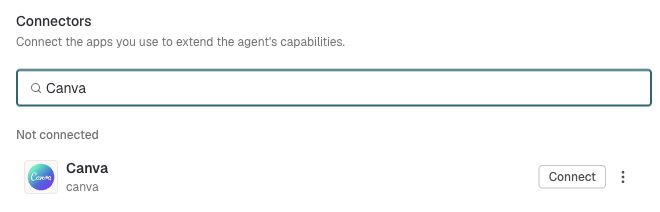
From Manage connectors, search for an app and select Connect. Canva is shown here as an example.
App | What the agent can do |
Slack | Post messages, search conversations across the workspace, read channel and thread history, add reactions |
Linear | Create issues, search, comment, and manage projects |
Atlassian Jira | Create issues, search projects, manage tickets |
Notion | Search the workspace, read pages, manage databases |
PostHog | Query product analytics, read insights, manage feature flags |
Intercom | Read support conversations, send messages, manage contacts |
Amplitude | Query analytics, read user behavior data |
Calendly | Schedule meetings, query availability, manage event types and booking links |
Canva | Search designs, read assets, manage content |
Zoom | Search meetings and content, retrieve recordings and assets, read Zoom Docs |
Salesforce | Search accounts, opportunities, and contacts, read and update CRM records |
Granola | Search meeting notes, retrieve transcripts, summarize meeting context |
GitHub | Read repositories, manage issues and pull requests |
Asana | Search and manage tasks, projects, portfolios, status updates, comments, and workspace members |
Atlassian Confluence | Search and read pages and comments, and create or update pages |
Braintrust | Search documentation, query logs and experiments, inspect schemas, and summarize evaluation results |
Clay | Search and enrich contacts, companies, and records, and use connected data providers and research tools |
ClickHouse | Run SQL queries, inspect schemas, and explore product usage and analytics data in ClickHouse Cloud |
ClickUp | Search tasks, documents, and comments, manage tasks, and track time |
Databricks | Use your workspace’s configured tools for SQL, Genie, AI Search, or Unity Catalog functions |
GitLab | Search projects and issues, review merge requests, inspect CI/CD pipelines, and read repository content |
Gmail | Send approved plain-text emails and manage Gmail labels |
Google Calendar | List calendars, manage events, and check availability |
Google Drive | Create and manage app-authorized content in an Enterpret Drive workspace |
Grafana | Search and manage dashboards, alerts, and incidents, and query metrics, logs, and traces in Grafana Cloud |
Hex | Search projects and analyze data through Hex Threads |
HubSpot | Search and update CRM records, activities, content, and marketing data |
Jira Product Discovery | Create and update product ideas, attach feedback evidence, and list or create Insights |
Lark | Find the connected user’s group chats, search Lark Docs, and read document text |
Mixpanel | Query product analytics and explore events, funnels, retention, flows, and dashboards |
Omni | Query revenue and usage metrics and explore dashboards through your organization’s analytics models |
PagerDuty | Read incidents and create incident response actions |
Plain | Read and reply to support threads, look up customers and tenants, and search the help center |
Pylon | Search support issues and accounts, read conversations, and create or update issues |
Sentry | Search errors, events, projects, and issue context |
ServiceNow | Create and update incidents, query the configuration management database, and read change and problem records |
Snowflake | Use the tools configured in your Snowflake-managed MCP server, with your Snowflake permissions |
Superhuman Docs | Search, create, and update documents, pages, and tables |
Superhuman Mail | Search email, draft and send messages, and manage calendar events |
Vanta | Review compliance posture, controls, risks, vulnerabilities, and remediation work |
Webflow | Manage sites, pages, CMS content, assets, styles, and publishing |
Wispr Flow | Search Notetaker meeting notes, summaries, and briefs |
Zapier | Discover app actions, read connected app data, create tasks, and post updates |
Zendesk | Read and reply to support tickets, and query users, organizations, and ticket history |
If an app you use is not listed, reach out to your Enterpret team. New apps ship on a rolling basis.
Connector setup requirements
Some connectors need additional setup or administrator approval before you can connect. Follow the prerequisites shown in the connection form.
| App | Before you connect |
|---|---|
| Atlassian Confluence | Ask an Atlassian organization admin to allow Enterpret in Atlassian Administration → Rovo → Rovo MCP server, including Confluence Read, Write, and Search permissions. |
| GitLab | Your top-level group needs a Premium or Ultimate plan. A group owner must enable MCP client access, GitLab Duo, and beta features. |
| Grafana | Grafana Cloud with Grafana Assistant is required. You need Assistant Cloud MCP User access and Assistant Admin for write actions. Usage counts toward your Grafana Assistant limits. |
| Lark | An admin must configure and approve a self-built Lark app with bot capability, the required permissions, and both Enterpret redirect URLs. Follow the Lark setup guide. |
| Omni | Ask an Omni organization admin to enable AI, Omni Agent, MCP server access, the required tool capabilities, and Personal Access Tokens for OAuth. Sign in to the intended Omni organization before authorizing. Queries respect your Omni permissions. |
| Snowflake | A Snowflake admin must configure the MCP server and OAuth integration first, then provide the server URL and connection details. |
| Superhuman Mail | You need a Business plan or higher, Ask AI enabled, and the Superhuman Mail Chrome extension for sign-in. Managed accounts may also need an administrator to enable MCP access through Superhuman support. |
| Webflow | Most tools work without the Designer. Designer tools require the Webflow MCP Bridge App and an active Designer session. Keep the Bridge App open while using those tools. |
| Zapier | Connect your Zapier account and the apps you want to use. Your workspace must allow MCP access. Dynamic action discovery requires Agentic mode; creating and running Next Gen Zaps requires Zapier early access. |
How connectors authenticate
Authentication varies by connector. Follow its setup form and prerequisites rather than assuming every app opens the same OAuth window.
| Setup type | What you need |
|---|---|
| OAuth with an existing app configuration | Authorize the intended external account. Source-system administrator approval may still be required. |
| OAuth with organization app setup | Complete the connector-specific app registration and configuration, then authorize each user's account. See Lark and ServiceNow for their different prerequisites. |
| Credential-based connection | Supply the credential fields requested by the connector. This flow may complete without an OAuth sign-in window. |
Shared app configuration does not mean a shared user connection. For example, Lark's app setup is restricted to an Enterpret Owner or Manager, while ServiceNow's first connection accepts the administrator-provided Client ID from a user permitted to connect. Follow the specific guide for the fields and role requirements.
Connecting an app
Open the plus menu in the Agent composer and select Connectors. Use Manage connectors to open the catalog when needed.
Find the app and choose Connect. Read its prerequisites and complete the required setup fields.
Choose Continue when offered. For OAuth, complete authorization using the intended external account. For a credential-based connection, submit the requested credentials through Enterpret's connection form.
Return to Enterpret and check the connection status and available tools. Authorization can finish before tool discovery completes. Follow any Discovering tools, Reconnect, or error message shown.
Enable the connector for your user, then try a read-only task on content the connected account can access.
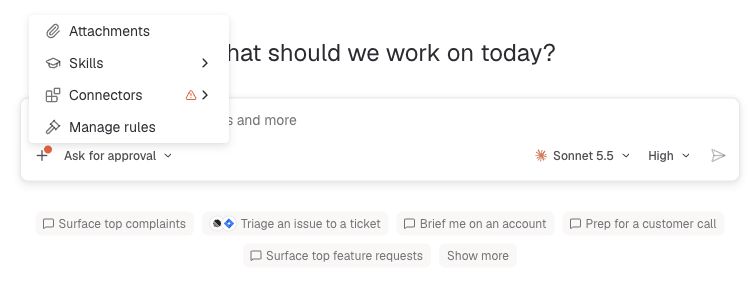
Open the plus menu in the command box and select Connectors.
Admin approval may be required
Some apps require approval from an administrator in the source system before you can finish connecting. If you see an approval request, ask your administrator to review it. After approval, return to Enterpret Agent and complete authorization with your own account. Approval alone does not complete the connection.
For HubSpot: ask a HubSpot Super Admin to review the request. HubSpot documents approval requests for unapproved Marketplace apps as in-app user notifications. If no notification appears, the Super Admin can go to Settings → Integrations → Connected Apps → Approved apps → Approve apps and search for the app. If it is listed, they can select who can install it, include you or your team, review its data permissions, and click Approve app. If the app cannot be found, contact your Enterpret team for help identifying the connector and the applicable approval flow. See HubSpot’s app approval instructions.
Each person still connects their own account. HubSpot MCP access respects the connected user’s HubSpot permissions. See HubSpot’s MCP documentation.
A connection can be reused across your Sessions. Expired or revoked authorization, changed credentials, or provider requirements can require reconnection. Use the existing connection and the instructions shown instead of creating another organization app as a routine fix.
Enable or disable connectors for your user
Use the Connectors panel to enable or disable a connected app for your Enterpret user. This setting is not isolated to the current conversation; it affects your connector availability across Sessions and does not change your teammates’ setting.
Review enabled connectors before starting a task. Tool use also depends on connection readiness, the tools available to the task, and the applicable permission settings.
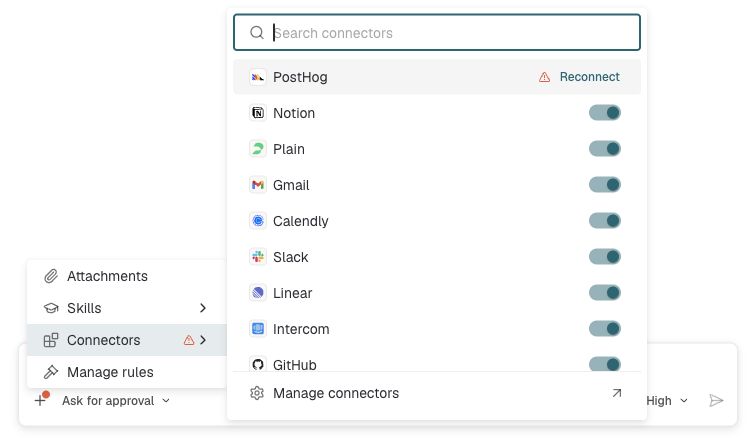
Toggle connected apps on or off in the Connectors panel. Select Manage connectors to open the full catalog.
Requesting a new connector
The catalog grows from demand. If the tool you need is not live yet, reach out to your Enterpret team and we will factor it into what we build next.
Frequently asked questions
Do connectors get set up per user, or can an admin configure them for the whole org?
User connections and organization app setup are separate. A connector may require an approved app or shared client configuration first, but each Enterpret user still completes the authorization or credential flow for their connection. The external identity can be a personal account or another account approved by your organization.
Can the agent send a message or file a ticket without another approval?
Eligible connector calls can require approval in Ask mode, including reads as well as writes. A saved allowance can let a later matching call proceed without another prompt. Auto can allow eligible calls without individual prompts, while saved blocks and access controls still apply. Review the mode, connected account, and tool permissions before delegating actions.
The tool we use is not in the catalog. What are our options?
Reach out to your Enterpret team, and the agent can work over an uploaded file in the meantime. You can upload flat files (CSV, text, data) directly into a session and have the agent analyze them alongside the Context Graph.
Have a question about connectors, or an app you want to see added? Reach out to your Enterpret team.
Use connectors with Enterpret Agent and automations
Use this connector with Enterpret Agent when your task needs external context or a supported action. For recurring reporting, daily reports, weekly digests, or scheduled follow-up work, attach an available connector to scheduled Agent automations and review the automation's own account access and tool permissions. Test the automation before enabling it; an interactive Session's approval does not automatically authorize unattended actions.