
Escalation Shield
Escalation Shield watches your connected support and social feedback for signs that a customer may escalate, such as an urgent request to involve an executive. When it detects escalation risk, it can start an Enterpret Agent automation that investigates the interaction, gathers evidence and account context, and takes the action you configured.
What is Escalation Shield?
Escalation Shield checks the feedback you choose for signs of escalation, including urgent language or changes in the customer relationship.
The feedback filter decides what Enterpret monitors. Your instructions decide what Agent does when Escalation Shield flags a risk.
How it works
Detect: Escalation Shield identifies an interaction that shows escalation risk.
Investigate: Enterpret Agent opens a session, reads the interaction, and gathers relevant account and conversation context.
Act: The agent attempts the action you configured, such as creating a ticket, posting evidence, paging on-call, or sending a webhook.
Inspect: You can open the agent session to see what it read and what it did.
What Escalation Shield can do
When Escalation Shield flags a risk, Enterpret Agent can:
Post the escalation and supporting evidence to Slack or send it by email.
Create a Zendesk or Intercom ticket with the evidence attached.
Create a Linear or Jira issue with the customer's words and relevant context.
Page the on-call team in PagerDuty.
Send the escalation to another system through a webhook.
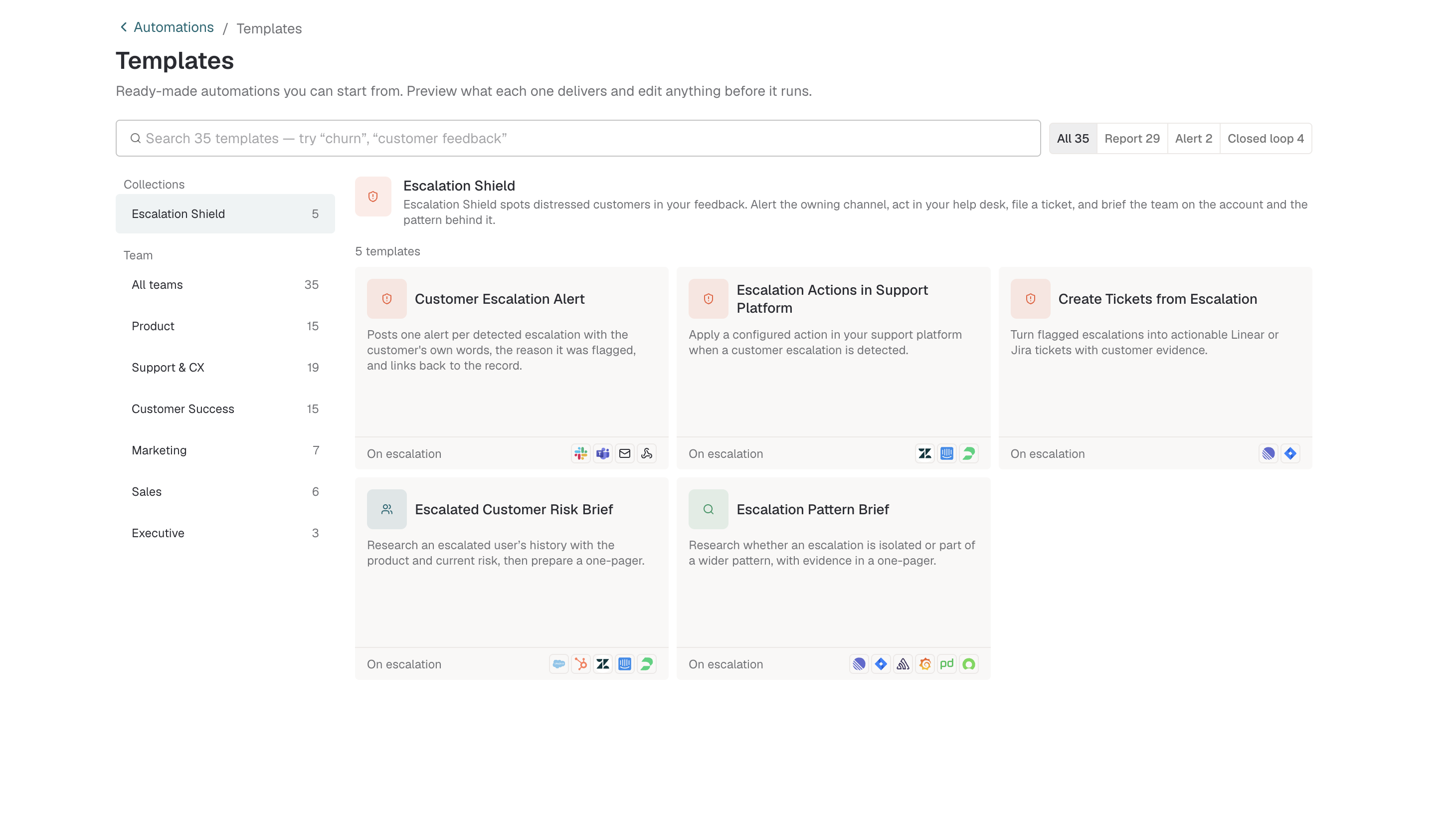
Choose an Escalation Shield template for alerts, support-platform actions, ticket creation, or investigation briefs.
The available actions depend on the integrations and permissions configured for your workspace. For webhook setup details, see Outbound webhooks for Escalation Shield.
How to set up Escalation Shield
Go to Automations in Enterpret. You can describe the automation you want in plain language, start from a template, or build it step by step.
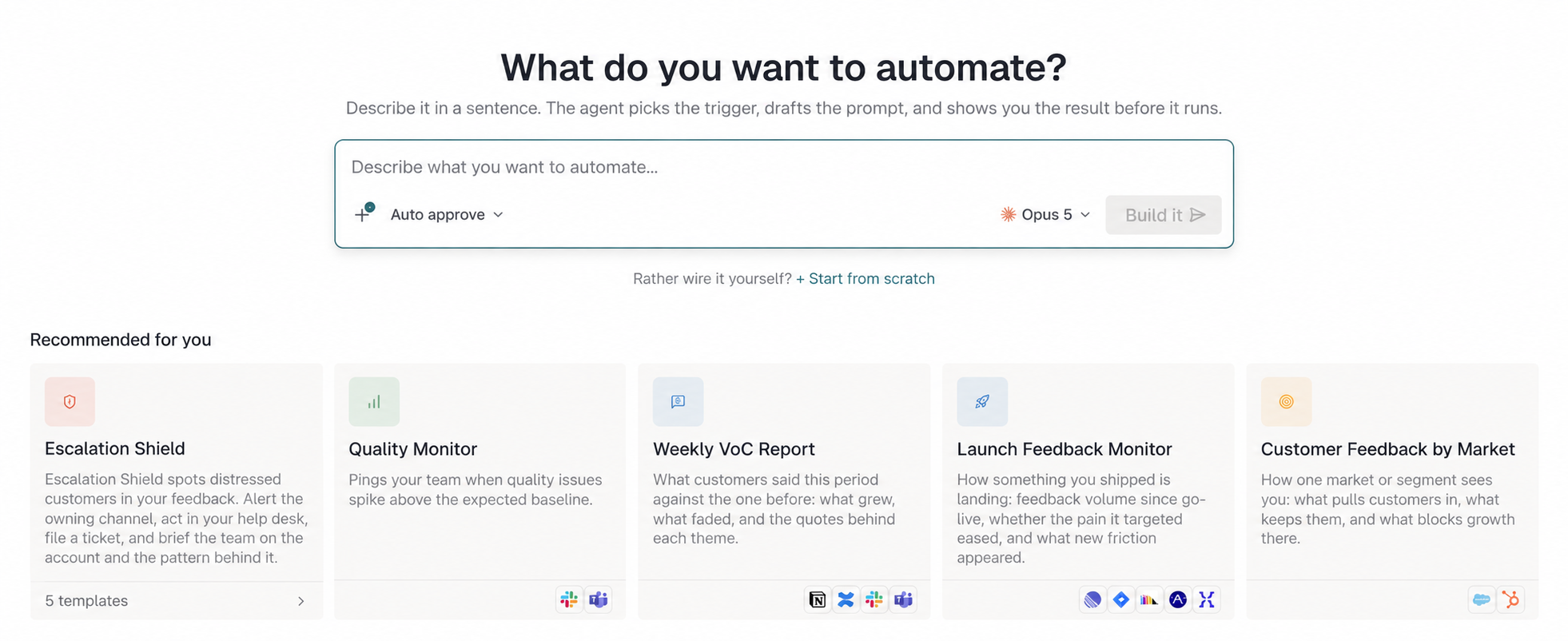
Create an automation in plain language, start from an Escalation Shield template, or build from scratch.
Step 1: Choose when it runs
Choose Escalation Shield under runs when. This condition starts the automation whenever Enterpret detects escalation risk in feedback that matches your filter.
Step 2: Configure the feedback filter (optional)
Specify which feedback the automation should watch. You can filter by:
Customer tier or segment, such as Enterprise accounts.
Product area, such as Billing or Authentication.
Feedback source, such as support tickets or social media comments.
Tags or metadata, such as priority accounts or an account-value threshold.
Leave the filter empty to monitor eligible ingested feedback supported by Escalation Shield. Connecting an Agent connector does not automatically ingest its content for monitoring.
Step 3: Tell Enterpret Agent what to do
Your instructions control the investigation and action. Choose the destination, describe the evidence to include, and add any conditions the agent should follow.
For example:
Investigate the interaction and create a Zendesk ticket with the customer's words and account context.
Create a Linear issue for the relevant product team with the evidence attached.
Post the findings to Slack and page PagerDuty when the risk is critical.
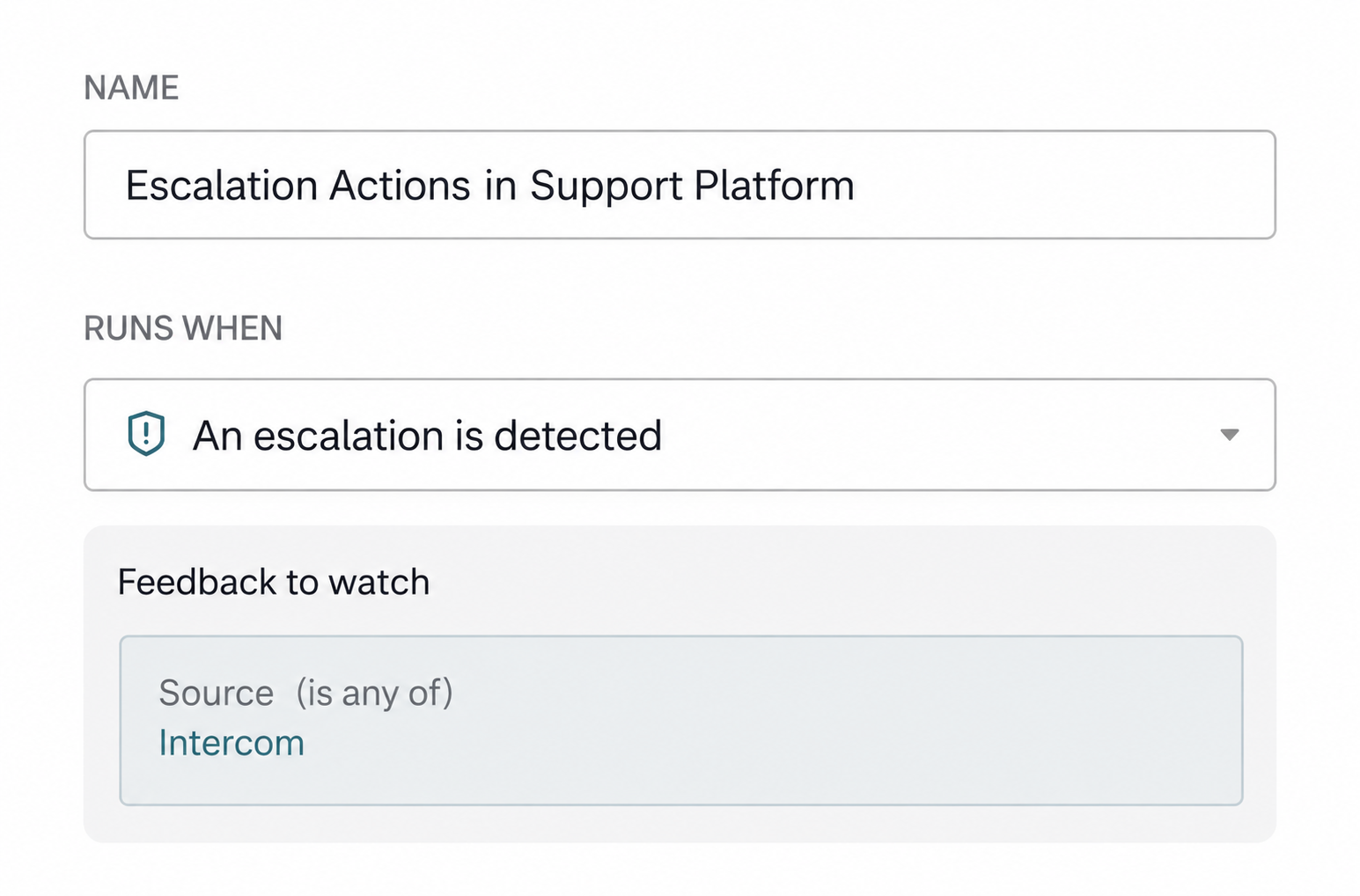
Review the escalation condition, feedback filter, connected app, and Agent instructions before creating the automation.
Step 4: Review and activate
Review the instructions and connected integrations, give the automation a descriptive name, and click Create. Escalation Shield will keep watching the selected feedback and start a new run when it flags escalation risk in matching feedback.
What you see in each run
Open a run’s Agent Session to review it. Depending on your instructions and available data, it can include:
The customer's exact words that show escalation intent or emotional intensity.
The signals that caused Enterpret to identify the escalation.
Account context such as customer tier, lifecycle stage, product area, and prior escalation history.
Conversation metadata, response history, and a link to the source interaction.
The action the agent took and links to the ticket, issue, message, page, or webhook result.
Existing Escalation Shield configurations
Existing Escalation Shield configurations continue to work. Their filters and current Slack, email, or webhook destinations stay in place.
The option to run an Agent action is only available in some workspaces. After an existing configuration moves to Enterpret Agent, Slack message formatting may differ slightly from the legacy alert.
How detection works across feedback sources
Escalation Shield adjusts its detection based on the source. A frustrated public post carries different risk from a private support ticket, and the automation accounts for that automatically.
For public sources such as X, Reddit, the App Store, and the Play Store, it looks for signals such as:
Mentions of contacting executives or leadership.
Threats of media coverage or public exposure.
References to regulatory bodies or legal action.
Threats to take the complaint further, such as contacting a journalist or posting on another public forum. A public post or engagement alone does not establish escalation intent.
You do not need to configure source-specific scoring.
Best practices
Start narrow: Begin with your highest-priority accounts, then expand the filter as your team builds confidence.
Give the work an owner: Send each action to a team that can respond.
Attach the evidence: Include the customer's words and account context in tickets and issues.
Reserve paging for critical risk: Add clear conditions before sending an escalation to PagerDuty.
Inspect and refine: Review Agent sessions to improve the instructions and remove actions that do not get used.
Frequently asked questions
Does the upgrade change how Escalation Shield detects risk?
No. Detection stays the same. The upgrade changes what can happen when Escalation Shield flags a risk.
What happens if I do not set a feedback filter?
The automation monitors eligible ingested feedback supported by Escalation Shield. Agent connector access alone does not add feedback to this monitoring dataset.
What happens after a run finishes?
The automation stays active after the run finishes. It starts another run when it flags escalation risk in feedback that matches your filter.
Can I see what Enterpret Agent did?
Yes. Open the session for the run to inspect the evidence it gathered and the actions it took.
Is Escalation Shield the same as Quality Monitor?
No. Both run in the background, but Quality Monitor watches for quality spikes while Escalation Shield watches for escalation risk in individual customer interactions.
Need help setting up your automation? Contact support@enterpret.com.
Escalation alerts or recurring reports?
For a daily report or weekly account update, use scheduled Agent automations. Use connectors for external context and supported actions, and verify the automation's own access and permissions.