
How to Invite, Modify or Suspend Users?
In this article
In this article group
How to Invite, Modify or Suspend Users?
Inviting Teammates
To add team members to your Enterpret workspace:
Open your profile icon (bottom left) and select Workspace Settings.
Go to the Users tab.
Click the Invite button.
Enter email addresses, separated by commas if multiple.
Select the invitees' access level from the dropdown. The available roles depend on your own role. For related guidance, see What is User Management in Enterpret?
Click Send. Invitees receive an email invitation with a join link.
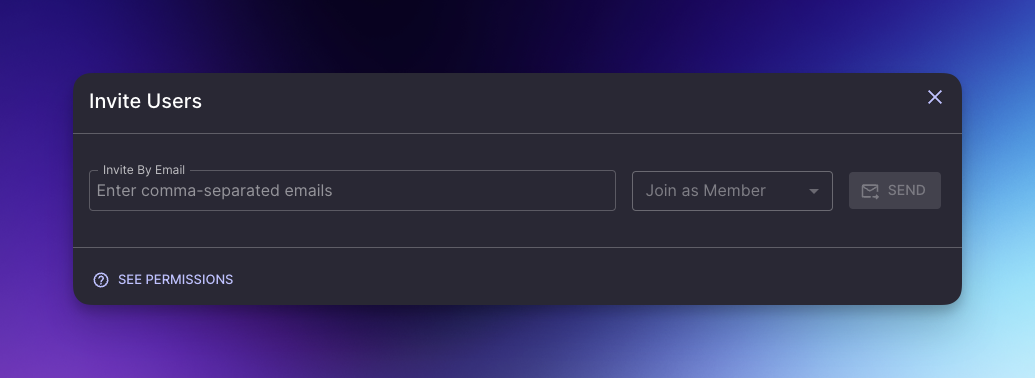
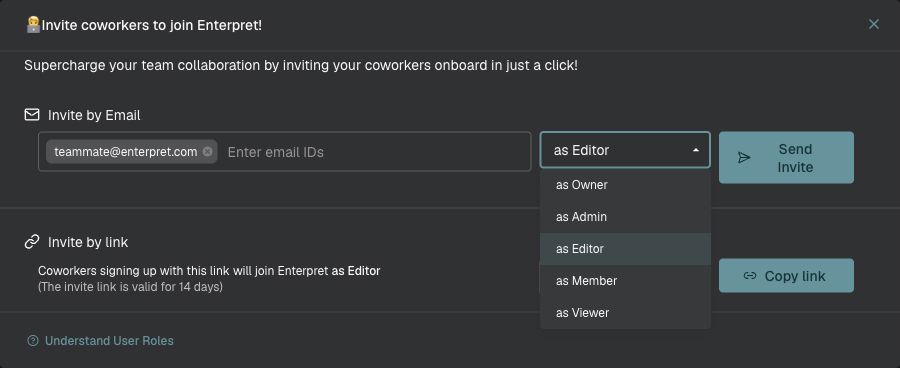
Note: the roles you can assign depend on your own permissions. When Auto-Approve is on, users whose email matches an approved company domain can join without an individual invitation and receive the workspace’s default role. When Auto-Approve is off, new users must join through a valid invitation link.
Changing Access Levels
Navigate to the Users tab in Workspace Settings.
Search for the user by name or email.
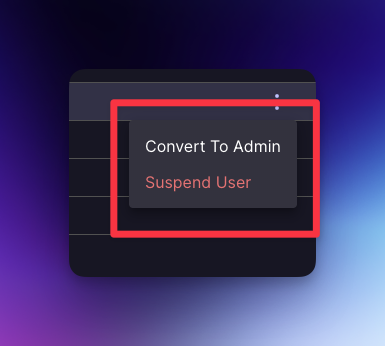
Click the three-dot menu next to the user's name.
Select Convert to Admin, Convert to Editor, Convert to Member, or Convert to Viewer.
Suspending Users
Go to the Users tab in Workspace Settings.
Search for the user.
Click the three-dot menu.
Select Suspend User and confirm.
Permissions note: Admin-level access is required for these management functions.
Programmatic User Management
If your organisation provisions users through Okta or another identity provider, use Configure SCIM 2.0 with Okta instead of manual invites. SCIM handles invites, role changes, and suspensions automatically when users are added or removed in your IdP.
Related Articles
What is User Management in Enterpret? — role definitions and permissions matrix
Adding Teammates — brief invite overview