
What is User Management in Enterpret?
In this article
In this article group
User Management on Enterpret allows you to control access and permissions within your workspace, so you can effectively collaborate with your team, avoid unforeseen changes, and restrict access for certain users when necessary.
Let's explore Enterpret's user management features further:
Understanding User Roles
User roles ensure that all Enterpret users have appropriate access and functionality based on their responsibilities and requirements. It helps maintain security, streamline workflows, and customize the user experience.
Enterpret supports five user roles: Owner, Admin, Editor, Member and Viewer. The Owner role is available only in workspaces where it is enabled.
Owners have all Admin capabilities, plus billing permissions, including adding credits. They can assign the Owner role and change an existing Owner’s role.
Admins control data flow, manage user access, modify artifacts, and perform all editor tasks.
Editors manage Taxonomy and metadata, but cannot add or deactivate integrations or manage workspace user settings.
Members consume insights, create artifacts, subscribe to reports, but don’t control Taxonomy or metadata.
Viewers can view and query data and consume existing saved artifacts. They can also use Enterpret Agent where available; this does not grant permission to manage workspace data or settings.
Default role for new users: Owners and Admins can check or change Default User Role in Settings → Users & Permissions. New users receive this configured role unless they accept an invitation with a different role. Change an existing user’s role separately.
User Permissions
| Action | Owner | Admin | Editor | Member | Viewer |
|---|---|---|---|---|---|
| Add integrations | Yes | Yes | No | No | No |
| Deactivate integrations | Yes | Yes | No | No | No |
| Create/edit your saved artifacts | Yes | Yes | Yes | Yes | No |
| Create/edit your custom filters | Yes | Yes | Yes | Yes | No |
| Invite users | Yes | Yes | Yes | Yes | No |
| Edit predictions on feedback records | Yes | Yes | Yes | No | No |
| Add/edit/archive taxonomy nodes | Yes | Yes | Yes | No | No |
| Manage metadata (rename/hide/star) | Yes | Yes | Yes | No | No |
| Unify metadata fields | Yes | Yes | Yes | No | No |
| Reporting and outbound integrations | Yes | Yes | Yes | Yes | No |
| Manage users and sign-up settings | Yes | Yes | No | No | No |
| Configure dashboard templates | Yes | Yes | Yes | No | No |
| Create/edit all custom filters | Yes | Yes | No | No | No |
| Create/manage your automations | Yes | Yes | Yes | Yes | No |
| Create/manage your Spaces | Yes | Yes | Yes | Yes | No |
| Add credits | Yes | No | No | No | No |
| View and query data | Yes | Yes | Yes | Yes | Yes |
Invitations follow role limits: Owners can select any available role; Admins can select Admin, Editor, Member or Viewer; Editors can select Editor, Member or Viewer; Members can select Member or Viewer. Viewers cannot invite users. See how to invite, modify or suspend users for the steps.
Only Owners can assign the Owner role or change an existing Owner’s role. Owners and Admins can manage user roles and workspace settings. The table summarizes the listed workspace actions; a No does not necessarily remove read access. Creating or editing saved artifacts, configuring dashboard templates, and managing Automations or Spaces also depend on the item’s edit access, status and feature availability. The Automations row covers saved automations; interactive Enterpret Agent Sessions have separate permissions.
Integration deactivation and deletion: Owners and Admins can deactivate integrations from the Integrations page. If a deletion action is available in your workspace, review its confirmation before using it. Contact Enterpret Support if deletion is unavailable or if you need to clarify how previously ingested data will be handled.
Auto-Approval
The Auto-Approve setting controls whether new users with an approved company email domain can join your Enterpret workspace without an individual invitation. Check the setting for the user’s email domain: an individual domain setting takes precedence over the workspace setting.
How access works
When auto-approve is on for the email domain: New users on that approved domain can be approved through sign-up or sign-in, including SSO where configured, without an individual invitation. New users receive the configured default role unless they accept an invitation with a different role.
When auto-approve is off for the email domain: Signing in alone does not approve a new user. Ask a workspace administrator for access. Accepting a valid invitation activates access and applies the role selected by the inviter.
SSO and auto-approve are separate: SSO verifies a user’s identity. Auto-approve determines whether an authenticated new user can access the workspace without an invitation.
Managing Auto-Approve
Check the current Auto-approve setting for each approved domain. To turn it on or off:
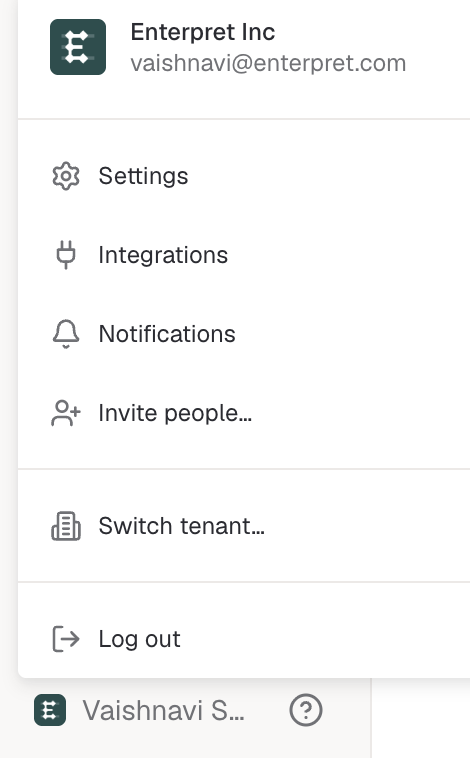
Click your profile icon at the bottom left of the dashboard and select "Settings."
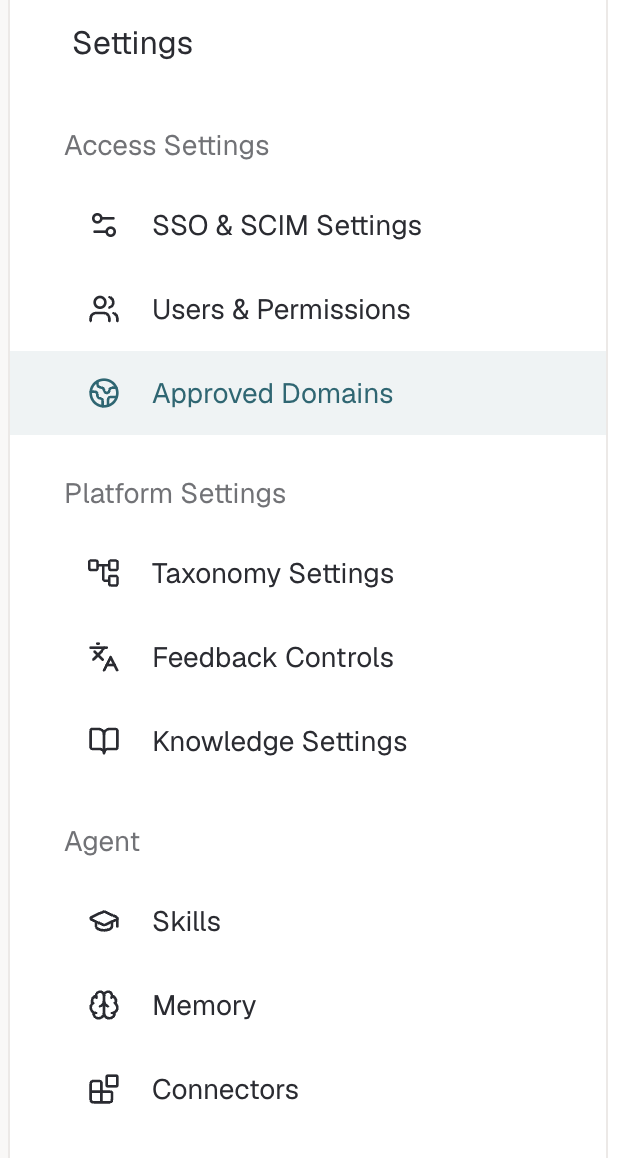
Navigate to Approved Domains under Access Settings.
Find the relevant email domain and use its Auto-approve switch to turn automatic approval on or off.

Remember, you need to have Owner or Admin access to change user management settings.