
Adding Teammates
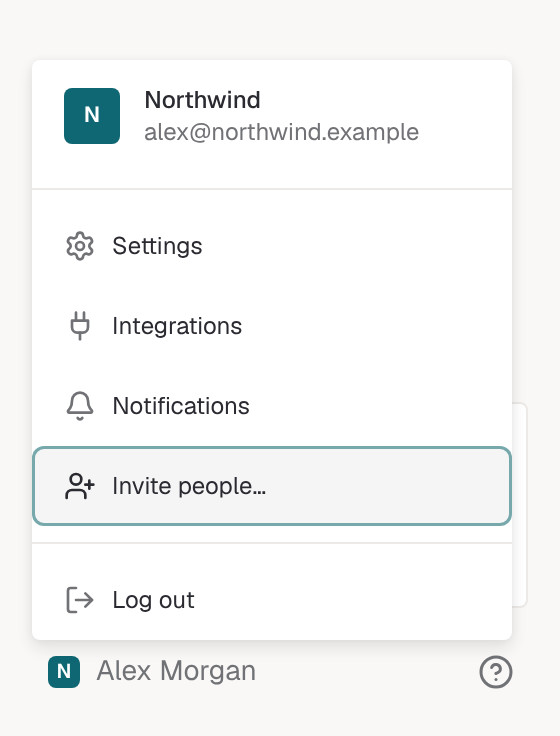
In the Dashboard, click your name at the bottom of the left sidebar and select Invite people.
Email Address
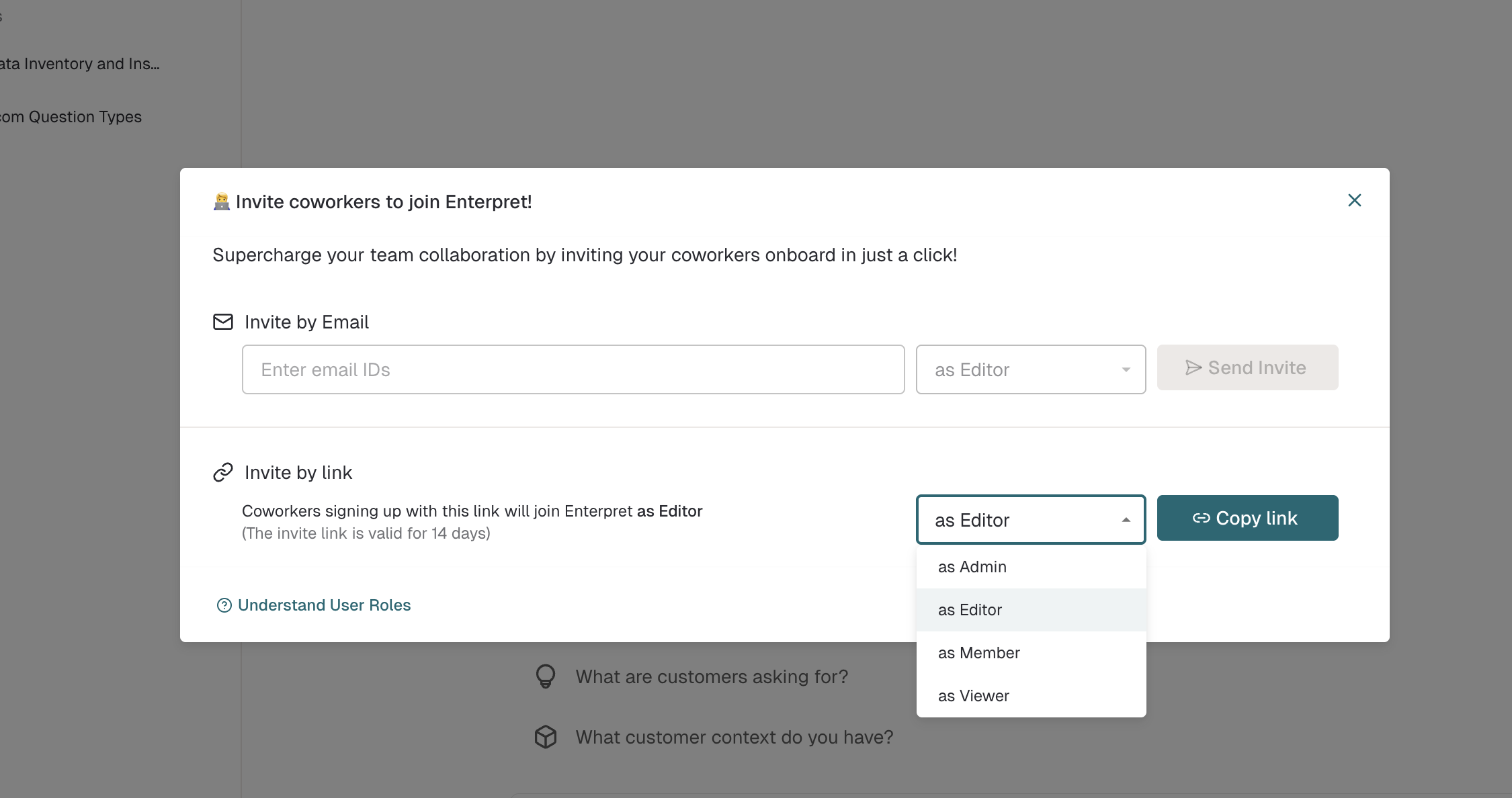
Enter your teammate’s work email. Enterpret sends the invitation if the address matches an approved workspace domain.
Invite Link
Copy the invite link and share it with your teammate. They must register with an email address from an approved domain.
What role do new teammates get?
An invitation applies the role selected by the inviter. New users who join without a role-specific invitation receive the workspace’s default role. Owners and Admins can change the default under Settings → Users & Permissions → Default User Role.
During the invite itself you can also select a specific role for the invitee — the options available depend on your own role:
Owners can invite with any role available in the workspace, including Owner where enabled.
Admins can invite as Admin, Editor, Member, or Viewer.
Editors can invite as Editor, Member, or Viewer.
Members can invite as Member or Viewer.
Viewers cannot invite users.
For the full breakdown of what each role can do across Enterpret, see What is User Management in Enterpret?.
The invitee’s email must match one of the workspace’s approved domains. Owners and Admins can change an existing user’s role; only an Owner can assign the Owner role or change an existing Owner’s role.