
Okta <> Enterpret: End-to-End SSO Setup Guide (SAML)
Overview
Single Sign-On (SSO) allows users to log in to Enterpret using their organization’s existing Okta credentials. Enterpret supports SAML 2.0–based SSO, enabling centralized authentication, improved security, and simpler user access management.
This guide walks you through the entire SSO setup flow, from configuring Okta to testing and enforcing SSO.
🔐 Understanding SSO Login Flows (Read This First)
Enterpret supports both sign-in flows below. Test each flow you intend to offer before enforcing SSO.
SP-Initiated SSO
What it is
Login starts from Enterpret
User is redirected to Okta to authenticate
Flow
User opens Enterpret login page
Clicks Sign in with SSO
Redirected to Okta
Authenticates
Redirected back to Enterpret
Why this matters
✅ No manually configured Default RelayState is needed for this Enterpret-started flow.
✅ Start by testing this flow.
✅ Must work before enforcing SSO
👉 Always validate this flow first.
IDP-Initiated SSO
What it is
Login starts from Okta
User clicks Enterpret app in Okta dashboard
Key difference
❗ Requires RelayState
Without the copied RelayState, Cognito lacks the app-client and redirect context needed to complete this portal-started sign-in.
What Is RelayState?
RelayState is a value copied from Enterpret that supplies the SAML portal sign-in context to Amazon Cognito, including:
The configured identity provider, app client, callback URL, response type and scopes. Copy your workspace’s value; do not reuse a screenshot’s example.
SP-initiated: no manual Default RelayState configuration needed
IDP-initiated: Required
Prerequisites
Permission to configure SSO in your Enterpret workspace.
Admin access to Okta
Permission to create Okta applications
An email claim containing the email address used for the user’s Enterpret workspace access.
High-Level Setup Flow
Create a SAML app in Okta
Configure attribute statements (important)
Configure SSO in Enterpret
Test SP-initiated login
Enable IDP-initiated login
(Optional) Enforce SSO
Step 1: Configure Okta for Enterpret (SAML)
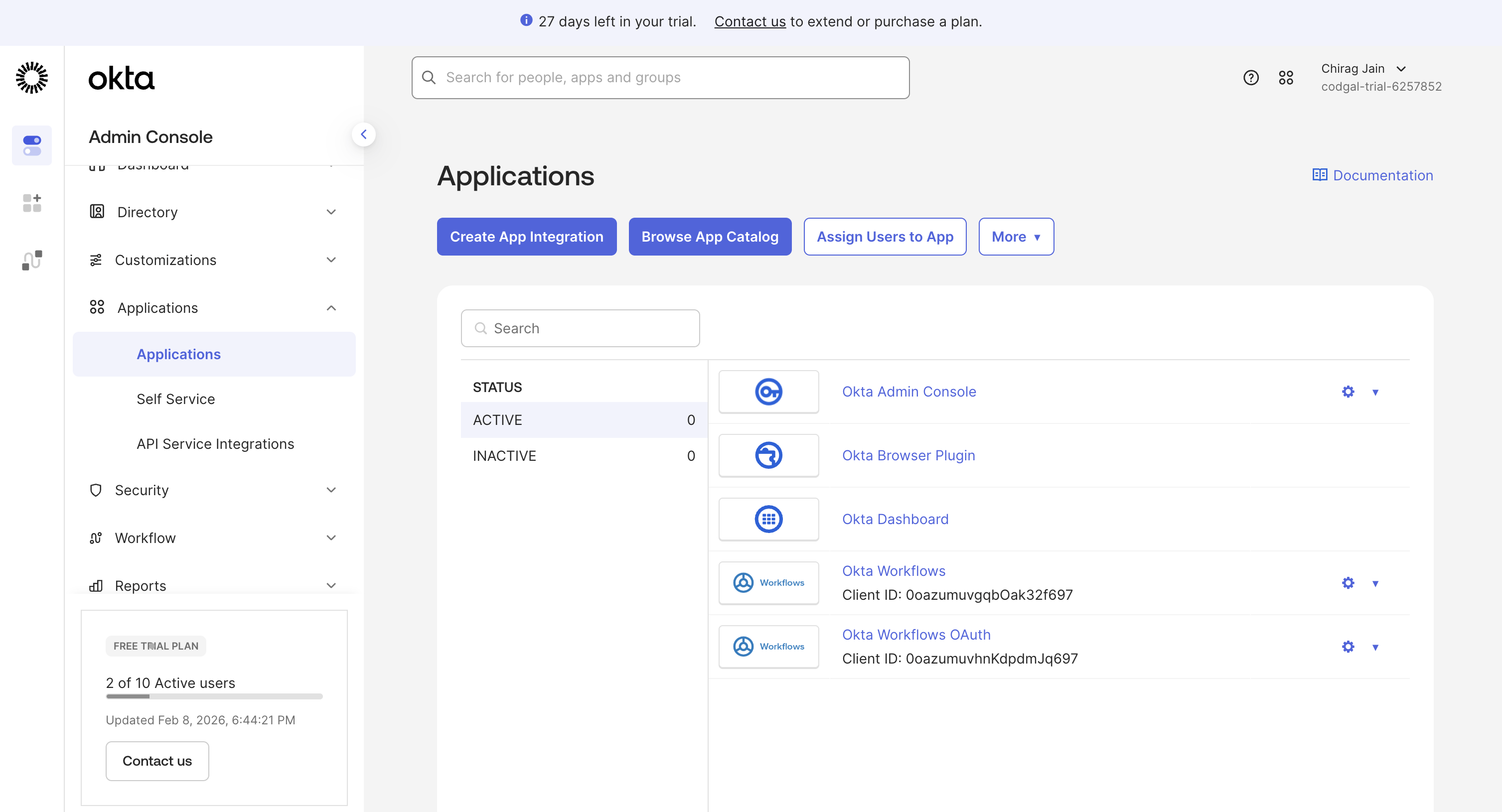
1. Create a New Application
Okta Admin Console → Applications → Applications
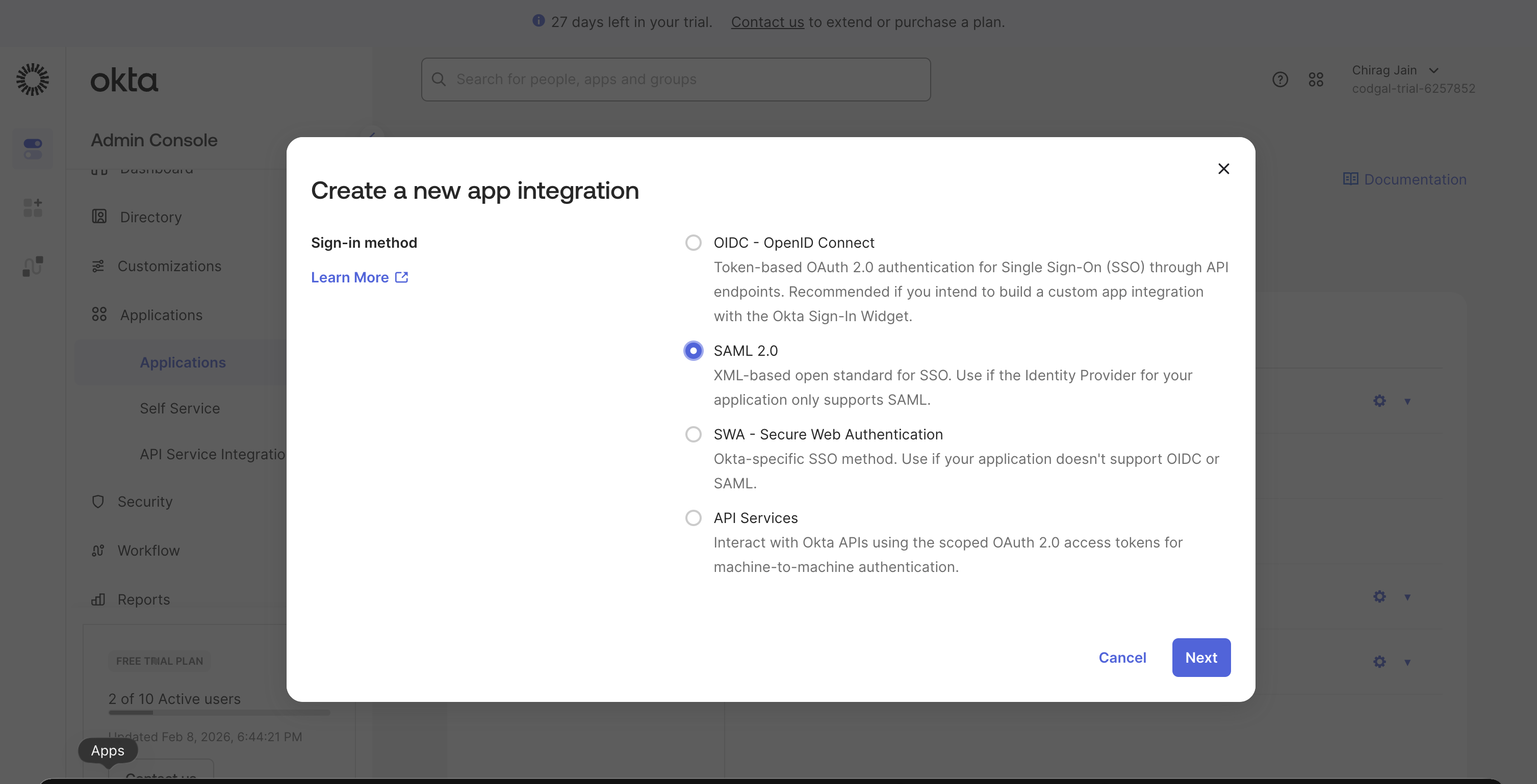
Click Create App Integration, then select Classic experience if prompted.
Select SAML 2.0
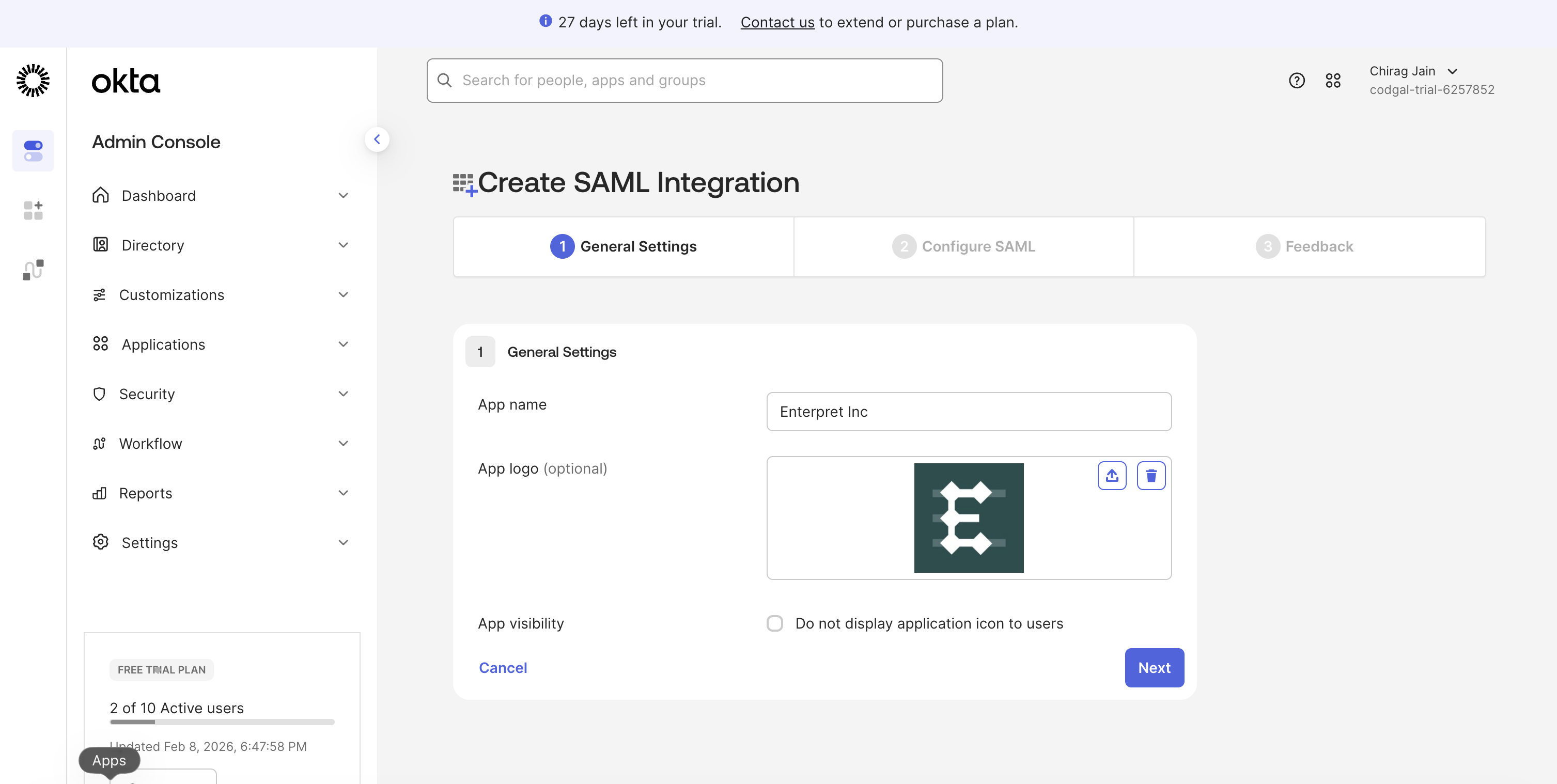
2. General Settings
App name:
Enterpret IncLogo: Optional
Click Next
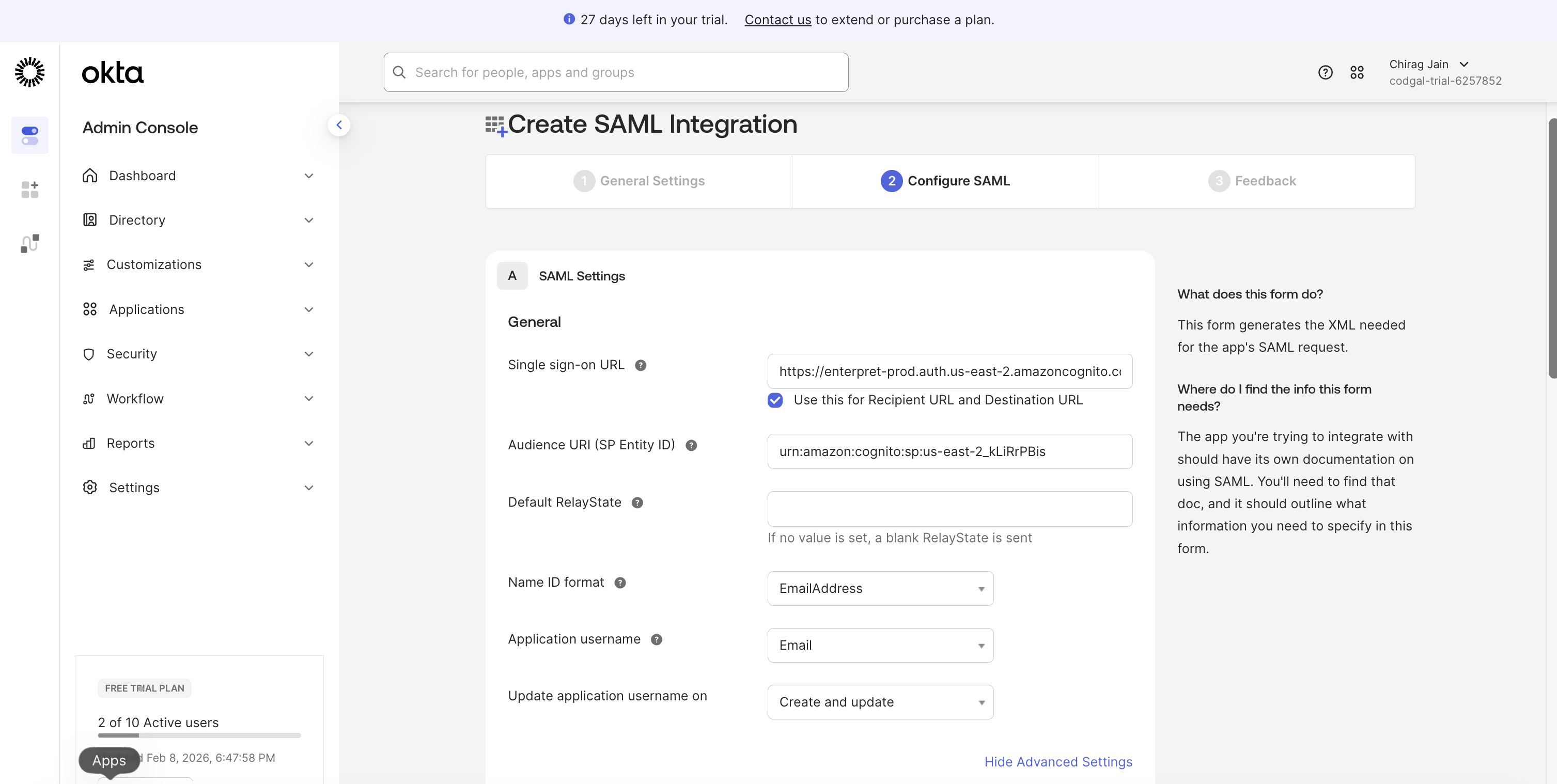
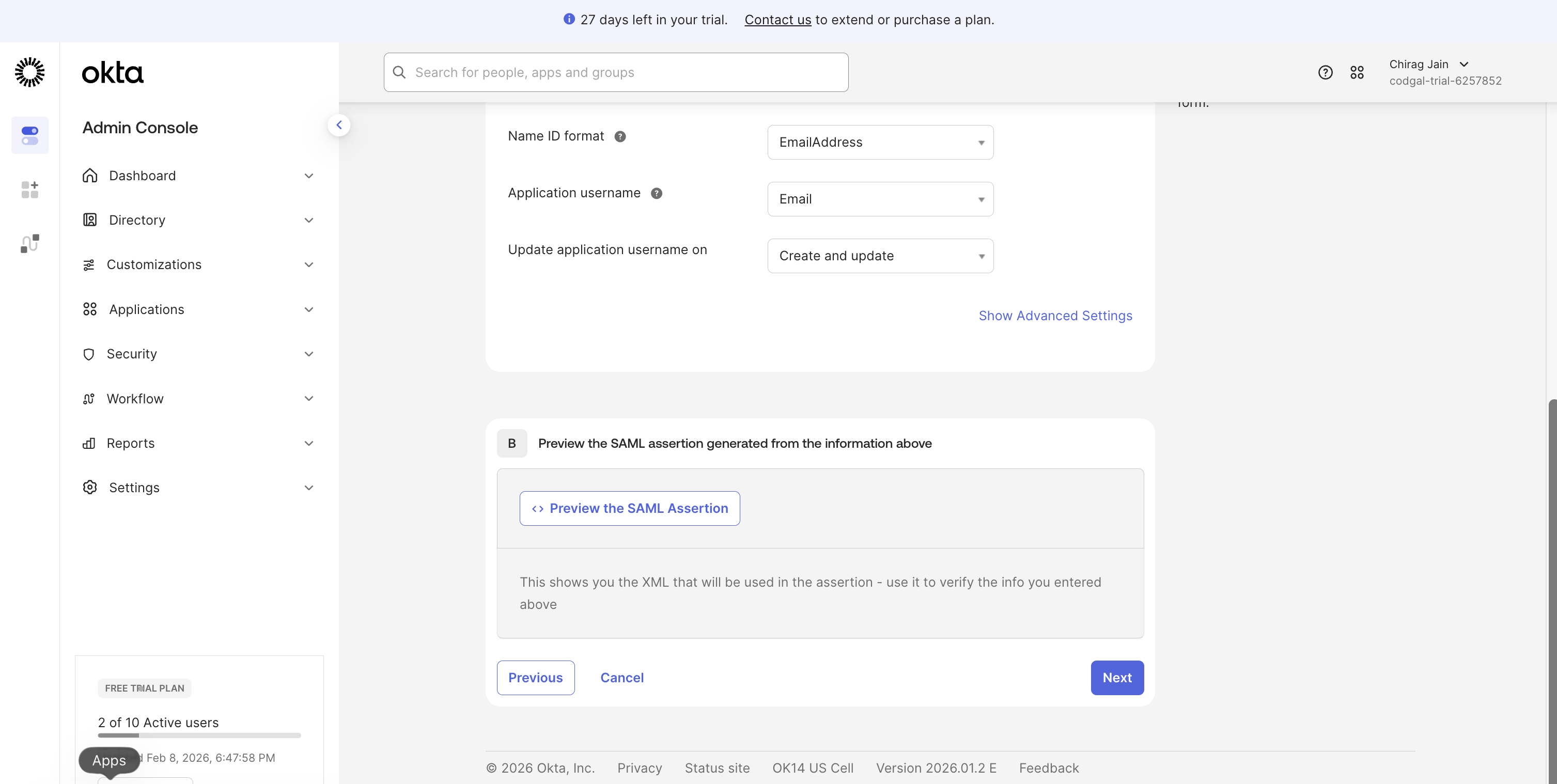
3. Configure SAML Settings
Update SAML Settings with following details
Field | Value |
Single sign-on URL (ACS) |
|
Audience URI (SP Entity ID) |
|
Default RelayState | Leave empty |
Name ID format | EmailAddress |
Application username | |
Update application username on | Create and Update |
Click on Next
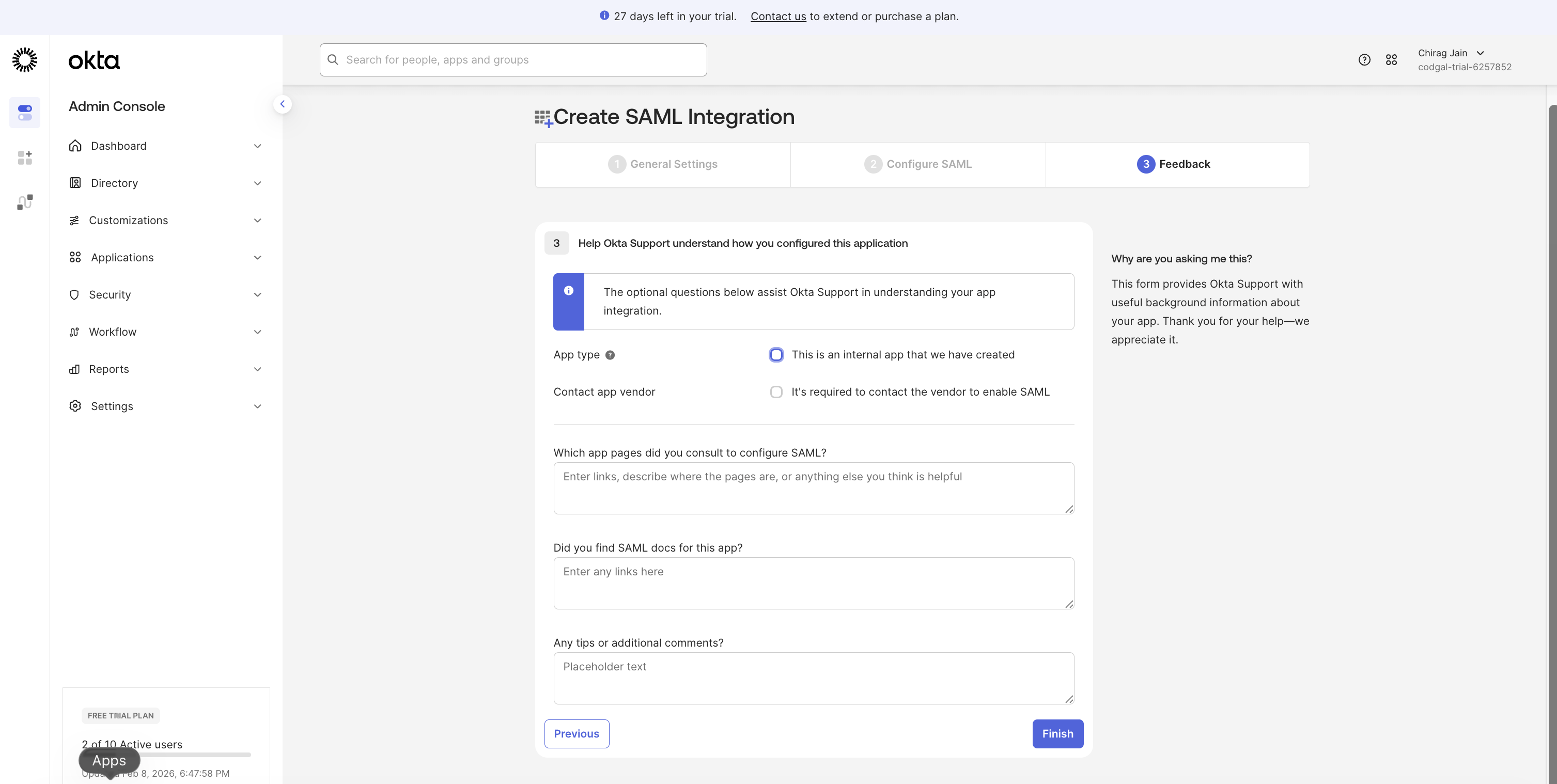
Give Okta Feedback (Optional)
4. Configure Attribute Statements
Open Enterpret Application’s Sign On tab
Scroll down to Attribute Statements and expand Show Legacy Configuration
Add following attribute to Profile attribute statements as shown above
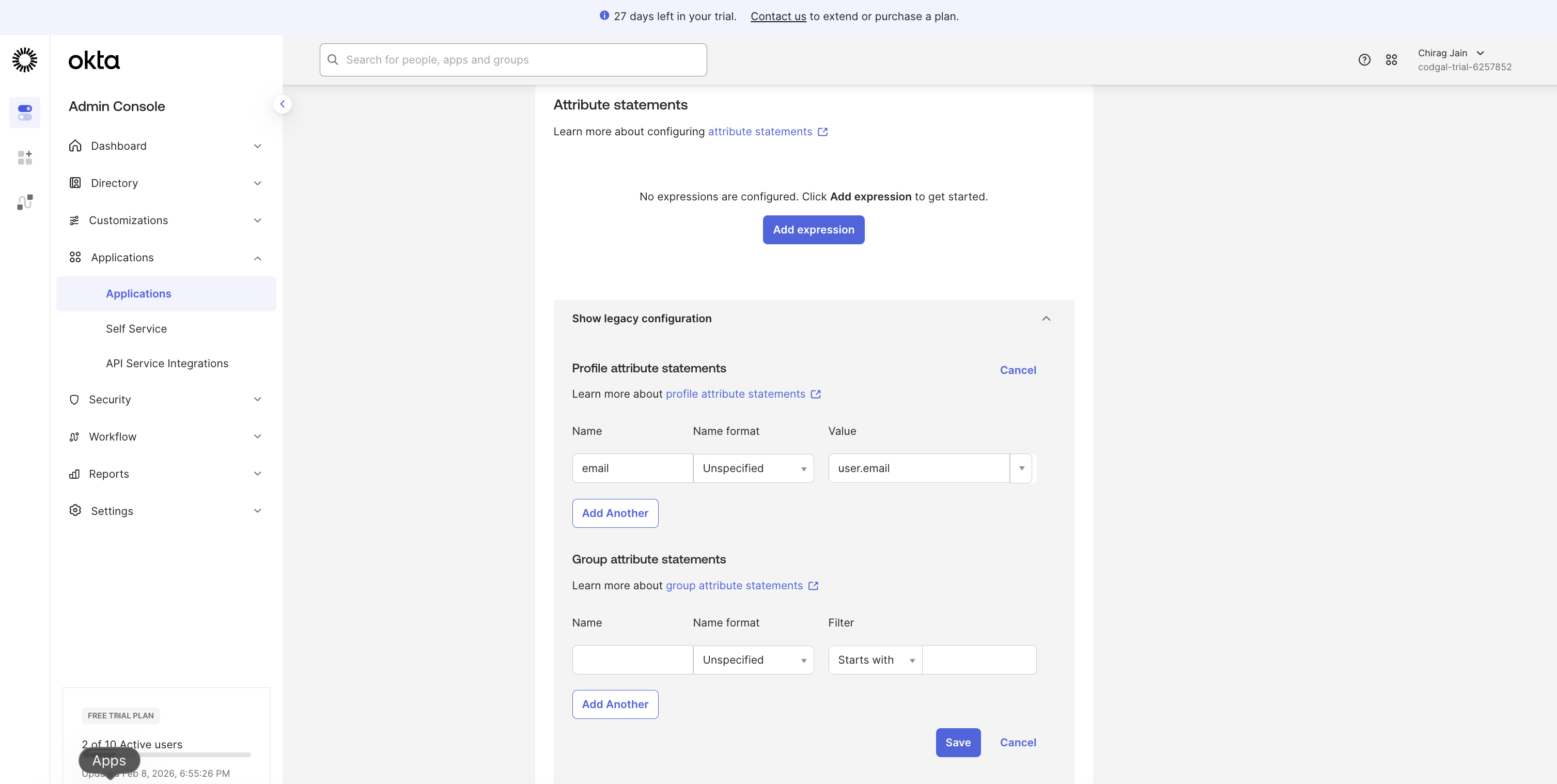
Name | Name format | Value |
| Unspecified |
|
Leave Group attribute statements empty and Save
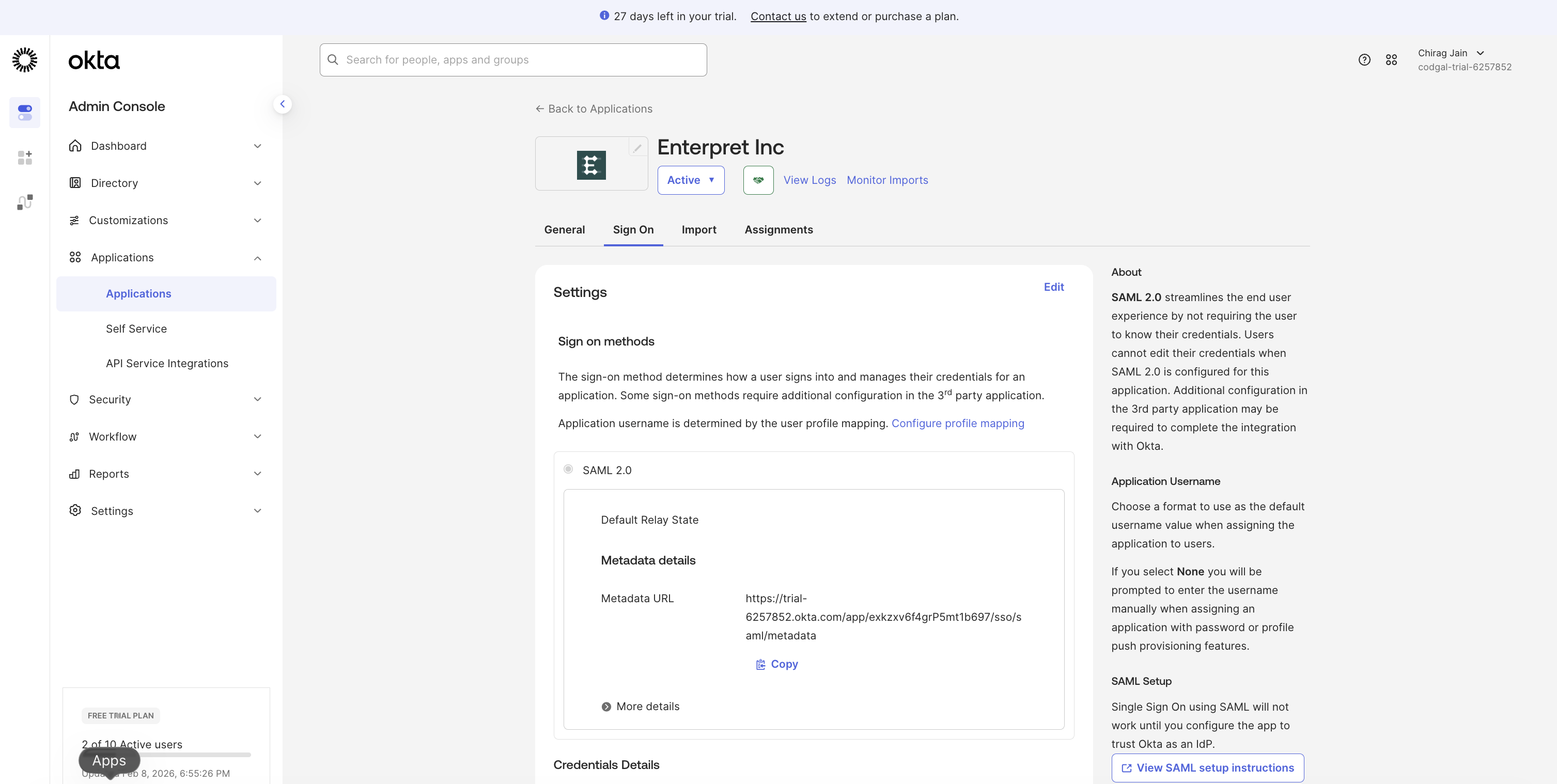
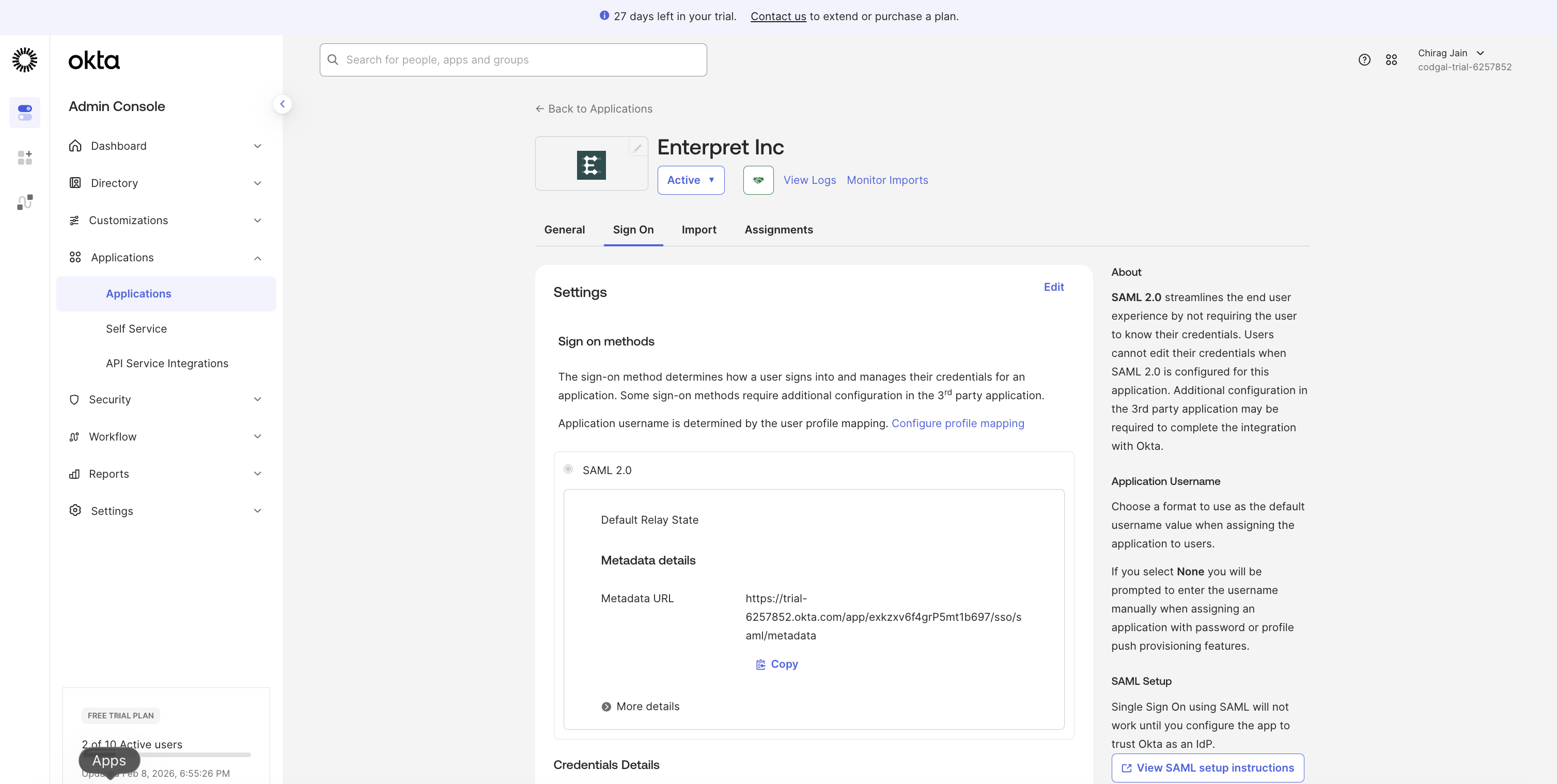
5. Copy Okta Metadata URL
Open Enterpret Inc app
Go to Sign On
Copy the Metadata URL
Step 2: Configure SSO in Enterpret
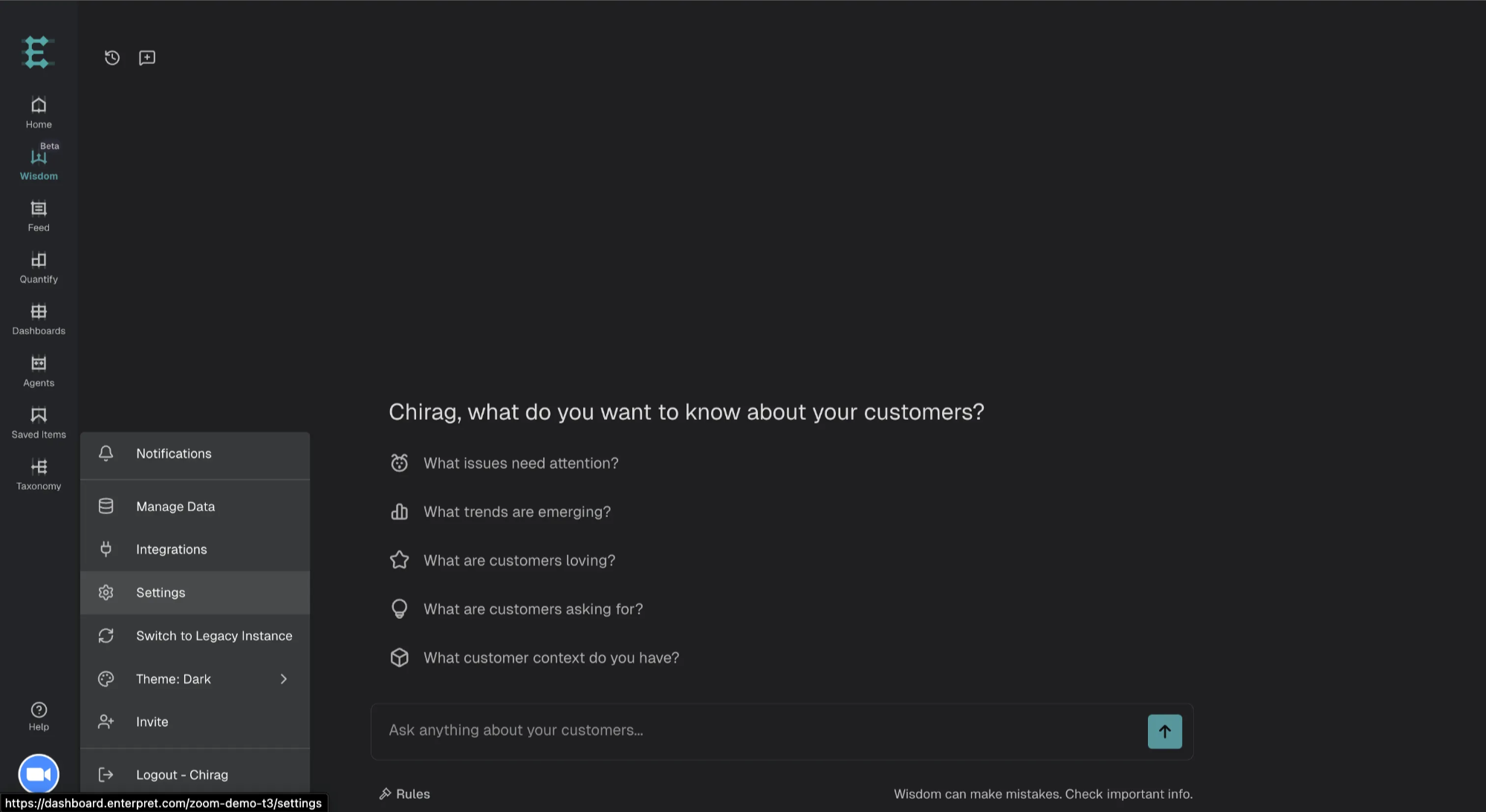
Log in to Enterpret
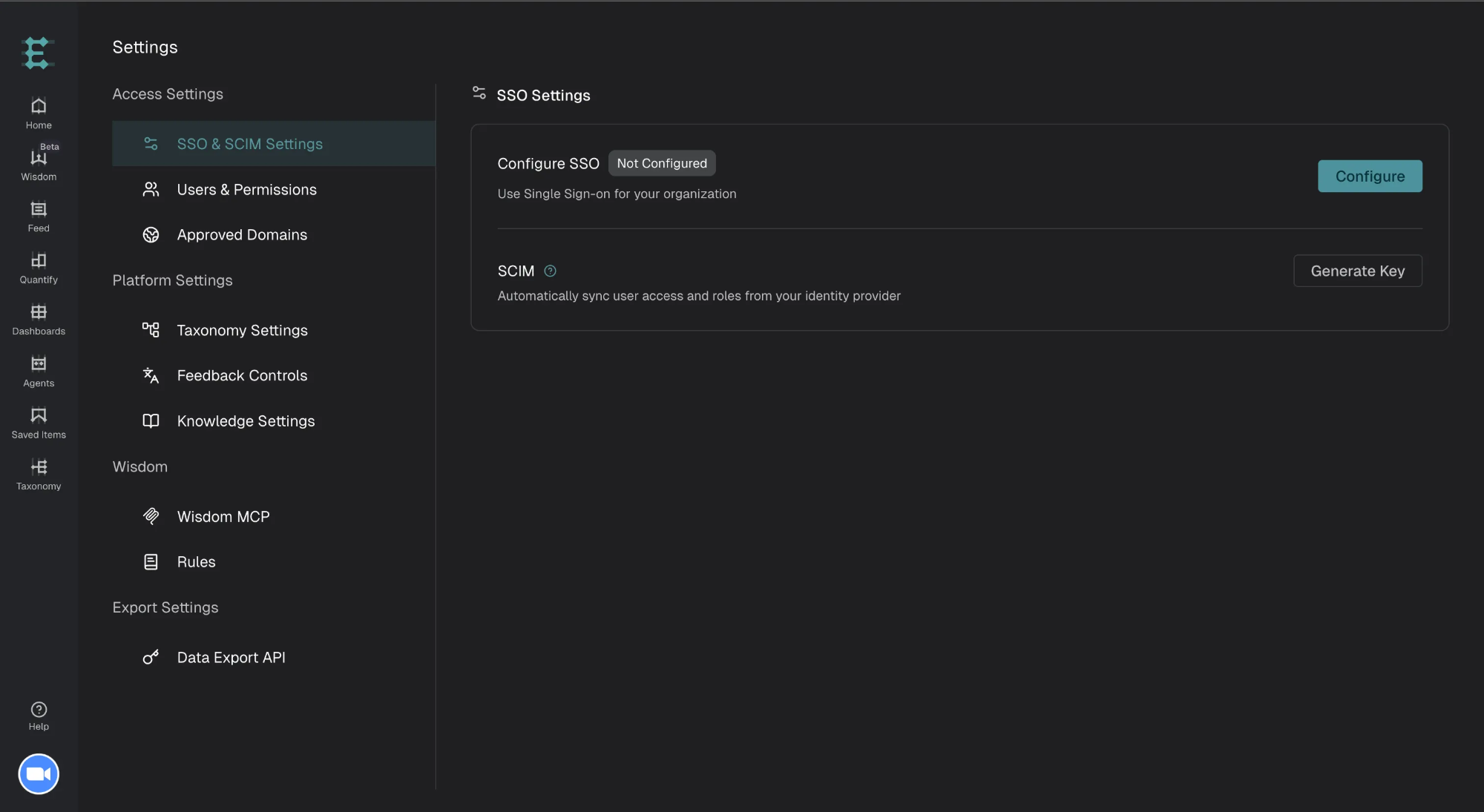
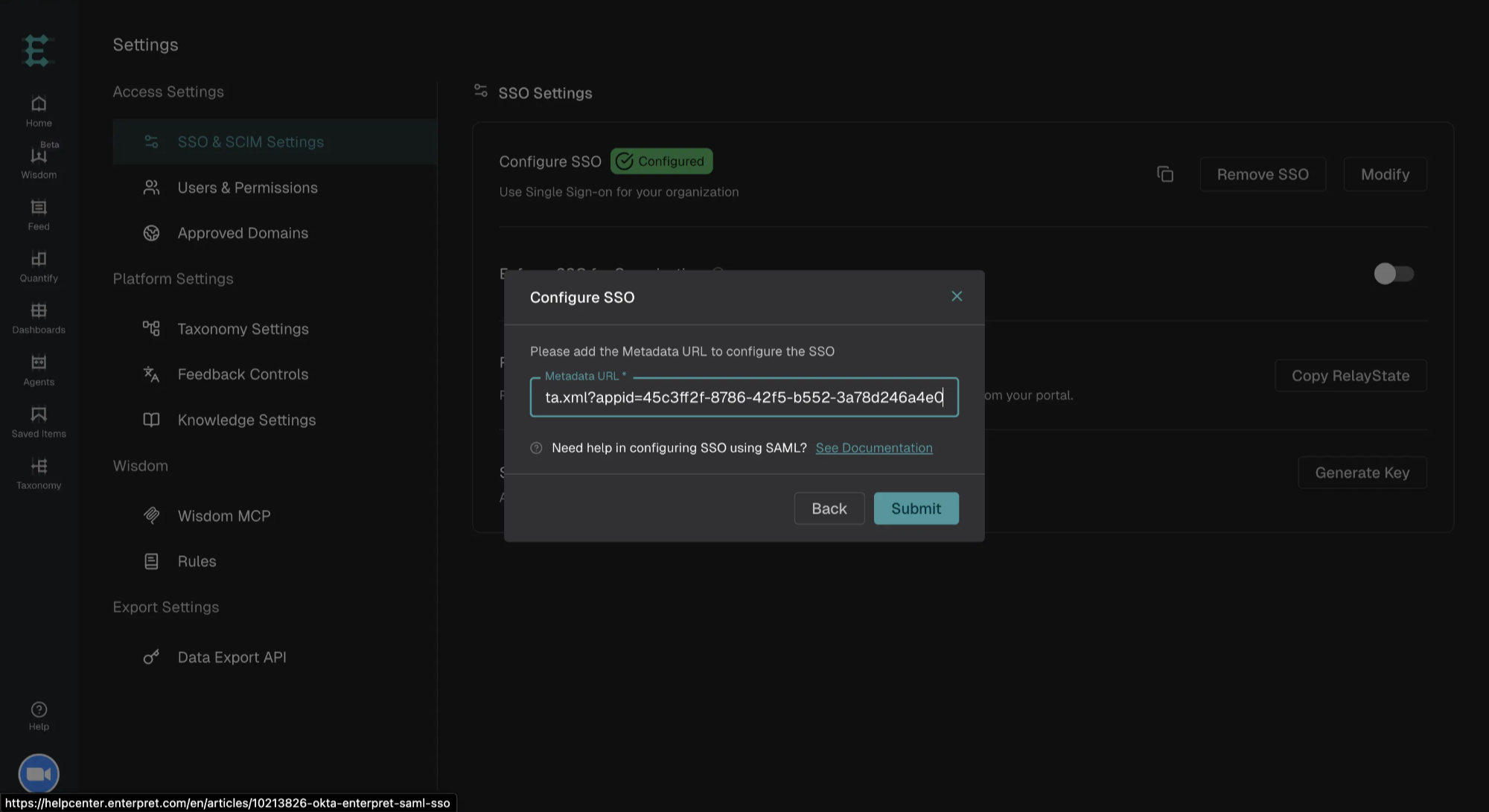
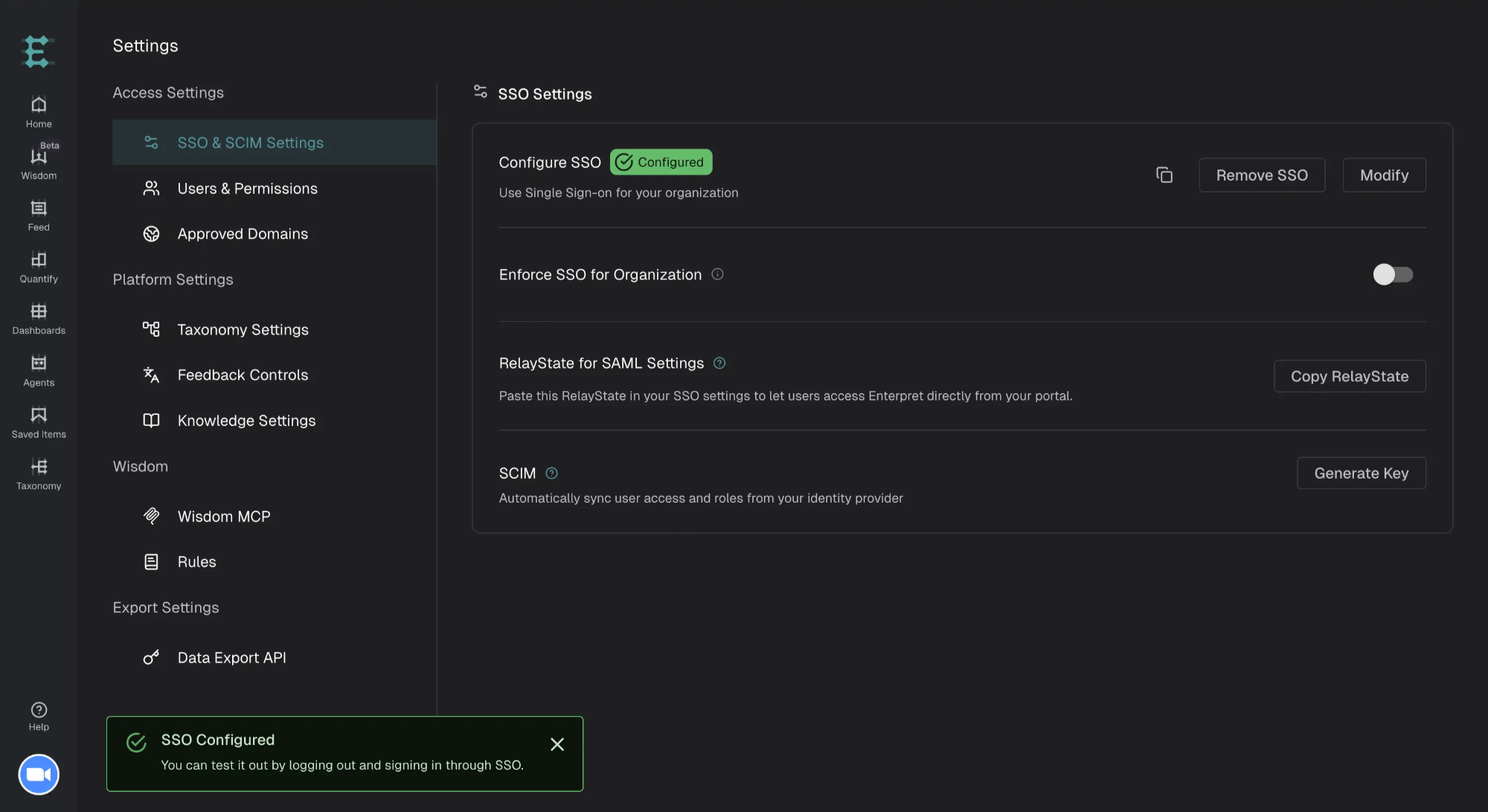
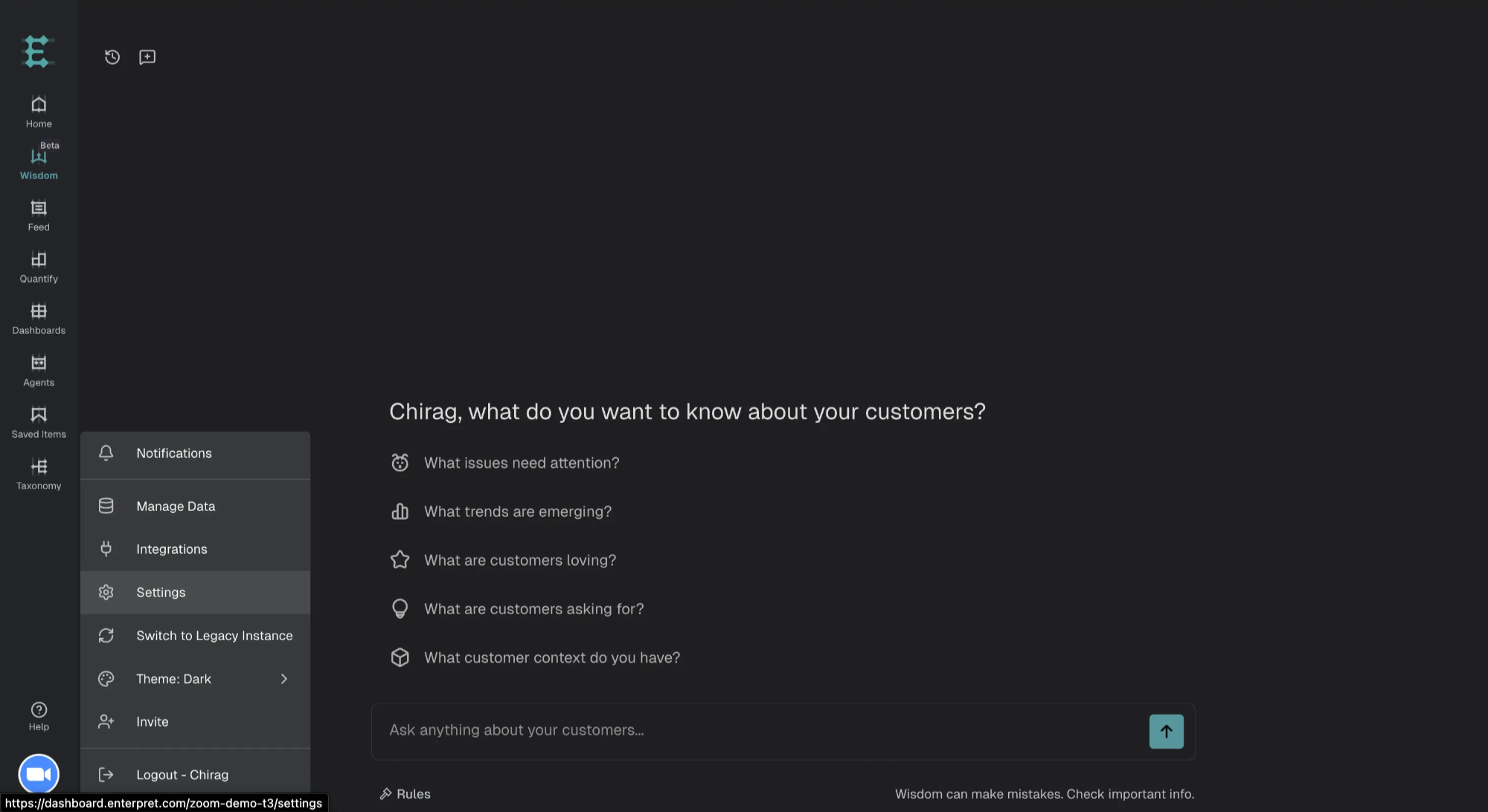
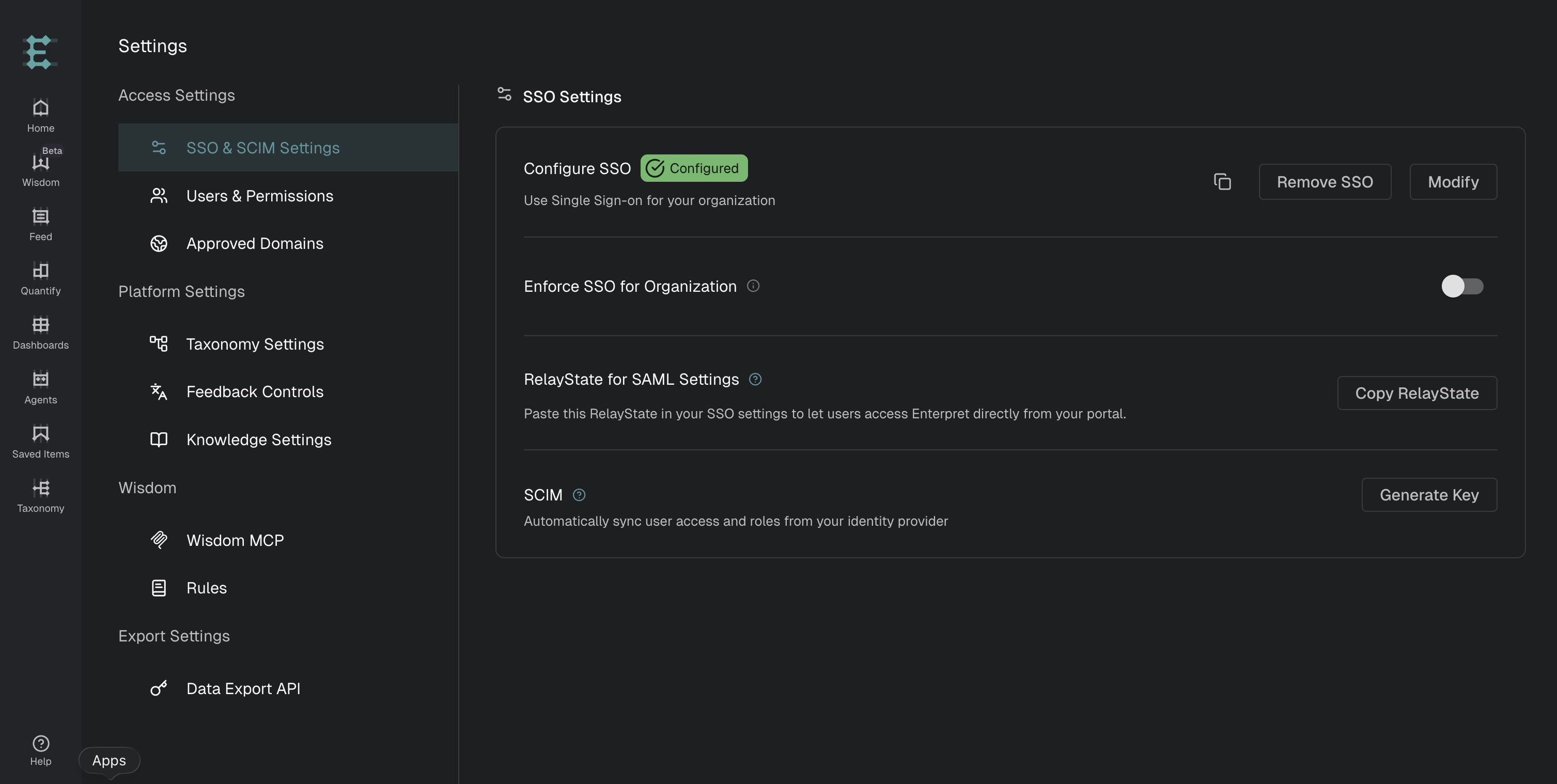
Open Settings → SSO and SCIM. Older navigation may show Access Settings → SSO & SCIM Settings, as in the screenshots.
Click Set up SSO (Configure in the older screenshot).
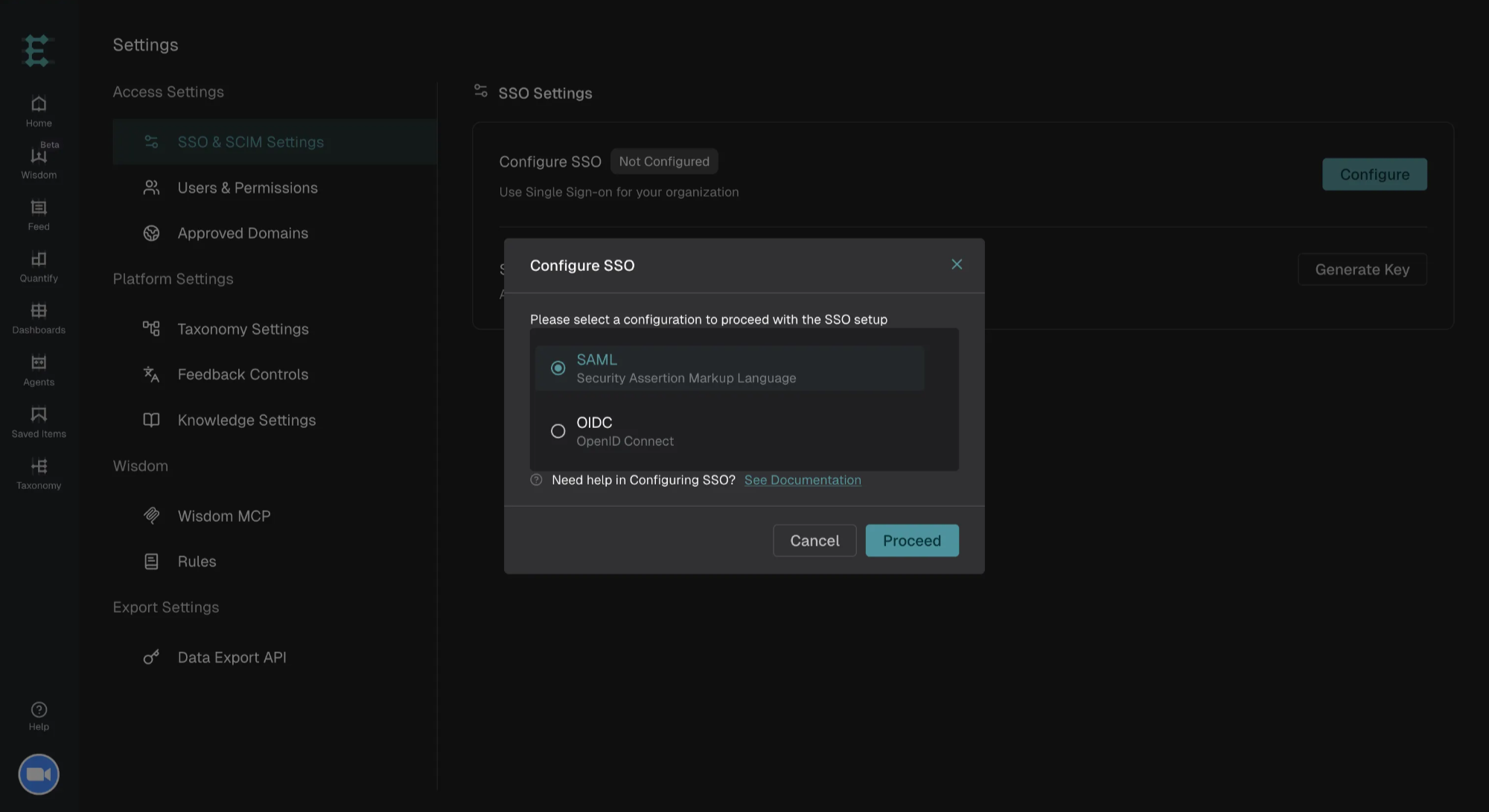
Select SAML, then Proceed.
Choose Metadata URL and paste the Okta Metadata URL. Alternatively, choose Metadata XML to paste XML or upload a UTF-8 XML file of 128 KiB or less.
Click Save (Submit in the older screenshot), wait for success, then confirm the Configured status.
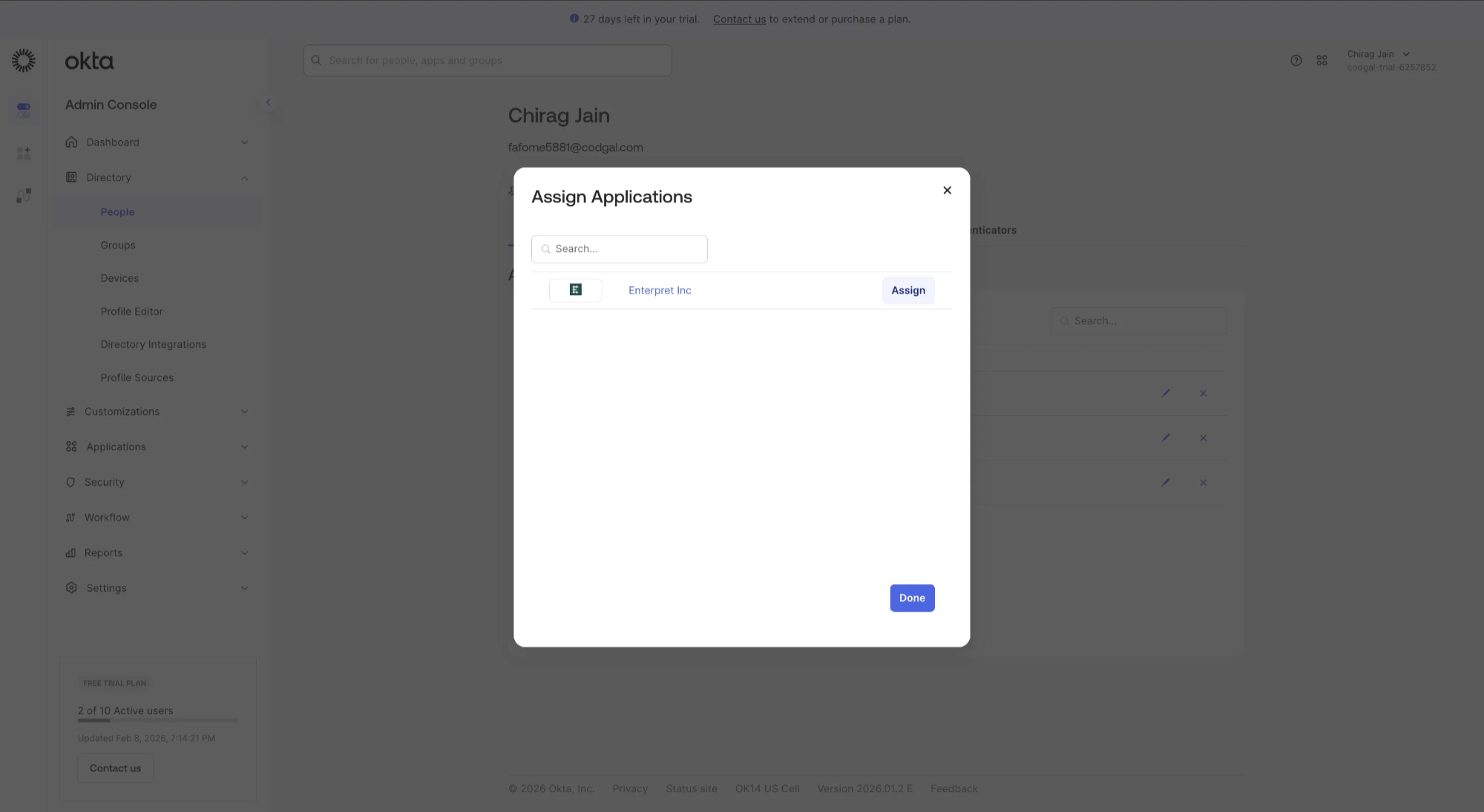
Step 3: Attach Enterpret Application to Users in Okta
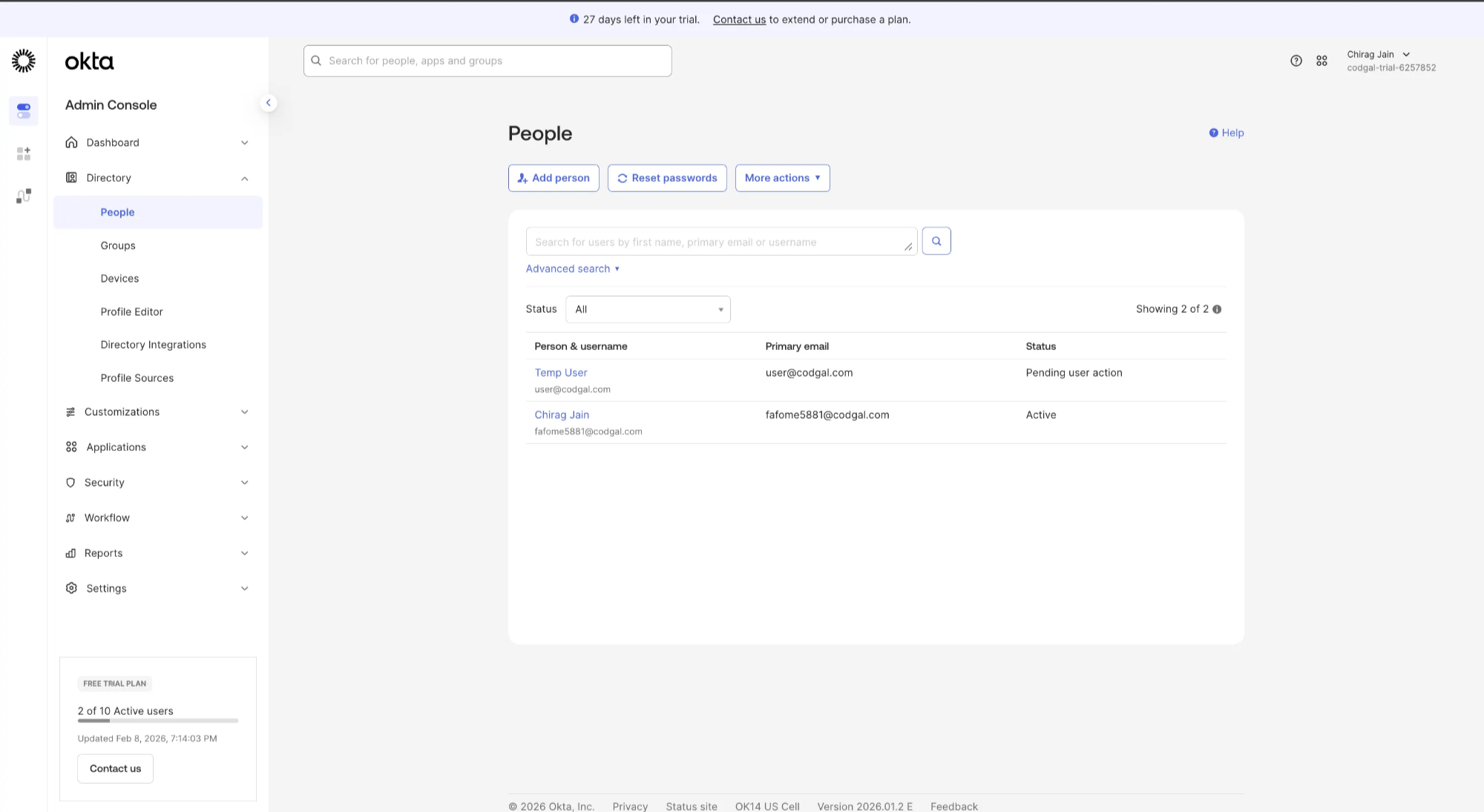
Go to Admin Console → Directory → People
Select User
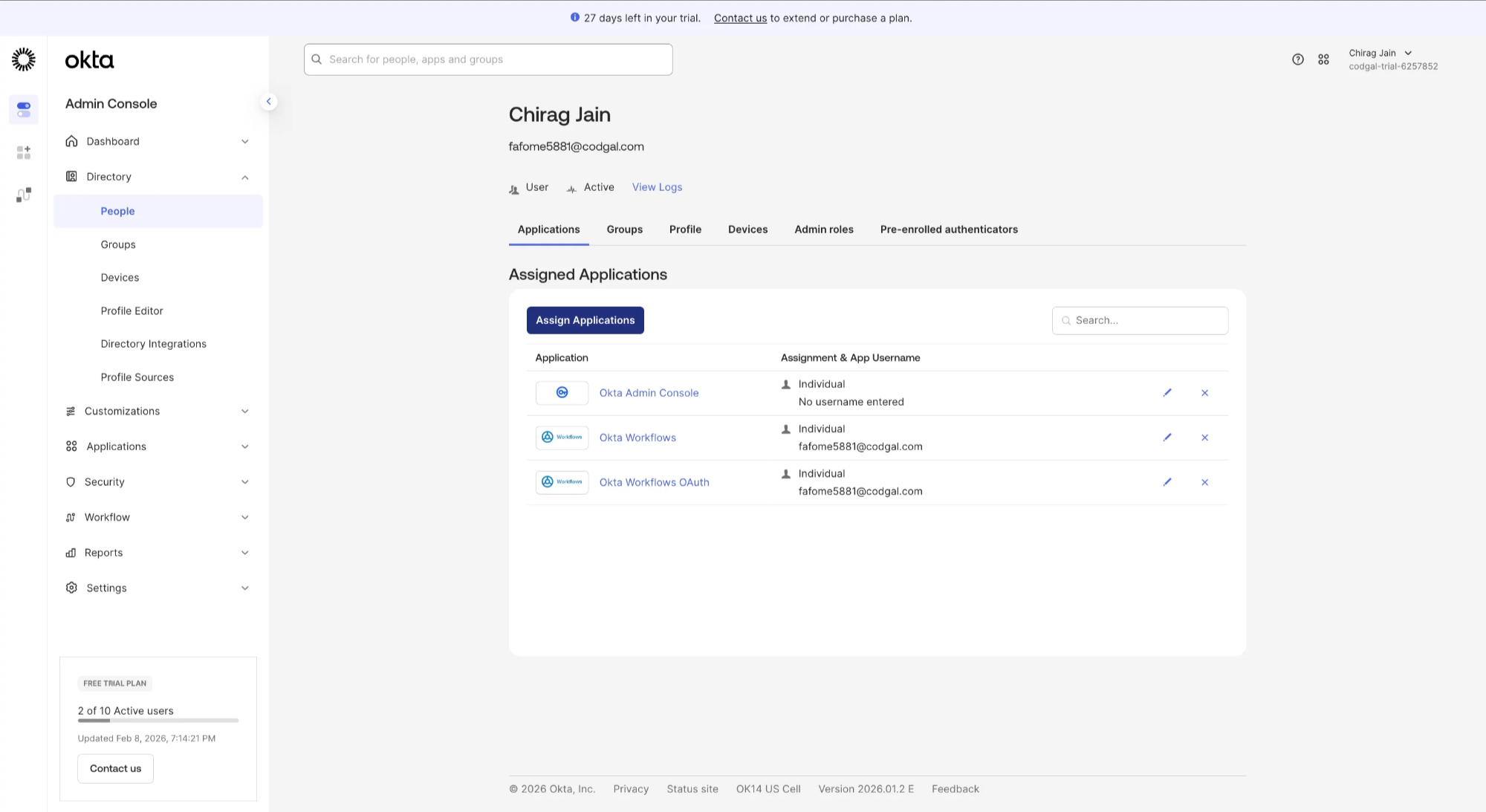
Click on Assign Applications
Assign Enterpret Inc and click on Done
Step 4: Test SP-Initiated SSO
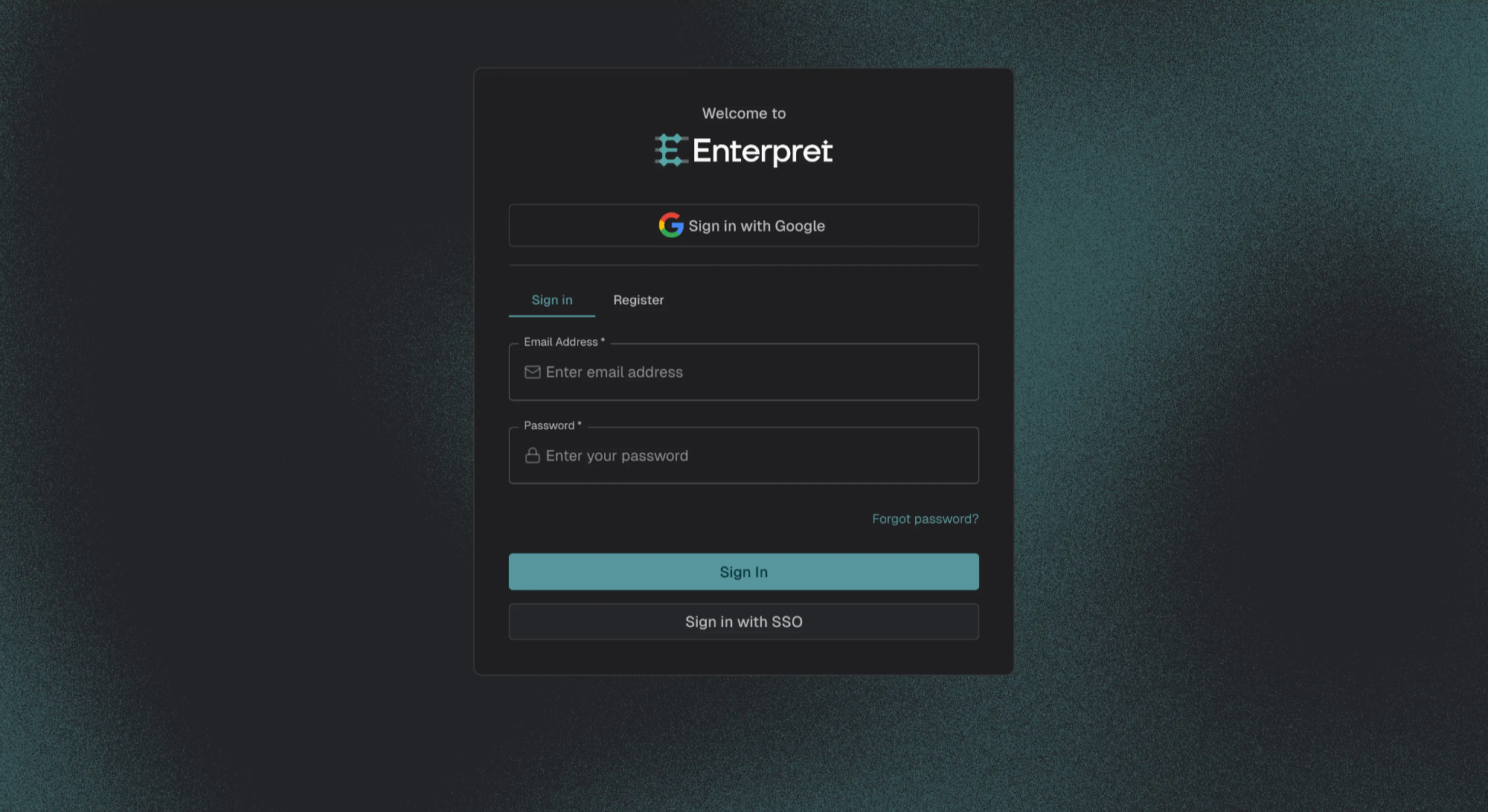
Log out of Enterpret
Go to Enterpret login page
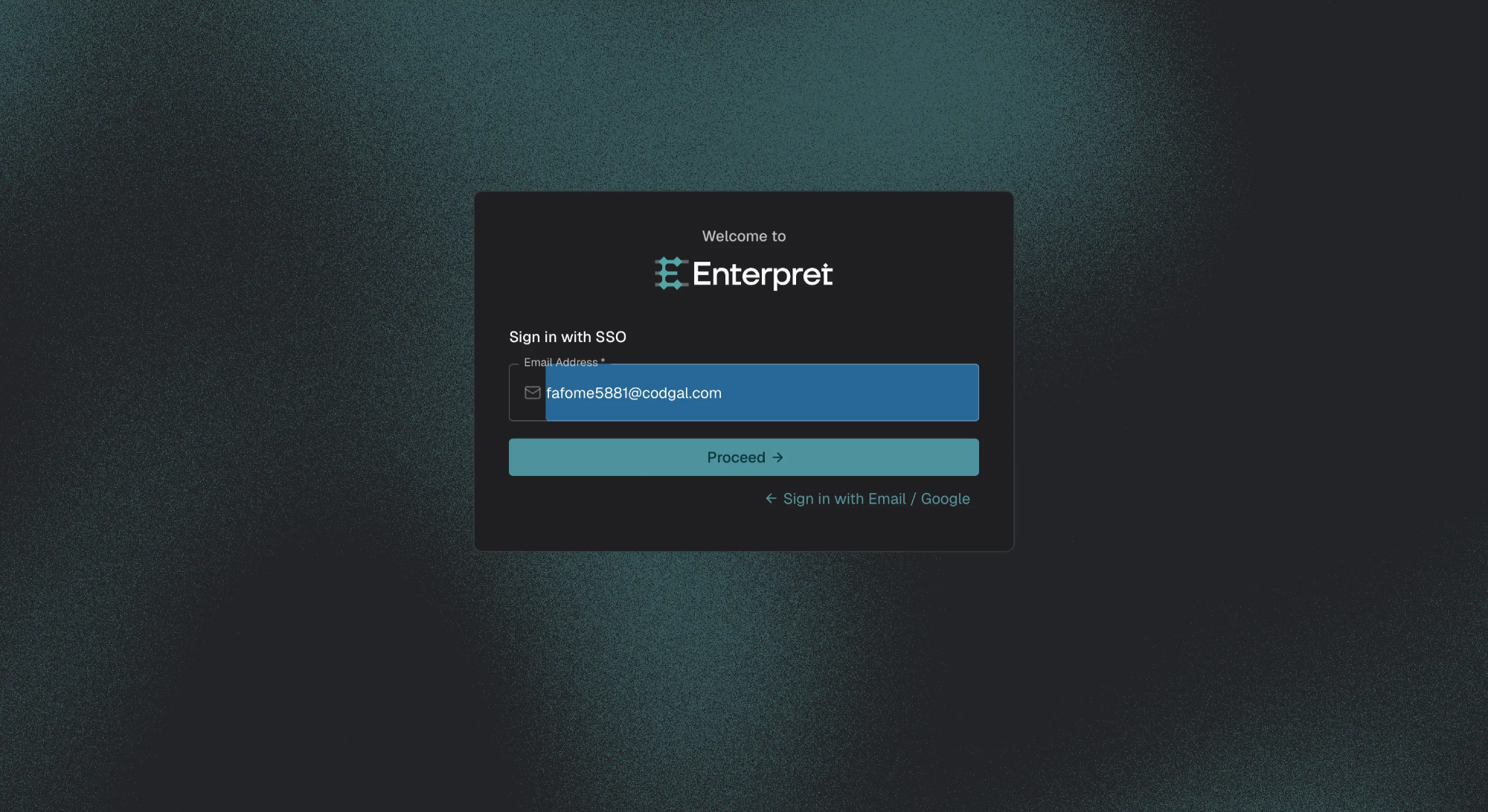
Click Sign in with SSO
Enter your email and select the workspace if prompted.
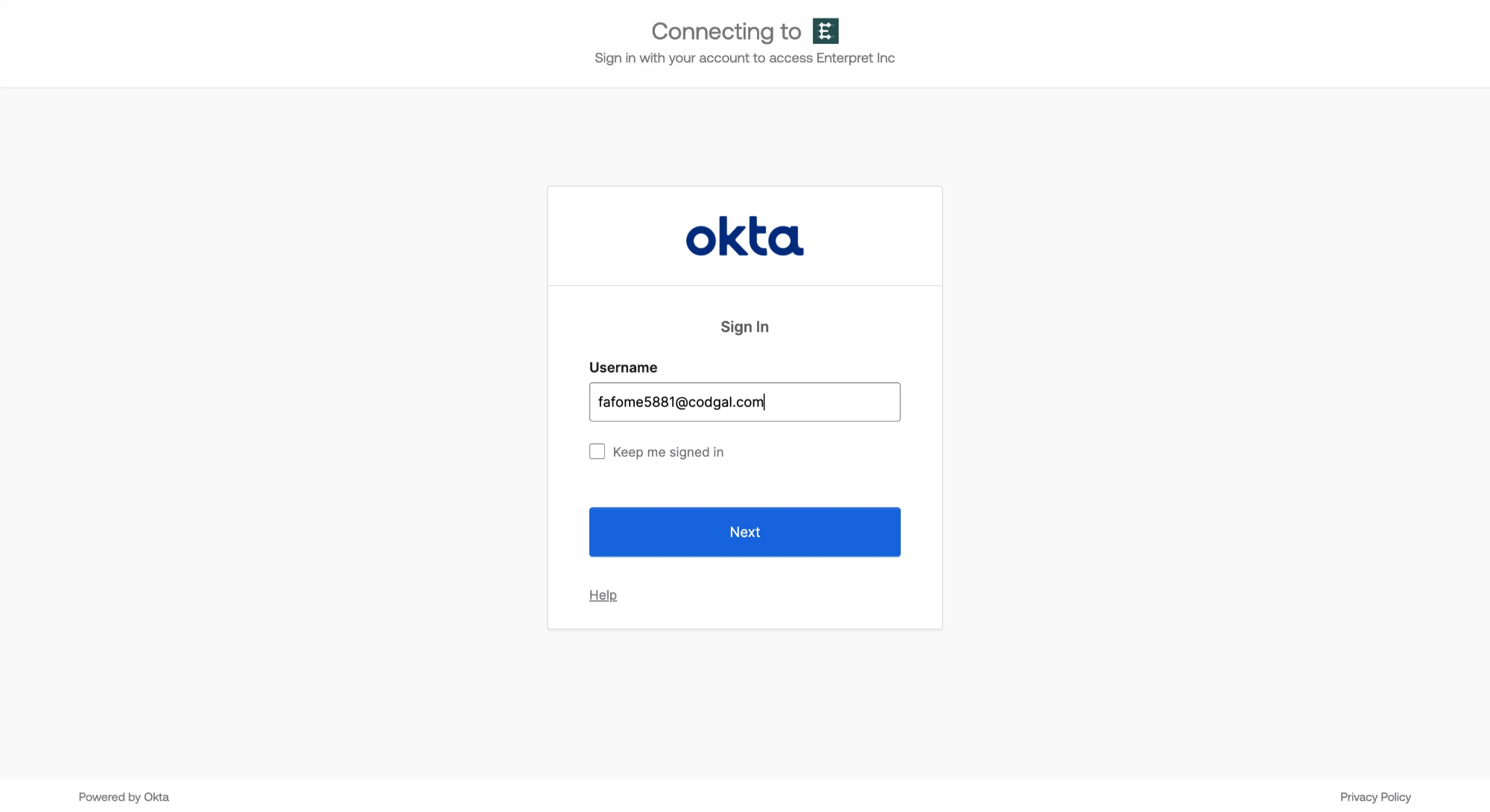
Authenticate via Okta
Step 5: Enable IDP-Initiated Login
Get RelayState from Enterpret
Open Settings → SSO and SCIM in the workspace you are configuring.
Click Copy RelayState and use that complete value for this workspace.
Add RelayState in Okta
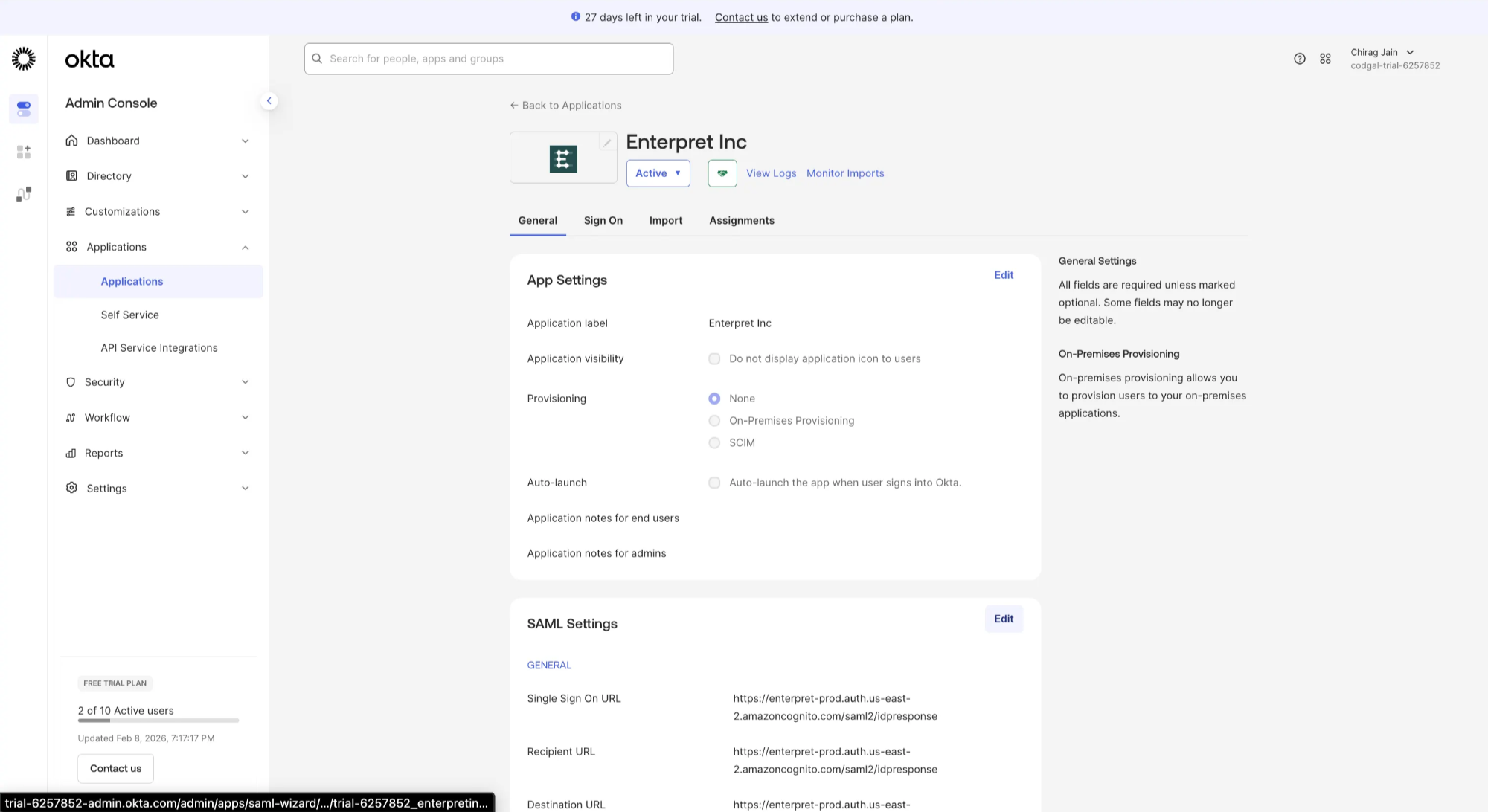
Okta → Enterpret app
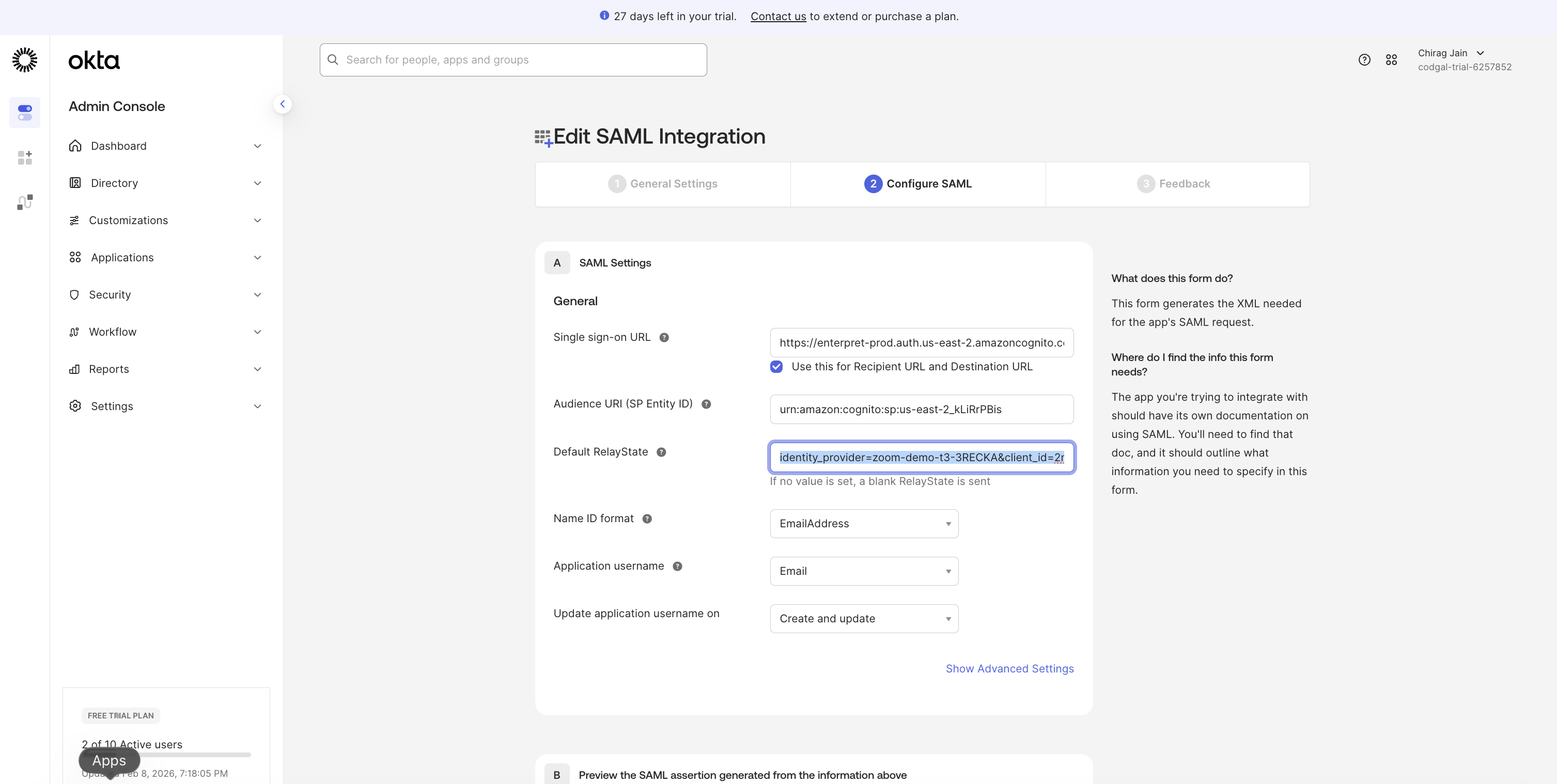
General → SAML Settings → Edit
Paste into Default RelayState
Save
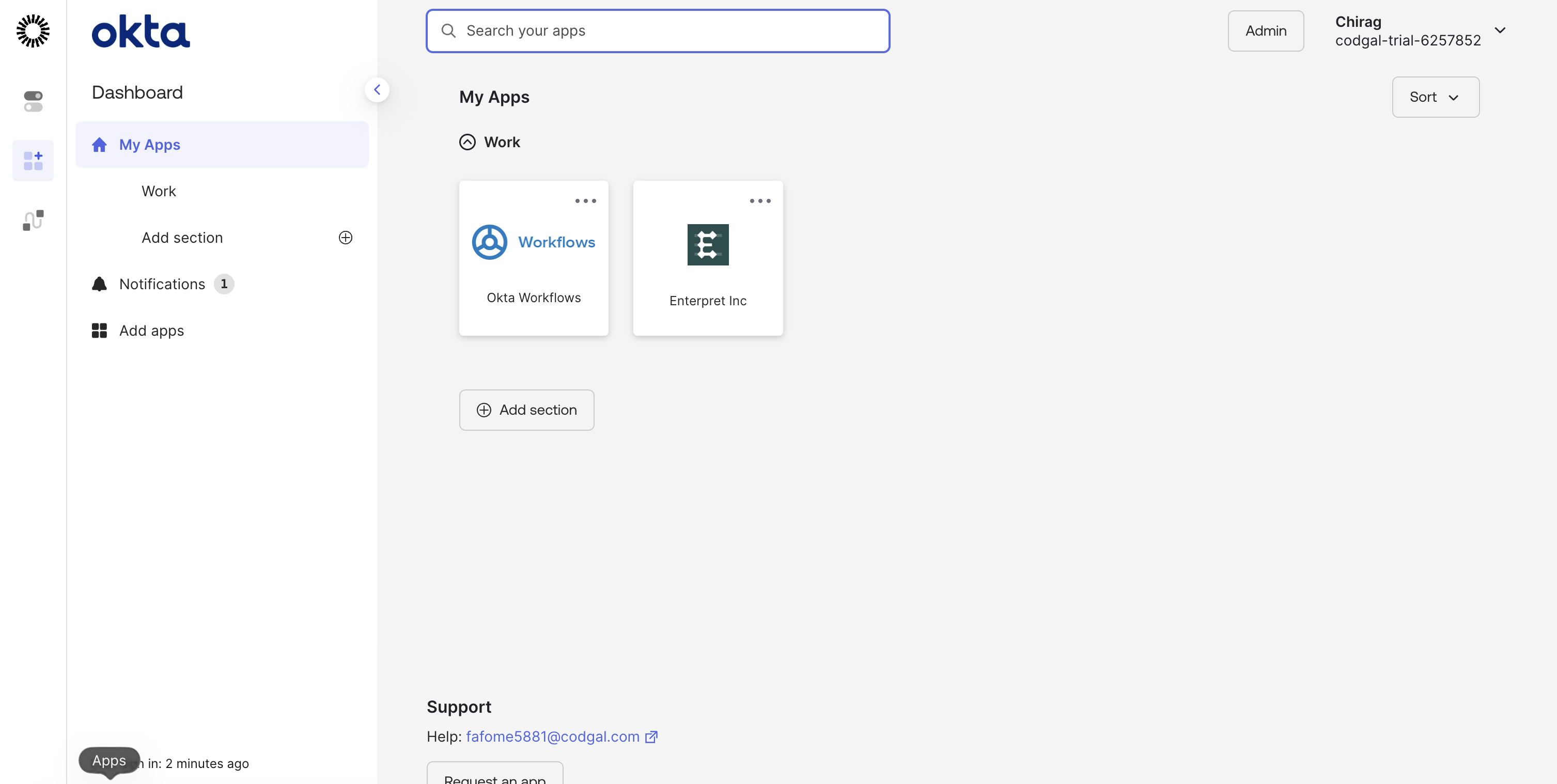
Goto My Apps and click on Enterpret App
Step 6: (Optional) Enforce SSO
Only after testing:
Open Settings → SSO and SCIM.
Toggle Enforce SSO
⚠️ Enforcing without testing can lock you out.
Troubleshooting Checklist
Before reaching out for support, double-check the following:
The emitted email claim matches the address used for Enterpret workspace access
The
emailattribute is present and maps to the intended address (for example,user.email)User is assigned to the Enterpret app in Okta
SP-initiated login works (Sign in with SSO from Enterpret)
Metadata URL is valid and up to date
RelayState is configured in Okta (required for IDP-initiated login)
Frequently asked questions
Why does SSO fail even though Okta shows a successful login?
Possible causes to check include:
The email attribute is missing or mapped incorrectly
The user is using IDP-initiated login (Okta dashboard) and RelayState is not configured
Even if Okta authenticates the user successfully, Enterpret still needs:
A valid email attribute to identify the user, and
The complete RelayState copied from this workspace for portal-started sign-in
SSO works from Enterpret, but not when clicking the Okta app. Why?
Check the complete RelayState value, user assignment, tile visibility and the configured SAML provider.
SP-initiated login does not need manually configured Default RelayState.
IDP-initiated login (from Okta) does require RelayState
For portal-started sign-in, Cognito needs the RelayState’s provider, app-client and callback context.
Is NameID enough? Why do we still need the email attribute?
No. NameID alone is not sufficient.
Enterpret explicitly reads the
emailattribute from the SAML response to:Identify the user
Match them to an existing account
If the email attribute is missing or incorrect, login will fail even if NameID is present.
Can we map a different attribute instead of email?
This setup maps the SAML attribute named
emailfor user matching. You can map a profile field containing the intended Enterpret email address, but a different output attribute name is not configurable in Enterpret.Do group attributes affect login?
Enterpret’s SAML configuration maps the email attribute; it does not use a group statement to assign Enterpret roles. Group statements:
Are not required for authentication
Can be left empty
Use Users & Permissions or your configured SCIM workflow to manage Enterpret users and roles.
What should we test before enforcing SSO?
Before turning on Enforce SSO, verify:
✅ SP-initiated login works
✅ Email attribute mapping is correct
✅ At least one admin can log in successfully
✅ (If using Okta dashboard access) RelayState is configured
What Are Attribute Statements?
Attribute statements define what user information Okta sends to Enterpret during login.
Enterpret relies on these attributes to:
Identify the user
Match them to an existing Enterpret account
Match the user within the selected workspace; workspace authorization also checks the configured SSO provider.
If attribute statements are missing or misconfigured, SSO will fail even if the rest of the setup looks correct.
Why the Email Attribute Matters
Enterpret maps the
emailattribute for user matching within the selected workspace.During login, Enterpret checks:
Does the mapped email match a user authorized for this workspace?
If the email:
Is missing
Is mapped incorrectly
Contains a different email address, such as an alias or another domain
➡️ The user will not be able to log in
Common Attribute Statement Mistakes
❌ Attribute not added at all
❌ Attribute name is not exactly
email❌ The mapped value does not contain the email address used for Enterpret workspace access
❌ Emails differ between Okta and Enterpret
✅ Verify the emitted email attribute and test sign-in; correct mapping is necessary but does not rule out other access or provider errors.
Group Attribute Statements
Not required for SSO
Can be left empty
Use Users & Permissions or a configured SCIM workflow for user and role management.
Need Help?
If you’re unsure whether:
Attribute statements are configured correctly, or
RelayState is missing for IDP-initiated login
Reach out to the Enterpret team — we’re happy to help you get SSO working smoothly 🚀