
Google Play Store
In this article
In this article group
- Amazon Connect
- Apple App Store
- Census Integration
- Connect Plain to Enterpret
- Decagon Integration
- Discord
- Discourse Integration
- Email Integration
- Facebook Pages Integration
- Fathom Integration
- File Upload: CSV data on Enterpret
- Freshchat
- Freshdesk
- Front
- G2
- Gainsight Communities Integration
- GitHub Issues Integration
- Gong Integration
- Google My Business Integration
- Grain
- Granola Integration
- Import HubSpot feedback
- Instagram Comments Integration
- Intercom
- Kustomer
- Livechat Integration
- Momentive (Formerly Survey Monkey)
- Pylon integration
- Qualtrics
- Refiner Integration
- Salesforce
- SFTP Integration
- Slack feedback ingestion: setup and troubleshooting
- Snowflake
- Sprig Integration
- Stella Connect
- TikTok Integration
- Trustpilot Integration
- Typeform
- X (formerly Twitter) Integration
- Connect YouTube videos and comments
- Zendesk Chat
- Zendesk Support
- Import Zoho Desk support tickets
- Zoom Integration
- Zapier Integration
- Reddit Search (UGC)
- Wispr Flow integration
Overview
The Enterpret integration for Google Play Store allows our customers to integrate feedback and reviews from the Google Play Store into Enterpret’s data pipeline. This allows our customers to understand and make decisions based on the feedback they receive on Google Play Store.
We use the AppID to fetch reviews. The current default polling interval is 30 minutes. Your integration may use a different configured schedule, including an older interval. Contact your Enterpret team to confirm the schedule for your connection.
Polling schedules periodic checks for eligible source data. Data becomes available for analysis after fetching and processing; the polling interval does not guarantee when a particular record or the first import will appear.
Initial import time and available review history depend on the access method, source availability, review volume, API limits, and processing workload. There is no fixed completion estimate per number of reviews.
ℹ️ In case you want to integrate using Google Play Developer APIs, head over to Configure API Key Access. Google Play Developer APIs help Enterpret fetch detailed metadata associated with each review.
Configure
Click on "Sign in with Google" and log in with your work email
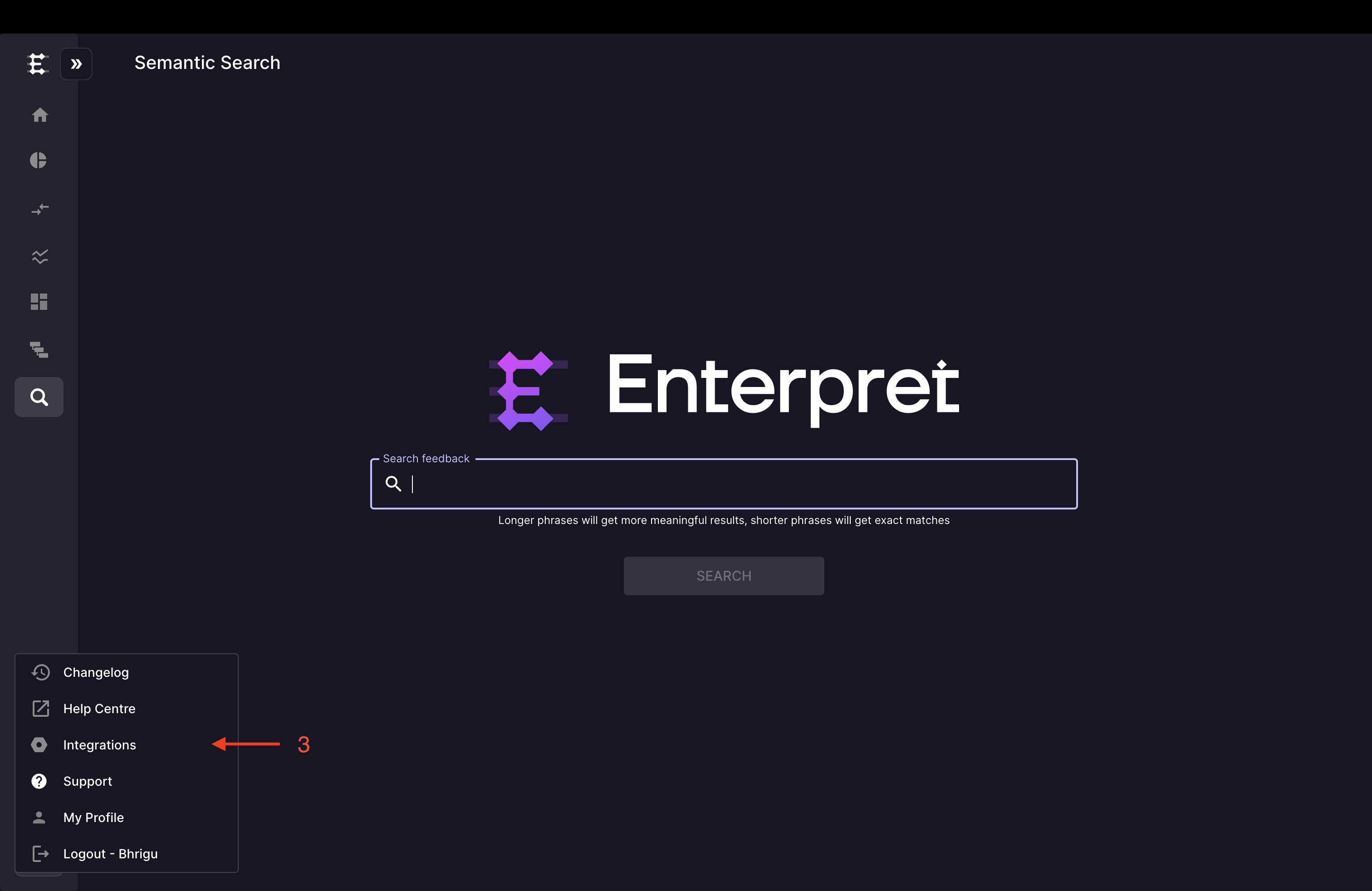
Once you have logged in successfully, navigate to integrations page by selecting 'Integrations' under profile.
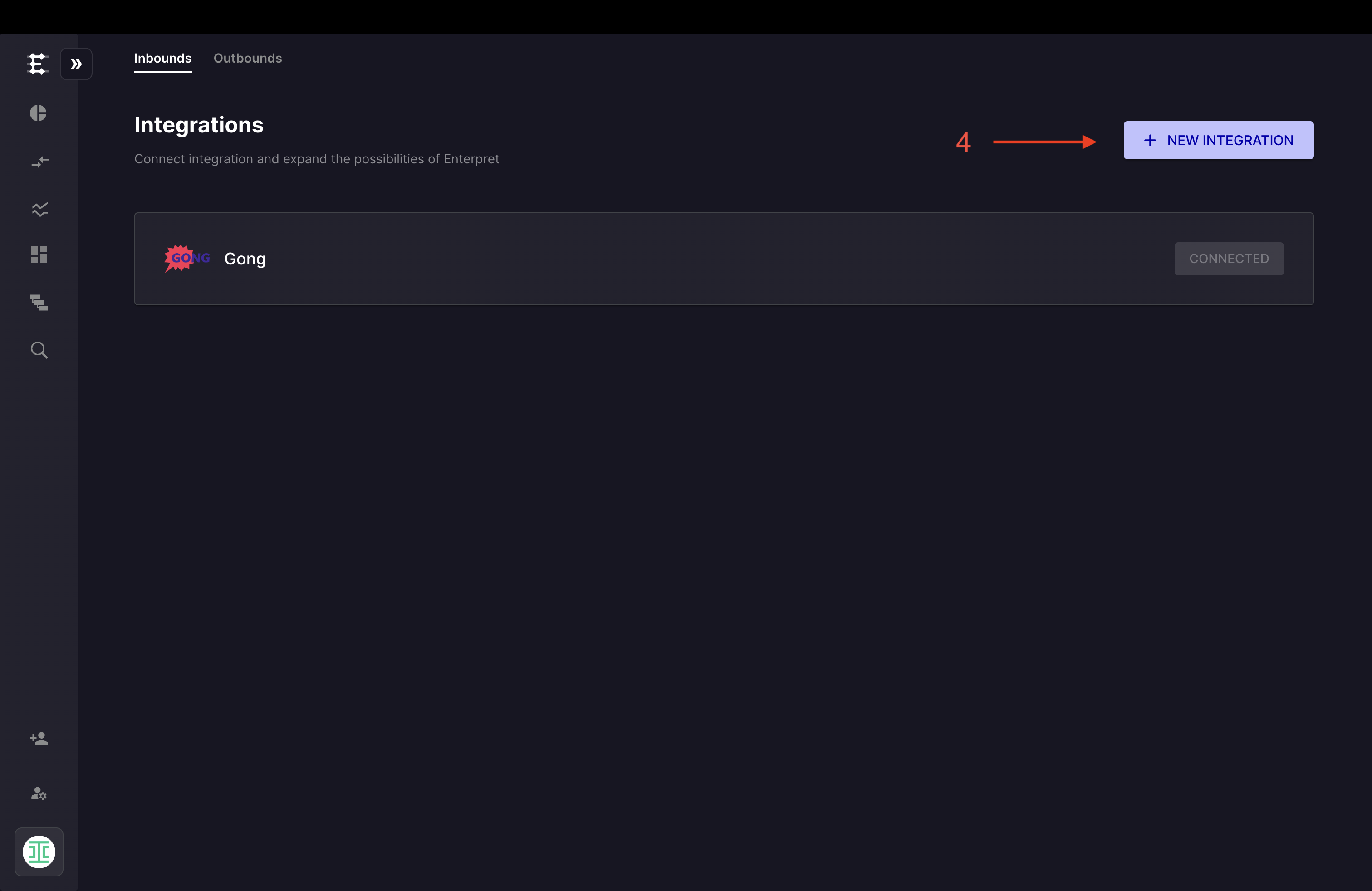
Click on the "+ New Integration" button.
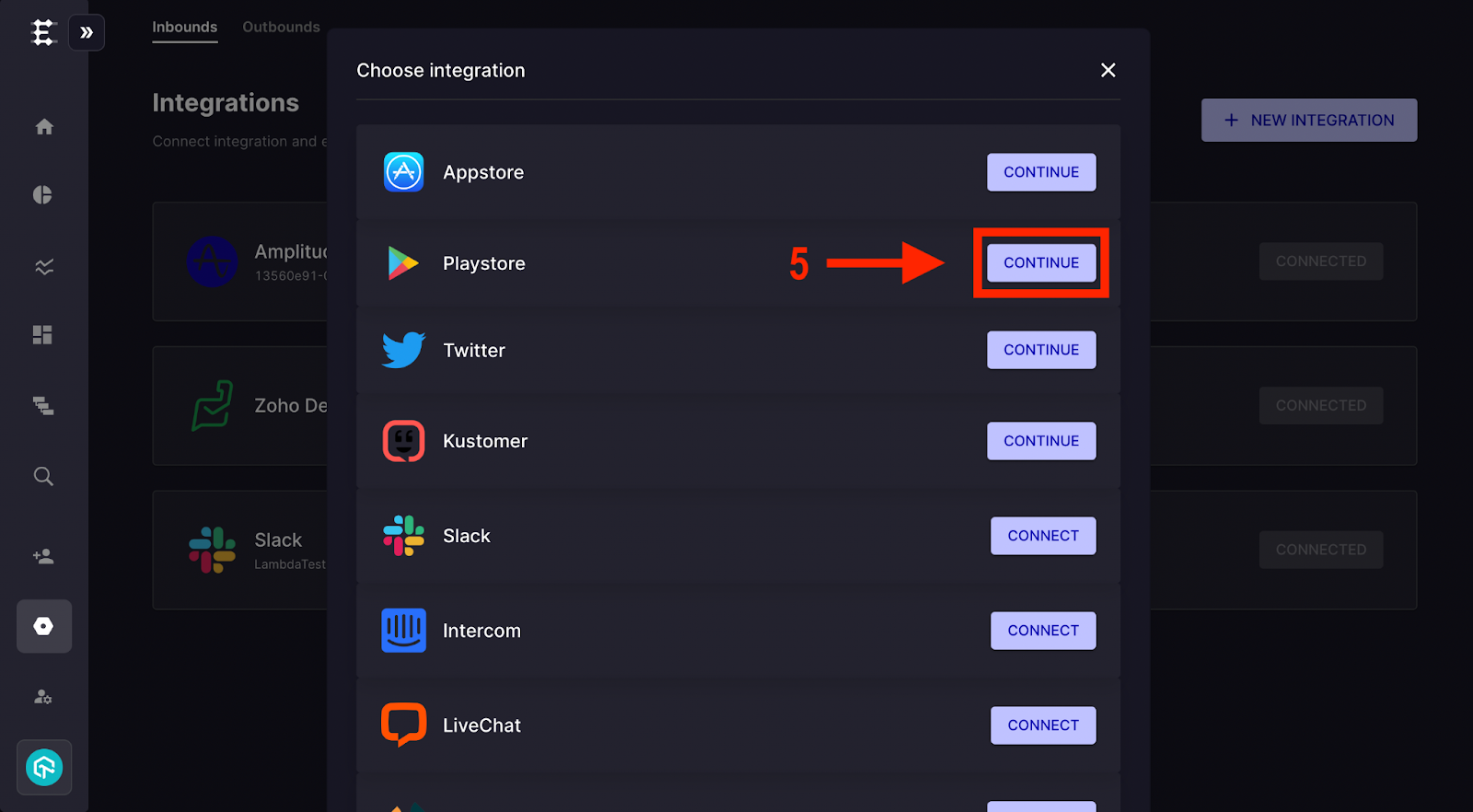
Choose "Playstore" from the presented options, by clicking the "Connect" button in front of it.
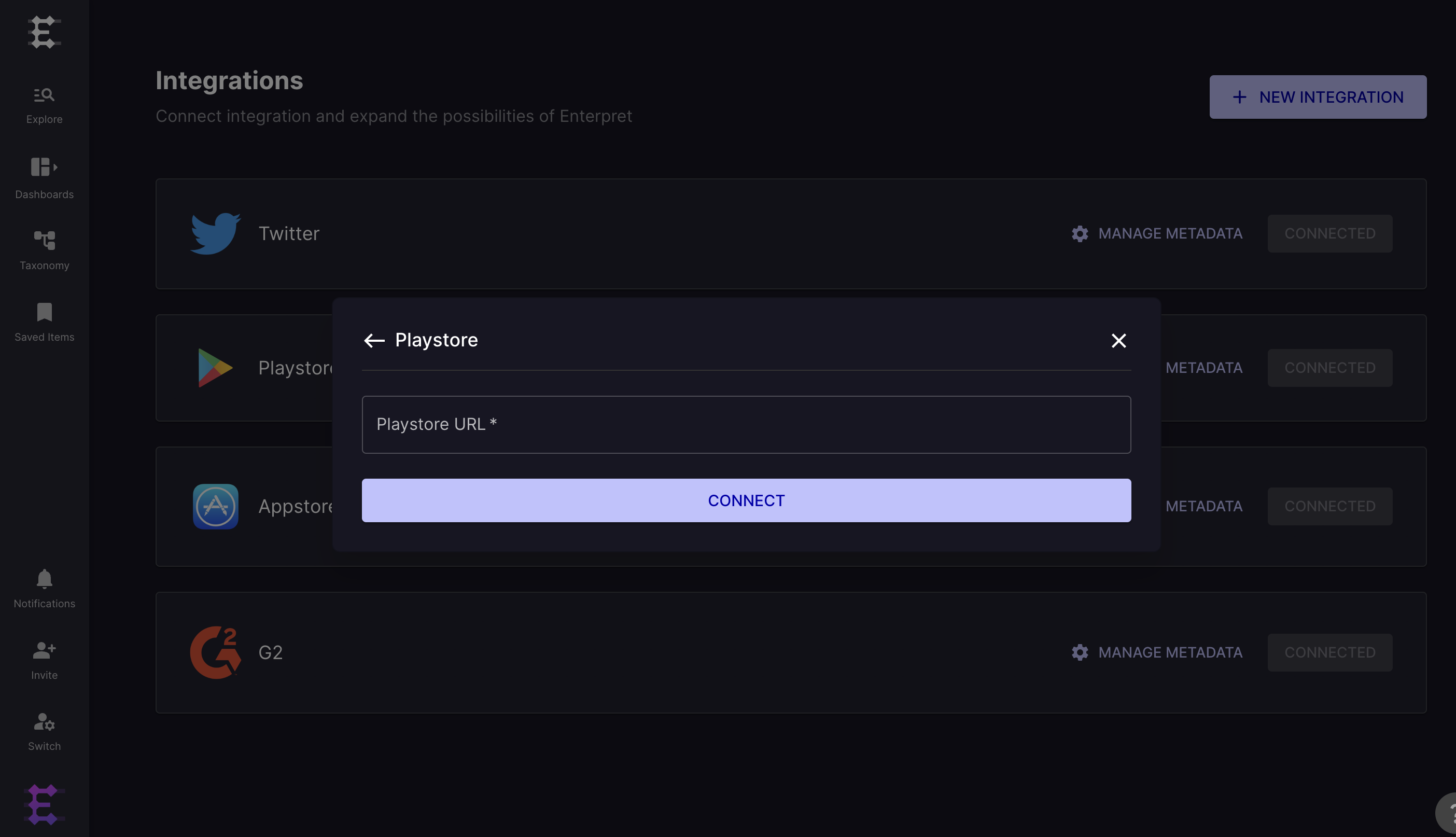
Provide the “Playstore URL” in the dialogue box that opens and click on “Connect”
Configure API Key Access (Optional)
Enterpret provides Google Play Store Integration using APIs which allows Enterpret to fetch more information related to the Reviews posted.
The following are instructions to setup this:
Getting API Key JSON
The API access is granted via API Key created from Play Developer Console. This is required because API access is only restricted to the account managing the Playstore App.
The following are the steps to get the API Key:
Login to Play Developer Console
which is used to manage the Playstore App for which you want to ingest reviews.
Create a new Service Account
Navigate to API Access under Setup, and click on View API keys
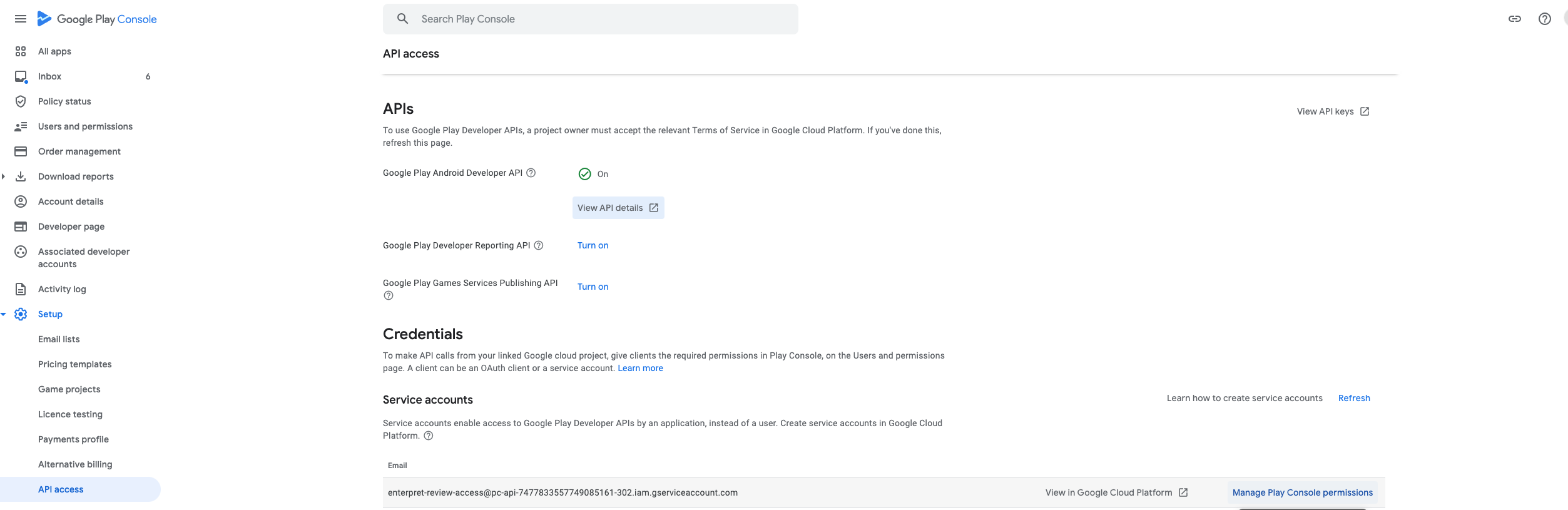
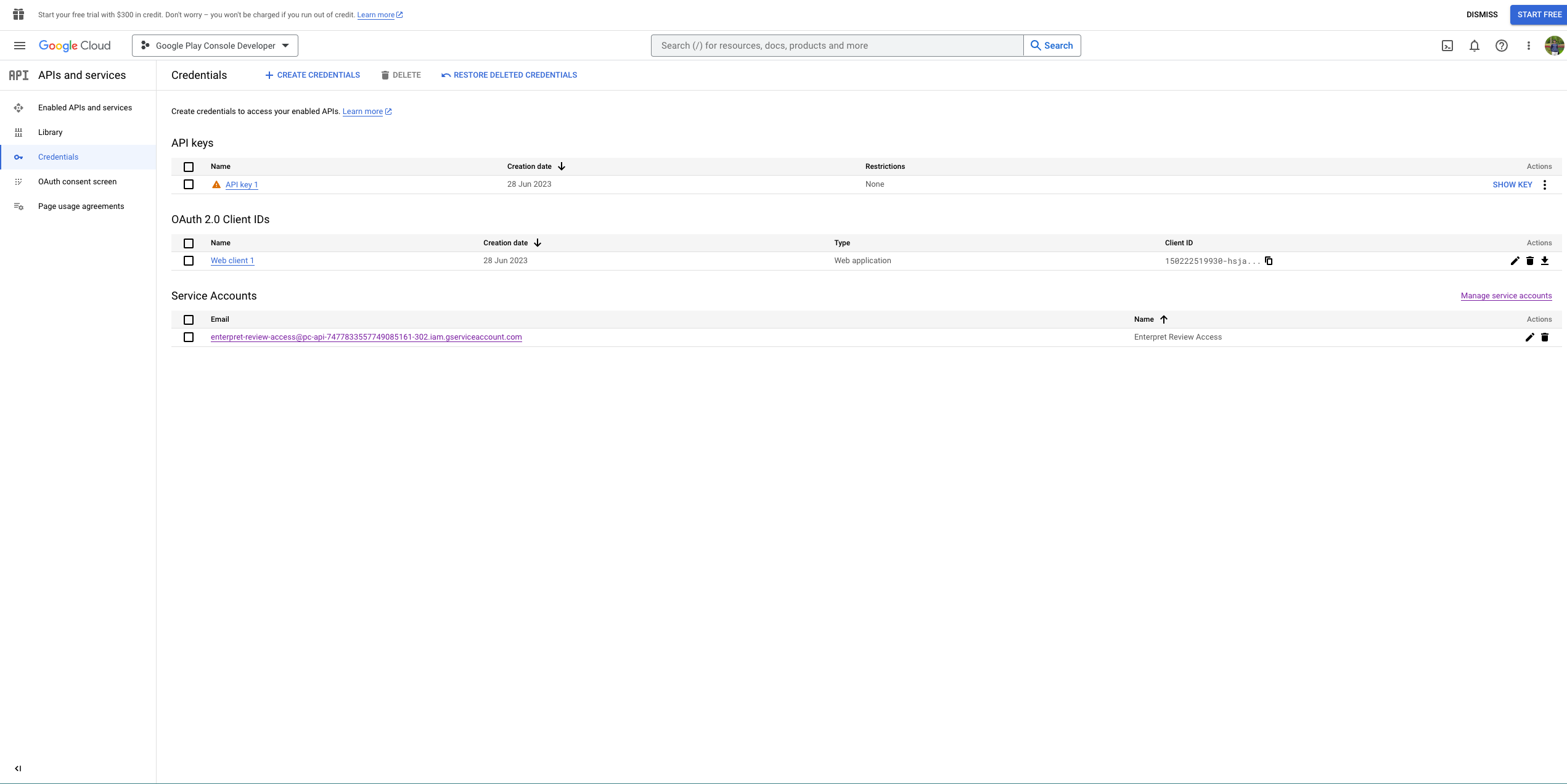
You’ll be navigated to the Google Cloud console’s Credentials page. Click on CREATE CREDENTIALS and select Service Account from the dropdown.
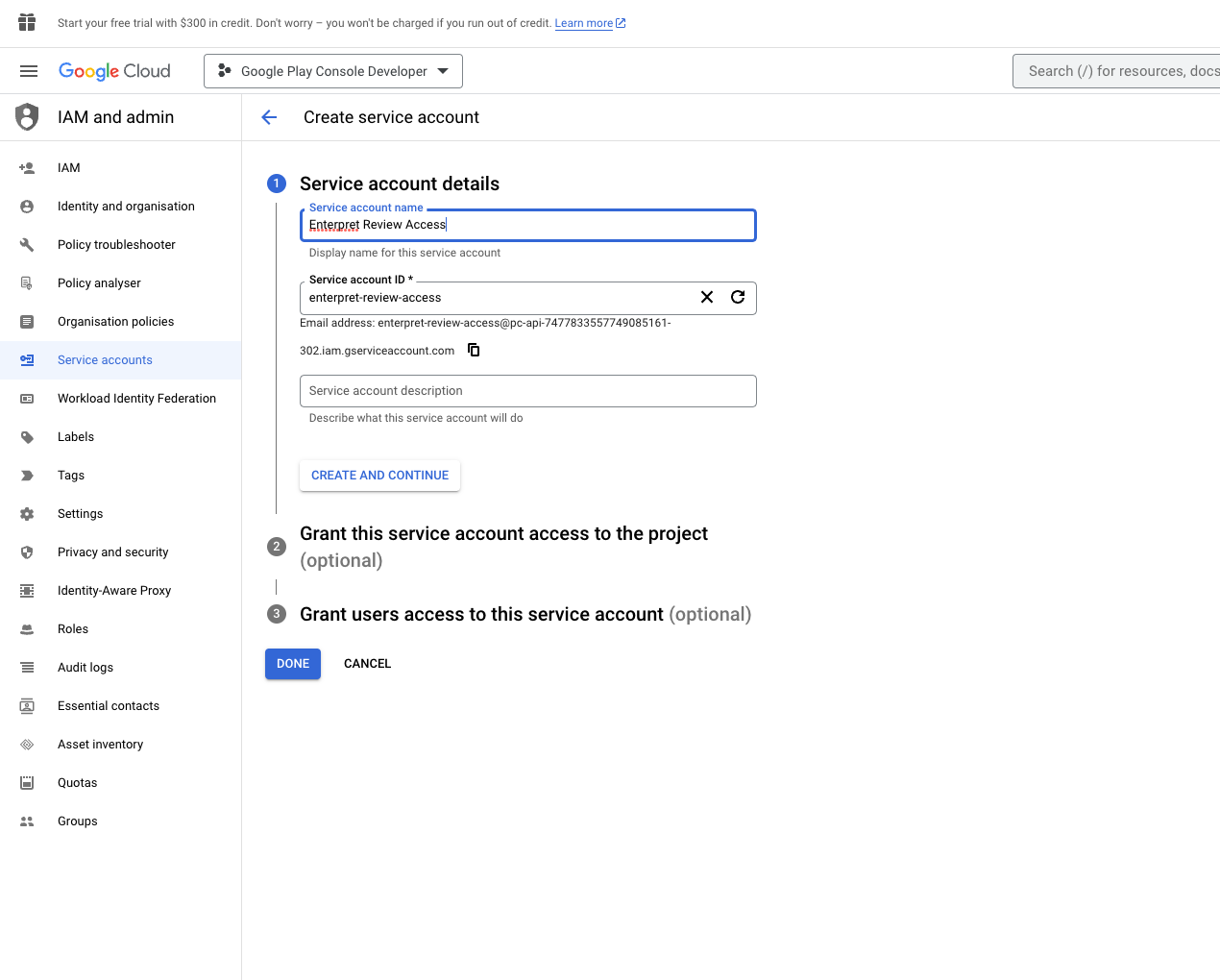
Give a name to this account and click CREATE AND CONTINUE
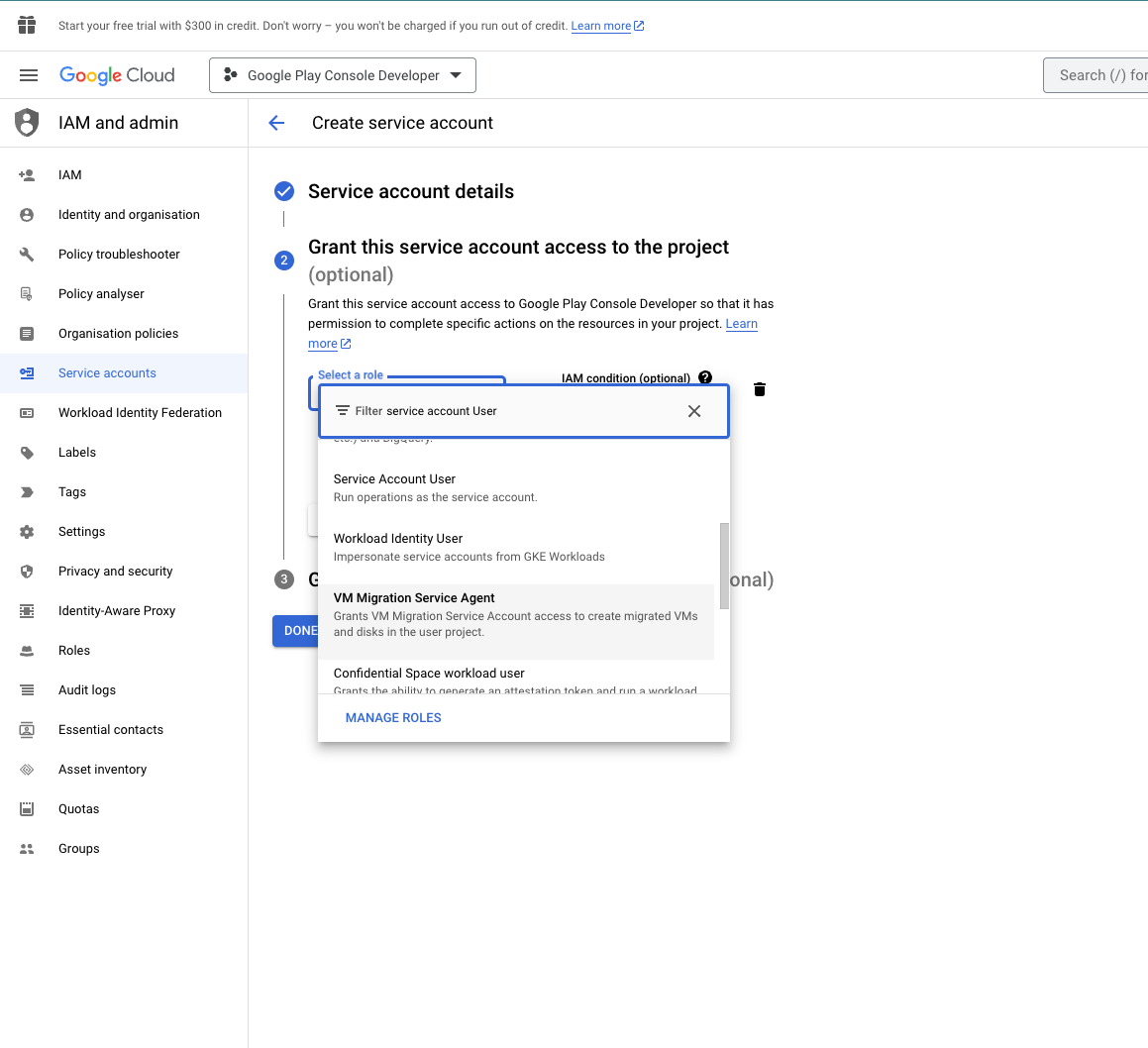
In Step 2, select the role for this account as Service Account User
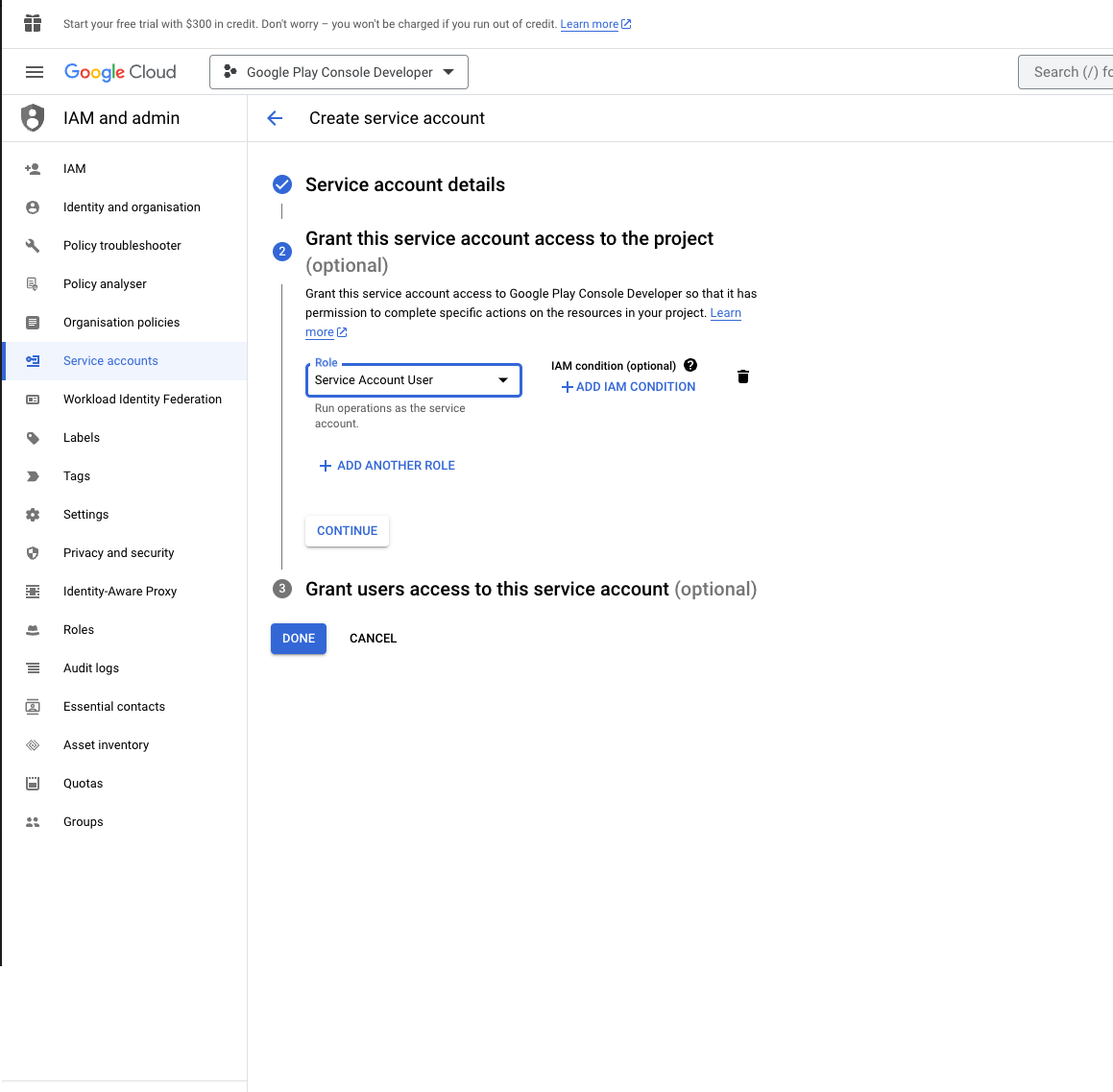
And click DONE to create the Service Account
Create API Key
After creating Service Account, navigate to Keys tab. Click on ADD KEY and select Create new key
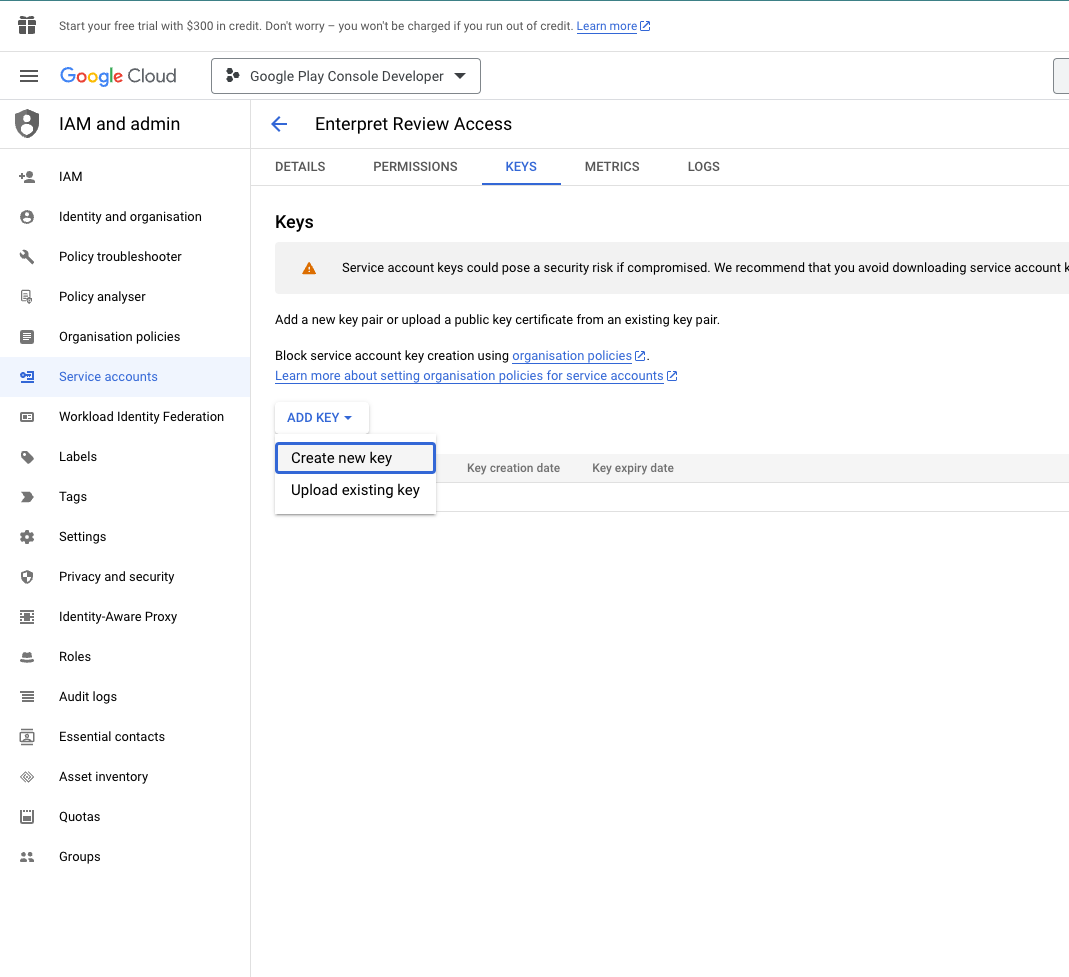
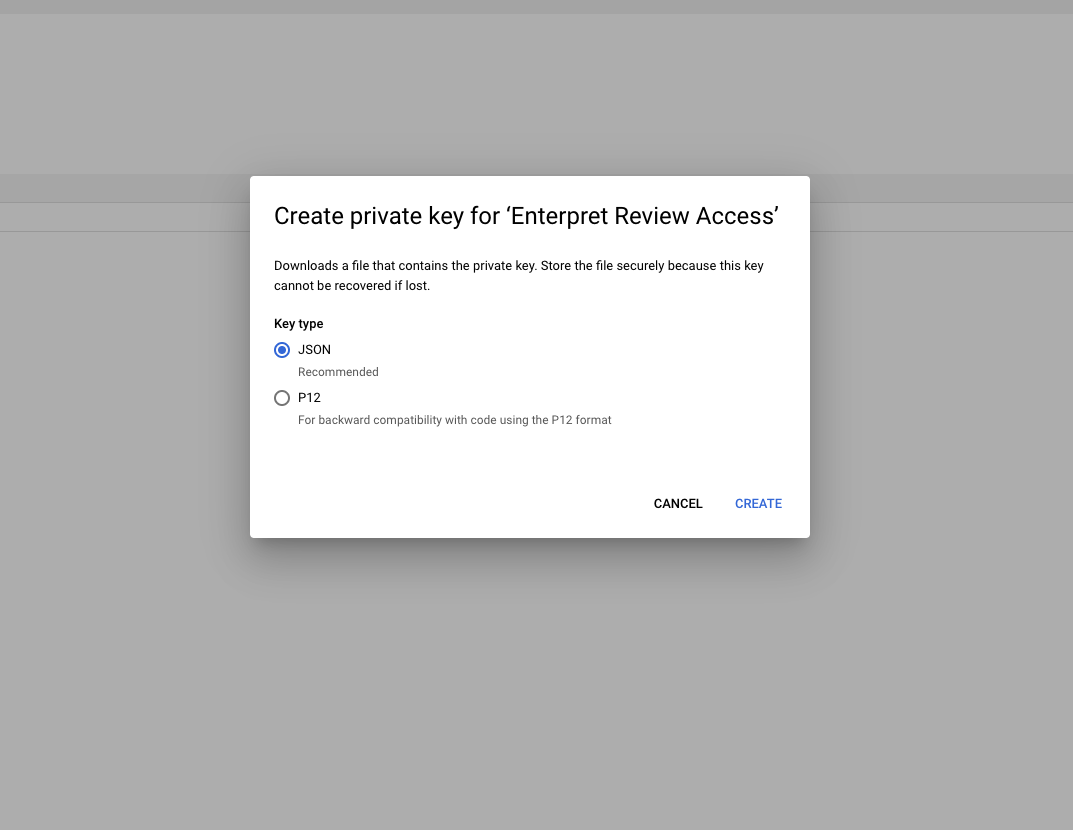
Select the Key type as JSON
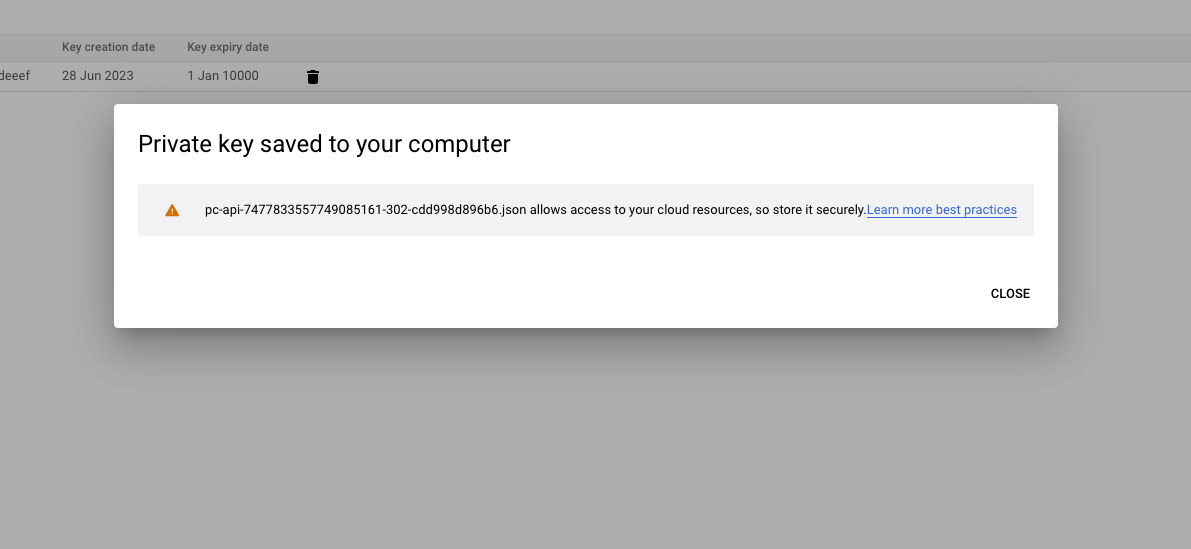
The API Key will be downloaded to your system. Keep this handy since it will be used in later steps.
Giving API Key access to App Reviews
Now that we have the API Key, we need to give permissions so that we can read App Reviews using the API Key. This is done by giving the Service Account required access to the App.
The following are the steps to give the required permissions:
Manage Play Console Permissions
Navigate to API access in Developer Console. In Service Accounts section, find the Service Account we just created (there should be only one if this your was first time). Now select Manage Play Console permissions corresponding to that service account.
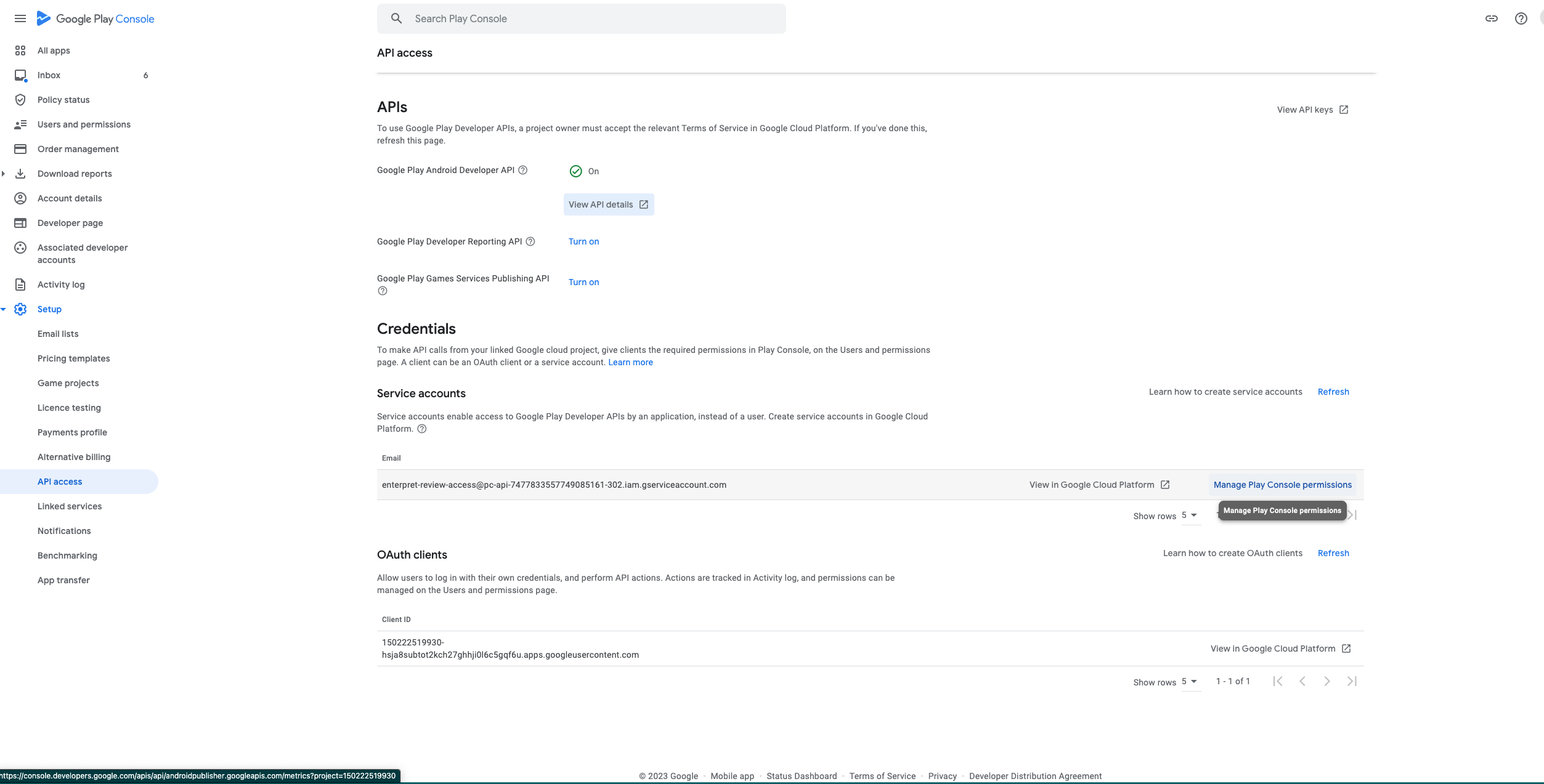
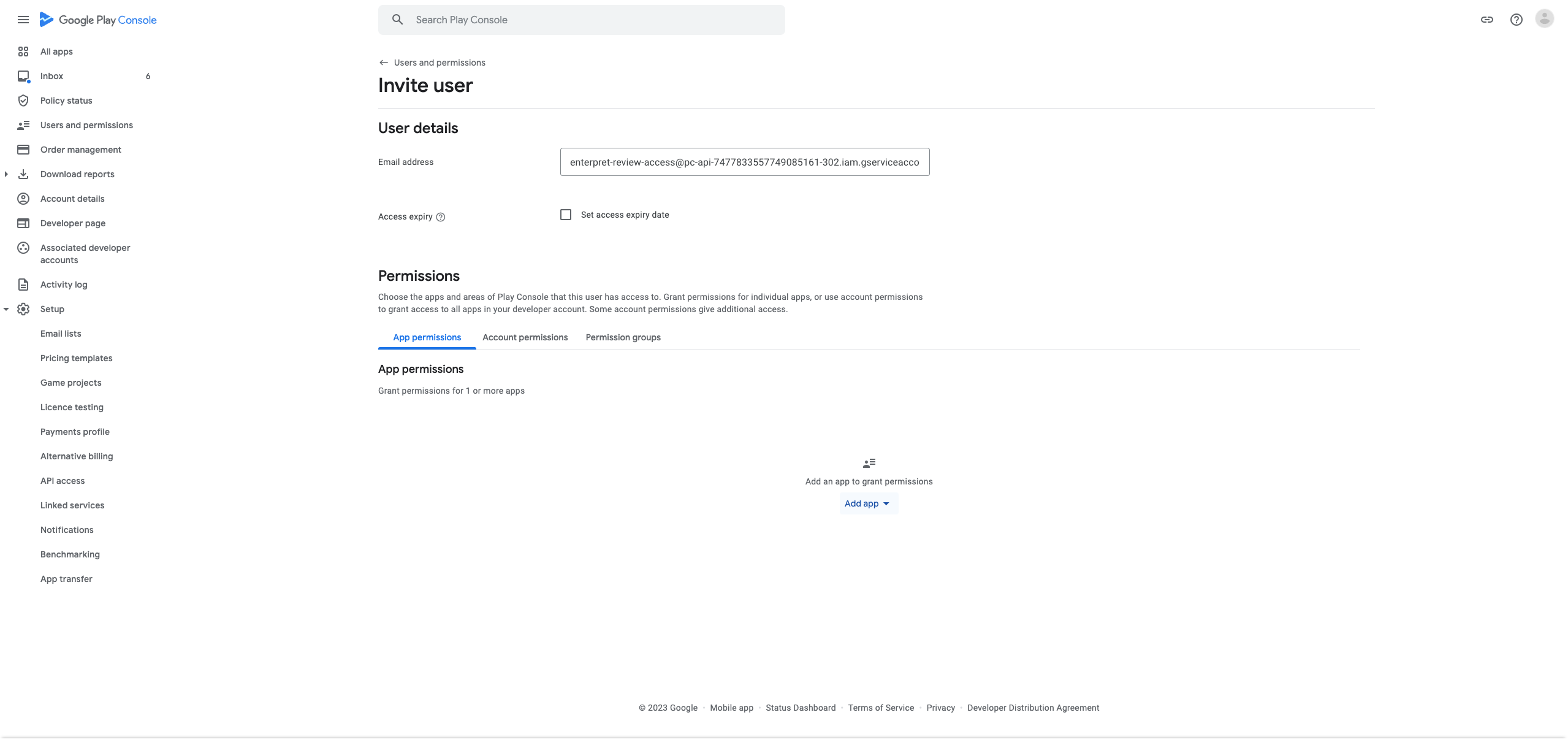
Setup Global Account Permissions
In order to give only required permissions, we need to remove unnecessary permissions from Global Account Permissions.
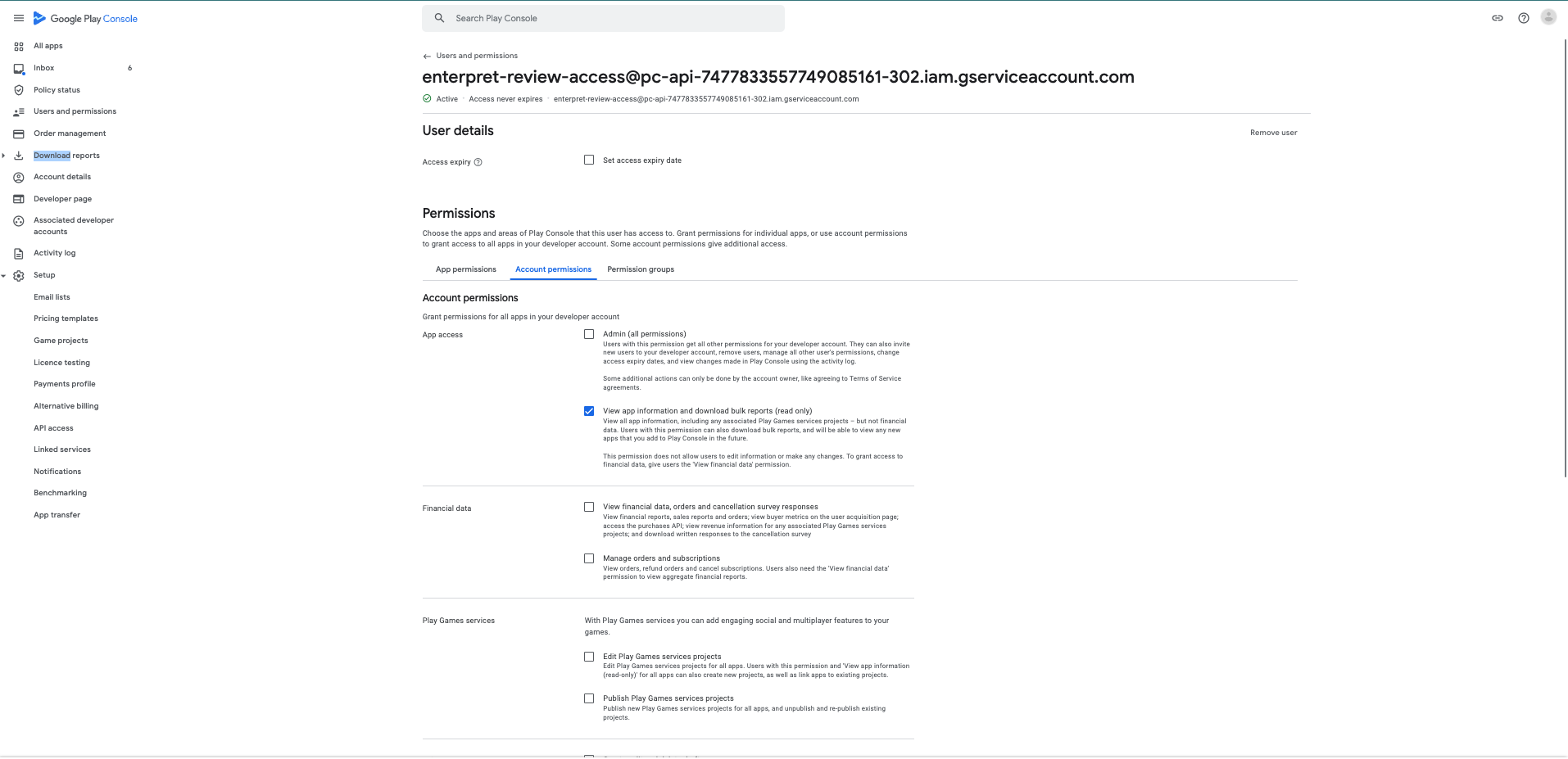
To do so, navigate to the Account Permissions tab:
And untick all the permissions except View app information and download bulk reports (read only). This is required to fetch reviews using API.
Give permissions for the App
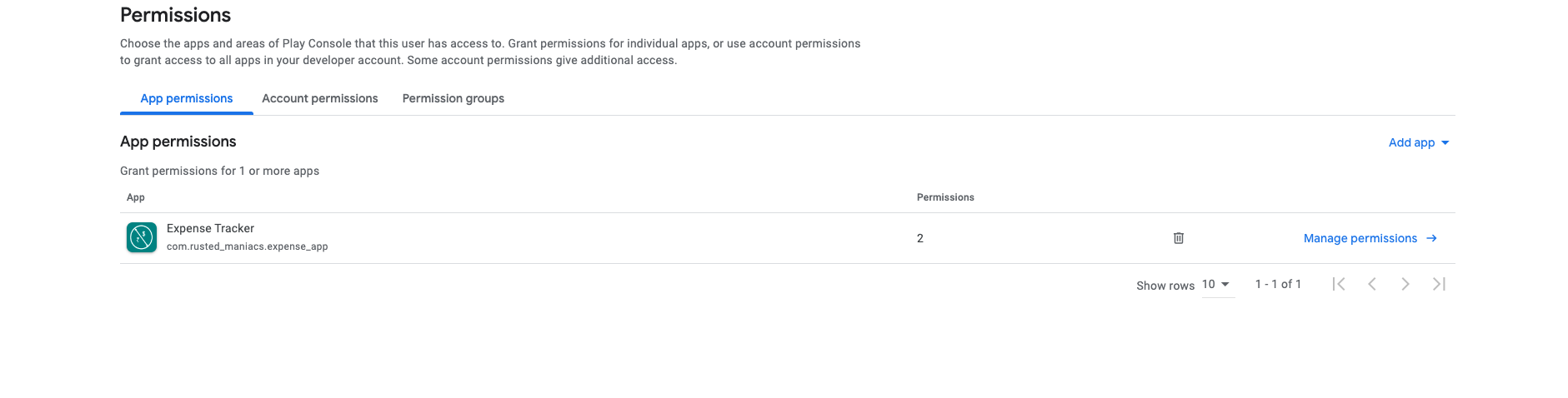
Now we need to provide permissions for the App. To do so, navigate to App permissions tab and select Add app. Now select the app for which you want to give permission. Check that the View app information and download bulk reports (read only) is still ticked in the permissions list.
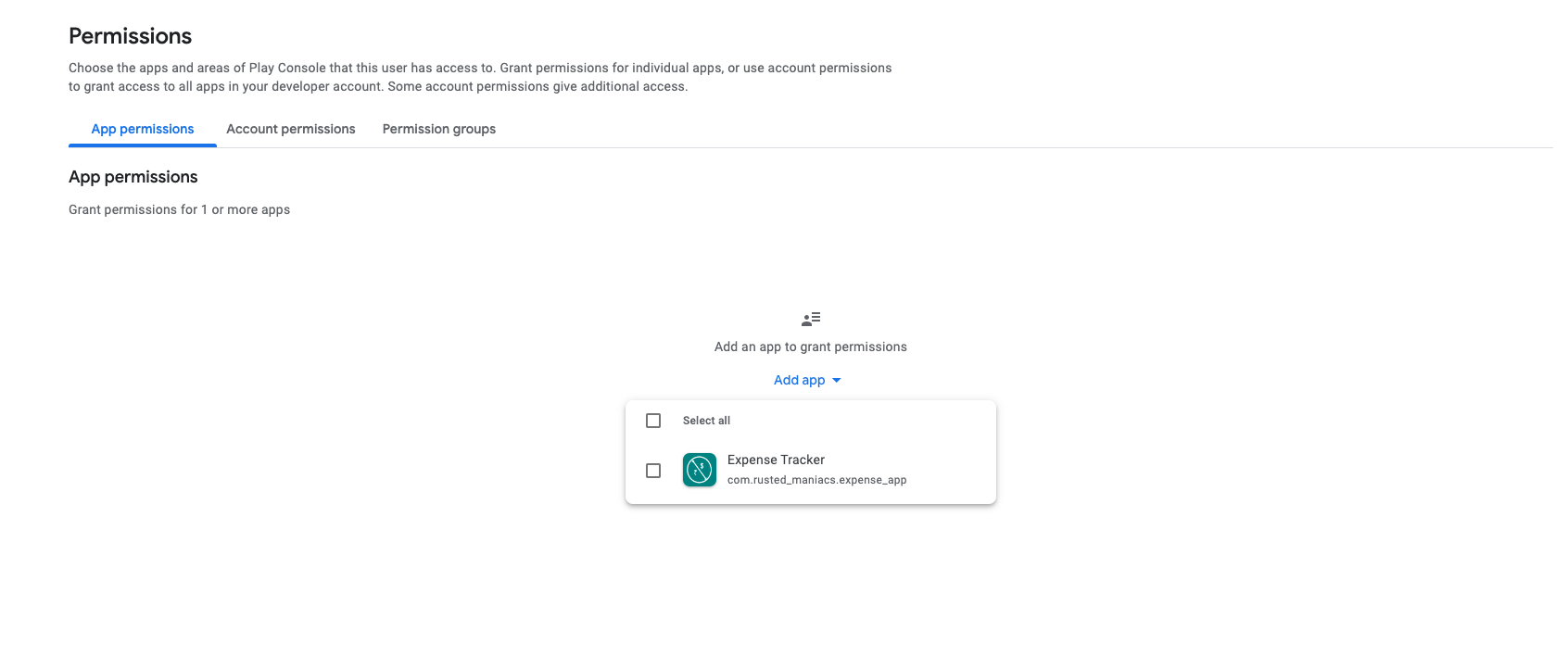
It should now be visible in the list
Create Integration in Enterpret
ℹ️ In case you already have a previously connected Google Play Store Integration without API Keys, skip to Update Integration in Enterpret
Now that we have the API Key with the necessary permissions. we can create Playstore integration in Enterpret. The following are the steps:
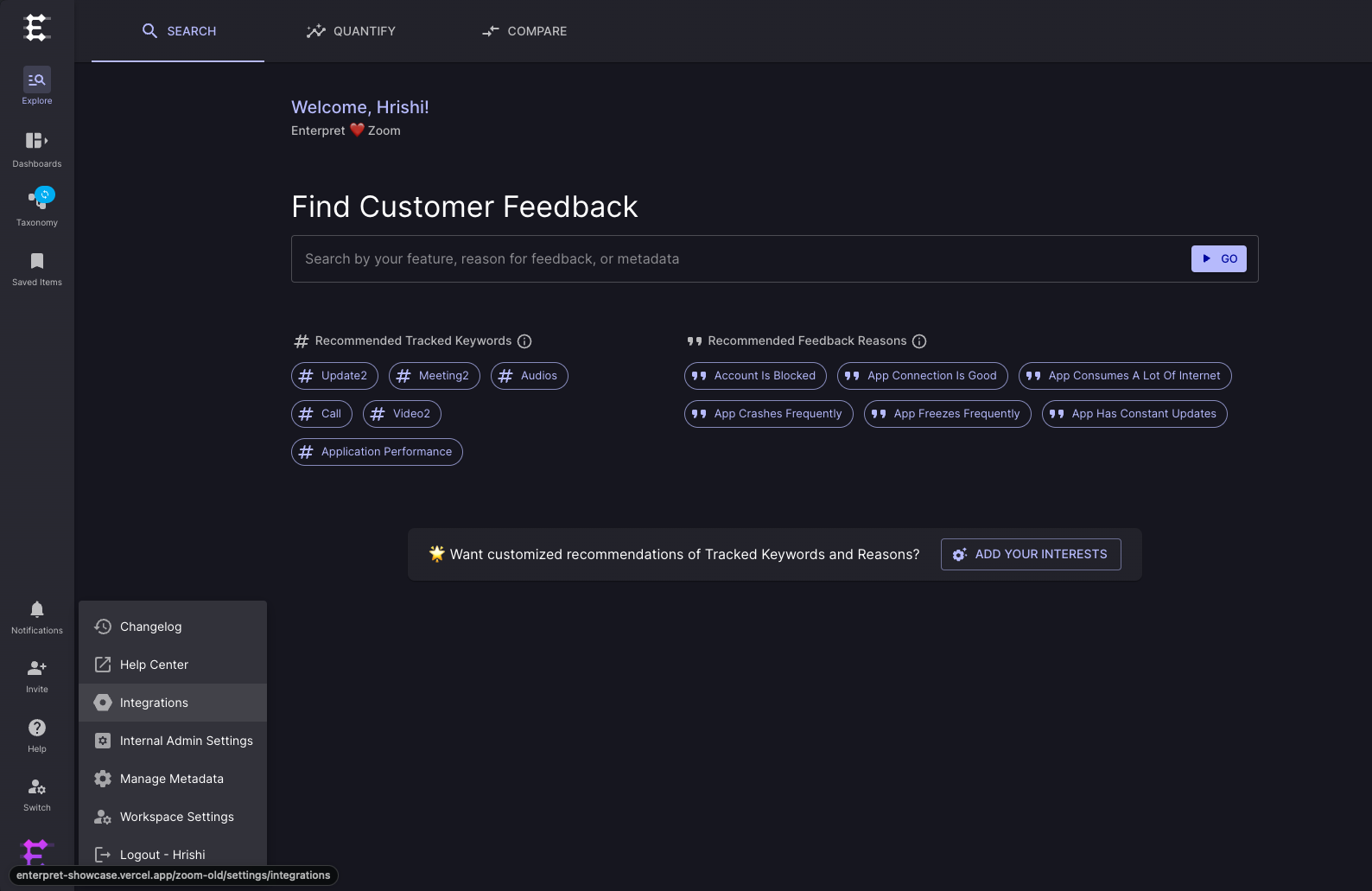
Login to Enterpret app, and head over to Integrations page from organisation menu:
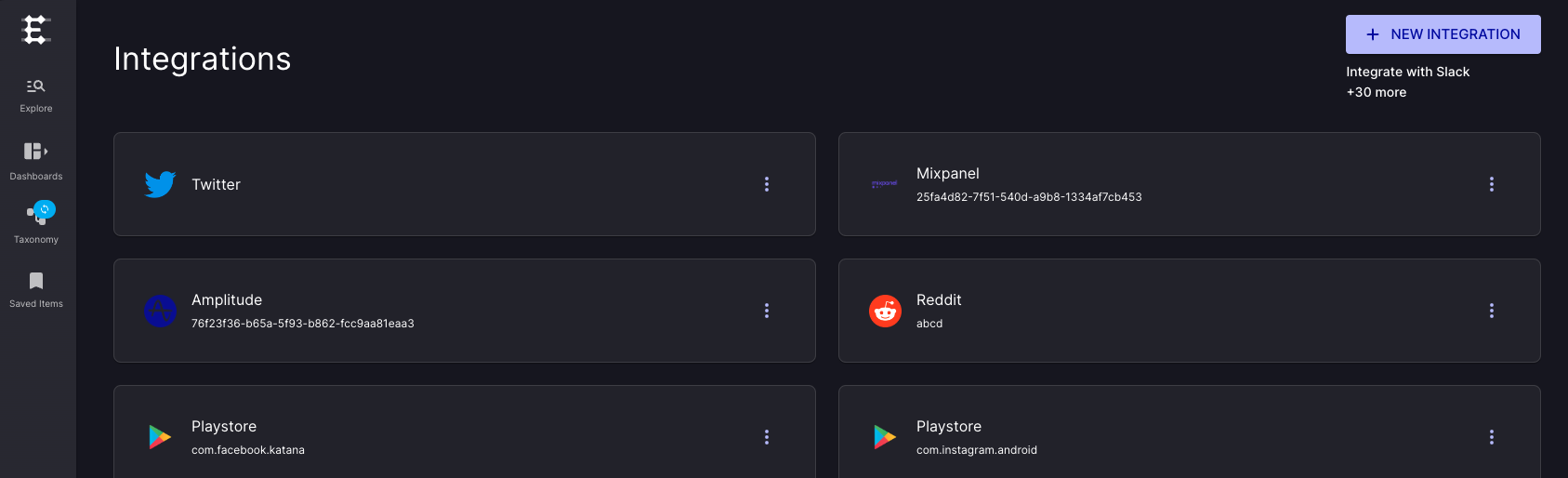
Click on NEW INTEGRATION button:
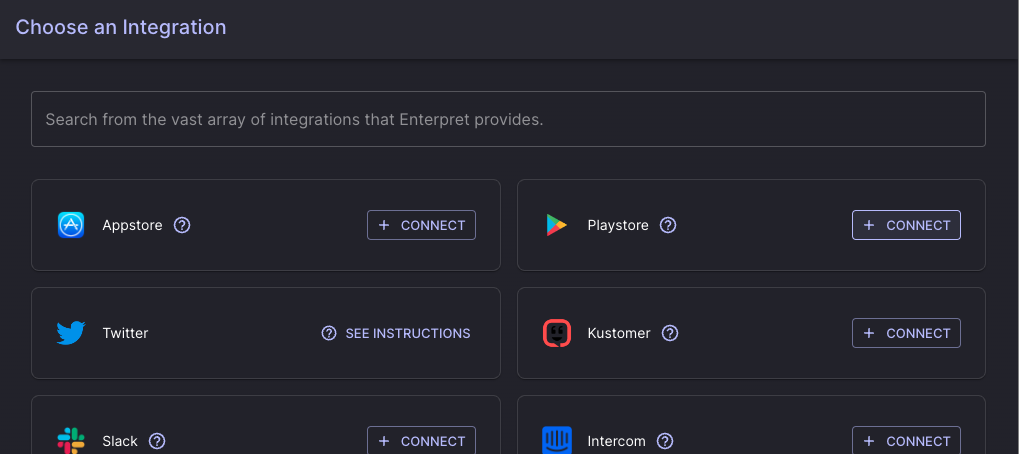
Select CONNECT button corresponding to Playstore:
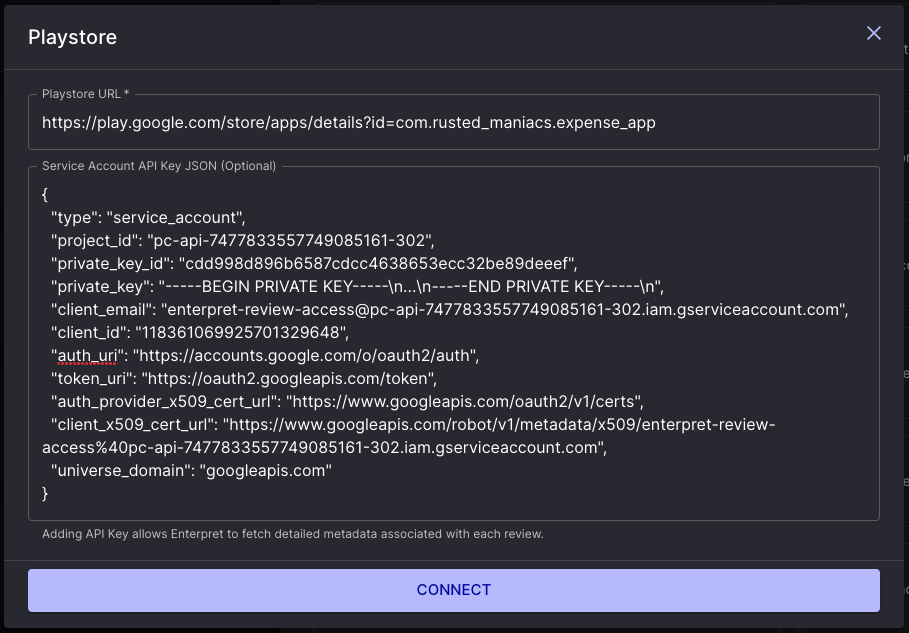
Enter the Google Play Store App URL and the JSON content from the downloaded API Key. Check the screenshot below for sample URL and JSON contents:
Update Integration in Enterpret
Now that we have the API Key with the necessary permissions. we can create Playstore integration in Entepret. The following are the steps:
Login to Enterpret app, and head over to Integrations page from organisation menu:
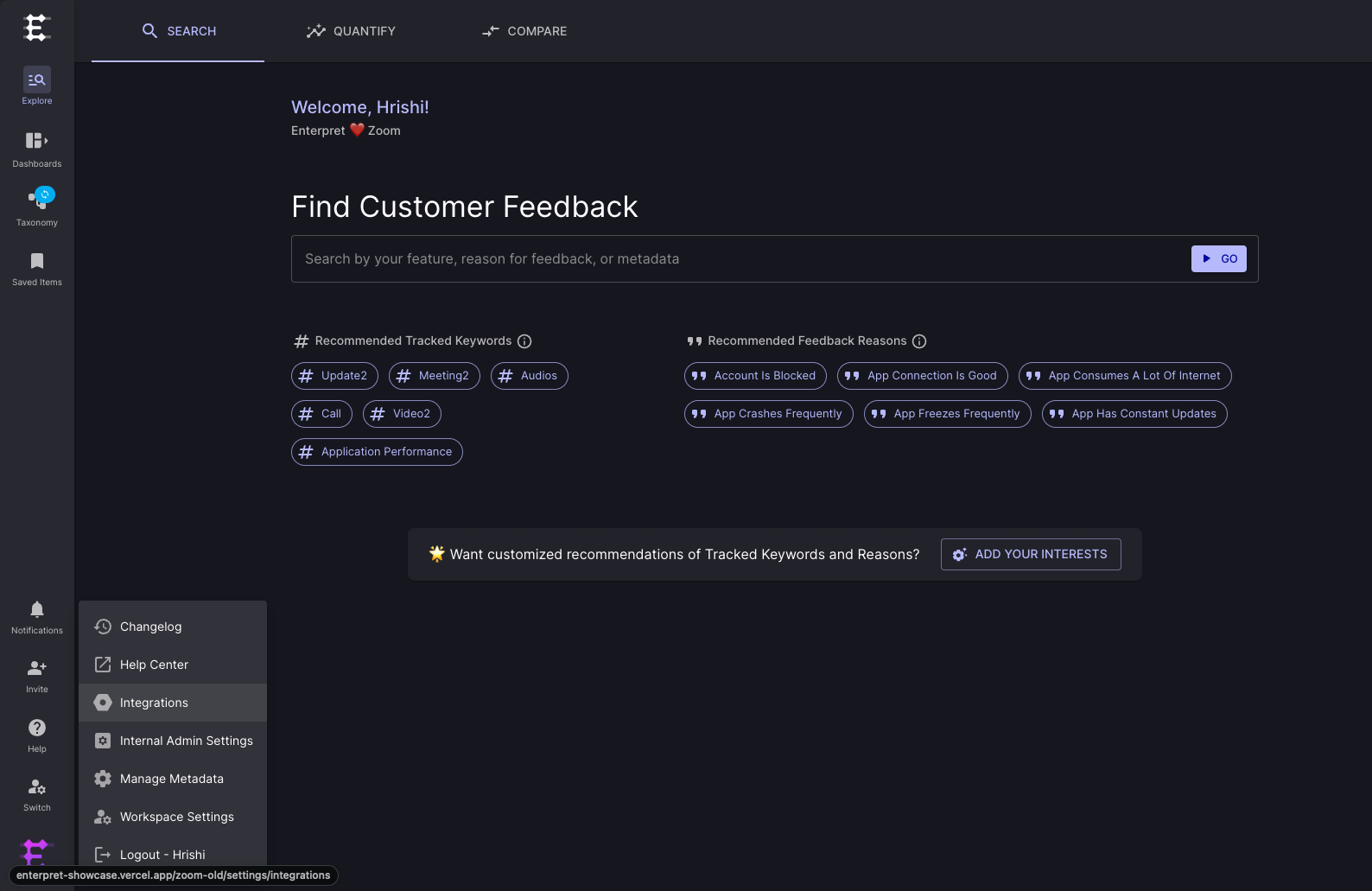
Find the Google Play Store Integration that you want to update from the list and click EDIT

Enter the JSON content from the downloaded API Key. Check the screenshot below for sample JSON contents:
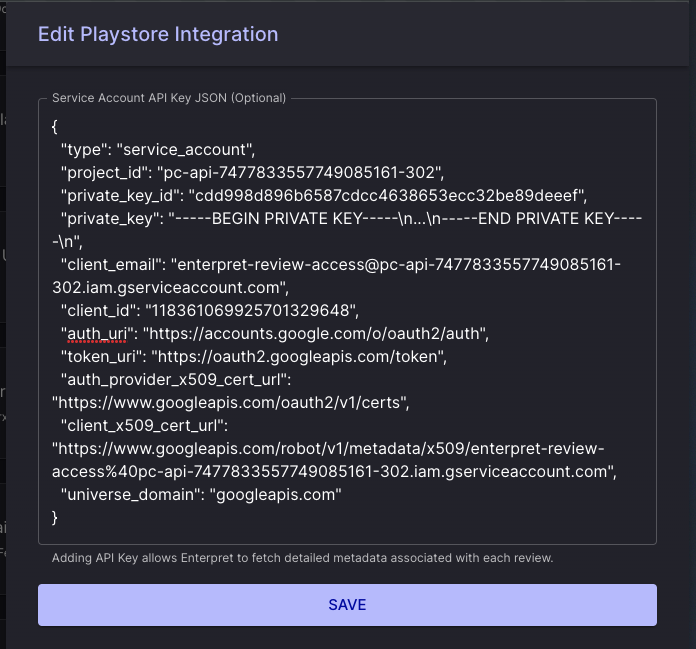
Click on SAVE to update the integration. Subsequent fetches use the applicable access method and configured schedule; saving does not guarantee that new reviews appear immediately.
Analyze this feedback with Enterpret Agent
Once this integration's feedback is available in Enterpret, use Enterpret Agent to investigate themes, summarize customer requests, and prepare reports. Specify this source and the reporting period in your request. For daily reports, weekly digests, and recurring reporting, configure scheduled Agent automations with Slack or email delivery.
This guide covers feedback ingestion. Agent connectors are a separate setup for reading external context or taking supported actions in other tools; connecting a feedback source does not automatically authorize those actions.