
Find Saved Items
Use Saved Items to reopen analyses, Feeds, Dashboards, Knowledge items, and Collections available in your workspace. Search by title or creator, or filter by type. Bookmarked feedback records use a separate workflow.
How to find Saved Items?
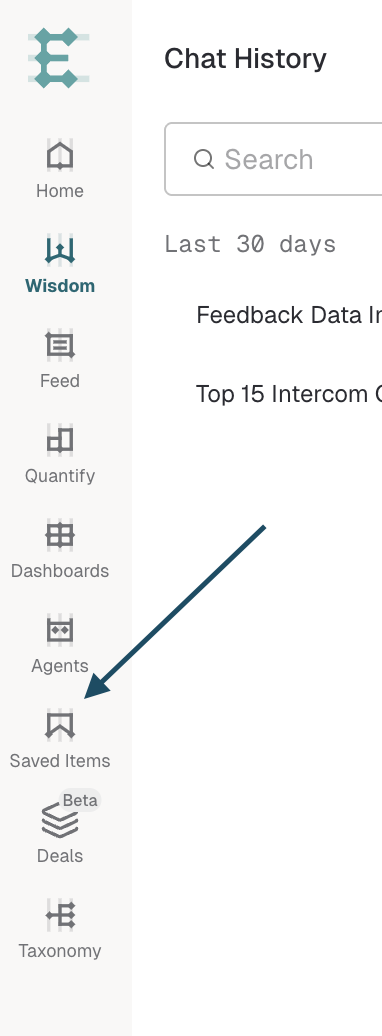
Open More → Saved Items in the sidebar, or press ⌘+K on Mac or Ctrl+K on Windows. In some layouts, Saved Items appears directly in the sidebar.
Search Saved Items
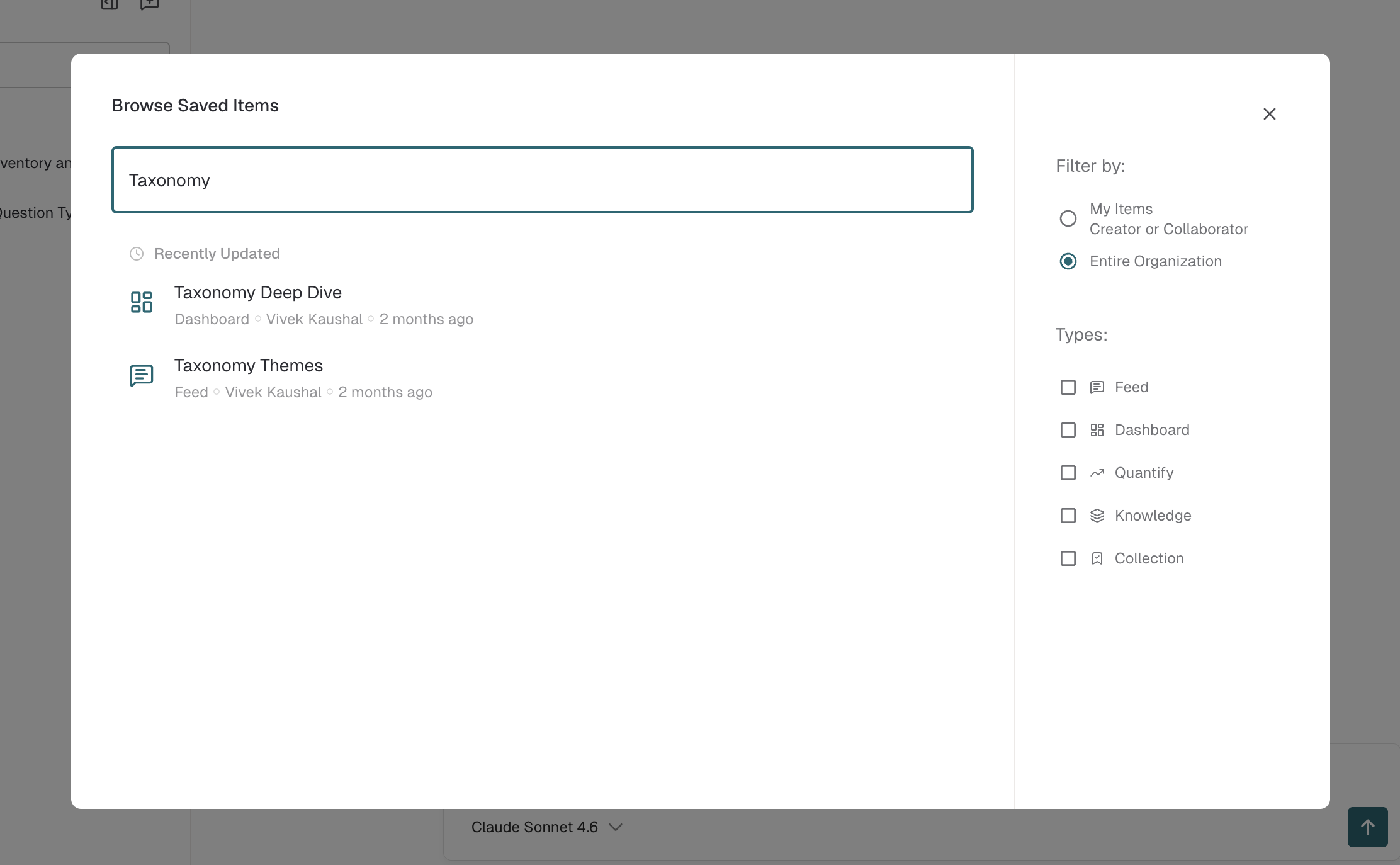
Search Saved Items by title or creator name. For example, typing Taxonomy shows saved items with a matching name. Typing Vivek shows saved items created by Vivek Kaushal.
What are Saved Items Filters?
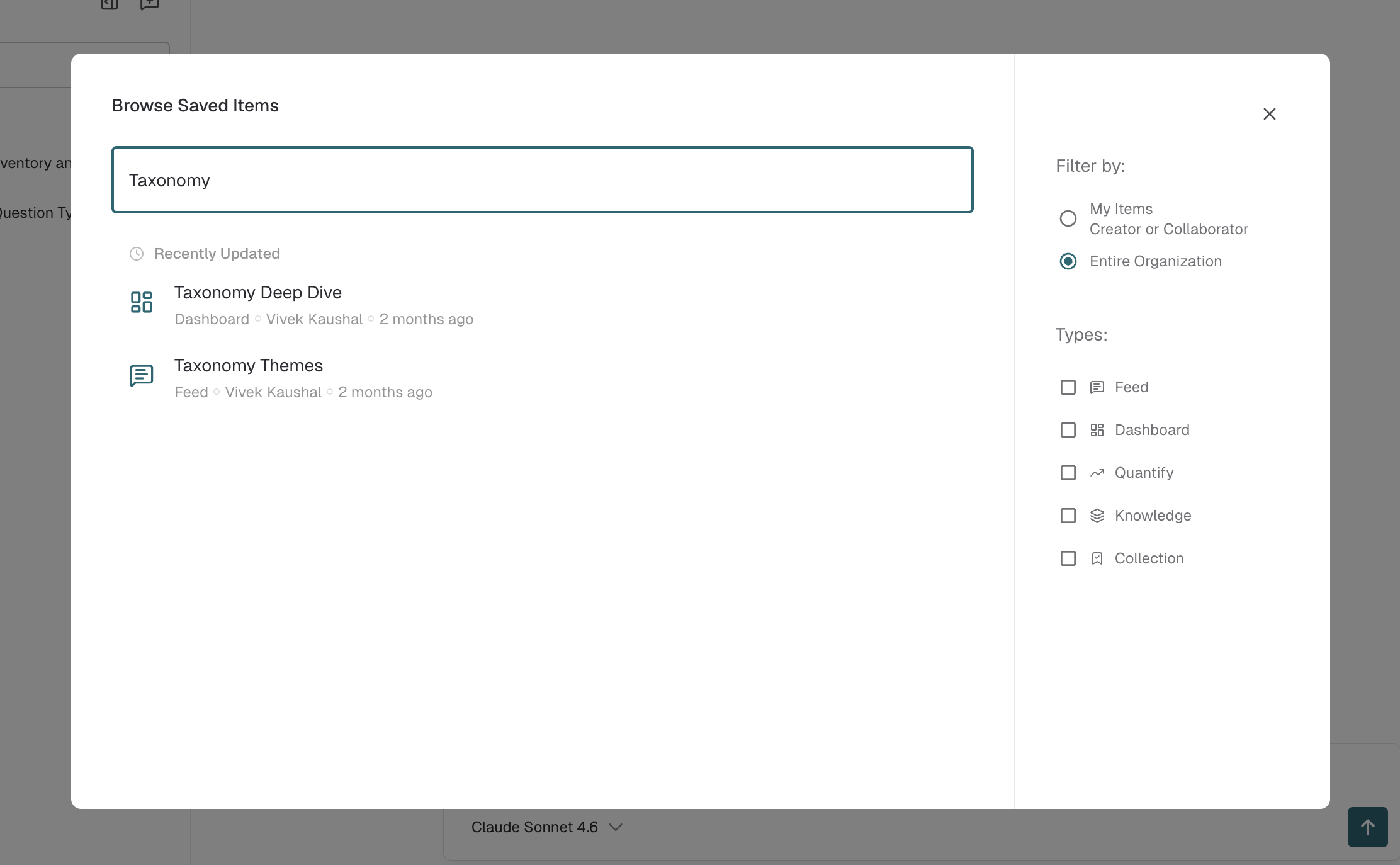
Use filters on the right pane to limit search results by creator or item type.
Filter by Creator: Use My Items for your saved items and collaborations. Use Entire Organisation to browse team items available to you.
Filter by Item Type: Choose an item type offered by your workspace to narrow the results. For example, select Entire Organisation and Dashboard to find available team Dashboards. The available types can vary with your workspace and navigation.
How to find Saved Feeds?
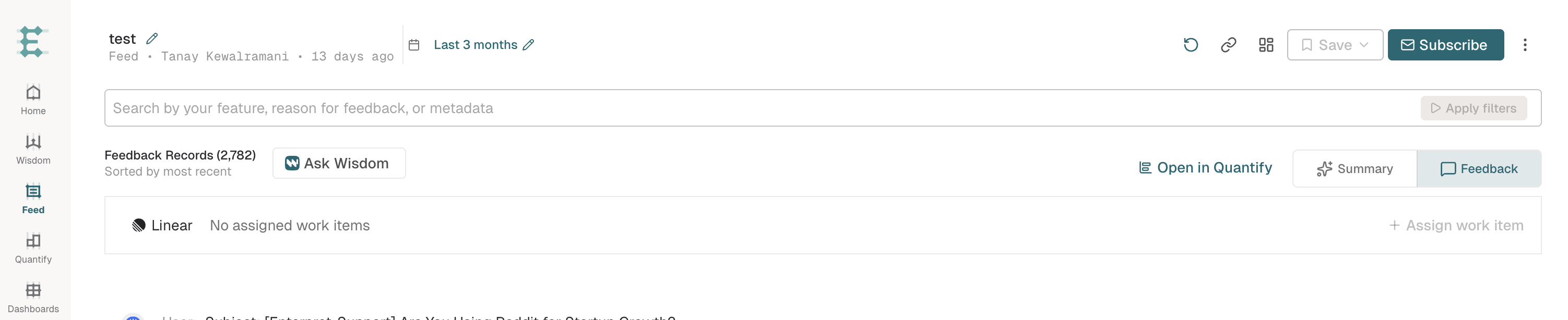
Open More → Saved Items where offered, or press ⌘+K/Ctrl+K, then filter by Type → Feed or search by title or creator name.
Frequently asked questions
Why can’t I find what I’m looking for?
An archived item may be absent from Saved Items. If you have its URL, open it and look for Unarchive in the more menu. You need the relevant edit permission; otherwise ask its creator or a workspace administrator.
To organize related work, see Collections. To save an item from its own view, see Save various items.