
Collections
In this article
What is a Collection?
Collections are folders where you hand-pick feedback records that stand out, so you can come back to them later or share them with your team. You use a Collection when you stumble on a quote or a set of records that capture a pain point perfectly, and you want to keep them together instead of losing them in the feed. They are great for PRDs, launch retros, customer stories, and those moments when you want teammates to hear what customers are actually saying.
A Collection lets you manually curate a set of feedback that you can find later or share with your teammates. You find Collections created by you or your teammates in your saved items. Not all feedback is equally important, and Collections is your tool to find the most insightful gems.
Collections can be used for citing proof in PRDs, tickets, and for inspiring your teammates with impactful customer feedback.
How to add a feedback to a Collection?
On any feedback on Enterpret, click on the Add to Collection icon at the top right.
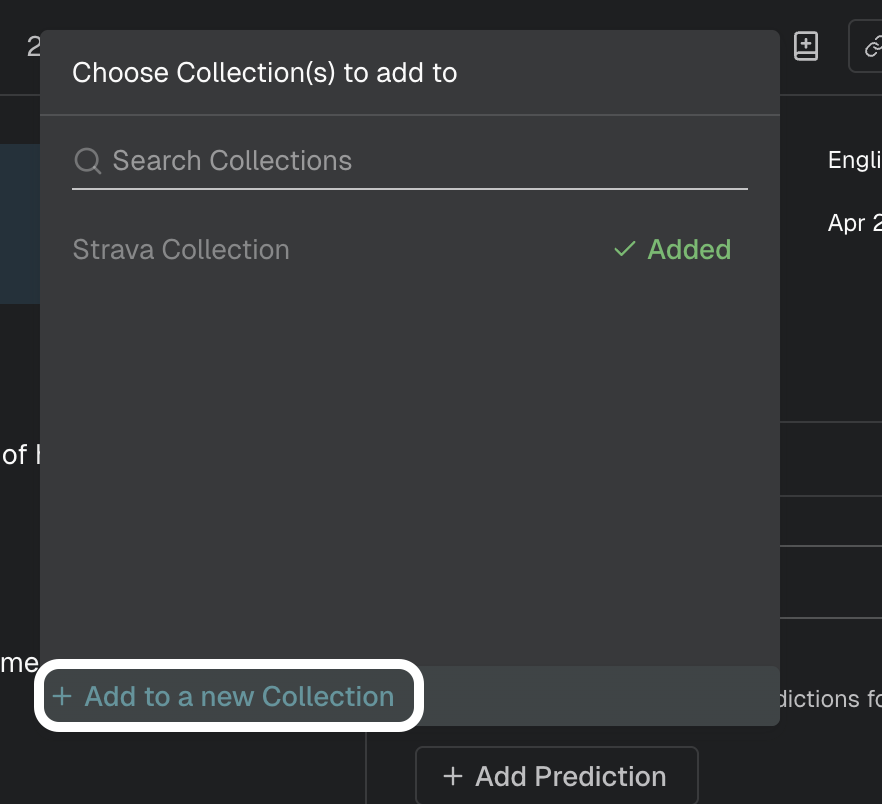
Choose the Collection to add a feedback to, or create a new Collection by clicking the ADD TO A NEW COLLECTION button at the bottom of the pop-up.
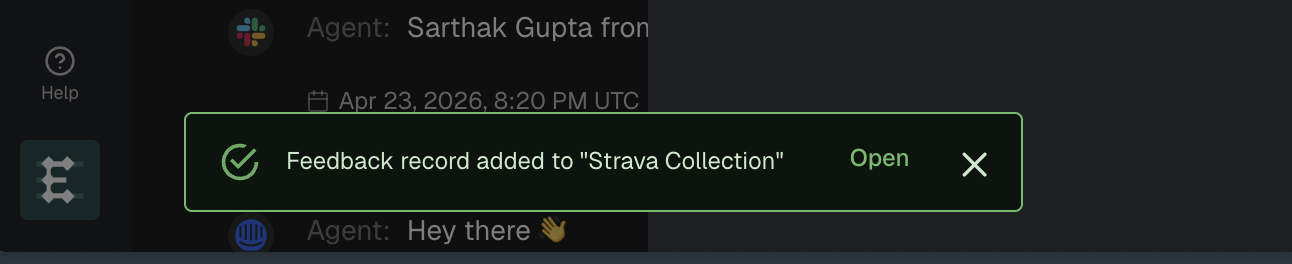
You’ve successfully added feedback to a Collection.


How to create a new Collection?
Creating a new Collection starts from adding a feedback to a Collection. Click ADD TO A NEW COLLECTION at the bottom of the pop-up that opens when you click the Add to Collections icon.
Provide a descriptive name for your Collection and an optional description to help your teammates understand the context behind creating the Collection.
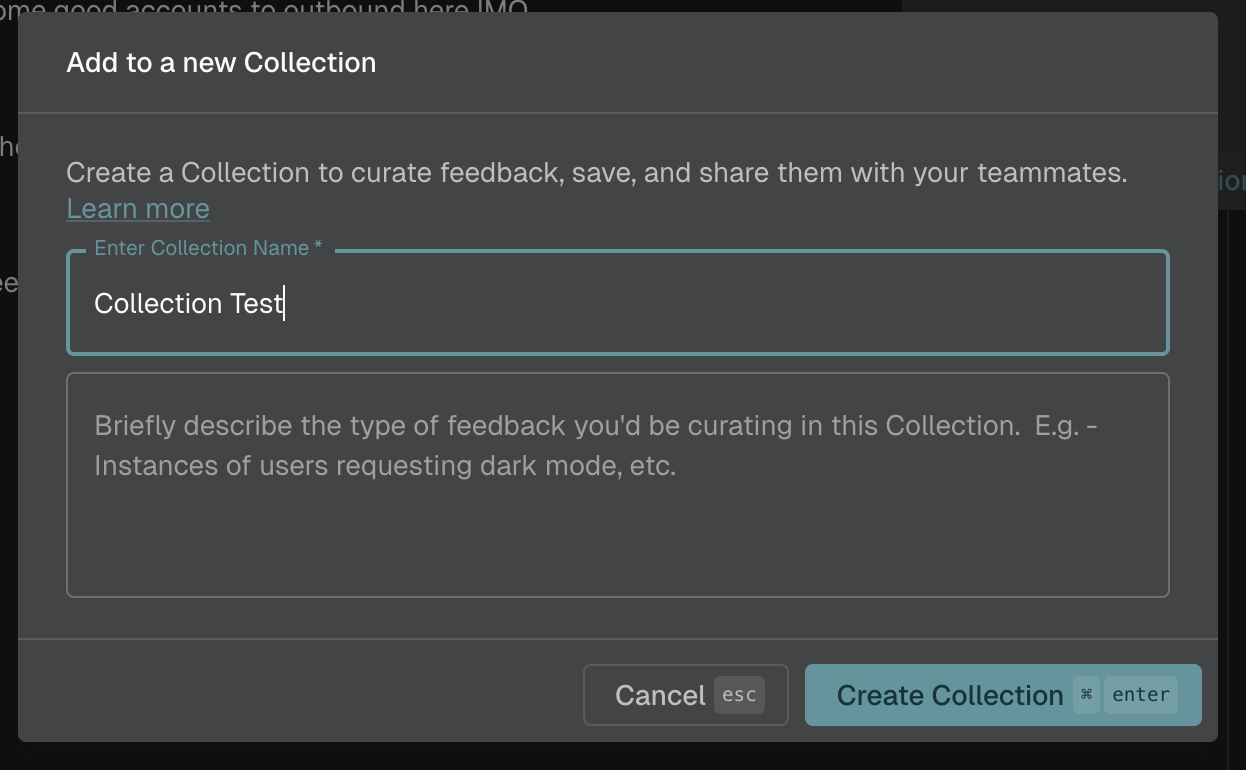
Click on CREATE COLLECTION and you’ve created your new Collection.


How to access Collections?
Go to Saved Items and check the ‘Collections’ checkbox. You’ll be able to see Collections created by you and your teammates.
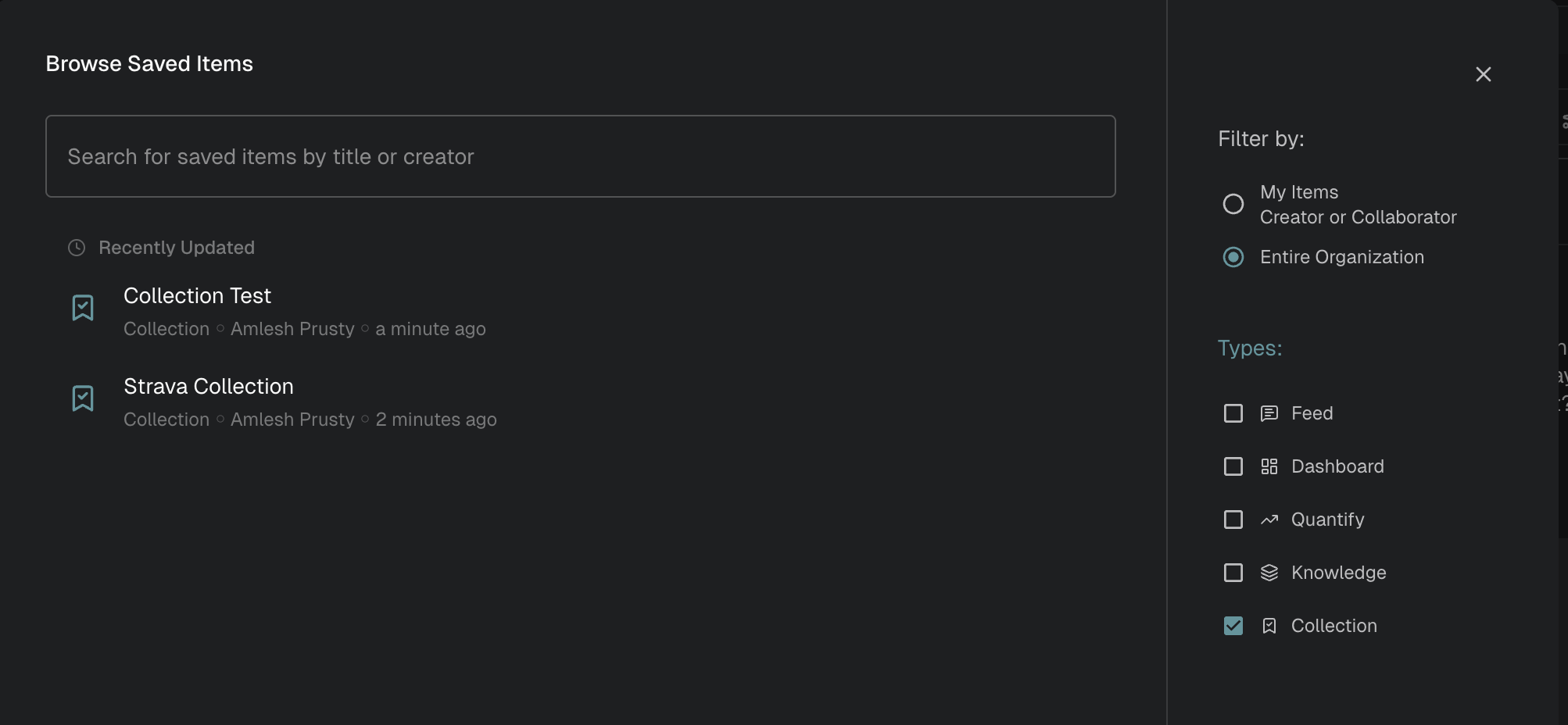
Choose a Collection to see the list of feedback records added to it.
How to remove Feedback records from a Collection?
There are 2 ways to do this.
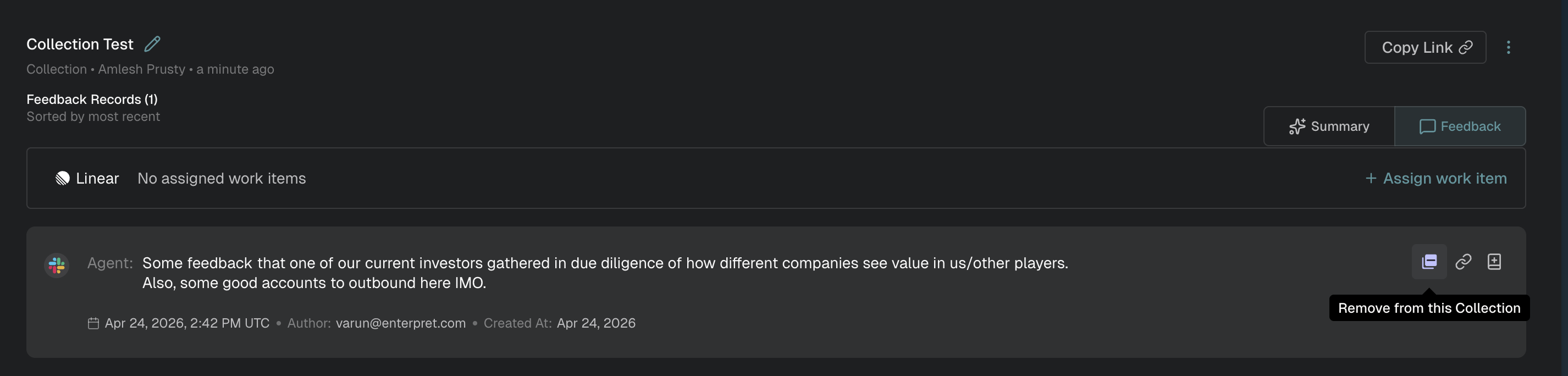
Removing a feedback while on a Collection
Click on the remove from this Collection icon on the feedback record and remove the feedback from the list.
Removing a feedback from a Collection while on the feedback
You can also remove a feedback record from a Collection directly from the feedback record, wherever you find it.
Click on the Add to Collection icon. In the pop-up window, you’ll be able to see the Collection(s) that it has been added to.
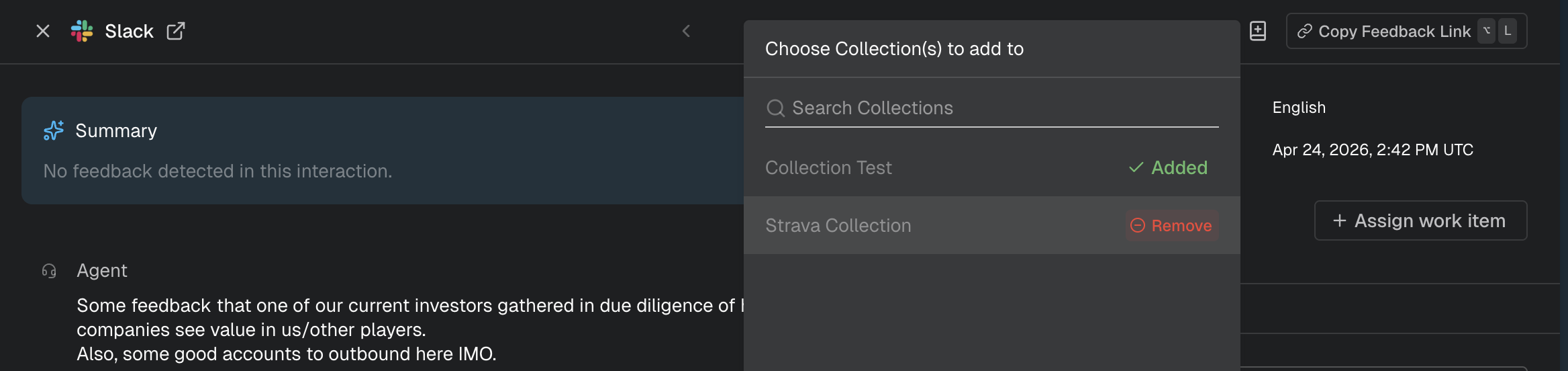
Hover on the Collection’s name and you can click on the REMOVE button to remove the record from the Collection.