
Enterpret MCP in Hermes Agent
Connect Hermes Agent (Nous Research) to the Enterpret MCP server so you can query customer feedback, inspect taxonomy values, and retrieve supporting quotes from the Hermes CLI, TUI, Desktop app, or messaging gateways.
Enterpret is not listed in Hermes's built-in MCP catalog, so you add it as a custom remote HTTP server pointing to https://wisdom-api.enterpret.com/server/mcp. Hermes supports both OAuth 2.1 (recommended for interactive use) and Bearer token authentication (for headless servers, scheduled jobs, or multi-organization configs).
See Enterpret MCP Server for the full list of available tools and citation guidance.
Before you start
You'll need:
Hermes Agent installed (CLI, TUI, or Hermes Desktop) with an LLM provider configured (
hermes modelorhermes setup). See the Hermes Agent Quickstart.An Enterpret account with access to the workspace you want to query. If your organization uses SSO or invite-only provisioning, confirm you can sign in at
dashboard.enterpret.comfirst.For Bearer token setup only: An MCP Auth Token generated from your Enterpret dashboard under Settings → API Access → MCP (or Settings → Enterpret MCP).
Option 1: Connect with OAuth (Recommended)
Hermes connects over Streamable HTTP and handles OAuth 2.1 PKCE discovery and client registration automatically.
Using the Hermes CLI
Open your terminal and add the Enterpret server:
hermes mcp add enterpret --url https://wisdom-api.enterpret.com/server/mcp --auth oauthHermes opens your browser to
dashboard.enterpret.comfor authorization. Sign in to Enterpret if prompted, confirm that Organization shows the workspace you want to connect, and click Authorize.Confirm the organization, then click Authorize. Return to your terminal. Once authorization completes, Hermes lists the discovered Enterpret tools and prompts to enable them:
Press
Enter(orY) to enable all tools.Or type
selectto choose a subset of tools.
Hermes saves the connection to
~/.hermes/config.yamland caches your OAuth tokens in~/.hermes/mcp-tokens/.
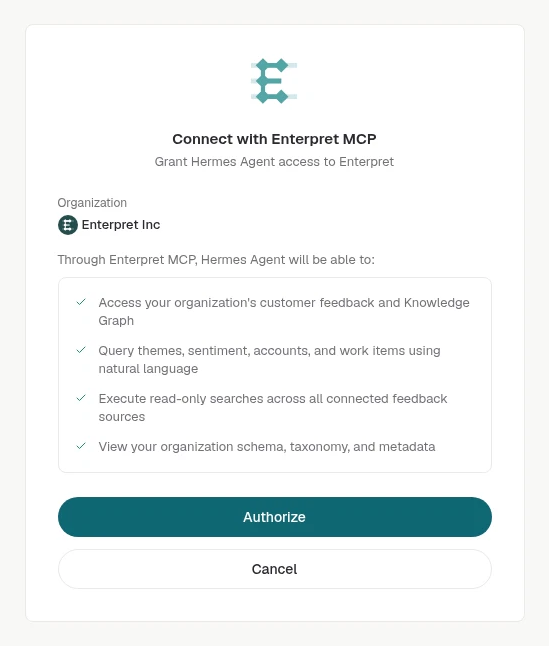
Remote or SSH sessions: If Hermes runs on a headless or remote host without a local browser, copy the authorization URL printed in the terminal, approve it in a browser on your laptop, and paste the full redirect URL (or the ?code=...&state=... query string) back into the terminal prompt when asked.
Or configure ~/.hermes/config.yaml manually
Open
~/.hermes/config.yamlin a text editor and addenterpretundermcp_servers:mcp_servers: enterpret: url: "https://wisdom-api.enterpret.com/server/mcp" auth: oauthFrom a fresh terminal (outside an active Hermes chat session), run the OAuth login flow:
hermes mcp login enterpretComplete the browser authorization and confirm the workspace before clicking Authorize.
Note: When you edit ~/.hermes/config.yaml while a Hermes chat session is already running, auto-reload uses a 30-second connection timeout—too short for an interactive sign-in. Always complete initial OAuth login with hermes mcp login enterpret from a separate terminal, which gives you 5 minutes to approve.
Option 2: Connect with a Bearer Auth Token
Use a Bearer token when running Hermes in non-interactive environments (such as cron jobs, CI, or always-on gateways without browser sign-in) or when connecting multiple Enterpret organizations side by side.
In your Enterpret dashboard, open Settings → API Access → MCP (or Settings → Enterpret MCP).
Click Generate under Auth Token and copy the token.
In your terminal, run:
hermes mcp add enterpret --url https://wisdom-api.enterpret.com/server/mcp --auth headerWhen prompted, confirm that the server requires authentication (
Y) and paste your Auth Token. Hermes strips any extraBearerprefix, saves the secret to~/.hermes/.envasMCP_ENTERPRET_API_KEY, and writes the server entry to~/.hermes/config.yaml:mcp_servers: enterpret: url: "https://wisdom-api.enterpret.com/server/mcp" headers: Authorization: "Bearer ${MCP_ENTERPRET_API_KEY}"Review the discovered tools and press
Enter(Y) to enable them.
Token expiry and rotation: Dashboard Auth Tokens expire after 90 days of inactivity (each use resets the 90-day window) and have a maximum lifetime of 365 days. When you rotate a token in Enterpret, update MCP_ENTERPRET_API_KEY in ~/.hermes/.env and run /reload-mcp in any open Hermes session.
Verify the connection
Start a new Hermes session with hermes (or hermes --tui). If a session was already open when you added the server, run /reload-mcp in that chat first.
Ask Hermes a question about your workspace, for example:
Give me a quick overview of our Enterpret workspace
You'll see an Enterpret tool call, such as Enterpret · get organization details. Confirm the organization name and dashboard URL in the reply match the workspace you intended to connect.
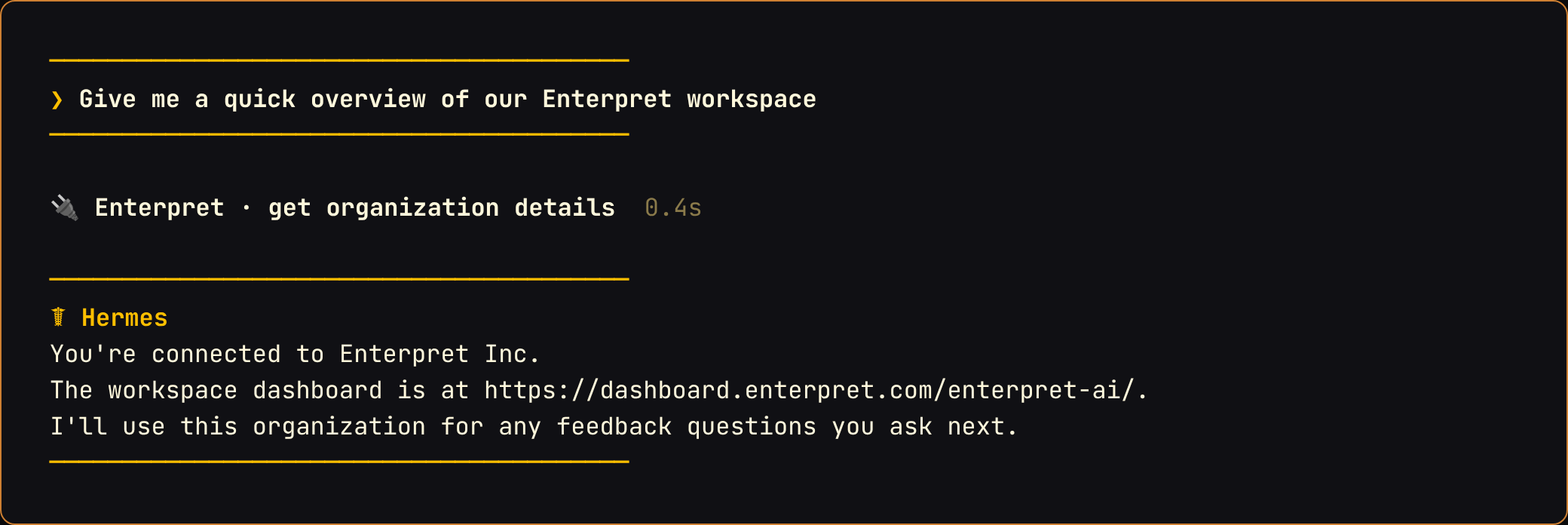
To check the connection from the terminal without starting a chat, run hermes mcp list (Enterpret should appear as enabled) or hermes mcp test enterpret (a successful check reports Connected and lists the tools for your workspace).
Optional configuration
Filter or restrict Enterpret tools
When filtering tools in ~/.hermes/config.yaml or with hermes mcp configure enterpret, use the MCP tool names (for example, get_organization_details). In a Hermes chat, these appear as an Enterpret tool call, not the raw tool name.
mcp_servers: enterpret: url: "https://wisdom-api.enterpret.com/server/mcp" auth: oauth tools: include: - get_organization_details - get_graph_schema - resolve_taxonomy_scope - run_graph_query - find_user_quote
Connect multiple Enterpret organizations
To query more than one Enterpret organization in the same Hermes session, add a separate named entry under mcp_servers with its own Auth Token in ~/.hermes/.env (see Connecting Claude to Multiple Enterpret Organizations for general multi-org caveats):
mcp_servers:
  enterpret_org_alpha:
    url: "https://wisdom-api.enterpret.com/server/mcp"
    headers:
      Authorization: "Bearer ${MCP_ENTERPRET_ORG_ALPHA_API_KEY}"
  enterpret_org_beta:
    url: "https://wisdom-api.enterpret.com/server/mcp"
    headers:
      Authorization: "Bearer ${MCP_ENTERPRET_ORG_BETA_API_KEY}"
When prompting Hermes, specify which named connection to query (for example, enterpret_org_alpha vs. enterpret_org_beta).
Citations and quotes
The Enterpret MCP tools retrieve feedback and supporting source records, and Hermes writes the summary. State the workspace, date range, sources, and taxonomy filters in your prompt when asking a question. Open linked source records to verify counts, percentages, and verbatim customer quotes before relying on them.
Troubleshooting
non-interactive environment and no cached tokens foundHermes is running without cached OAuth tokens in a non-interactive shell or service. Run
hermes mcp login enterpretin an interactive terminal first, or switch to Option 2 (Bearer Auth Token) for headless environments.Dashboard tokens cannot use OAuthYou passed a dashboard MCP Auth Token alongside
auth: oauth, or sent an invalid token. Removeauth: oauth, configureheaders: { Authorization: "Bearer ${MCP_ENTERPRET_API_KEY}" }, and verifyMCP_ENTERPRET_API_KEYin~/.hermes/.envmatches an active token from Settings → API Access → MCP.OAuth login fails or times out
Check that you ran
hermes mcp login enterpretfrom a standalone terminal rather than waiting on an in-session config auto-reload.On a remote/SSH host, paste the full redirect URL (starting with
http://127.0.0.1:.../callback?code=...) back into the terminal prompt, or forward the loopback port over SSH.Note that
hermes mcp login enterpret --flow deviceis not supported because Enterpret MCP uses browser OAuth 2.1 PKCE rather than device-code flow.
Tools do not appear in an active session
Run
/reload-mcpin the session or start a new Hermes chat (hermes/hermes --tui). You can also runhermes mcp test enterpretfrom the terminal to confirm tools are discovered.Network or firewall errors
Ensure outbound HTTPS access is allowed to
wisdom-api.enterpret.com,oauth.enterpret.com, anddashboard.enterpret.com.
Related
Enterpret MCP Server — full tool list, citations, and setup guides for other AI clients