
Connect Lark to Enterpret Agent
Connect Lark to Enterpret Agent so Agent can find documents, read supported Lark Docs, and discover the Lark groups available to you.
What you can do
List and search the Lark groups available to your connected account.
Search for documents and read text from upgraded Lark Docs.
Ask Agent to summarize an accessible document or use it as context for an analysis.
The connector does not read chat conversation history, send messages or direct messages, or create or edit documents. Group discovery does not provide access to group messages.
This setup is for Lark. It does not support Feishu.
How this helps day to day
Find relevant Lark documents without switching between tools.
Summarize long documents before a meeting or review.
Use information from accessible Lark Docs as context when asking Agent a question.
Check which Lark groups are available to your account.
Before you begin
You will need:
A Lark account in the organization you want to connect.
A custom Lark app, or permission to create one in the Lark Developer Console.
A Lark administrator who can approve the app release and make it available to the intended users.
An active Enterpret workspace Owner or Manager to configure the shared Lark app credentials.
A Lark document you can open with the account you will connect, for the final test.
A Lark app administrator prepares and releases the app. An Enterpret Owner or Manager configures its App ID and App Secret for the Enterpret workspace. Other users then authorize their own Lark accounts without receiving the shared App Secret. These are separate roles and steps.
If the workspace already has an approved Lark app configuration, ordinary users can skip the app-creation steps and continue with authorization. Owners and Managers may still see app-credential fields because submitting them can replace the shared configuration. Confirm the existing app before changing those values.
Connecting the app does not expand the connected account’s Lark document permissions.
1. Open or create a Lark app
Open the Lark Developer Console.
Sign in and select the correct Lark organization.
Open the custom app you want to use. If you do not have one, select Create Custom App.
For a new app, enter a recognizable name such as Enterpret Agent, add a short description and icon, and create the app.
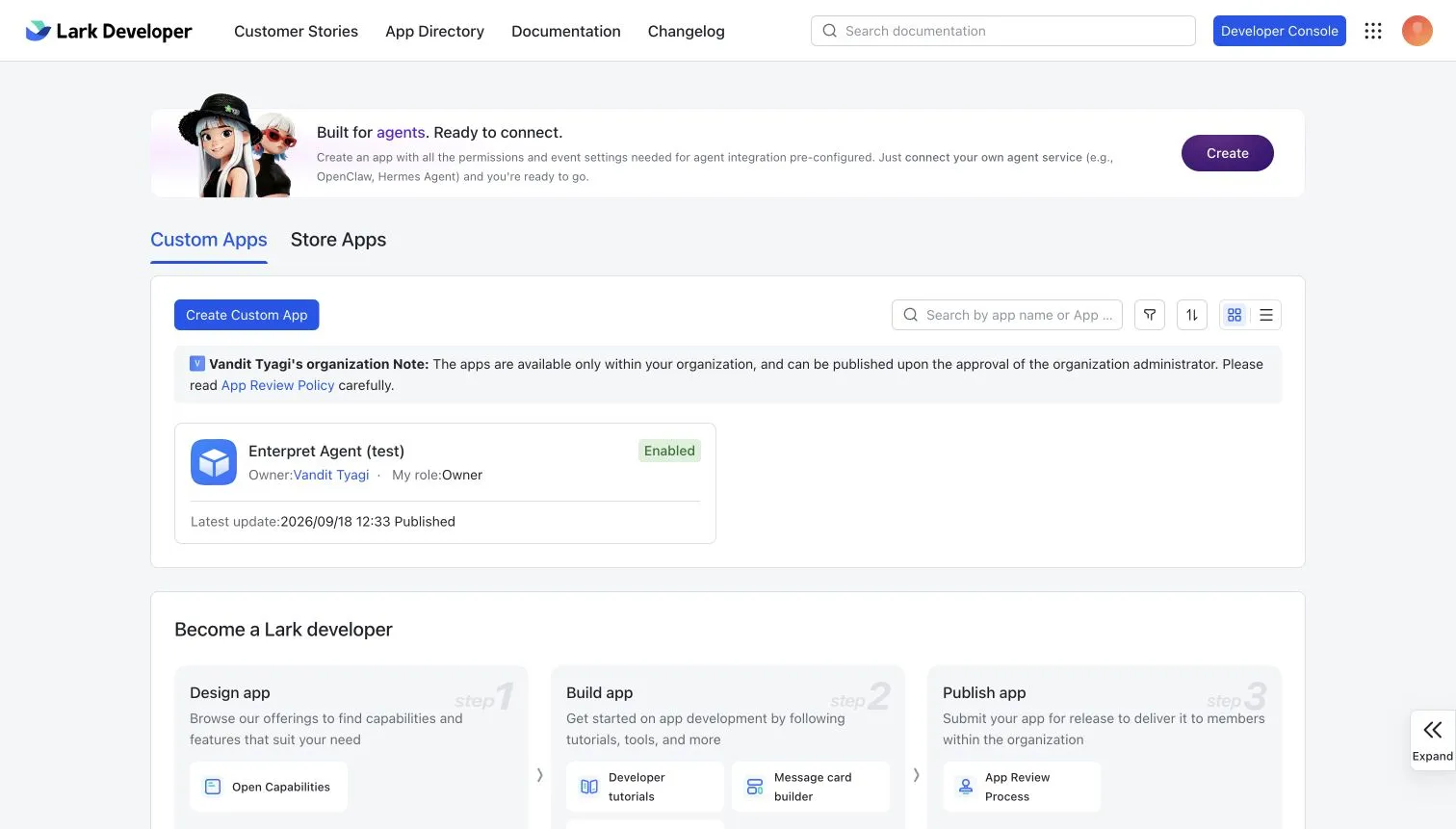
Lark Developer Console showing the custom app list
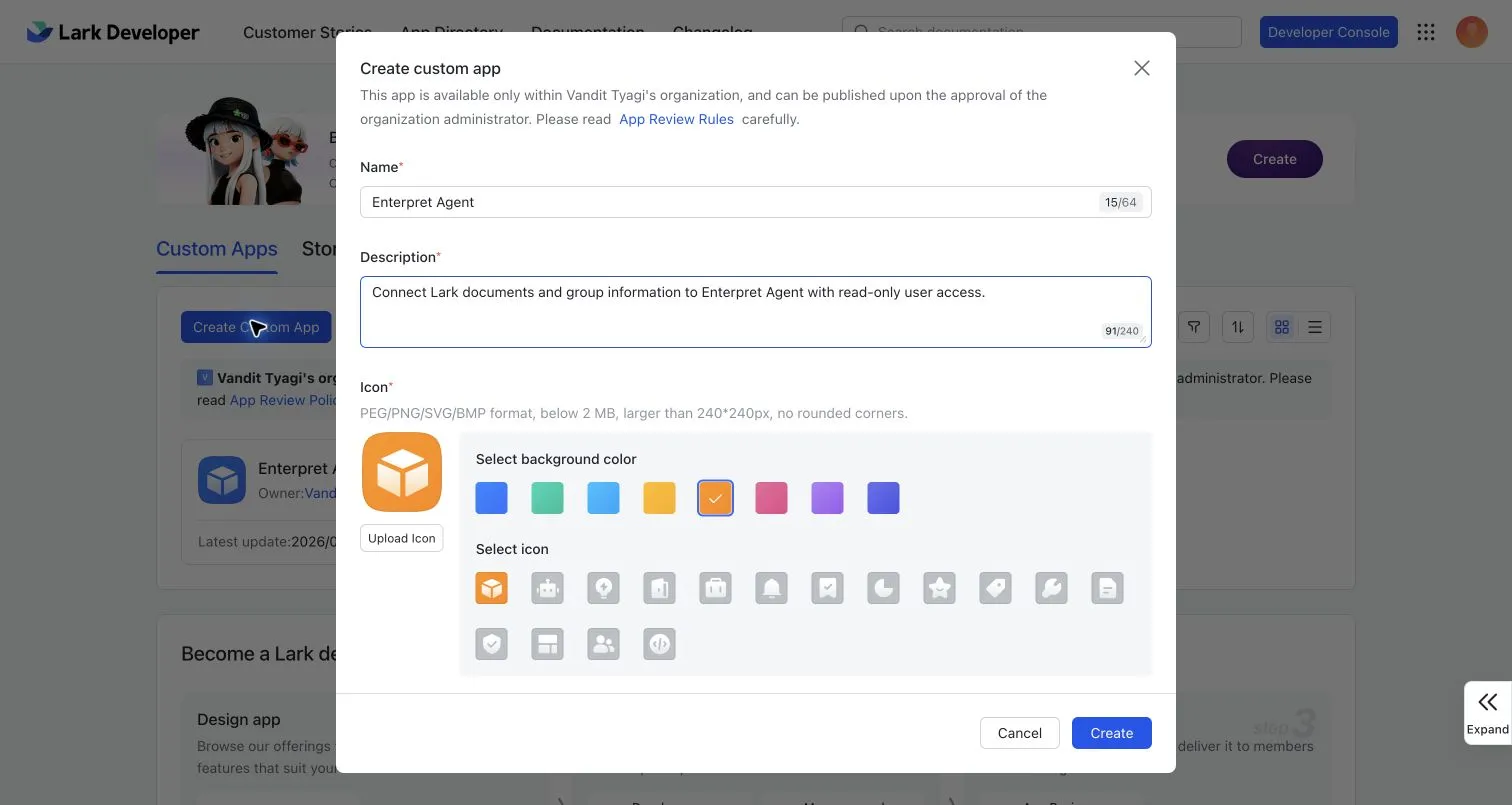
Example Create Custom App form
2. Enable the Bot capability
In the app, open Add Features and add Bot if it is not already enabled. Confirm that Bot appears in the app sidebar.
This capability is required for group discovery. It does not allow the Enterpret connector to send messages.
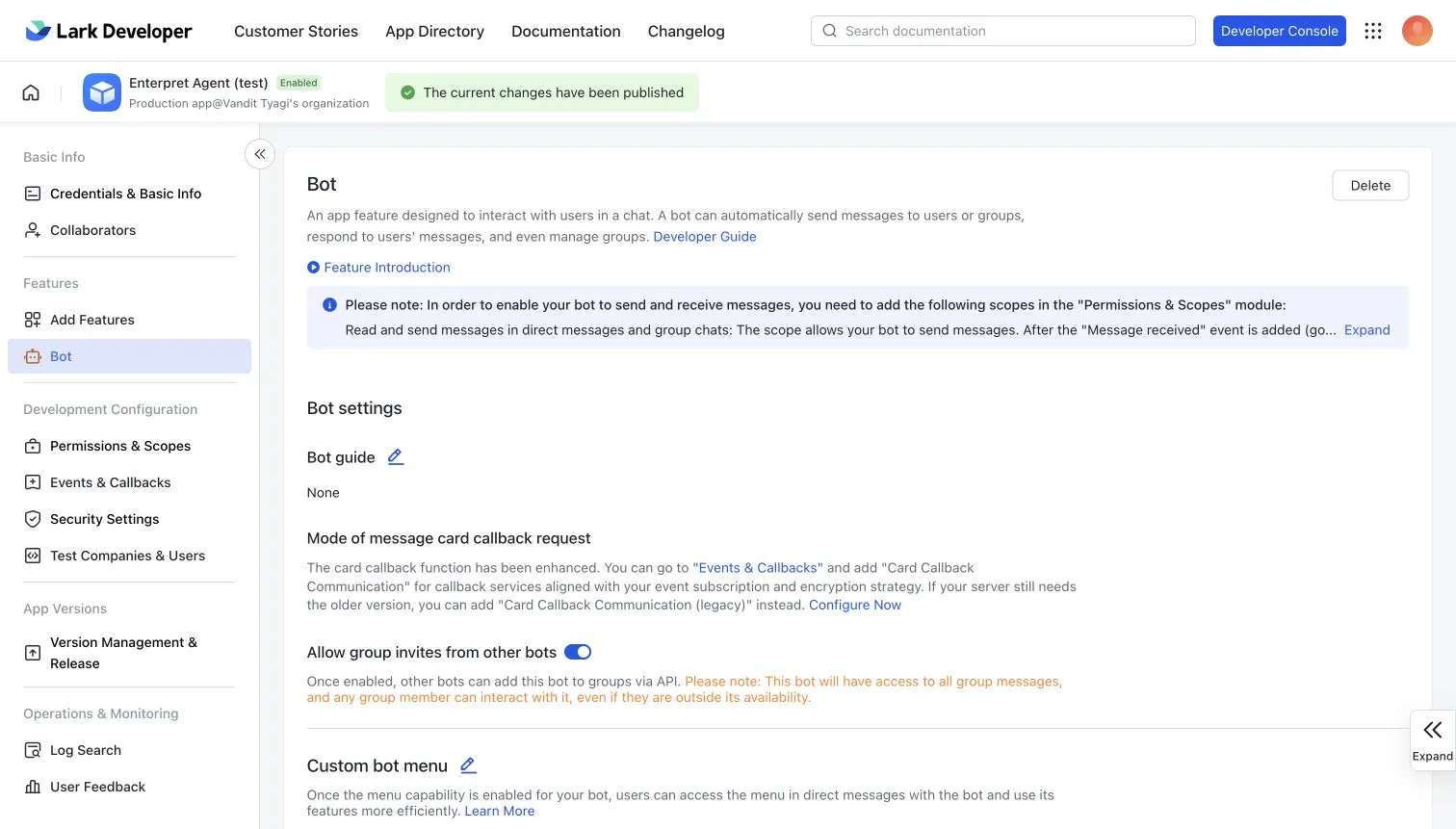
Bot capability enabled in the test app
3. Add Enterpret's redirect URL
Open Security Settings and add the following URL to the redirect URL list:
https://api-v2.enterpret.com/connectors/oauth/oauth/callback
Copy the complete URL exactly, including the repeated /oauth/ segment. This is an OAuth redirect URL, not an event or webhook callback URL.
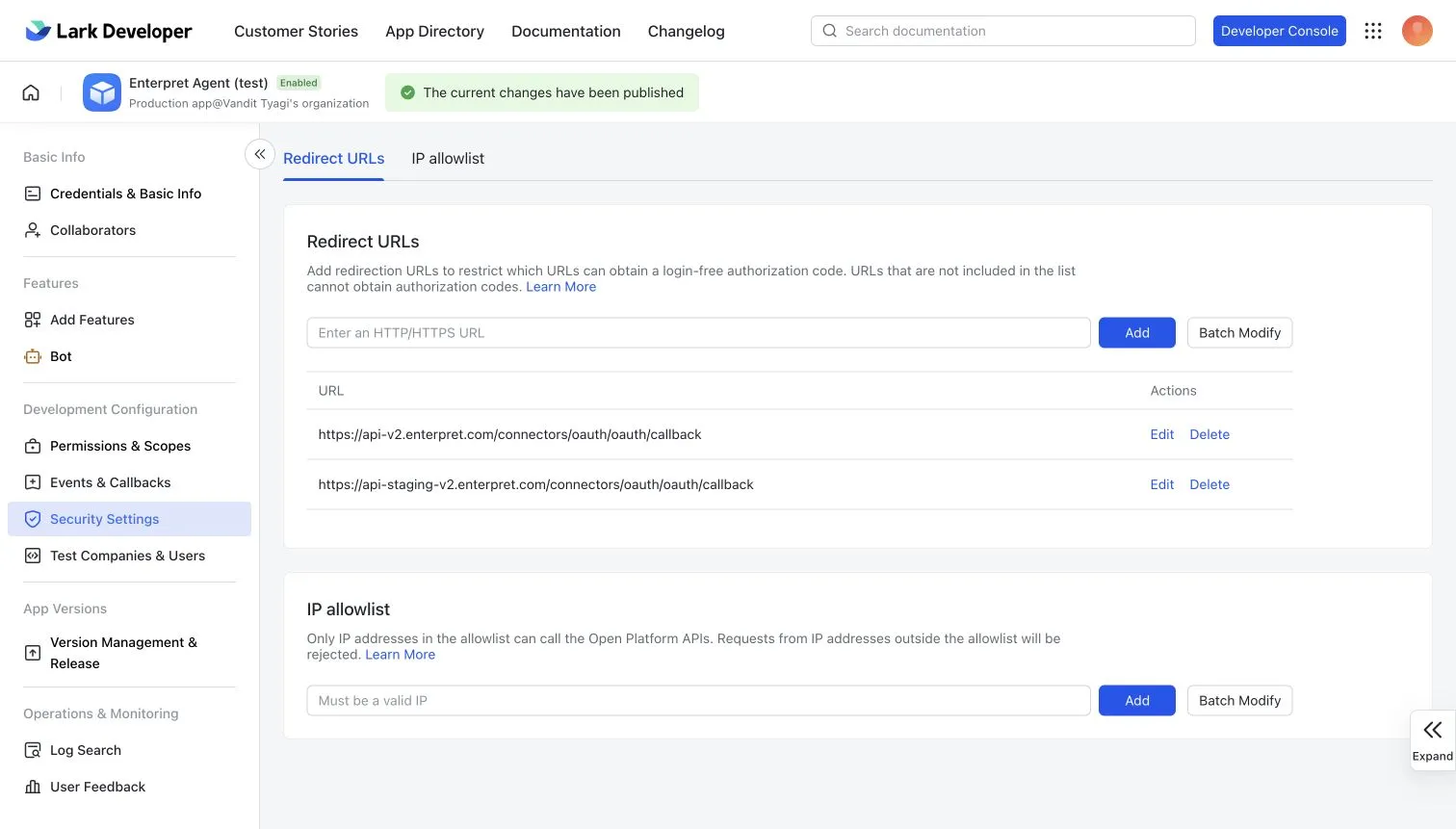
Security Settings redirect URL list. Use the complete api-v2 URL shown above.
4. Add the required user permissions
Open Permissions & Scopes. Add these three API permissions under User token:
Permission | Why it is needed |
|---|---|
| List and search group information. |
| Find files the connected account can access. |
| Read text from upgraded Lark Docs. |
Confirm that all three API permissions show as added, and enable refresh tokens for the app. Enterpret requests offline_access during OAuth so the connection can refresh without asking the user to sign in for every request; it may not appear as a separate permission in every Lark console view. You do not need message-sending permissions for this connector.
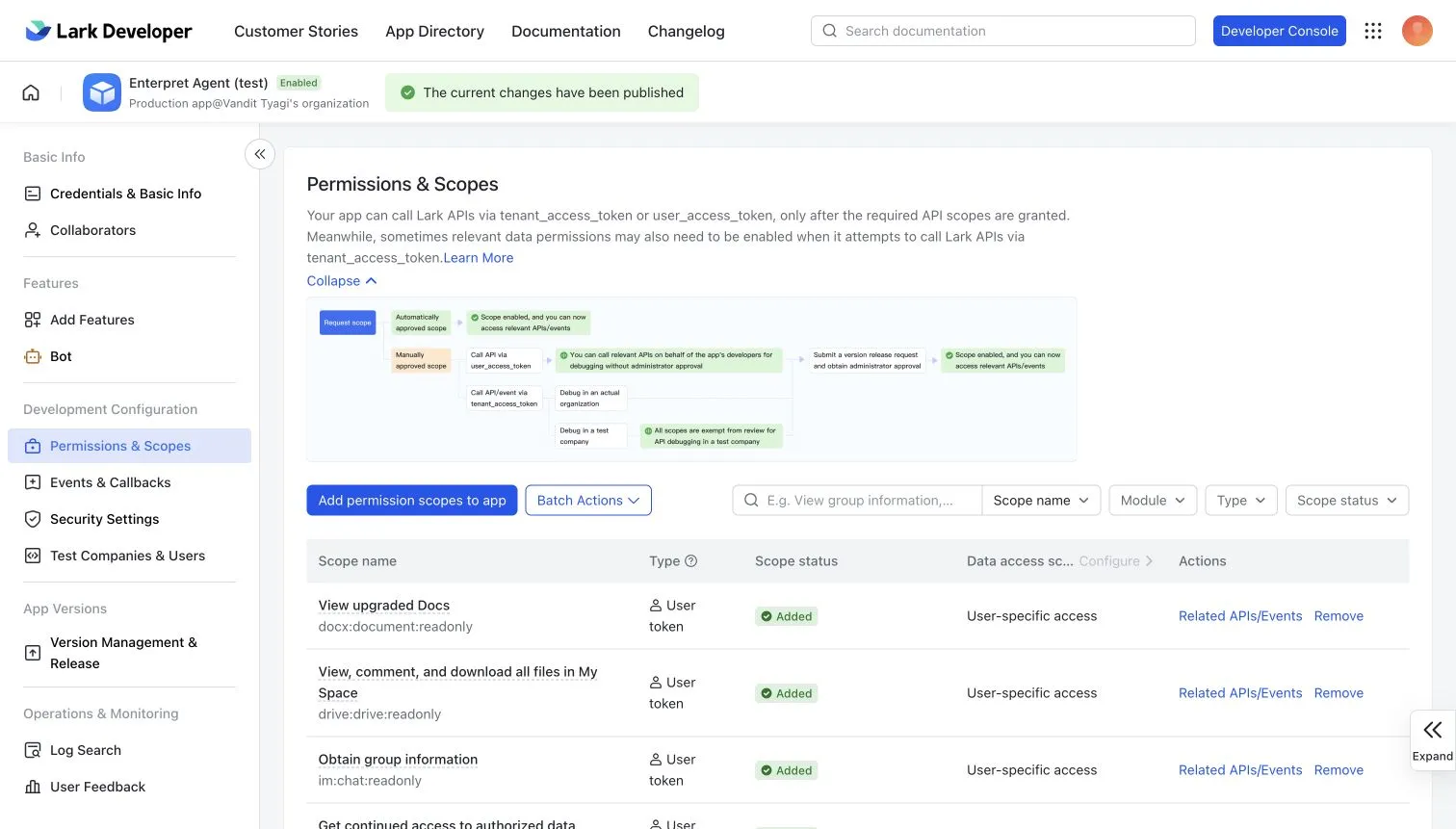
Permissions & Scopes showing User token access
5. Publish the app and obtain approval
Open Version Management & Release.
Create a version that contains the required settings.
Set the app's Availability to include the people who will connect Lark.
Submit or publish the version and ask your Lark administrator to approve it.
Confirm that the version is released and approved.
If you later change permissions or other release-controlled settings, publish a new version and obtain approval again.
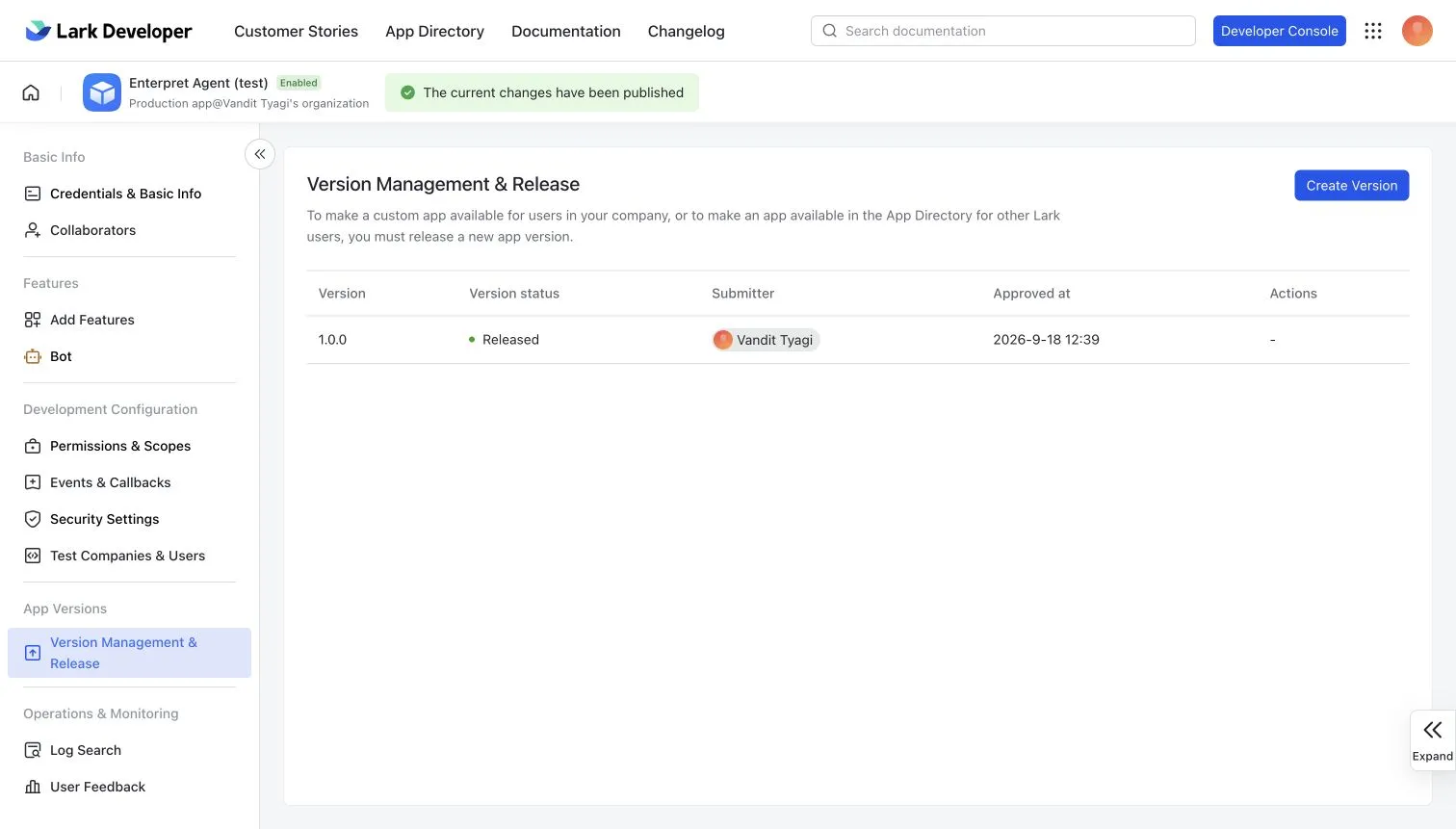
Version Management showing a released app version
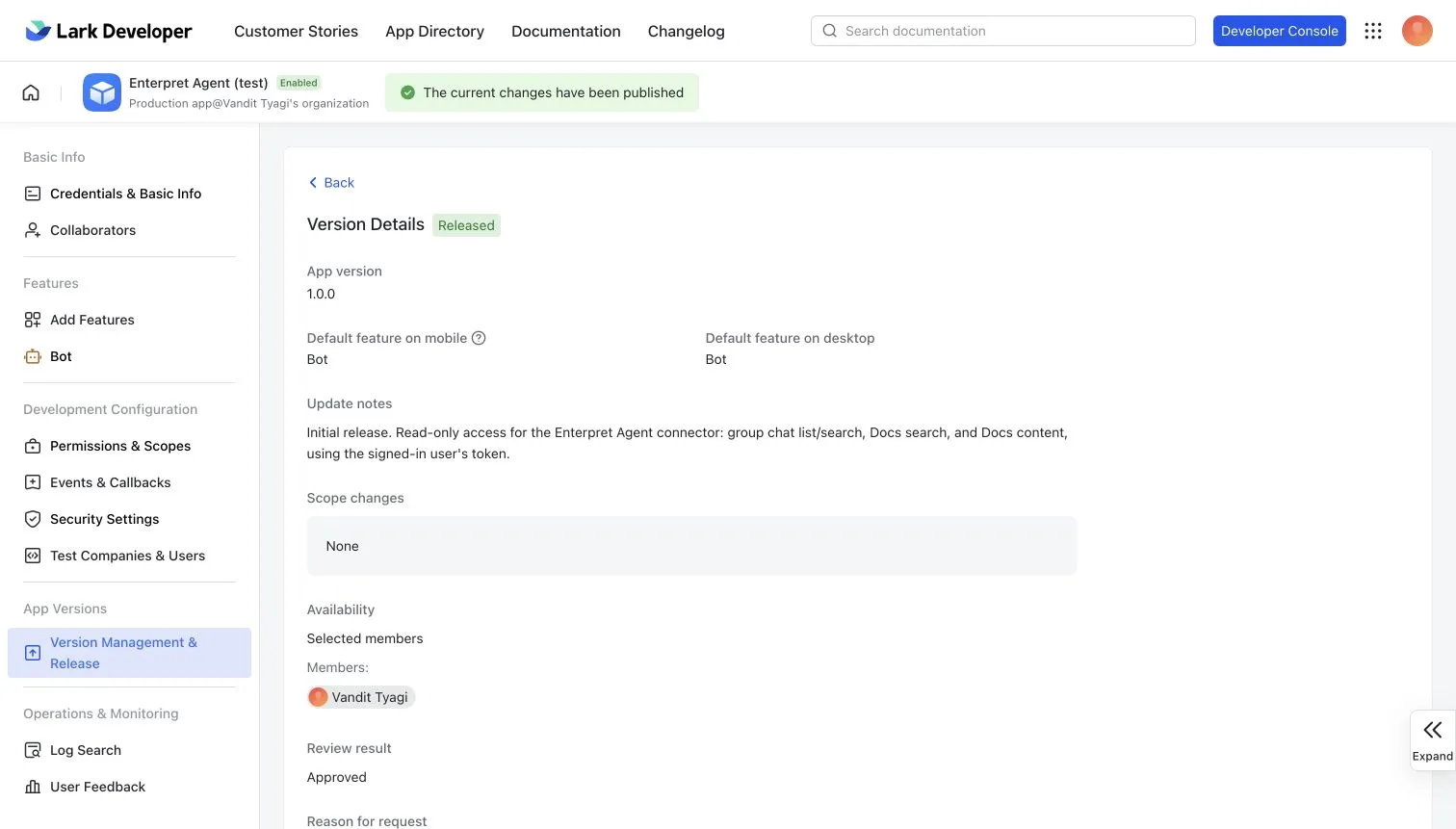
Approved release and selected-user availability
6. Find the App ID and App Secret
The person completing shared app setup should open Credentials & Basic Info in the same Lark app and obtain its App ID and App Secret. An Enterpret Owner or Manager enters these in the setup form. Ordinary users authorizing an already configured app do not need the shared secret.
Keep the App Secret confidential. Enter it directly in Enterpret. Do not share it in chat, email, support tickets, or screenshots.
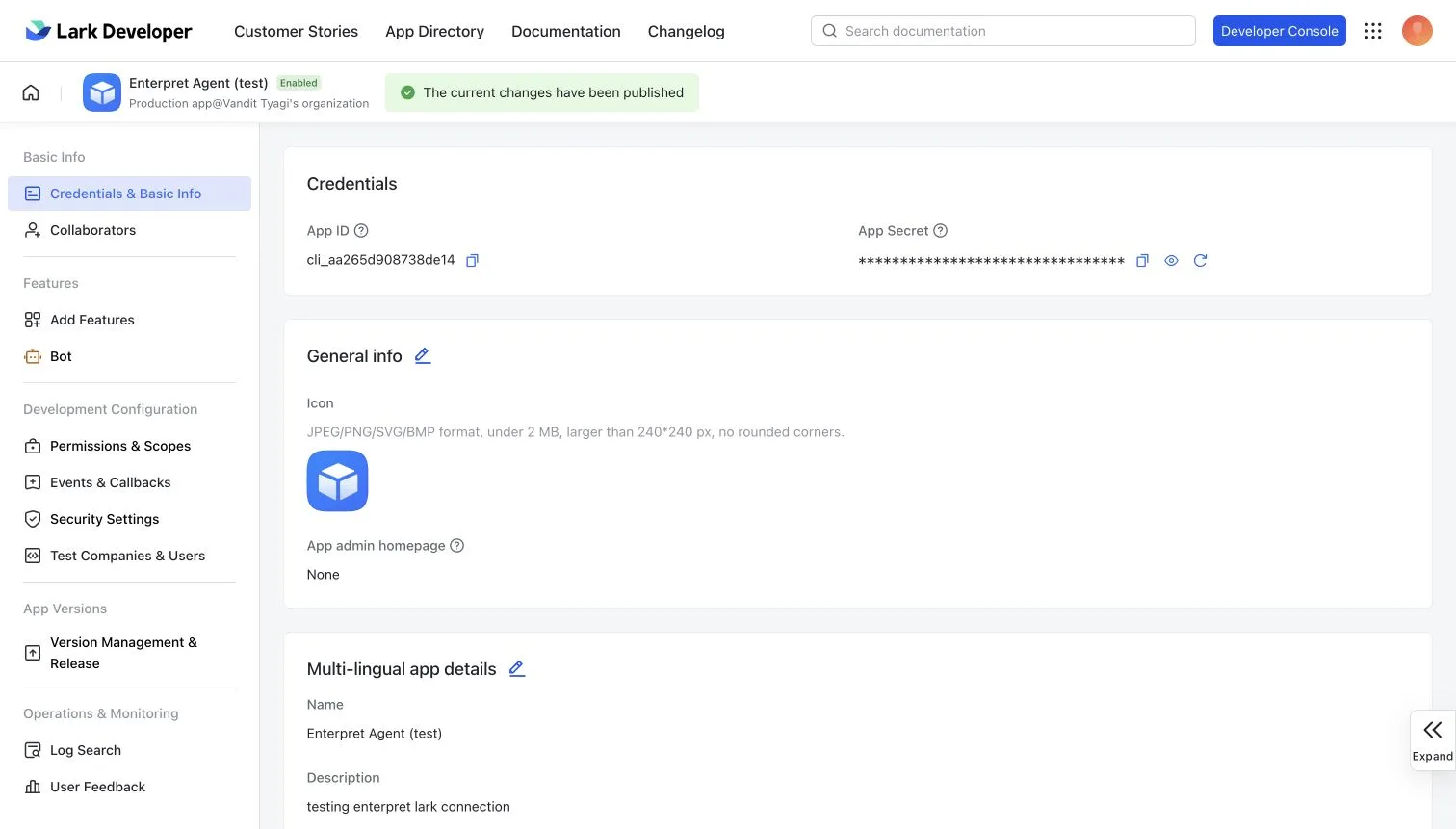
Example credentials screen with the App Secret masked. Use your own App ID and keep the App Secret confidential.
7. Connect Lark in Enterpret
Open Ask Agent, or open Agent and start a Session, according to your navigation.
Select the + button in the composer, then Connectors. Use Manage connectors to find Lark in the catalog when needed.
Find Lark and choose Connect.
For shared app setup, an Enterpret Owner or Manager enters Lark App ID and Lark App Secret from the approved app. If those fields appear for an existing configuration, confirm that you intend to use or replace that workspace app configuration before submitting them.
Ordinary users reuse the configured app and continue to their own Lark authorization. If the workspace is not configured, ask an Owner or Manager to finish app setup instead of requesting the secret.
Choose Continue when offered and complete the Lark authorization.
App approval and shared credentials do not authorize an individual user. Each person must finish their own Lark authorization. Changing the shared app credentials is a workspace change, not a routine personal reconnect.
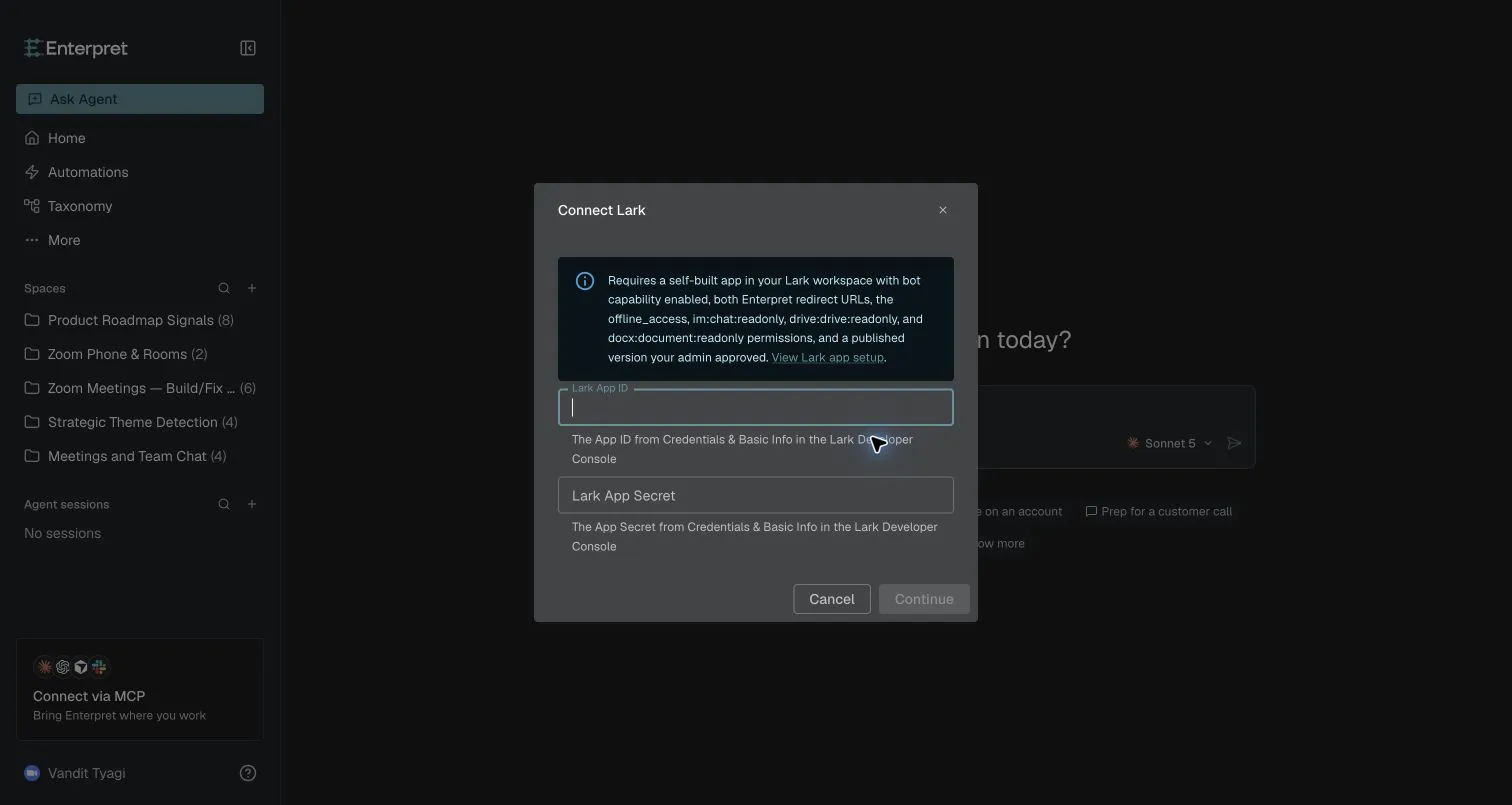
Example shared-app setup form for an Enterpret Owner or Manager. Ordinary users reuse the configured app.
8. Authorize your Lark account
In the Lark authorization window, confirm the app name, organization, and signed-in user.
Select Use another account if the wrong account is shown.
Review the requested document, group, and continued-access permissions.
Select Authorize.
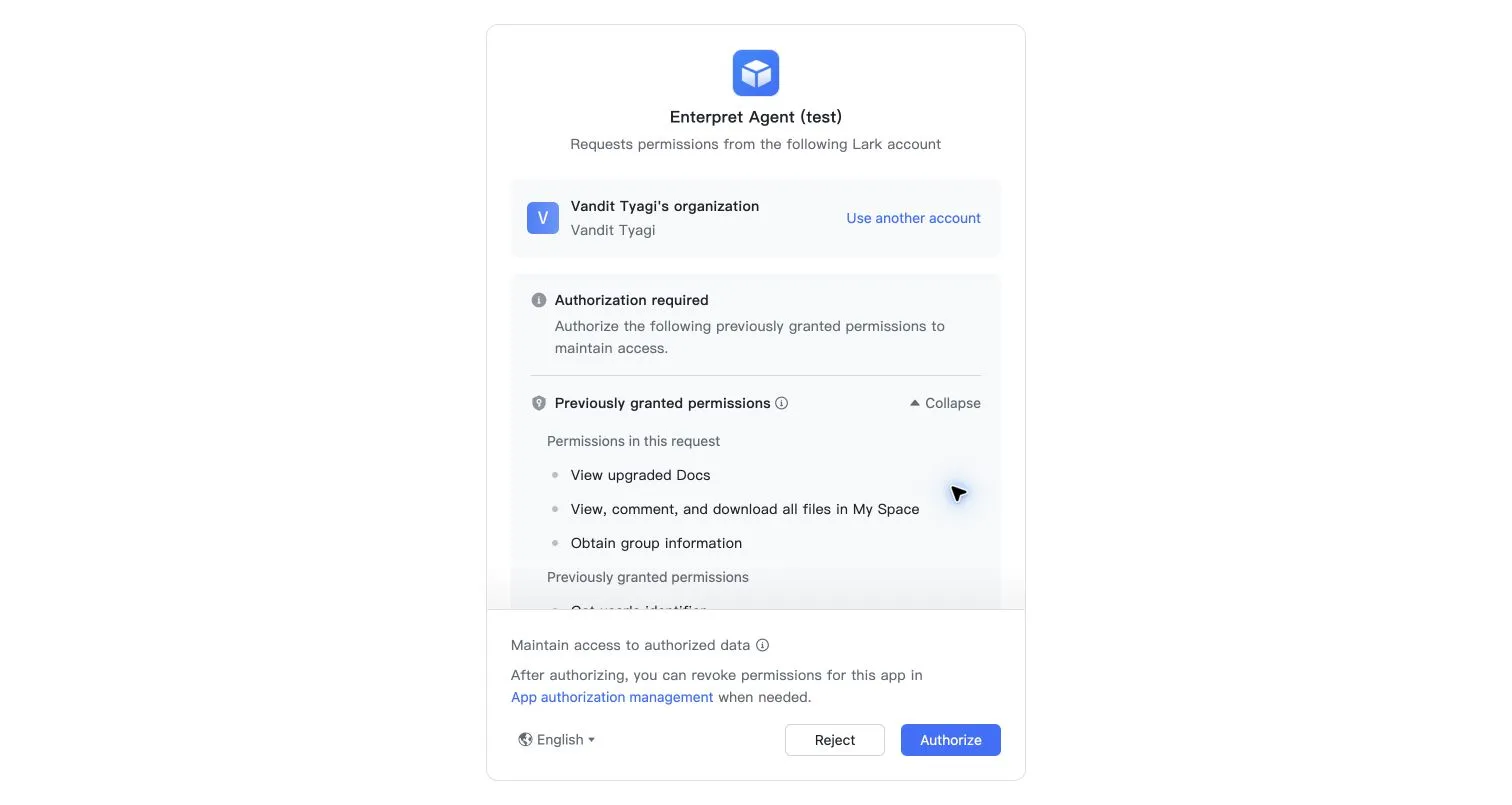
Lark authorization screen with requested permissions expanded
Return to Enterpret and check Lark’s connection status and available tools. Tool discovery can continue after authorization; follow any discovering, reconnect, or error message shown. In + → Connectors, enable Lark for your Enterpret user when you want Agent to use it. This toggle is not isolated to one conversation.
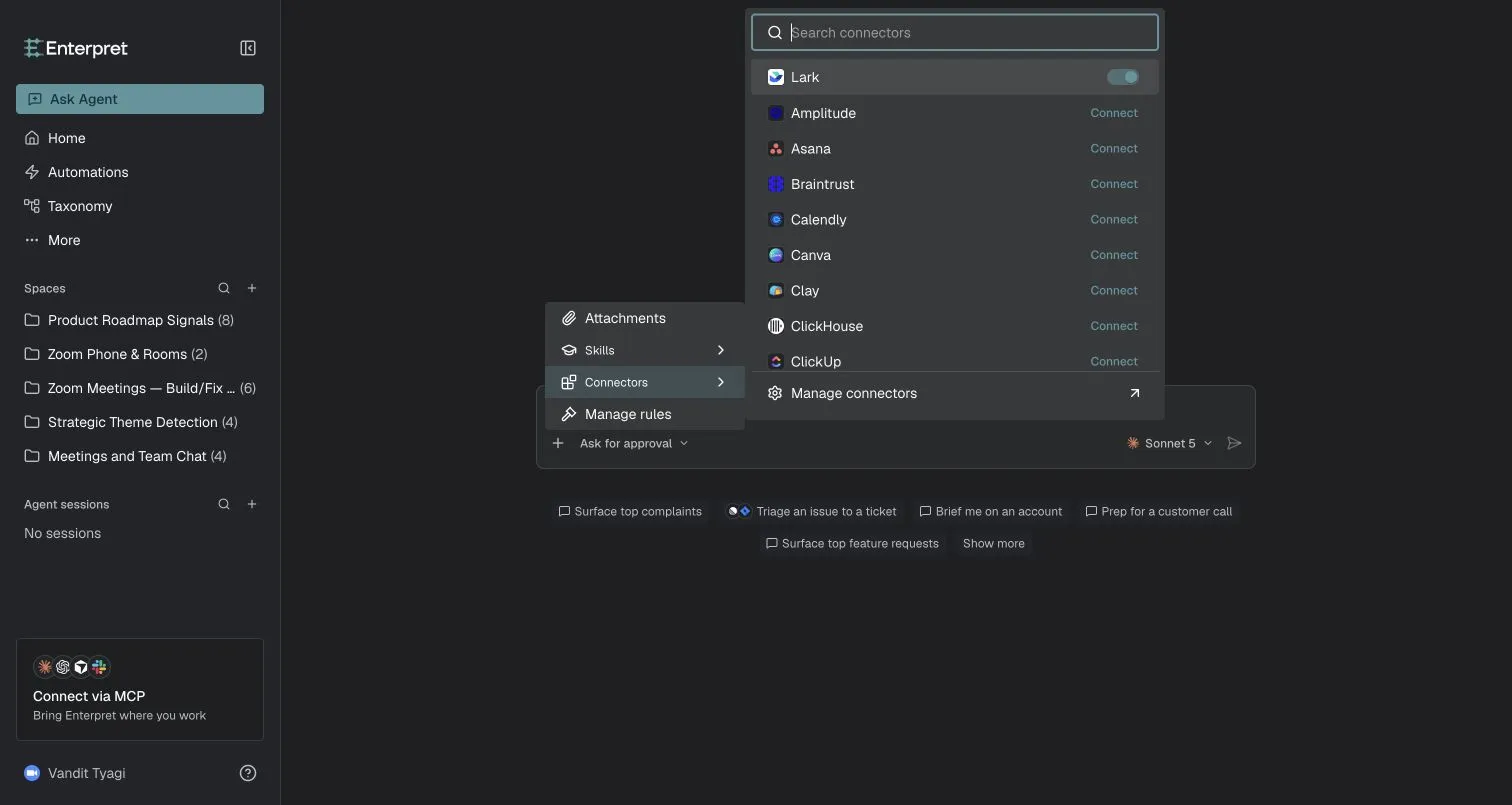
Lark connected and enabled in the Enterpret composer
9. Verify the connection
Check group access
Ask Agent:
List my available Lark groups. Do not send messages or change any data.
If Enterpret asks for permission to run List Chats, review the request and choose the one-time approval option for this test. Approval prompts depend on your permission mode and saved allowances. An empty group list does not necessarily mean the connection failed; it may mean the connected account is not a member of any available groups.
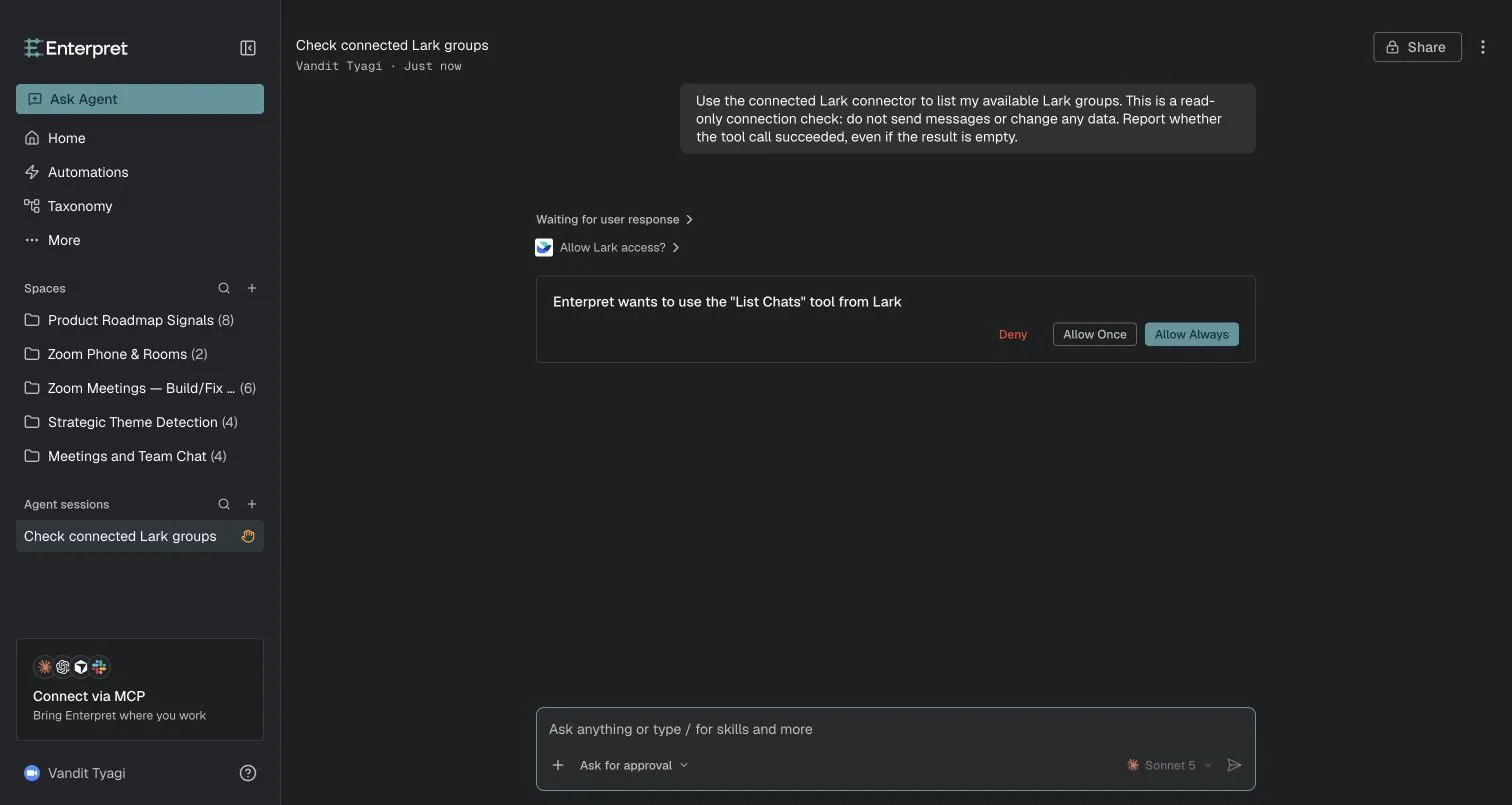
Enterpret asking for approval for one List Chats call
Check document access
Ask Agent to find and summarize a document you can already open in Lark:
Find the Lark document named [document title] and summarize it in three bullets.
You can also provide a link to an upgraded Lark Doc and ask Agent to read it. Other file types and legacy documents may not be supported.
Troubleshooting
What you see | What to check |
|---|---|
The app is unavailable or access is denied | Confirm that the connected user belongs to the correct Lark organization, is included in the released app's Availability, and that the release is approved. |
Redirect URL error | Confirm that the complete redirect URL is saved under Security Settings without missing segments or extra characters. |
Missing permission or insufficient scope | Confirm that the three API permissions are added under User token, refresh tokens are enabled, and the settings are included in an approved release. Reconnect after an approved permission change. |
Credentials are rejected | Confirm that the App ID and App Secret belong to the same app. Copy the secret again without extra spaces. Do not share it with support. |
No sign-in window appears | Allow the connection popup for your Enterpret site and try Connect again. |
Lark is connected but Agent does not use it | Enable Lark for your user in the Connectors menu, check available tools, and explicitly ask Agent to perform a Lark read action. |
No groups or documents are found | Check the signed-in user's access in Lark and try an exact document title. The connector cannot access content the user cannot open. |
A document cannot be read | Confirm that it is an upgraded Lark Doc and that the connected account can open it. |
Security and ongoing access
Each user authorizes their own account. Keep app availability limited to intended users, keep the App Secret confidential, and review the requested permissions before approving them.
Users can revoke access through Lark's app authorization management. Revoking permissions or rotating the App Secret may require users to reconnect Lark in Enterpret.
Getting help
If you need help, contact your Enterpret representative with the app name, the step where the problem occurs, and the exact error message. Do not include your App Secret.
For shared setup concepts and connection status, see Connectors.
Use connectors with Enterpret Agent and automations
Use this connector with Enterpret Agent when your task needs external context or a supported action. For recurring reporting, daily reports, weekly digests, or scheduled follow-up work, attach an available connector to scheduled Agent automations and review the automation's own account access and tool permissions. Test the automation before enabling it; an interactive Session's approval does not automatically authorize unattended actions.