
Decagon Integration
The Decagon integration lets Enterpret pull customer support conversations from Decagon into Enterpret on a recurring sync schedule. Once synced, Decagon conversations become feedback records that your team can analyze alongside your other customer signals in Enterpret.
Use this integration to bring AI agent and support conversations from Decagon into your feedback repository, discover recurring themes, track customer issues, and connect Decagon conversations to your broader Voice of Customer workflows.
When to Use the Decagon Integration
Use the Decagon integration when your team wants to analyze Decagon conversations in Enterpret without manually exporting conversations or uploading files.
Common use cases include:
Bringing Decagon support and AI agent conversations into Enterpret.
Making Decagon conversations searchable across your feedback repository.
Identifying recurring support themes, product issues, and customer pain points.
Comparing Decagon feedback with other channels such as tickets, calls, surveys, reviews, and social conversations.
Surfacing Decagon feedback in Enterpret workflows such as Reasons, Pulse, dashboards, and Wisdom.
Prerequisites
Before connecting Decagon, make sure you have:
A Decagon account with access to the conversations you want to sync.
A Decagon API key.
Administrator access in Enterpret.
Access to the Enterpret Integrations page, or the Add Feedback Sources page if your tenant is still in onboarding.
Treat your Decagon API key like a password. Do not paste it into shared documents, tickets, or chat threads. If the key is accidentally exposed, rotate it before using the integration.
Getting Started
Create a Decagon API Key
Sign in to Decagon with an account that has access to the conversations you want to sync.
Open your Decagon workspace or account settings.
Look for an API key, developer, or integration settings area. Decagon's exact settings path may vary by workspace, and public setup steps are not currently confirmed.
Create or copy an API key that has access to conversation export data.
Copy the API key. You will paste it into Enterpret in the next step.
If you cannot find where to create an API key in Decagon, contact your Decagon administrator or Decagon support.
Connect Decagon in Enterpret
Go to the Integrations page in your Enterpret dashboard: https://dashboard.enterpret.com/your-company/settings/integrations/
Click
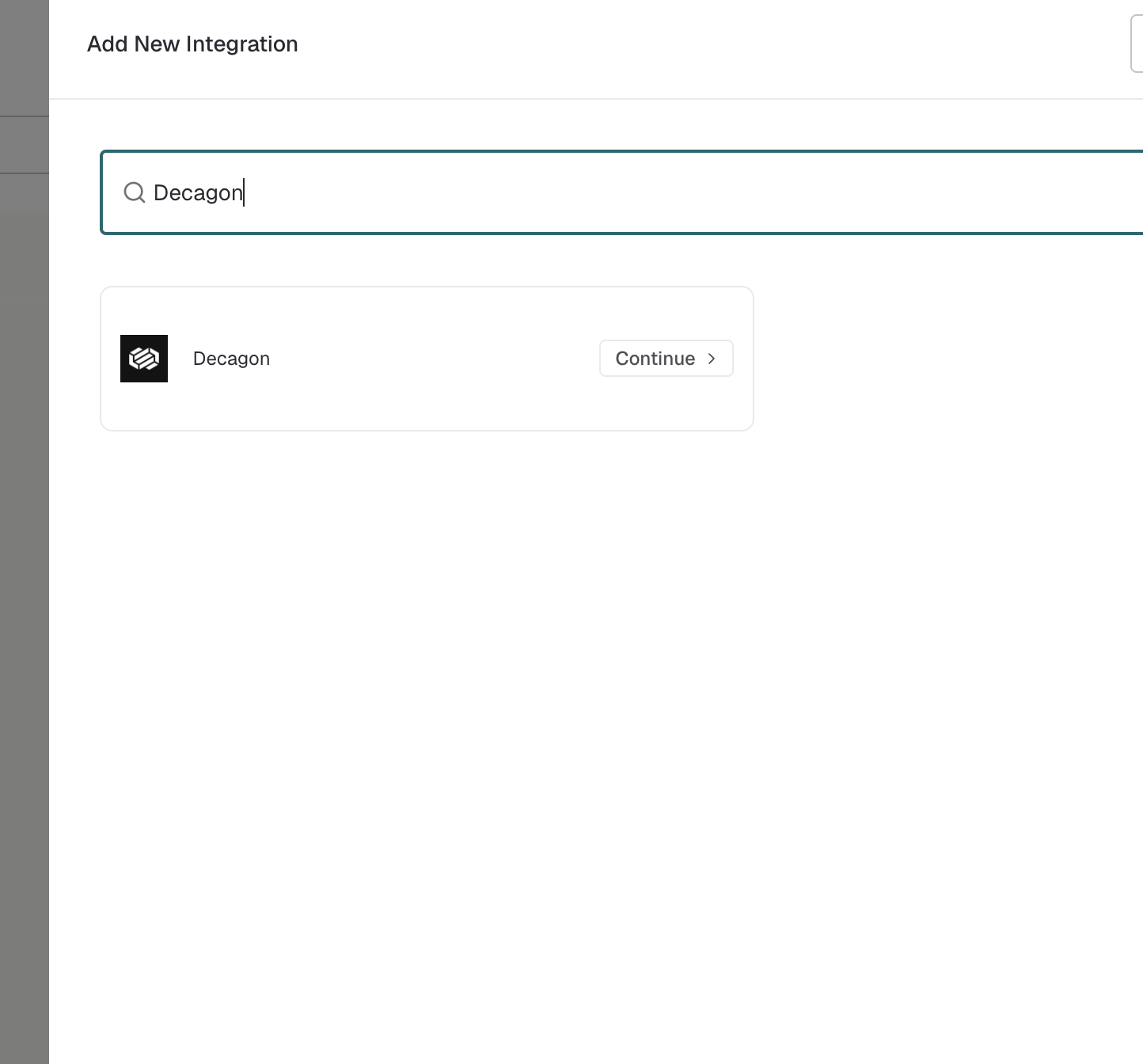
+ New Integration.Search for
Decagon.Select the Decagon integration.
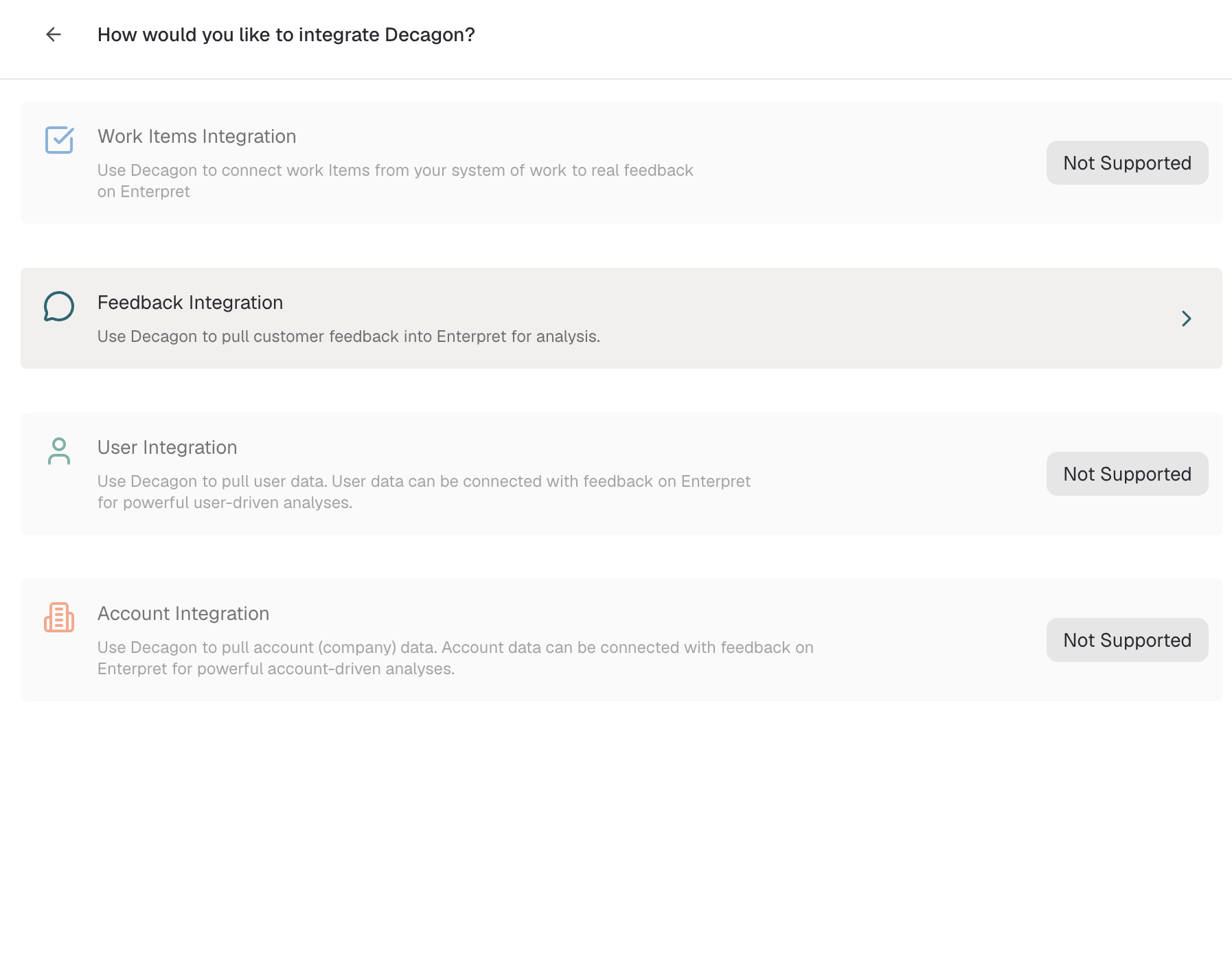
Select Feedback Integration
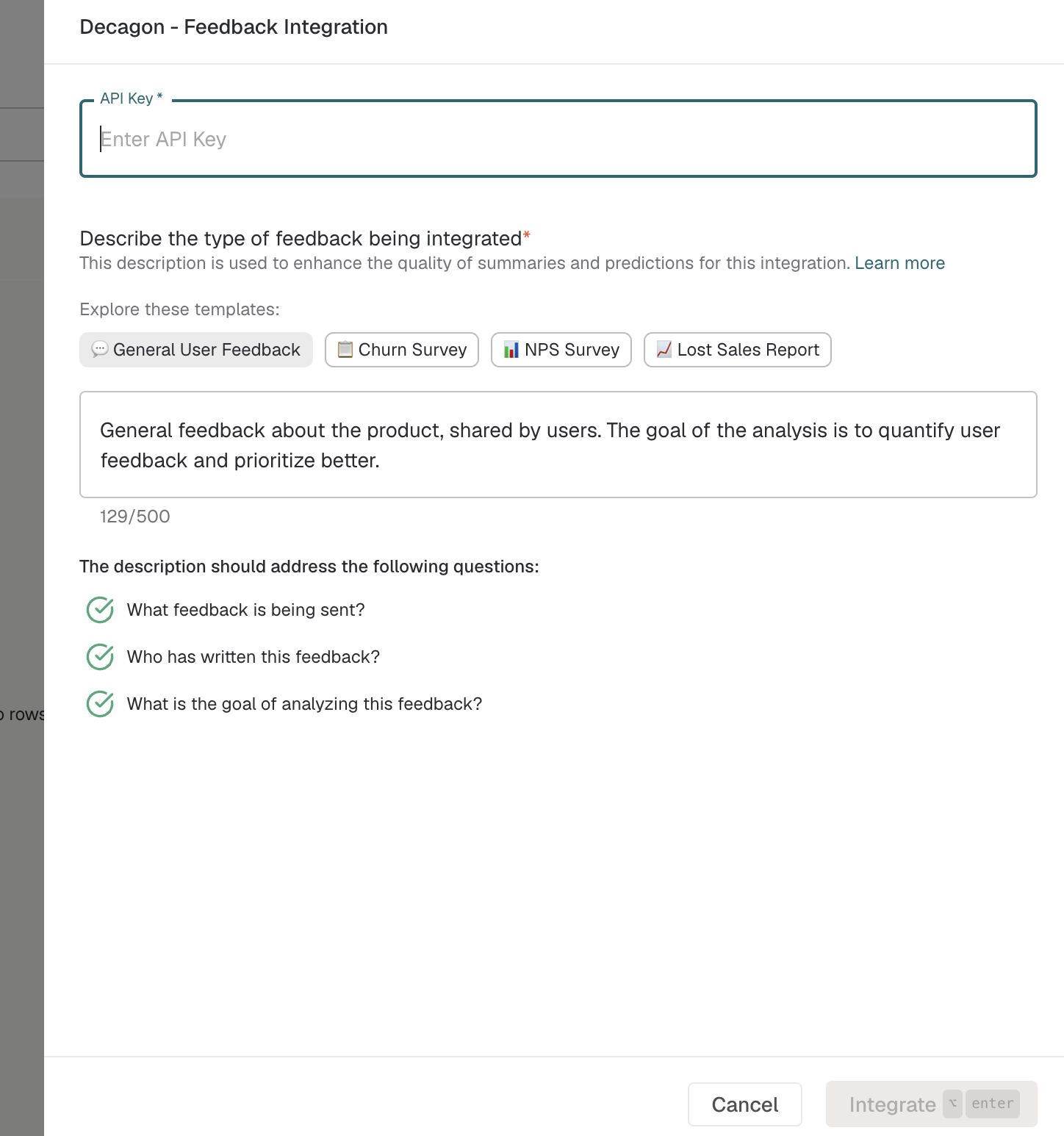
Paste your Decagon API key.
Add a clear display name for the integration.
Save the integration.

If your tenant is still in onboarding, use the Add Feedback Sources flow instead: https://dashboard.enterpret.com/your-company/onboard-tenant/add-integrations
After the integration is created, Enterpret starts syncing Decagon conversations on the standard integration schedule.
What Gets Synced
Enterpret syncs Decagon conversations as conversation feedback records.
For each conversation, Enterpret captures available information such as:
Conversation text and messages.
Conversation timestamp.
Decagon conversation ID.
Decagon conversation link, when available.
Customer or user identifier, when available.
Speaker or actor role information, when available.
Additional conversation metadata that Decagon makes available through the integration.
Enterpret uses the conversation text as feedback content and uses the available metadata for filtering, attribution, and context.
How Speaker Attribution Works
When Decagon provides speaker or actor role information, Enterpret uses it to help distinguish between users, agents, and bots.
In general:
Customer-authored messages are treated as user feedback.
Agent or support-authored messages are treated as internal or agent responses.
Bot, automation, or system-authored messages are identified separately where that information is available.
If Enterpret cannot confidently classify a speaker, the conversation is still synced and available for analysis.
Re-authorizing or Rotating the API Key
If your Decagon API key is rotated, revoked, or expires, create or copy a new key from Decagon and update the Decagon integration credentials in Enterpret.
Enterpret stores the new key securely and does not display it again after it is saved.
For security, Enterpret stores the API key encrypted and does not show it again after it has been saved.
Troubleshooting
Troubleshooting
Decagon Does Not Appear in the Integrations List
If you do not see Decagon as an available integration, contact your Enterpret Customer Success Manager or Enterpret Support. The integration may need to be enabled for your tenant.
Conversations Are Missing From Enterpret
If expected Decagon conversations are missing, check that:
The API key has access to the conversations you expect to sync.
The conversations exist in Decagon and are available to the API key owner or workspace.
The integration has had enough time to complete its next scheduled sync.
The Decagon integration in Enterpret is connected and not showing an authentication error.
If conversations are still missing after the next sync, contact Enterpret Support with the integration name and an example Decagon conversation link if available.
The Integration Shows an Authentication Error
Authentication errors usually mean the API key is invalid, expired, revoked, or does not have access to the requested conversations.
To resolve this:
Generate a fresh Decagon API key.
Update the Decagon integration credentials in Enterpret.
Confirm that the key has access to the conversations you expect to sync.
New Conversations Are Delayed
Decagon conversations are pulled into Enterpret on the standard sync schedule. If a recent conversation does not appear immediately, wait for the next sync cycle. If the conversation still does not appear after the expected sync window, contact Enterpret Support.
Some conversation content looks incomplete
Enterpret uses Decagon message content when it is available. If message-level content is not available for a conversation, Enterpret may use the conversation text or summary instead.
If a specific conversation looks incomplete, contact Enterpret Support with the Decagon conversation link and what content you expected to see.
Speaker attribution looks incorrect
Enterpret uses Decagon speaker or role information to classify messages as user, agent, or bot turns. If Decagon does not provide a recognized role, Enterpret still syncs the conversation and uses a default classification.
If speaker attribution looks incorrect, send Enterpret Support a sample conversation link so we can review the Decagon payload.
A conversation link is missing
Enterpret preserves the Decagon conversation link when Decagon provides one. If a record does not include a link, the conversation may not have included a URL in the export data available to Enterpret.
Updated conversations are not reflected yet
Enterpret detects new and changed Decagon conversations using Decagon's updated timestamp. If a conversation was recently changed in Decagon, wait for the next sync cycle. If the updated version still does not appear, contact Enterpret Support with the conversation link and the approximate time it was updated.
Frequently asked questions
Does the Decagon integration import anything besides conversations?
No. Decagon is currently supported as a feedback integration. Enterpret imports Decagon conversations as conversation feedback records.
Does Enterpret sync updates to existing Decagon conversations?
Yes. Decagon conversations can be updated after the first sync. Enterpret uses Decagon's updated timestamp to detect changes and keep synced records aligned with Decagon.
What Decagon fields can appear in Enterpret?
Depending on what Decagon provides, Enterpret can include conversation ID, customer ID or email, title, status, destination, resolution, flow type, timestamps, conversation link, messages, conversation text, summary, and available metadata.
What API key access is required?
Use a Decagon API key that can access conversation export data for the workspace you want to sync. If the key belongs to a user or workspace with limited access, Enterpret may only sync the conversations available to that key.
Does Enterpret refresh Decagon API keys?
No. Enterpret stores the API key securely, but does not refresh Decagon API keys. If the key is rotated, revoked, or expires, update the integration credentials in Enterpret.
Best Practices
Best Practices
Use the Right Decagon Account
Use an API key from a Decagon account or workspace with access to the conversations your team wants to analyze. If access depends on a single user's permissions, confirm that the user can see the full set of conversations you expect Enterpret to sync.
Keep the API Key Secure
Treat the Decagon API key like a password. Do not paste it into shared documents, tickets, or chat threads. Rotate the key if it is accidentally exposed.
Review Synced Data After Setup
After the first sync, review a few Decagon records in Enterpret to confirm that conversation text, timestamps, links, and speaker attribution look correct.
Getting Help
If you need help setting up or troubleshooting the Decagon integration, contact Enterpret Support.
Support channels:
Email: support@enterpret.com
Dashboard: use the chat widget in your Enterpret dashboard or Helpcenter
When contacting support, include the integration name, a sample Decagon conversation link if available, and a short description of what you expected to sync.