
Discord
In this article
In this article group
- Amazon Connect
- Apple App Store
- Census Integration
- Connect Plain to Enterpret
- Decagon Integration
- Discourse Integration
- Email Integration
- Facebook Pages Integration
- Fathom Integration
- File Upload: CSV data on Enterpret
- Freshchat
- Freshdesk
- Front
- G2
- Gainsight Communities Integration
- GitHub Issues Integration
- Gong Integration
- Google My Business Integration
- Google Play Store
- Grain
- Granola Integration
- Import HubSpot feedback
- Instagram Comments Integration
- Intercom
- Kustomer
- Livechat Integration
- Momentive (Formerly Survey Monkey)
- Pylon integration
- Qualtrics
- Refiner Integration
- Salesforce
- SFTP Integration
- Slack feedback ingestion: setup and troubleshooting
- Snowflake
- Sprig Integration
- Stella Connect
- TikTok Integration
- Trustpilot Integration
- Typeform
- X (formerly Twitter) Integration
- Connect YouTube videos and comments
- Zendesk Chat
- Zendesk Support
- Import Zoho Desk support tickets
- Zoom Integration
- Zapier Integration
- Reddit Search (UGC)
- Wispr Flow integration
How to integrate Discord?
Steps to integrate Discord to your feedback data :
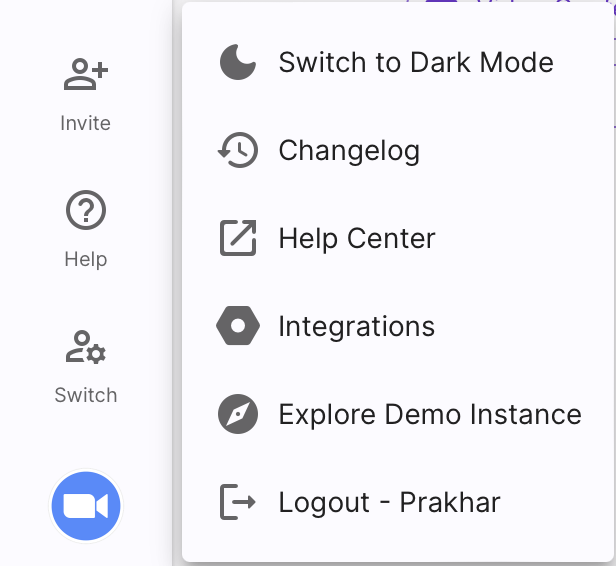
Go to lower left of the screen and click on the logo, a panel will open up, click on
Integrations.On clicking
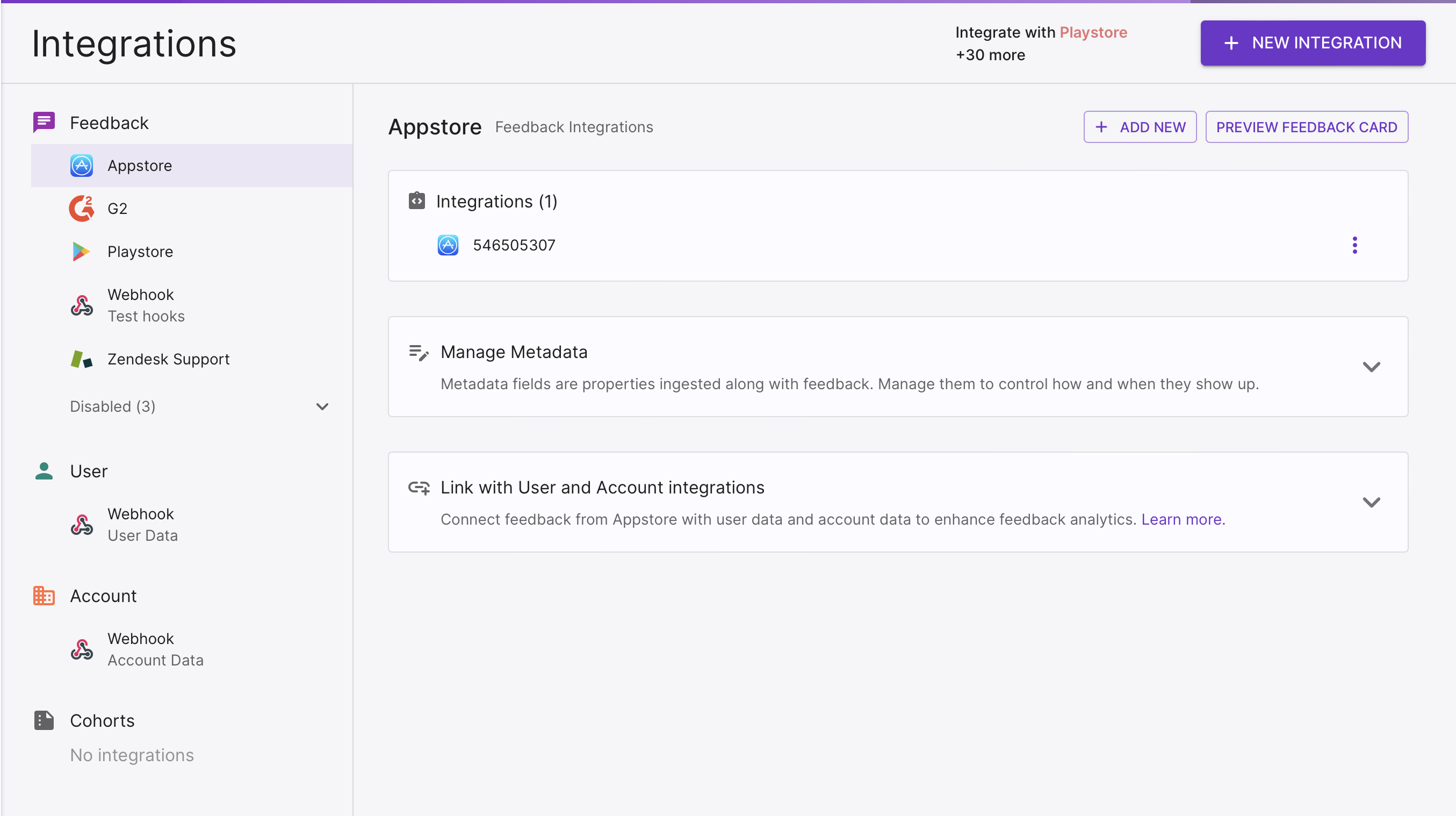
Integrations, this screen will open up.On the top right corner of the screen, click on the
+ NEW INTEGRATIONbutton.
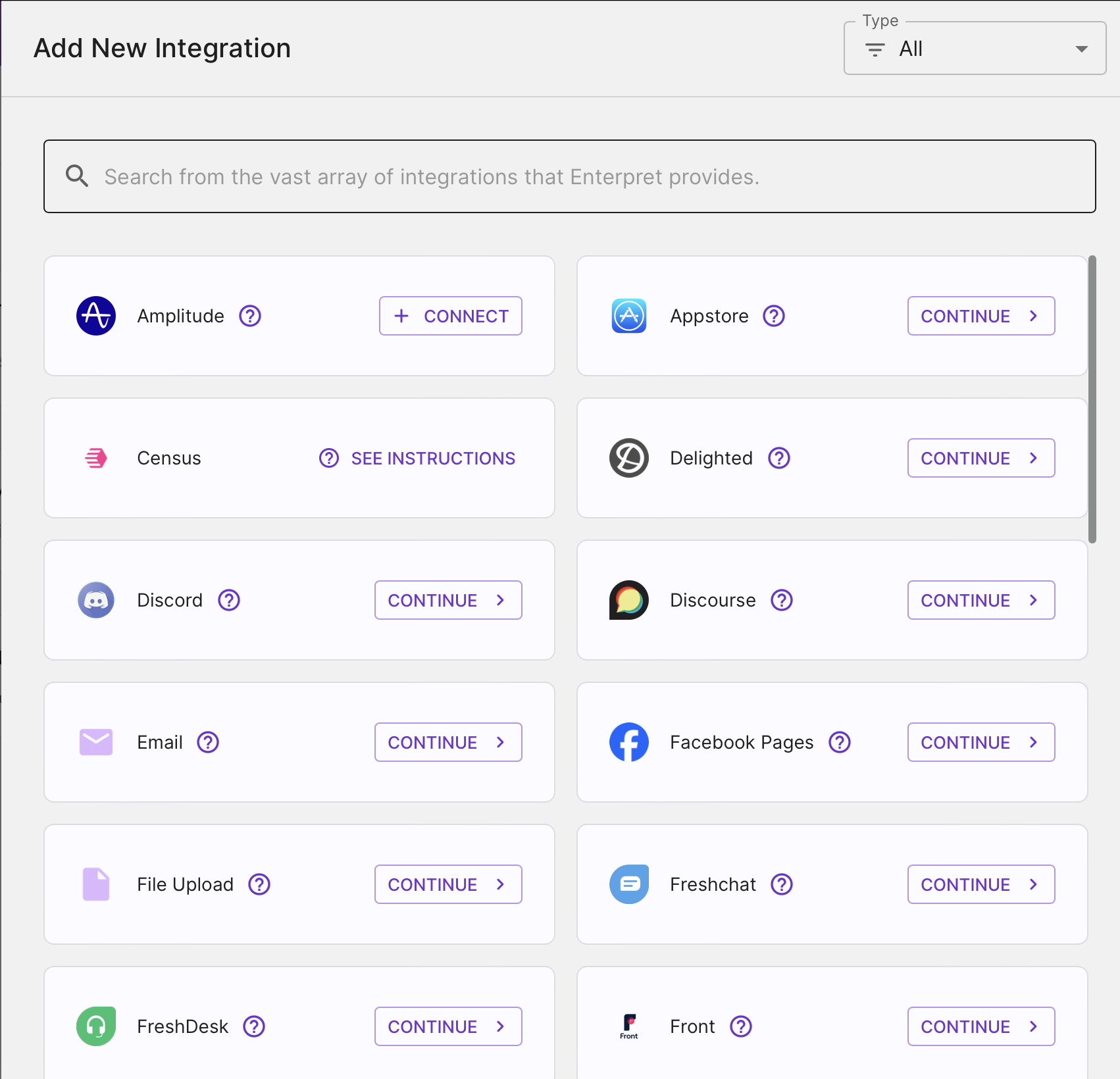
A list of all available integrations that can be done through Enterpret is shown on this screen.Search around for Discord, Click on
CONTINUEto move forward with the process of integration.
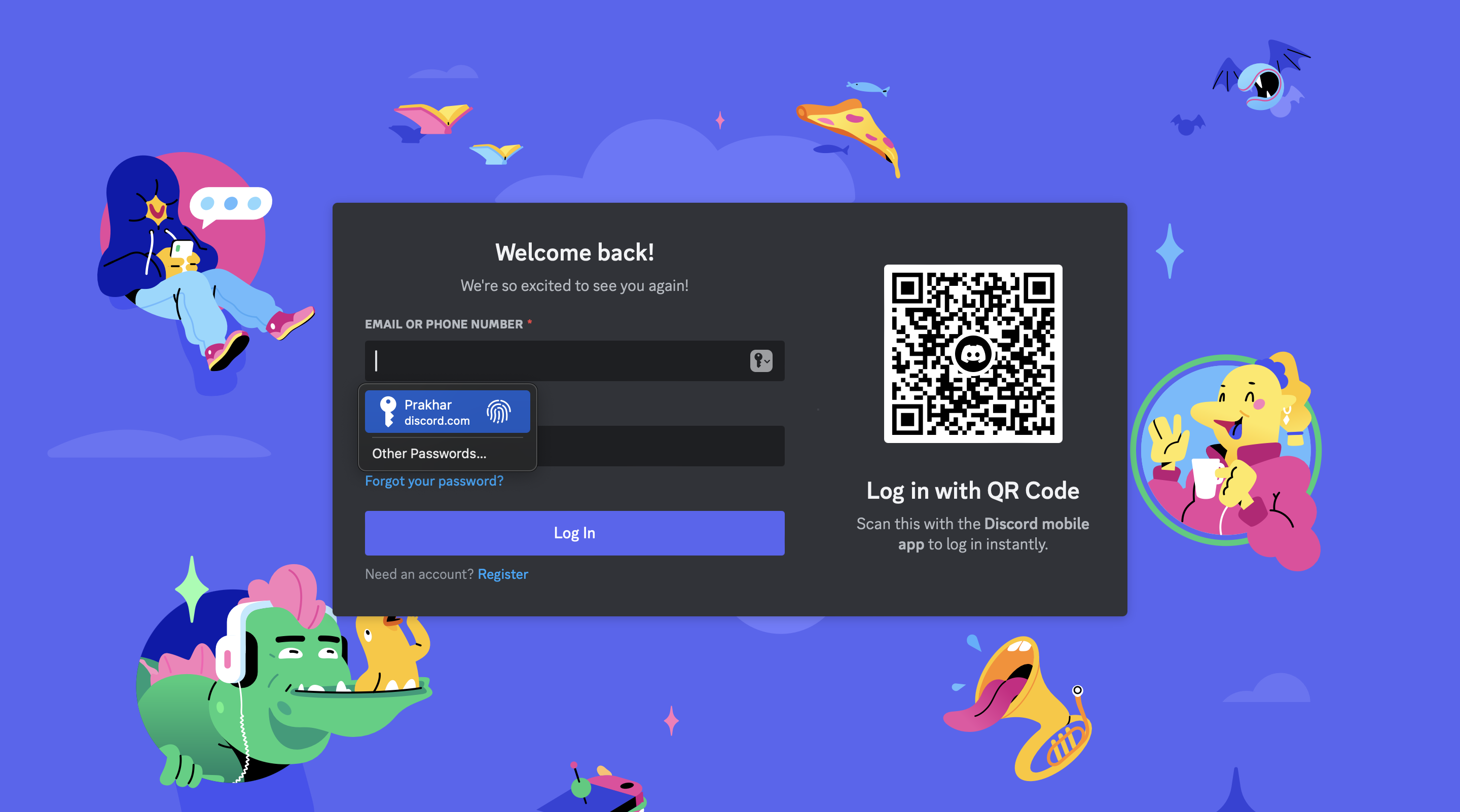
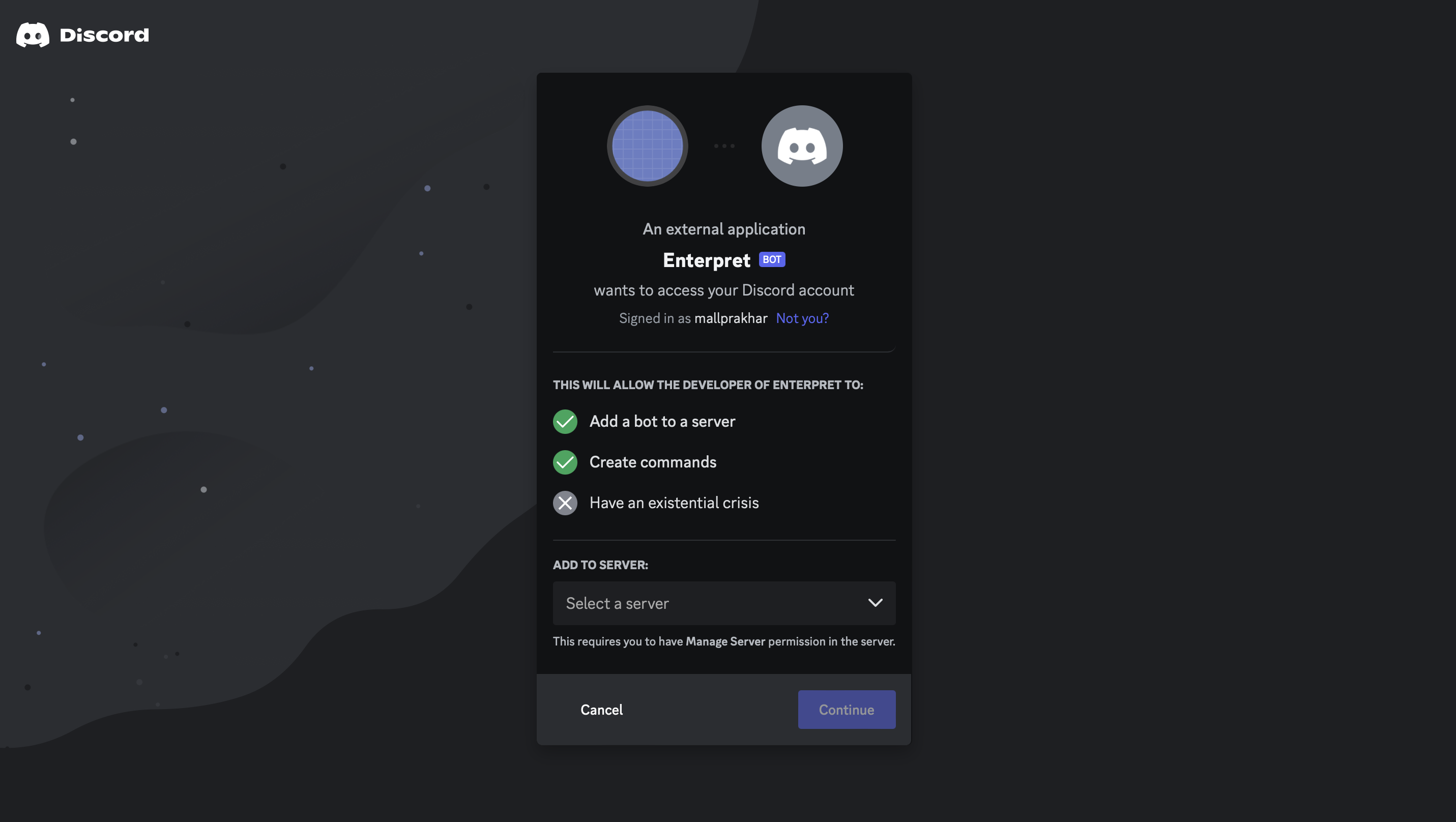
This will redirect you to Discord screens, asking you to login into your Discord account.After logging in, select a server and authorise Enterpret to pull data from your Discord server.
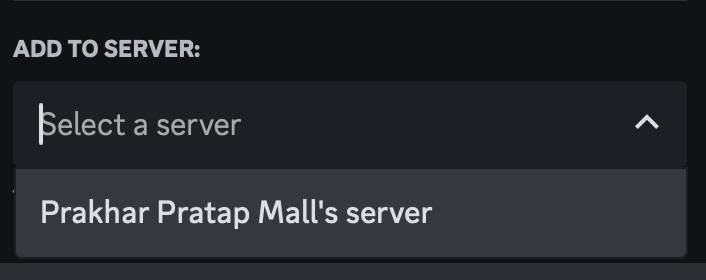
Select a server from the drop down.
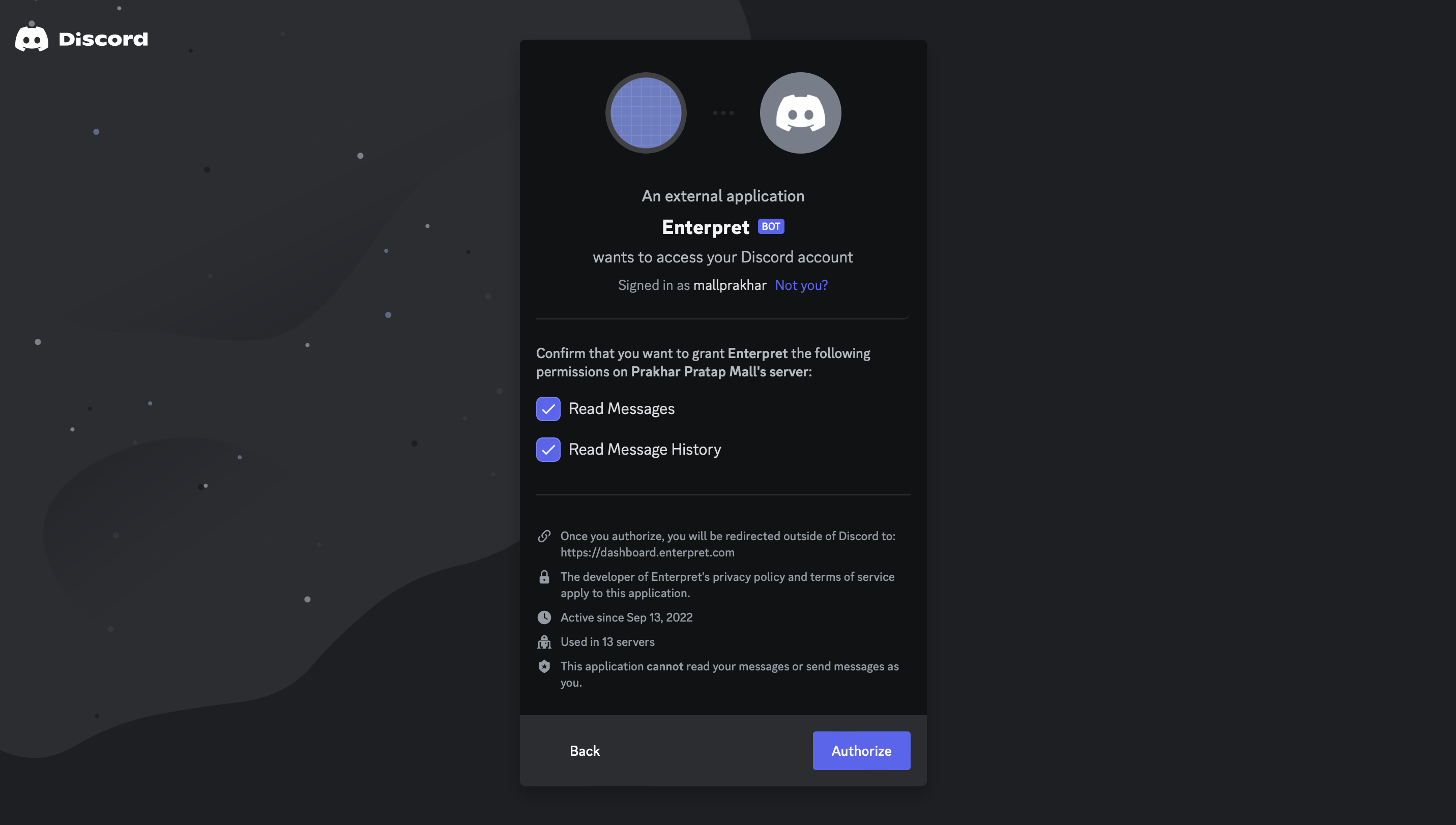
Click onAuthorise.
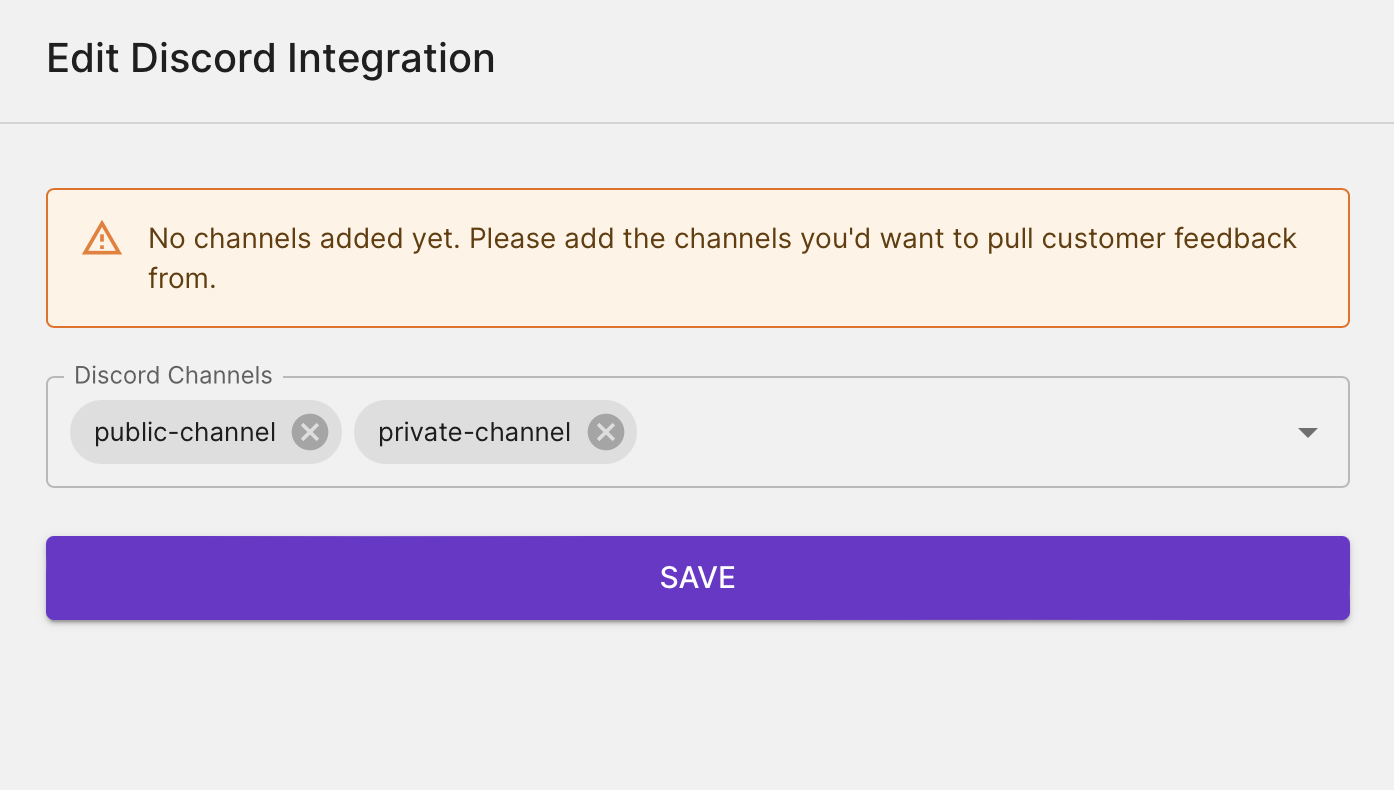
This will take you back to Enterpret, where now, you will be able to select the Discord channels from the server selected to pull data from into your feedback records.Choose the channels from the dropdown. (In this case, we choose 2 dummy channels, public-channel and a private-channel) Then click on
SAVE
NOTE : Private channels need an extra step of authorisation from the Discord side for Enterpret to be able to pull data from. Scroll down here to learn more.
Your changes are saved! Enterpret will start pulling fresh feedback for this integration. It might take up to 24 hours for feedback to be available for analysis.
Now your Discord integration screen will look something like this.

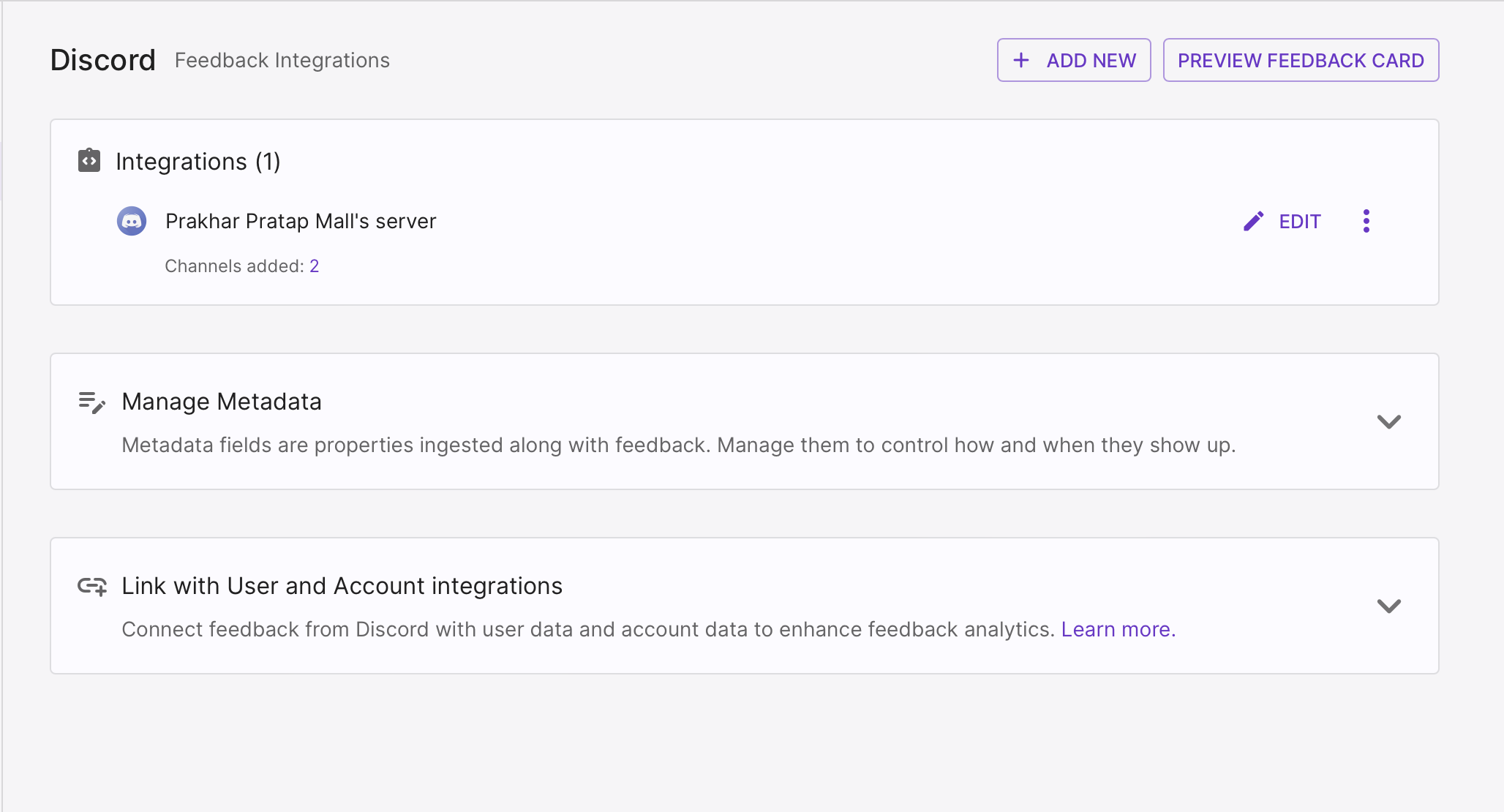
What is the extra step of authorisation for Private channels?
From a public Discord channel, Enterpret is able to fetch data through the authorisation that we provide while integrating Discord into our feedback records.
However, for a private Discord channel, we need to authorise Enterpret from the Discord settings in additional to the first step of authorisation for Enterpret is able to pull data from it.
The steps are demonstrated below :
1. Go to Discord, open your Private channel. (In this case, it is named as private-channel)
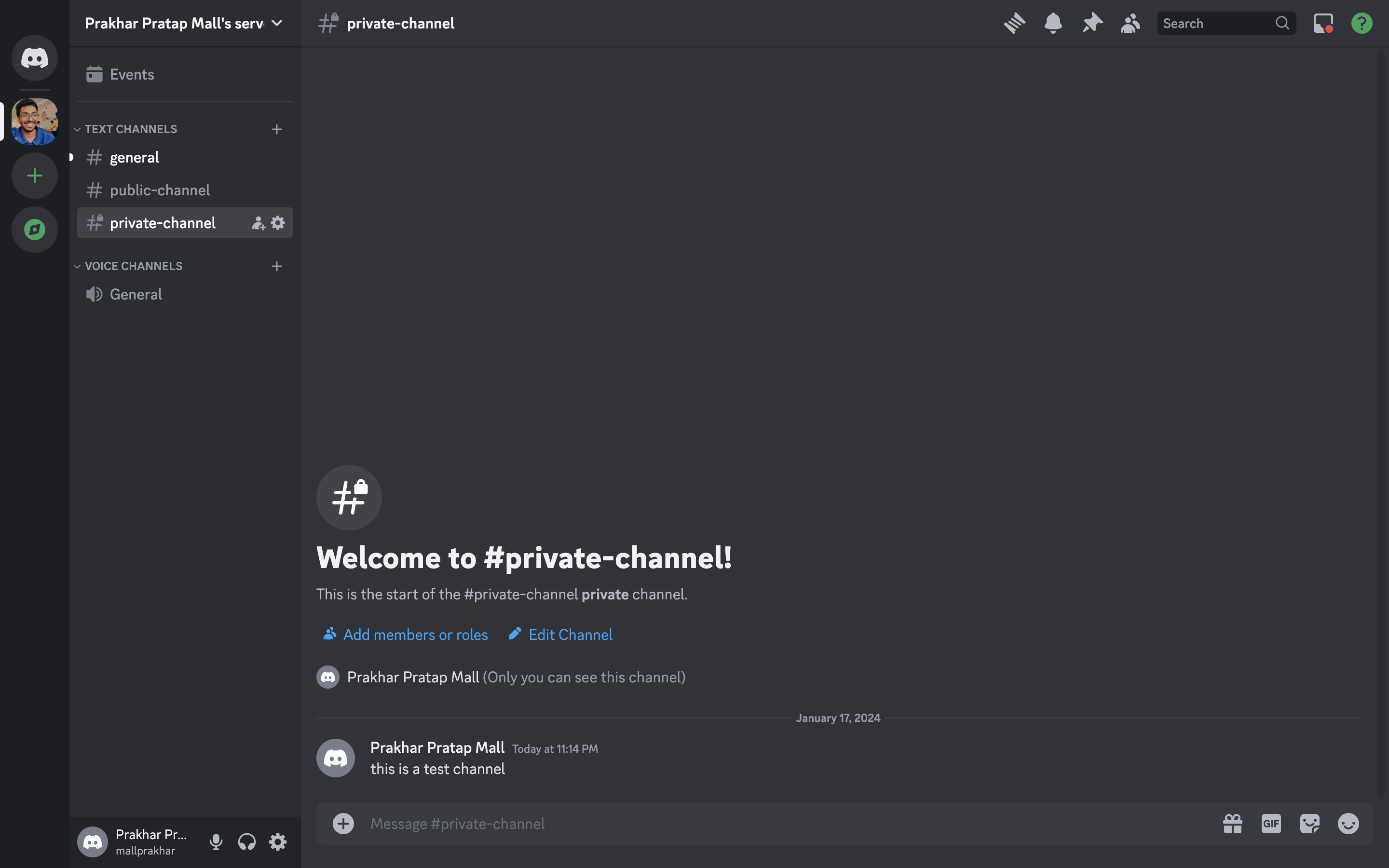
2. Click on the Gear icon, says 'Edit Channel'
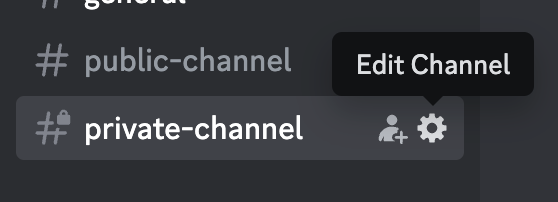
This will open up the Channel settings, here, select Permissions to authorise access to the channel.
3. Click on Add member or roles button on the screen.
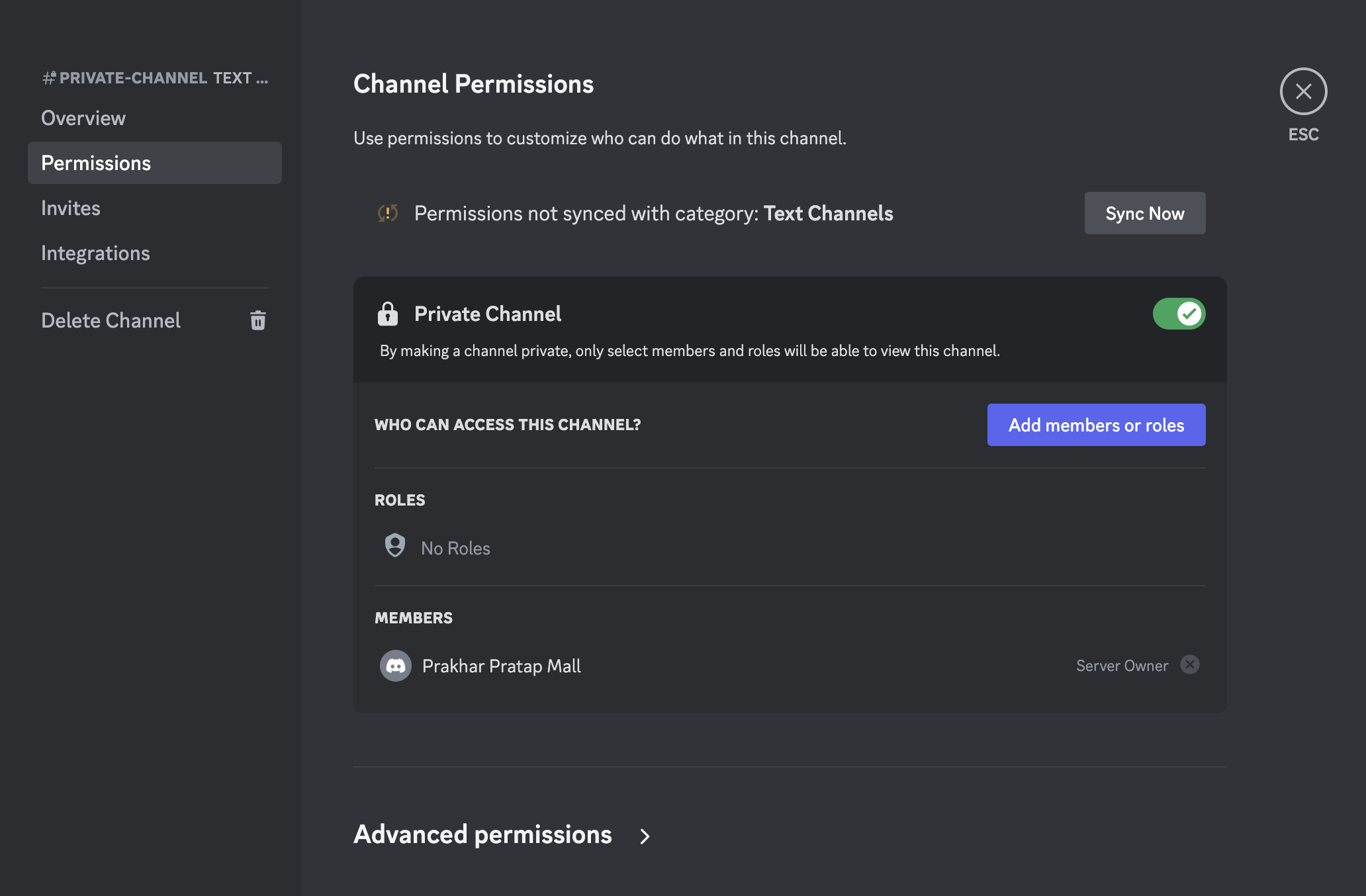
This will open a pop-up window, allowing you to choose roles and members for the channel.
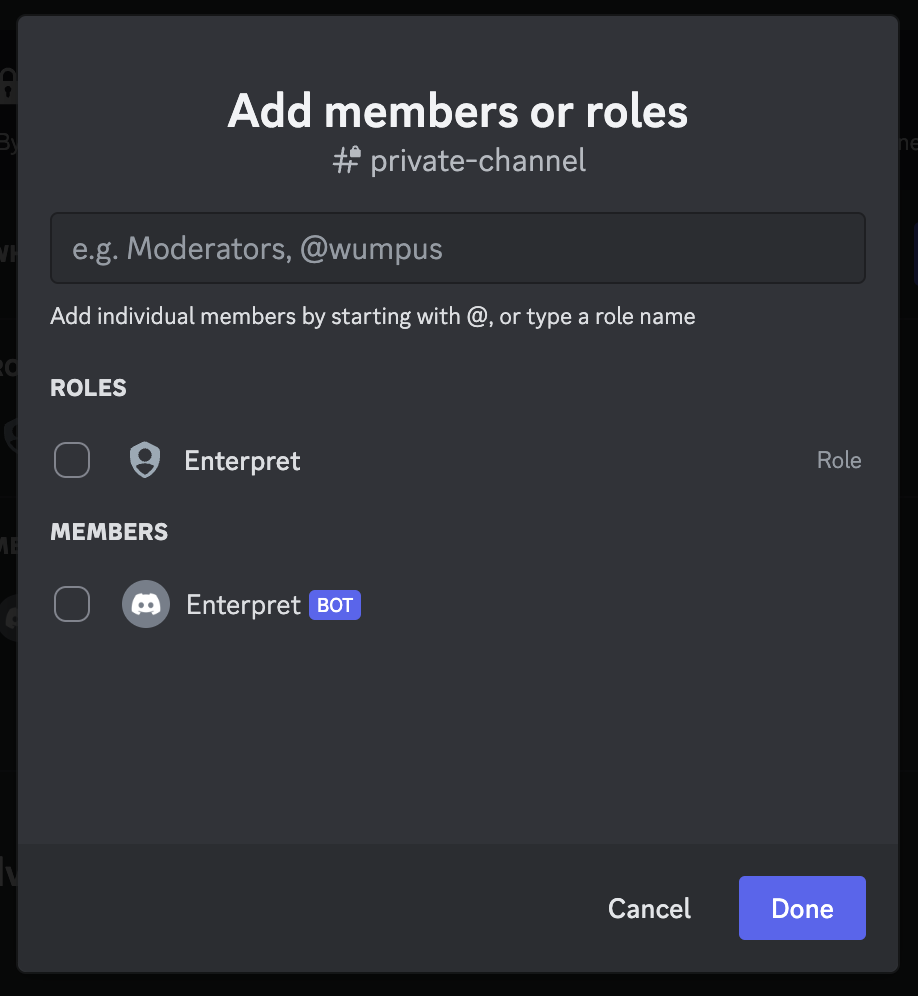
4. Click on 'Enterpret' under the ROLES section and the 'Enterpret Bot' under the MEMBERS section and click Done to complete the process.
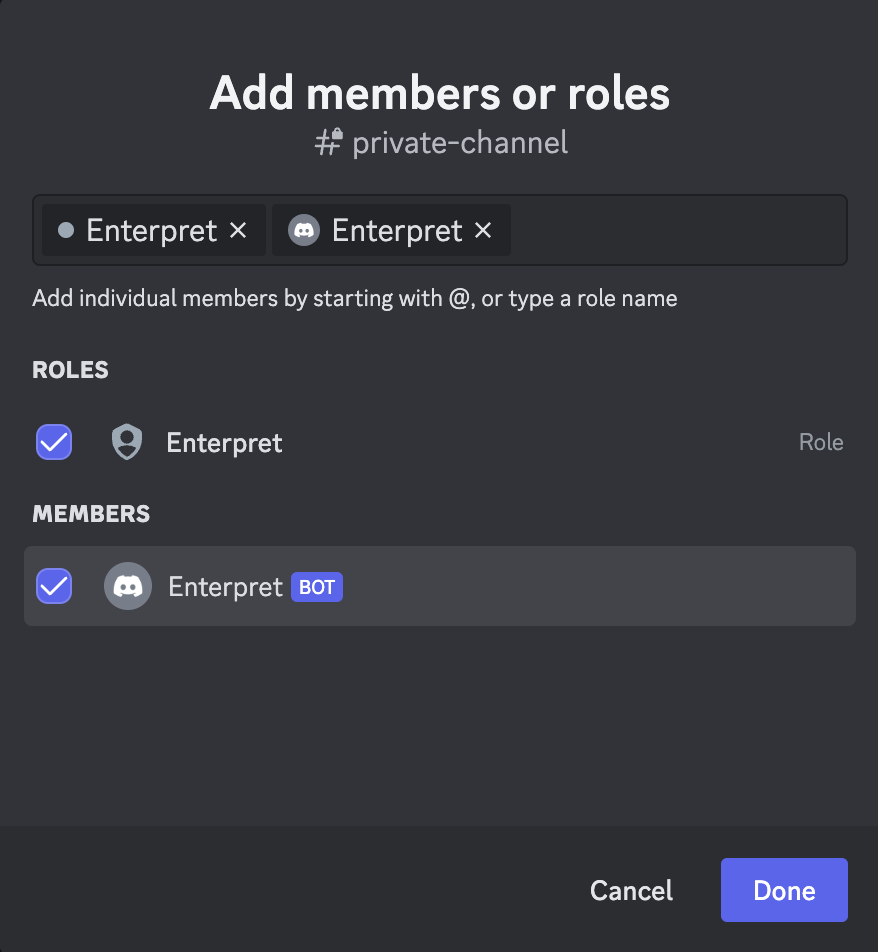
Great work! Now, Enterpret will be able to fetch data and show it into the Feedback records from your Private Channel too.
Analyze this feedback with Enterpret Agent
Once this integration's feedback is available in Enterpret, use Enterpret Agent to investigate themes, summarize customer requests, and prepare reports. Specify this source and the reporting period in your request. For daily reports, weekly digests, and recurring reporting, configure scheduled Agent automations with Slack or email delivery.
This guide covers feedback ingestion. Agent connectors are a separate setup for reading external context or taking supported actions in other tools; connecting a feedback source does not automatically authorize those actions.