
Wispr Flow integration
Connect Wispr Flow to bring meeting conversations into Enterpret as feedback. Choose which meeting folders to sync, then analyze customer requests, objections, and other themes alongside your support tickets, reviews, and survey responses.
Before you connect
You’ll need:
Permission to manage integrations in Enterpret.
A Wispr Flow account with access to the folders you want to import.
At least one folder containing meeting content you intend to share with your Enterpret workspace.
Connect Wispr Flow
Open Integrations in Enterpret and select New Integration.
Find Wispr Flow and select Continue.
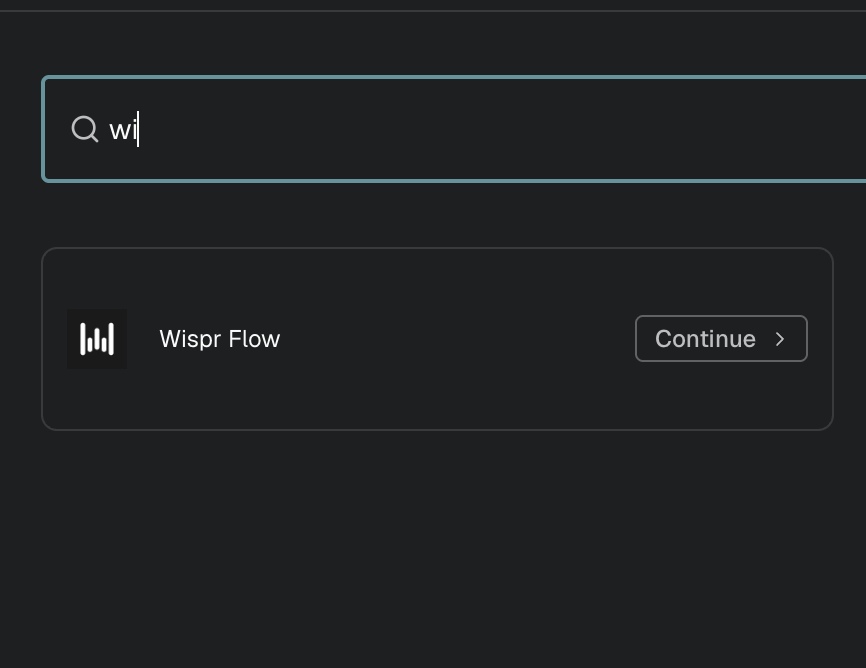
Choose Wispr Flow from the integration catalog.
Choose Feedback Integration.
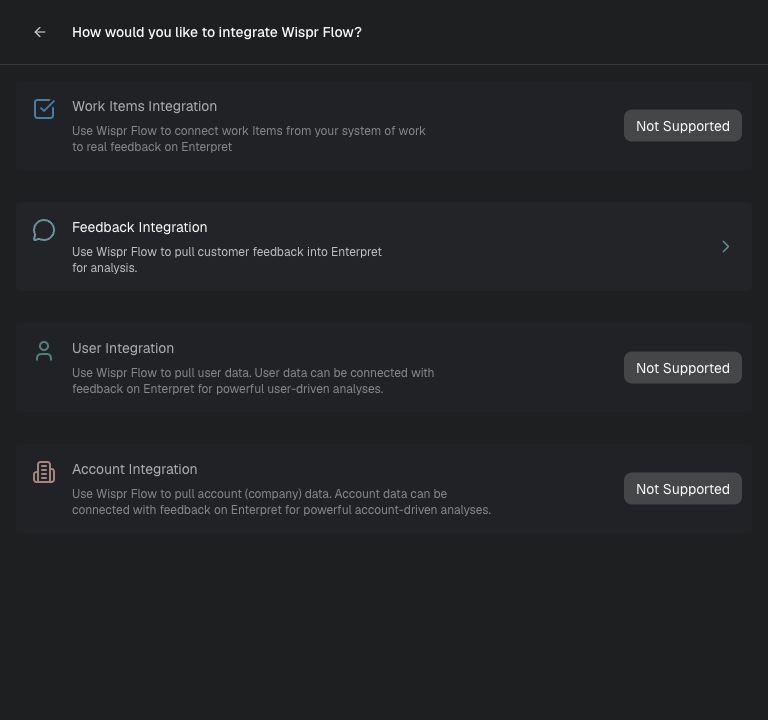
Select Feedback Integration to import meeting conversations.
Add a description of the feedback you’re importing. For example: “Enterprise customer calls covering onboarding, product feedback, and feature requests.”
Select Connect Wispr.
Sign in to Wispr and complete authorization.
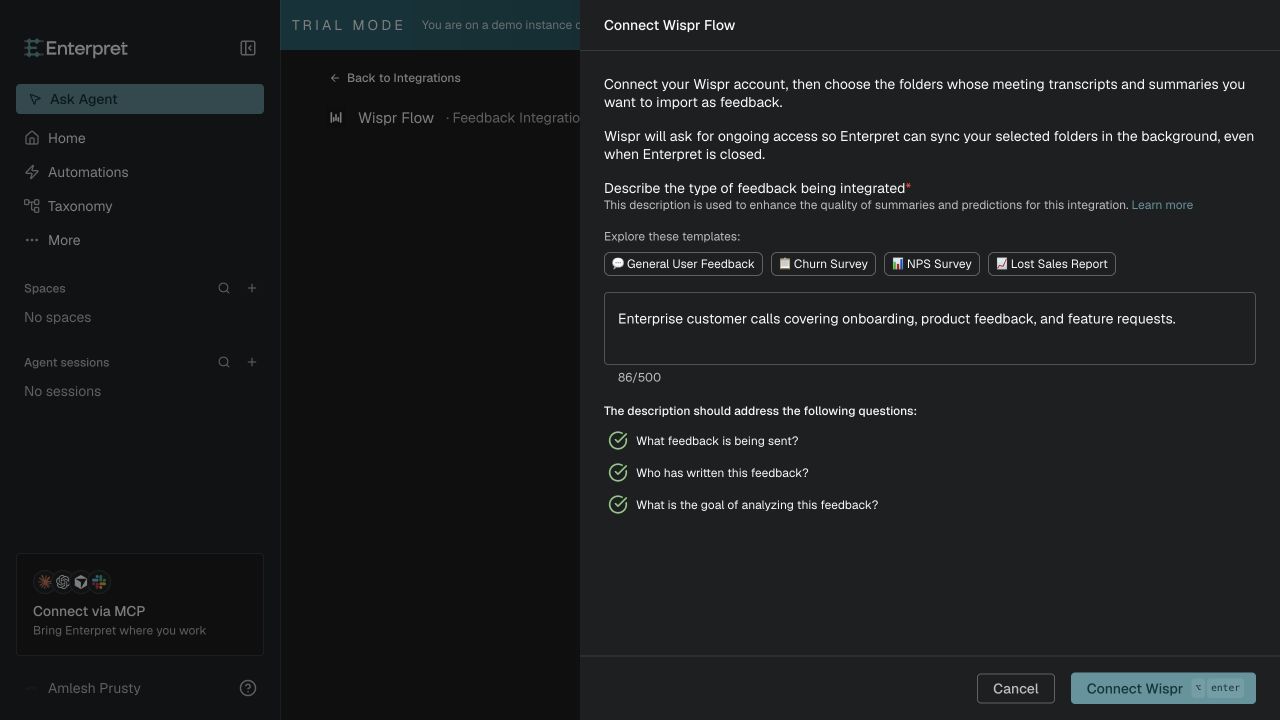
Describe the feedback and connect your Wispr account.
Back in Enterpret, under Choose Wispr folders, select the folders you want to sync. Shared folders display a Shared label.
Select Save folders.
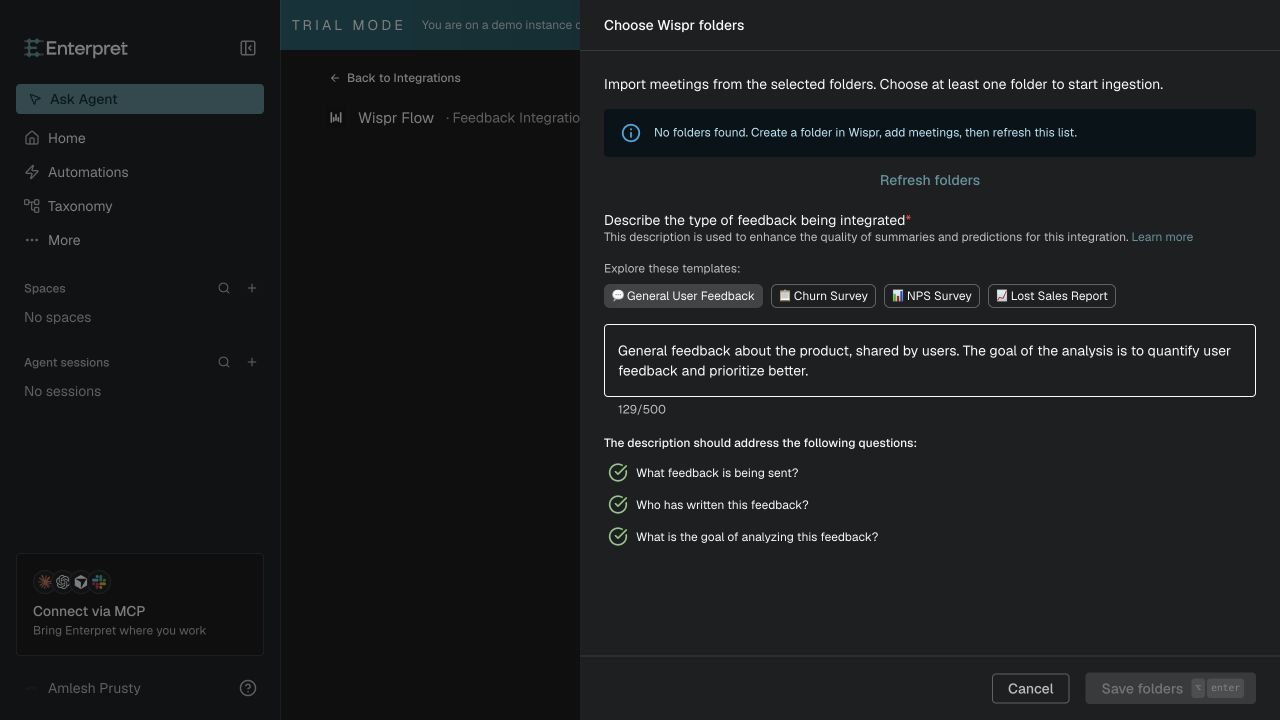
Folder setup shown with no folders available. Create a folder in Wispr, add meetings, then select Refresh folders.
You must select at least one accessible folder to complete setup. Enterpret then syncs the selected folders in the background.
What gets imported
Enterpret imports meetings from your selected folders, within the integration’s configured date range.
Transcripts: Available transcripts become feedback conversations with separate speaker turns.
Summaries: If a transcript is unavailable, Enterpret uses the meeting summary instead.
Meeting context: Meeting titles, source links, and folder names are retained.
Updates: Enterpret checks selected folders again so edits to previously imported meetings can be reflected.
The same meeting appearing in multiple selected folders is deduplicated. Private My Notes content is excluded.
Use shared folders across your team
Shared folders let you collect relevant meetings from multiple teammates without importing everyone’s personal meeting library.
For example, create an Enterprise Customer Calls folder in Wispr, have your team add relevant meetings, and ensure the account connected to Enterpret can access that folder. Then select it in the integration.
You can use separate folders for customer discovery, onboarding, or research and select the ones relevant to your analysis.
Connecting an account does not automatically grant access to everyone’s private meetings. Only meetings in selected, accessible folders are imported. Choose folders containing content intended for your Enterpret workspace.
Change the folders being synced
Open the Wispr Flow integration in Enterpret.
Select Edit.
Update your folder selection.
Select Save folders.
Removing a folder stops future imports from that folder. It does not delete feedback already imported into Enterpret.
Troubleshooting
Wispr Flow isn’t listed
Contact your Enterpret team to confirm availability for your workspace.
A folder is missing
Check that the connected Wispr account can access it, then select Refresh folders. If you haven’t created a folder yet, create one in Wispr, add meetings, and refresh.
A meeting hasn’t appeared
Confirm it belongs to a selected folder, is accessible to the connected account, and falls within the configured import date range. Syncing runs in the background, so imports may take time.
Authorization fails or expires
Restart Connect Wispr and complete authorization in the same browser tab. If folder access has changed, restore access or update your selection.
How is this different from the Wispr Flow MCP connector?
The feedback integration imports selected meetings into Enterpret for ongoing analysis.
The MCP connector lets Enterpret Agent look up Wispr content on demand.