
Snowflake
Create the database table
Choose the database you want Enterpret to read. ENTERPRET_SHARED_DATA is the example name used below.
In the database's PUBLIC schema, create a new table to export data to Enterpret. The examples below use IF NOT EXISTS to preserve existing tables; this clause does not modify or validate an existing schema. Have your Snowflake administrator check an existing table against the required columns before connecting it.
Use ERC_ID, ERC_CREATED_AT, and ERC_ROW_CREATED_AT, plus at least one supported feedback payload column: ERC_TICKET_DATA, ERC_SURVEY_DATA, or ERC_REVIEW. Other column names are not mandatory merely because they start with ERC_. Additional business columns such as TAGS and USER_PLAN can be imported as metadata.
Table Structure for Ticket Data
CREATE TABLE IF NOT EXISTS ENTERPRET_SHARED_DATA.PUBLIC.CUSTOMER_FEEDBACK_TICKETS (
ERC_ID VARCHAR(40) NOT NULL,
ERC_CREATED_AT TIMESTAMP_NTZ(9) NOT NULL,
ERC_ROW_CREATED_AT TIMESTAMP_NTZ(9) NOT NULL DEFAULT CURRENT_TIMESTAMP(),
ERC_TICKET_DATA OBJECT NOT NULL,
USER_PLAN VARCHAR(40),
TAGS ARRAY,
constraint PK1 primary key (ERC_ID)
);
Table Structure for Surveys
CREATE TABLE IF NOT EXISTS ENTERPRET_SHARED_DATA.PUBLIC.CUSTOMER_FEEDBACK_SURVEYS (
ERC_ID VARCHAR(40) NOT NULL,
ERC_CREATED_AT TIMESTAMP_NTZ(9) NOT NULL,
ERC_ROW_CREATED_AT TIMESTAMP_NTZ(9) NOT NULL DEFAULT CURRENT_TIMESTAMP(),
ERC_SURVEY_DATA OBJECT NOT NULL,
USER_PLAN VARCHAR(40),
TAGS ARRAY, constraint PK1 primary key (ERC_ID)
);
Table Structure for Reviews
CREATE TABLE IF NOT EXISTS ENTERPRET_SHARED_DATA.PUBLIC.CUSTOMER_FEEDBACK_REVIEWS (
ERC_ID VARCHAR(40) NOT NULL,
ERC_CREATED_AT TIMESTAMP_NTZ(9) NOT NULL,
ERC_ROW_CREATED_AT TIMESTAMP_NTZ(9) NOT NULL DEFAULT CURRENT_TIMESTAMP(),
ERC_REVIEW TEXT NOT NULL,
USER_PLAN VARCHAR(40),
TAGS ARRAY,
constraint PK1 primary key (ERC_ID)
);
ERC_ID: Unique ID for the Feedback Record.
ERC_CREATED_AT: When the feedback event happened in the source system (business / event time).
ERC_ROW_CREATED_AT: When the row landed or was updated in the warehouse (ingestion time). Enterpret reads this column on every sync to decide what is "new since the last watermark," so expose a stable stored per-row load/change value. A view can project or cast that value; avoid expressions that change to the current time on each query. See Troubleshooting below for the full requirements and the common view-pattern pitfall.
ERC_REVIEW: Text field, that contains the review data for the review table.
ERC_TICKET_DATA: A JSON object containing the ticket data adheres to the following contract.
message TicketData {
    Conversation conversation = 1;
}

message Conversation {
    repeated ConversationMessage msgs = 1;
}

message ConversationMessage {
    string text = 1;
    string actor = 2; // allowed values are "user", "agent", and "bot"
    optional string actorID = 3;
}
Sample:
{
  "conversation": {
    "msgs": [
      {
        "text": "Hi need some help",
        "actor": "user"
      },
      {
        "text": "Please describe your issue",
        "actor": "agent",
        "actorID": "1234125"
      }
    ]
  }
}
ERC_SURVEY_DATA: An object containing the Survey responses, which adheres to the following contract
message Survey {
    repeated SurveyQA responses = 1;
}

message SurveyQA {
    string question = 1;
    optional string answer = 2;
    repeated string selectedOptions = 3;
}
Sample:
{
  "responses": [
    {
      "question": "How likely is it that you would recommend us to a friend or colleague?",
      "selectedOptions": [
        "10"
      ]
    },
    {
      "question": "Did Bre make your experience with us memorable?\n",
      "answer": "Bre was great...but it took 4 separate requests to get it            finally done....but thanks...I greatly appreciate your help "
    },
    {
      "question": "We love to hear it! What did Bre do to make your experience awesome?\n",
      "selectedOptions": [
        "Helpful",
        "Polite"
      ]
    }
  ]
}
⚠️ Common mistake: choosing the wrong feedback column type!
Use the ERC_* column that matches the shape of your feedback data.
Use
ERC_REVIEWfor plain-text feedback, such as notes, comments, verbatims, or short free-text feedback.Use
ERC_TICKET_DATAfor support-ticket style conversations. This column must contain a JSON object that follows the ticket conversation schema.Use
ERC_SURVEY_DATAfor survey responses. This column must contain a JSON object that follows the survey response schema.
Do not use ERC_SURVEY_DATA for plain free-text notes. Survey data must be structured as question-and-answer responses. If you only have a text field, use ERC_REVIEW instead.
Setup Role, User, and Permissions:
For restricting the permission to only the needed table or a secure view, we need to create a user and role for Enterpret and grant it the required permissions to the relevant resources. You can run the following queries in a Snowflake Worksheet for the ENTERPRET_SHARED_DATA database.
CREATE ROLE IF NOT EXISTS ENTERPRET_USER_ROLE;

-- For a new dedicated service user; review existing users instead of recreating them.
CREATE USER ENTERPRET_USER TYPE = SERVICE DEFAULT_ROLE = ENTERPRET_USER_ROLE;
GRANT ROLE ENTERPRET_USER_ROLE TO USER ENTERPRET_USER;

GRANT USAGE ON WAREHOUSE <WAREHOUSE_NAME> TO ENTERPRET_USER_ROLE;
GRANT USAGE ON DATABASE ENTERPRET_SHARED_DATA TO ROLE ENTERPRET_USER_ROLE;
GRANT USAGE ON SCHEMA ENTERPRET_SHARED_DATA.PUBLIC TO ROLE ENTERPRET_USER_ROLE;
-- Replace this example with each configured source table or view.
GRANT SELECT ON TABLE ENTERPRET_SHARED_DATA.PUBLIC.CUSTOMER_FEEDBACK_TICKETS TO ROLE ENTERPRET_USER_ROLE;
Enterpret uses RSA key-pair authentication. A password is not required by this setup. Add the public key displayed by Enterpret to the dedicated service user as described below. Have your Snowflake administrator review permissions and existing keys before changing an existing user.
Grant access only to the source tables or views configured in Enterpret, together with USAGE on their database/schema and the warehouse. If you use custom user or role names, enter both explicitly in the integration settings.
If your Snowflake network policy restricts incoming connections, ask Enterpret Support for the current IP allowlist and have your administrator apply it. A network allowlist is not required merely because you use Snowflake.
Authentication:
For authentication, Enterpret generates a public-private RSA key pair and exposes the public-key in the product, which customers need to add to the ENTERPRET_USER that they created in the previous steps.
This can be done by running the following command.
ALTER USER ENTERPRET_USER SET RSA_PUBLIC_KEY = '<KEY_SHARED_BY_ENTERPRET>'
Add Snowflake Integration to Enterpret:
After setting up your Snowflake account, go to https://dashboard.enterpret.com/
Click "Sign in with Google" or log in with your work email.
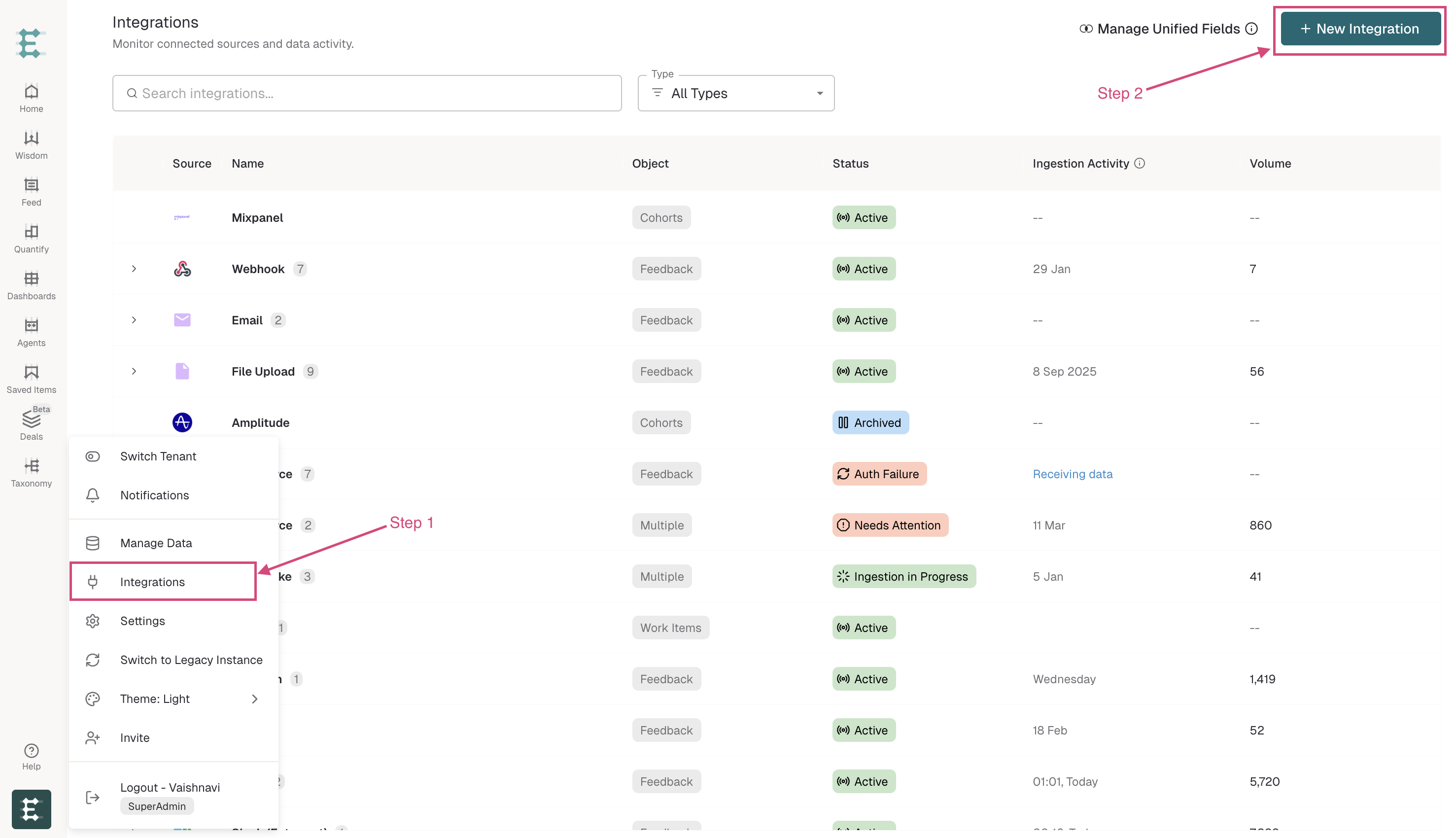
Once you have logged in successfully, navigate to the integrations page using the icon on the menu bar to the left.
Click on the "+ New Integration" button.
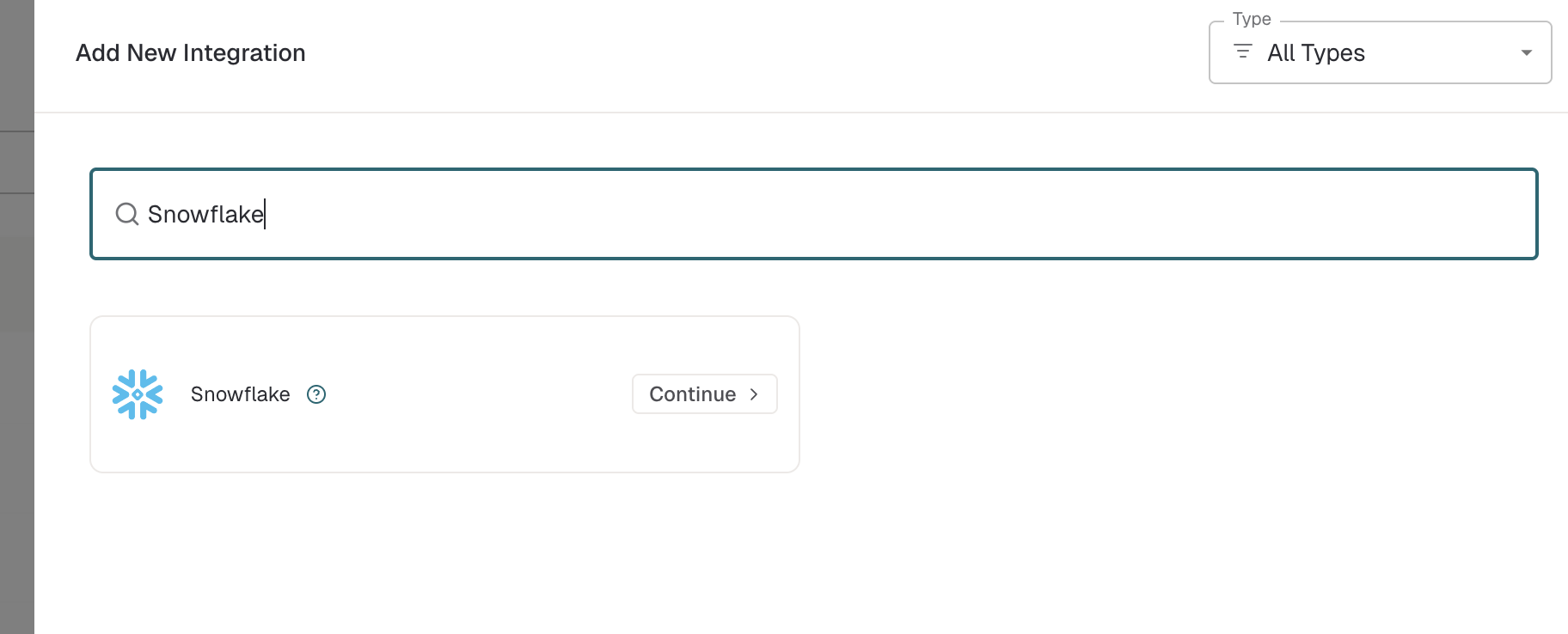
Find Snowflake in the available sources and use the connection action shown to proceed.
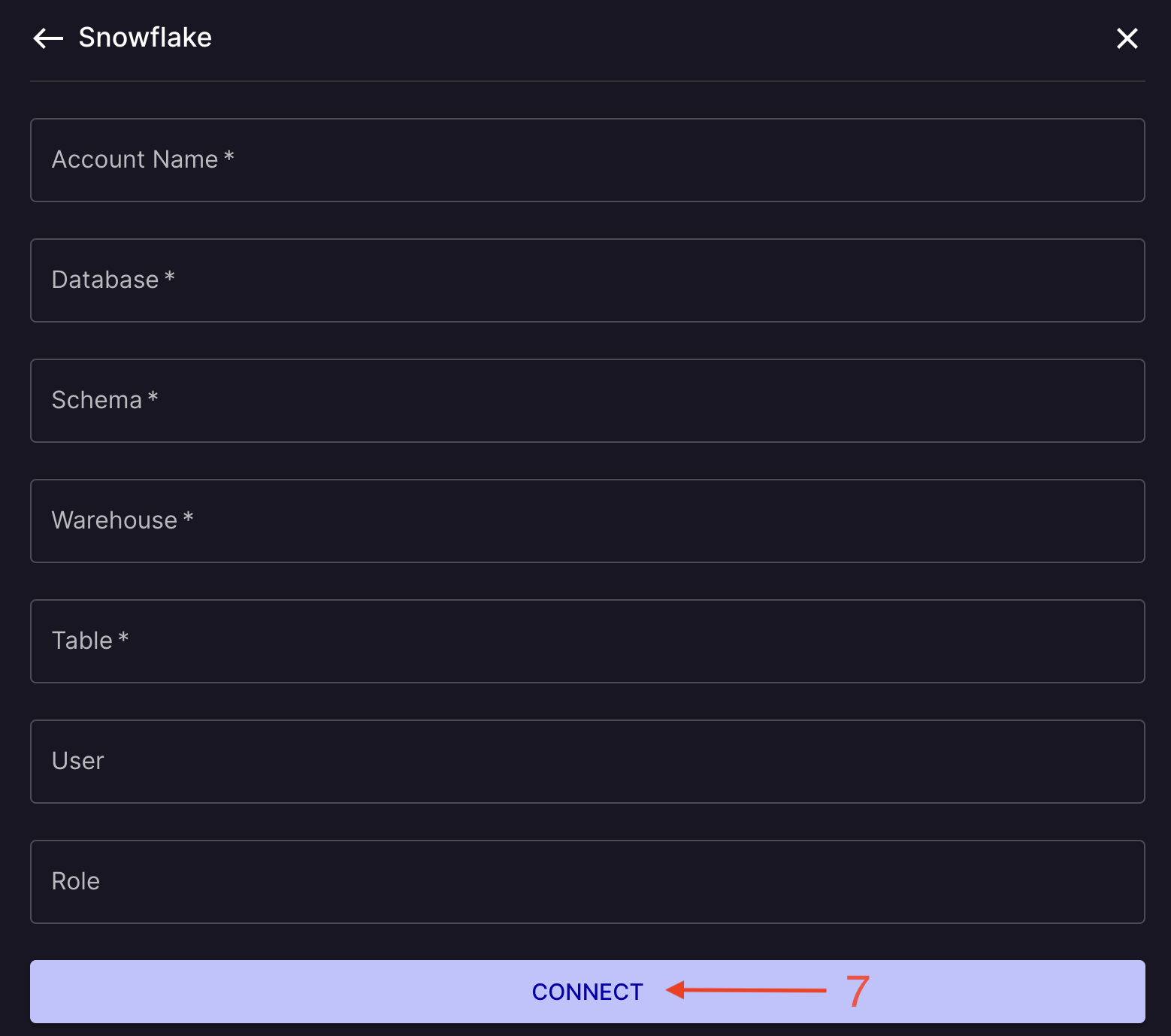
Fill in the details in the form presented with the credentials you created in the section above and click on Connect.
Details of the fields:
Account Name: Name of your Snowflake account.
The name of your Snowflake account (not the full URL). For example, if your Snowflake URL is "
https://example.snowflakecomputing.com", you should only enter "example" as the account name. Refer to this snowflake documentation for more clarity.
Database: Name of the Snowflake database.
Schema: Name of the Snowflake schema.
Warehouse: Name of the snowflake warehouse.
Table: Name of the table from which to ingest data.
User (Optional): Name of the Enterpret user created in the section above.
Role (Optional): Name of the Enterpret user role created in the section above.
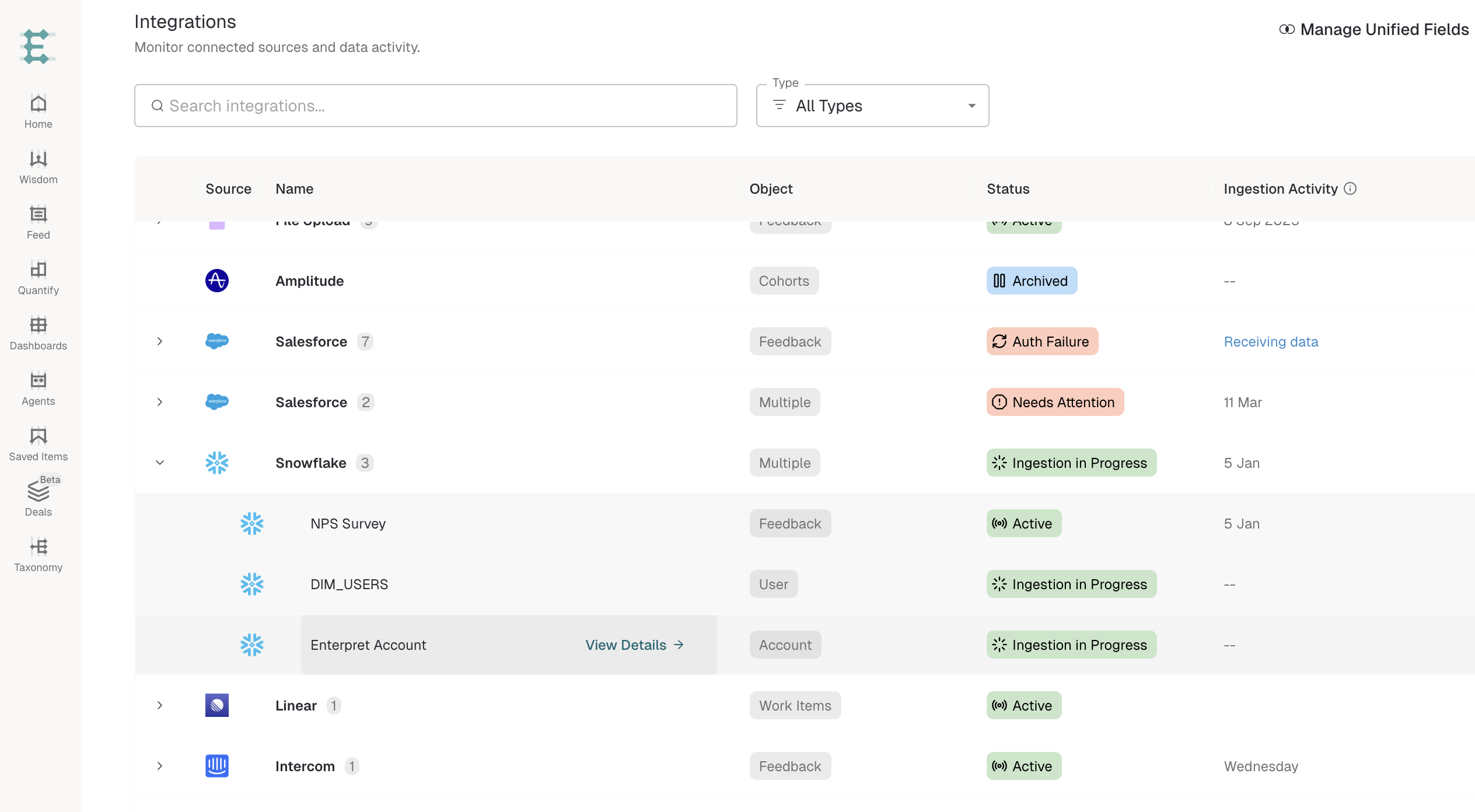
You should now be able to see the Snowflake Connection in your list of integrations.
Finally, copy the public key mentioned below the integration and run the following command on Snowflake.
ALTER USER ENTERPRET_USER SET RSA_PUBLIC_KEY = '<KEY_SHARED_BY_ENTERPRET>'

You have successfully set up the Snowflake integration.
Validate Your Connection
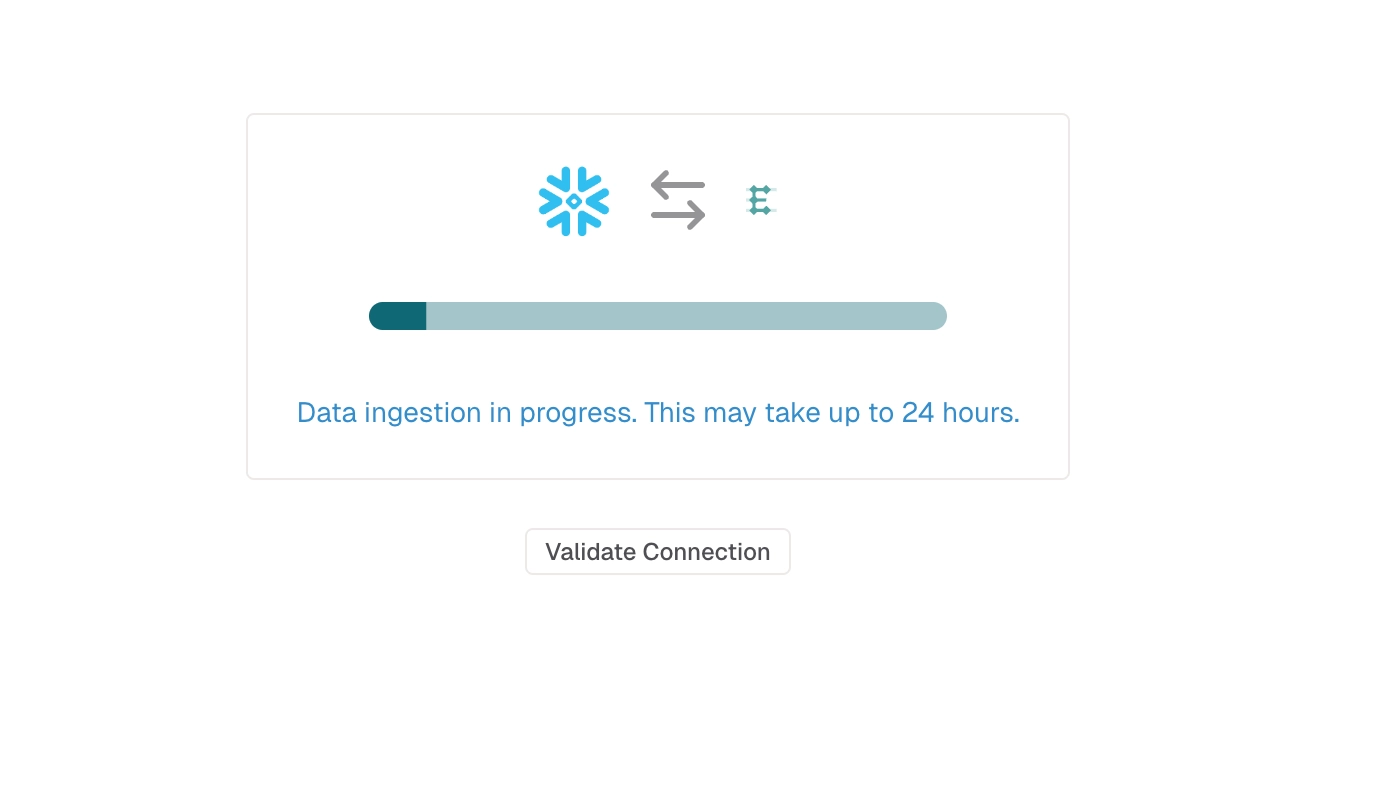
After you save the integration, Enterpret schedules the first data pull. Select Validate Connection on the integration detail page to check the account, credentials, and table schema. After the first run, check that eligible feedback records appear in Enterpret. The time the first run takes depends on the source volume, access, and processing.
The button appears on your Snowflake integration while it is in the ONBOARDING state, right next to the data ingestion progress bar.
What the validate button checks
Clicking Validate Connection runs a schema introspection query against the Snowflake table you configured. In a single check, it verifies:
Account name — your Snowflake account is reachable and spelled correctly.
RSA key authentication — the public key you added to
ENTERPRET_USERmatches the private key Enterpret holds.Database, schema, and table — the objects exist and the configured names are correct.
Role and warehouse — validation uses the configured role and warehouse. Check source-object read privileges separately; a successful column-metadata query does not establish that every source row can be read. A suspended warehouse may resume automatically when auto-resume is enabled.
ERC column schema — the table contains the required columns:
ERC_ID,ERC_CREATED_AT,ERC_ROW_CREATED_AT, and at least one ofERC_TICKET_DATA,ERC_SURVEY_DATA, orERC_REVIEW.
This works even when the table is empty — the check inspects column metadata directly, so you don't need to land any rows first.
Verifying the sample data preview
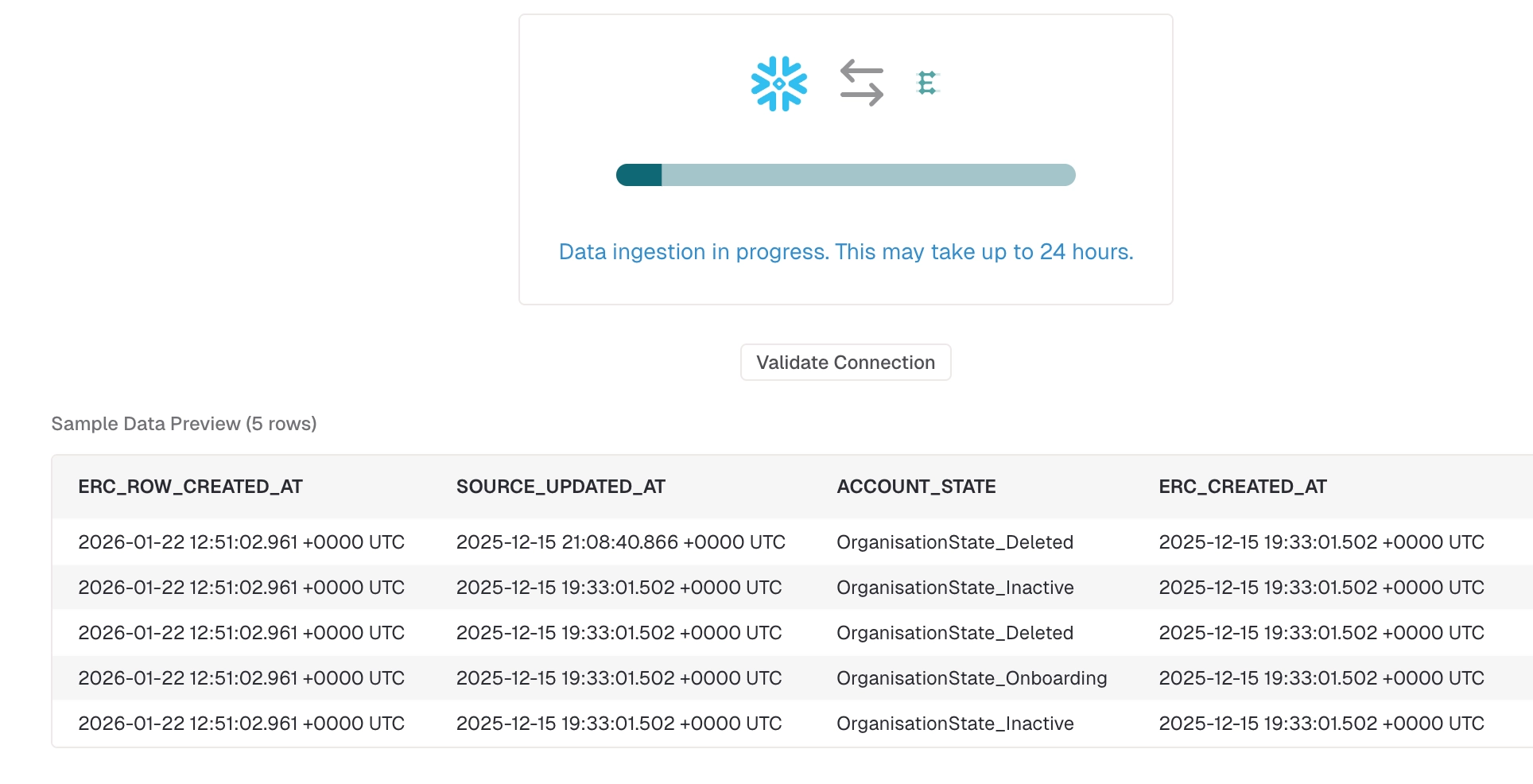
Validate Connection may also display a Sample Data Preview of up to five rows. The preview is a separate best-effort read, so successful schema validation does not guarantee that a preview will appear. If expected rows are missing, ask Enterpret Support to check the actual integration-user read. When a preview is available, use it to confirm:
The expected
ERC_columns are present (ERC_ID,ERC_CREATED_AT,ERC_ROW_CREATED_AT, and your data column —ERC_TICKET_DATA,ERC_SURVEY_DATA, orERC_REVIEW).ERC_IDvalues are unique and look like the IDs from your source system.ERC_CREATED_ATreflects when the feedback event happened in the source system, not when the row landed in Snowflake.ERC_ROW_CREATED_ATreflects when the row was loaded or last updated in Snowflake. Check that it reflects a stored row load or change time rather than a value recalculated by each query. Equal timestamps can be valid for a single loaded batch; see the Troubleshooting section below.Any extra columns (e.g.
USER_PLAN,TAGS,ACCOUNT_TIER) are populated as expected — these will be ingested as metadata.
Error messages
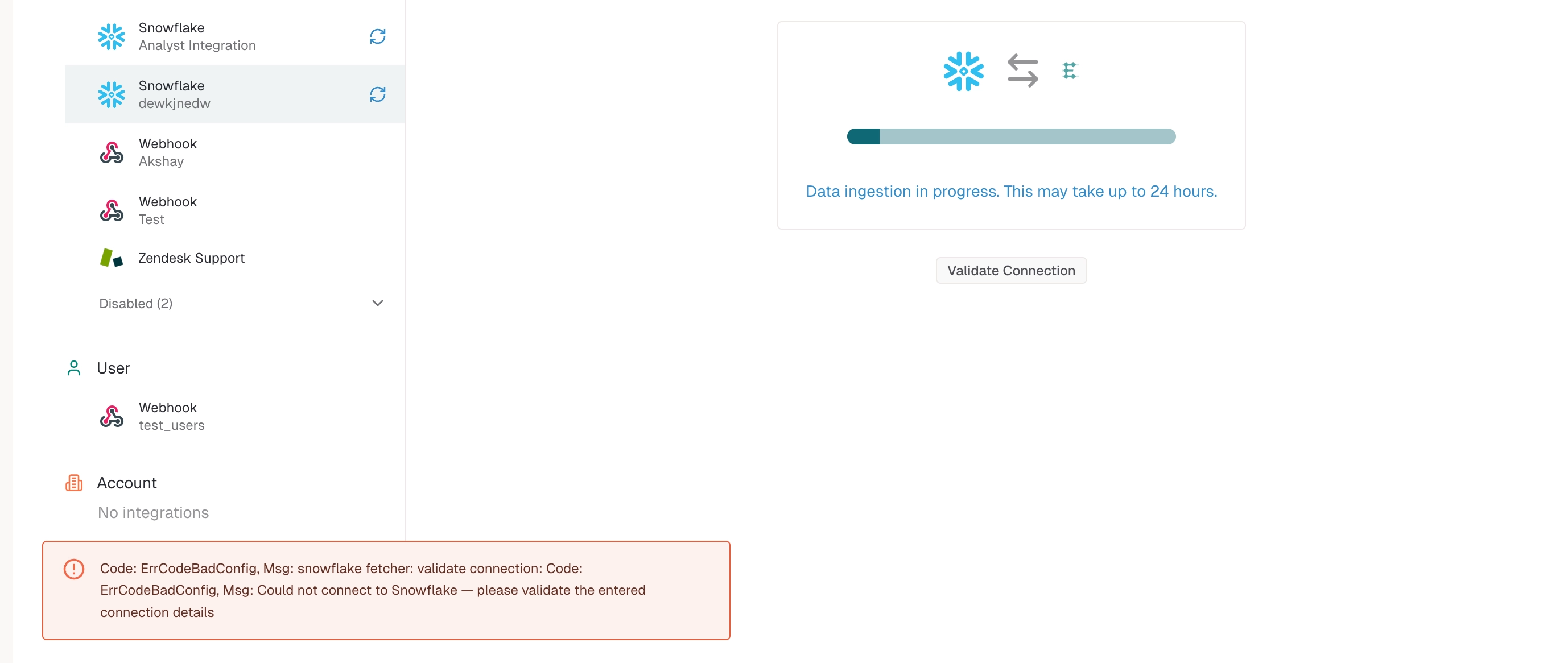
If validation fails, review the displayed error and check the relevant connection, authentication, access, or schema settings. Some messages are general and need further investigation. For example:
Code: ErrCodeBadConfig, Msg: snowflake fetcher: validate connection: Code: ErrCodeBadConfig, Msg: Could not connect to Snowflake — please validate the entered connection details
Common error scenarios and what to check
Common error scenarios and what to check
"Could not connect to Snowflake — please validate the entered connection details" — The connection could not be validated. Check the configured account, user, role, database, schema, warehouse, network access, and source permissions with your Snowflake administrator. The message alone does not identify which setting failed.
Snowflake authentication failed — Confirm that the public key shown by the integration is assigned to the configured Snowflake user and that key-pair authentication is allowed. If the key needs correcting, copy the integration public key and have your administrator update the configured user, for example
ALTER USER ENTERPRET_USER SET RSA_PUBLIC_KEY = '...'when that is your user name.Snowflake account not found — The account identifier is incorrect. If your URL is
https://example.snowflakecomputing.com, the account name isexample, not the full URL.Snowflake object not found — The configured database, schema, or table does not exist or your role does not have access. Verify the names and the
GRANTstatements from the role setup section above.Warehouse access or state: Check the configured warehouse name, role privileges, resource monitors, and whether the warehouse can resume. A suspended warehouse with auto-resume enabled does not necessarily need to be kept running.
Network policy: If Snowflake reports a network-policy block, ask Enterpret Support for the current egress IP allowlist and review your policy with a Snowflake administrator.
Snowflake connection timed out — Check the account identifier, network policy, connectivity, and Snowflake service availability. A timeout alone does not establish which of these caused the failure.
Fix the underlying issue based on the message and click Validate Connection again. After validation, monitor the next fetch and processing run; validation alone does not guarantee that every row is eligible or that existing records will be updated. If you still see errors, please reach out to support.
Handling Updated Records:
When updating existing records in your Snowflake table, keep in mind:
ERC_ID: This field serves as the unique identifier for each record. It should remain constant for any given record you wish to update.
ERC_ROW_CREATED_AT: This timestamp field helps Enterpret track updates to existing records. When updating a record:
Update this timestamp to reflect when the row was modified
Enterpret will use this field to identify and process updated records
ERC_ROW_CREATED_AT controls row selection, not a universal latest-version rule for already imported feedback.
For example, if you update a record with an existing ERC_ID:
Keep the same ERC_ID
Update the ERC_ROW_CREATED_AT to the current timestamp
Update any other fields as needed
Advancing ERC_ROW_CREATED_AT can make the row eligible for a subsequent read. Updating already imported feedback also depends on your integration’s mutability and reprocessing configuration; confirm that setup with your Enterpret team.
For historical corrections, first confirm a managed backfill or mutable reprocessing plan with your Enterpret team. Advancing ERC_ROW_CREATED_AT can bring rows into a later read window, but does not by itself guarantee that existing feedback or metadata will be replaced. Keep ERC_ID and the configured source identity stable.
-- Example row-selection change for a team-confirmed reprocessing plan.
-- This alone does not guarantee updates to existing Enterpret feedback.

UPDATE your_feedback_table
SET ERC_ROW_CREATED_AT = CURRENT_TIMESTAMP()
WHERE original_feedback_created_at >= DATEADD(month, -3, CURRENT_DATE());
Troubleshooting:
Enterpret selects rows using ERC_ROW_CREATED_AT within timestamp windows. Live reads include an overlap before the previous boundary; bounded backfills use their configured window. Common issues include:
Ingestion silently stalled — ERC_ROW_CREATED_AT not advancing
Symptoms: New rows are landing in your Snowflake source, but Enterpret has stopped picking them up. MIN(ERC_ROW_CREATED_AT) and MAX(ERC_ROW_CREATED_AT) over your table or view return the same value, and that value is "right now."
Why it happens:The column is computed at query time instead of being persisted on the row, so rows can fall beyond a fetch’s fixed upper bound or change between paginated reads. This does not provide a stable per-row change time.
Fix: Persist the column on the base table.
Requirements for ERC_ROW_CREATED_AT
For incremental sync to work, the column must satisfy all of the following:
Persisted on a base table — value materialized once on insert/update and frozen afterwards.
Set to the current timestamp when a new row is inserted or an existing row is updated.
Stable for unchanged rows — no re-evaluation per query.
Use a load/change timestamp for newly arriving rows. Older event timestamps can fall behind the eligible read window.
New metadata or edits not appearing on existing records
Symptoms: New rows flow through fine, but a recently added metadata column or an edit to an existing field isn't reflected on records ingested before the change.
Why it happens: A changed row timestamp, source schema, or downstream mutability setting can affect whether the corrected record is reread and updated. Check the actual row window and reprocessing configuration.
Fix: Confirm a reread and reprocessing plan with your Enterpret team before changing row timestamps. See Handling Updated Records and Backfills above.
Common pitfall: sysdate() or CURRENT_TIMESTAMP() inline in a view
❌ Never define ERC_ROW_CREATED_AT this way:
-- DO NOT do this
CREATE VIEW VW_FEEDBACK AS
SELECT
  id          AS ERC_ID,
  event_time  AS ERC_CREATED_AT,
  sysdate()   AS ERC_ROW_CREATED_AT,   -- re-evaluates every query, breaks ingestion
  ...
FROM base_table;
✅ Instead, project a persisted load/update timestamp from the underlying base table (e.g. _loaded_at, updated_at, or your loader's sync timestamp):
-- Correct
CREATE VIEW VW_FEEDBACK AS
SELECT
  id          AS ERC_ID,
  event_time  AS ERC_CREATED_AT,
  _loaded_at  AS ERC_ROW_CREATED_AT,   -- persisted on the base table
  ...
FROM base_table;
How to verify
Run this against your table or view:
SELECT MIN(ERC_ROW_CREATED_AT), MAX(ERC_ROW_CREATED_AT) FROM <your_table_or_view>;
Check that these values reflect stored load/change times. Equal MIN and MAX values can be valid for a single loaded batch. If both change to the current time on every query, inspect the view or loader for a query-time timestamp expression.