
Dashboard Sharing & Reporting
For reports and recurring updates, start with Enterpret Agent and scheduled Agent automations. Set up daily reports, weekly summaries, or scheduled digests delivered to Slack or email. Add connectors when you need external context or supported actions. Use this guide's Dashboard controls when you specifically need that saved view or its subscription.
How to share a Dashboard with someone
Use view links to share Dashboards with authorized teammates in the same Enterpret organization. A view link does not grant public access or edit permission.
On your Dashboard screen, click the Share button in the top-right corner.
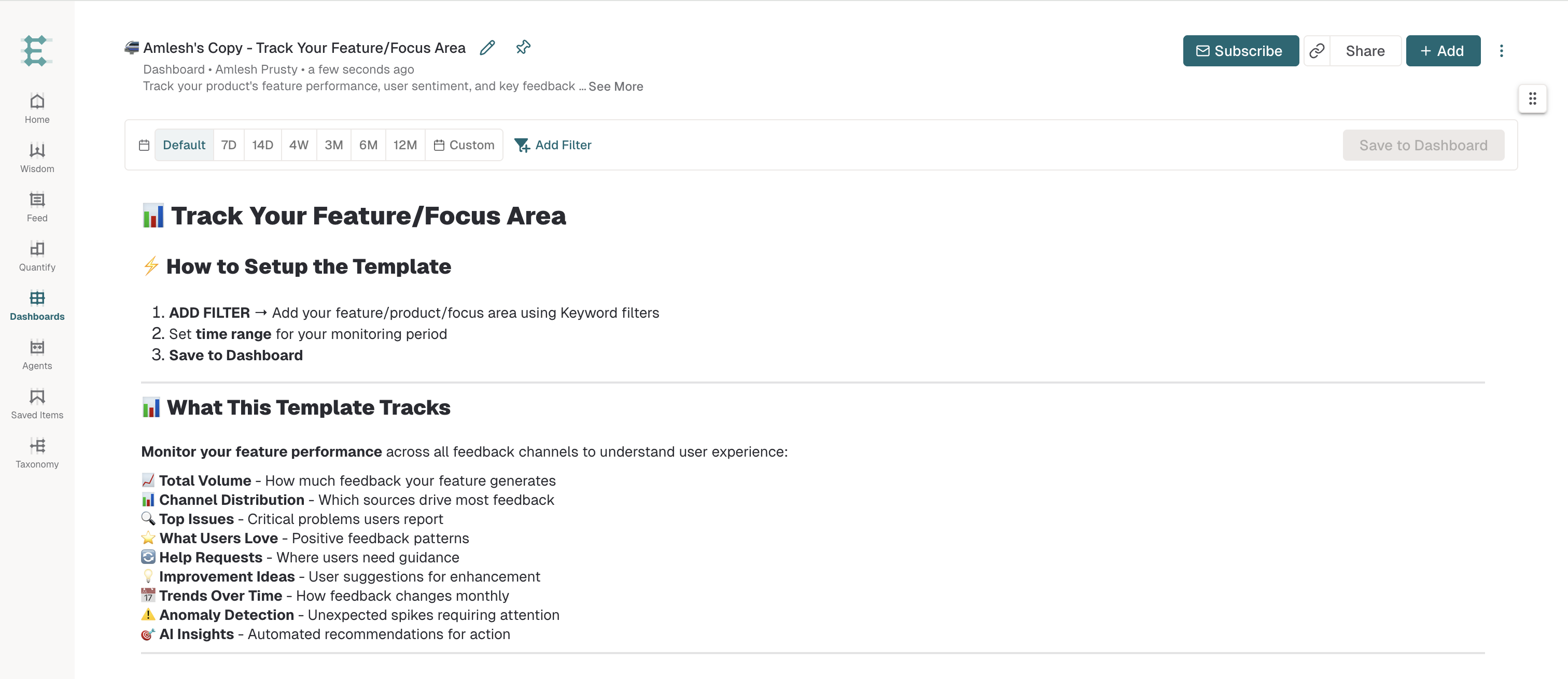
A side panel opens with sharing options. You can also click the link icon next to the Share button to directly copy a view-only link to your Dashboard.
Share a view-only link
In the sharing panel, click the Copy Link button to copy the Dashboard view-only link.
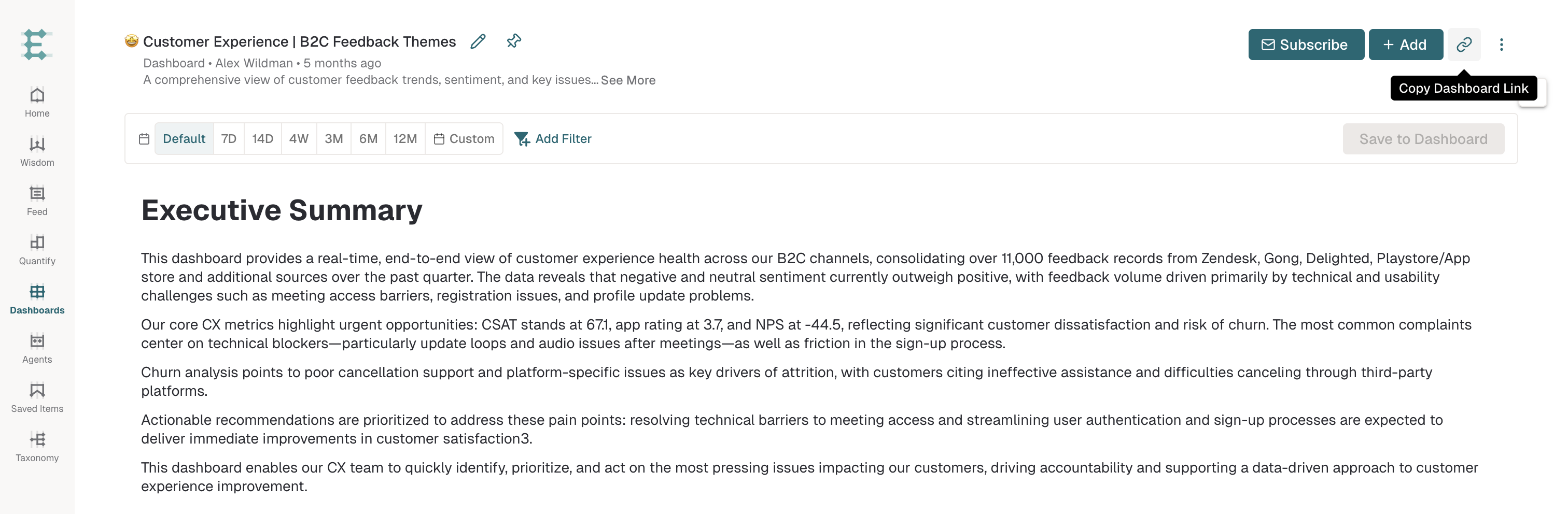
Share this link with a teammate who has access to the same Enterpret organization. The view link alone does not grant edit access.
How to enable someone to edit your Dashboard
If your role and Dashboard edit access allow it, invite an eligible teammate to collaborate. A view link alone does not grant the permissions needed to edit.
In the side panel that appears after you click Share, look for the Invite to Collaborate section.
Enter the email address of the person you want to invite.
Click the Invite button.
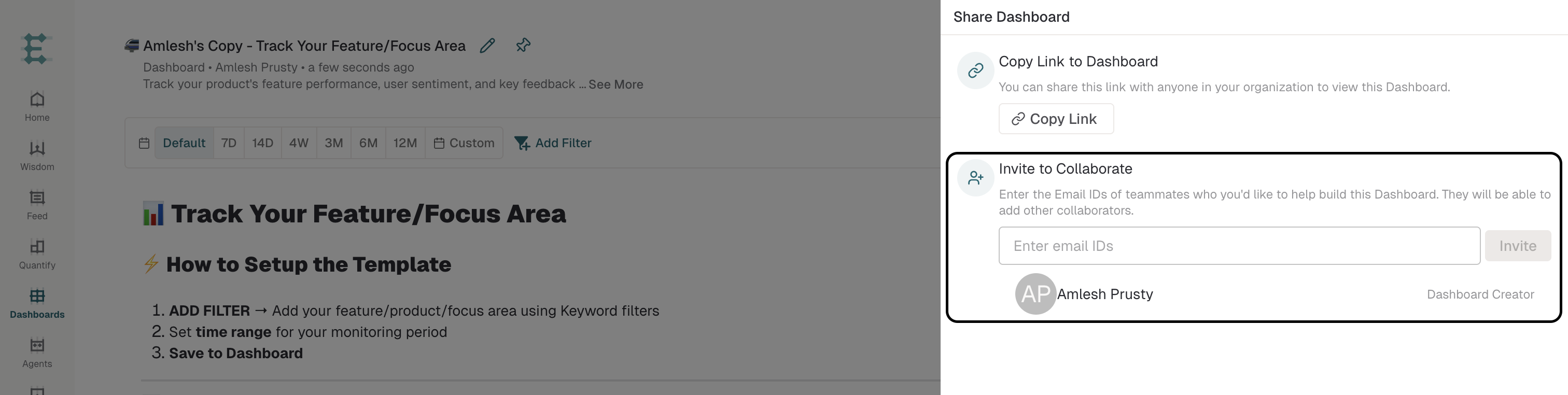
The invited person will receive an email from Enterpret informing them about the edit access.
Requesting access to collaborate on a Dashboard
To request edit access to a Dashboard you don't own, click Request Access in the top-right corner of the Dashboard.
If a teammate has requested access to your Dashboard, you will receive an email and an in-app notification. By approving the request, you allow that person to edit and collaborate on the Dashboard with you.
How to stay updated and receive reports with Dashboards
To receive regular reports and updates with your Dashboard:
Click Subscribe in the top-right corner of the Dashboard.
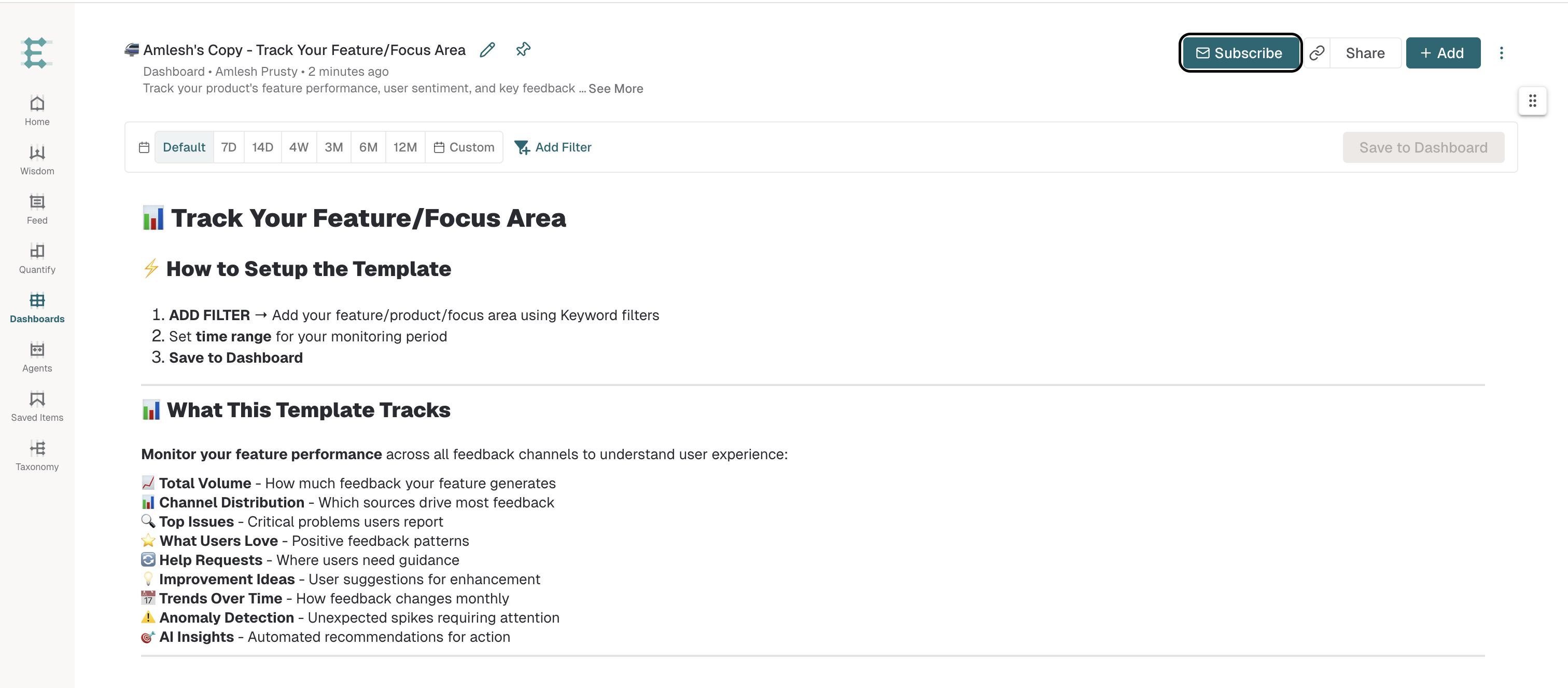
A side panel opens with subscription options containing fields for Email and Slack channels.
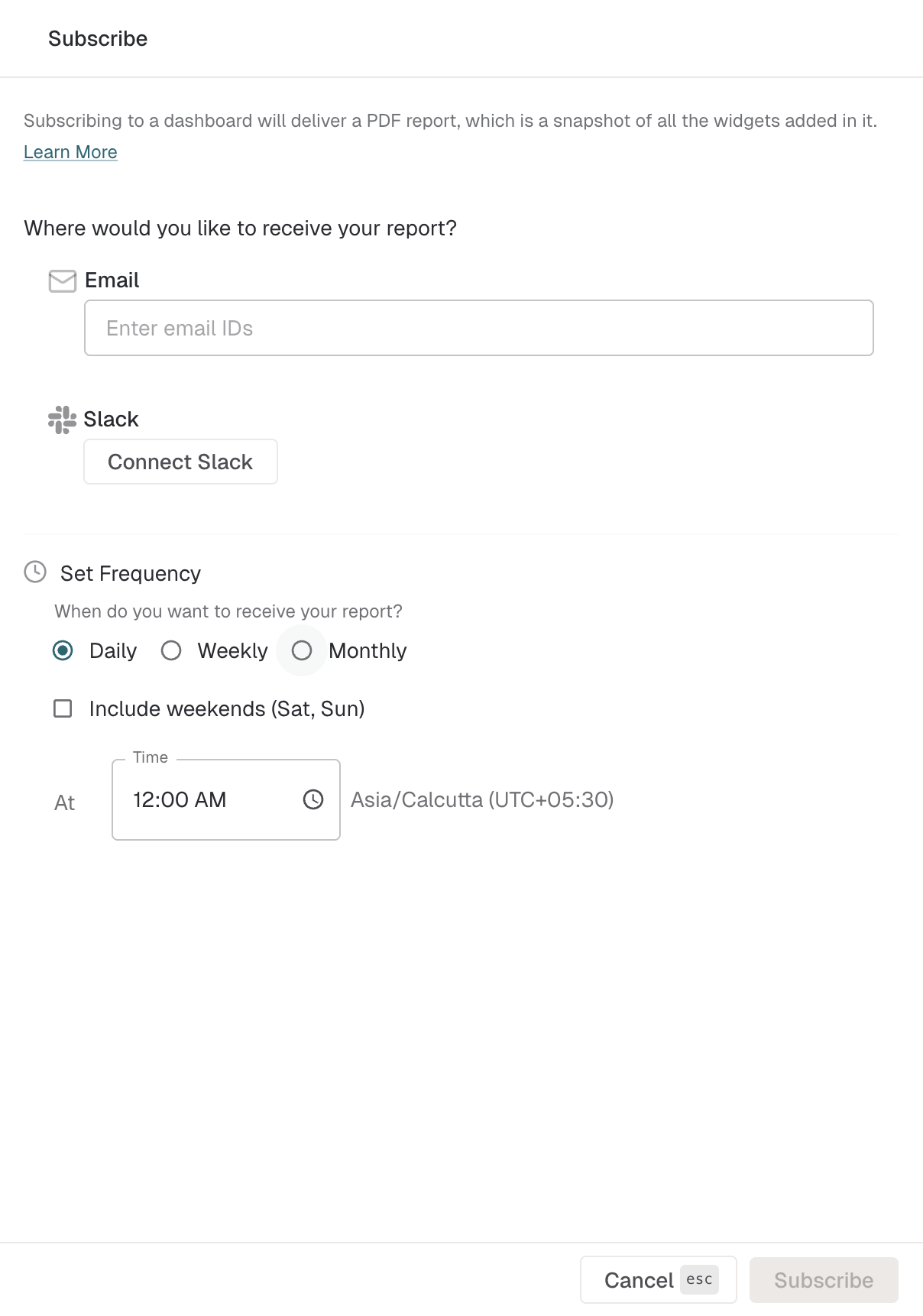
Fill in the email addresses of team members who should receive regular reports.
For Slack channels, click the Slack Channels field to select channels. A newly created Slack channel may take up to 5 minutes to appear in the list.
Select the channels you want to share the reports with.
Click the Subscribe button at the bottom-right to confirm.
The saved subscription requests reports at the configured frequency and destinations. Check the recipients and delivery if a report is missing; the schedule is not a guaranteed arrival time.
How to unsubscribe from a Dashboard
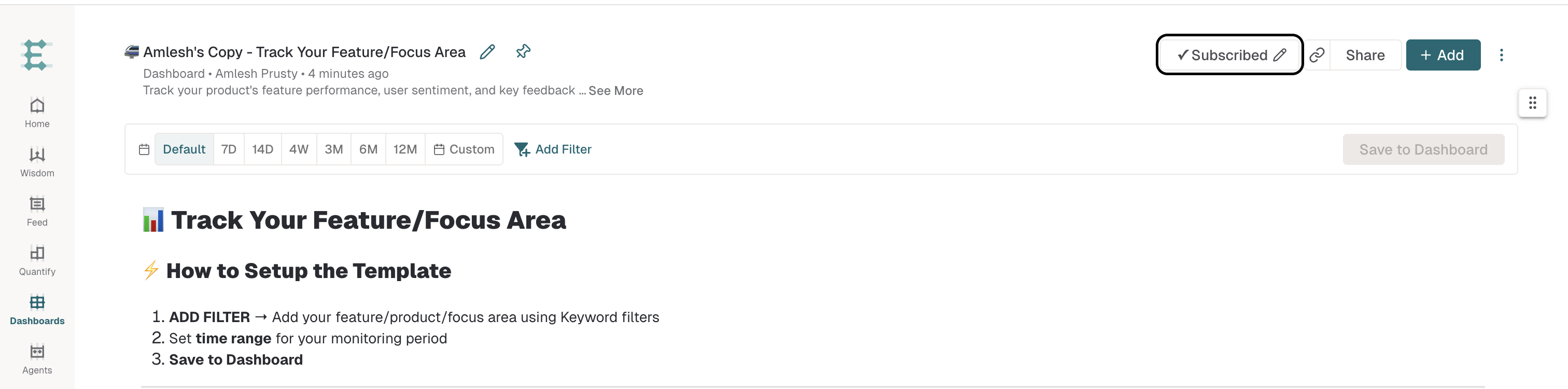
Click the Subscribed button (with an edit icon) in the top-right corner of the Dashboard.
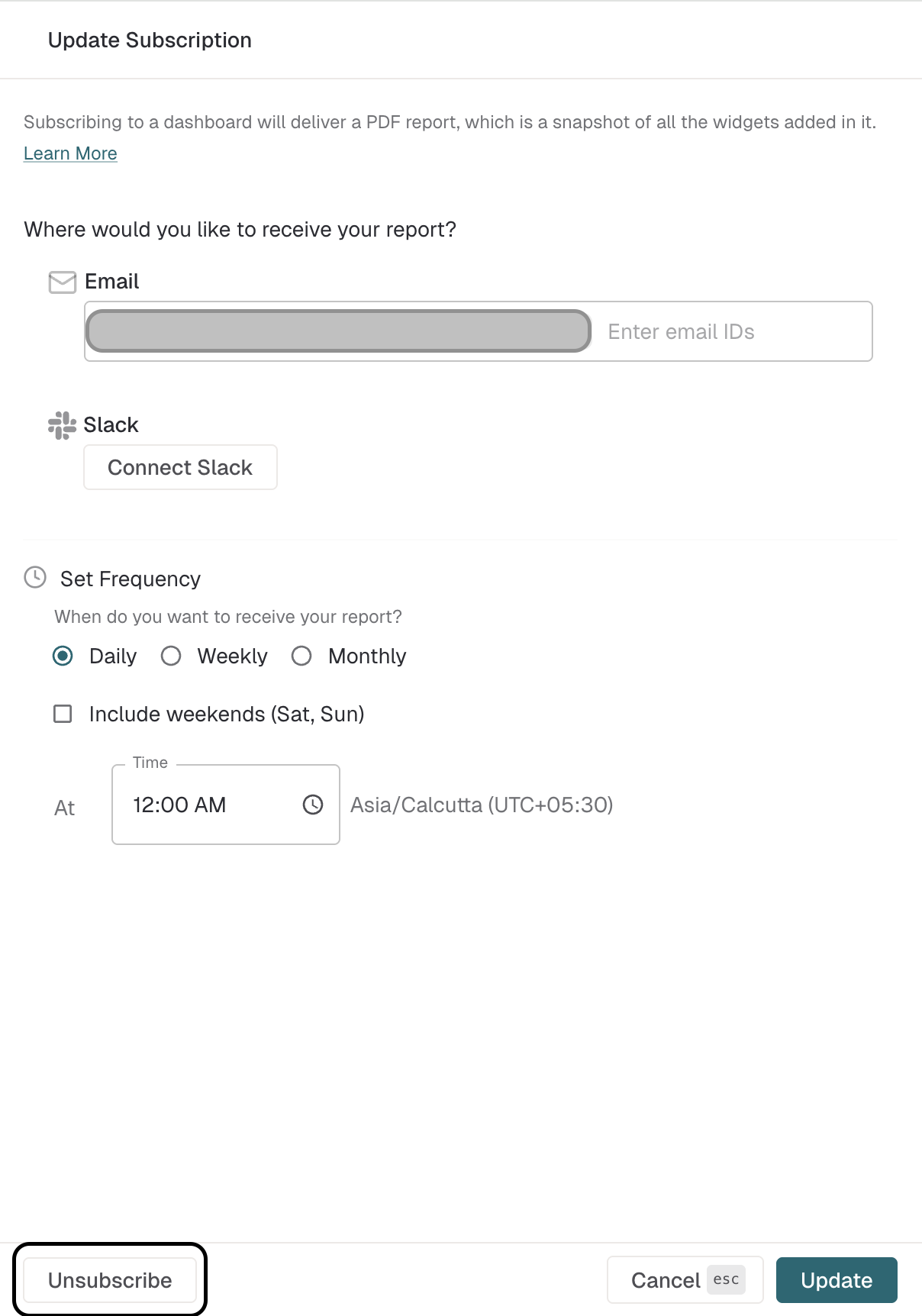
Click the Unsubscribe button at the bottom-left of the Subscribe panel.
How to disconnect Slack
Disconnecting your Slack will remove subscribed Slack channels from all your reports. These subscriptions won't automatically resume if you reconnect Slack.
To disconnect Slack, click the three-dot menu icon above the Slack channels section.
Click Disconnect Slack from the menu.
Click Yes, Disconnect to confirm.
Your Slack integration is now disconnected from your Dashboard reports.
Frequently asked questions
How do I transfer a Dashboard to a different owner without changing who can view it?
Open the Dashboard and select the three-dot menu in the Dashboard toolbar.
Select Change Owner.
Choose the new owner from the list of users in your Enterpret workspace.
Under Dashboard Discovery, set Discoverable to the Dashboard’s existing setting:
On: anyone in your Enterpret organization can find and view the Dashboard.
Off: the Dashboard is available through its shareable link.
Select Transfer.
Changing the owner does not replace the Dashboard’s existing view link or collaborator list. Keeping the discovery setting unchanged prevents the transfer from changing how teammates can view it.
If Change Owner is unavailable, you may not have edit access or ownership transfer may not be enabled for your workspace. If the discovery control is unavailable and you need to preserve a non-discoverable Dashboard, ask an Enterpret Admin or Enterpret Support to complete the transfer.