
Custom Filters
You can save any filter on Enterpret as a Custom Filter to quickly find and re-use it across Dashboards and Feed. If your team frequently creates the same combination of filters, saving it once lets teammates jump-start their queries.
Creating a Custom Filter
In the Feed, Quantify, or Dashboard tab from the left pane, find the query builder and build the filter you want to save.
Click Save As Custom Filter on the bottom-right of the query builder.

In the pop-up, add a descriptive name so you and your teammates can find it later.
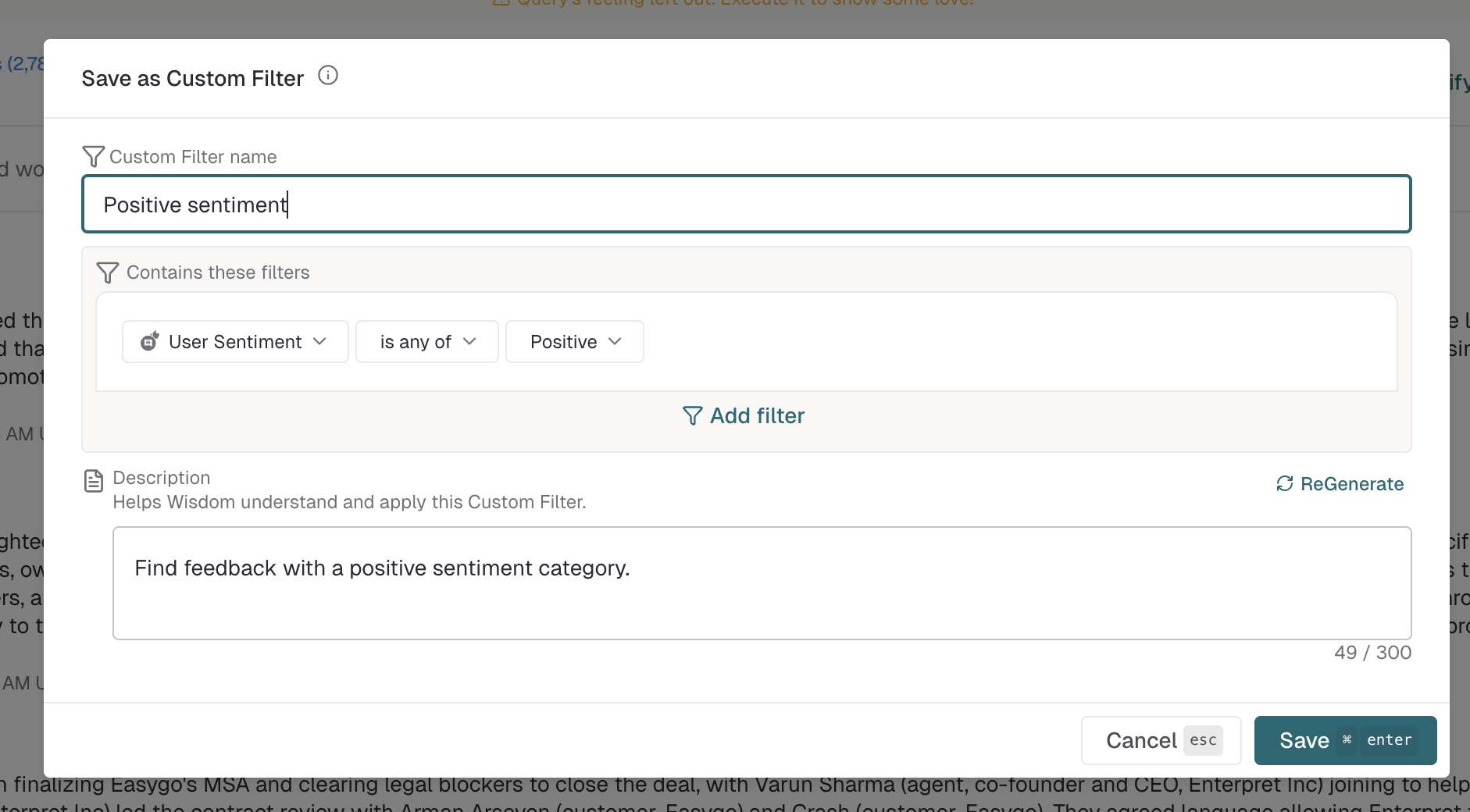
Click Save. The filter is now available to everyone in your organisation.
Using Custom Filters
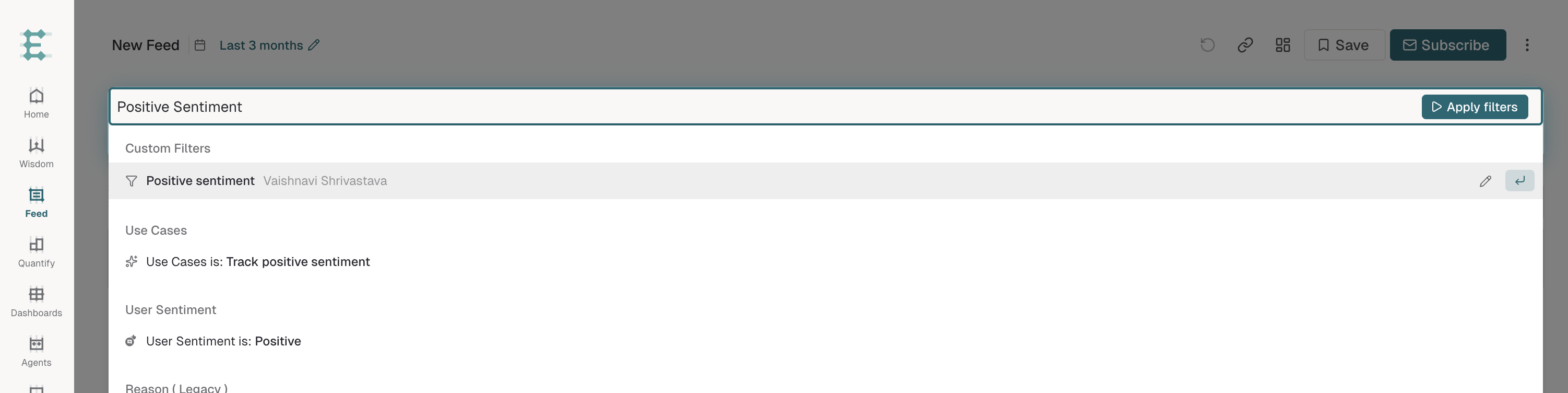
Custom Filters created by you and your teammates appear in the query builder and can be used across Dashboards and Feed.
Frequently asked questions
Who can edit a saved Custom Filter?
The creator of a Custom Filter can edit it, after originally saving it. Besides the creator, your organisation's admins on Enterpret can edit all Custom Filters.
My custom filter will not save. What should I do?
Work through these checks in order:
Check why Save is unavailable. Hover over the disabled Save button. Enterpret identifies common missing requirements.
Complete the filter. Add at least one filter and make sure every condition has a field, operator, and value.
Add a name and description. Enter a custom-filter name. Wait for the description to finish generating, select ReGenerate, or enter a description manually.
Resolve any query-builder error. A custom filter cannot contain another custom filter. Remove the saved custom filter and add its individual conditions instead. Also correct any other validation message shown beside a condition.
Check your permissions. If Save as Custom Filter is missing, ask an Enterpret Admin to confirm that your role can create and edit your own custom filters. Editing a filter created by someone else requires permission to edit all custom filters.
Retry with a fresh view. Refresh Enterpret, rebuild the filter, and save it before adding it to the Feed, Quantify analysis, or Dashboard view.
If the filter still does not save, contact Enterpret Support and include:
The custom-filter name and whether you were creating or editing it.
Whether the Save button was disabled or clicking it had no result.
The exact error message or a screenshot.
The page where you created it: Feed, Quantify, or Dashboard.
The approximate time of the attempt, including your timezone.
Use this context in Enterpret Agent reporting
Ask Enterpret Agent to use the relevant fields, customer attributes, or taxonomy conditions available in your workspace, with an explicit source scope and reporting period. For a daily report, weekly digest, or recurring summary, configure scheduled Agent automations with the same brief and verify the actual scope and output. Use connectors separately when a task needs external context or supported actions; data configuration here does not grant connector access.