
Connect Google Drive to Enterpret Agent
Connect Google Drive to work with files you choose directly in Enterpret Agent. You control which existing files become available; connecting your account does not give Enterpret access to your entire Drive.
What you can do
Choose specific Google Drive files for Enterpret Agent to use.
Ask Agent to find or summarize selected files.
Use information from selected files as context in an Agent session.
Add more files later from the connector settings.
How this helps day to day
Summarize long documents without switching between Google Drive and Enterpret.
Use approved planning documents, research, or notes as context for an analysis.
Check which files are available before asking Agent to use them.
Limit access to the files you explicitly select.
Before you begin
Sign in to the Enterpret workspace where you want to use Google Drive.
Have access to the Google account and files you want to use.
Ask your Google Workspace administrator to approve Enterpret if your organization requires administrator approval.
Allow pop-ups for Enterpret so the Google file selector can open.
You do not need to create a Google Cloud project, API key, or OAuth client.
1. Connect your Google account
In Enterpret, open Settings.
Under Agent, select Connectors.
Search for Google Drive and select Connect.
Choose the Google account you want to use.
Review Google's requested permissions and continue.
Return to Enterpret and confirm that Google Drive appears under Connected with its toggle enabled.
If Google Drive is already connected, continue to the next step.
2. Find the file selector
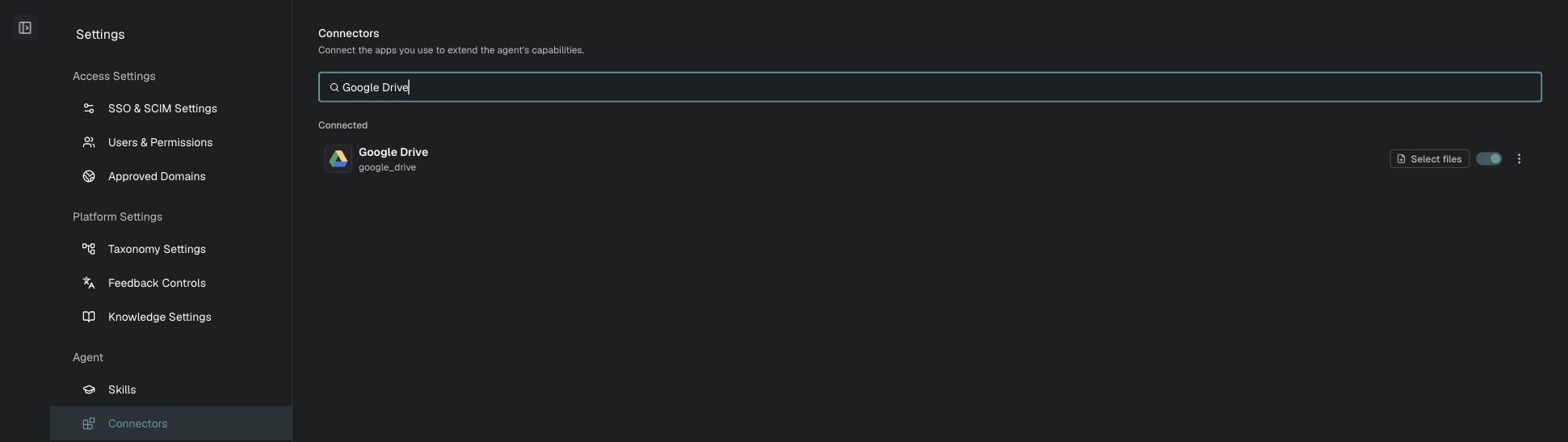
Open Settings → Agent → Connectors and search for Google Drive. Select files appears beside your connected, enabled account.
The connector menu inside an Agent session enables or disables the connector. To choose which files are available, open the connector settings.
3. Choose the files to use
Select Select files beside Google Drive.
In Google's file selector, choose only the files you want Enterpret to access.
Confirm your selection.
Wait for confirmation in Enterpret before asking Agent about the file.
Start with a non-sensitive test file. You can reopen Select files later to add more files. Cancelling the selector returns you to the connector settings page without adding files.
Pasting a Google Drive link into a chat does not, by itself, authorize Enterpret to access an existing file.

4. Try your first request
Open Ask Agent, enable Google Drive from the connector menu, and ask:
Use Google Drive to summarize the file [selected file name]. Do not create, edit, move, delete, or share anything.
To check the connection without reading file contents, ask:
List up to five Google Drive files available to Enterpret. Show names and file types only. Do not change anything.
Understand your access
Enterpret uses Google's per-file permission, drive.file. It does not receive permission to browse your entire Google Drive.
Existing files become available only when you explicitly select them.
Files created through the connected app may also be available.
Selecting a file does not make it public.
Enterpret cannot access files that the connected Google account cannot access.
The drive.file permission is not inherently read-only. Actions on authorized files may include changes when both your Google permissions and the connector's supported tools allow them. Review Google's consent screen and any action approval shown in Enterpret before continuing.
Troubleshooting
What you see | What to check |
|---|---|
No Google sign-in or file selector appears | Allow pop-ups for Enterpret, then try again. |
Your organization blocks the connection | Ask your Google Workspace administrator to approve Enterpret for your organization. |
Google Drive is connected, but Agent does not use it | Enable Google Drive in the Agent connector menu and explicitly ask Agent to use Google Drive. |
A file cannot be found | Open connector settings, choose Select files, and confirm that the file was selected. Check that the connected Google account can open it. |
A Drive link does not work | Select the existing file through the Google file selector. Pasting a link alone does not authorize access. |
The wrong Google account is connected | Reconnect Google Drive and choose the intended account during Google authorization. |
Getting help
If you need help, contact your Enterpret representative with the connected Google account domain, the step where the problem occurs, and the exact error message. Do not share passwords, access tokens, or sensitive file contents.
For shared connector concepts and connection status, see Connectors.
For details about Google's per-file permission, see Google Drive API authentication and authorization.