
Kustomer
Overview
Connect Kustomer to import support conversations as feedback.
The integration uses a Kustomer API token. The default polling interval is four hours; your connection may use a different configured schedule. Fetching and processing affect when records become available.
How it works
Enterpret retrieves eligible conversations and their messages on the configured schedule. Whether new messages or metadata changes update an existing record depends on the integration’s ingestion and mutability settings.
Conversation coverage depends on your integration configuration. Some connections fetch completed conversations, while configurations that read created or updated conversations can include open tickets.
If you need changes to tags, custom fields, or messages reflected after first import, contact your Enterpret team to confirm the mutability and update coverage configured for your connection.
Configure
Kustomer API Key Creation
Reference Link: https://help.kustomer.com/api-keys-SJs5YTIWX
Step 1: Log in to your Kustomer account, and go to Settings > Security > ApiKeys
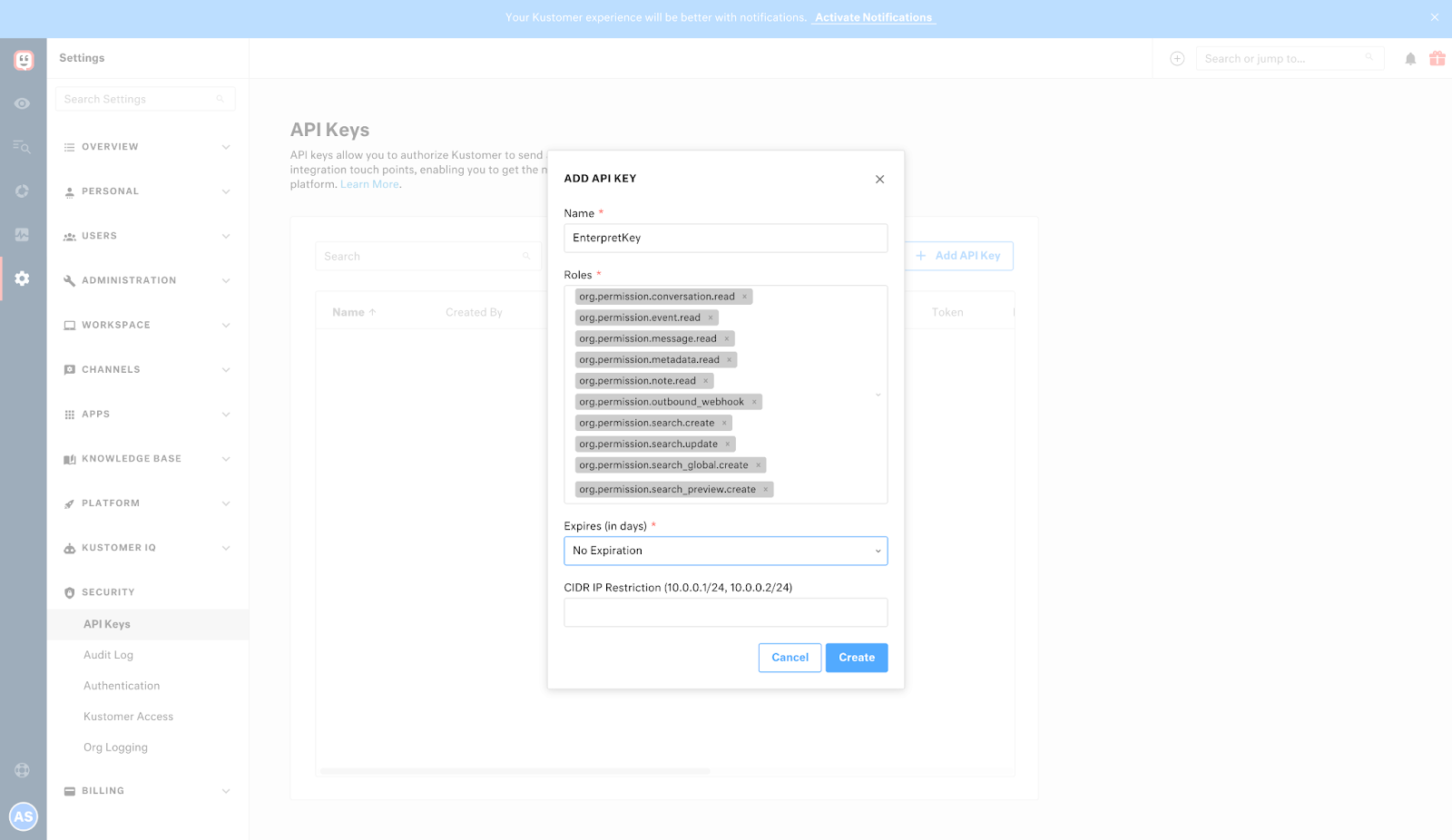
Step 2: Click on Add API Key button, it opens a modal to add the required configuration for ApiKey
Name: Some name for the key
Roles: Ask your Kustomer administrator to grant the read and search access needed for the conversations and customer context you intend to import. The identifiers below are examples from the documented setup; confirm their current names and necessity in Kustomer before granting them.
To Read Conversation:
org.permission.conversation.read
org.permission.event.read
org.permission.message.read
org.permission.note.read
To read customer metadata
org.permission.metadata.read
org.permission.customer.read
For Searching Records in Specific Time Range
org.permission.search.create
org.permission.search.update
org.permission.search_global.create
org.permission.search_preview.create
To read Tags associated with conversation
org.permission.tag.read
Optional webhook setup, when supported for your connection: ask your Kustomer administrator and Enterpret team to confirm the current outbound-webhook permissions. The example identifier below does not by itself enable real-time ingestion.
org.permission.outbound_webhook
Choose the key-expiration setting required by your organization and arrange replacement before it expires. An expired key can stop ingestion.
Step 3. Select Create, then Copy Token. Use the copied token in the next section to connect Kustomer in Enterpret.
Authorize Enterpret to access Kustomer data
Click on "Sign in with Google" and log in with your work email
Once you have logged in successfully, click the logo icon on the left sidebar to open the navigation menu, then select Integrations.
Select + New Integration, find Kustomer, and select Connect on its card.
Paste the token copied in the above steps in the dialogue box that opens and click on "Connect"