
How to Close the Loop with Customers After Shipping Features?
Start with Enterpret Agent and automations
Ask Enterpret Agent to find feedback requesting a shipped feature and draft a customer follow-up grounded in the release details you provide. State the sources, filters, reporting dates, and output you need, then check the supporting records.
Use scheduled Agent automations for recurring reporting, daily summaries, weekly digests, or scheduled follow-up preparation. Use connectors when you need external context or a supported action, and review permissions and the intended audience before any outreach. The chart and export steps below are available when you need a saved view or a manual workflow.
You've just shipped a feature your customers requested - congratulations! Now comes the crucial part: letting those customers know their voice was heard. This guide will show you how to use Enterpret to identify customers who requested your feature and engage with them effectively across different channels.
Before You Start: Understanding Feedback Sources
Each feedback channel has different contact information we can use to close the loop.
Support tools (like Zendesk): We can identify users with email addresses
Social media: Post URLs
App store reviews: an author label or source link may be available, but a direct contact email may not be provided. Inspect the original source and the response options your team is authorized to use.
Community forums: Post URLs
Pro Tip: Create a Unified Field called "Links" to consolidate external URLs from different sources. You can then plot this unified field to get all the URLs in one go.
Step-by-Step Guide
Identify How to Reach Customers
For each source, you can plot relevant contact fields:
Email addresses (from support tools)
Post URLs (from social media/forums)
External reference URLs
To do this:
Start by getting a source breakdown to understand where your feedback is coming from. This helps identify how to approach closing the loop for each channel.
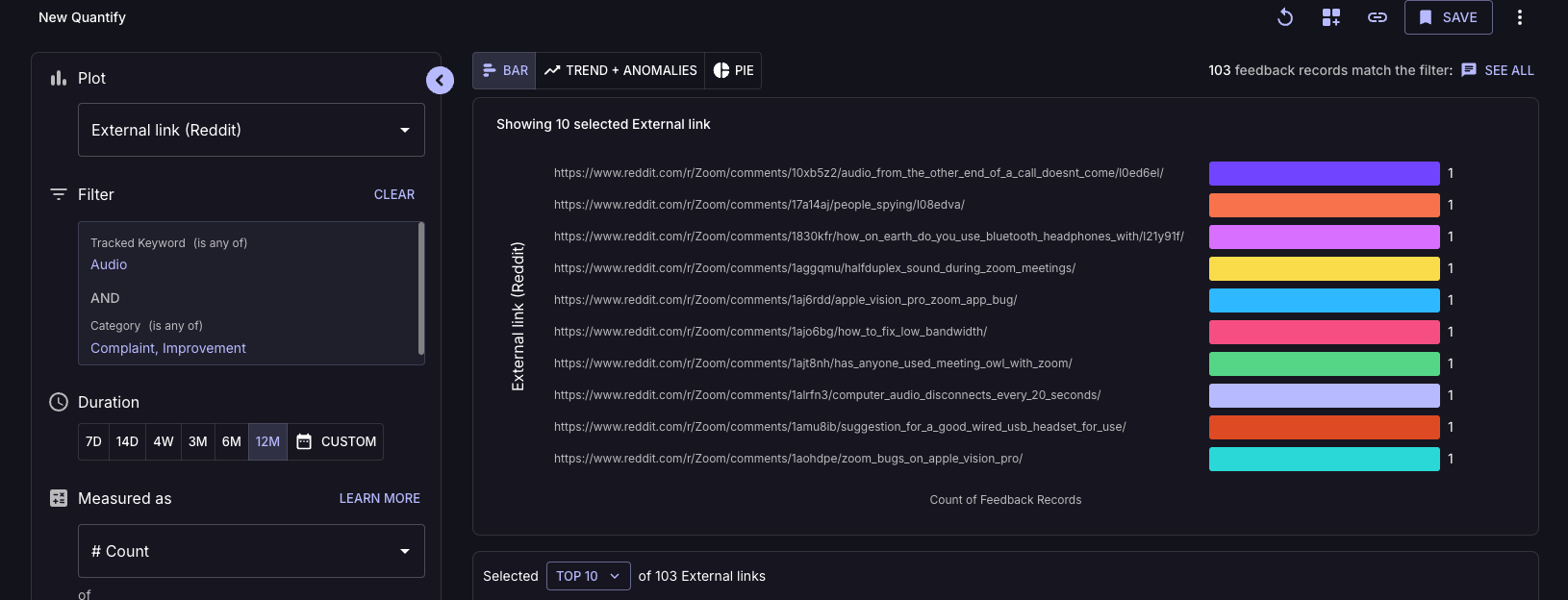
Plot: Source in Quantify
View: Bar chart to visualize distribution
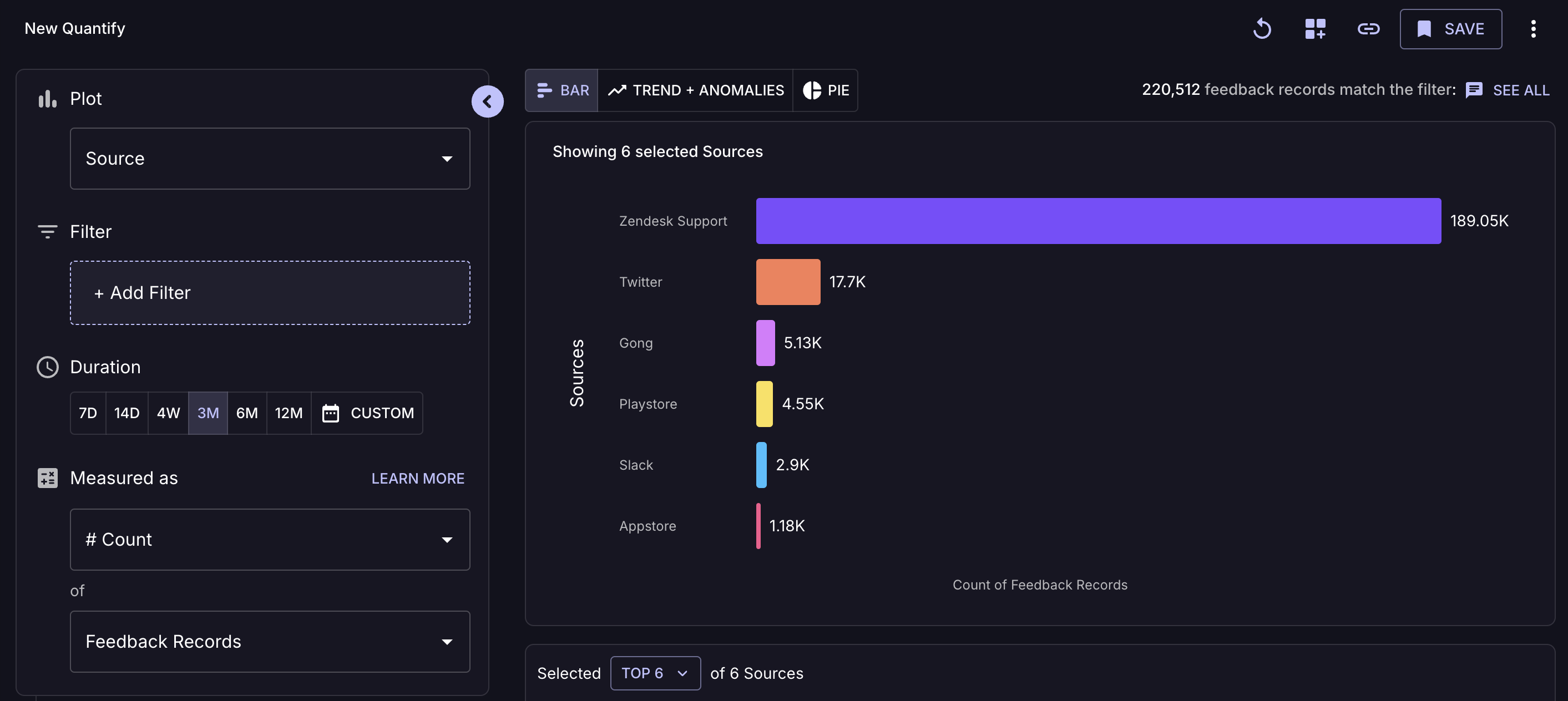
2. Plot fields that contain contact information. For example, to find customers who provided feedback through Intercom or Zendesk:
Plot: Email
This gives you the email is of users who contacted via Zendesk.
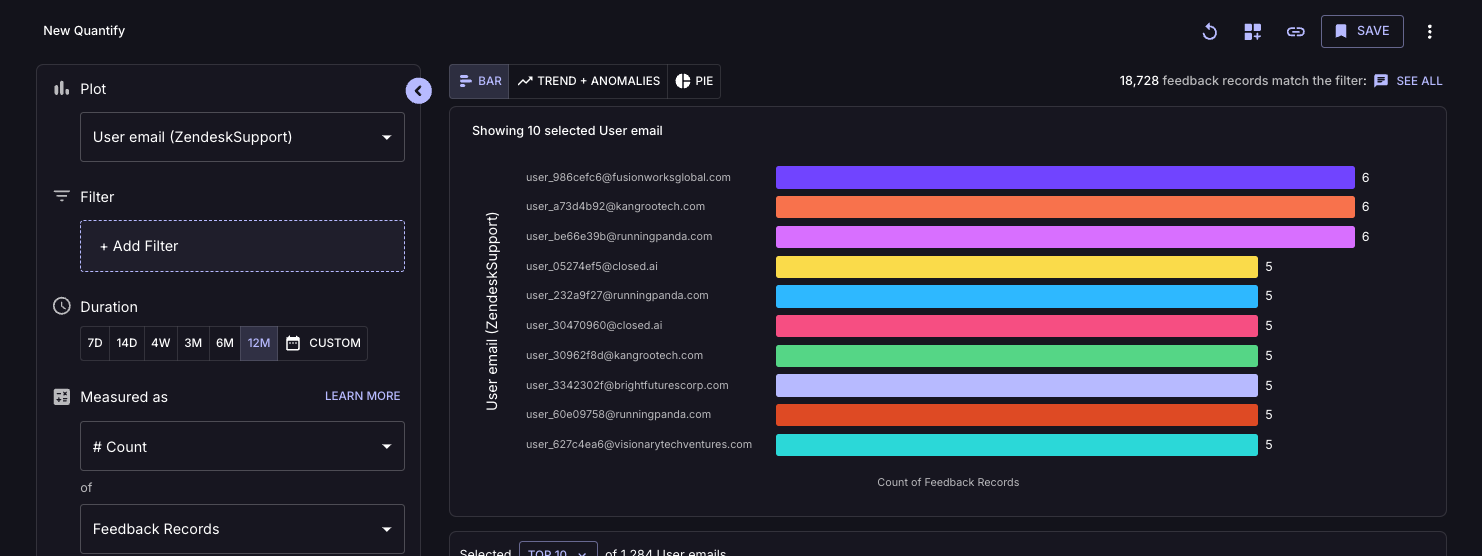
3. Similarly for Twitter/Reddit and other social channels:
Plot: External Link metadata field for the social media channeel
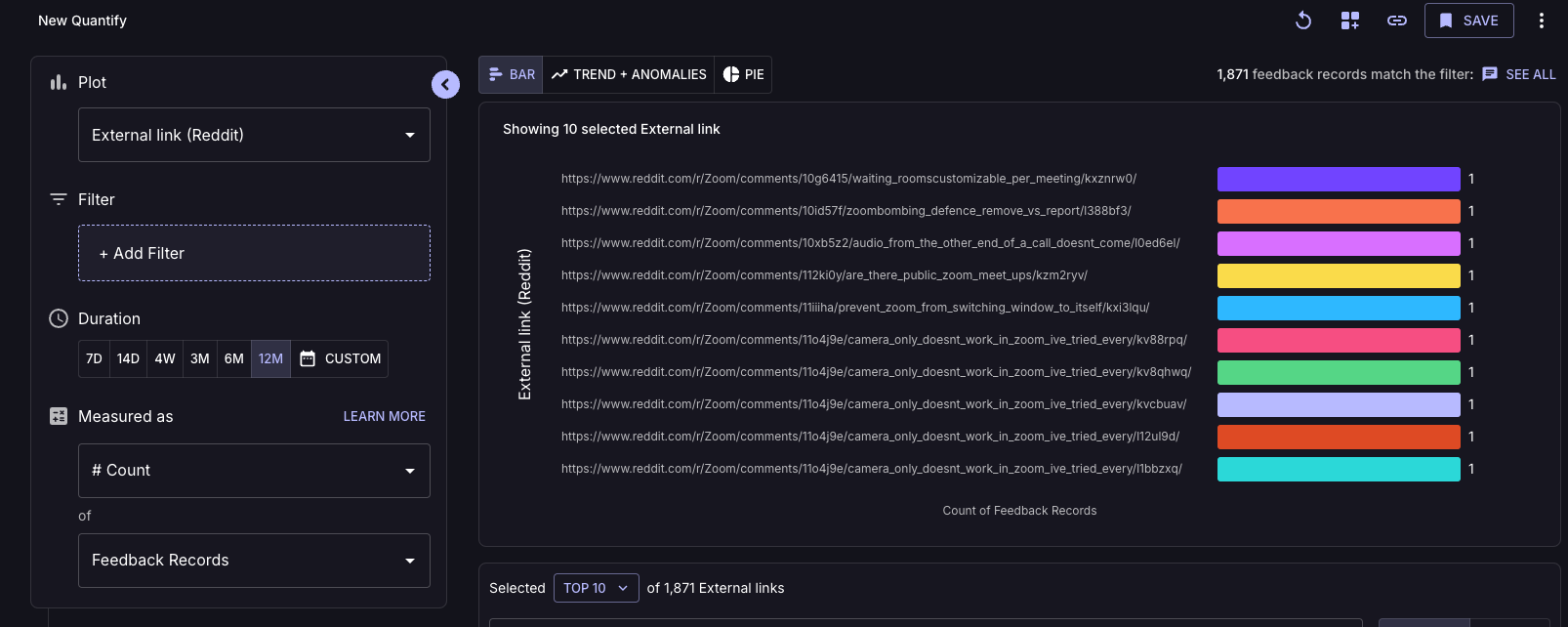
4. Zero down on your newly launched feature area with filters:
Add your feature's Tracked Keyword
This narrows feedback to just your feature of interest
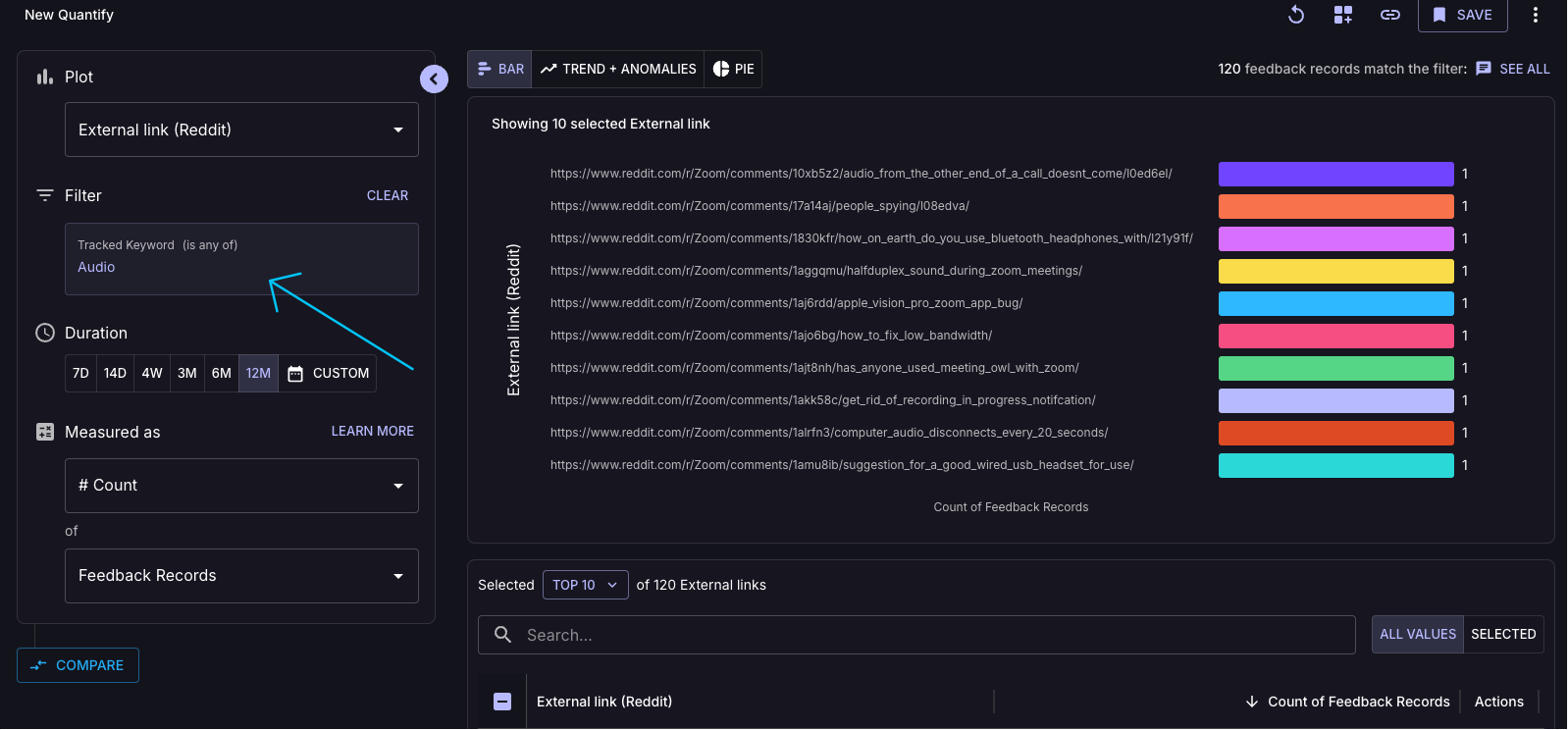
5. Further filter by categories to identify:
"Improvement" for feature requests
"Complaint" for users who shared pain points
6. Once your Quantify is ready, click "Export Feedback" to get your list of customers to contact
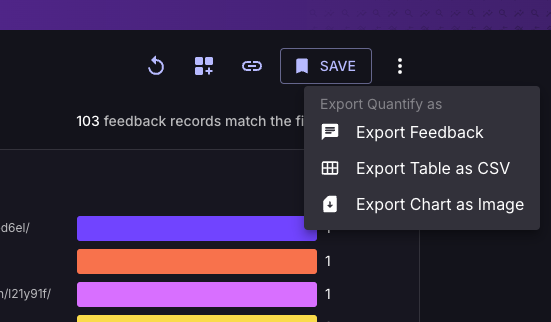
Pro Tip: Create separate exports for different channels since you'll need different outreach approaches for email versus social media.
Close the loop with customers
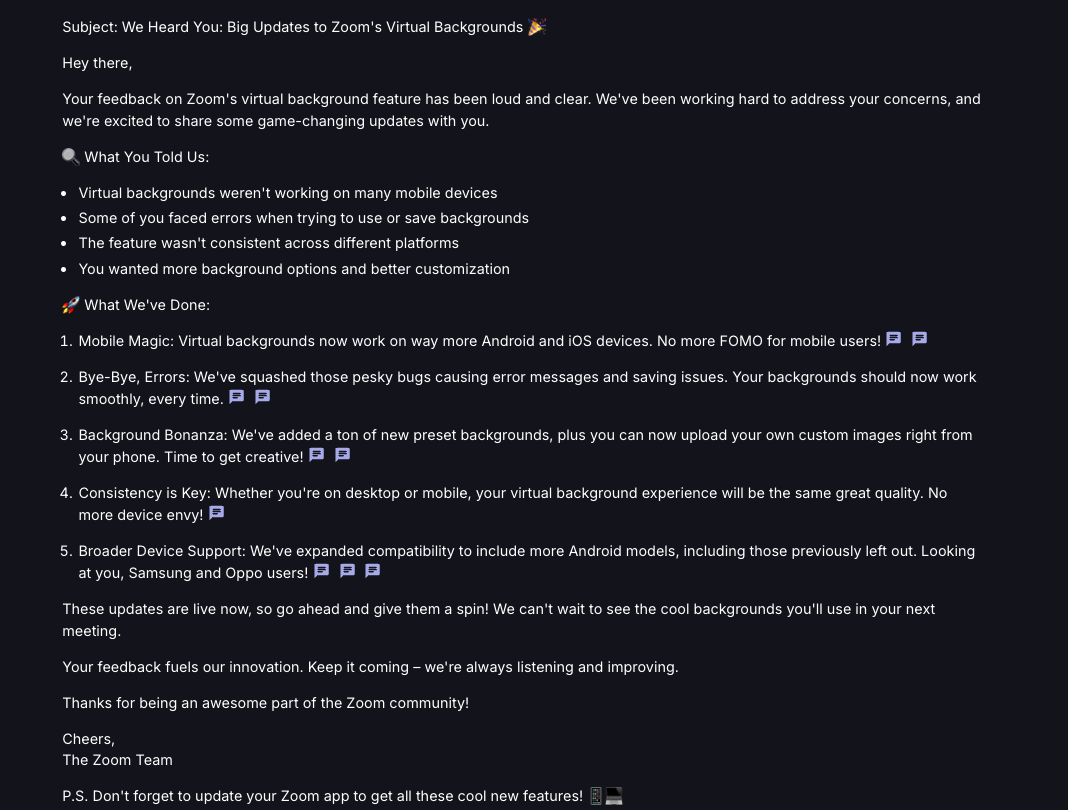
Use Enterpret Agent where available, or your workspace's Wisdom experience, to draft a message. Review the feature claims, audience, and wording before sending it through your team's approved outreach process. Sample prompt:
We just launched [Feature Name] which allows users to [describe core functionality]. The feature is now live and based on the feedback we've received, help me draft a modern, direct-tone {email/tweet/message} (under 300 words) to celebrate these launched improvements with our users. Focus on what we heard and what we've already delivered, using casual language and clear formatting with emojis. This is for a marketing campaign to drive feature adoption.
Organize Your Outreach
Based on source:
Support tools: Export email list for your email campaign tool
Social media: Use exported URLs to find original posts
Community forums: Use post URLs to respond in-thread
Track Impact of the exercise
Create a "Post-Launch Feedback" dashboard:
Set up Quantify to track new feedback about your feature
Add Feed summaries to capture qualitative responses
Where supported, enable anomaly detection to inspect flagged increases in feedback. Review the scope, time window, measure, and source records; a flag is not a guarantee of statistical significance or of detecting every reaction.
Pro Tip: If your workspace offers a Feature Launch Impact Tracker Dashboard template, inspect and adapt its widgets. Otherwise build a blank Dashboard with the analyses you need.
Common Questions
Q: How do I handle anonymous feedback?
A: Use the contact information or source links actually available for each record. An App Store author label does not establish a person's identity or provide an email address. Review the source platform's response options and your team's outreach process before contacting anyone.
Need Help in setting this up?
Contact us for assistance via Slack, in-product help button or support@enterpret.com