
Getting Started with Sales Intelligence
CRM win/loss reasons are often too vague to drive confident decisions. Product and GTM teams spend hours piecing together CRM fields, Gong calls, emails, and notes to understand what actually happened, and many closed deals never get analyzed at all.
Sales Intelligence combines synced CRM deal fields with linked conversation or feedback records to help investigate wins and losses. Available insights depend on the data, links, and processing status.
Win and loss patterns: Compare available reasons and deal amounts. Check the definition of your amount field before treating it as ARR.
Product gaps to investigate: Compare associated deal counts or amounts, using the intended measure.
Supporting evidence: Inspect linked records and citations before relying on a generated explanation.
Deal context: Open a deal to inspect its available CRM fields, linked feedback, and generated analysis, or ask Enterpret Agent a scoped question.
Who This Is For
Product leaders (CPO, VP Product): strategic view of what's blocking revenue, features that win or lose deals
Product managers: Deep-dive into product gaps in their area, prioritize with revenue signal
Sales leadership (CRO, VP Sales): Align with Product on what needs building, evidence-backed
Product Marketing: Competitive insights, what messaging is landing
What's Included
Capabilities
Deals: Browse and filter all deals: see win/loss reasons, use cases, features, competitors at a glance
Deal Detail: Review available reports, linked feedback, CRM fields, and predictions. A report may be pending or unavailable when no supporting records are linked.
Quantify: Aggregate patterns with ARR impact: loss reasons breakdown, win rate by competitor, top product gaps, what's driving wins
Enterpret Agent: Custom analysis on demand: ask focused questions across your available deal data ("Why are we losing to Competitor X?")
Data Sources
Salesforce: Opportunity metadata like amount, stage, close date, owner, and account
Gong: What prospects actually said: the real signals from calls
HubSpot: Deal metadata like amount, stage, close date, owner, and associated company
Getting Started
Prerequisites
Permission to create integrations in your Enterpret workspace. Ask your workspace administrator if Deals integration controls are unavailable.
A Salesforce or HubSpot account authorized to approve the requested OAuth access to the relevant CRM objects and fields.
A supported feedback source to link to your Deals, such as Gong, connected or ready to connect
Note:
If you do not see Deals Integration in your workspace, contact your Enterpret team to confirm access and supported deal sources.
Connect one Deals source per workspace. A paused Deals source still prevents you from adding another. This guide covers Salesforce Opportunities and HubSpot Deals.
Connect Salesforce Opportunity Integration
Connect Salesforce Opportunity Integration
Go to Integrations → New Integration
Select Salesforce
Select Deals Integration type
Approve the requested OAuth access using an authorized Salesforce account.
Select Opportunity as the object type
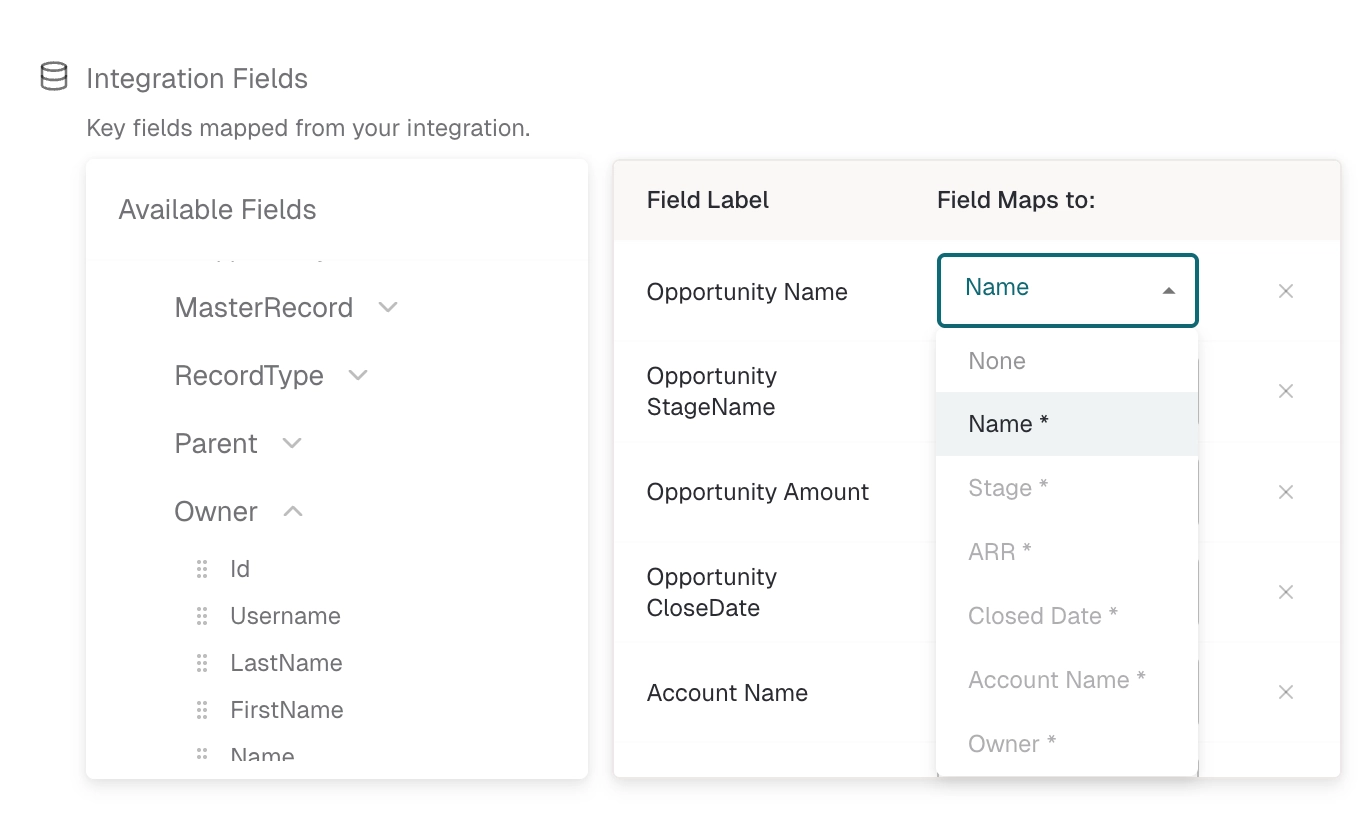
Drag and drop any CRM fields you want to sync into Enterpret. These fields will be available as deal metadata for filtering, segmentation, and analysis.
Complete field mapping for the required deal fields below. These fields must be mapped before the integration can be completed.
Field | What to Map |
Deal Name | Opportunity name |
Deal Stage | Opportunity stage |
Deal Amount | Value |
Close Date | Actual close date |
Account Name | Company name |
Lead | Opportunity owner (AE) |
Connect HubSpot Deals Integration
Connect HubSpot Deals Integration
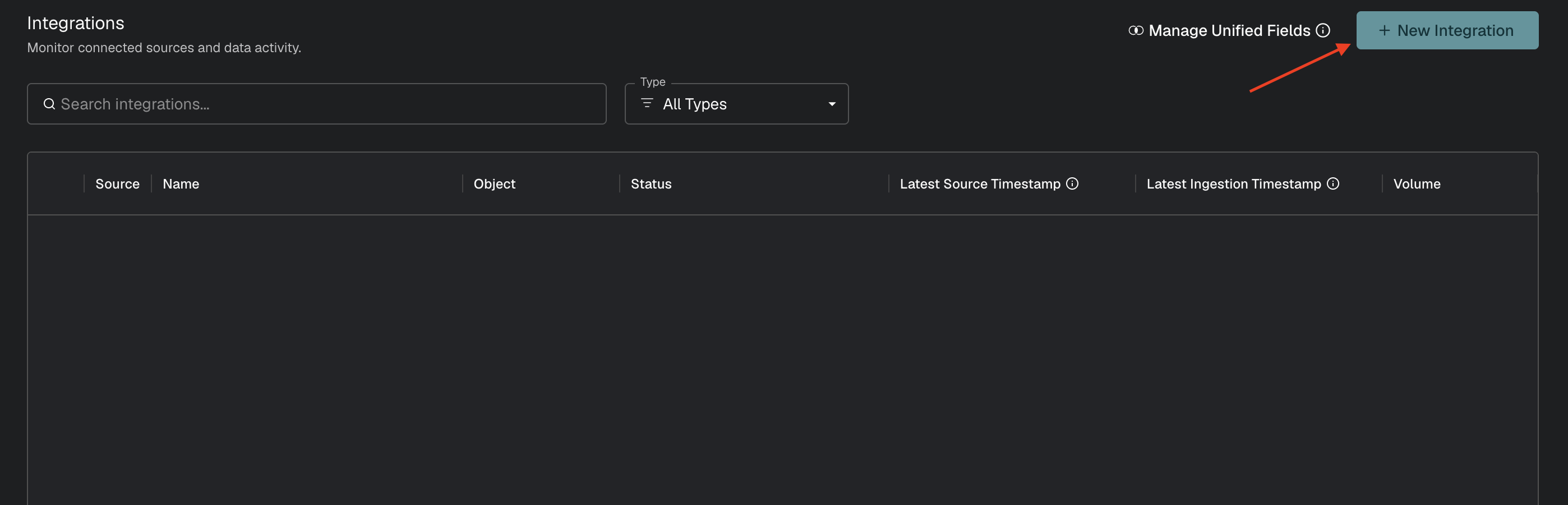
Go to Integrations → New Integration
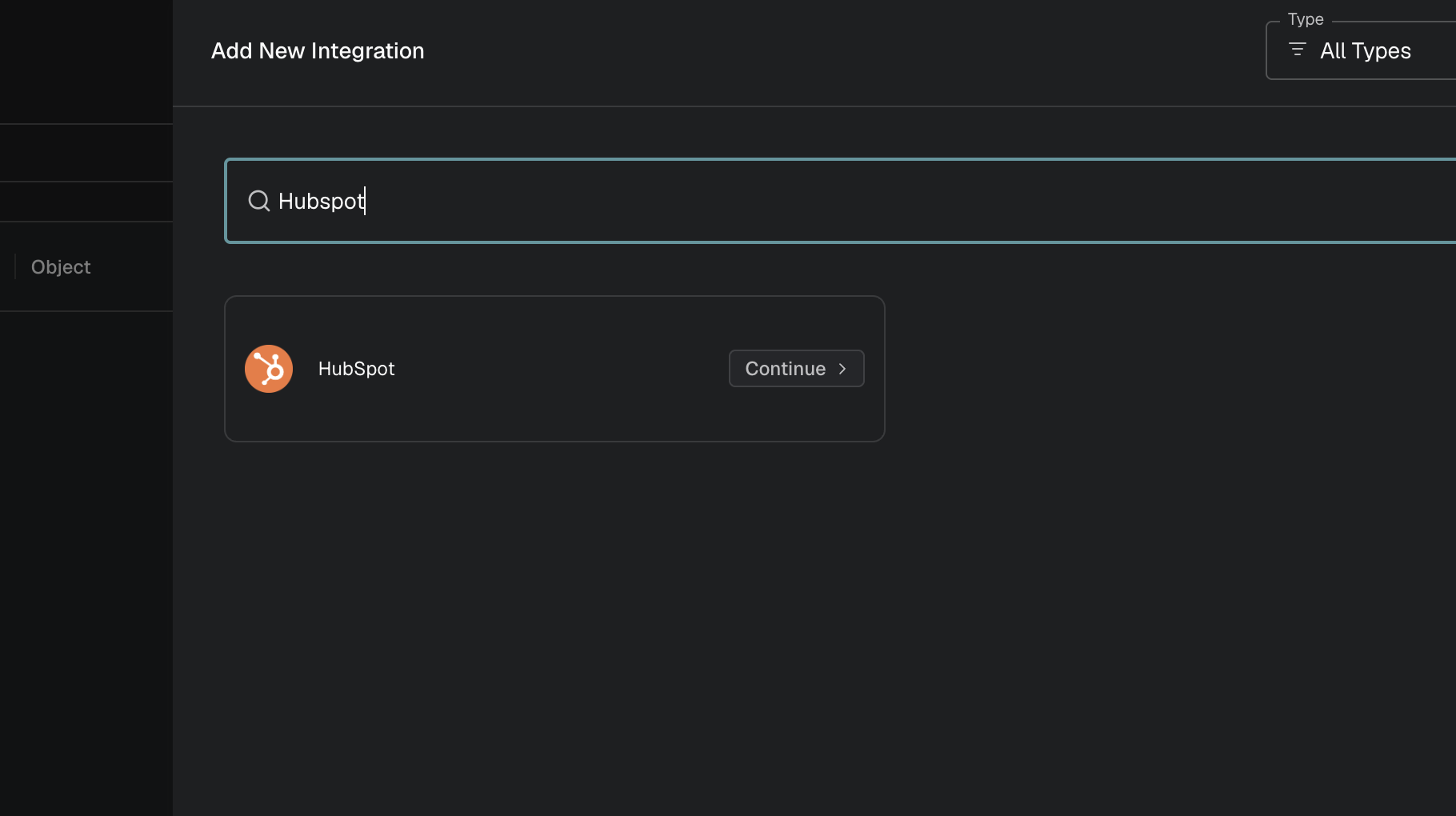
Select HubSpot
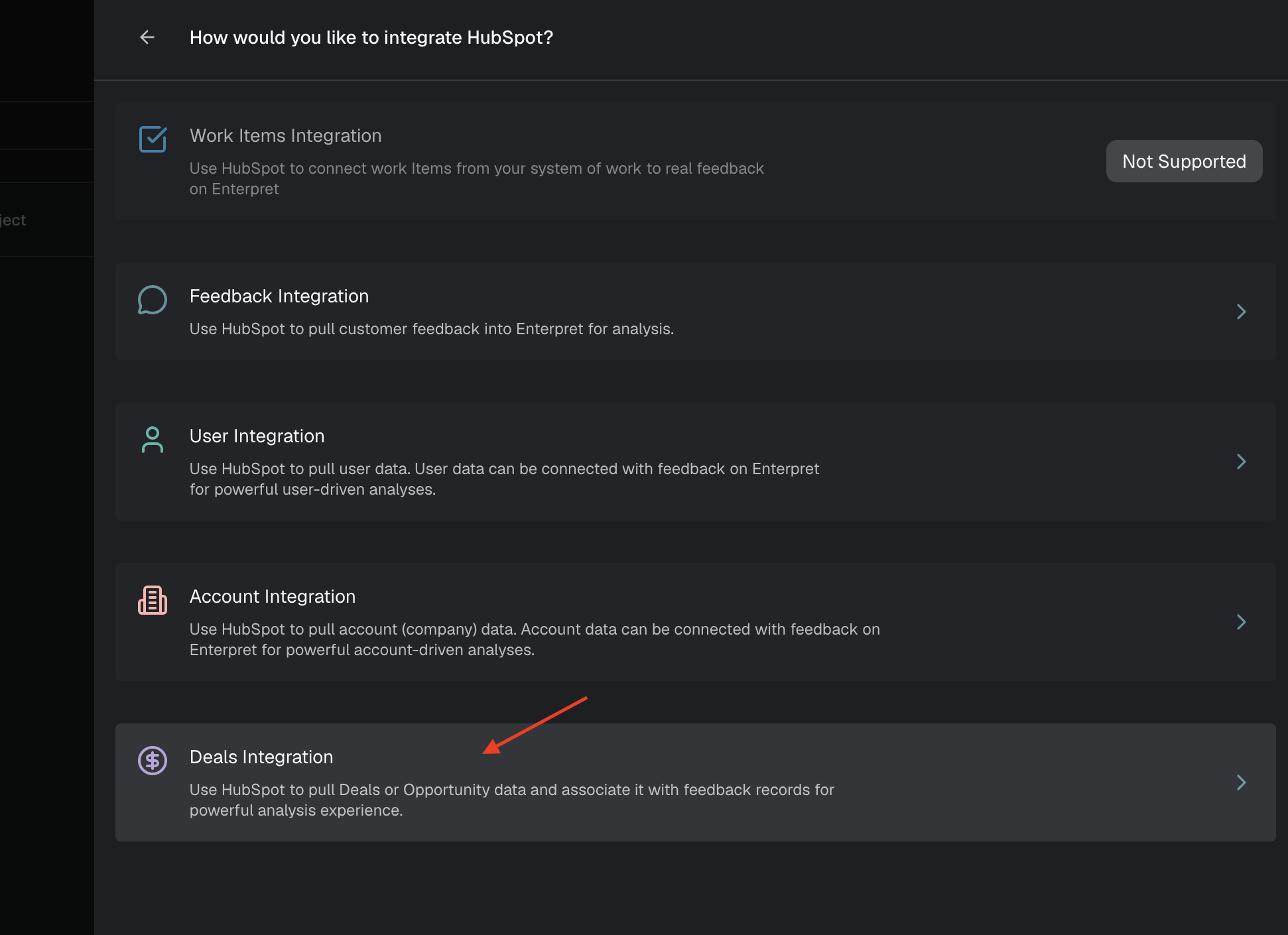
Select Deals Integration type
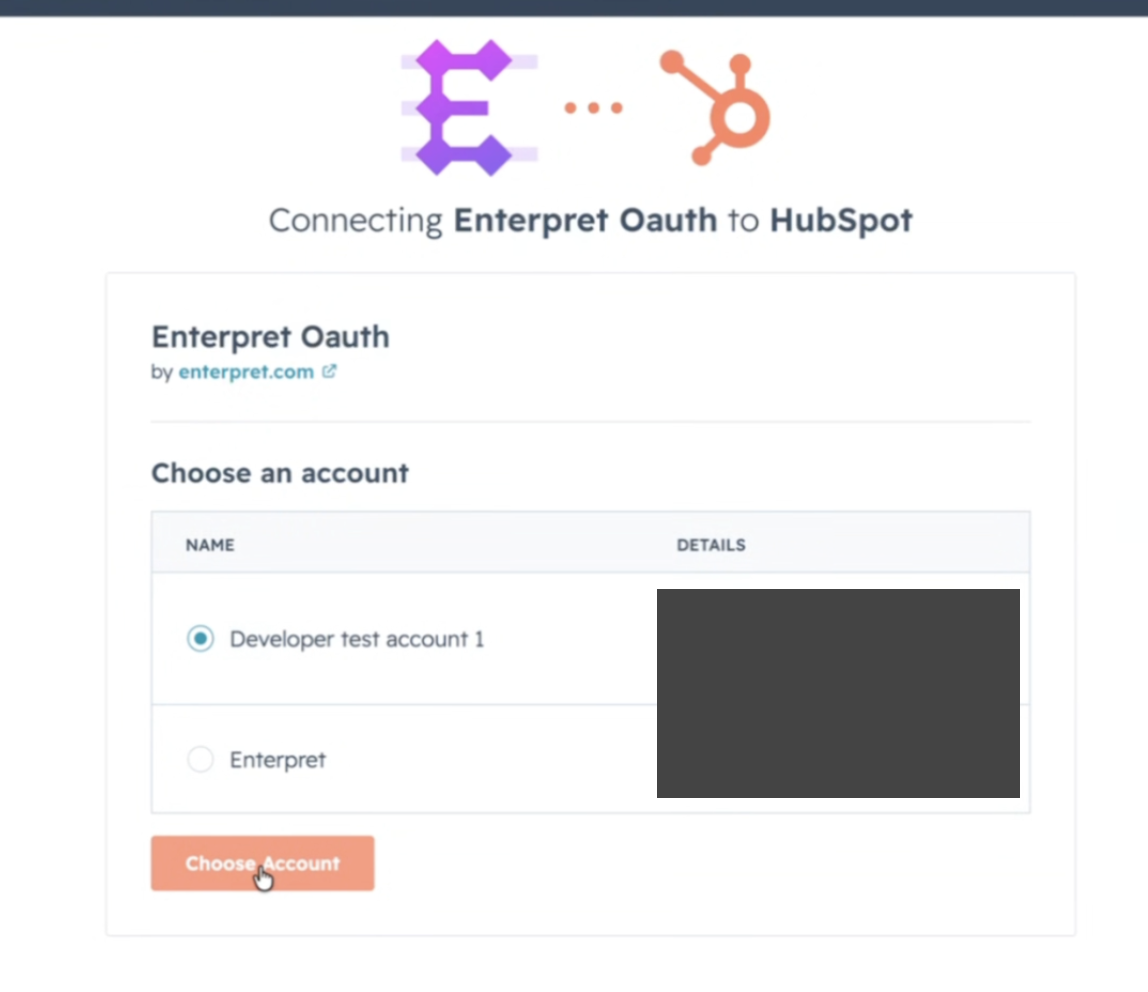
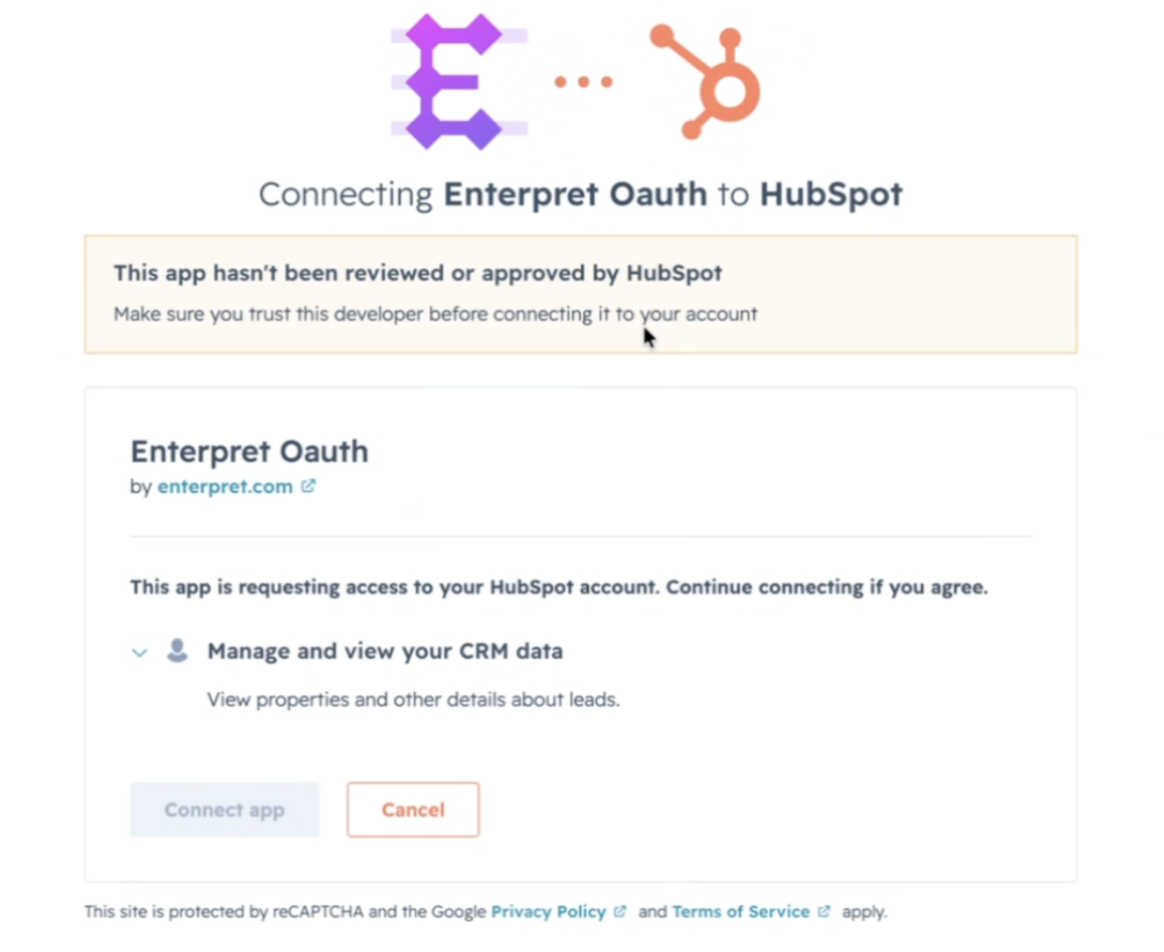
Approve the requested OAuth access using an authorized HubSpot account.
Select 'Manage and view CRM data'
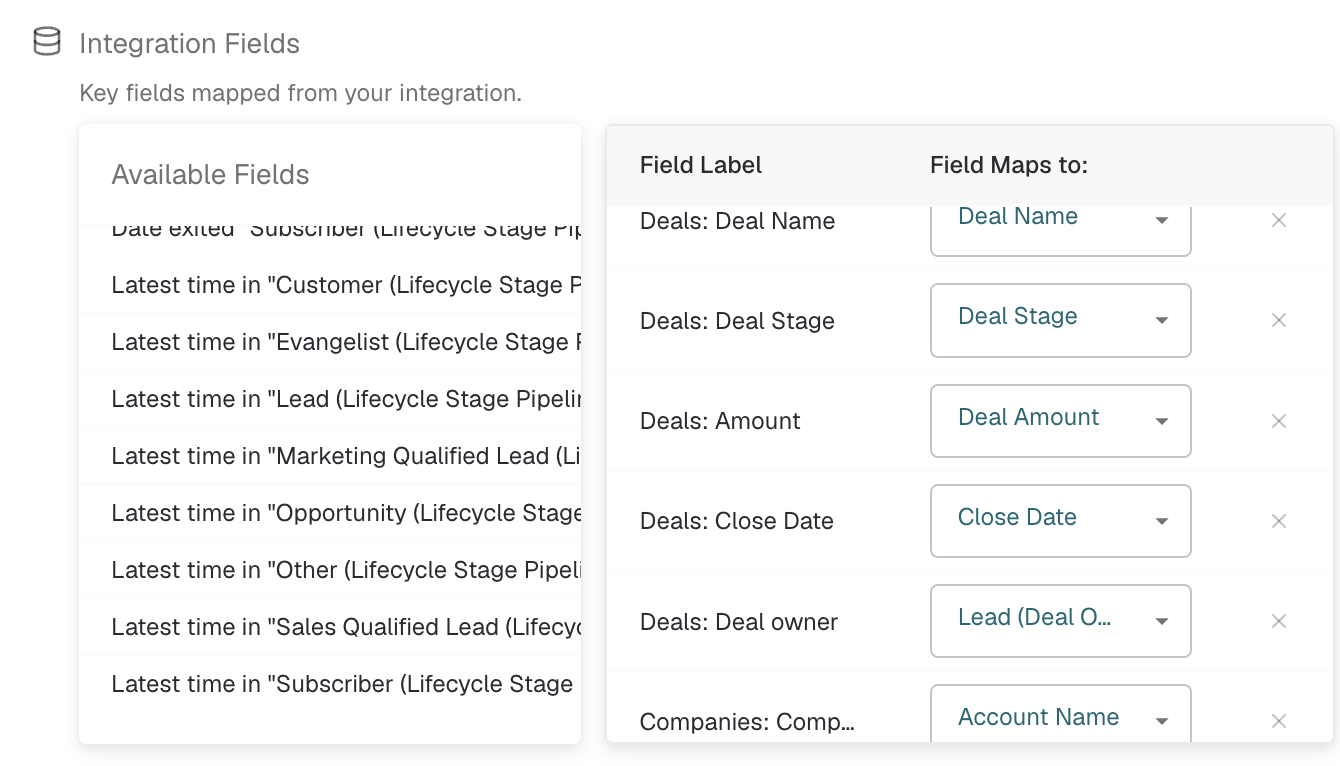
Drag and drop any CRM fields you want to sync into Enterpret. These fields will be available as deal metadata for filtering, segmentation, and analysis.
Complete field mapping for the required deal fields below. These fields must be mapped before the integration can be completed.
Field | What to Map |
Deal Name | Deal name |
Deal Stage | Deal stage |
Deal Amount | Amount |
Close Date | Close date |
Account Name | Company Name |
Lead | Deal owner |
Connect Salesforce or HubSpot Feedback Integration (Optional)
Connect Salesforce or HubSpot Feedback Integration (Optional)
If you have feedback in Salesforce or HubSpot (deal notes, emails, etc.), you can bring it in:
Go to Settings → Integrations → New Integration
Select Salesforce or HubSpot and approve OAuth
Select Feedback Integration type
Select the object containing your feedback (e.g., Opportunity, Notes, Tasks, Case)
Make sure to include the Opportunity ID or Deal ID field with any feedback you bring in. This lets us link feedback to the connected deal record.
Complete the integration
Feedback can be linked to deals via Opportunity ID or Deal ID (see below).
Connect Gong
Connect Gong
Go to Settings → Integrations → New Integration
Select Gong and complete OAuth using an account authorized to grant the requested access.
Complete the integration
Calls will be linked to deals via Opportunity ID or Deal ID (see below).
Linking Feedback to Deals
Linking Feedback to Deals
Once your CRM Deals integration and a supported feedback source are set up, link your feedback records to the connected Deals source. If you also connected Salesforce or HubSpot feedback, make sure those records include the relevant Opportunity ID or Deal ID so they can be linked to the right deal.
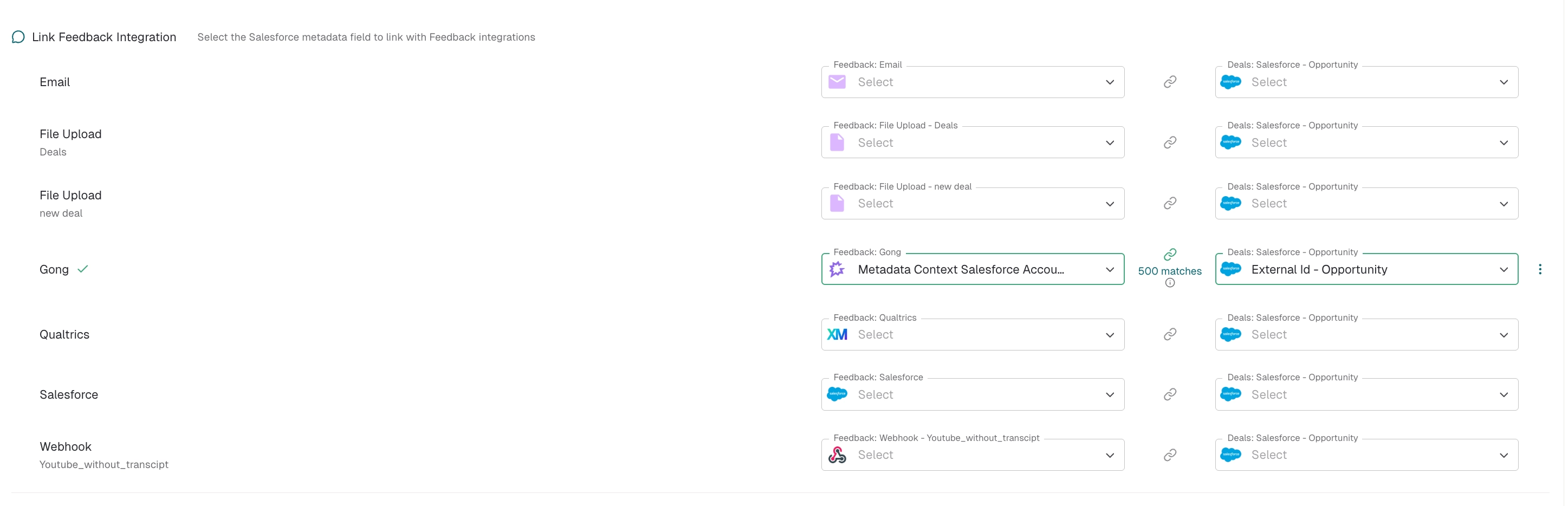
Go to Integrations and select the Salesforce Opportunity integration or HubSpot Deals integration.
Go to the section Link with Feedback, User, and Account integrations.
Map your feedback to deals using the relevant ID field (example: "External ID - Opportunity" or "HS Object ID").
Past records will be linked retroactively, and new records will be automatically linked going forward.
What to Expect
Historical coverage depends on the source and integration configuration. Check the imported deals and close-date range with your Enterpret team.
Confirm that the intended closed deals and their supporting feedback are included.
If you’d like to extend this, please reach out to us
Initial processing time depends on source volume, linking, and the configured analysis. Check integration status and a sample of expected deals.
How to Use
Deals
Open Deals from your navigation. In the compact sidebar, choose More → Deals; some Sales Intelligence layouts show Deals directly. This opens your synced deals.
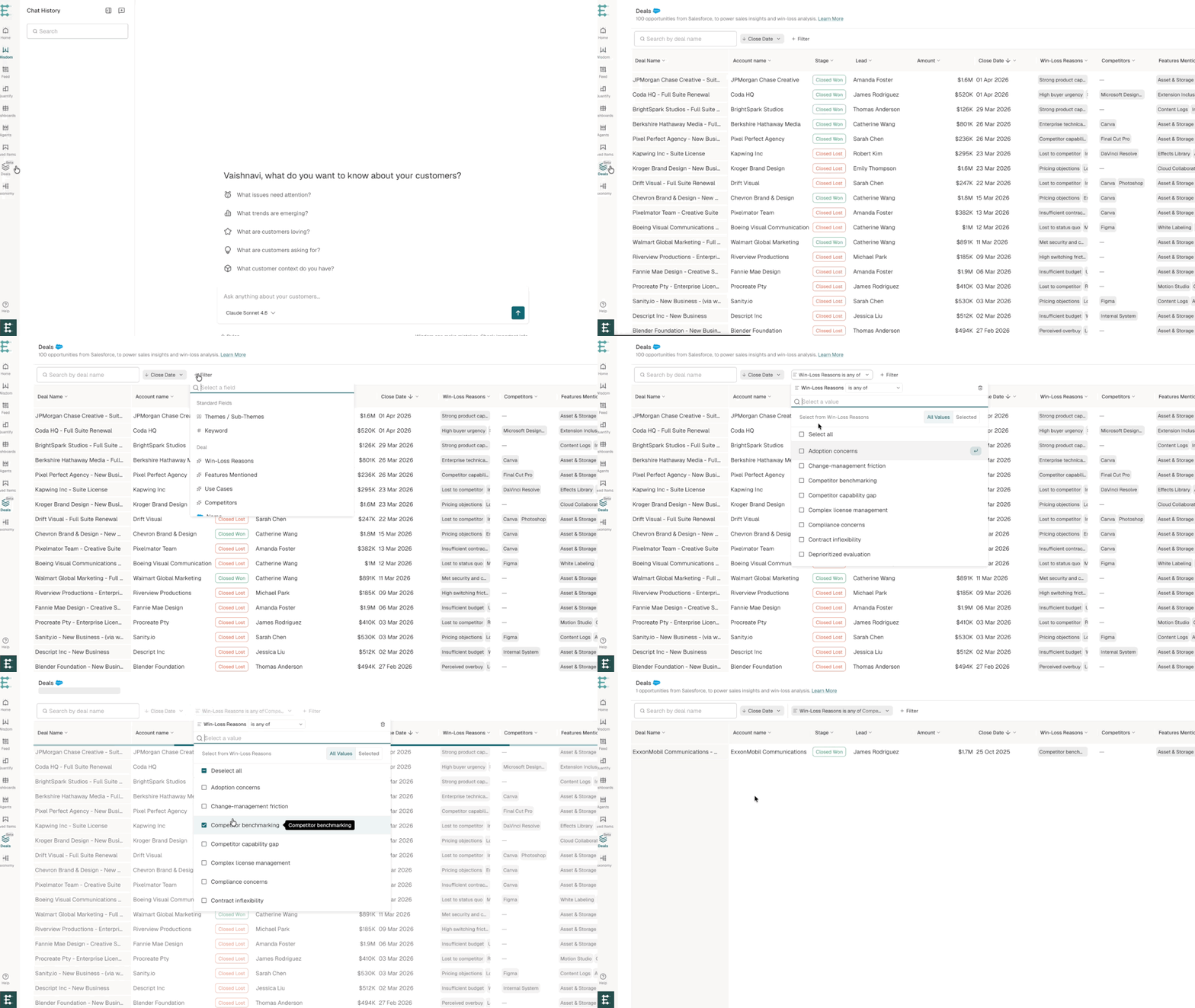
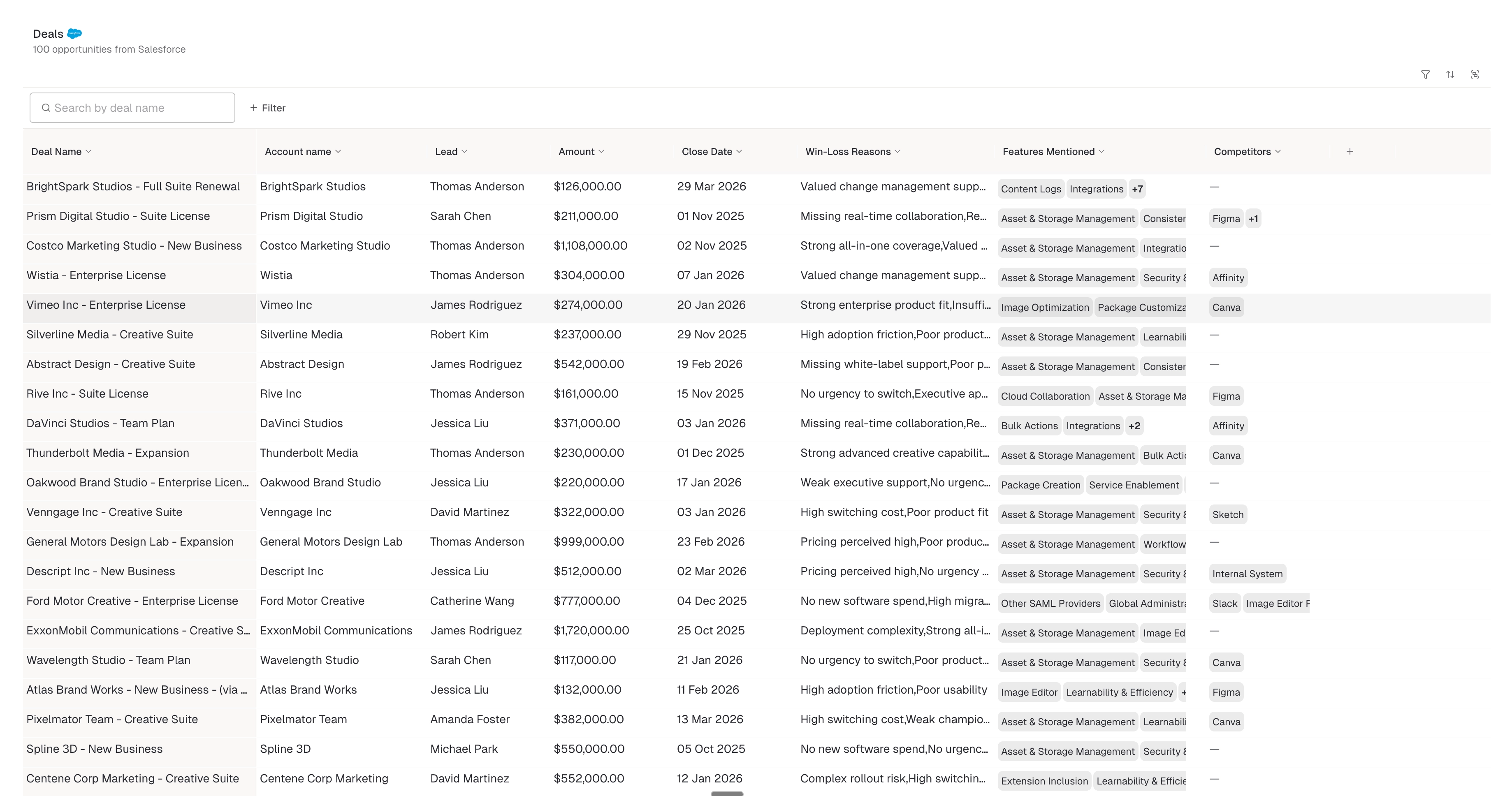
Default columns:
CRM fields: Deal name, stage, amount, close date, owner, account
Predictions: win/loss reasons, use cases, features, competitors
Customize your view:
Add or remove columns to show what matters to you
Filter by any field: deal metadata or predictions
Deal Detail
Click any deal to see what happened and why — with predictions, CRM data, and all associated feedback in one place.
Note: Standard win/loss reports focus on closed deals. Check the status shown for the deal; report availability depends on linked supporting records and workspace features.
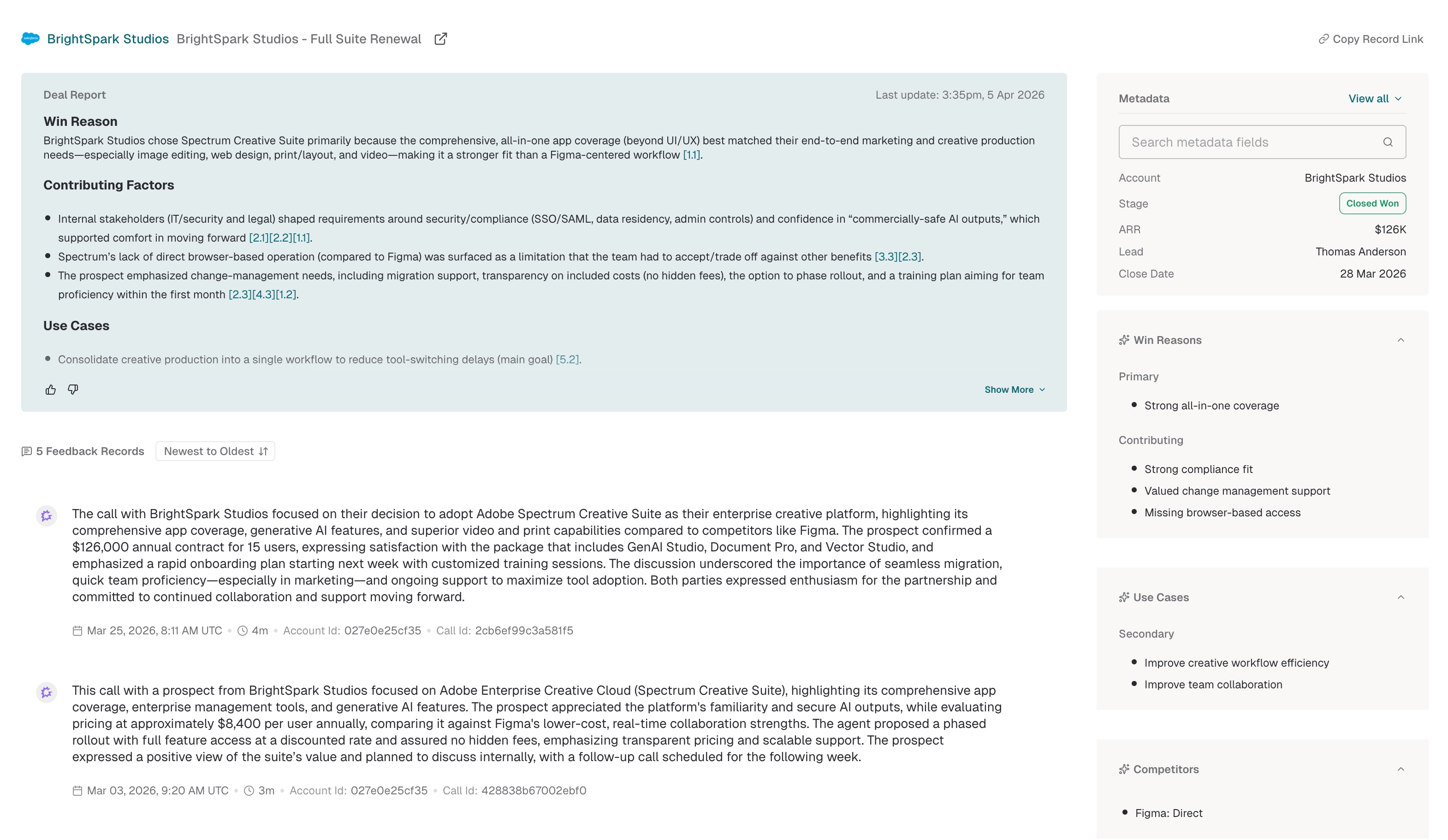
What you'll see:
Deal Report: A detailed analysis generated from your feedback data and CRM
Feed: List of feedback records associated with the deal
Metadata: All CRM data you ingested for the deal
Predictions: AI-generated insights (see below)
Deal predictions:
Prediction | What It Does |
Win/Loss Reason | Why the deal was won or lost. Shows primary reason (the main driver) and contributing factors (secondary influences). |
Use Cases | What the customer was trying to achieve. Shows primary use case (main goal) and secondary use cases (additional needs). |
Competitors | Who you were up against. Shows direct competitors (head-to-head evaluation) and indirect competitors (alternative approaches or categories). |
Features Mentioned | Product capabilities discussed in the deal. Automatically mapped to your existing taxonomy when a match is found — keeping insights consistent with your product structure. |
Rate accuracy: Every deal report has 👍 & 👎 buttons. Please use them to give feedback.
Quantify
Use Quantify to analyze patterns across all deals.
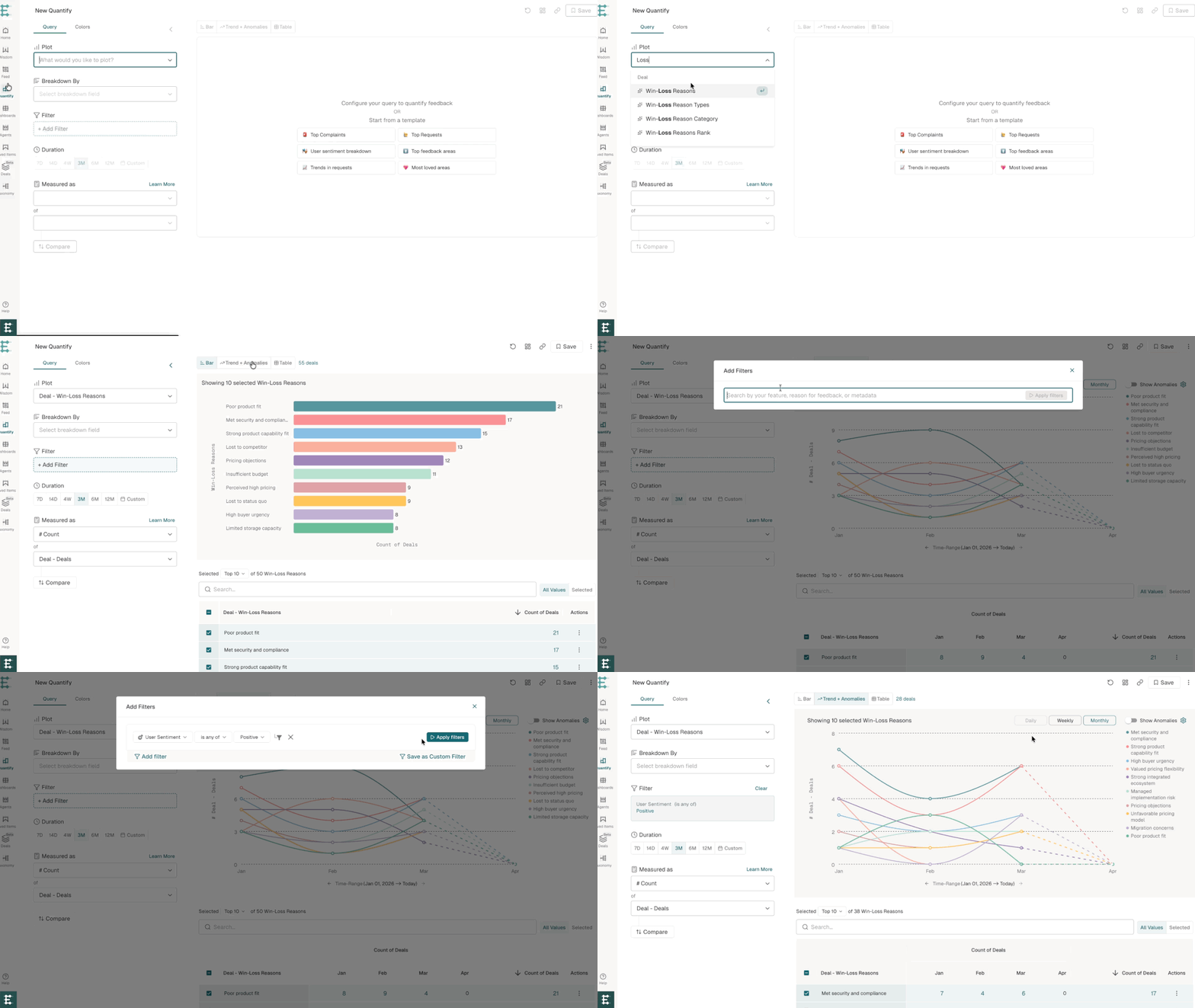
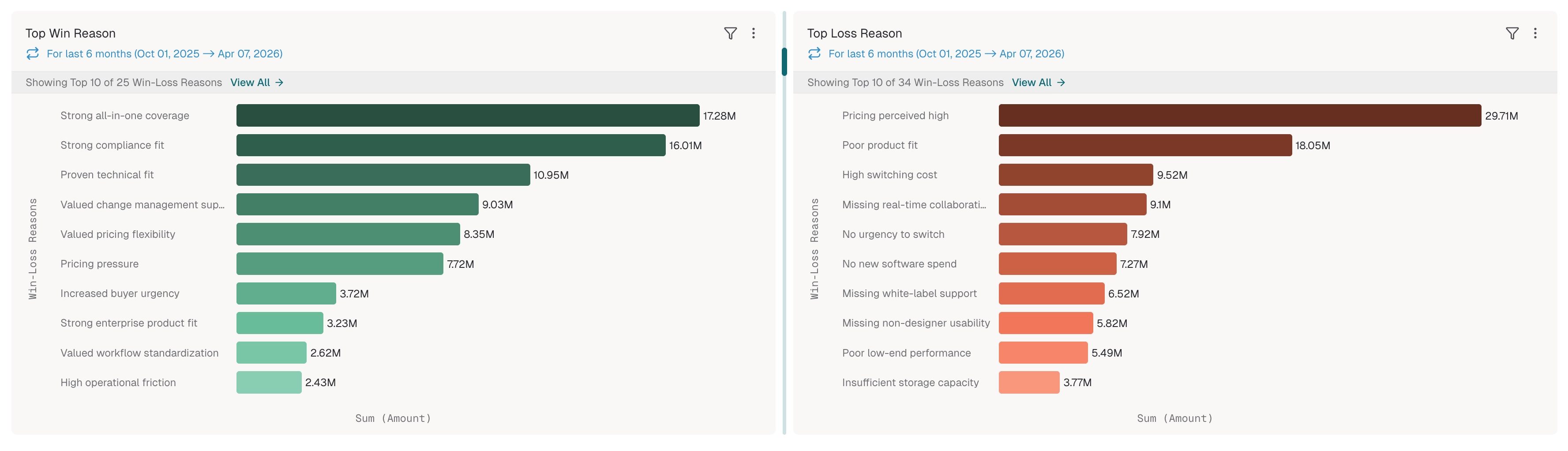
What you can plot:
Predictions: win/loss reasons, use cases, competitors, features mentioned
Deal metadata: stage, amount, close date, owner, account, and any custom fields
How to use it:
Select Deal records as your measure (for charting deals)
Choose a field to plot (e.g., win/loss reason, competitor)
Add filters to narrow your analysis (date range, industry, etc.)
Example analyses:
Loss reasons by ARR impact
Win rate by competitor
Top product gaps blocking deals
Features driving wins
Build a dashboard: Add any Quantify chart to a dashboard to create a unified win/loss view — all your key analyses in one place.
Enterpret Agent
Choose Ask Agent, or open Agent and start a new Session, depending on your navigation. Ask questions across your deals in natural language, including the population, date range, and evidence you need.
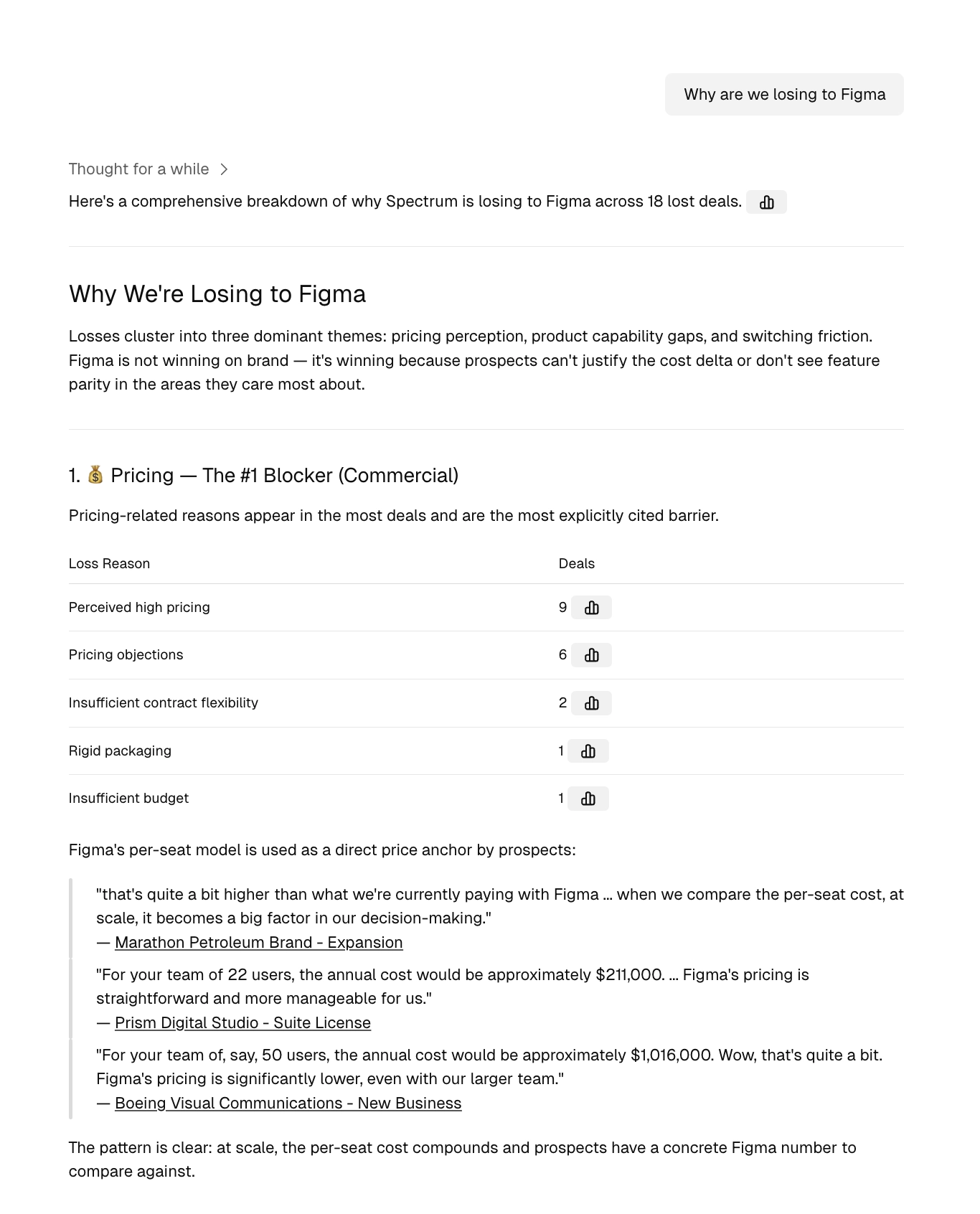
What you can ask:
Why are we losing to Competitor X?
What product gaps are mentioned in enterprise deals?
Which features helped us win deals over $100K?
What use cases are we seeing in the healthcare segment?
How it works:
Enterpret Agent can query across all your deal data — predictions, feedback records, and CRM metadata to surface patterns and answer questions that would take hours to investigate manually.
Frequently asked questions
Do I need a CRM and Gong?
Use one supported CRM Deals source, such as Salesforce Opportunities or HubSpot Deals, and link the conversation or feedback records you want to analyze. Gong is one supported conversation source. Without associated records, a Deal Report cannot be generated.
What if I don’t use Salesforce or HubSpot?
If File Upload offers Deals Integration in your workspace, ask your Enterpret team for the Deals CSV template before uploading a sample of closed deals. If you do not see that option or your deal data is in Snowflake, ask your Enterpret team which setup your workspace supports.
Can I connect both Salesforce and HubSpot?
Choose one source for Deals ingestion. If your workspace already has a Deals source, including a paused one, ask your Enterpret team about switching sources.
Why don't I see Deals under Add integration?
Deals integration options depend on your workspace and the source you select. Ask your Enterpret team to confirm the available sources.
Why don't I see insights for some deals?
Check whether the deal has linked supporting records and whether processing is complete. A Deal Report cannot be generated without associated records; CRM fields alone do not guarantee a narrative report.
How are calls linked to deals?
Calls are linked using the CRM record ID for the deal (Salesforce Opportunity ID or HubSpot Deal Record ID).
Can I edit predictions or the deal report?
Currently, you can’t edit either one. You can rate the deal report (👍/👎) to help improve quality.
Who can see this?
Everyone in your Enterpret workspace.
What if I don't have much data?
There is no fixed minimum deal count established by this guide. Small samples can produce unstable patterns. Check the number of eligible deals, source coverage, and linked feedback before interpreting Quantify results.
Feedback
Have feedback or noticing something off? Send us:
A link to the deal/view you were looking at
What you expected vs. what you saw
A screenshot (optional)