
What is the Taxonomy?
In this article
In this article group
What is the Adaptive Taxonomy?
Enterpret's Adaptive Taxonomy organizes customer feedback in a five-level hierarchy informed by your business context. Review classifications and maintain the taxonomy as your products and feedback change.
Why Adaptive Taxonomy Matters
The problem it solves:
Generic taxonomies can't keep up with business growth
Manual tagging consumes hours of team time
Flat keyword lists create overlaps and gaps
Insights lose trust when classifications don't make sense
How Adaptive Taxonomy is different:
Adaptive classification: Uses your taxonomy to classify incoming feedback. Dynamic Taxonomy can add themes and sub-themes where configured.
Five-level hierarchy: Connects product structure and feedback detail (L1 → L2 → L3 → Theme → Sub-theme)
Taxonomy design: Aim for clear, useful categories. Review coverage and overlapping classifications as your feedback changes.
Reviewable: Inspect taxonomy paths and supporting feedback, and prepare corrections when needed.
Business-aligned: Reflects how your organization actually discusses products
Review the taxonomy and representative feedback to confirm that the classifications support your analysis.
Understanding the Taxonomy Structure
A complete taxonomy path has five levels: L1 → L2 → L3 → Theme → Sub-theme. The first three levels describe product areas; the last two capture what customers say about those areas. Themes can be linked to more than one product path, so the same theme may appear under multiple areas. Categories are an attribute of feedback themes, not a sixth level. The sections below explain these parts of the same hierarchy:
1. Keywords (L1/L2/L3) - What the feedback is about
Keywords represent aspects of your product organized in three hierarchical levels, from broad to specific.
2. Themes & Sub-themes - Why the feedback was given
Themes capture the underlying insight or intent, with Sub-themes providing granular detail.
Keywords: Three-Level Hierarchy
Keywords organize your product structure into three levels of specificity:
Level 1 (L1): High-level features or feature groups. Broad product areas or major functionalities.
Level 2 (L2): Features or feature aspects. More focused sections within the high-level feature.
Level 3 (L3): Specific Sub-features or Actions. Precise functionalities or specific user actions.
Example: Ridesharing Service Keywords
Level 1: Booking
├─ Level 2: Ride Scheduling
│  ├─ Level 3: Schedule future rides
│  └─ Level 3: Modify scheduled rides
└─ Level 2: Driver Assignment
   ├─ Level 3: Driver matching
   └─ Level 3: Driver arrival time

Level 1: Payment
├─ Level 2: Payment Methods
│  ├─ Level 3: Add credit card
│  └─ Level 3: Payment method errors
└─ Level 2: Billing
   ├─ Level 3: Receipt generation
   └─ Level 3: Refund processing
Keyword Components
Each Keyword consists of:
Name: How the Keyword is recognized across Enterpret
Description: Details that help the system understand and predict it reliably
Level: The hierarchical level it belongs to (L1, L2, or L3)
Special Keyword Types
Not Specified: Captures feedback that mentions only the parent concept without additional detail.
Example: Feedback says "I love the playback feature" (mentions Playback but no L2/L3 specifics) → tagged as "Playback > Not Specified"
Misc (Miscellaneous): Contains feedback with specific patterns that don't fit existing child Keywords but aren't frequent enough to warrant their own dedicated Keyword yet.
Example: Feedback mentions a niche playback scenario that appears occasionally but not enough to create a new L3 Keyword → tagged as "Playback > Offline Listening > Misc"
Themes & Sub-themes: Understanding Customer Intent
Themes are high-level insights that emerge from customer feedback, replacing the previous "Reasons" concept. They answer: Why was this feedback given?
Sub-themes provide specific details within a Theme, enabling deeper analysis while maintaining hierarchical organization.
Theme & Sub-theme Components
Each consists of:
Name: How it's identified across Enterpret
Category: Maps to one specific Category (Help, Improvement, Complaint, Praise)
Relationships
Theme → Sub-theme (One-to-Many):
Each Theme can have multiple Sub-themes
Each Sub-theme belongs to exactly one Theme
Theme ↔ Keyword (Many-to-Many):
A Theme must map to at least one Keyword but can map to multiple
A Keyword can have multiple Themes associated with it
Sub-theme ↔ Keyword (Many-to-Many via Theme):
A sub-theme belongs to its parent Theme. Specific sub-themes can apply to only the relevant keyword paths of a multi-path Theme; General and Miscellaneous catch-alls cover all of that Theme’s parent paths.
Special Sub-theme Types
General Sub-theme: A catch-all for feedback that matches the Theme but contains no additional specificity.
Example: Feedback says "I had a billing issue" without details → tagged as "Billing Problems > General"
Misc Sub-theme:
Captures feedback with specific patterns that don't fit existing Sub-themes but aren't frequent enough to warrant their own dedicated Sub-theme yet.
Categories
Categories are high-level classifications that help uncover the intent behind customer feedback. They act as a lens, giving you a broader view of the context in which feedback is given, allowing for more effective analysis and action.
We have four distinct categories on Enterpret -
Help: The user is asking for assistance or guidance
Improvement: The user is suggesting new features or modifications to existing ones
Complaint: The user is expressing dissatisfaction or highlighting issues
Praise: The user is giving positive feedback or praising your product or service
Example: How It All Works Together
Customer Feedback: "I deactivated my account, but I'm still being charged. I just wanted to make a few videos. I'm so frustrated and can't get anyone on the phone! Please give me a refund."
Enterpret identifies:
Keywords (What it's about):
L1: Account
L1: Payment → L2: Billing → L3: Refunds
Themes & Sub-themes (Why it was given):
Theme: Issues with unexpected charges → Sub-theme: Refund request to unexpected charge post account deactivation → Category: Complaint
Theme: Issues with Support availability → Sub-theme: Frustration with no response on phone support → Category: Complaint
In this illustrative example, Videos is background context rather than the central product area. Review actual predictions against the feedback; classification can be incomplete or incorrect.
The New Taxonomy Page
Overview
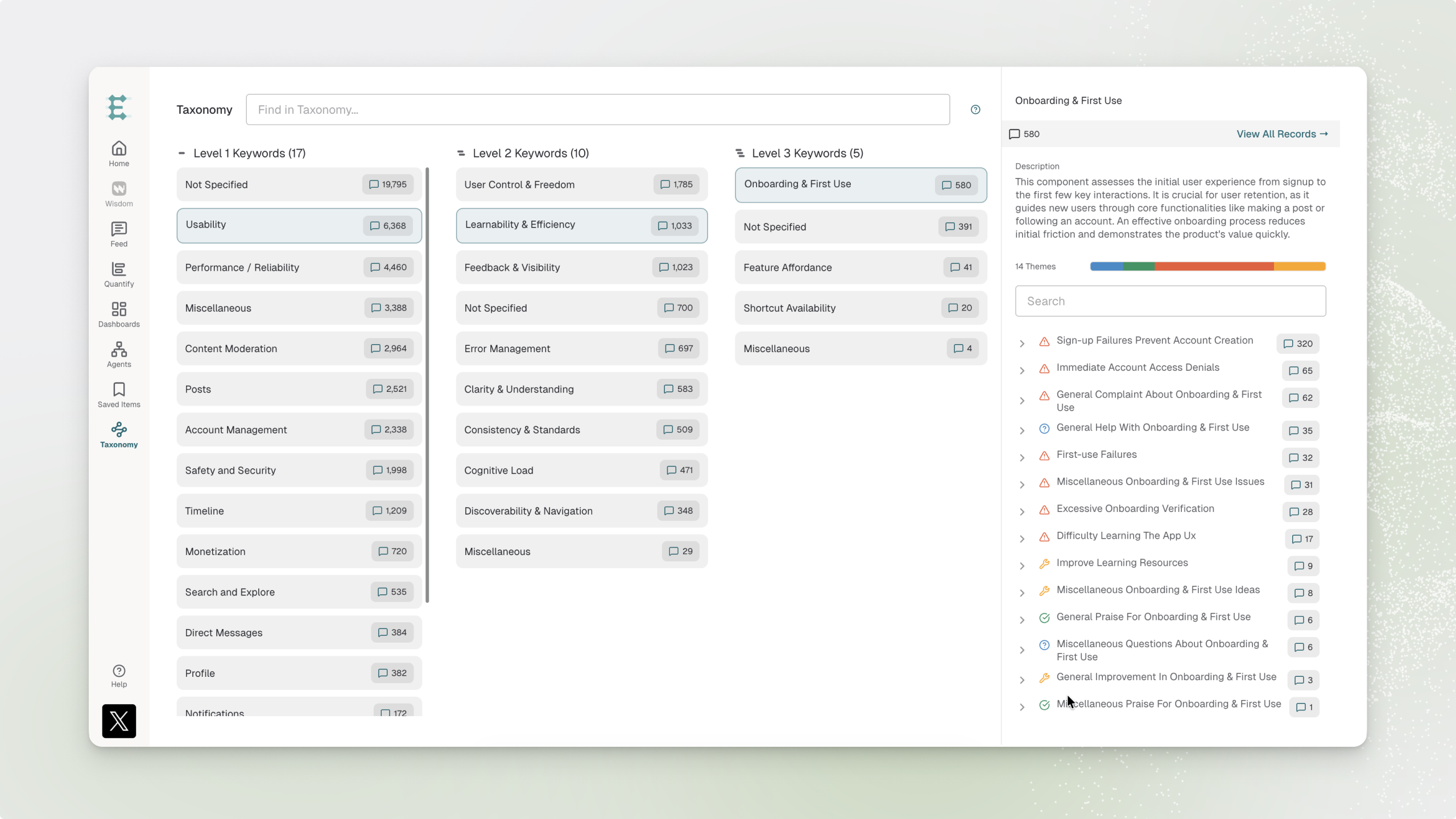
The Taxonomy page now provides a visual, hierarchical view of your entire classification system, making it easy to:
See L1/L2/L3 Keyword relationships at a glance
Understand Theme and Sub-theme mappings
Track how taxonomy evolves over time
Managing Your Taxonomy
The new management interface enables common operations with minimal effort:
Create: Add new Keywords, Themes, or Subthemes
Edit: Modify names, descriptions, and mappings
Move: Move keyword nodes across the hierarchy
Merge: Combine Themes and Subthemes
Archive: Remove outdated taxonomy items
Manage Keywords, Themes, and Sub-themes through Enterpret Agent. Review the prepared changes before publishing them.
Manage taxonomy with Enterpret Agent
From the Taxonomy page, select Edit Taxonomy to open Enterpret Agent. Describe what you want to understand or change, then review the Agent’s findings and prepared changes. Prepared changes are saved for your user and do not affect the live taxonomy until you publish them. For the complete workflow, including reviewing changes, publishing, and historical coverage, see Taxonomy Management.
Taxonomy Predictions in the Feedback Drawer
Taxonomy predictions are organized by Keyword paths (hierarchy nodes), making it easy to see:
The full path from L1 → L2 → L3
Associated Themes and Sub-themes
Category classifications
Visual organization improves:
Scannability: Find relevant classifications faster
Context: Understand where each prediction sits in your product structure
Clarity: See parent-child relationships at a glance
Keyword, Themes and Sub-Themes in Quantify
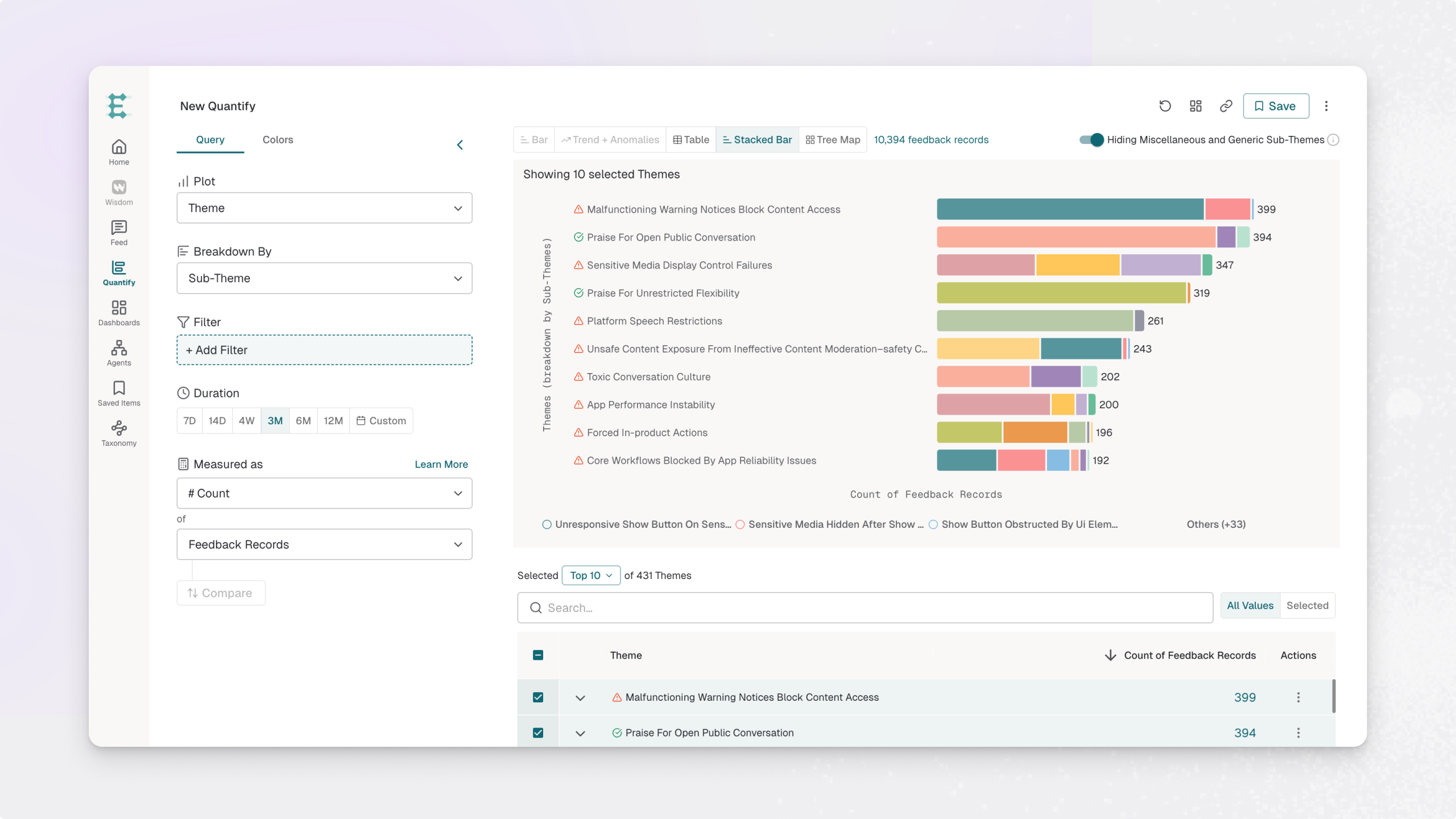
Plot or Breakdown by Keywords or Themes / Sub-Themes
Plot or breakdown by L1/L2/L3 keyword nodes or Themes and Sub-Themes with visual path selection
Deprecated Filters:
Old "Keywords" filter (replaced by hierarchical Keyword filter)
Old "Reasons" filter (replaced by Themes/Sub-themes filter)
Getting Started with Adaptive Taxonomy
Your initial Adaptive Taxonomy can use business context and feedback, including resources such as:
Your existing Tracked Keywords
Knowledge base resources (Help Center, changelog, documentation)
Your product's unique business context
Once deployed, the taxonomy:
Built using your initial business context; review classifications during onboarding.
Can gain new themes and sub-themes through Dynamic Taxonomy where configured.
Can be reviewed and refined as your product and feedback change.
Provides taxonomy paths that you can inspect and correct through the available editing workflows.
Questions? Contact your Enterpret Customer Success team for taxonomy optimization guidance.