
Linear Integration
Overview
Link feedback records, Feeds, Collections, Themes, or Sub-themes to the Linear issue or project that tracks the work.
Linear issues and projects are work items in this guide.
What appears after linking
Enterpret shows the issue status and assignee or the project status and lead in a preview card.
Enterpret attaches a Linear Doc to the issue or project. It lists links to Enterpret and the number of unique feedback records.
Who can see linked work items
Review who can see the item in Enterpret before linking restricted Linear information. People viewing a preview do not need to authorize their own Linear account.
Setup Instructions
Prerequisites
You're an Enterpret admin and have permissions to configure integrations
You have a Linear workspace with admin or owner rights for OAuth consent
Permissions required during consent:
Read access — to fetch issue or project details for preview cards
Write access — for creating Linear Docs with Enterpret references
Admin access to create and manage webhooks for linked items
Step 1: Enable the Integration
In Enterpret, go to Integrations → New Integration → Linear
Select Linear and continue to OAuth
Review and approve requested scopes using a Linear admin account
You'll be redirected back to Enterpret
Step 2: Configure Access Control
We recommend using a service user (an admin user not tied to an individual) so the connection remains stable even if someone leaves the team.
Confirm the authorizing account’s accessible teams and projects with your Linear administrator. Setup requires Linear admin or owner rights; linking controls which work items appear in Enterpret, but is not a separate permission boundary.
How to Use
Link Linear Work Items to Individual Feedback Records
Open a Feedback record
Click Add Work Item
Enter the Linear Issue or Project title or Issue ID
Select the matching item, then click Assign
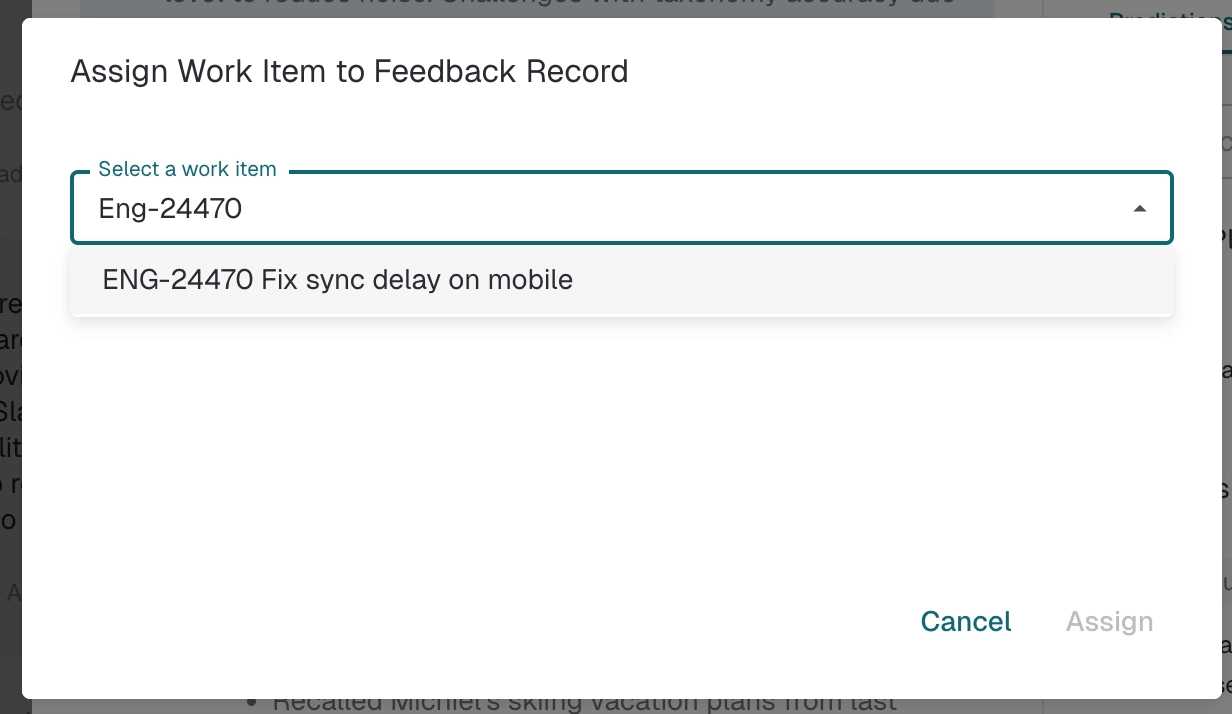
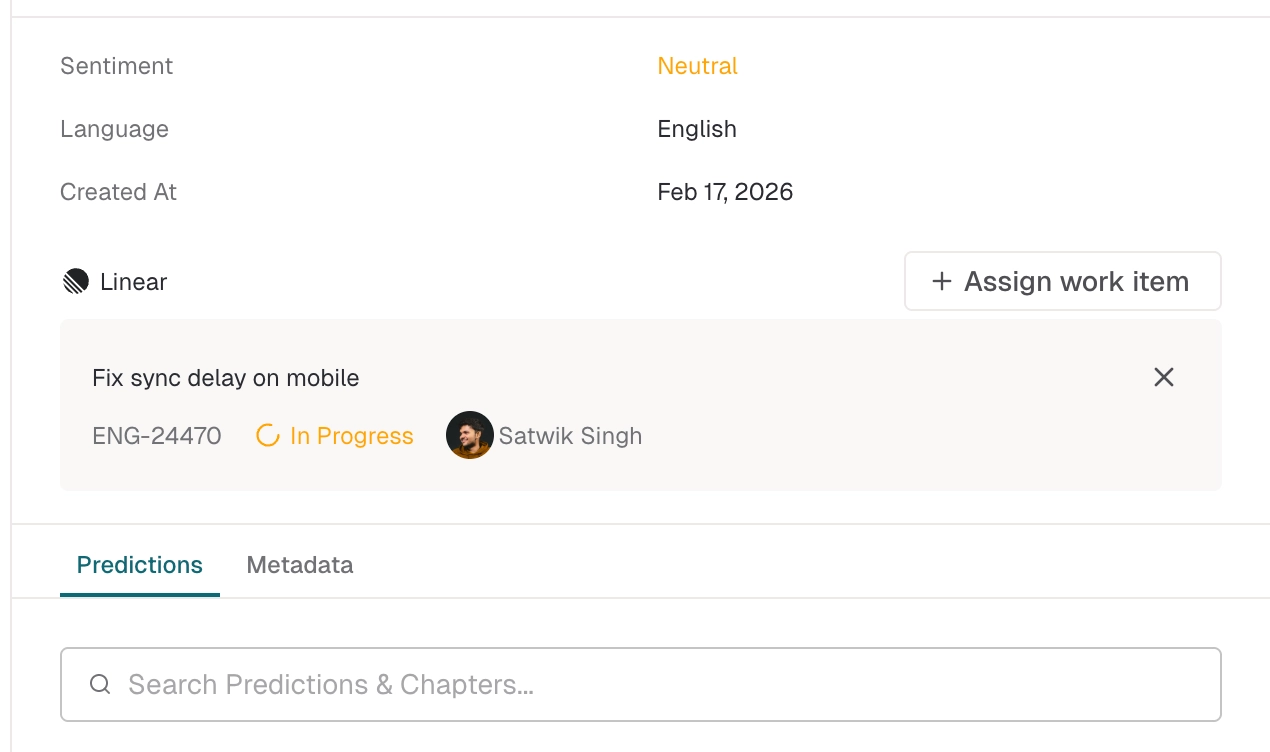
Once linked, a Linear preview card appears in the right panel above Predictions.
Best practices:
Link feedback to an existing Linear issue if the request is already being tracked.
If you have several feedback records describing the same issue, create a Collection in Enterpret and link the Linear issue or project to that Collection instead of linking each record individually.
Use one issue or project per distinct problem or feature request. If the feedback relates to a different problem or area of work, create or link a separate issue.
Link Linear Work Items to Feeds
Connect filtered views of feedback to related Linear work items.
Open a Saved Feed or create a new Feed
Click Add Work Item
Enter the Linear Issue or Project title or Issue ID
Select the matching item, then click Assign

Once linked, a Linear preview card appears above the Feed items.
Best practices:
Use filters to narrow down to specific areas before assigning Linear work items.
Link a work item to the Feed that covers its specific problem or feature request.
Link Linear Work Items to Themes or Sub-Themes
Connect your taxonomy to roadmap items and epics.
In Quantify, plot a Theme or Sub-theme.
Select it on the chart and choose Assign Work Item. If the menu shows a work-item count, open that submenu and choose Assign Work Item there.
Search by the Linear issue or project title, or by issue ID.
Select the matching result, then click Assign.
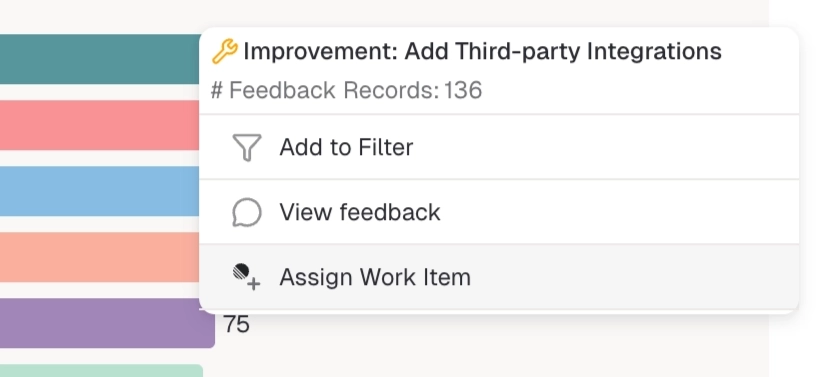
Themes or Sub-themes with linked Linear work items display a Linear icon next to them.
You can also assign Linear work items to themes and sub-themes from Quantify widgets in the dashboard.
Note: Quantify itself doesn't link to Linear work items. Assignments apply only to the selected Theme or Sub-theme.
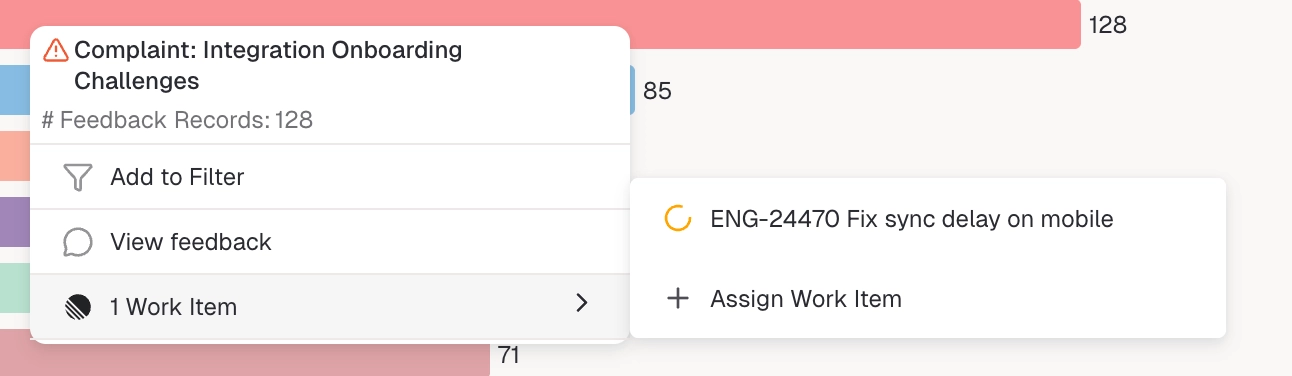
Best practices:
Link a Theme to a work item when both cover the same problem.
Avoid linking very high-level categories that span unrelated work.
Link Linear Work Items to Collections
Group related feedback and connect it to Linear work items.
Open a Saved Collection
Click Add Work Item
Enter the Linear Issue or Project title or Issue ID
Select the matching item, then click Assign
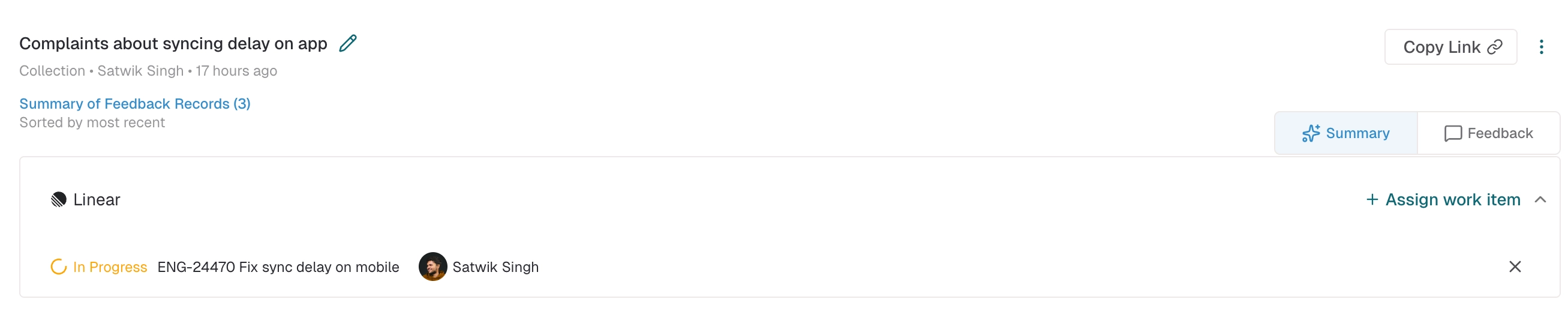
Once linked, a Linear preview card appears above the Collection feed.
Linear Previews in Enterpret
Preview cards display:
Issues: ID, title, status, and assignee
Projects: title, lead, and status
Both include a link back to Linear
After a successful link, a preview appears in Enterpret. Linear webhook events can refresh linked issues and projects; timing depends on event processing and connection access.
What Enterpret adds to Linear
When you link an Enterpret entity (Feed, Collection, Theme/Sub-theme, or Feedback Record) to a Linear issue or project, Enterpret creates a Linear Doc attached to that work item containing:
Total unique feedback count across all linked Enterpret entities
Backlinks to linked Feeds, Collections, Themes, and Feedback Records in Enterpret
Frequently asked questions
Setup & Permissions
Who can enable the Linear integration?
Only Enterpret admins who also have Linear workspace admin or owner rights can connect via OAuth. We recommend using a service account rather than an individual user account for stability.
Can I connect multiple Linear workspaces?
Each Enterpret workspace supports one active work-item integration, such as Linear or Jira. Confirm migration steps with your Enterpret team before changing it.
What OAuth scopes does Enterpret request, and why?
Enterpret requests the following scopes during the OAuth flow:
read — Used to read specific fields (ID, title, status, assignee/lead) from linked Linear issues and projects.
write — Used to create and update Linear Documents that contain Enterpret feedback context attached to linked items.
admin — Used to create and manage webhooks that notify Enterpret when linked items change.
issues:create — Reserved permission for issue creation. Contact Enterpret Support to confirm availability through this integration.
comments:create — Reserved permission for comment creation. Contact Enterpret Support to confirm availability through this integration.
Why does Enterpret need the “Admin” permission?
Linear requires the admin scope to create and manage webhooks. Enterpret uses it for webhooks that receive updates to linked items, such as changes to status or assignee. It does not use this scope to read or modify workspace settings or manage workspace members.
Data & Privacy
What data can Enterpret access in Linear?
The integration uses the Linear account that authorized it. Enterpret can fetch issues and projects when users search for them and refresh items after they are linked. It does not bulk-import your Linear workspace.
What fields are shown for linked Linear items?
The preview cards in Enterpret display a limited set of fields:
Issues: ID, title, status, and assignee
Projects: title, lead, and status
Both: a direct link back to the item in Linear
Webhook events can refresh linked items after the initial link; timing depends on processing and connection access.
Can we control which Linear data Enterpret syncs?
This work-item integration fetches the issues and projects users search for or link; it does not bulk-import your Linear workspace. There are no separate team, project, or field filters in this setup. Preview cards show selected fields, while synchronization also accesses item data such as descriptions and metadata.
What does Enterpret write to Linear?
When a Linear item is linked, Enterpret creates a Linear Document containing the total unique feedback count and backlinks to all connected Enterpret entities (records, feeds, themes, collections).
Usage
Are both Linear Issues and Projects supported?
Yes. You can link and preview both issues and projects.
Who can see linked Linear items in Enterpret?
Linked Linear details appear alongside the Enterpret entity where they are shown. Confirm the audience of that entity before linking restricted Linear information; previews do not require each viewer to authorize their own Linear account.
Can a single Linear item be linked to multiple Enterpret objects?
Yes. A single Linear issue or project can be linked to multiple feedback records, feeds, themes, or collections.
How do I unlink a Linear item?
Click the “×” icon next to the linked Linear item, then confirm Unlink Work Item.
What happens if I deactivate the integration?
Deactivating the integration stops its assignment displays in Enterpret. Do not assume that this erases every saved relationship or deletes documents already written to Linear. Confirm cleanup and migration steps with your Enterpret team before disconnecting.
For questions or support, reach out to support@enterpret.com